

 TL;DR:
Deleted memory card photos are often recoverable using software like Recoverit or PhotoRec, provided you immediately stop using the card to prevent data overwriting and save the restored files to a separate drive.
● Do not run repair utilities like CHKDSK or First Aid, and ignore any operating system format prompts, because altering the file system significantly reduces recovery chances.
● For free software options, PhotoRec bypasses the file system to salvage data from corrupted cards but loses original file names, while Recuva is limited to basic file undeletion exclusively on Windows.
● Stop software recovery attempts and contact a professional service if the memory card is physically damaged, continuously disconnects during scanning, or fails to be detected by multiple readers.
Ask AI for a summary
 ChatGPT
 Perplexity
 Gemini
 Claude
 Grok
Grok
Losing photos from a memory card can feel frightening, especially when the card stores family moments, travel photos, wedding shots, client work, or once-in-a-lifetime camera files. The good news is that deleted photos may still be recoverable if the original data has not been overwritten.
Quick answer: To recover photos from a memory card, stop using the card immediately, remove it from the camera or phone, and do not format or repair it first. Check cloud backups, computer imports, and Trash. If the photos were deleted, formatted, corrupted, RAW, or missing, scan the card with photo recovery software such as Recoverit or PhotoRec and save recovered photos to another drive.
In this article
-
- 1. Check Auto Backups on Google Photos, iCloud, OneDrive, or Camera Apps
- 2. Try Recuva for Basic Photo Recovery on Windows
- 3. Try PhotoRec for Free Open-Source Memory Card Recovery
- 4. Check Whether Photos Were Imported to a Computer Before Deletion
- What Free Tools Can Recover and Where They Fall Short
Part 1. Can You Recover Deleted Photos from a Memory Card?
Yes, you can often recover deleted photos from a memory card if the card is still detected and the deleted photo data has not been overwritten.
When you delete pictures from a memory card, the files usually disappear from normal view. However, the actual photo data may remain on the card until new photos, videos, or files reuse the same storage space. That is why stopping card use immediately gives you a better recovery chance.
Recovery Is More Likely When
- You stop using the memory card immediately.
- The card is still detected by a computer or camera.
- The photos were deleted recently.
- The card was quick formatted instead of securely erased.
- No new photos, videos, or files were saved after deletion.
- The card is not physically damaged.
Recovery Is Less Likely When
- New files overwrote the deleted photo data.
- The card is cracked, wet, burned, or bent.
- No device can detect the card.
- The photos were securely erased or fully overwritten.
- The card disconnects repeatedly during scanning.
- The recovered photo files are incomplete or badly corrupted.
What Not to Do Before Recovering Memory Card Photos
If the photos matter, do not:
- Take new photos with the same card.
- Record new videos on the card.
- Format the memory card.
- Run CHKDSK, First Aid, or repair tools first.
- Save recovered photos back to the same card.
- Keep forcing a physically damaged card to connect.
Recover the photos first. Repair or format the card only after your files are safe.
Part 2. Quick Diagnosis: Which Memory Card Photo Recovery Method Fits Your Case?
Your recovery method depends on how the photos were lost. Use this table to choose the safest path.
| Your Situation | Likely Cause | First Safe Action | Do Not Do This |
| Photos were deleted by mistake | Accidental deletion | Stop using the card and scan it | Do not take new photos |
| Card was formatted | File system reset | Run a deep photo recovery scan | Do not format again |
| Card appears empty | Hidden files or damaged directory | Check hidden files, then scan | Do not copy new files to it |
| RAW card or format prompt | Corrupted file system | Recover photos before repair | Do not click Format |
| Photos or videos will not open | File corruption or incomplete write | Recover intact files first | Do not overwrite originals |
| Used in camera, drone, or GoPro | Device-specific folder structure | Use software that supports camera media | Do not reformat before backup |
| Card not detected | Reader, port, driver, or hardware issue | Try another reader or computer | Do not force repeated repairs |
| Card is physically damaged | Hardware damage | Stop DIY attempts | Do not keep scanning it |
Part 3. Why Photos Get Lost from a Memory Card
You cannot undelete photos from memory card storage without knowing why the loss happens. Thus, the reasons explain exactly how and why your photos went missing:
- Accidental Deletion: You may delete similar photos too quickly in a camera, phone, or computer folder. Deleted photos may still be recoverable until overwritten.
- Card Formatting: Formatting rebuilds the file system and removes normal access to stored photos. A quick format may still leave photo data recoverable if nothing new was saved afterward.
- Unsafe Removal: Pulling the card out during transfer can interrupt writing and damage folders, indexes, or photo files.
- Power Loss: Sudden battery drain during shooting, transfer, or recording can leave photos or videos incomplete.
- File System Corruption: A corrupted memory card may show RAW, appear empty, ask to be formatted, or refuse to open.
- Virus or Malware Damage: Malware may hide, rename, delete, encrypt, or corrupt stored photo files.
- Cross-Device Use: A card used across cameras, phones, drones, GoPro devices, Windows PCs, and Macs may develop compatibility or folder structure issues.
- Physical Card Damage: Heat, moisture, drops, cracked plastic, damaged contacts, or worn memory cells can make recovery harder.
Part 4. Before Recovery: What Not to Do With the Memory Card
These quick steps help protect your remaining photo data.
| Step | What to Do | Why It Matters |
| Stop Using the Card | Remove it from the camera, phone, drone, or computer | Prevents overwriting |
| Do Not Capture New Photos | Stop shooting immediately | Keeps deleted photo space untouched |
| Avoid Formatting | Ignore format prompts for now | Formatting can make recovery harder |
| Avoid Repair Tools First | Do not run CHKDSK, First Aid, or repair tools yet | Repairs can change file system structures |
| Use a Stable Card Reader | Connect through a reliable reader | Prevents scan interruptions |
| Recover to Another Drive | Save recovered photos to a computer or external drive | Prevents overwriting the same card |
| Check Simple Backups First | Look in cloud, computer folders, and Trash | May restore files without scanning |
Part 5. Recover Deleted Photos from a Memory Card with Recoverit Photo Recovery
If backups and simple checks do not find your photos, use photo recovery software to scan the memory card.
Recoverit Photo Recovery is useful when deleted, formatted, corrupted, or RAW memory cards still appear on a computer. It scans the card in read-only mode, lets you preview recoverable photos, videos, and audio files, and helps save selected results to another drive.
When Recoverit Photo Recovery Is a Good Fit
Use Recoverit when:
- Photos were deleted from a memory card.
- The card was formatted.
- The card shows RAW or asks to be formatted.
- Photos disappeared from a camera, drone, phone, or GoPro card.
- The card appears empty but should contain photos.
- Photos or videos are missing after transfer interruption.
- You need to preview recoverable files before saving.
- Free backup methods cannot find the photos.
When Recoverit May Not Work
Recoverit may not help if:
- The memory card is physically broken.
- No device can detect the card.
- The card disconnects every few seconds.
- The deleted photos were overwritten by new data.
- The card was securely erased.
- The files are too damaged to reconstruct.
For physical damage or irreplaceable photos, stop repeated DIY attempts and consider a professional data recovery service.
What Photo, Video, and Audio Formats Recoverit Can Recover
Below is a quick overview of the most common supported formats:
| Format Category | Supported File Types |
| Photos | JPG, JPEG, PNG, BMP, TIFF, GIF, PSD, RAW (CR2, CR3, NEF, ARW, DNG, RAF, ORF, RW2), and more |
| Videos | MP4, MOV, AVI, MKV, MTS, M2TS, AVCHD, MXF, BRAW, FLV, WMV, M4V, and more |
| Audio | MP3, WAV, AAC, FLAC, AIFF, OGG, WMA, AMR, M4A, ALAC, and more |
What Memory Cards and Camera Devices Does Recoverit Support
The following table shows you an overview of the broad support of Recoverit:
| Category | Supported Types |
| SD Cards | SD, SDHC, SDXC, MiniSD, MicroSD, MicroSDHC, MicroSDXC, MicroSDUC, WiFi SD |
| CompactFlash Cards | CF Type I, CF Type II, CF 2.0, CF 3.0, Microdrive |
| Memory Stick Cards | Memory Stick, Memory Stick PRO, Memory Stick Duo, Memory Stick PRO Duo, Memory Stick PRO-HG Duo, Memory Stick Micro (M2) |
| MultiMediaCards (MMC) | MMC, RS-MMC, DV-MMC, MMCplus, MMCmicro, SecureMMC, MiCard, eMMC |
| Other Memory Cards | xD-Picture Card, SmartMedia Card, Nano Memory (NM) Card |
| Supported Camera Devices | DSLR cameras, mirrorless cameras, compact digital cameras, action cameras, camcorders, drone cameras, dash cams, DVR systems, and home surveillance cameras |
| Supported Camera Brands | Canon, Nikon, Sony, Fujifilm, Panasonic, Olympus, GoPro, DJI, Hasselblad |
Step-by-Step Guide to Restore Photos from a Memory Card Using Recoverit
Go through the given guide to help you recover photos from the memory card via this tool:
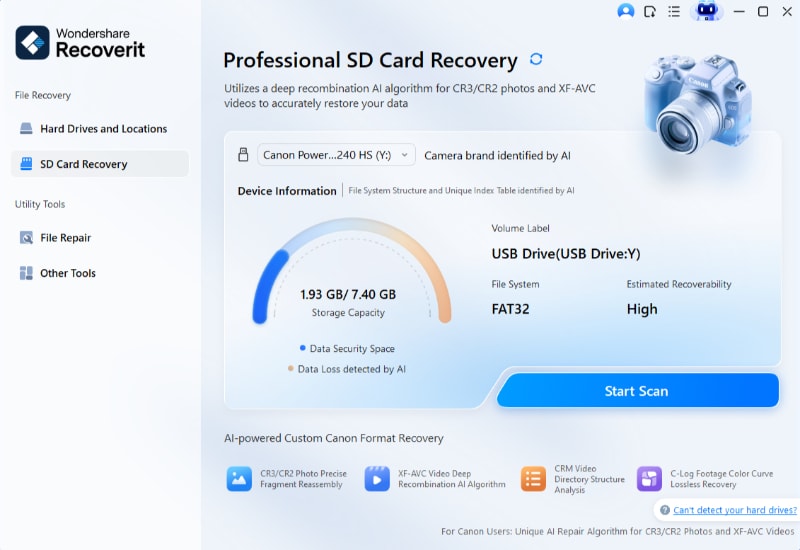
Step 1. Select the Memory Card Containing Your Photos
Upon accessing the “SD Card Recovery” tab, choose your memory card and press “Start Scan.”
Step 2. Scan the Memory Card for Deleted Pictures
Going ahead, Recoverit performs a thorough scan to locate deleted and missing photo files.
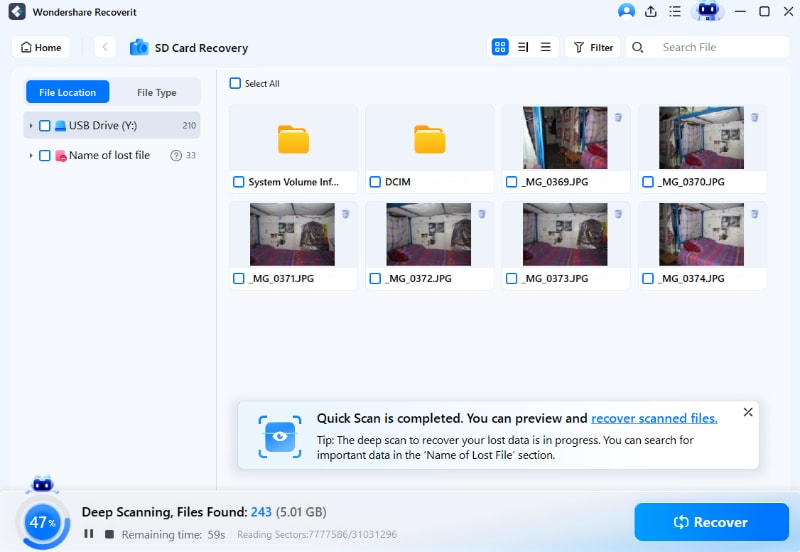
Step 3. Retrieve Photos to Another Location
When you check recovered images, select the needed photos and click “Recover” to save them elsewhere.

Part 6. Free Ways to Recover Photos from a Memory Card
Not every situation requires paid software to retrieve photos from memory card storage. So, the free methods below work well for simple photo loss cases on your card:
1. Check Auto Backups on Google Photos, iCloud, OneDrive, or Camera Apps
Many cloud services back up photos if enabled before you notice deletion. Platforms, such as Google Photos and iCloud, often sync images in the background.
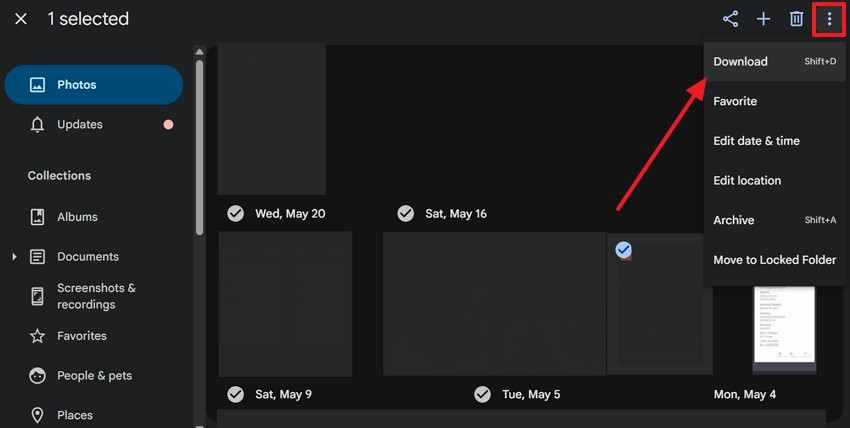
Some camera apps also save copies of your photos automatically without any extra effort. Check a backup location like Google Photos first before trying any recovery steps below:
- Access “Google Photos” > Locate and select your backed up image > Click “Three Dots” > Choose “Download.”
2. Try Recuva for Basic Photo Recovery on Windows
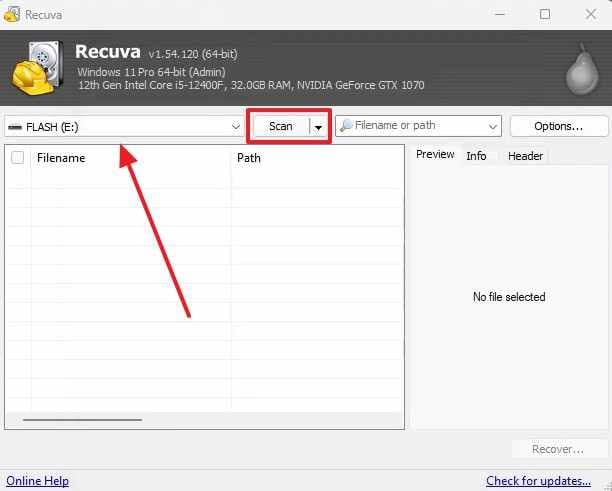
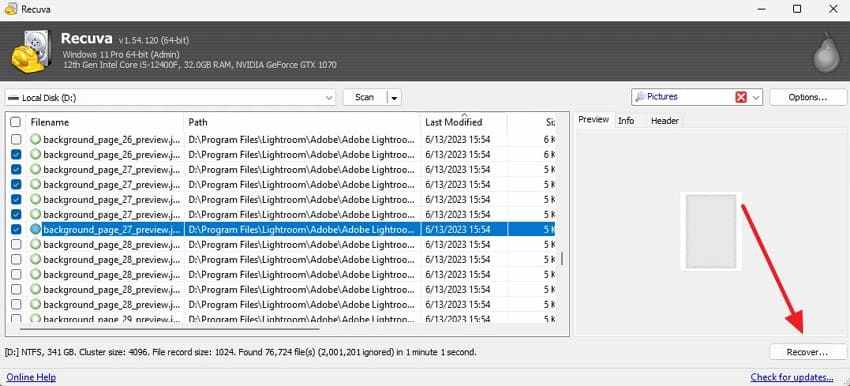
Recuva also works as a simple tool to undelete photos from memory card storage. This free program scans drives and detects deleted image files. Recuva supports basic recovery, but results often vary depending on the card's condition. Follow these simple steps below to try it for your memory card:
Step 1. Choose your “Memory Card” from the tool’s main screen > Press the “Scan” button.
Step 2. After waiting for a few moments, preview the recoverable photos to select them and click “Restore.”
3. Try PhotoRec for Free Open-Source Memory Card Recovery
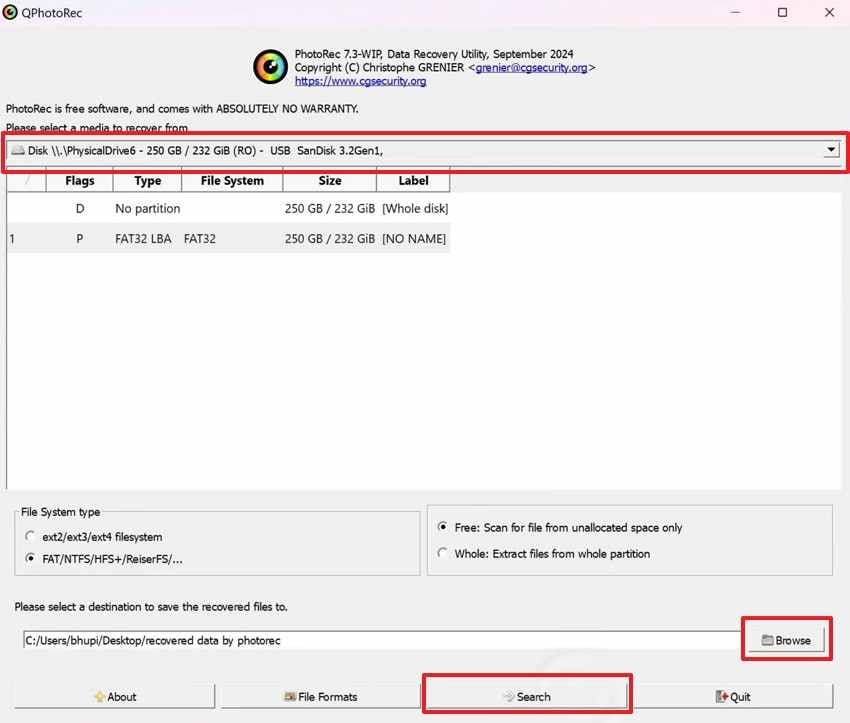
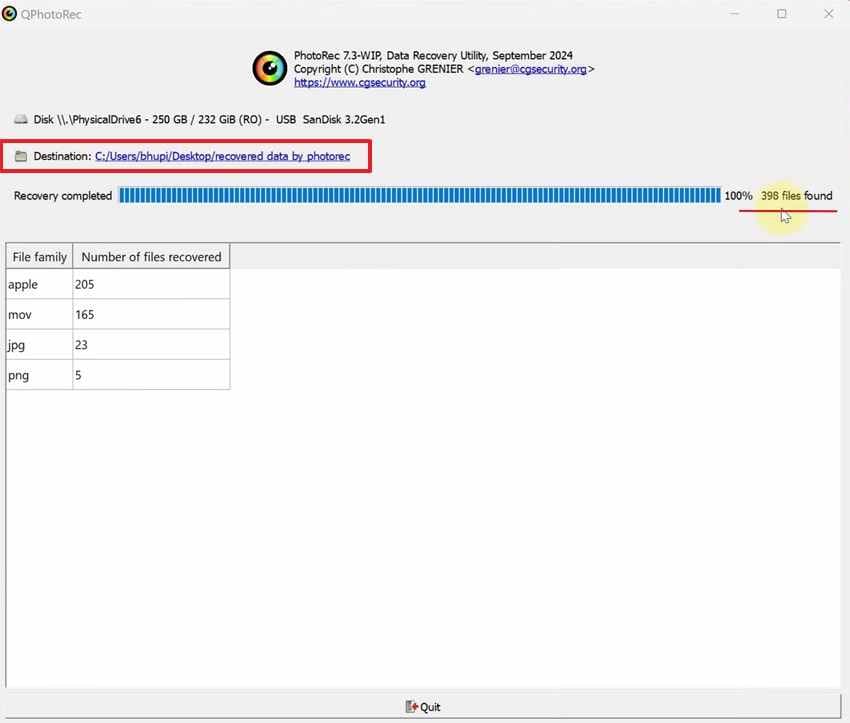
PhotoRec offers a free, open-source option for deeper memory card scans. It ignores file systems and scans raw data directly. This approach makes it useful for severe corruption or RAW cards. Adhere to the instructions listed below to perform this task:
Step 1. Select your “Memory Card” inside PhotoRec > Press “Browse” to select the output destination > Click “Search.”
Step 2. As the tool completes the scanning process, press the “Destination” path to view them.
4. Check Whether Photos Were Imported to a Computer Before Deletion
You may also have to transfer photos to your computer before any deletion happens. Therefore, you should check your “Pictures” or “Downloads” folder to check copies already saved. This simple step helps recover deleted photos from memory card situations entirely. Search thoroughly through folders before assuming your photos are lost.
What Free Tools Can Recover and Where They Fall Short
The table below shows what free data recovery methods can handle well or poorly:
| Free Tool | Best Use Case | Main Limitation |
| Cloud Backup Apps | Photos were already synced | No help if backup was off |
| Recuva | Simple deletion on Windows | Not native to Mac; weaker for RAW/corruption |
| PhotoRec | Free deep recovery | File names and folder structure may be lost |
Move to a paid or beginner-friendly solution when free tools cannot detect, preview, or restore the photos you need.
Part 7. Retrieve Photos When the Memory Card Is Corrupted or Unreadable
A corrupted or unreadable memory card needs extra care. Do not rush to repair or format it.
- Avoid Repairs: Do not run CHKDSK, First Aid, or similar repair tools before recovery. Recover your photos first because repairing a damaged file system may reduce recovery chances.
- Scan the Card with Recovery Software: Use recovery software that can scan RAW or corrupted file systems. It can locate recoverable photos even when the card cannot be read normally.
- Try Another Card Reader or Computer: If the memory card is not detected, test it with another card reader, USB port, or computer. Detection problems are often caused by faulty readers or drivers.
- Do Not Format the Card: Ignore any prompt asking you to format the memory card. Formatting creates a new file system and makes photo recovery more difficult.
- Seek Professional Recovery for Physical Damage: If the card is physically damaged or remains unreadable on multiple devices, consult a professional data recovery service with cleanroom facilities.
Part 8. What If You Cannot Recover Photos from the Memory Card?
Sometimes, even good tools fail to recover the photos deleted from the memory card storage. The table below explains common reasons and what steps you should take next:
| Possible Reason | What It Means | What to Do |
| Data Overwritten | New files replaced your deleted photos | Stop using the card immediately |
| Physical Damage | The card chip or connector is damaged | Contact professional recovery |
| Wrong Capacity Shown | Card shows 0 bytes or incorrect size | Try another reader; stop if unchanged |
| Card Disconnects | Connection drops during scan | Try a stable reader or professional help |
| Secure Erase Used | Old data was overwritten intentionally | Recovery is unlikely |
| Recovered Photos Are Corrupted | Files were partially overwritten or damaged | Try deep scan; recover alternative copies |
| Critical Photos Still Missing | DIY tools cannot reconstruct them | Seek professional recovery |
Part 9. How to Protect Memory Card Photos Going Forward
Good habits prevent needing to recover the photos deleted from the memory card storage again. These simple practices below protect your photos from future loss:
- Back Up: Create cloud or computer backups of your photos after every shoot. This habit protects your images even if the memory card later fails.
- Format in the Camera: Format the memory card using your camera after backing up your photos. This helps maintain the correct file system and reduces file system errors.
- Safely Eject the Card: Always safely eject the memory card before removing it from a computer. This prevents interrupted write operations that can corrupt files.
- Avoid Filling the Card Completely: Leave some free space on the memory card during use. Free space helps reduce write errors and lowers the risk of file corruption.
- Replace Aging Memory Cards: Replace old or unreliable memory cards before they fail. Doing so reduces the risk of unexpected photo loss during important shoots.
Conclusion
Deleted memory card photos are often recoverable if you act quickly and avoid overwriting the card. Stop using the card first, check backups and computer imports, and avoid formatting or repair tools until your photos are safe.
For simple cases, cloud backups, Trash, Recycle Bin, Recuva, or PhotoRec may help. For deleted, formatted, RAW, corrupted, or unreadable memory cards, Recoverit Photo Recovery can scan the card, preview recoverable photos, and save selected files to another drive.
After recovering your photos, you can repair, format, or replace the memory card if needed. If the card is physically damaged or not detected by any device, professional recovery is safer than repeated DIY scans.
FAQs
-
1 Can I Recover Deleted Photos from a Memory Card?
Yes, if the memory card is still detected and the deleted photo data has not been overwritten. Stop using the card immediately and scan it with recovery software. -
2 How Do I Recover Photos from a Memory Card for Free?
Check cloud backups, computer imports, Trash, Recycle Bin, and Recently Deleted folders first. You can also try PhotoRec for free open-source recovery, but it may not keep original file names or folders. -
3 Can I Recover Photos After Formatting a Memory Card?
Yes, recovery may be possible after a quick format if new data has not overwritten the photos. Stop using the card and run a deep scan. -
4 Can I Recover RAW Photos from a Camera Memory Card?
Yes, photo recovery software may recover RAW formats such as CR2, CR3, NEF, ARW, DNG, RAF, ORF, and RW2 if the files have not been overwritten. -
5 Should I Run CHKDSK Before Photo Recovery?
No, not if the photos matter. CHKDSK is a repair tool and may change file system structures. Recover photos first, then repair the card. -
6 Can PhotoRec Recover Memory Card Photos?
Yes. PhotoRec can recover photos by scanning file signatures, even when the file system is damaged. However, original file names and folder structures may not be preserved. -
7 Can Recuva Recover Deleted Photos from Memory Cards?
Yes, Recuva can help with simple deletion cases on Windows. It is not a native Mac tool and may be less effective for RAW, formatted, or corrupted cards. -
8 Why Are Some Recovered Photos Corrupted?
Recovered photos may be corrupted if parts of the files were overwritten, stored in bad sectors, or damaged during an interrupted write. Try a deeper scan and recover alternative copies if available. -
9 Where Should I Save Recovered Memory Card Photos?
Save recovered photos to your computer, an external drive, or another healthy storage device. Do not save recovered files back to the same memory card. -
10 When Should I Stop DIY Recovery and Contact a Professional?
Stop DIY recovery if the card is physically damaged, not detected by any device, shows the wrong capacity, disconnects repeatedly, or contains irreplaceable photos.


