

 TL;DR:
You can secure a USB hard drive by using Veracrypt, a free open-source tool for Windows, macOS, and Linux, to create an AES-encrypted volume that requires a password to mount and access.
● Back up all existing files before starting, as selecting the "Encrypt a non-system partition/drive" setup option requires formatting the USB drive, which permanently erases current data.
● Data recovery using Wondershare Recoverit is strictly conditional; the software can only scan and restore missing files if the encrypted USB drive can still be successfully mounted first.
● Prevent damage to the encryption structure by always using the "Safely Remove Hardware" option before disconnecting, and avoid mounting the drive on public computers to protect your password from keyloggers.
Ask AI for a summary
 ChatGPT
 Perplexity
 Gemini
 Claude
 Grok
Grok
USB hard drives are small, fast, and easy to carry. Many people use them to store office documents, family photos, videos, backups, and even software files. Because they are portable, they are also easy to lose. A lost USB drive can create serious trouble. Anyone who finds it can connect it to a computer and try to open the files. This is why many users search for how to encrypt USB hard drive with Veracrypt. They want a simple and reliable way to protect private data.
Data protection is no longer optional. Personal details, financial records, and business files should not stay unprotected. Encryption converts readable data into secure code. Without the correct password, the content cannot be opened. Veracrypt USB encryption is widely used because it is free and dependable.
In this detailed guide, you will learn how to encrypt USB hard drive with Veracrypt step by step. You will also understand what is Veracrypt, how to use USB Veracrypt properly, and how to recover data from Veracrypt encerypted USB drive if data loss happens.
Table of Contents
Part 1: What is Veracrypt?
Many users first ask what is Veracrypt before they begin encryption. Veracrypt is a free, open source disk encryption software. It allows users to secure files, folders, and entire storage drives. The software works on Windows, macOS, and Linux systems. It was developed as an improved version of older encryption tools and focuses on strong security and privacy.
Veracrypt creates encrypted containers called volumes. These volumes behave like normal drives after you unlock them with a password. When locked, the data inside cannot be accessed. This makes Veracrypt USB encryption suitable for portable drives.
Many individuals and businesses use it daily. It is also common for users to use Veracrypt to encrypt a USB flash drive because the program is simple and does not require advanced technical skills.
Part 2: Why Encrypt a USB Hard Drive?
A USB hard drive is convenient, but convenience also brings risk. Encryption protects your files from unauthorized access and accidental exposure.
- Protect personal information: Documents such as ID scans, tax files, and private photos should not be visible to strangers.
- Secure office data: Business presentations, contracts, and internal reports must remain confidential.
- Prevent identity theft: Stolen personal records can be misused for fraud.
- Comply with regulations: Some industries require data encryption for legal reasons.
- Reduce damage from loss: If the USB drive is lost, encrypted files remain protected.
- Stop unauthorized copying: Encryption blocks others from copying your data without permission.
- Add an extra security layer: Antivirus tools do not protect stored data from physical theft.
- Build digital responsibility: Data safety reflects professional discipline and careful practice.
For these reasons, many people decide to learn how to encrypt USB hard drive with Veracrypt before storing important files.
Part 3: How to Encrypt a USB Hard Drive with Veracrypt
Before you start, create a backup of all files saved on the USB hard drive. The encryption process can remove existing data from the device. Install the newest version of the software on your computer. Confirm that the USB drive is correctly connected and recognized by your system.
Learning how to encrypt USB hard drive with Veracrypt does not require advanced skills. The software provides clear, guided instructions throughout the setup. Veracrypt USB encryption can protect the complete drive or allow you to create a secure container within it. The following method explains how to encrypt the entire USB drive in a simple way.
Step 1: Install and Launch the Program
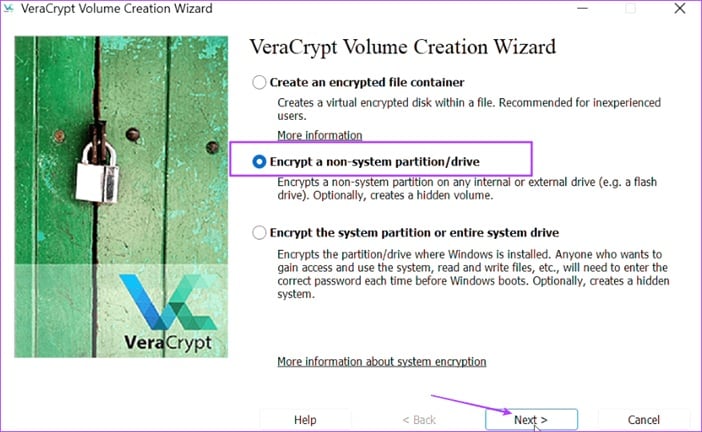
Download and install Veracrypt from its official website. Launch the program and connect your USB hard drive to the computer. Click on “Create Volume.” Then choose the option “Encrypt a non-system partition/drive.”
Step 2: Choose the USB Drive and Set Security Options
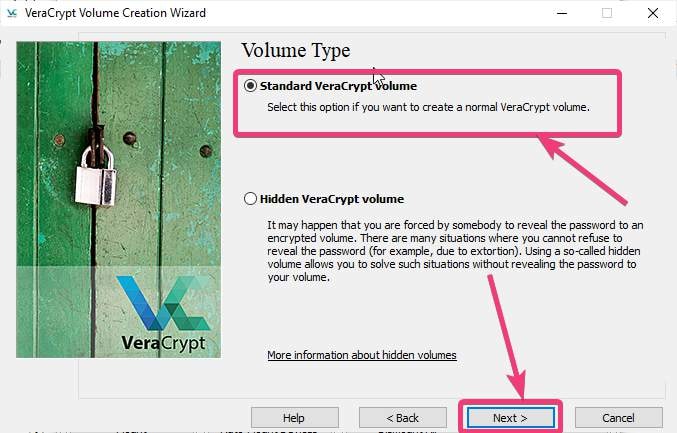
Select “Standard Veracrypt volume.” Click Next. Choose your USB hard drive from the list. Confirm that you selected the correct drive to avoid mistakes.
Step 3: Choose Encryption Algorithm
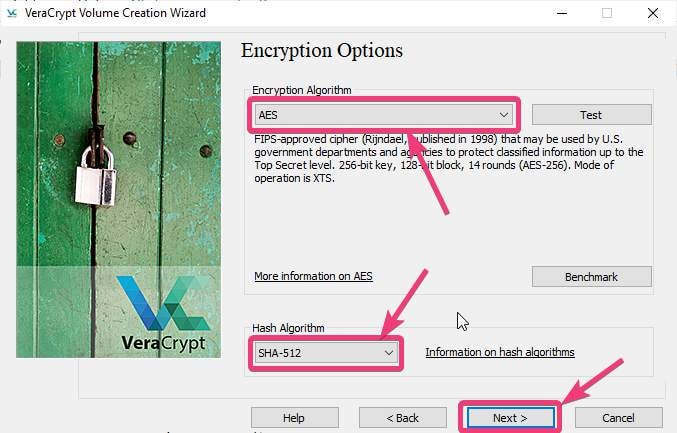
Choose the encryption algorithm. AES is recommended for most users because it offers strong protection. Set a strong password. This step is important when you use Veracrypt to encrypt a USB flash drive because password strength directly affects security.
Step 4: Format and Complete Encryption
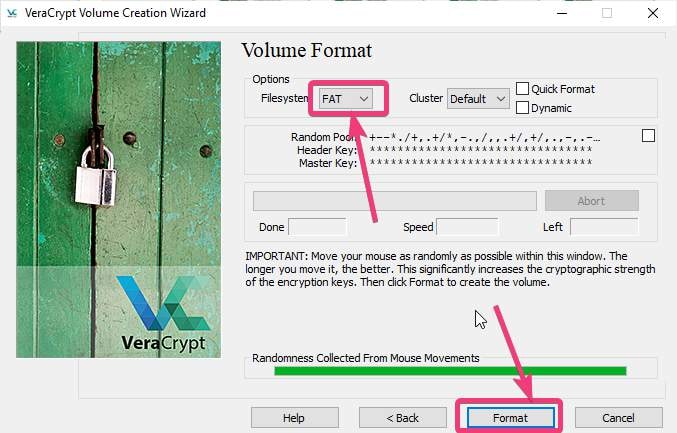
Choose the file system that suits your needs. Click Format to begin the encryption process. Wait patiently until the process is finished. Once completed, your USB drive is encrypted. To access it, open the software, select the drive, click Mount, and enter your password. This explains how to use USB Veracrypt safely for daily access.
If you follow these steps carefully, you will clearly understand how to encrypt USB hard drive with Veracrypt and maintain control over your data.
Part 4: How Does Veracrypt Encryption Work?
Veracrypt relies on advanced encryption algorithms. These algorithms transform readable data into encrypted code. The process uses mathematical keys generated from your password. Without the correct password, the encrypted data appears meaningless.
When you mount the encrypted USB drive, the software decrypts the data automatically in the background. You can open, edit, and save files normally. Once you unmount the drive, the protection returns instantly. This continuous locking and unlocking process is the foundation of Veracrypt USB encryption. It provides strong protection while maintaining normal usability.
Part 5: Strong Security and Full Data Control
Encrypting your USB drive gives you direct control over who can access your data. It reduces risk and increases confidence when carrying important files.
Veracrypt USB encryption provides practical advantages for both personal and professional use.
- Reliable security standard: Uses trusted encryption methods accepted worldwide.
- No licensing cost: The software is free for everyone.
- Multi platform support: Works across major operating systems.
- Complete drive protection: Secures all content inside the USB drive.
- Hidden volume option: Allows an additional private section for advanced privacy.
- Flexible configuration: Users can adjust encryption settings as needed.
- Strong password system: Access depends entirely on your chosen password.
- Trusted reputation: Used by millions for secure storage.
Because of these benefits, many people choose to use Veracrypt to encrypt a USB flash drive instead of leaving it unprotected.
Part 6: How to Recover Lost Data from an Encrypted USB Drive: Use Recoverit Software
Even with proper protection, data loss can still happen. Files may be deleted accidentally. The USB drive may become corrupted. Formatting errors can remove data unexpectedly. In these situations, users often search for how to recover data from Veracrypt encerypted USB drive.
Recoverit is a professional data recovery solution designed to restore deleted or lost files from different storage devices. It supports USB drives, external hard disks, and memory cards. If the encrypted USB drive can be mounted successfully, Recoverit can scan and recover missing files. This makes it helpful for anyone who needs to understand how to recover data from Veracrypt encerypted USB drive after an unexpected problem.
The software offers a user-friendly interface and guided recovery steps. It performs deep scans to locate hidden or deleted files. For users who feel stressed about lost data, Recoverit provides a structured and practical solution when learning how to recover data from Veracrypt encerypted USB drive safely.

Why Use Recoverit?
- Supports encrypted USB drives after mounting
- Deep scan mode for thorough search
- Recovers documents, photos, videos, and more
- Preview files before restoring
- Simple step-based interface
- High recovery efficiency
Recovery Steps
Step 1: Mount the encrypted USB drive using Veracrypt. Open Recoverit. Select the mounted USB drive location.

Step 2: Start the scan. Wait until the deep scan completes. Review the listed files and preview important ones.

Step 3: Select the files you need. Click Recover. Save them to another secure storage location to prevent overwriting.

By following these steps, users can better understand how to recover data from Veracrypt encerypted USB drive without causing further damage.
Part 7: Smart Tips for Safe Veracrypt USB Use
Encryption works best when combined with careful habits. Proper usage reduces risk and improves data safety.
- Create a strong and unique password: Use a combination of uppercase letters, lowercase letters, numbers, and symbols. Avoid simple dictionary words, birth dates, or repeated patterns. A longer password is harder to guess and offers stronger protection for your encrypted USB drive.
- Keep a secure password record: Write the password on paper and store it in a safe place, such as a locked drawer. Do not leave it near your computer or inside the same bag as your USB drive. Avoid saving it in plain text on your system.
- Back up important data: Always keep at least one additional copy of your critical files. Store the backup on another external drive or in secure cloud storage. If your encrypted USB becomes damaged, your backup will protect you from permanent data loss.
- Safely remove the USB drive: Use the “Safely Remove Hardware” option before disconnecting the drive. This prevents file system errors and corruption. Removing the drive suddenly while files are in use may damage both data and encryption structure.
- Update the software regularly: Install official updates when they become available. Updates often fix bugs, improve compatibility, and strengthen security. Using an outdated version may expose your data to known vulnerabilities.
- Avoid suspicious computers: Do not connect your encrypted USB drive to unknown or public computers. These systems may contain hidden malware or keyloggers. Such threats can steal your password or damage your files.
- Perform regular virus scans: Scan your main computer with trusted security software. Even though encryption protects stored data, malware can still affect your system. Regular scanning reduces the risk of infection.
These simple habits strengthen Veracrypt USB encryption and reduce common errors.
Conclusion
USB hard drives are useful but vulnerable. Losing one without encryption can expose sensitive personal or business data. Learning how to encrypt USB hard drive with Veracrypt is an important step toward responsible data protection. The process is clear and manageable for beginners.
You now understand what is Veracrypt, how encryption works, and how to use USB Veracrypt for daily file access. You also learned how to recover data from Veracrypt encerypted USB drive if files are lost. With proper setup and careful habits, Veracrypt USB encryption provides strong and reliable protection for portable storage devices.
FAQs
-
Is Veracrypt difficult for beginners?
Veracrypt is not difficult for beginners if they follow the guided steps carefully. The software provides a clear setup wizard that explains each stage of the process. After creating and mounting an encrypted drive a few times, most users become comfortable managing it. Basic understanding and careful attention are usually enough to maintain proper security. -
Can encrypted USB drives be used on different computers?
Yes, encrypted USB drives can be used on different computers as long as Veracrypt is installed on those systems. You simply connect the USB drive, open the program, mount the drive, and enter the correct password. Once unlocked, the files work like normal storage. Without the password, the data remains protected. -
Does encryption slow down the USB drive?
Encryption may cause a small reduction in speed, but the change is usually minor. Modern processors handle encryption tasks efficiently, so file access and transfers remain smooth in everyday use. Most users do not notice a significant difference during regular operations.


