 TL;DR:
The historical ADATA USB Flash Drive Online Recovery utility repairs malfunctioning drives by rebuilding firmware and formatting them, meaning you must extract necessary files to a separate disk using local software before attempting any repair.
● Local recovery software can only retrieve data if the ADATA USB remains stable and accessible at the storage level, whereas drives reporting "No Media" or zero bytes require assessment by a data-recovery specialist.
● Never run CHKDSK on a RAW volume or accept operating-system format prompts while files are still needed, as these actions modify file-system metadata and can permanently obscure surviving data.
● Verify your exact flash drive model on ADATA's current support portal to find a compatible repair utility, strictly avoiding unofficial firmware mirrors that risk permanently disabling the USB controller.
Ask AI for a summary
 ChatGPT
 Perplexity
 Gemini
 Claude
 Grok
Grok
ADATA USB flash drive online recovery can mean two very different jobs: retrieving missing files or making a malfunctioning flash drive usable again. If the USB contains files you still need, do not format it or run a firmware repair utility first. Preserve the data, check whether the computer can access the drive's storage, and only then decide whether repair is appropriate.
ADATA announced a utility called USB Flash Drive Online Recovery in 2011. According to the original ADATA product announcement published by HEXUS, it was designed to rebuild firmware and format certain malfunctioning USB drives, not retrieve deleted documents or photos. Historical availability does not prove the utility is still downloadable or compatible with your ADATA model. For that, use ADATA's current support portal.
To recover files from an ADATA USB that is stable and accessible at the storage level, software such as Recoverit USB Flash Drive Recovery can scan the drive and save recoverable files elsewhere. The term online does not mean a browser page can directly perform a raw-sector recovery scan: the recovery application runs locally on a computer with access to the USB device.
A user described an ADATA UV360 that alternated between No Media and Online after a USB hub disconnect. That real ADATA USB failure report on Reddit illustrates why detecting a USB controller is not always the same as having readable flash storage. It is one user's account, not a diagnosis of all ADATA drives.
In This Article
Part 1. What Does ADATA USB Online Recovery Mean?
The answer depends on the outcome you want: files back or the drive working again. A tool that accomplishes the second task can make the first task harder, especially if it initializes or reformats the storage.
Recovering Lost Files vs. Returning a Malfunctioning USB to Use
- USB data recovery: Attempts to read surviving file content and file-system information from accessible storage. The results are written to another healthy drive, not the affected ADATA USB.
- USB repair: Attempts to make a drive mount or accept files again by fixing logical structures, reformatting, or running an explicitly compatible manufacturer utility. Repairs can change metadata or erase files.
If an ADATA UV150 opens normally but a project folder is missing, you need a file-recovery workflow, not firmware restoration. If Windows asks to format the drive, the USB may have a file-system problem, but the prompt is not permission to erase it: the correct first question is whether the original files are still needed.
Why Online Flash Drive Recovery Still Uses a Local Application
Search results for online flash drive recovery or flash drive data recovery online can make a download page sound like a cloud scanner. Ordinary websites cannot directly examine a USB drive's unallocated sectors through the browser. Local recovery software needs operating-system or recovery-environment access to the connected storage. Do not upload private files to a website in the hope that it will restore data already deleted from your USB.
Protect the USB Before Any Repair or Format Attempt
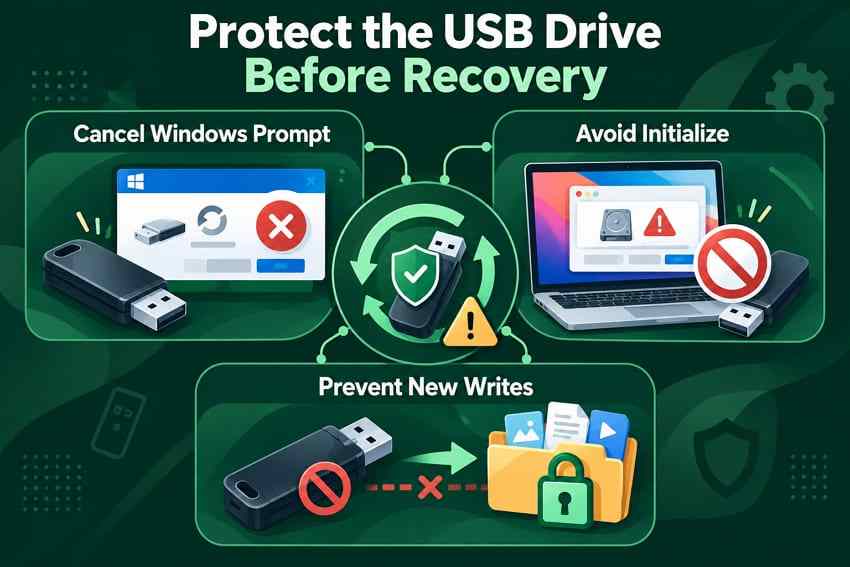
- Cancel erase prompts: If Windows offers to format the disk, cancel. If macOS offers to initialize an unreadable disk, do not initialize it while the files are still needed.
- Stop new writes: Do not copy more photos or documents onto the ADATA stick, reinstall utilities onto it, or save recovered results there.
- Check stability: If the connector is broken, the drive gets unusually hot, or it disconnects repeatedly, stop testing and seek specialist advice instead of starting a prolonged scan.
Part 2. Should You Recover the ADATA USB or Repair It?
Before opening any USB flash drive repair tool online, look at the drive's actual state, not just the message displayed by File Explorer. Windows Disk Management can reveal whether a flash drive is listed with the correct capacity even if no drive letter appears. See Microsoft's guide to Disk Management.
Decision Table: Deleted, Formatted, RAW, Logical-Error, and Damaged Cases
| ADATA USB symptom | What it may mean | Safer next step |
| Files were deleted, but the USB opens and has its normal capacity | Logical data loss; some file content may remain | Stop writing and scan the original USB; save recoverable files elsewhere |
| Accidental quick format; USB remains detectable | New file-system metadata may obscure old files | Attempt recovery before further use; results depend on writes and flash-controller behavior |
| Windows reports RAW or asks to format | Unrecognized or damaged file-system structures | If the disk is stable and its storage can be read, recover first; do not run CHKDSK on RAW |
| Files are visible but opening or copying them causes errors | Logical corruption or developing hardware trouble | Copy accessible data to a healthy drive; stop if reads become unstable |
| No drive letter, but Disk Management shows expected capacity | Mounting, partition, or letter-assignment issue | Identify the disk and assess its contents before any partition change or format |
| No Media, 0 bytes, repeated disconnects, heat, or connector damage | Possible controller, electrical, or flash-memory failure | Stop DIY scans and firmware tools; consult a data-recovery specialist if files matter |
Important distinction: A missing drive letter is not automatically a failed device. A USB controller that appears in Device Manager while the storage shows No Media is a different situation: ordinary scanning software may have no sectors to read. For a deeper detection flow, see USB flash drive not recognized: safe diagnosis.
Back Up or Recover Before CHKDSK, Firmware Repair, Erase, or Format
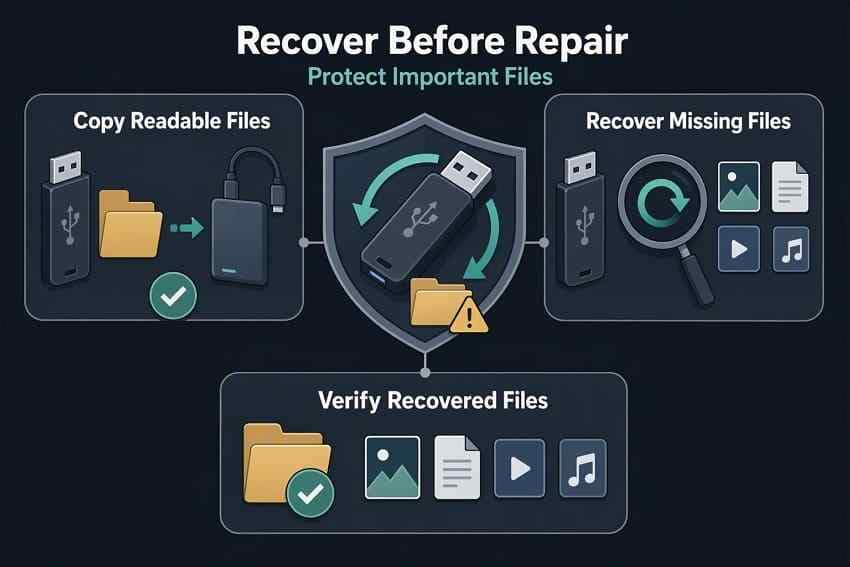
A readable backup is the best outcome: simply copy existing files to a separate healthy disk and open a few to confirm they work. If folders are missing or the file system cannot be browsed but the storage is still readable, attempt data recovery before modifying it. Then verify the recovered documents, photos, and videos at the destination.
Do not use a repair command as an experiment to see whether deleted files reappear. Microsoft documents CHKDSK /f as a file-system repair operation that changes disk structures; it is not a deleted-file recovery method. Likewise, a firmware rewrite or a format may reduce or eliminate later recovery options.
Check the Exact ADATA Model Before Choosing a Utility
ADATA sells different USB families, including UV-series models, capacities, and connector types. A download intended for one product must not be assumed safe for another. Record the full model from the flash drive, packaging, or purchase information; then look for that exact model in ADATA's official support resources. If no compatible repair utility appears, do not substitute firmware from a similar-looking drive or a third-party mirror.
Part 3. Recover Files From a Detected ADATA USB Flash Drive
This section applies when the USB is recognized with readable storage and remains stable, but files were deleted, a quick format occurred, or a logical error prevents access. It does not apply to a loose connector, an overheating flash drive, or a controller-only No Media device.
When Recoverit Is a Suitable First Recovery Option
Recoverit for USB flash drives can help locate recoverable files on detectable USB storage affected by deletion, formatting, or certain logical file-system problems. It is a desktop data-recovery application, not an ADATA firmware utility. It does not repair a damaged USB connector, restore failed flash-memory electronics, decrypt protected data without credentials, or guarantee that overwritten files can be recovered.
If Windows identifies the ADATA disk with its expected capacity but the volume is RAW, the RAW USB recovery guide explains that narrower scenario. Avoid reformatting the RAW volume simply to make it appear in File Explorer.

Select the Original Drive, Scan, Preview, and Save Elsewhere
Step 1. Select the ADATA USB Drive
Connect the physically intact USB directly to a reliable port. Install Recoverit on the computer's internal drive or another healthy disk, not on the affected USB. Open Recoverit and select the ADATA storage device shown in the available drive or removable-storage locations. The exact category label can vary by Recoverit version; verify the drive by its capacity and connection rather than selecting a similar-looking disk.

Step 2. Scan the Readable Storage
Start the scan and allow Recoverit to search for available file records or file content. Review the results by file name, folder location, and type where those details remain available. If the USB begins dropping offline, overheating, or throwing repeated read errors, stop the scan; continuing to force reads can worsen a failing device.

Step 3. Preview and Recover to Another Drive
Preview a few important files where supported, select the items you need, and choose a different healthy storage device as the destination. Open the recovered files from that destination to verify they are usable before attempting repairs or formatting on the original ADATA USB.

What Recovery Software Cannot Do
Recovery depends on what data still exists, whether the flash controller exposes readable storage, and whether the file system and files remain sufficiently intact. After overwriting, secure erasure, some controller-level resets, or physical failure, the old data may be inaccessible. A drive listed only as a USB device with no readable disk capacity cannot undergo a normal software sector scan.
Part 4. How to Check an ADATA-Specific Repair or Download Option
Only consider a vendor repair utility after recovering or backing up important files, or when the drive contains nothing you need. The purpose is to decide whether there is a current, model-matched repair path, not to download whichever executable appears in search results.
Find Model-Specific Resources on ADATA's Current Support Page
Step 1. Visit ADATA Support and locate the USB flash drive product family or use its available product selection and search options.
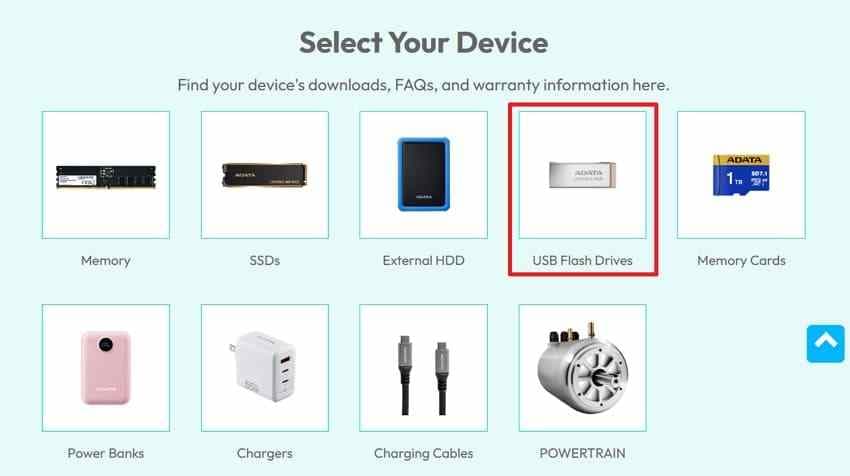
Step 2. Match the exact model, including any relevant revision or capacity shown in the product information. Check its software downloads, FAQs, and warranty information. Support-page menus can change, so do not rely on a screenshot of an older navigation layout as a current instruction.
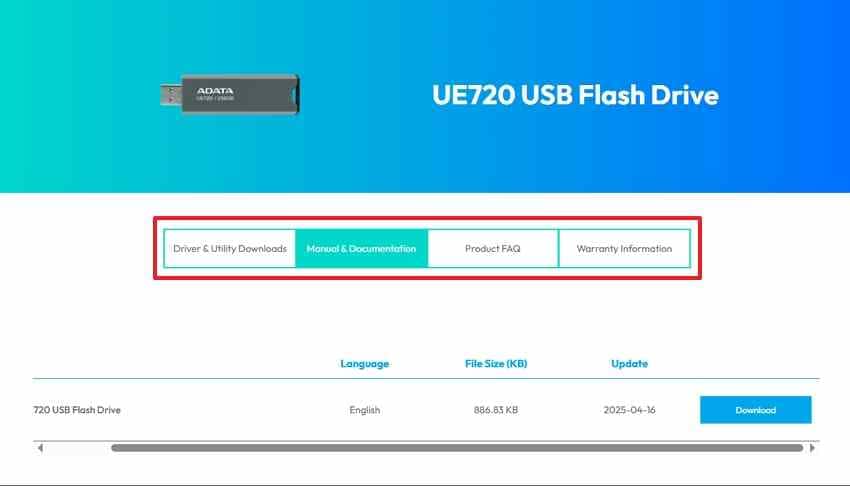
Step 3. Read any download's supported model list, operating-system requirements, and data-loss warnings. If its compatibility is not explicitly documented, ask ADATA support before running it.
What the Historical ADATA Online Recovery Tool Actually Did
ADATA's 2011 announcement described USB Flash Drive Online Recovery as a free utility for certain situations in which a flash drive could not be written to, could not be formatted, or was detected but unreadable. The announced process rebuilt firmware and formatted the drive, so its name referred to restoring device operation, not the files on it. See the original 2011 announcement.
That announcement is historical evidence, not proof of current download availability. Modern ADATA support resources must be checked for the exact model. Do not assume that an old serial-number portal, legacy download link, or Windows compatibility claim is still valid.
Why Unofficial Firmware Packages and Old Mirrors Are Unsafe
Controller-level repair packages may contain commands intended for particular controller revisions or memory configurations. An incompatible utility may erase data, change internal configuration, or make a flash drive less accessible. Unknown executable mirrors also introduce authenticity and security risks. Avoid searching for a generic ADATA USB repair tool online and testing several downloads until one runs.
Which Repair Actions Can Destroy Remaining Data?
| Action | Purpose | Data risk |
| ADATA historical Online Recovery Tool | Rebuild firmware and format a supported USB | Designed for drive reuse, not file preservation; treat existing files as at risk |
CHKDSK with /f |
Fix errors in recognized file-system structures | Modifies metadata and can affect damaged or orphaned files |
| Quick format | Re-create a file system for reuse | Removes normal access to previous files; some content may survive, but never assume it will |
| Full format or erase | Prepare storage for reuse | Can overwrite or erase remaining information; inappropriate before recovery |
diskpart clean |
Remove partition or volume formatting information | Destroys layout information needed for easy access and can complicate recovery |
diskpart clean all |
Zero every logical sector of the selected disk | Previous sector contents are overwritten and unavailable to ordinary software recovery |
Microsoft explicitly distinguishes clean from clean all. Neither should be used on an ADATA USB while important files still need to be recovered. These are not alternative file-recovery steps.
Part 5. Repair a Corrupted ADATA USB Only After Data Is Safe
Once the needed files are stored elsewhere and have been opened successfully, decide whether the remaining problem is limited to the file system. Repairing a drive is optional when its reliability is uncertain; replacing it may be safer than continuing to store valuable data on it.
Run CHKDSK for a Recognized Logical File-System Error
Use this only on a stable ADATA volume that Windows recognizes with a supported file system. Do not use it on a RAW volume, a No Media device, or a USB with recurring disconnections. CHKDSK's repair switch changes on-disk structures and is not a way to undelete files.
Step 1. In File Explorer or Disk Management, confirm the ADATA USB's drive letter and capacity. Double-check that it is not the computer's system drive.
Step 2. Open Command Prompt as administrator, close files using the USB, then run chkdsk X: /f, replacing X: with the verified flash drive letter.
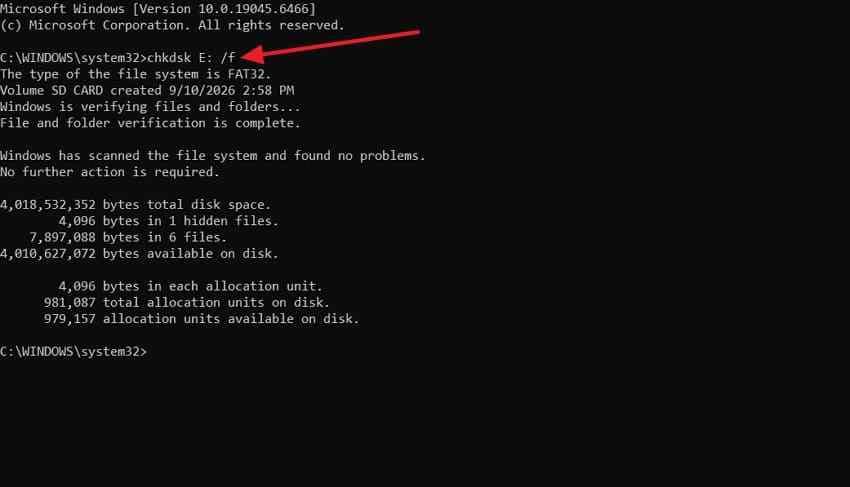
Step 3. Wait for the command to finish and inspect the reported result. Then check whether previously verified files on the repaired drive open normally. If it reports that CHKDSK is unavailable for RAW drives, stop rather than trying more repair switches.
For parameter definitions and limitations, see Microsoft's CHKDSK documentation.
Reformat for Reuse Only After Verifying Backups
A format creates a usable file system; it does not restore deleted files or repair defective USB electronics. Use it only after copying or recovering every important file you can and confirming your backup opens normally.
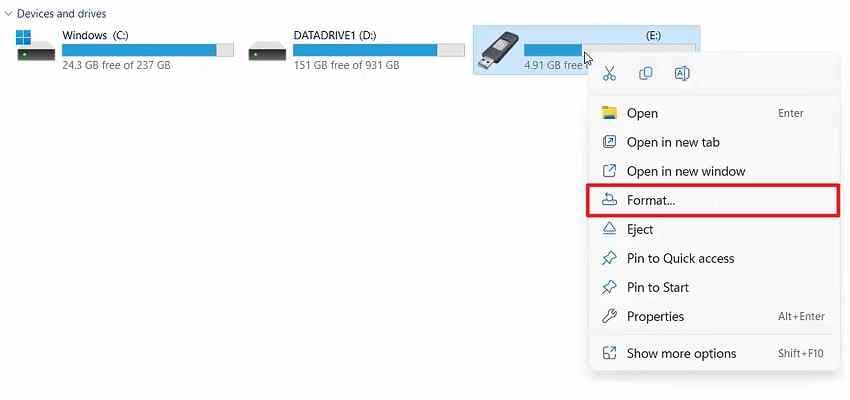
Step 1. On Windows, locate the correctly identified ADATA USB in File Explorer, right-click it, and choose Format when that option is available. If Windows 11 hides it, check the expanded context menu or Disk Management.
Step 2. Choose a file system appropriate to your devices. exFAT is usually practical when sharing larger files between modern Windows and macOS systems; an older camera, printer, or other device may require FAT32 instead. Confirm the target drive and the data-loss warning before selecting Start.
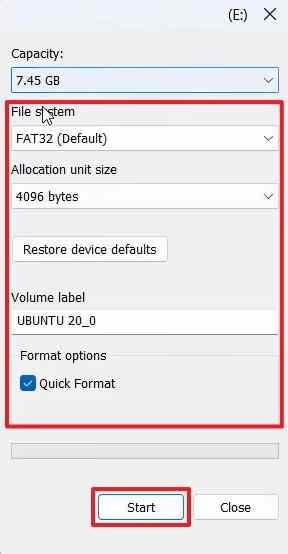
Step 3. After formatting, test the drive with disposable files. If copies fail, newly saved files become corrupt, or the drive disconnects again, retire it from important use.
On macOS, follow Apple's Disk Utility erase and reformat instructions only after securing your files. Apple explicitly states that erasing a storage device deletes its contents.
When Repeated Corruption Means the USB Should Be Replaced
A flash drive that repeatedly turns read-only, asks for repair after a fresh format, or corrupts new files is not a dependable archive even if CHKDSK once completes successfully. Back up anything still readable, stop using the device for important data, and check the model's warranty. For broader repair methods outside the Online Recovery Tool question, see Recoverit's separate ADATA flash drive recovery and repair guide.
Part 6. When the ADATA USB Is Not Detected or May Be Damaged
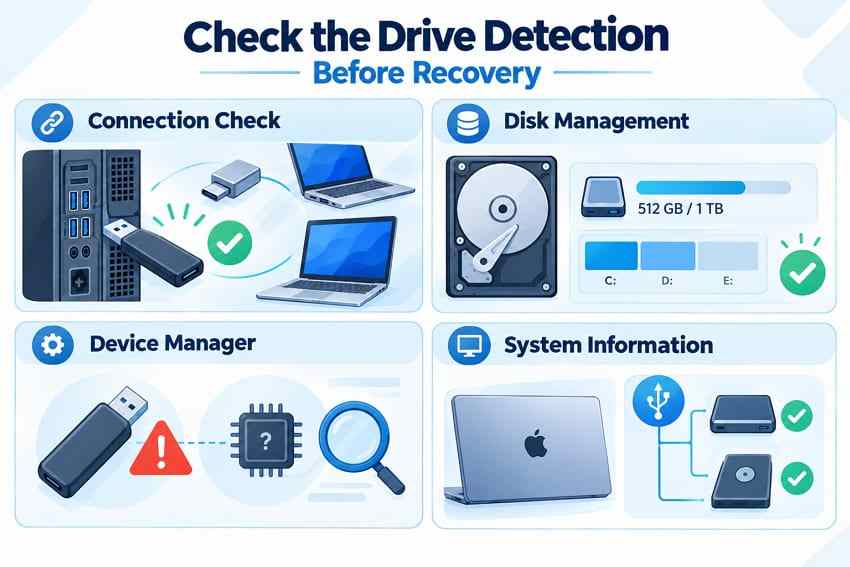
An ADATA stick missing from File Explorer might still be visible as a disk in Windows Disk Management; conversely, a USB controller can show up in Device Manager even when the underlying flash storage cannot be accessed. Those cases need different decisions.
Try One Safe Port or Another-Computer Check
For a physically intact USB, connect it directly to a known-working computer port rather than a questionable hub. If needed, try one other compatible port or computer. Do not repeatedly wiggle a loose connector. Stop immediately if the USB overheats or disconnects unpredictably.
- Windows Disk Management: Check whether the USB appears as a disk and whether its capacity is plausible; Microsoft's Disk Management instructions show how to open it.
- Windows Device Manager: A USB device entry indicates controller communication, not necessarily readable NAND flash storage.
- macOS System Information: Open the hardware report and inspect USB devices. See Apple's System Information guide.
Why Recovery Software Cannot Scan a USB Without Storage Access
Standard recovery software needs the operating system or recovery environment to expose readable storage blocks. If the controller enumerates but the disk reports No Media, shows zero usable capacity, or repeatedly vanishes, there may be no stable device for a normal scan. The ADATA UV360 hub-disconnection discussion is one example of these warning signs, not a reason to keep running repeated scans on a failing device.
Do not run generic firmware resets or format attempts to make data recovery software detect a drive. If the files are important and the device is physically or electrically unstable, ask an established data-recovery laboratory about assessment before further DIY work.
Warranty Replacement vs. File Recovery and Specialist Help
Replacing a defective USB and retrieving files from it are different outcomes. Before sending away a drive containing the only copy of important data, check ADATA's current warranty support and confirm what the service process entails. Do not assume that an eligible replacement includes restoration of your data. If the files matter more than the USB itself, discuss recovery options with a specialist first.
Conclusion
For ADATA USB flash drive online recovery, decide whether you need the files or only a reusable device. If the storage is stable and readable, copy or recover the data to another healthy drive and verify it before any repair. If the USB reports RAW, avoid formatting while files remain needed. If it reports No Media, repeatedly disconnects, or has physical damage, stop DIY scans and get specialist guidance. The old ADATA Online Recovery Tool explains the historical name, but a current repair download should only be considered after checking your exact model through ADATA support.
FAQ
-
Is the ADATA USB Flash Drive Online Recovery Tool Still Available?
ADATA announced the repair utility in 2011, but that does not establish that a compatible download is still offered for your USB today. Check the current ADATA support page for your exact model or ask ADATA support. Avoid unofficial download mirrors. -
Does the ADATA Online Recovery Tool Recover Deleted Files?
No. The historical ADATA tool was intended to restore drive operation by rebuilding firmware and formatting supported flash drives. It was not designed to undelete photos, videos, or documents. Recover important files first if the storage is readable. -
Can I Recover Data From a Formatted ADATA USB Flash Drive?
Sometimes, especially after a quick format when the relevant content remains readable and has not been overwritten or discarded by the flash controller. Stop using the USB immediately and recover to a different disk. No application can promise a specific result. -
Can I Repair an ADATA USB Without Losing My Files?
Some logical file-system repairs retain files, but they cannot guarantee zero data loss. CHKDSK with repair parameters modifies metadata, while formatting and some firmware utilities may erase data. Make and verify a backup or attempt recovery before repairs; use a specialist instead for physically unstable storage.


