 TL;DR:
To successfully recover deleted videos from an SD card, immediately stop using the card to prevent new data from overwriting the highly fragmented files, and scan the readable card through a computer using free tools like Recuva for simple deletions or advanced software like Recoverit Video Recovery for formatted cards and large recordings.
● Always save the recovered video files to your computer's hard drive or an external drive, as saving them back to the original SD card will overwrite the remaining deleted data and permanently ruin the recovery.
● Free tools like PhotoRec are effective for damaged file systems but will lose the original folder structures and filenames, whereas paid software is generally required to accurately reconstruct large, fragmented video segments or recover data from RAW cards.
● If a successfully recovered video file fails to play, lacks sound, or freezes, the video header or index is likely incomplete; you will need to run a deeper scan to locate the missing segments or apply a dedicated video repair tool.
Ask AI for a summary
 ChatGPT
 Perplexity
 Gemini
 Claude
 Grok
Grok
"Need to recover some deleted videos from an SD card that was in an Android device. What is the best free software to preview the files before recovery?"
If you want to know how to recover deleted videos from an SD card, stop using the card first. Deleted videos are often still recoverable until new recordings, downloads, or formatting activity overwrite the same storage space. Because video files are large and often fragmented, one new clip can destroy far more recoverable data than a few new photos.
This guide explains how to restore deleted videos on an SD card safely, including what to do in the first few minutes, how to choose between Recoverit Video Recovery, free tools, Windows File Recovery, backups, and professional recovery, and what to do if recovered videos will not play.
In this article
-
- Method 1. Recover Deleted Videos with Recoverit
- Method 2. Check the Recycle Bin or Trash
- Method 3. Restore Videos from Cloud or Local Backups
- Method 4. Recover Videos with Recuva for Free
- Method 5. Recover Videos with PhotoRec or QPhotoRec for Free
- Method 6. Use Windows File Recovery
- Method 7. Use a Professional Data Recovery Service
Part 1. Can Deleted Videos Be Recovered from an SD Card?
Yes, deleted videos can often be recovered from an SD card or memory card if the card is still readable and the deleted video data has not been overwritten. Deletion usually removes file references first. The actual video data may remain on the card until the camera, phone, drone, dash cam, or computer writes new data to the same space.
When Deleted SD Card Videos Are Still Recoverable
- No new videos, photos, app files, or downloads were saved to the card after deletion.
- The loss came from accidental deletion, quick formatting, file transfer interruption, or file system corruption.
- The SD card is detected by a computer through a stable card reader.
- You are scanning the original card, not a partial copy or damaged transfer folder.
- The recovery tool supports your video formats, such as MP4, MOV, AVI, MTS, M2TS, MXF, 3GP, or MKV.
Why Video Files Are Harder to Recover Than Photos
Video recovery is harder because video files are larger and may be split across different areas of the SD card. Some cameras and phones also split long recordings into multiple segments. If one segment, header, index, or metadata area is missing, the recovered video may be incomplete, play with no sound, freeze, or fail to open.
That is why tools built for video recovery can matter. A basic undelete tool may find a file entry, while a stronger recovery scan may be needed to locate and rebuild larger fragmented clips.
When Video Recovery Is No Longer Possible
- New recordings have overwritten the deleted video data.
- The SD card was formatted and reused heavily afterward.
- The card's memory chip or connector is physically damaged.
- No computer, camera, phone, or card reader can detect the card.
- The recovered file is only a fragment and the missing video data no longer exists on the card.
Part 2. Stop First: What to Do in the First 5 Minutes
Before you try to retrieve deleted videos on an SD card, protect the card from new writes. These first steps are more important than choosing a tool.
| Step | What to do | Why it matters |
| Stop recording immediately | Turn off the camera, phone, drone, dash cam, or action camera. | One new clip can overwrite large sections of deleted video data. |
| Remove the SD card | Take the card out instead of recovering through the original device. | A computer and card reader can scan the card more thoroughly. |
| Lock the card if possible | Use the physical write-protect switch on full-size SD cards. | This helps prevent accidental writes during recovery. |
| Use a reliable card reader | Connect the card with a stable reader and avoid loose adapters. | Unstable connections can interrupt scans and corrupt copied files. |
| Cancel format prompts | If Windows or macOS asks to format the card, cancel the prompt. | Formatting before recovery can reduce your chances. |
| Recover to another drive | Save recovered videos to your computer or an external drive. | Saving back to the same SD card can overwrite more deleted videos. |
Part 3. Quick Diagnosis: What Happened to Your SD Card Videos?
Use the symptom to choose the right recovery path. This prevents risky fixes such as formatting or repairing the card before video recovery.
| Symptom | Likely cause | Best next step |
| Videos were deleted in the camera, phone, or drone | File entries were removed, but data may still remain. | Stop using the card and scan it with recovery software. |
| The SD card was formatted | The file system was rebuilt, but video data may remain after a quick format. | Run a deep scan before reusing the card. |
| The card shows blank, RAW, or asks to be formatted | The file system may be corrupted. | Scan first; do not format or run repairs before recovery. |
| Videos are visible on the device but not the computer | The issue may be a reader, cable, file format, hidden folder, or codec problem. | Try another reader and check playback/import software before assuming deletion. |
| Recovered videos will not play | The file may be incomplete, fragmented, or structurally damaged. | Run a deeper scan and use video repair only after saving recovered files elsewhere. |
| The card is not detected anywhere | The card, controller, connector, or memory chip may be damaged. | Use a professional recovery service instead of repeated scans. |
If your footage went missing after a camera format, a RAW warning, or a reader failure rather than deletion alone, follow the broader SD card recovery guide to check whether a scan is appropriate before changing the card.
Part 4. How to Recover Deleted Videos from an SD Card
After the card is protected, choose one of the methods below. Start with backup checks if the video might already exist elsewhere. Use recovery software when the original card is readable. Use a lab when the card has physical or detection problems.
Method 1. Recover Deleted Videos with Recoverit
Recoverit Video Recovery can help recover deleted videos from readable SD cards, microSD cards, camera cards, USB drives, cameras, drones, dash cams, and other storage devices. It is most useful when videos were deleted, the card was quick formatted, the card became RAW, or large video files need a deeper scan.
Key features:
- Deep video scanning: Scans the card for deleted and lost video files beyond the visible folder structure.
- Large video recovery: Helps locate long recordings and fragmented video data on readable storage.
- Preview before recovery: Lets you check recoverable videos before saving them.
- Common video formats: Supports popular formats such as MP4, MOV, AVI, MTS, M2TS, 3GP, MKV, and camera video files.
Important: Recoverit cannot guarantee recovery, repair a physically dead SD card, or recover video data that has already been overwritten. If the card is not detected by any reader, use a professional service.
Step 1. Select the SD card. Connect the SD card to your computer through a card reader. Open Recoverit, choose the card from the device list, and click Start Scan.

Step 2. Scan for missing videos. Wait for the scan to finish. Use file type filters or file location view to find recoverable video files.

Step 3. Preview and recover safely. Preview the results, select the videos you want, click Recover, and save them to your computer or another drive instead of the same SD card.

Method 2. Check the Recycle Bin or Trash
This method only works if the videos were deleted from the SD card while it was connected to a computer. If you deleted videos directly inside a camera, phone, drone, or dash cam, they usually will not appear in the Recycle Bin or Trash.
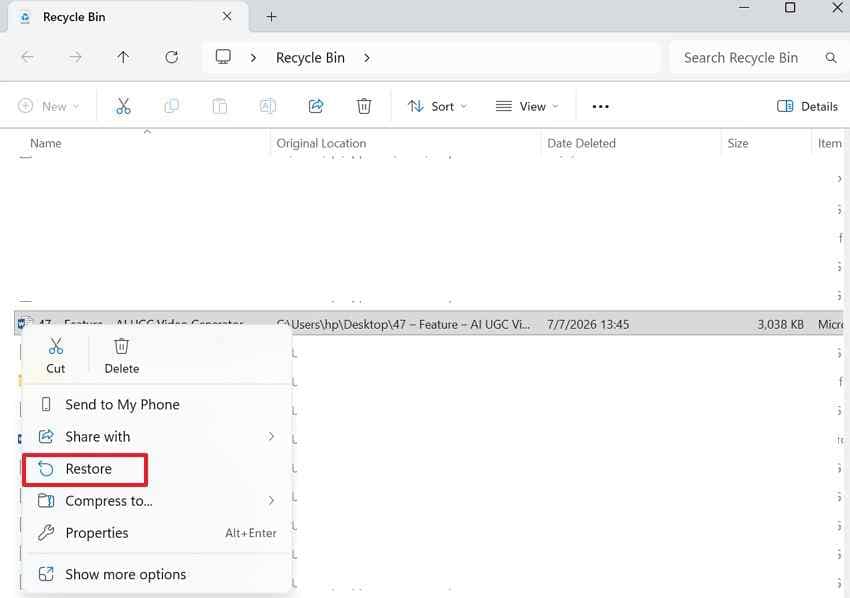
For Windows Recycle Bin: Open Recycle Bin, find the deleted video, right-click it, and choose Restore.
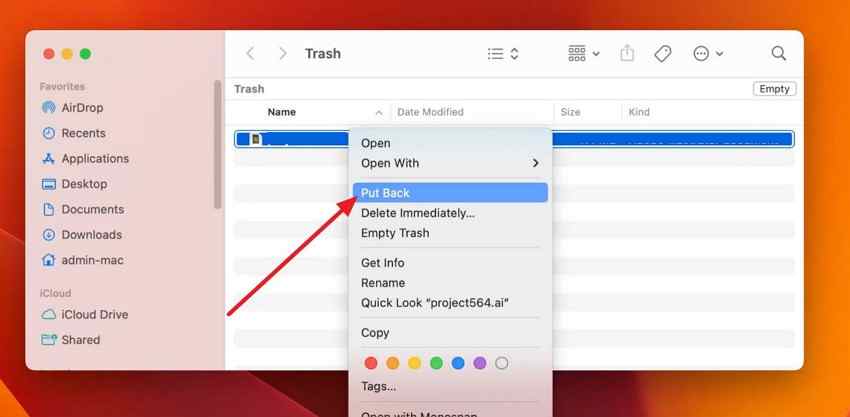
For Mac Trash: Open Trash, select the video, use Control + Click, and choose Put Back.
Method 3. Restore Videos from Cloud or Local Backups
Before scanning, check whether a copy already exists. This is especially useful if the SD card came from an Android phone, action camera app, drone app, or a computer import workflow.
- Check Google Photos, iCloud Photos, OneDrive, Dropbox, or other cloud folders if videos were synced.
- Check your computer's Videos, Pictures, Photos app library, Lightroom catalog, camera import folder, or editing project folder.
- Check external drives, NAS folders, phone gallery backups, and camera companion apps if the videos were imported before deletion.
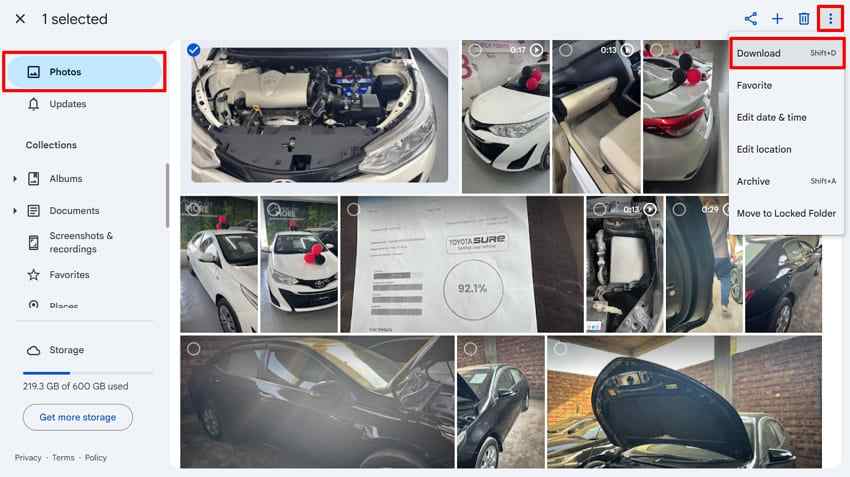
Example: Open Google Photos, select the backed-up videos, click the three-dot menu, and choose Download.
Method 4. Recover Videos with Recuva for Free
Recuva is a free Windows recovery tool that may restore recently deleted videos from a readable SD card. It is best for simple deletions. It is less reliable for formatted cards, RAW cards, and large fragmented recordings.
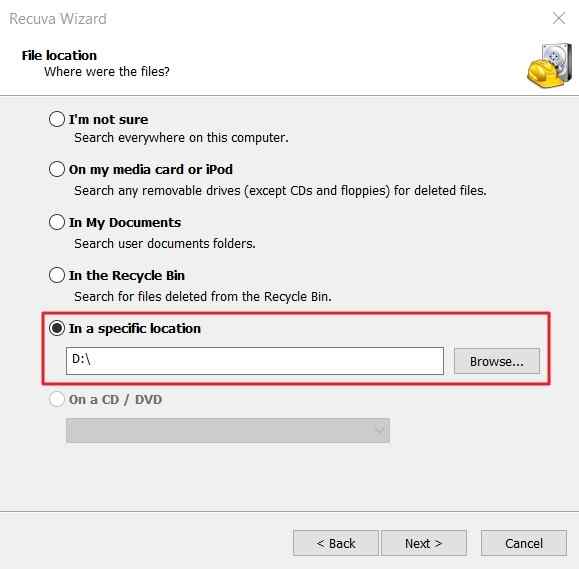
Step 1. Open Recuva, choose the video file type if available, select the SD card, and click Next.
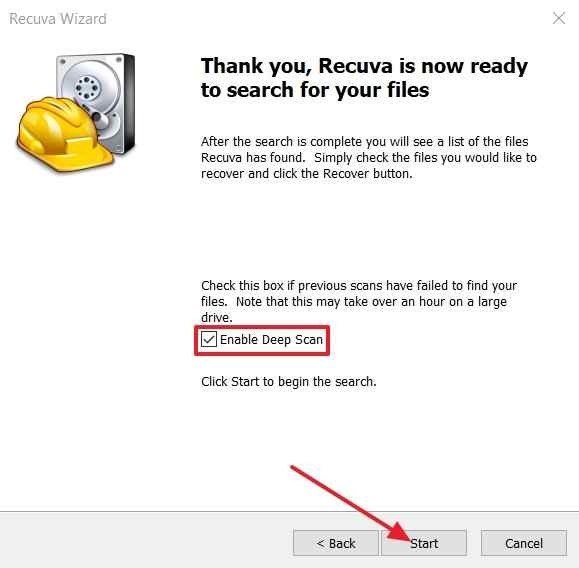
Step 2. Enable Deep Scan if the first scan does not find the deleted videos, then click Start.
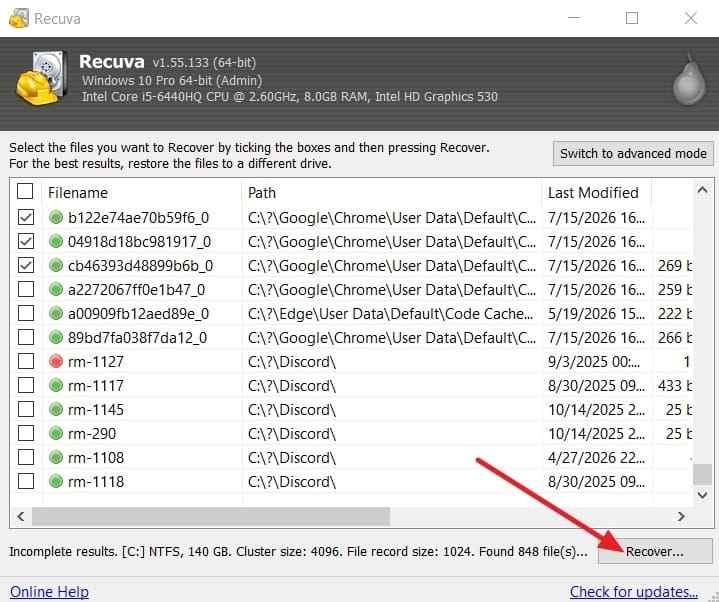
Step 3. Select the videos to restore, click Recover, and save them to a different drive.
Method 5. Recover Videos with PhotoRec or QPhotoRec for Free
PhotoRec is a free, open-source recovery tool that scans raw storage by file signatures. It can be useful when the file system is damaged or the SD card was formatted. The tradeoff is that original filenames and folder structure are often lost, and fragmented video recovery can be limited.
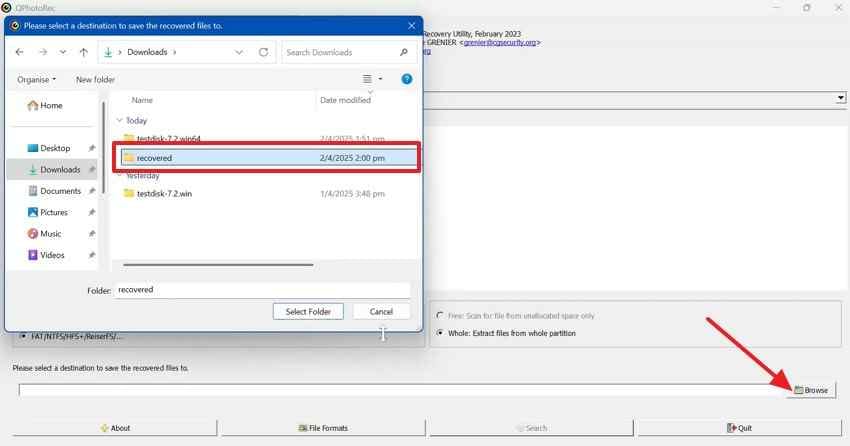
Step 1. Open QPhotoRec, select the SD card and partition, click Browse, and choose a recovery folder on your computer.
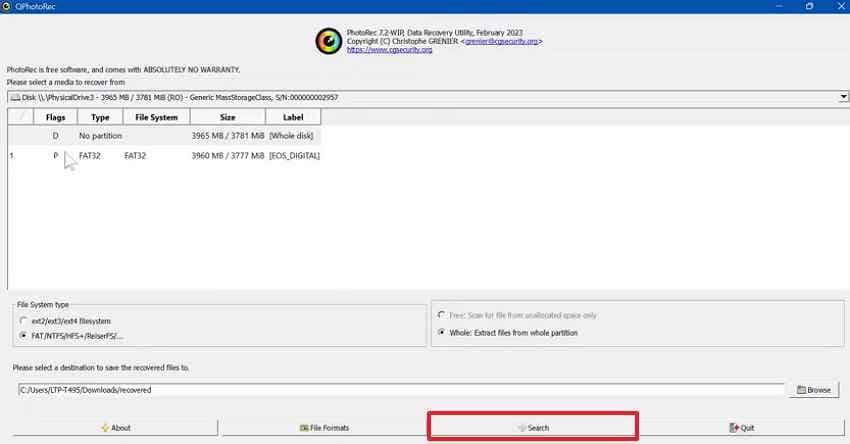
Step 2. Choose video file formats if needed, click Search, and let QPhotoRec scan the card.
Step 3. Review the recovery folder. Sort files by extension, size, and date because recovered names may not match the original video names.
Method 6. Use Windows File Recovery
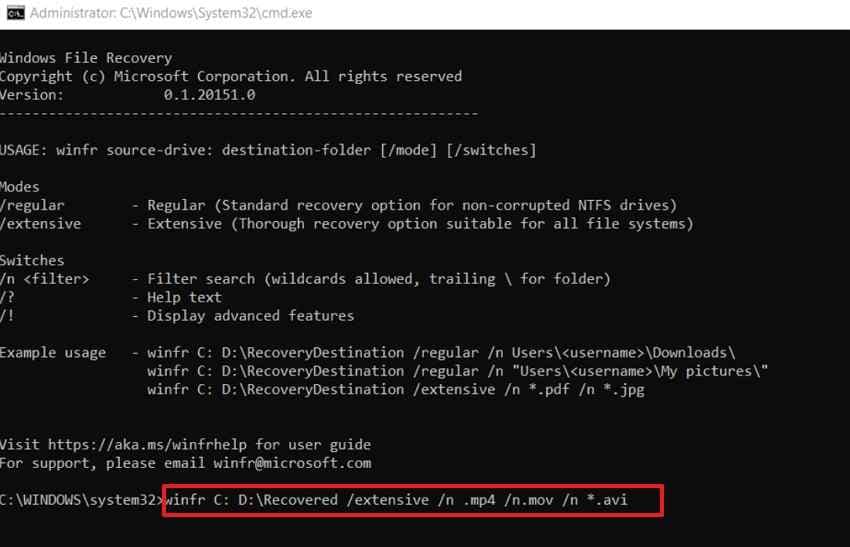
Windows File Recovery is Microsoft's command-line recovery tool for Windows. For SD cards and many camera cards that use FAT or exFAT, Extensive mode is usually the right choice.
Instructions. Install Windows File Recovery, open it as an administrator, and run a command like this. Replace E: with your SD card drive letter and D:\Recovered with a folder on another drive.
winfr E: D:\Recovered /extensive /n *.mp4 /n *.mov /n *.avi /n *.m2tsPress Y to confirm, then open the recovery folder and check the restored videos.
Method 7. Use a Professional Data Recovery Service
Use a professional service if the SD card is bent, cracked, water-damaged, burned, not detected by multiple readers, or disconnects during every scan. Software works on readable storage; physical damage needs lab equipment.
A service such as Ontrack memory card data recovery may help with severe card failures. Before sending the card out, do not format it, do not keep testing unstable adapters, and do not attempt DIY connector repairs.
Part 5. What If Recovered Videos Will Not Play?
Getting deleted videos back from an SD card is not always the final step. A recovered file may still fail to play if the video header, index, audio stream, or fragmented data is incomplete.
- Open the video in another player: Try a different media player before assuming the file is damaged.
- Run a deeper scan: A quick scan may recover only a partial video. A deep scan may find a more complete version.
- Check the format and codec: Some camera files require specific codecs or editing software to open.
- Keep the original recovered file: Do not edit, convert, rename repeatedly, or overwrite the recovered copy.
- Repair damaged videos after recovery: If the file is recovered but has no sound, freezing, black frames, sync problems, or playback errors, try a video repair tool such as Wondershare Repairit Video Repair.
Part 6. Free vs. Paid vs. Professional SD Card Video Recovery
The best way to get deleted videos from an SD card depends on the card condition and how important the footage is. Free tools are worth trying for simple deletion. Paid software is better for guided recovery, previews, formatted cards, and large video files. Professional service is for physical damage or non-detection.
| Recovery option | Cost | Works best for | Main limitation |
| Free tools | Free | Recently deleted videos on readable SD cards | Limited preview, usability, and fragmented video reconstruction |
| Paid software such as Recoverit | Free scan, paid recovery features | Deleted, formatted, RAW, inaccessible, and large video recovery on readable cards | Cannot recover overwritten data or physically dead cards |
| Professional recovery service | Highest cost | Cards with physical damage, controller failure, or no detection | Slower, more expensive, and results depend on hardware condition |
Which Free Tools Can Recover Deleted Videos?
Recuva and PhotoRec can recover deleted videos from readable SD cards in simple cases. Recuva is easier for Windows users and may show clearer scan results. PhotoRec is stronger when the file system is damaged, but it often loses original filenames and folder structure.
When Paid Software Is Better for Large Videos
Paid software is usually better when the videos are large, the card was formatted, the card shows RAW, or free tools cannot preview playable clips. Recoverit is also a better fit when you want a guided workflow and video preview before saving recovered files.
When Professional Recovery Is Worth It
Choose professional recovery when the card is physically damaged, not detected by any reader, or contains irreplaceable business, legal, travel, wedding, or security footage. Repeated DIY scans on unstable hardware can make the situation worse.
Part 7. How to Prevent Losing Videos on an SD Card
After you restore deleted videos on an SD card, protect future recordings with a safer workflow.
- Back up videos after every recording session: Copy footage to a computer, external drive, cloud service, or NAS before reusing the card.
- Use the 3-2-1 backup rule for important videos: Keep three copies, on two storage types, with one copy off-site or in the cloud.
- Format the card in the device after backup: Format only after confirming the videos are copied and playable.
- Wait before removing the card: Remove the card only after the recording light stops and the file is fully saved.
- Use reliable high-speed cards: Choose genuine SD cards with the speed rating required for your camera, drone, phone, or dash cam.
- Replace aging cards: Retire cards that show repeated recording errors, slow saves, missing files, or formatting prompts.
- Rotate cards for important shoots: Spread footage across multiple cards so one failure does not affect every video.
Conclusion
How to recover deleted videos from an SD card comes down to acting fast and avoiding overwriting. Stop using the card, remove it from the device, avoid formatting, and recover files to another drive. Check Recycle Bin, Trash, and backups first if the videos may already exist somewhere else. For readable SD cards, Recoverit can help recover deleted, formatted, RAW, and large video files with preview support. Free tools such as Recuva, PhotoRec, and Windows File Recovery may work for simpler cases, while physically damaged or undetected cards should go to a professional recovery service.
FAQ
-
Can Recoverit restore deleted videos from an SD card?
Yes, Recoverit can help recover deleted, formatted, RAW, and lost videos from readable SD cards and memory cards. Recovery depends on whether the card is detected, whether the data has been overwritten, and whether the recovered video data is complete. -
How do I restore deleted videos on an SD card for free?
Stop using the card, connect it through a card reader, and try Recuva, PhotoRec, or Windows File Recovery. Free tools work best for recent deletions on readable cards, but they may struggle with large, fragmented, formatted, or corrupted videos. -
Does formatting an SD card permanently delete videos?
Not always. A quick format usually rebuilds the file system but may leave video data on the card until it is overwritten. Do not record new videos after formatting. Run a deep scan and save recovered files to another drive. -
Why do recovered videos have no sound or fail to play?
The recovered file may be incomplete, fragmented, missing a header, or using a codec your player does not support. Try another player, run a deeper scan, and repair the recovered copy with a video repair tool if needed. -
Can I recover deleted videos from a memory card that is not detected?
Try another card reader, USB port, and computer first. If the card is still not detected anywhere, software cannot scan it reliably. Use a professional data recovery service for physically damaged or undetected memory cards. -
Where should I save recovered videos from an SD card?
Save recovered videos to your computer, an external drive, or another storage device. Do not save them back to the same SD card because that can overwrite additional deleted videos.



