
 TL;DR:
The "HTTP 503 Service Unavailable" error is a temporary status indicating a web server cannot accept inbound connections due to overload, maintenance, or database connectivity issues, requiring different troubleshooting approaches depending on whether you are a visitor or a site administrator.
● Visitors encountering the error should clear their browser cache and cookies, or open the Command Prompt as an administrator and execute the ipconfig /flushdns command to retrieve fresh DNS routing information.
● Website owners utilizing platforms like WordPress, cPanel, or Cloudflare need to check server error logs, disable active maintenance mode files via the File Manager, deactivate recently installed plugins causing PHP conflicts, or compress site content to reduce server load.
● If downloaded website backups or configuration files are accidentally deleted or lost due to a system crash during the troubleshooting process, administrators can use Wondershare Recoverit to scan their internal drives and restore the specific missing files.
Ask AI for a summary
 ChatGPT
 Perplexity
 Gemini
 Claude
 Grok
Grok
One of the most common problems that users face on the internet is when they try to go to a website, and it does not load. They think that something is wrong with their device or internet connection. However, the issue could be with the web server as well.
The “503 Service Unavailable” means that the web server is temporarily unable to accept inbound connections. Fortunately, this problem is temporary and can be fixed with the appropriate troubleshooting techniques. In this guide, you will learn what the error is and how to take action to fix your website.
Try Recoverit to Perform Data Recovery
 Security Verified. 3,591,664 people have downloaded it.
In this article
Part 1. What Does “HTTP Error 503: Service Unavailable” Mean?
This is a status code that means that the server of a site is not able to handle requests for its services. The message does not prove that the site will not be working forever. It indicates that the server is not able to provide access to the desired webpage at the moment. Visitors will not be able to access the website and will only see the message "HTTP 503 Service Unavailable.”
Why HTTP Error 503 Occurs
It is important to know what situations commonly trigger it before finding the solution. Provided next are a few of the reasons why users face this issue:
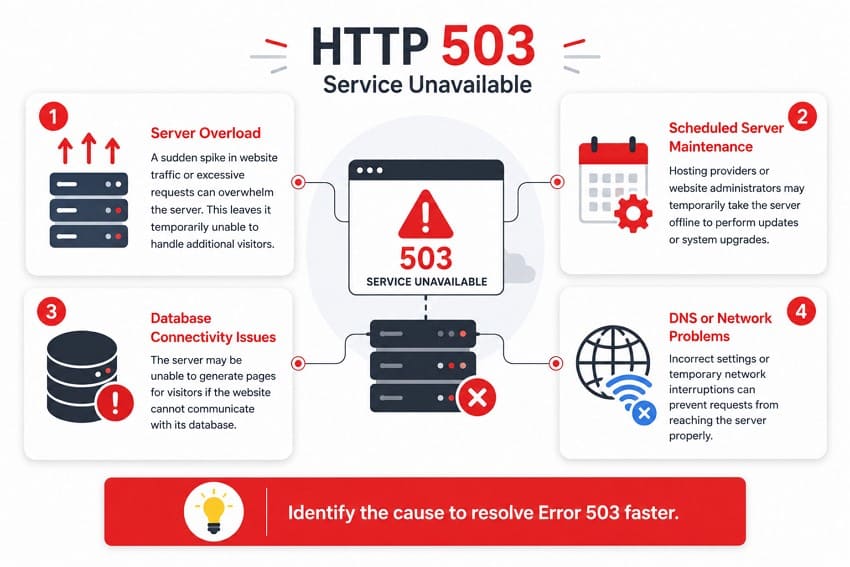
| Reason | Description |
| Server Overload | A sudden spike in website traffic or excessive requests can overwhelm the server. This leaves it temporarily unable to handle additional visitors. |
| Scheduled Server Maintenance | Hosting providers or website administrators may temporarily take the server offline to perform updates or system upgrades. |
| Database Connectivity Issues | The server may be unable to generate pages for visitors if the website cannot communicate with its database. |
| DNS or Network Problems | Incorrect settings or temporary network interruptions can prevent requests from reaching the server properly. |
Part 2. How to Solve HTTP Error 503 Service Unavailable Fast?
The solutions are divided into 2 groups based on the level of access available to make the process easier. The first group covers quick fixes for website visitors who face the “503 service unavailable” error. The second focuses on advanced server-side solutions for website owners and administrators. Follow the section that best matches your situation and resolve any website-related errors:
Group 1. Visitor-Side Fixes
The issue is often temporary and may not require any technical expertise if you are visiting the website. Start with these simple troubleshooting methods before assuming the problem is on the server:
Fix 1. Refresh the Page and Wait Before Retrying
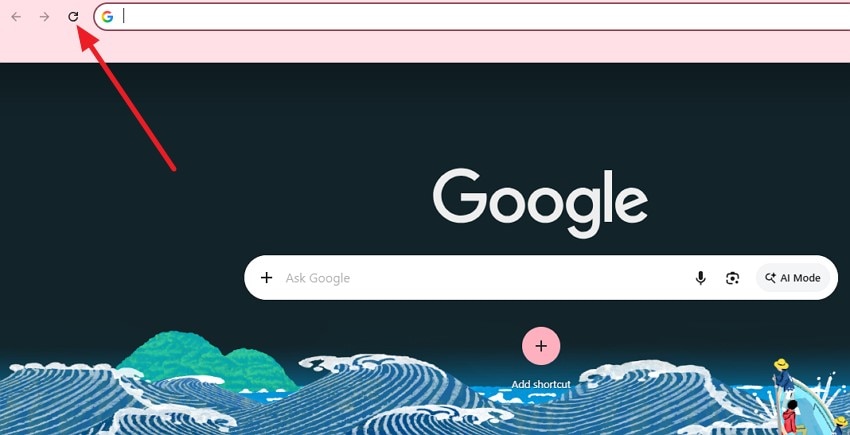
Sometimes the “HTTP 503 Service Unavailable” error can be caused by temporary server conditions rather than permanent problems. This error can be seen on a site if multiple requests are made by the server at the same time. One of the ways is to refresh the web page and then wait for a few minutes. The instructions mentioned below will help you learn how to refresh a web page:
Instructions. Go to the address bar at the top of your web browser that is not loading. Click on the "Refresh/Reload" button beside the address bar to refresh the page.
Fix 2. Clear Browser Cache and Cookies
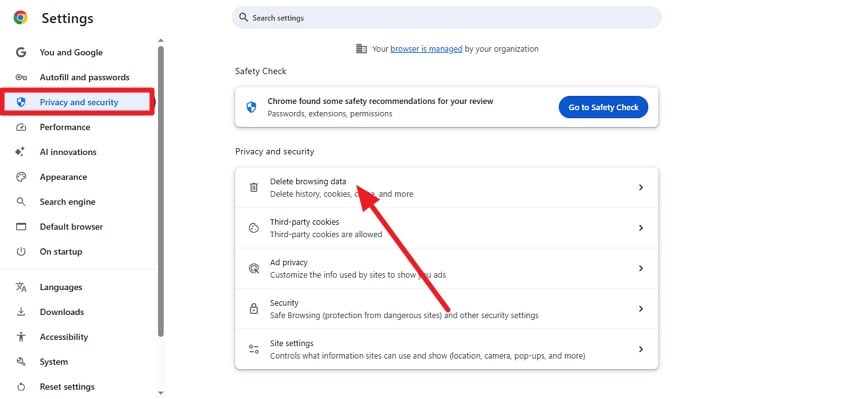
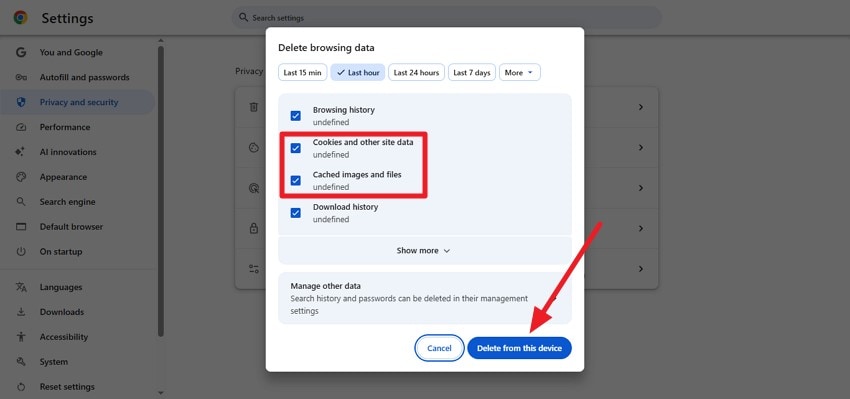
The site and browser lose communication if the cookies and caches are not updated. Your browser will download the newest version of the website and make a new connection with the server when you clear the files. Follow the steps below to learn how to perform the “503 Service Unavailable” fix:
Step 1. Head to the top-right corner of your browser and click on the “Three Dots” icon to expand the list. Locate the “Settings” option and click on it to proceed.
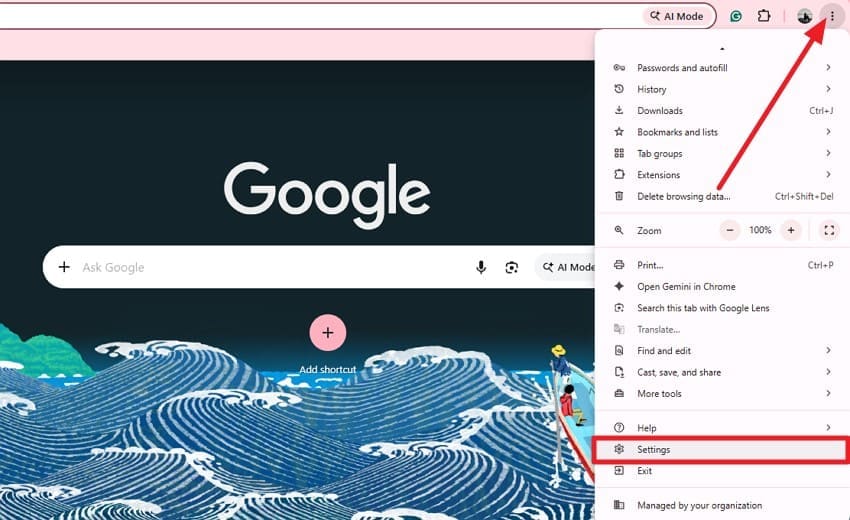
Step 2. In the following interface, access the “Privacy and Security” section from the left. Press the “Delete Browsing Data” option located within the interface.
Step 3. Now select the Cookies and Cache options and hit the “Delete From This Device” button located at the bottom.
Fix 3. Try a Different Browser or Device
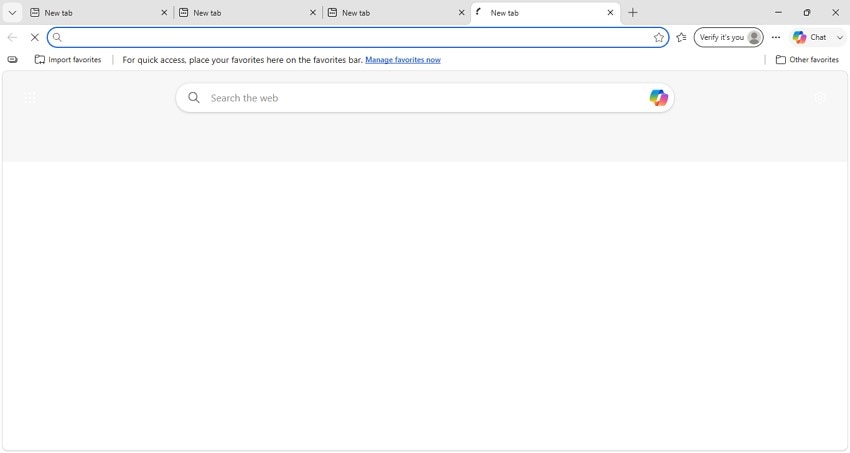
Users can try another browser or device to open the site if the error occurs. Accessing the same website from another browser or a different device lets you understand the nature of the problem. You can try different web browsers and use the site without any interruption.
Fix 4. Flush DNS Cache
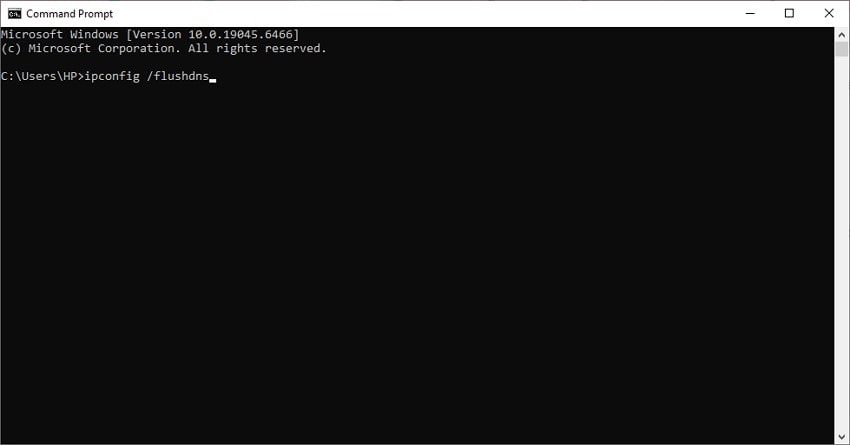
The device stops locating the correct IP address for a site if the DNS is corrupted. It can lead to connection problems that may appear alongside an “HTTP 503 Service Unavailable" error. Performing this method retrieves fresh information from the DNS server. Read the instructions mentioned next to learn how to flush the DNS:
Instructions. Open the Command Prompt and run it as an administrator on your computer. Input the command “ipconfig /flushdns” and press the “Enter” key. A success message will appear confirming that the DNS has been successfully flushed.
Group 2. Server-Side Fixes (Site Owners)
Server-side issues can also be the cause of the error. Mentioned below are some of the fixes you can try as a website owner to remove the error:
Fix 5. Check Server Error Logs
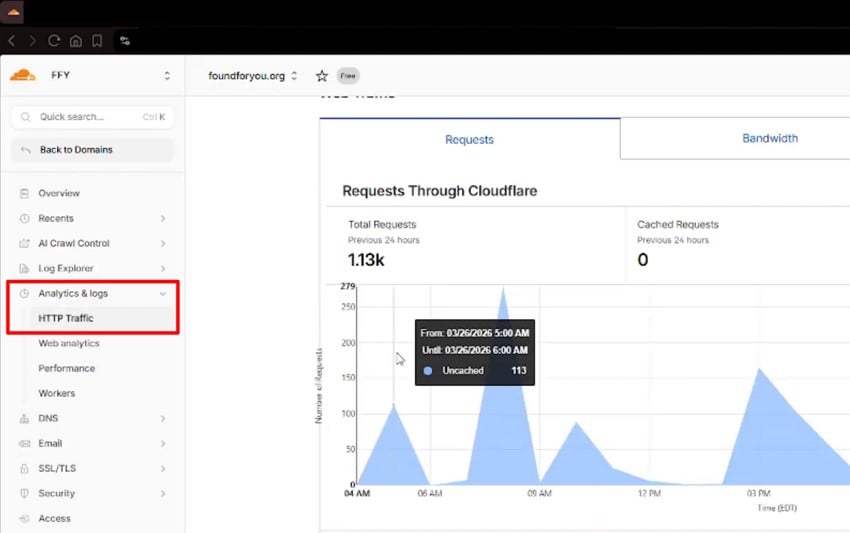
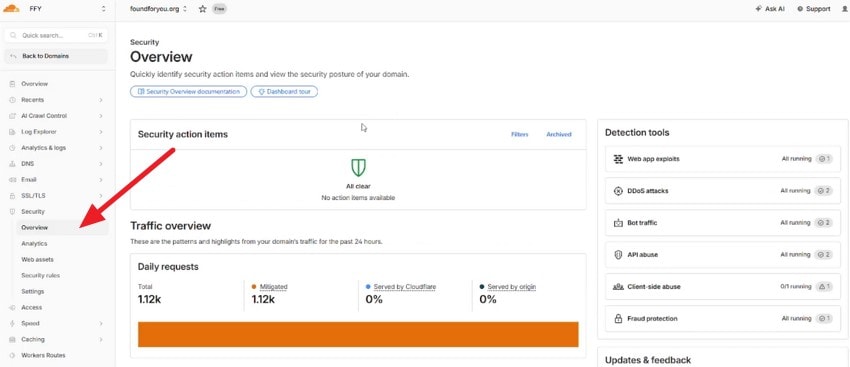
Analyzing the server's log is one way of finding the cause of the error. Cloudflare works as a reverse proxy and only redirects requests to your origin server. You should be able to fix the problem of "503 service unavailable” if you can determine the correct error from the logs. Follow the steps mentioned below to learn how to check the logs on Cloudflare:
Step 1. Select your website after logging into the Cloudflare Dashboard. Access the “Analytics and Logs” option from the panel on the left and choose “HTTP Traffic.”
Step 2. Select the “Overview” option to check if there is any error log within the connection. However, do confirm the web server logs across your dedicated hosting platform for errors.
Fix 6. Check and Disable Maintenance Mode
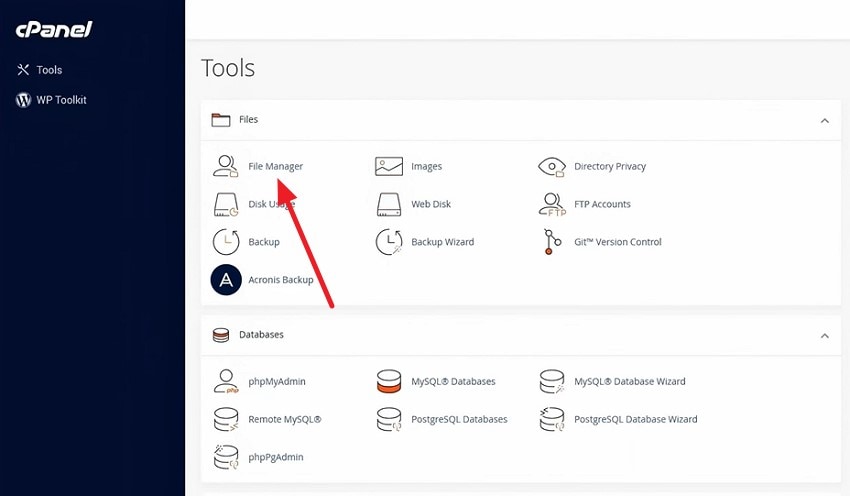
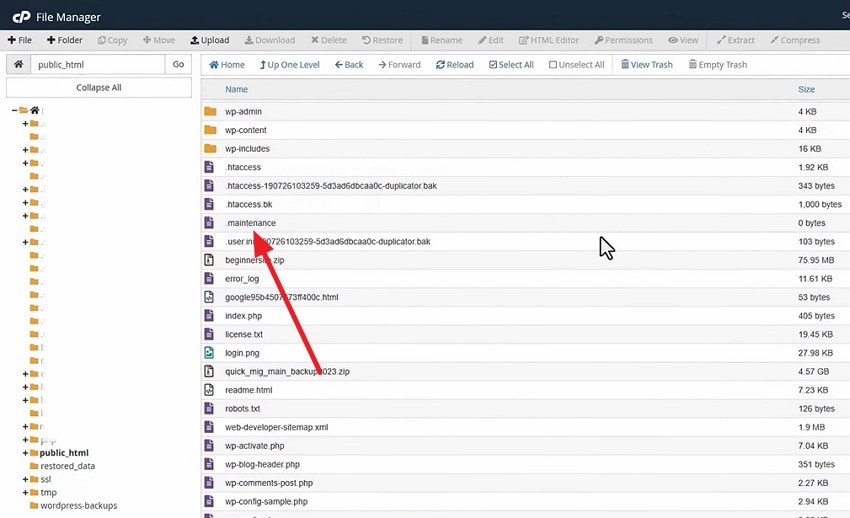
A website returns this error if it is in maintenance mode and wants visitors to know about the maintenance. Users will continue seeing the 503 error even though the website is otherwise functional if the mode is accidentally left active. Deactivating the maintenance mode can quickly remove the error and make the website go back up and running. Read the steps provided below to learn how to disable this mode:
Step 1. Open your hosting panel, such as cPanel in this case, on your device and click on the “File Manager” option from the homepage.
Step 2. Now, locate and click on the “Maintenance” file from the list of files in the following interface. Reload the folder to confirm any changes and disable the mode successfully.
Fix 7. Disable Recently Installed Plugins or Themes
An asset that is recently installed can sometimes trigger an error by causing PHP conflicts. Disabling the recent changes is an effective way to get rid of the “HTTP 503 Service Unavailable” error in no time. Your website becomes functional again once the conflicting component is disabled. Follow the steps mentioned below to learn how to disable a plugin:
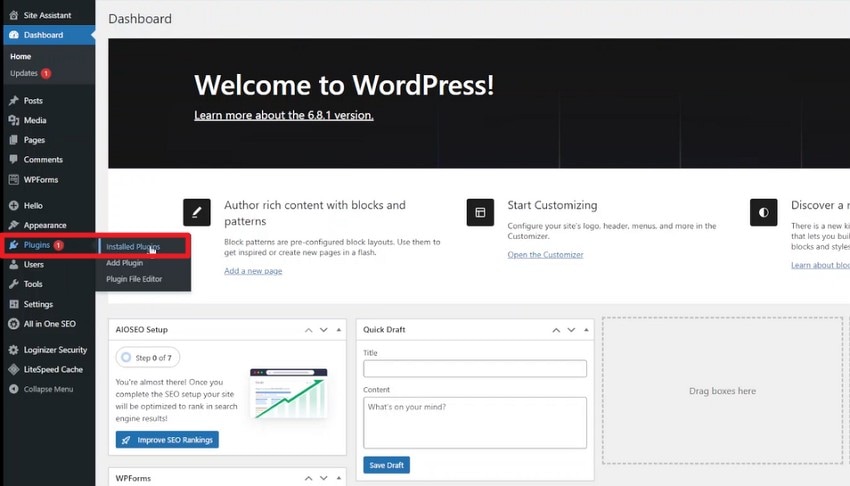
Step 1. Open WordPress and locate the “Plugins” option on the left. Next, choose the “Installed Plugins” option from the expanded list.
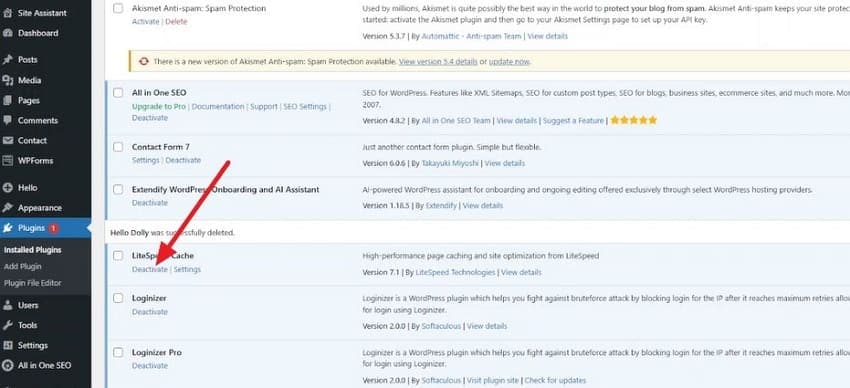
Step 2. In the following interface, choose the plugin that you recently added and press the “Deactivate” button.
Fix 8. Fix Database Connection Issues
An unstable or failed database connection can prevent your website from processing requests. This can cause a “503 Service Unavailable” error. Restoring a healthy connection is important to resolve this error. You can bring your website back online by checking the database and its connections. Read the steps provided next to learn how to perform this method:
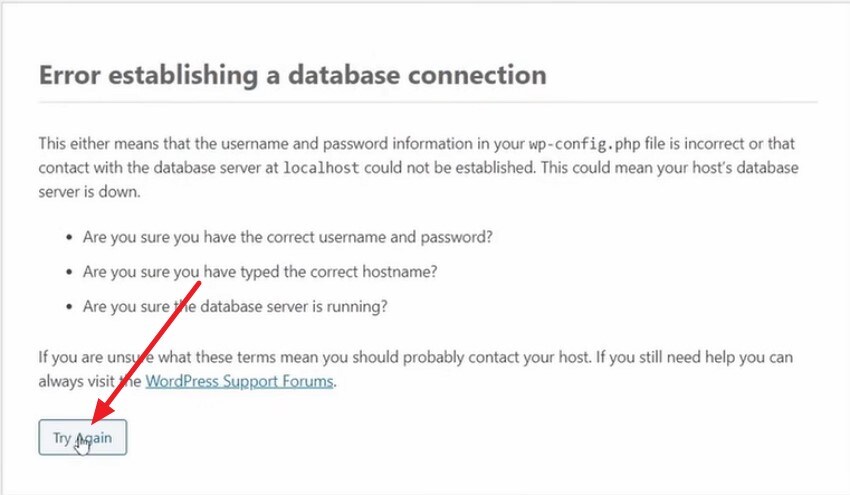
Step 1. Locate the error and press the “Try Again" button to try reloading the page in WordPress.
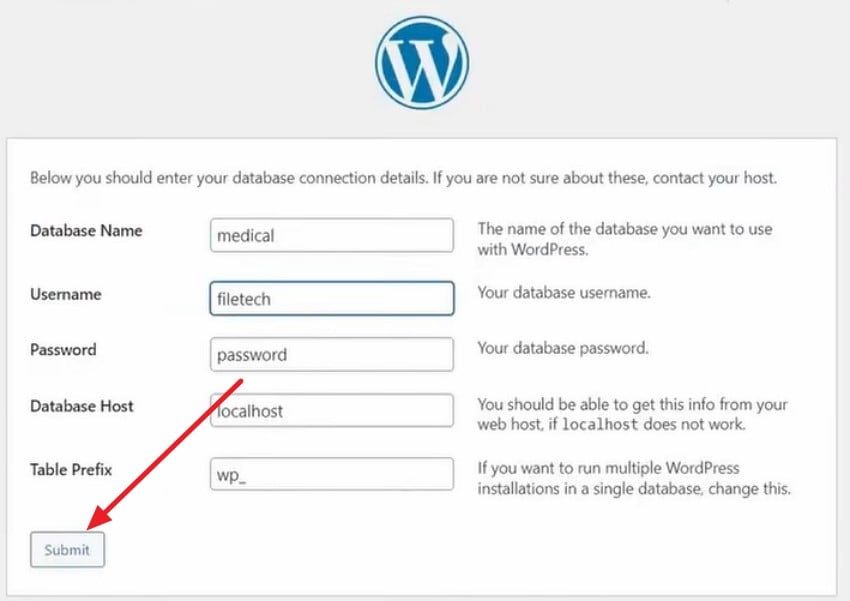
Step 2. Enter your database connection details in the designated fields and press the "Submit” button.
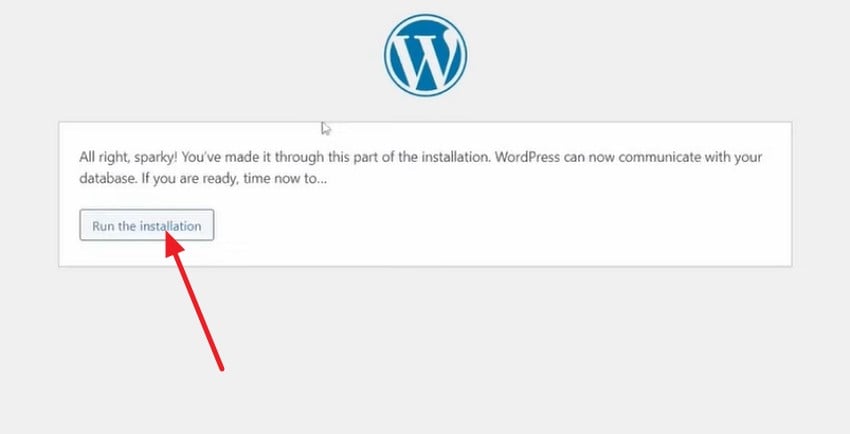
Step 3. In the following interface, press the “Run the Installation" button to connect to the database. For this procedure, you might need to edit your configuration files, such as “wp-config.php," or utilize host tools.
Fix 9. Restart Backend Services (PHP, Node.js, etc.)
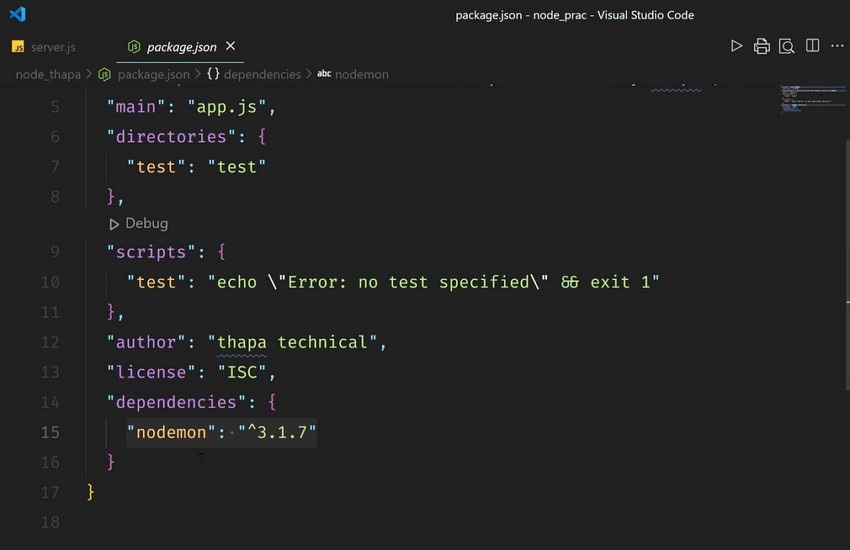
Backend services help process your website's requests. The web server may be unable to handle incoming requests if these services crash. Restarting the affected service clears temporary faults. Developers often use nodemon for Node.js to restart the service. You can run the following Node.js command in your Visual Studio to restart your services:
Fix 10. Check CDN and Cloudflare Configuration
Another method is to check the network settings and make sure that traffic is routed without any issue. You can correct the configuration issues to restore normal website access and prevent recurring 503 errors.. Follow the steps mentioned below to learn how to perform this fix:
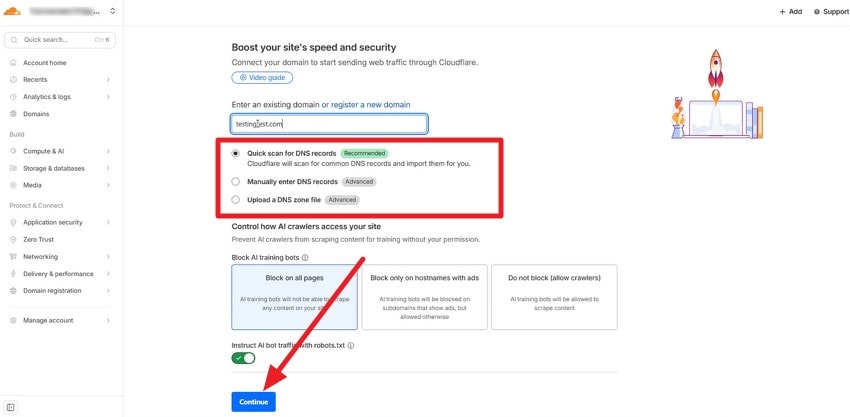
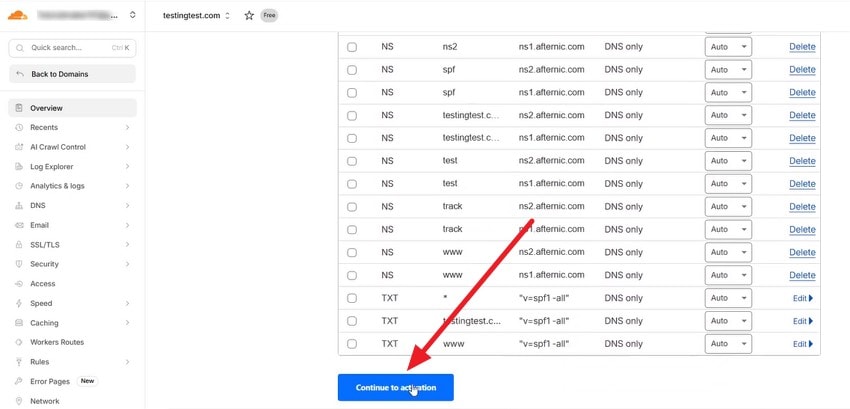
Step 1. Open Cloudflare and input your domain in the designated field. Now select the DNS settings from the options provided and press the "Continue” button.
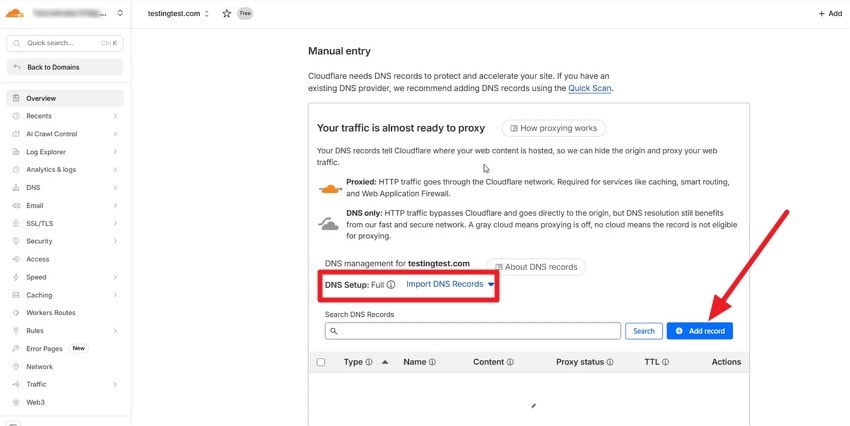
Step 2. Now, click the “Import DNS Record” option or “Add Records” to add new records.
Step 3. Scroll through the screen and click on the “Continue to Activation” to activate the connection.
Fix 11. Review Recent Code or Deployment Changes
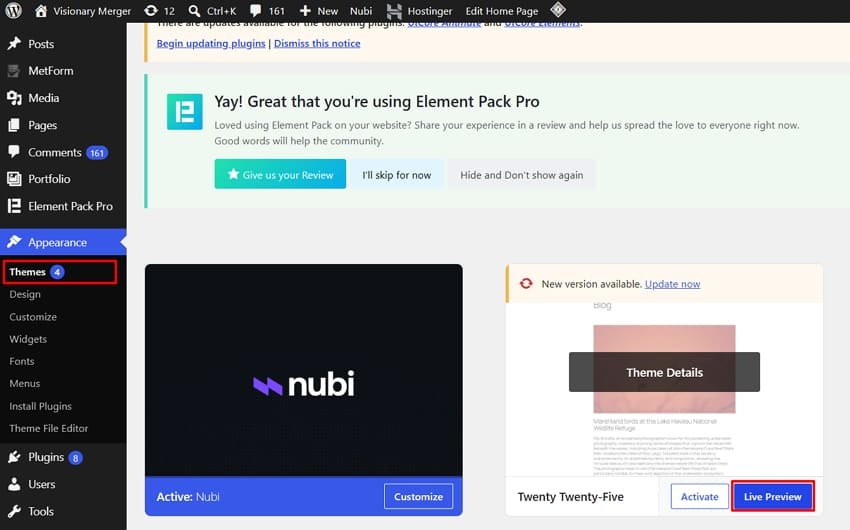
The new changes that you made could be the reason for the error if it appeared right after. Users can review recent changes to help identify what introduced the problem. This can help you roll back or fix the affected code. This is one of the most effective steps when the error occurs right after a release. Follow the steps to preview the changes you made:
Step 1. Open WordPress and apply any change, such as a theme change. Go to the "Themes” option within the "Appearance” section and click on the “Live Preview” button.
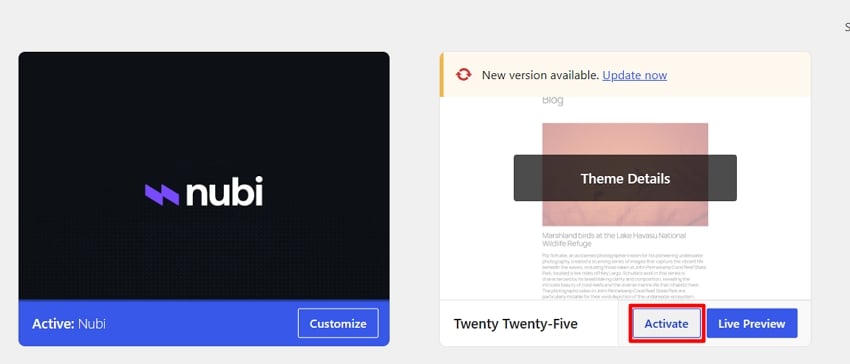
Step 2. Preview the changes, and if the error doesn't occur, click on the "Activate” button to successfully add it.
Fix 12. Increase Server Resources (RAM/CPU/Storage)
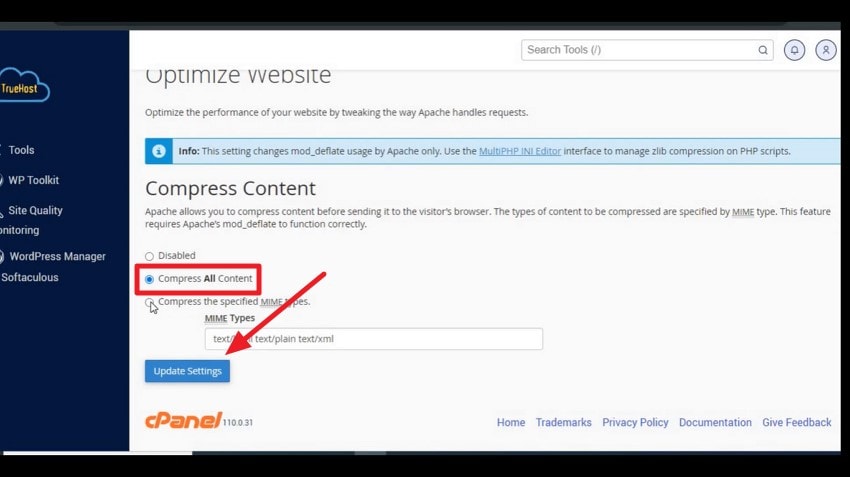
You can increase the resources to allow your web server and applications to run without issue This also helps in improving the overall performance of the website. One of the easiest ways to increase the resources is by compressing the content. Follow the steps mentioned below to learn how to do this 503 service unavailable fix:
Step 1. Open your hosting panel, for instance, cPanel, and locate the “Optimize Website” option to click on it.
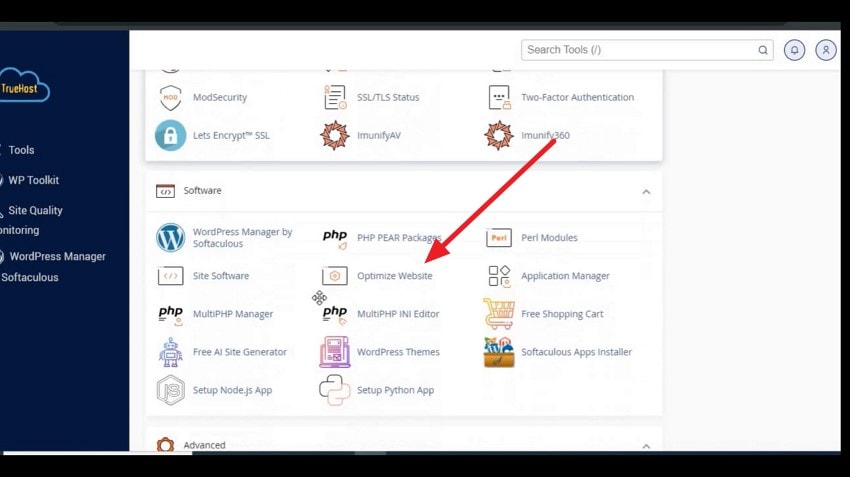
Step 2. Next, select the “Compress All Content” option under “Compress Content.” Save the changes by clicking on the “Update Settings” option.
Pro Tip: Lost Downloaded Files from Your Computer? Quick Recovery Guide
You download backups of the site or configuration files to your computer while repairing an HTTP 503 Service Unavailable error. However, out of nowhere, the files you’ve downloaded are accidentally deleted or lost within your system. As a quick remedy, Recoverit is an easy-to-use and reliable tool to recover downloads from a computer under such circumstances.
This platform has been created to retrieve lost or unreadable files from internal hard drives and other storage devices, including 1 million+ options. It can recover more than 1000 file formats like videos and databases. Recoverit also offers a preview feature so you can check out files you have recovered prior to saving them.
Key Features
- Deep Scan Technology: Users can perform deep scan to find lost or hidden files on your computer. This increases the chances of recovering lost data.
- Recovery After System Crashes: It offers data retrieval of important website files even if your PC crashes or unexpectedly shuts down while resolving a 503 Service Unavailable error.
- Selective File Recovery: You get the ability to get back only the required website files instead of restoring the entire scan results to save time and storage space.
Comprehensive Steps to Recover Lost Downloaded Files Using Recoverit
Recoverit can help restore the web files in just a few clicks if you have deleted them. Follow the steps below to recover your important downloads using this tool:
Step 1. Select the Drive Containing the Lost Downloads
Launch Recoverit on your computer and open the “Hard Drives and Locations” section from the left panel. Once the affected drive is selected, Recoverit will automatically begin scanning the chosen location for lost and deleted files.

Step 2. Locate the Downloaded Files
After the scan completes, browse the recovery results to find your missing website backups. Select the files you want to restore and click “Recover.”

Step 3. Preview and Save the Recovered Files
Before completing the recovery, preview the files to confirm they are the correct downloads. Click the “Recover” button when you have checked the results.

Conclusion
To wrap it up, this article provided a detailed guide on resolving the "503 service unavailable" error. You can fix the issue even if you are a visitor to the site. Website owners can also resolve it using the methods discussed in the article. For situations where you accidentally lose your downloaded web files, tools like Recoverit can help you restore them instantly with no hassle.
FAQ
-
Is HTTP 503 Service Unavailable a temporary error?
It is an error caused by server maintenance or an increase in visitors. Website owners can use fixes like reconfiguring the database or disabling recent plugins to resolve this error. -
Can I recover website backups or server files that I accidentally deleted while fixing a 503 error?
Tools like Recoverit can help you recover data that you deleted during the fix. It supports recovery of over 1,000 file types for various devices. -
Can Recoverit restore downloaded plugins and documents?
Recoverit can recover deleted downloads and configuration files. You can check recovered files before restoring them to ensure you have selected the right files. -
Is Recoverit useful after a system crash while troubleshooting an HTTP 503 error?
The platform can recover the lost data from internal drives if your computer crashes while you are resolving an error. This helps you continue troubleshooting without having to download important files again.


