
 TL;DR:
High CPU usage from the legitimate Windows DWM.exe (Desktop Window Manager) typically stems from outdated GPU drivers, hardware acceleration failures, or excessive rendering workloads from high-resolution displays.
● Restarting the DWM.exe process in Task Manager or updating display adapters via Device Manager resolves immediate software conflicts and graphical glitches.
● Disabling hardware-accelerated GPU scheduling in the Windows Display settings stabilizes performance on systems where low GPU resources force the CPU to take over rendering tasks.
● Run a Microsoft Defender Antivirus Offline Scan to eliminate malware hiding under the DWM.exe name, and utilize Wondershare Recoverit to restore any critical system files accidentally deleted during troubleshooting.
Ask AI for a summary
 ChatGPT
 Perplexity
 Gemini
 Claude
 Grok
Grok
When DWM.exe shows high CPU, GPU, or memory usage, Windows may feel slow, hot, noisy, or less responsive. However, DWM.exe itself is not automatically a virus or a broken program. It is the Desktop Window Manager, a core Windows process responsible for desktop composition and visual rendering.
The right fix starts with diagnosis. Check whether the process is the real Microsoft file, whether a specific app or display setting is increasing graphical load, and whether the GPU driver is forcing DWM work back onto the CPU. This guide explains what DWM.exe does, why it can spike, and how to reduce usage without damaging Windows.

Try Recoverit to Perform Data Recovery
 Security Verified. 3,591,664 people have downloaded it.
Quick Diagnosis: What Does DWM.exe High CPU Mean?
| Symptom | Likely Cause | Best First Check |
| DWM.exe spikes briefly when opening or moving windows | Normal desktop composition activity | Wait a few seconds and check whether usage returns to normal |
| DWM.exe stays high after connecting a monitor | Resolution, refresh rate, HDR, scaling, or multi-monitor load | Lower refresh rate, disable HDR temporarily, or test one display |
| DWM.exe high GPU or CPU after gaming or screen recording | Windowed game optimization, overlay, capture app, or driver conflict | Close overlays, recording tools, and windowed games |
| DWM.exe uses high CPU after driver update | Display driver bug or GPU fallback | Update, roll back, or clean install the graphics driver |
| DWM.exe runs outside System32 | Possible malware using a fake process name | Open file location and run a full Microsoft Defender scan |
| DWM.exe remains high after reboot | Corrupted Windows files, shell issue, or persistent driver conflict | Run Windows Update, DISM, and SFC |
Part 1. What Is DWM.exe, and Is It Safe?
DWM.exe stands for Desktop Window Manager. It is a legitimate Windows process that creates the composed desktop you see on screen. It manages window rendering, thumbnails, transparency, animations, DPI scaling, monitor composition, and other visual effects.
The real DWM.exe is safe when it is located at C:\Windows\System32\dwm.exe and signed by Microsoft. If a process with the same name runs from another folder, has no Microsoft signature, or appears multiple times from suspicious paths, treat it as a possible fake process and scan the system.
| Check Item | Safe DWM.exe | Suspicious DWM.exe |
| File location | C:\Windows\System32\dwm.exe |
Temp, Downloads, user profile folders, or unknown app folders |
| Publisher | Microsoft | Unknown, unsigned, or mismatched publisher |
| Behavior | Uses resources during visual rendering and then drops | Consumes high CPU constantly with no display-related trigger |
| Action | Diagnose driver and display workload | Disconnect from unsafe networks if needed and run a full malware scan |
Part 2. Why Is DWM.exe Causing High CPU Usage?
DWM.exe high CPU usage usually means the Windows desktop compositor is handling more visual work than expected, or the GPU driver is not processing that work efficiently. Use the table below to locate the most likely cause.
| Cause | Why It Raises DWM Usage | What To Check |
| Outdated or faulty graphics driver | DWM may fall back to less efficient rendering paths | Update or roll back Intel, NVIDIA, AMD, or OEM display drivers |
| 4K, ultrawide, high-refresh, HDR, or multiple monitors | More pixels and refresh cycles require more desktop composition work | Test lower refresh rate, SDR mode, or one display |
| Too many visible windows or browser tabs | DWM must compose more live window surfaces | Close heavy apps and watch DWM usage in Task Manager |
| Windowed games, overlays, and screen recorders | Capture layers and overlays can conflict with desktop composition | Close game overlays, streaming tools, and recording apps |
| Transparency, animations, live wallpapers, or widgets | Extra visual effects add rendering work | Turn off transparency, animation effects, or dynamic wallpapers |
| Fake DWM.exe malware | Malware can use a trusted process name to hide | Verify file path and run Microsoft Defender |
| Corrupted Windows system files | Damaged components can cause UI loops or rendering errors | Run DISM and SFC after Windows Update |
Part 3. Potential Fixes to Desktop Window Manager High CPU Usage
When you are aware of the exact Desktop Window Manager high CPU Windows 11 reason, you can quickly choose an efficient solution. Before that, navigate to all the possible fixes detailed below, aiming to manage high CPU usage:
Recommended Fix Order for DWM.exe High CPU
| Priority | Fix | Risk Level |
| 1 | Verify that DWM.exe is the real Microsoft file | Low |
| 2 | Restart Windows Explorer, sign out, or reboot | Low |
| 3 | Update Windows and display drivers | Low |
| 4 | Reduce display and visual effect load | Low |
| 5 | Close overlays, recorders, live wallpapers, and heavy apps | Low |
| 6 | Scan for malware | Medium |
| 7 | Run DISM and SFC for Windows repair | Medium |
| 8 | Reset or reinstall Windows only after backup | High |
1. Restart Windows Explorer or Reboot Instead of Repeatedly Ending DWM.exe
Ending DWM.exe directly can cause a black screen or a temporary desktop refresh. Windows usually starts it again, but this is not the cleanest first fix. Restart Windows Explorer first because it refreshes the shell, taskbar, Start menu, and many desktop UI elements.
- Right-click Start and choose Task Manager.
- Open the Processes tab.
- Find Windows Explorer.
- Right-click it and choose Restart.
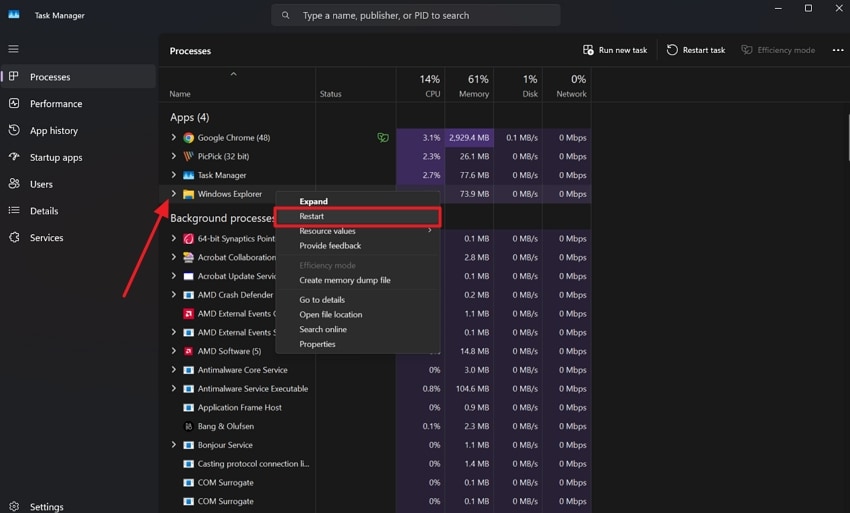
- Wait for the taskbar and desktop to reload.
- Check DWM.exe CPU and GPU usage again.
- If usage remains high, save your work and restart the PC.
dwm.exe.2. Update Windows and Display Drivers
DWM.exe depends heavily on the graphics stack. A Windows update, display driver bug, or outdated GPU driver can make Desktop Window Manager use more CPU than expected. Update Windows first, then update or roll back the graphics driver if the problem started after a driver change.
- Open Settings > Windows Update.
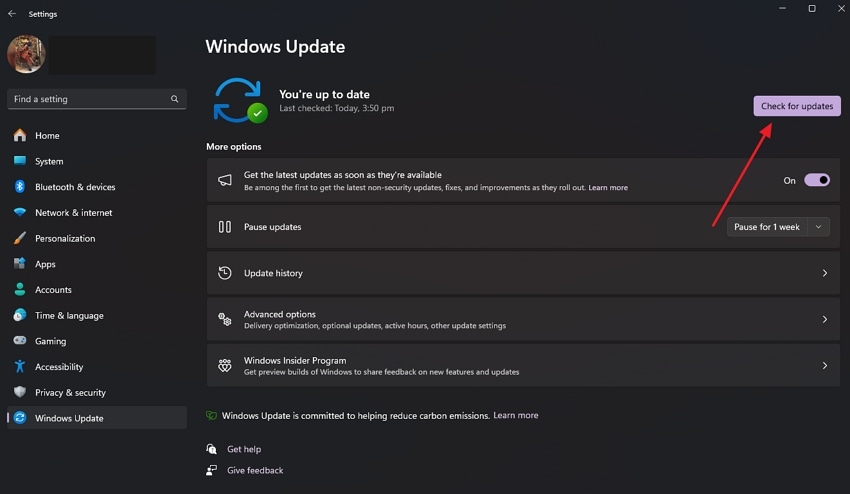
- Click Check for updates and install available updates.
- Restart Windows.
- Right-click Start and open Device Manager.
- Expand Display adapters.
- Right-click your Intel, NVIDIA, AMD, or OEM display adapter and choose Update driver.
- Use Search automatically for drivers or install the latest stable driver from the PC maker or GPU vendor.
- If DWM.exe high CPU started right after a driver update, open the adapter properties and use Roll Back Driver if available.
3. Verify DWM.exe and Run a Microsoft Defender Scan
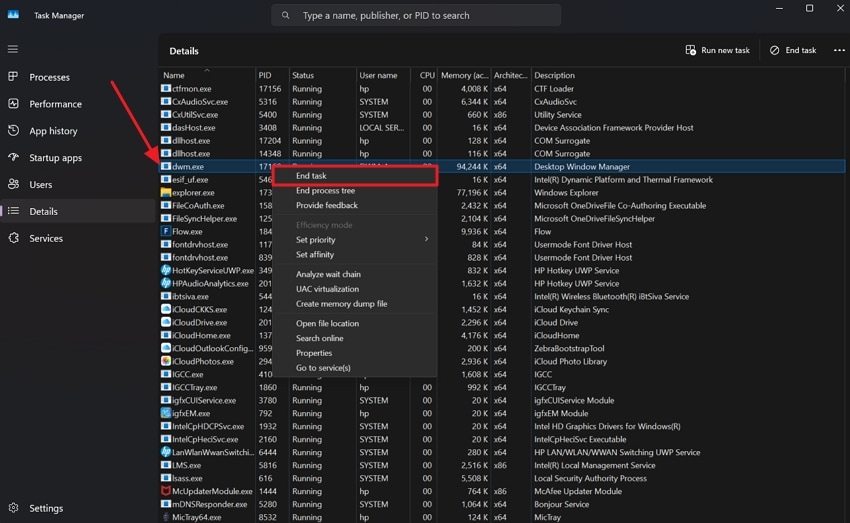
The real DWM.exe should run from C:\Windows\System32\dwm.exe. If Task Manager opens a different file location, or the file is not signed by Microsoft, scan the computer for malware immediately.
- Open Task Manager.
- Go to the Details tab.
- Right-click dwm.exe and choose Open file location.
- Confirm that the path is
C:\Windows\System32\dwm.exe. - Right-click the file, open Properties, and check the digital signature if needed.
- Open Windows Security.
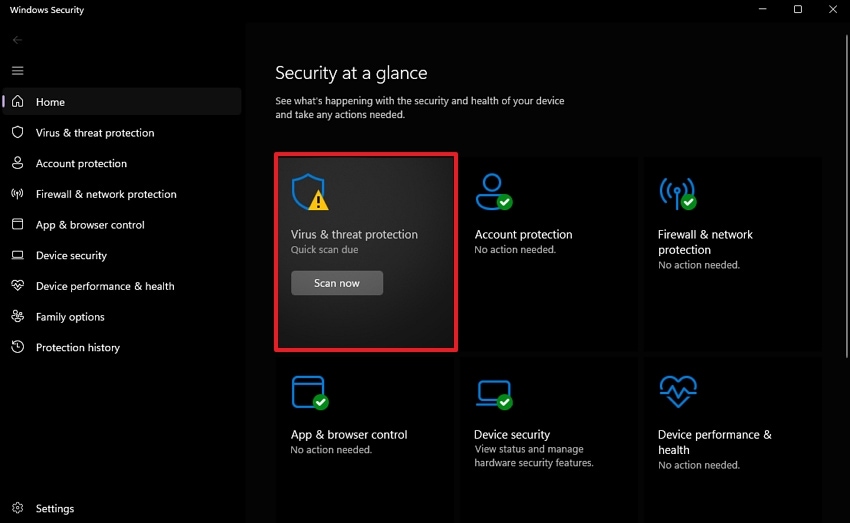
- Go to Virus & threat protection > Scan options.
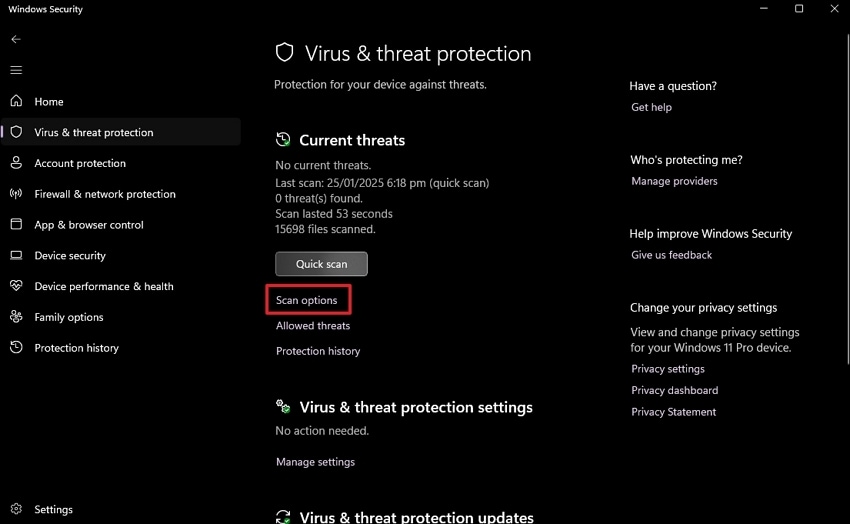
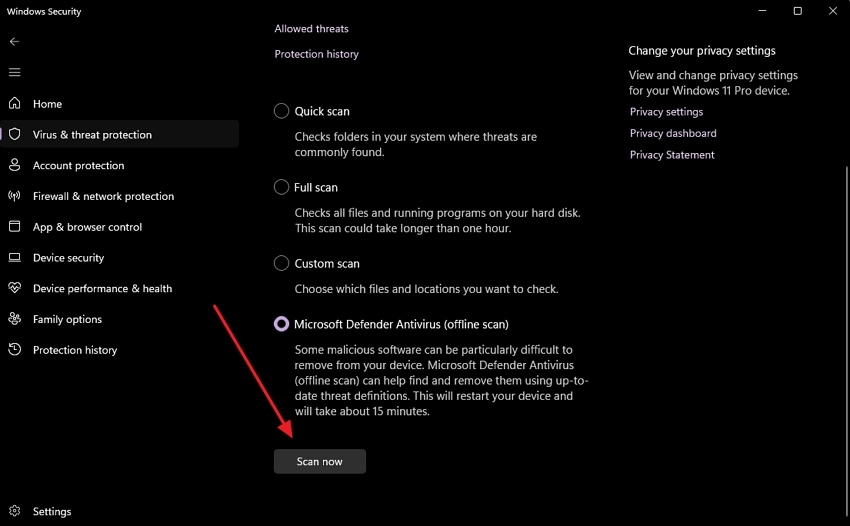
- Run a Full scan. If malware is still suspected, run Microsoft Defender Offline scan.
4. Reduce Visual Load and Adjust Graphics Preferences for Heavy Apps
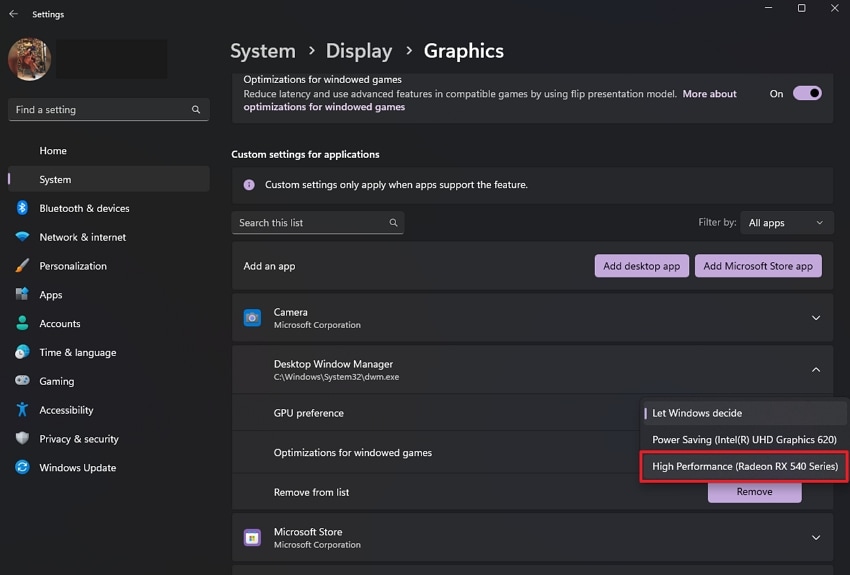
Do not treat DWM.exe like a normal desktop app that should be manually assigned to a high-performance GPU. Instead, reduce the visual workload that DWM has to compose and adjust graphics preferences for the apps that trigger the spike, such as games, browsers, design tools, video editors, or screen recorders.
- Open Settings > Accessibility > Visual effects.
- Turn off Transparency effects and Animation effects for testing.
- Open Settings > System > Display.
- Temporarily lower refresh rate, disable HDR, or disconnect extra monitors to test whether DWM usage drops.
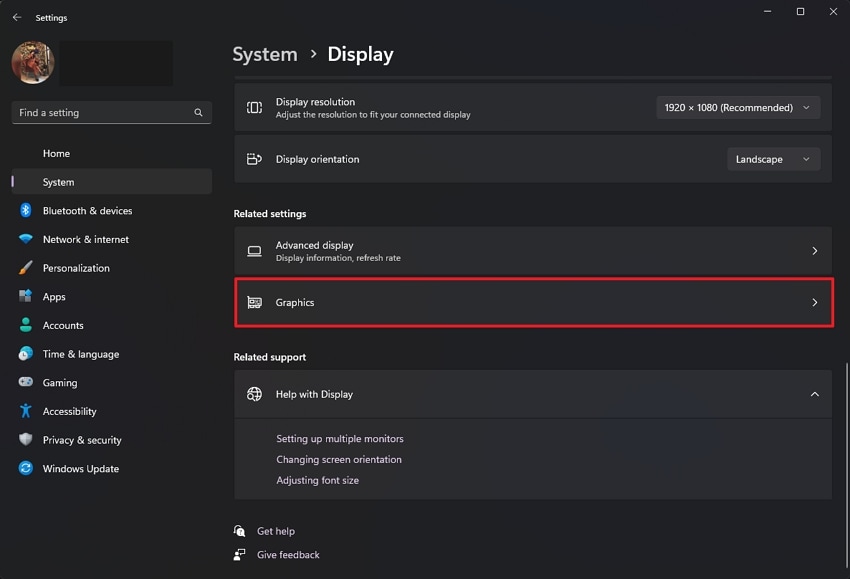
- Open Settings > System > Display > Graphics.
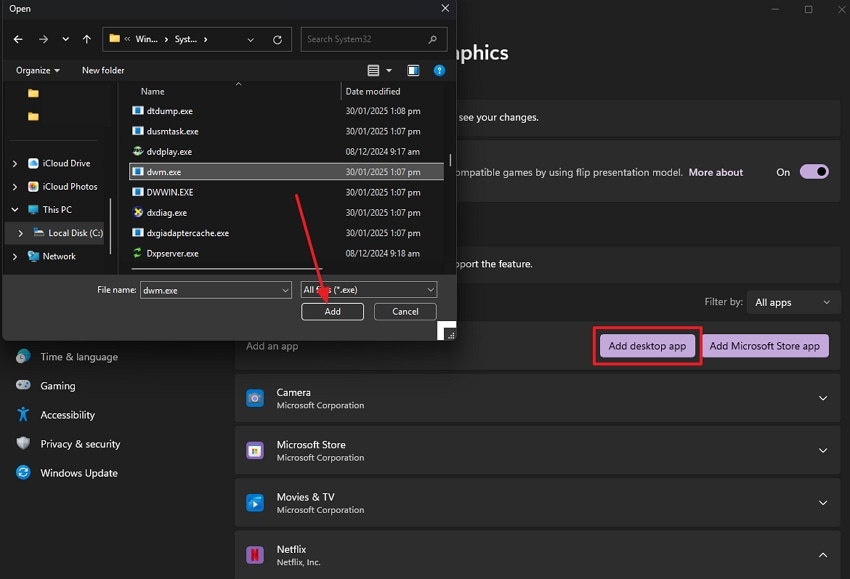
- Select the heavy app that triggers DWM spikes and choose the appropriate GPU preference.
- Close live wallpapers, overlay tools, screen recorders, and browser tabs that constantly redraw the screen.
| Setting To Test | Why It Helps | When To Use It |
| Transparency effects | Reduces extra desktop blending work | DWM spikes while moving windows or opening menus |
| Animation effects | Reduces UI transition rendering | Low-end GPU or older laptop |
| Refresh rate | Fewer frames per second reduce composition load | High-refresh monitors such as 120Hz, 144Hz, or 240Hz |
| HDR | Can reduce display pipeline complexity during testing | DWM spikes on HDR-capable displays |
| Extra monitors | Reduces pixel count and mixed-scaling work | Multi-monitor or docked laptop setups |
5. Test Hardware-Accelerated GPU Scheduling and Windowed Game Optimizations
Hardware acceleration is not always bad. DWM normally benefits from the GPU. However, if a specific driver, windowed game, overlay, or GPU scheduling option causes high CPU usage, you can test these settings one at a time and restart Windows after each change.
- Open Settings > System > Display.
- Open Graphics.
- Select Change default graphics settings if the option appears.
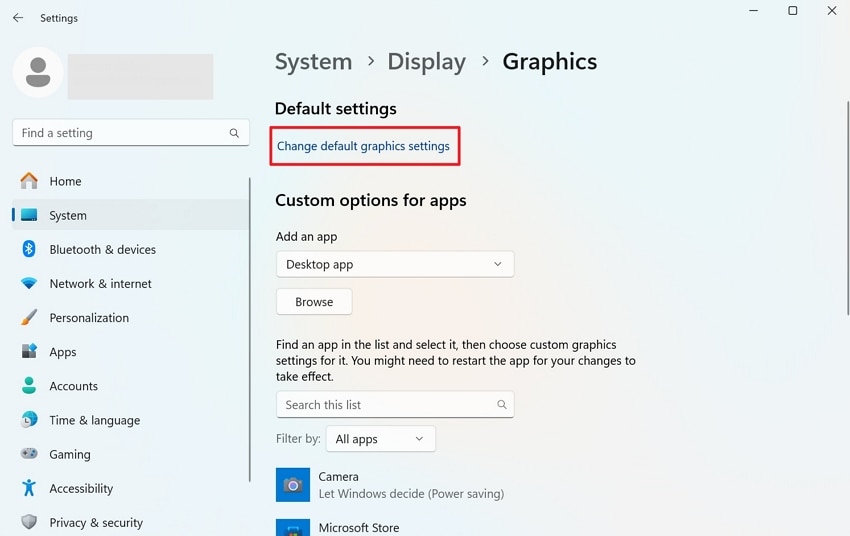
- Toggle Hardware-accelerated GPU scheduling only if available, then restart Windows.
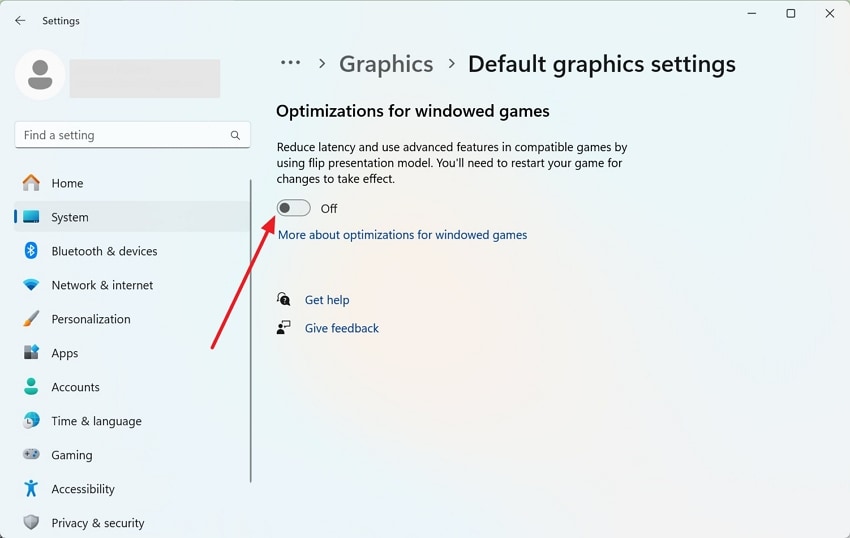
- Test Optimizations for windowed games separately if the issue happens during games or full-screen apps.
- If performance gets worse, restore the previous setting.
6. Repair Windows System Files With DISM and SFC
If DWM.exe high CPU continues after driver, display, and malware checks, repair Windows components before assuming files must be recovered manually.
- Right-click Start and open Terminal or Command Prompt as administrator.
- Run
DISM.exe /Online /Cleanup-image /Restorehealth. - Wait for the command to finish.
- Run
sfc /scannow. - Restart the computer.
- Check Task Manager again to see whether DWM.exe CPU usage returns to normal.
dwm.exe with a downloaded file from the internet.Part 4. Recover Deleted Personal Files After a DWM-Related Crash or Repair
If DWM.exe high CPU is caused by Windows corruption, use Windows Update, DISM, SFC, or repair install to restore system components. Wondershare Recoverit is useful when personal files were deleted or lost during troubleshooting, crash recovery, disk formatting, transfer failure, or system reset.
Do not use data recovery software to replace core Windows files such as dwm.exe. Recover personal data first, then repair Windows through official repair tools.
- Stop using the drive where files were deleted.
- Install Wondershare Recoverit on a different drive or another computer when possible.
- Open the tool and choose the original drive, folder, SD card, USB drive, or external disk.
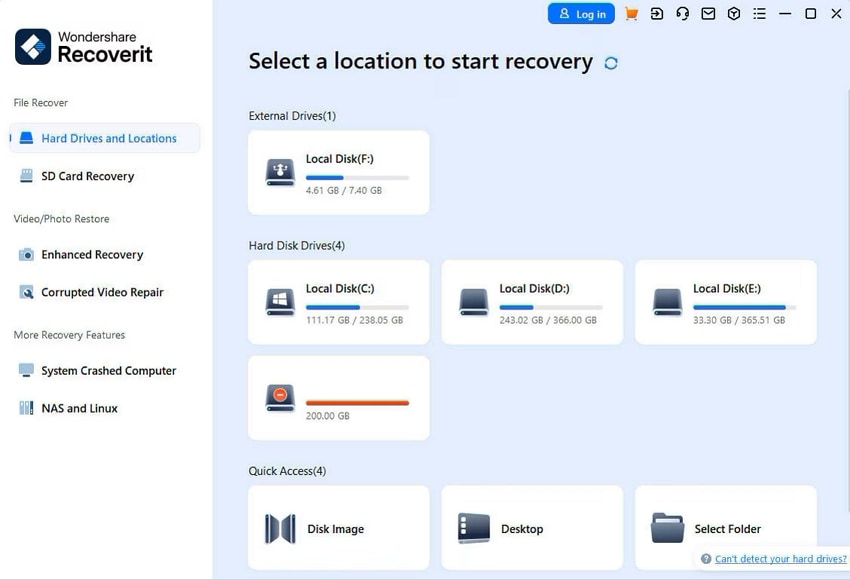
- Start the scan.
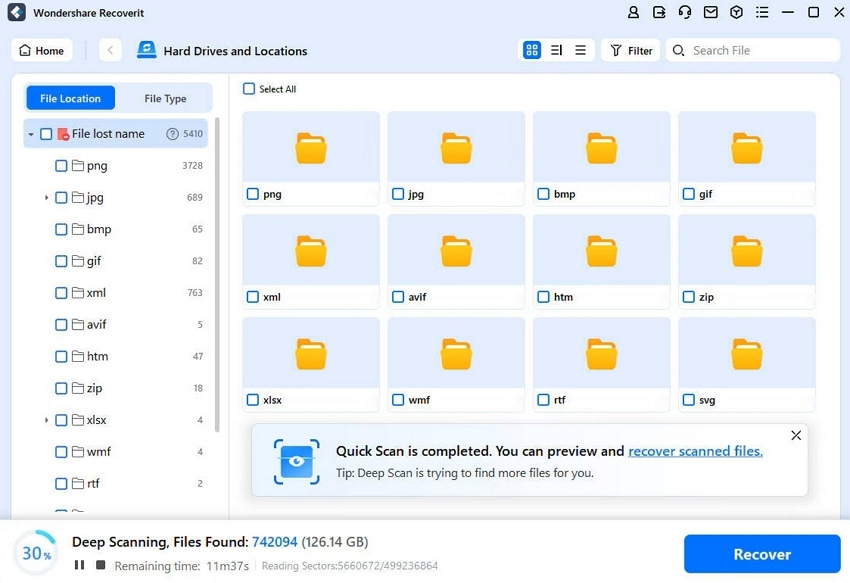
- Filter and preview recoverable files.
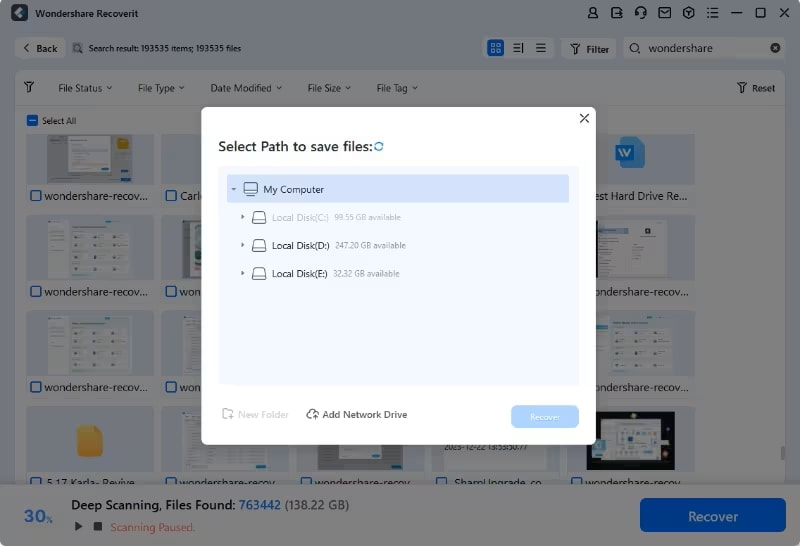
- Click Recover.
- Save recovered files to a different drive or folder.
| Use Recoverit For | Do Not Use Recoverit For | Better Fix |
| Deleted documents, photos, videos, archives, or project files | Replacing Windows system files manually | Run DISM and SFC |
| Files lost after formatting, reset, crash, or transfer failure | Disabling or deleting DWM.exe | Repair Windows and update GPU drivers |
| Data recovery from drives, SD cards, USB drives, and external disks | Fixing malware without security cleanup | Run Microsoft Defender and remove threats first |
Conclusion
DWM.exe is the real Windows Desktop Window Manager when it runs from C:\Windows\System32\dwm.exe and is signed by Microsoft. High CPU usage usually comes from display driver problems, high visual load, multiple monitors, overlays, screen recorders, malware using a fake name, or corrupted Windows components.
Start with safe checks: verify the file location, restart Windows Explorer, update Windows and graphics drivers, reduce display effects, test GPU scheduling options carefully, scan for malware, and repair system files with DISM and SFC.
If important personal files are deleted during troubleshooting or system repair, use Wondershare Recoverit to scan the original storage and save recovered files to a different drive. For Windows system files, rely on official repair tools instead of manual file replacement.
FAQ
-
1. How would I know if my system is consuming high DWM.exe resources?
Your sluggish system performance and laggy applications are the major systems of high CPU usage. Overheating or excessive fan noise shows your CPU resources are using excessively. You can even check it through Task Manager’s “Processes” section. -
2. What should I do when I delete my Office files when trying some fixes?
In case your professional, personal, or system files get deleted, you should use Recoverit. With advanced algorithms, it ensures data recovery while retaining file quality and security. -
3. Can I fix DWM.exe using high CPU resources later and shut down the PC now?
Yes, if you are in a hurry now, you can shut down your system, with the thought that you can work on it later. Surprisingly, when you restart the system, the issue will be resolved because of the clear memory and updated drivers.


