
 TL;DR:
Windows 10 and 11 securely store user, network, and application passwords within the protected Security Account Manager (SAM) file, Credential Manager, and specific registry hive locations.
● Local and Microsoft account passwords can be reset via official online recovery pages, secondary Administrator accounts, or by executing the "net user username newpassword" command through Advanced Startup (WinRE) or Safe Mode.
● Because password restoration workflows are vulnerable to brute-force attacks, keylogging, and unpatched system vulnerabilities, securing these credentials requires using official recovery tools and enabling Multi-Factor Authentication (MFA) or Windows Hello.
● If you are unable to log in due to missing or corrupted local password files, third-party data recovery software like Wondershare Recoverit can be utilized to scan the storage drive and retrieve the lost documents.
Ask AI for a summary
 ChatGPT
 Perplexity
 Gemini
 Claude
 Grok
Grok
Knowing where are passwords stored in windows is essential for maintaining security and troubleshooting login issues. Windows saves passwords in multiple secure locations, each serving different purposes for applications and user accounts.
Understanding these locations helps users back up or recover their credentials safely, reducing the risk of unauthorized access. Proper knowledge also supports IT management and compliance. Read this article to learn more about where passwords are stored in Windows.
Try Recoverit to Perform Data Recovery
 Security Verified. 3,591,664 people have downloaded it.
In this article

Part 1. Where Are Passwords Stored in Windows 10?
Windows 10 stores passwords in several protected system components. The storage sites include Credential Manager, the Security Account Manager file, and specific registry hive locations. These areas manage login details, ensuring secure access while preventing direct readability without administrative privileges. For further details on how to reset passwords saved in these locations, the following section will help:
1. Reset Microsoft Account Password
Using the official online recovery for Microsoft accounts ensures that your credentials are restored securely and promptly. This method is important because it maintains synchronization across all connected devices, reducing potential security gaps. The steps below are a guide to resetting the Microsoft account password:
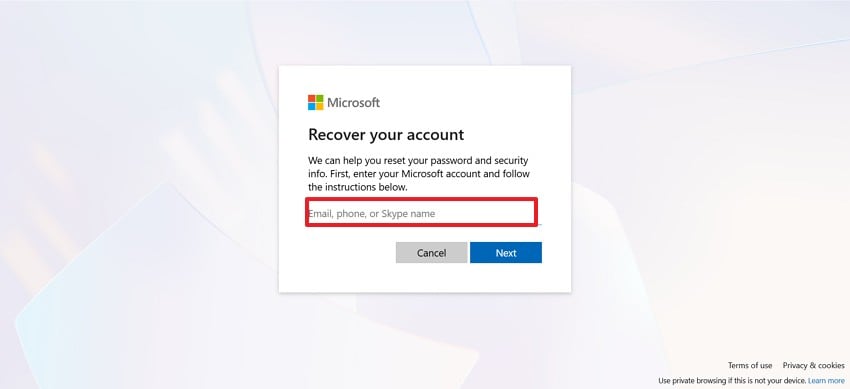
- Open the Microsoft Password Reset website and enter your email, phone number, or Skype name.
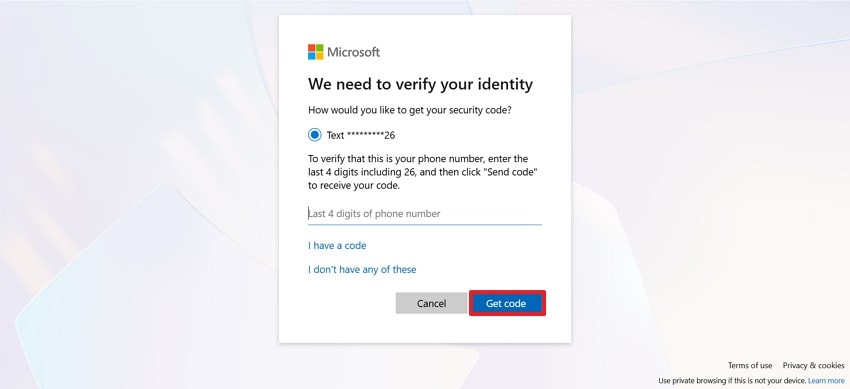
- Click the "Get Code" button and enter the code you received on your mobile number. Enter the new password and end the process.
2. Use Another Admin Account
Now that you know where does windows store passwords, let’s explore how to reset them. Having another administrator account available ensures local accounts can be recovered internally without external intervention. This is crucial for maintaining system control and avoiding exposure to unsafe recovery tools. Follow these steps and learn how to use another admin account to change passwords:
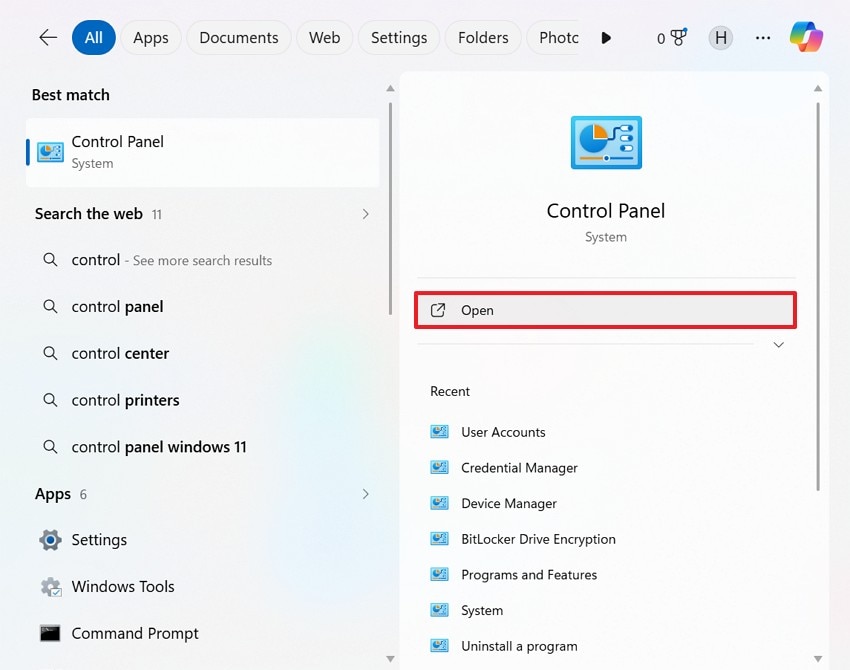
- To start, open "Control Panel" from the search bar in your taskbar and wait for the next window to open.
- Now, select the User Accounts tab to proceed.
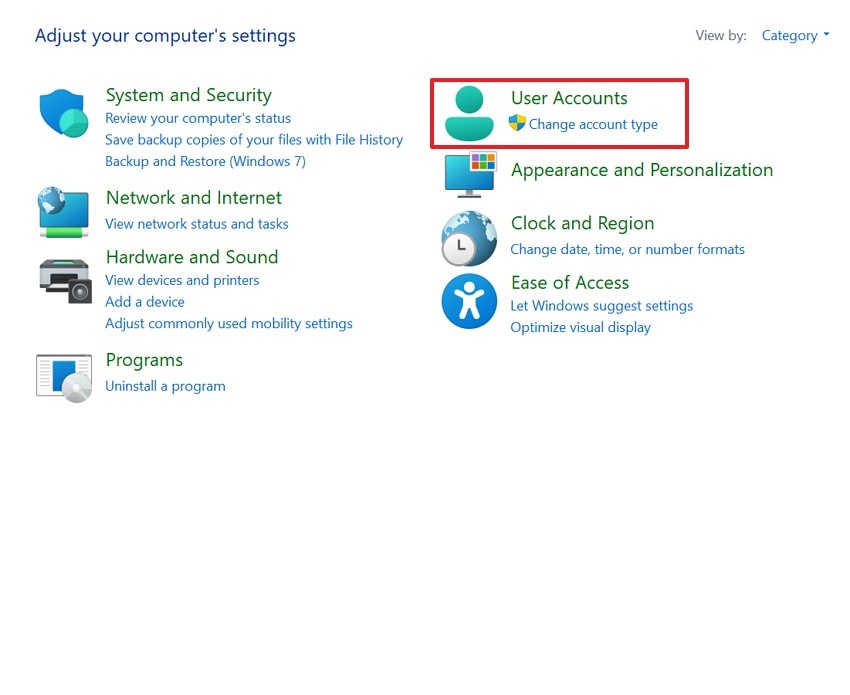
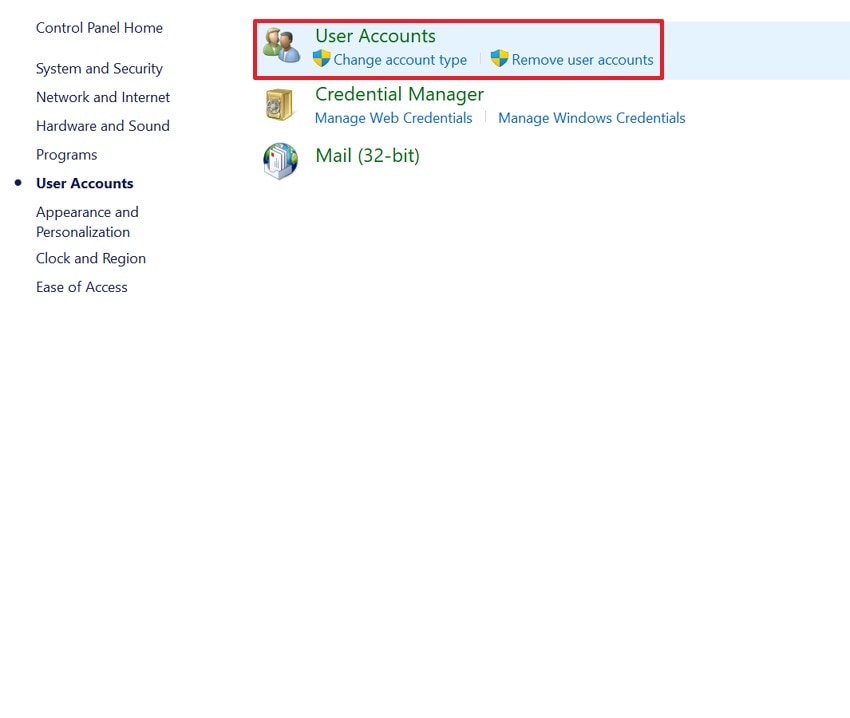
- Using the following window, pick the User Accounts option and select the account that needs a password reset.
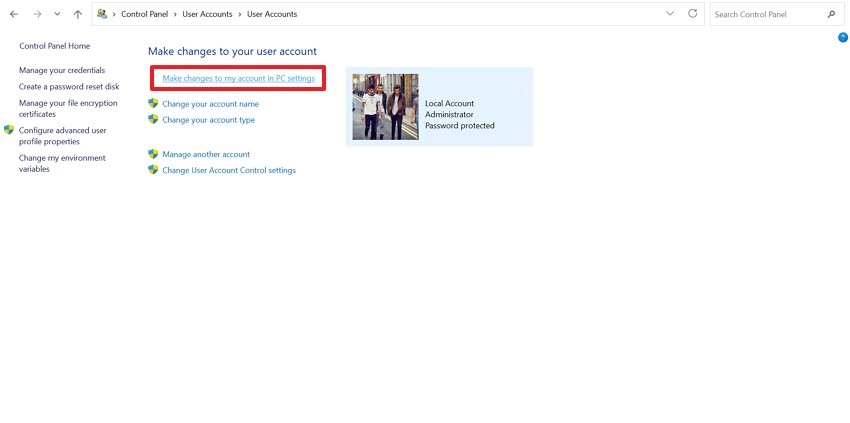
- Select the "Make Changes to My Account in PC Settings" option, and you will be directed to the Settings app.
- Select the Sign-in Options tab and locate the Password menu. On expanding this menu, select the "Change" button and reset the passkey using the following window.

3. Microsoft Account Recovery on Another Device
To reset a password on the device, it is important to know where are passwords stored on windows 10. Recovering a Microsoft account on a separate device ensures credentials are updated securely without exposing your PC to vulnerabilities. This method is important because it allows safe, remote restoration while maintaining account integrity. The following guide explains how you can perform this on another device:
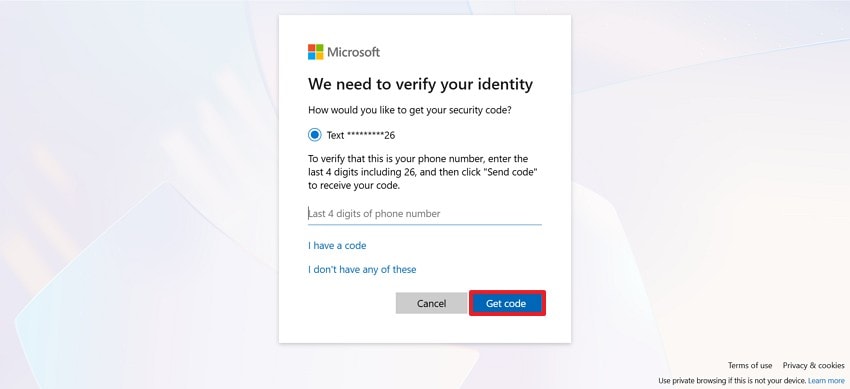
- To start, open the Microsoft Password Recovery page on the other device and enter your username.

- Following that, pick a verification method and enter the code shared via email or phone number. Once done, enter the new password and open your main device with these credentials.
4. Use Command Prompt via Advanced Startup
Using Command Prompt in WinRE allows password restoration through system-level access while avoiding unsafe third-party software. This method is important because it leverages built-in Windows tools for secure recovery. Follow this guide and learn how to reset a password using this method:
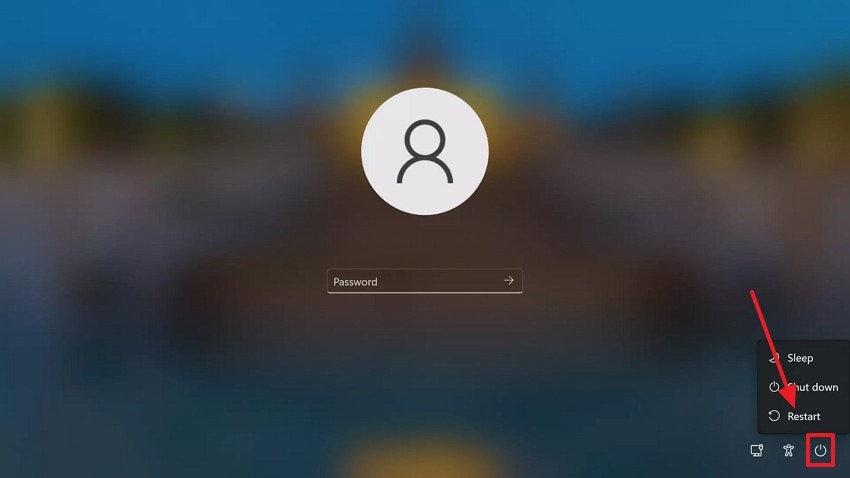
- Using the startup interface of your device, press the "Shift" key and the "Restart" button simultaneously.
- Now, select the Troubleshoot tab and continue to the next interface.
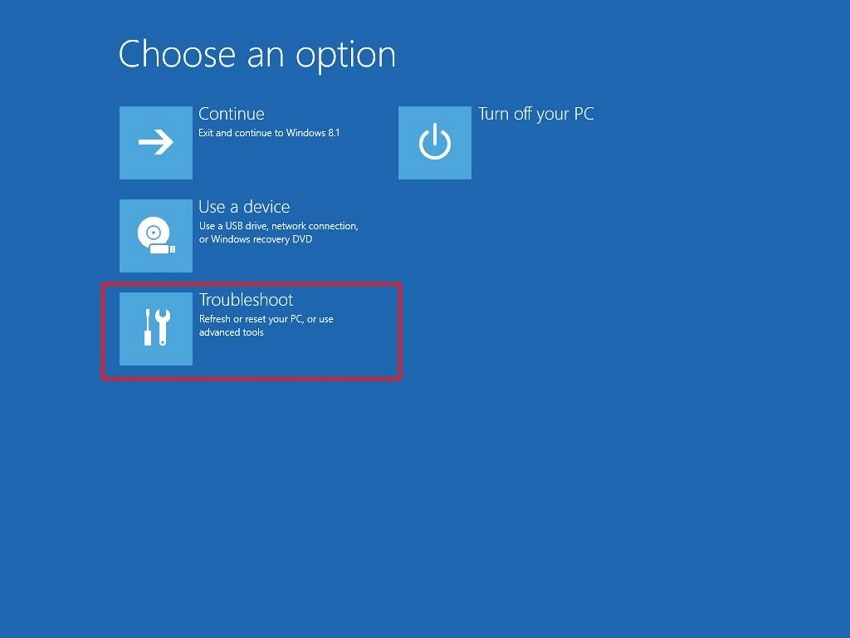
- Click the "Command Prompt" option and wait for the CMD window to open.

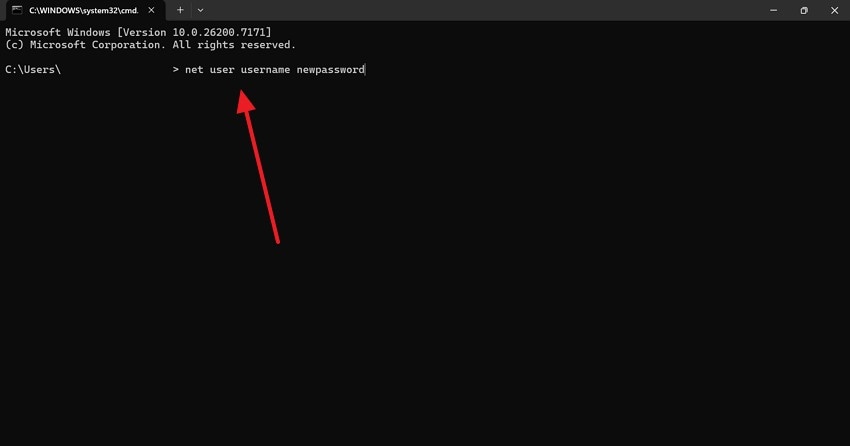
- Using this window, give the "net user username newpassword" command and start the device with the newly set passcode.

5. Use Safe Mode With Command Prompt
After knowing where do i find stored passwords on my computer, let's see how to change them using the CMD. Safe Mode with Command Prompt enables password restoration in a controlled environment, reducing the risk of malware interference. Follow this guide and explore how to use Safe Mode with Command Prompt to reset a password:
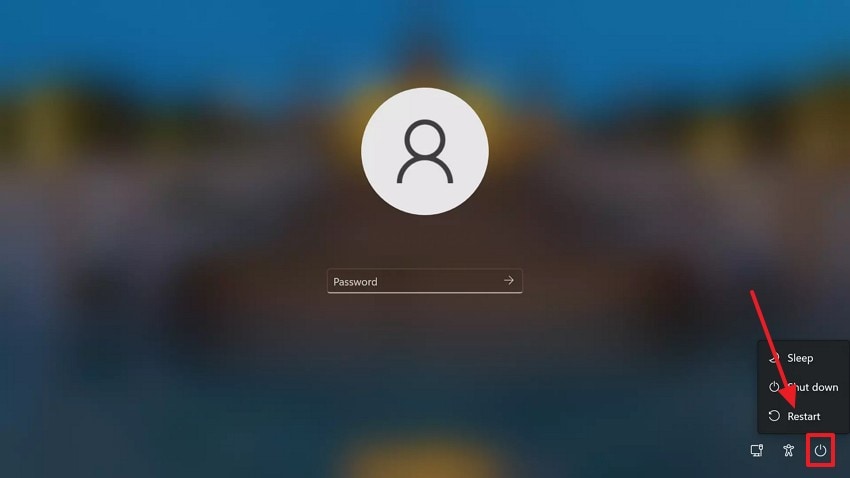
- In the startup window of your device, press the "Shift" key and press the "Restart" button to open the Command Prompt window.
- In the Command Prompt window, give the "net user username newpassword" command. Now, press the "Enter" key and restart the device using the newly created password.
Part 2. 9 Security Risks and Protective Measures to Restore Passwords
Now that we know where are passwords stored in windows, let’s discuss the security risks. We will also look into the protective measures for password restoration in the following section.
9 Security Risks
Look into the following section to explore the top security risks to your passwords saved on Windows 10 and 11:
1. Unauthorized Access Attempts
Unauthorized access attempts often occur during password restoration because malicious users exploit vulnerabilities or weak authentication controls. Attacks such as brute force or phishing targeting recovery pathways significantly increase the risk of account compromise.
2. Malware and Keylogging Threats
Using untrusted recovery tools can expose systems to malware and keylogging programs that secretly capture restored passwords. These stolen credentials may be transmitted to attackers remotely, compromising privacy, financial security, and overall system integrity without the user noticing.
3. Data Leakage Through Insecure Channels
Restoring passwords over unsecured networks or using outdated encryption makes it easy for attackers monitoring traffic to intercept sensitive credentials. This risk is especially high on public Wi-Fi networks, which often lack consistent and robust security protections.
4. System Vulnerability Exploitation
We know where does windows store passwords, now let’s explore the security threats to these passkeys. Restoring passwords over unsecured networks or using outdated encryption makes it easy for attackers monitoring traffic to intercept sensitive credentials. This risk is especially high on public Wi-Fi networks, which often lack consistent and robust security protections.
5. Weak Local Account Protections
Weak or reused local account passwords make it easier for attackers with physical or remote access to bypass login barriers. Once inside, they can extract saved credentials from system files, exposing every linked account to unauthorized access.
6. Credential Theft via Compromised Browser Profiles
Browsers storing passwords in unprotected profiles become targets for malware designed to harvest login data instantly. Attackers who obtain these profiles can decrypt or transfer saved credentials to other devices, enabling silent account takeover.
7. Unpatched Windows Vulnerabilities
Outdated Windows systems with unresolved vulnerabilities provide openings for privilege-escalation exploits that access the credential store. These flaws allow attackers to bypass normal restrictions and retrieve saved passwords without detection.
8. Insecure Third-Party Password Managers
After knowing where are passwords stored on windows 10, let’s discuss another security threat. Using poorly designed or unsupported third-party password tools on Windows can introduce weaknesses in encryption or storage methods. If these managers store data locally without strong protections, attackers can extract or decrypt entire password vaults.
9. Shared or Multi-User Device Risks
Shared computers expose saved passwords to anyone with user-level access who can view or export browser-stored credentials. Without separate accounts or proper access controls, sensitive login details may be compromised unintentionally or maliciously.

Protective Measures to Restore Passwords
The following section deals with the preventive measures while you restore passwords from your Windows device:
1. Use of Official Recovery Tools
Relying on built-in Windows recovery tools or certified security software ensures proper encryption compliance and minimizes exposure to security threats. This approach also preserves system integrity and supports safe, reliable password restoration practices for users.
2. Enabling Multi-Factor Authentication
We have discussed where are passwords stored on windows 10, let’s explore a protective measure while resetting them. Implementing multi-factor authentication adds extra verification layers that require secondary confirmation methods such as biometrics or device codes. These safeguards prevent unauthorized access even if primary passwords become compromised during sensitive restoration procedures.
3. Regular System Updates and Patching
Maintaining regular system updates and installing patches on time strengthens overall security and removes exploitable weaknesses. This protection helps ensure safer password restoration by shielding authentication components from both known attacks and emerging threats.
4. Secure Backup and Storage Practices
Storing password backups in encrypted, access-controlled environments prevents unauthorized retrieval and maintains confidentiality. These protections support reliable restoration processes and safeguard sensitive credentials from misuse through strict permissions and monitored security policies.
5. Use of Secure Recovery Email and Phone Numbers
Keeping recovery email accounts and phone numbers secure ensures that attackers cannot hijack password-reset messages. This protection blocks unauthorized users from triggering resets or intercepting verification codes during restoration attempts.
6. Limiting Administrator Account Usage
After knowing where do i find stored passwords on my computer, here is another protective measure. Restricting administrator access reduces the chances of privileged misuse during password restoration. By using standard accounts for routine tasks, users minimize the risk of attackers gaining elevated control to extract stored credentials.
7. Encrypted Local Account Reset Tools
Choosing recovery tools that use strong, device-based encryption prevents outsiders from reading reset files or tokens. These encrypted mechanisms ensure that only authorized users can initiate or complete password restoration steps.
8. Disabling Unnecessary Remote Access Features
Turning off remote access tools like Remote Desktop when not needed reduces entry points for attackers attempting credential recovery exploits. This limits exposure during password changes and helps maintain stricter control over who can interact with the system.
9. Use of Windows Hello for Added Protection
Enabling Windows Hello creates a secure authentication layer tied to biometrics or hardware-based modules. This feature protects password access workflows by ensuring that restoration actions require identity verification beyond traditional passwords.
Pro Tip. Recover Corrupted or Lost Windows Password Files With Recoverit
If you cannot log in due to a missing password file after learning where are passwords stored in windows, you can recover the document using a third-party tool. It is recommended that you use Recoverit to retrieve the file from any location on your device. This platform supports more than 10,000 scenarios for lost files, catering to a broad audience. Recoverit has a 99.5% success rate, easing file recovery for users.
This tool enhances your productivity by allowing you to recover multiple files at once with its batch recovery feature. It provides an automated file scan option that automatically searches for your missing documents. However, you can add a custom filter to perform a precise search in your specified folders. The Deep Scan option takes a deep dive into your device to find missing documents effortlessly.
Key Features
- File Preview Feature: Before you save the recovered file in a secure location, use the preview feature to verify the results.
- Format Support: You can retrieve more than 1,000 types of documents and multimedia files in order to get the most productivity.
- Compatible Devices: Recoverit supports over 1M+ storage devices, including hard drives, memory cards, and flash drives.
A Guide to Using Recoverit to Retrieve Missing Password Files
After having an idea of where are passwords stored on windows 10, the next step would be to use it. The following guide is a demonstration of using Recoverit for missing password file retrieval:
1. Specify the Location of Your Missing File
To begin with, open Recoverit and select the location of your missing file from the left panel.

2. Choose the Missing Files and Recover
When the missing files appear on the next interface, select them and click "Recover" to retrieve.

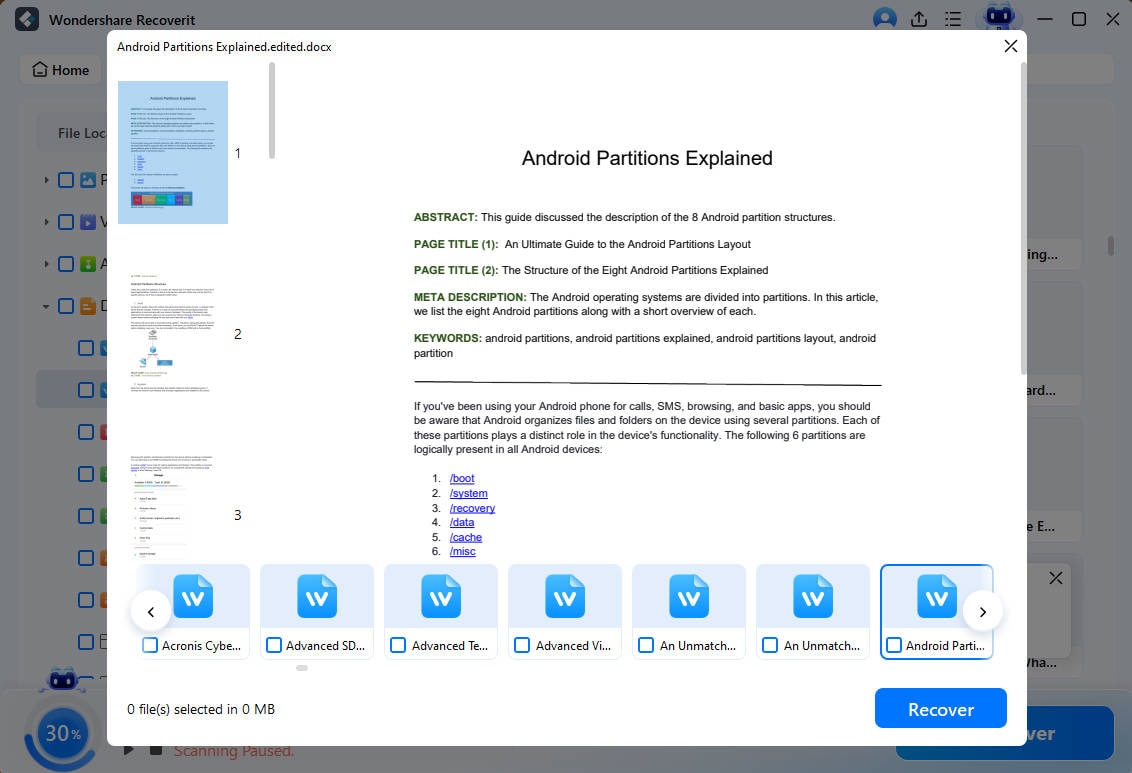
3. Preview the Recovered File
As the files are recovered, preview them and hit the "Recover" button to save them.
Conclusion
There are multiple locations of saved passwords on Windows devices. This article explored the answers to the question of "where are passwords stored in windows?" If you have lost the passkey, you can reset it through multiple methods. A lost or deleted password file can also result in the inability to sign in to the device.
To cater to this scenario, you can use Recoverit and retrieve your missing password files in a blink. This platform supports over 10,000 lost file cases and delivers a 99.5% successful retrieval rate.
FAQ
-
1. Where are Windows passwords stored?
Windows passwords are stored in secure system areas, including the Security Account Manager (SAM), Credential Manager, and specific registry entries. These locations handle different types of user, network, and application credentials. -
2. What is the Security Account Manager (SAM)?
SAM is a protected system file that stores hashed Windows account passwords. It verifies user credentials during login without exposing plain-text passwords. -
3. How can I regain access to the images lost in the troubleshooting of this error?
To regain access to the images you lost while troubleshooting, use Recoverit on the desktop. This platform supports more than 1,000 file formats, including various image formats as well. -
4. Is there a recovery tool that can recover videos and images from a PC?
Recoverit is a robust recovery tool that can retrieve images, videos, and 1,000 other formats. It also caters to over 1 million storage devices for file restoration.


