

 TL;DR:
You can natively view and manage your saved passwords in Windows 10 through the built-in Credential Manager, individual web browser settings, or a specific Command Prompt function.
● Retrieve system, web, and network logins by navigating to Control Panel > Credentials Manager > Windows Credentials, or display all keys instantly by running `rundll32.exe keymgr.dll, KRShowKeyMgr` in Command Prompt.
● Check website-specific credentials directly within browser settings by accessing Google Password Manager in Chrome, the Profiles > Passwords menu in Microsoft Edge, or the Passwords panel in Mozilla Firefox.
● If locally stored password files are accidentally deleted or lost to system crashes, data recovery tools like Recoverit can scan system folders to restore up to 500 MB of hidden or corrupted login data for free.
Ask AI for a summary
 ChatGPT
 Perplexity
 Gemini
 Claude
 Grok
Grok
Knowing how to find stored passwords on Windows 10 can help regain access without resetting accounts repeatedly. This complete guide explains the exact steps to locate, view, and manage saved credentials safely using built-in Windows features and browser settings.
Try Recoverit to Perform File Recovery
 Security Verified. 3,591,664 people have downloaded it.
In this article

Part 1. Why Knowing Stored Windows 10 Passwords Matters
Before moving into the practical steps, it’s important to understand why learning “how to check saved passwords in Windows 10” actually matters. Here are a few of the reasons why knowing the stored password really matters:
- Account Access Management: Stored passwords allow quick access to websites, apps, and network services without repeated logins. Knowing where they are saved prevents unnecessary password resets.
- Wi-Fi Network Recovery: Windows 10 stores previously connected Wi-Fi credentials. Accessing these saved details makes it easy to reconnect devices or share network access when needed.
- Security Monitoring: Checking saved passwords helps identify outdated or weak credentials. This supports better password hygiene and stronger overall system protection.
- System Troubleshooting: When login issues occur, reviewing stored credentials can quickly resolve authentication problems without complex fixes.
- Credential Organization: Understanding how Windows manages saved passwords helps users organize and update login information more effectively.
Part 2. Where Windows 10 Stores Your Passwords: Overview
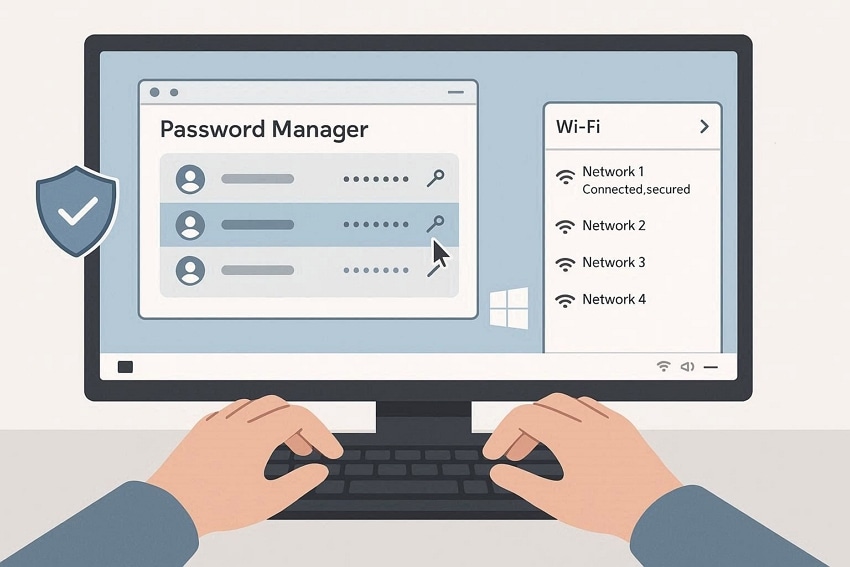
Understanding where credentials are saved makes it easier to learn how to find stored passwords in Windows 10. The system primarily stores login details in “Credential Manager,” which keeps web and Windows credentials. Browsers like Chrome and Edge maintain their own saved password lists. Additionally, certain apps and Wi-Fi networks securely store authentication data within Windows settings for quick future access.
Part 3. How to Find Stored Passwords in Windows 10 Using Credential Manager
Credential Manager is a built-in feature in Windows 10. It securely stores web credentials, network passwords, and system login details. All saved authentication data is organized in one central location. Using it regularly helps keep passwords organized and accessible when needed.
For users exploring how to check saved passwords on Windows 10, this tool provides a reliable and secure option. It allows reviewing and managing saved credentials directly within the system settings. To learn how to find the stored password using Credential Manager, read the steps mentioned below:
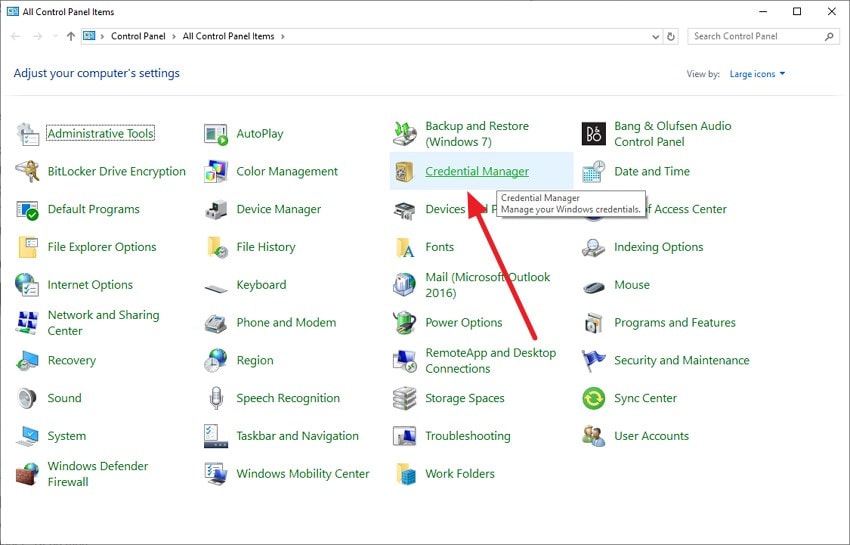
- Begin by accessing the “Control Panel” on your system. Now, locate the “Credentials Manager” option on the homepage and click on it.
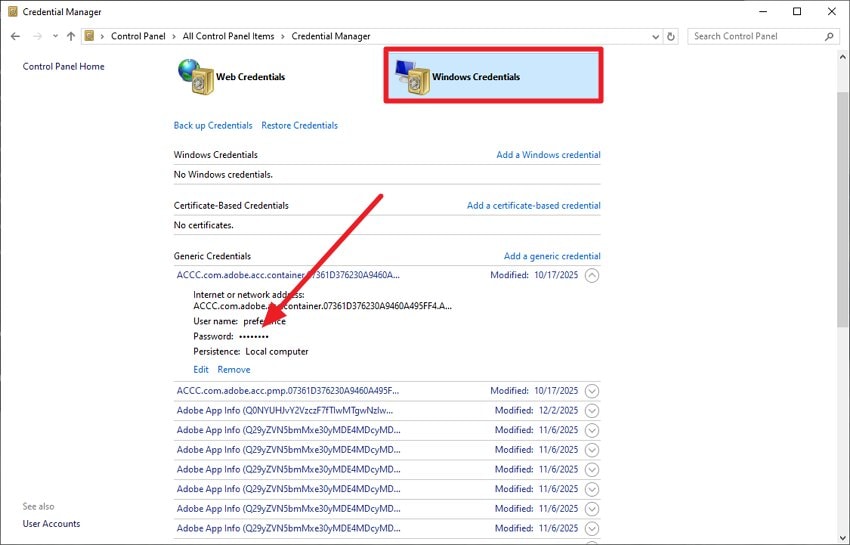
- In the following interface, enable the “Windows Credentials” option and expand the desired category. Now acquire and review the desired password and perform the action.
Part 4. Check Saved Passwords in Web Browsers on Windows 10
Another effective way to access credentials is through your web browser. Browsers like Chrome, Edge, and Firefox often save login details for websites, making repeated sign-ins faster and more convenient. Knowing how to find stored passwords in Windows 10 through these browsers allows users to view, manage, or export their credentials securely. This method complements system tools and helps ensure you can retrieve passwords when needed without resetting accounts.
How to View Stored Credentials on Google Chrome
Many users rely on Google Chrome for daily browsing, and it often stores a large number of login credentials. Understanding how to check saved passwords in Windows 10 through Chrome makes it easy to access, manage, and secure your website passwords directly within the browser. To learn how to view the credentials on this browser, read the steps provided next:
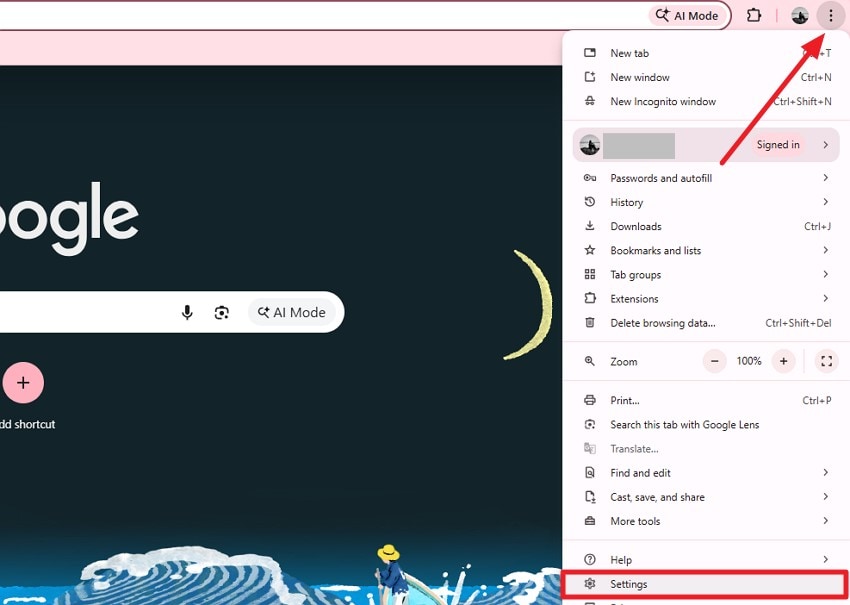
- After opening the Google Chrome browser, head to the top-right corner and press the “Three Dots” icon. Now, click on the “Settings” option from the expanded list.
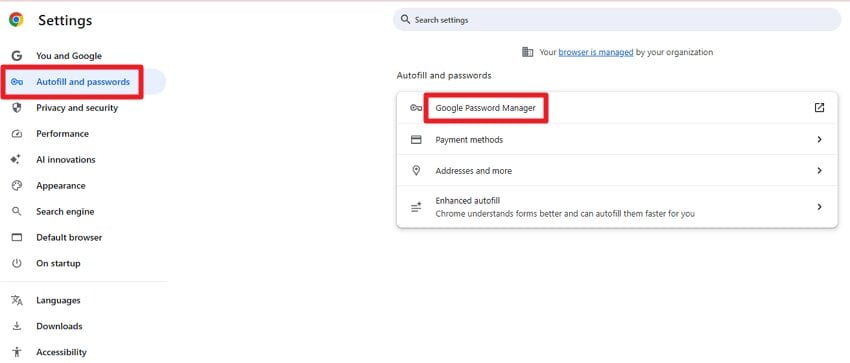
- Now, enable the “Autofill and Password” section on the left and choose “Google Password Manager.”
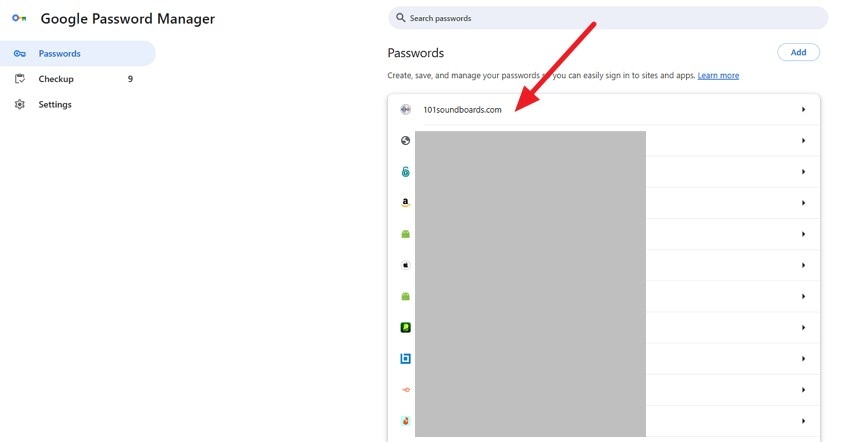
- In the following interface, select the account for which you want to check the password and click on it.
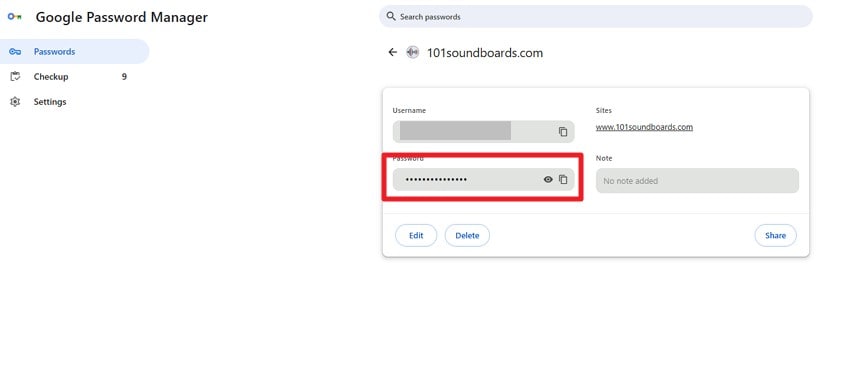
- View the credentials in the following screen, which you can edit, delete, and share.
How to View Stored Credentials on Microsoft Edge
After covering Chrome, attention turns to Microsoft Edge, another widely used browser on Windows 10. Edge securely saves website logins and passwords, making it easy to access them when needed. Knowing how to find stored passwords in Windows 10 through Edge helps users manage credentials efficiently without relying on third-party tools. Follow the steps mentioned below to learn how to view credentials on this browser:
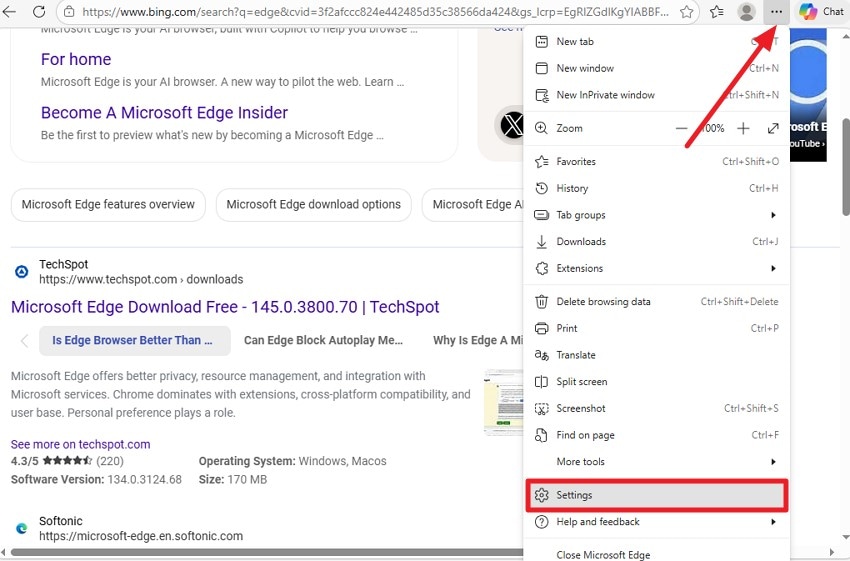
- Start by launching Edge on your device and pressing the "Three Dots" icon in the top-right corner. Next, locate the "Settings" option from the expanded list and click on it.
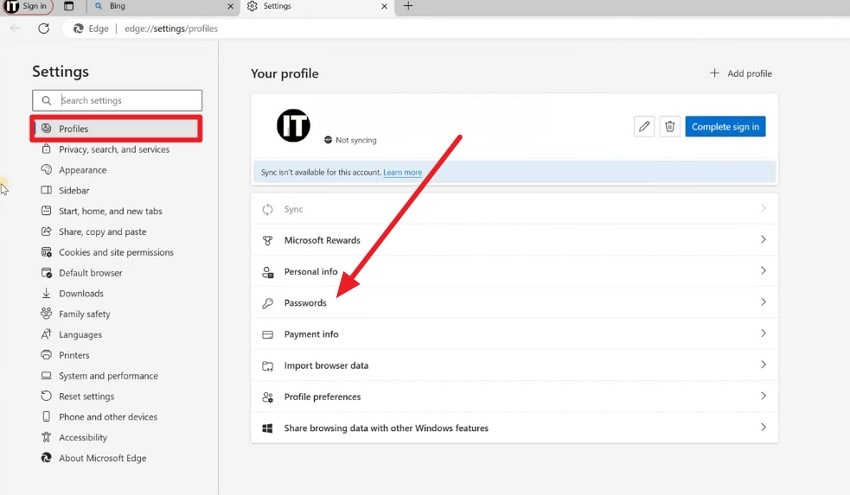
- Access the “Profiles” section from the left and press the “Passwords” option located within the interface.
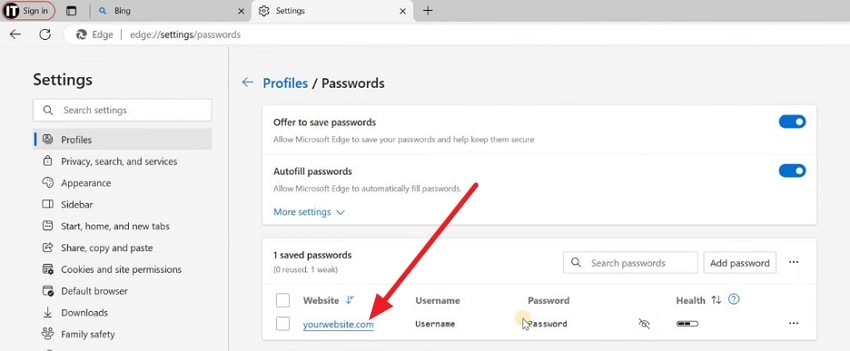
- Now, select the account from the list and review the password and other details on the screen.
How to View Stored Credentials on Firefox
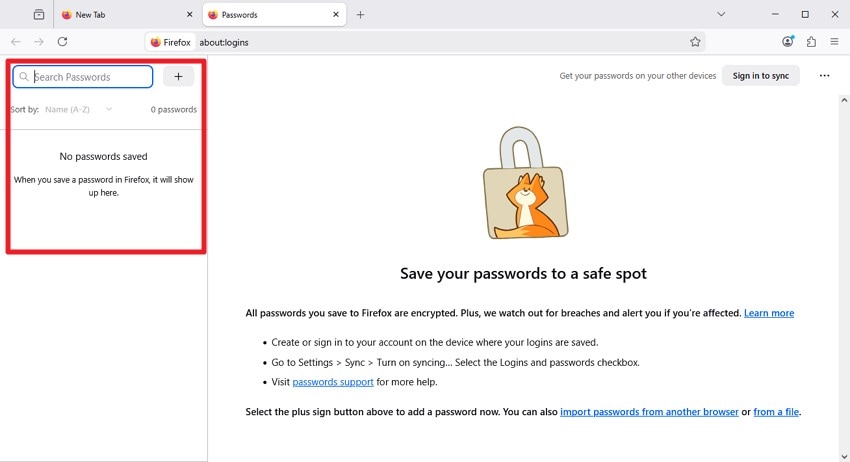
Next, consider Mozilla Firefox, a browser that also stores website credentials for easy access. Firefox’s built-in password manager lets users view, edit, and manage saved logins. Understanding how to check saved passwords in Windows 10 through Firefox ensures all important credentials are accessible and organized across different browsers. Read the steps provided next to learn how to view the password on this search engine:
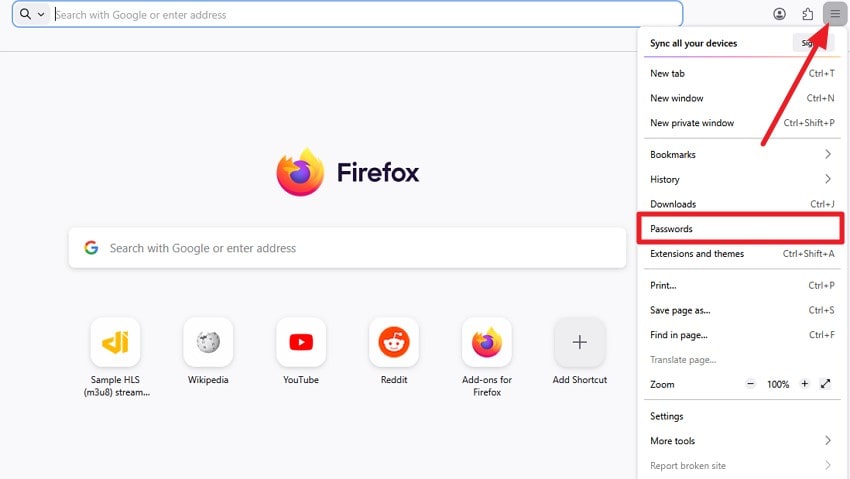
- Launch Firefox on your device and press the “Three Bars” icon on the right. Next, click on the “Passwords” option from the list.
- The saved passwords will appear within the panel on the left, which you can modify and share.
Part 5. Use Command Prompt to Find Windows 10 Saved Passwords
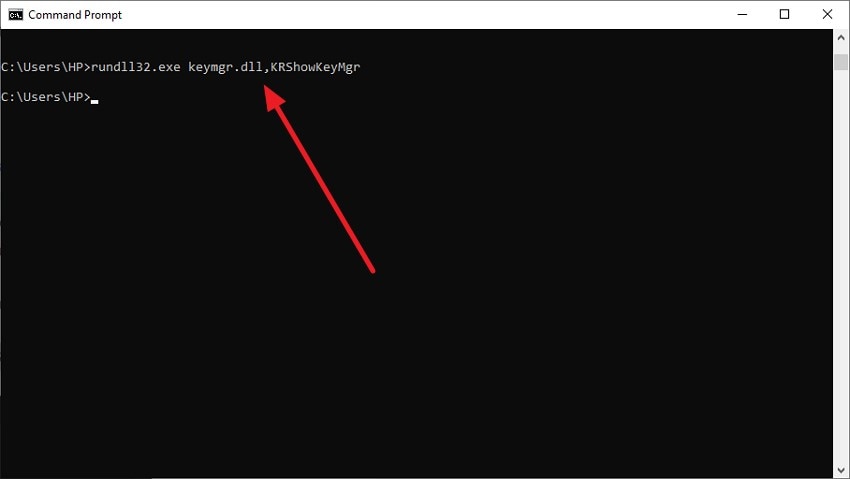
For advanced users, Command Prompt provides a powerful way to access saved credentials. By using specific commands, it’s possible to retrieve network passwords and other stored login details directly from Windows 10. This method is particularly useful for those wanting a quick, system-level approach to learn how to find stored passwords on Windows 10 without relying on graphical tools or browsers. Here is how you can check it using the Command Prompt:
Instructions. Open Command Prompt on your system and type the following command: “rundll32.exe keymgr.dll, KRShowKeyMgr.” Press the Enter key to let the tool show all the credentials.
Part 6. Restore Lost Login Files or Saved Credentials via Recoverit
Getting locked out of an account due to a missing saved password can be frustrating. Recoverit steps in to restore lost login files and credentials quickly. Scanning your system, it helps users recover important data effortlessly. This makes it easier for anyone learning how to check saved passwords in Windows 10 to regain access without the hassle of resetting accounts or searching through multiple locations.
Recoverit also lets users recover up to 500 MB of data for free, covering most small-scale credential losses. It supports various file types and locations, including system folders, browsers, and external drives. This ensures that lost passwords and login files are efficiently restored
Incredible Features Offered By Recoverit
- Multiple Scenario Data Recovery: Recoverit can retrieve lost passwords and login files from various situations, including accidental deletion, system crashes, or corrupted files.
- Batch Data Recovery: The software allows users to recover multiple credentials and files simultaneously, saving time and effort during large-scale restoration.
- Advanced Scanning Mode: Recoverit’s deep scan feature thoroughly searches system folders, browsers, and drives to locate even hidden or hard-to-retrieve saved password files.
Step-by-Step Guide to Recovering Password Files with Recoverit
After understanding Recoverit’s powerful features, it’s time to put them into action. The following step-by-step guide shows how to use Recoverit to locate and restore lost password files efficiently:
1. Choose the Location
Open Recoverit and select the drive or folder where your lost password files or login credentials were stored. The program will perform a deep scan to identify all recoverable files.

2. Select Desired Files For Recovery
After scanning, browse through the recovered items and filter out content. Select the password files and press the “Recover” button.

3. Preview File and Save
Preview the selected files to ensure they are complete. Save them to a safe location on your device to prevent further loss, then use the “Recover” button.

Part 7. Try 5 Tips to Manage and Secure Stored Passwords on Windows 10
Now that you know how to find stored passwords on Windows 10, it’s important to manage and secure them effectively. Here are five practical tips to protect your credentials:
- Use a Password Manager: Store all passwords securely in a trusted manager. It reduces reliance on memory and prevents repeated use across accounts.
- Enable Two-Factor Authentication: Add an extra layer of security to your accounts. This ensures access remains protected even if passwords are exposed.
- Regularly Update Passwords: Change passwords periodically for all important accounts. Doing so helps prevent unauthorized access from old or leaked credentials.
- Limit Browser Storage: Avoid saving every password directly in your web browser. This reduces the risk if the browser or system is compromised.
- Backup Credentials Safely: Keep encrypted backups of essential login files. These backups ensure recovery in case of system failure or accidental deletion.
Conclusion
All in all, you learned how to find stored passwords on Windows 10 using different methods. It included Credential Manager, web browsers, and Command Prompt. Each method helps you access and manage credentials efficiently. For situations where passwords or login files are accidentally deleted or lost, using Recoverit can be a lifesaver. It allows users to recover up to 500 MB of data for free, ensuring important credentials are safely restored.
FAQ
1. How can I find stored passwords on Windows 10?
You can find stored passwords using Credential Manager, web browsers, or Command Prompt. These built-in tools make it easy to view and manage saved credentials securely.2. Can I recover deleted or lost password files?
Yes. If login files or passwords are accidentally deleted, Recoverit allows you to scan your system and recover lost credentials quickly and safely.3. Is it safe to use Recoverit to restore password files?
Absolutely. Recoverit is designed to recover files without altering existing data, making it a secure option for retrieving important login credentials.4. How much data can I recover for free with Recoverit?
Recoverit lets you recover up to 500 MB of data for free, which is usually enough for small-scale credential recovery, including lost password files and login data.


