
 TL;DR:
To fix low FPS and stuttering in Halloween The Game on PC, set a stable 30 or 60 FPS cap, disable background overlays, force the high-performance GPU in Windows settings, and allow initial shader compilation to finish before attempting a full game reinstallation.
● If your hardware is close to the minimum requirements (such as a GTX 1660, RX 590, or Arc A770), prioritize lowering the resolution or render scale rather than expecting a guaranteed 60 FPS, and run the game on an SSD to minimize asset-streaming freezes.
● Use Steam's "Verify integrity of game files" strictly to replace damaged installation data, and clear the Windows DirectX Shader Cache only if severe stuttering begins immediately after installing a new graphics driver update.
● Wondershare Recoverit will not optimize game performance or repair drivers; it is only applicable for retrieving accidentally deleted local saves or recordings, requiring you to immediately stop writing to the affected drive and save recovered data to a different storage device.
Ask AI for a summary
 ChatGPT
 Perplexity
 Gemini
 Claude
 Grok
Grok
When Halloween The Game has low FPS or stutters on PC, first identify whether the problem is low frame rate, uneven frame pacing, shader compilation, thermal throttling, or network delay. Check the requirements, drivers, Steam files, graphics settings, overlays, shader cache, storage, and temperatures before reinstalling.
Halloween The Game: Fix Low FPS/Stuttering On PC by following a troubleshooting order that starts with reversible performance checks. Low FPS makes the whole game run below the target frame rate. Stuttering creates brief pauses even when the FPS counter looks high. Delayed actions or rubber-banding usually point to network latency instead.
The current Steam listing includes Windows 11 64-bit, 16 GB of RAM, DirectX 12, an SSD or NVMe drive, and a GTX 1660+, RX 590+, or Arc A770+ class GPU among the minimum requirements. These requirements are a starting point, not a guarantee of stable 60 FPS. Resolution, background applications, overlays, driver state, shader compilation, storage speed, and heat can all affect the result.
Recoverit is not a low-FPS optimizer and cannot repair the game engine, GPU driver, Windows, network performance, or Steam files. It may help recover missing local saves, screenshots, recordings, and other files from readable storage before a reinstall, cleanup, disk repair, or other risky action.
Try Recoverit to Perform Data Recovery
 Security Verified. 3,591,664 people have downloaded it.
In this article
-
- Fix 1. Confirm the Hardware and Set a Practical FPS Target
- Fix 2. Restart Windows and Select the High-Performance GPU
- Fix 3. Update the GPU Driver and Windows Safely
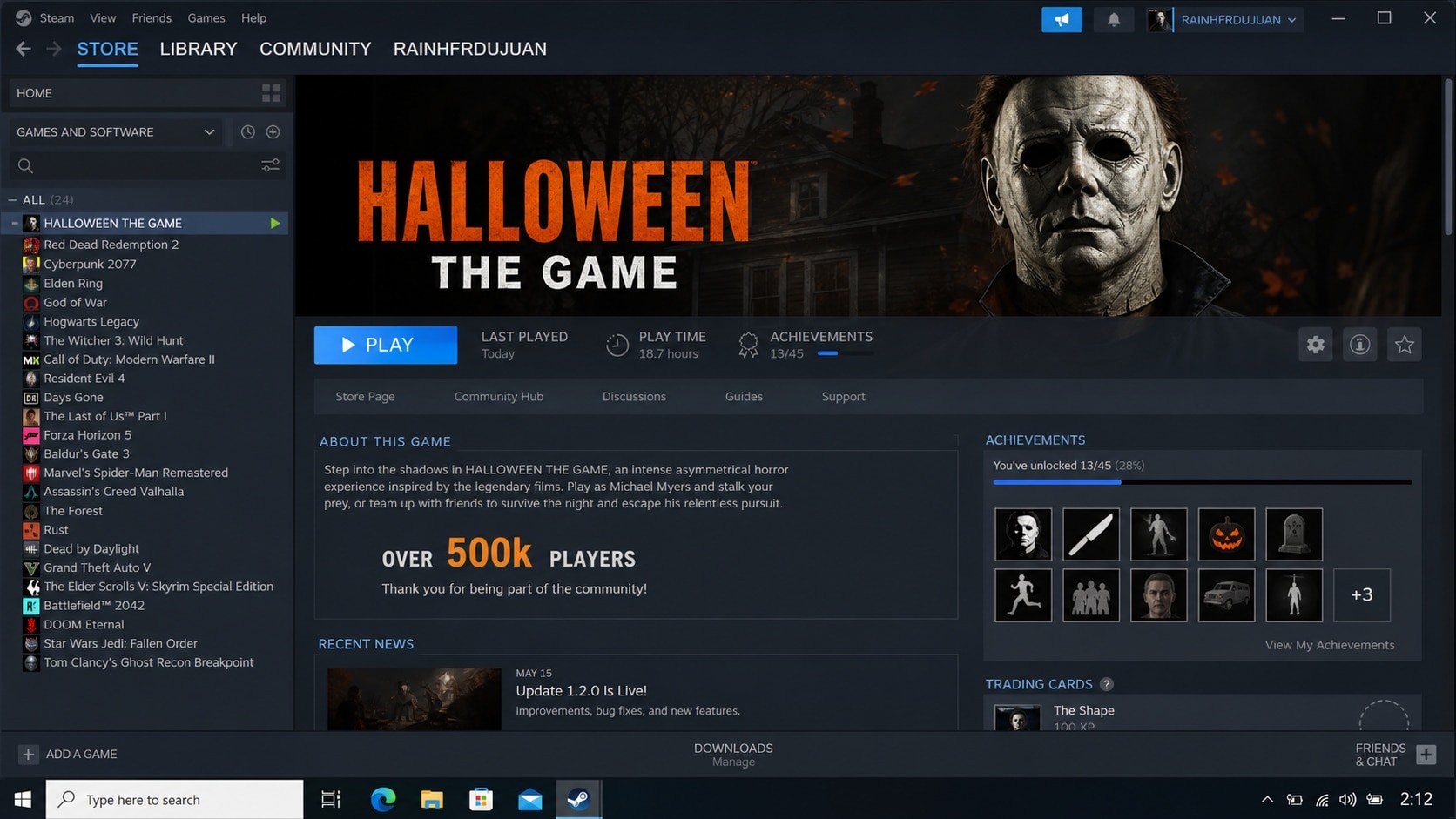
- Fix 4. Verify Halloween: The Game Files in Steam
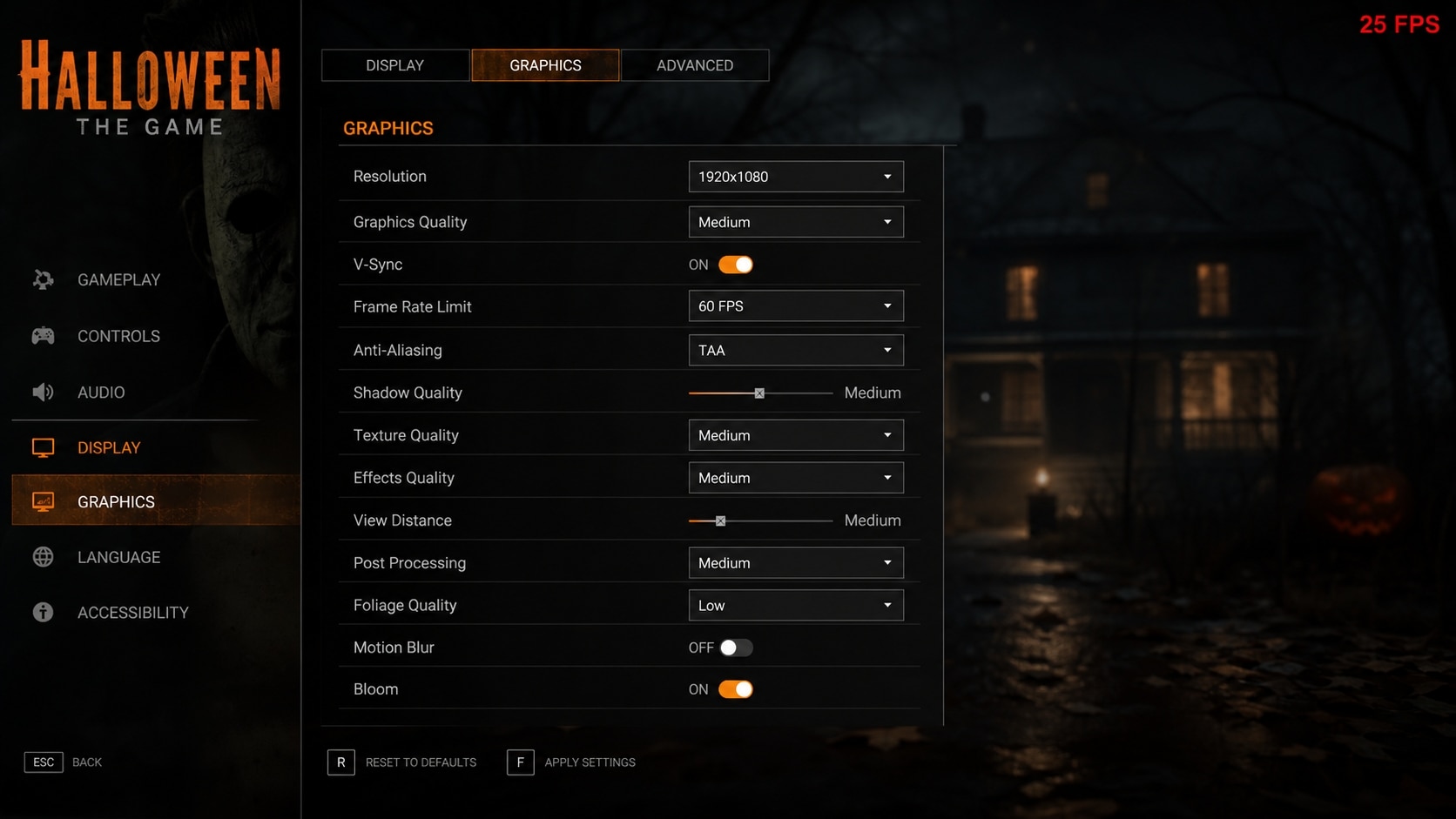
- Fix 5. Lower Resolution and GPU-Heavy Options
- Fix 6. Use a Stable Frame Cap and Display Mode
- Fix 7. Turn Off Overlays, Captures, and Background Apps
- Fix 8. Let Shader Compilation Finish and Rebuild the Cache
- Fix 9. Check the Game Drive, Free Space, and Temperatures
- Fix 10. Separate Network Lag From FPS Problems
Part 1. What Causes Halloween The Game Low FPS or Stuttering?
Use the symptom pattern to choose a fix. Avoid deleting configuration folders or reinstalling Windows before checking whether important local files are backed up.
| Symptom | Likely cause | Best first check |
|---|---|---|
| FPS is low from the start | GPU or CPU limit, high resolution, or demanding settings | Compare hardware with the current requirements and lower resolution |
| FPS is high but the game feels jerky | Frame pacing, refresh rate, overlays, or shader compilation | Cap FPS and disable overlays |
| Short freezes occur while loading new areas | Asset streaming, shader compilation, or slow storage | Test the game on an SSD and let the first run settle |
| Stutter appears after several minutes | CPU or GPU heat, power limits, or background tasks | Check temperatures and laptop power mode |
| FPS drops after a patch or driver change | Driver profile, game files, or changed settings | Update or roll back through official channels and verify files |
| Players teleport or actions arrive late | Internet or server latency | Compare network behavior with the FPS counter |
| Saves, screenshots, or recordings are missing after troubleshooting | Accidental deletion, reinstall, cleanup, or storage failure | Stop writing to the drive and protect the files first |
If the PC is close to the minimum specification, a stable lower target such as 30 FPS may be more realistic than trying to hold a high refresh rate. Measure frame time and note when the problem occurs.
Part 2. How to Fix Halloween The Game Stuttering and Low FPS
Follow these fixes in order. They move from requirements and system checks to Steam verification, graphics tuning, cache management, storage, and network diagnosis.
Fix 1. Confirm the Hardware and Set a Practical FPS Target
Check the current Steam listing and compare the operating system, processor, memory, GPU, and storage with the PC.
- Press the Windows key and open System Information.
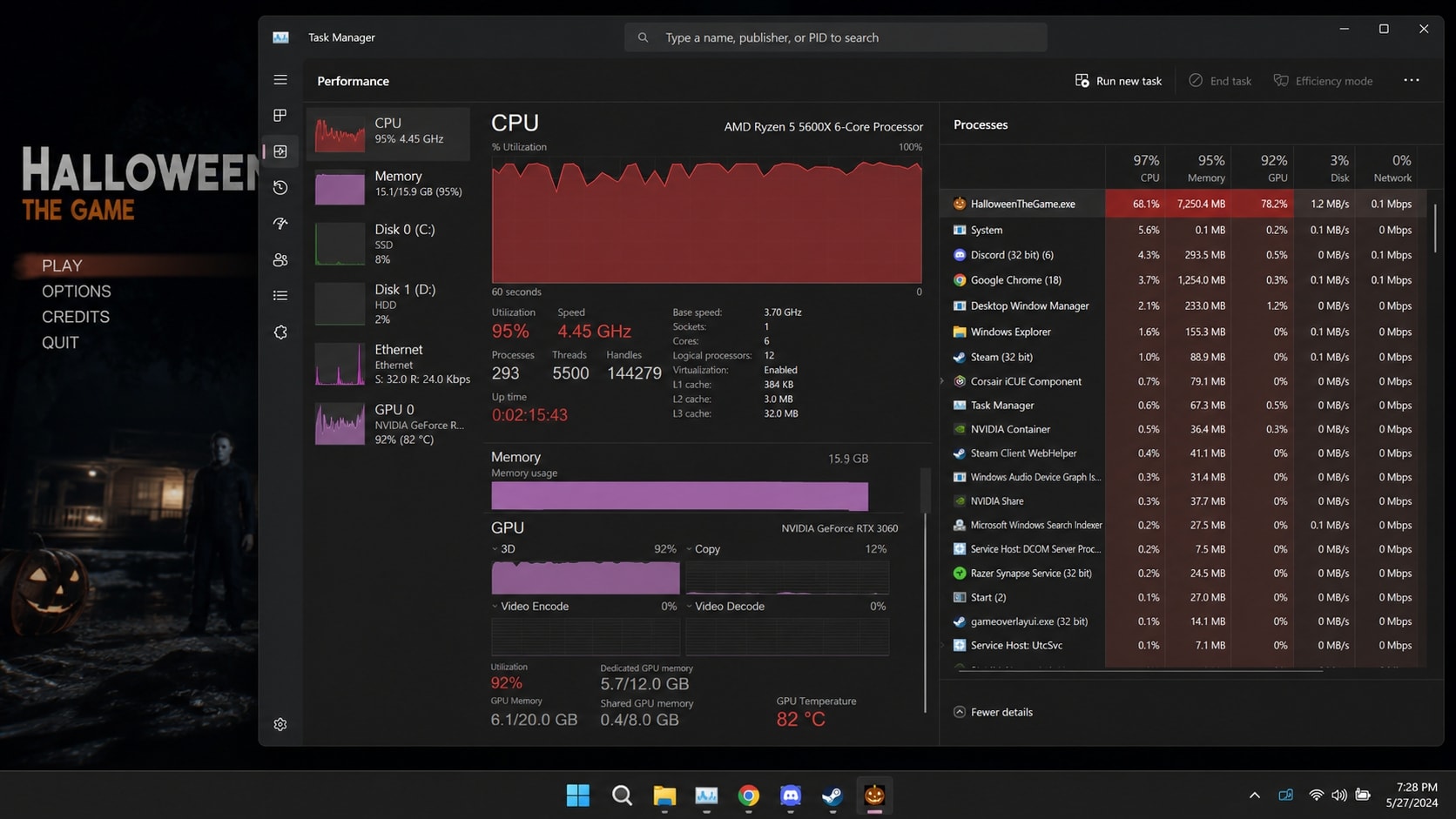
- Open Task Manager > Performance to identify the CPU, memory, GPU, and disk.
- Confirm that the installed Windows version matches the current game requirement.
- Start at 1080p with a 30 or 60 FPS target.
- Change one setting at a time and record the result.
Minimum hardware generally leaves less headroom for high settings, recording, browser tabs, or background software. Do not treat a minimum specification as a stable 60 FPS guarantee.
Fix 2. Restart Windows and Select the High-Performance GPU
On laptops, the game may launch on integrated graphics or use a battery-saving profile.
- Plug in the laptop.
- Close browsers, launchers, virtual machines, and other demanding programs.
- Restart Windows.
- Open Settings > System > Display > Graphics.
- Add the game's executable and choose the high-performance GPU when available.
- Set the laptop to an appropriate plugged-in performance mode.
If the PC becomes too hot and clocks drop, a more aggressive power setting may make stuttering worse. Use temperature and clock behavior to judge the result.
Fix 3. Update the GPU Driver and Windows Safely
Use the official NVIDIA, AMD, or Intel support site for the installed GPU.
- Check Windows Update for pending updates.
- Install the current driver intended for the GPU model.
- Restart Windows.
- Test Halloween: The Game before installing optional overlays or tuning utilities.
- If the issue started after an update, use the official rollback option or a known stable driver.
Avoid unofficial driver-cleaner or performance-booster software. If an update fails and files later go missing, do not keep installing programs to the affected drive before protecting the data.
Fix 4. Verify Halloween: The Game Files in Steam
Steam can redownload incomplete or damaged installation files.
- Open Steam Library.
- Right-click the game and choose Properties.
- Select Installed Files.
- Choose Verify integrity of game files.
- Relaunch Steam and test the game.
Back up local saves and configuration files first if the installation uses mods or custom settings. Verification addresses installation data, not deleted personal files, failing hardware, or corrupted recordings.
Fix 5. Lower Resolution and GPU-Heavy Options
If GPU usage stays close to 100%, lower the settings that create the largest rendering load.
- Start with the recommended or default preset.
- Lower shadows, effects, reflections, volumetric effects, foliage, and view distance.
- Reduce resolution or render scale.
- Lower textures if VRAM usage is high or the game reports memory pressure.
- Restart the game when required.
If GPU usage is low while FPS remains low, inspect CPU usage, background applications, frame caps, and power settings instead of lowering every visual option.
Fix 6. Use a Stable Frame Cap and Display Mode
Uneven frame pacing can feel like stutter even when average FPS looks acceptable.
- Enable the game's frame cap if available.
- Start with a cap that the PC can hold consistently.
- Test 30 or 60 FPS rather than leaving the frame rate unlimited.
- Test V-Sync if tearing or uneven pacing is visible.
- For a variable-refresh display, compare adaptive and fixed refresh settings.
Change one variable at a time. A stable 60 FPS is generally preferable to a fluctuating range that repeatedly crosses the display refresh rate.
Fix 7. Turn Off Overlays, Captures, and Background Apps
Overlays and capture tools can hook into the rendering pipeline or compete for encoder and GPU resources.
- Disable Steam overlay for the game temporarily.
- Turn off Discord, Xbox Game Bar, and NVIDIA or AMD overlay features.
- Stop OBS and other recording software for a test.
- Close browsers and hardware-monitoring utilities.
- Re-enable tools individually after the game becomes stable.
If a crash has already made a local recording disappear or unreadable, copy the file before trying additional troubleshooting.
Fix 8. Let Shader Compilation Finish and Rebuild the Cache
A new driver or game update can trigger shader preparation. This may create short stutters during the first launch or when entering new areas.
- Launch the game after updating and allow the initial loading process to finish.
- Do not judge performance from the first few seconds alone.
- If the problem began after a driver change, close Steam and the game.
- Use Windows Settings > System > Storage > Temporary files to remove DirectX Shader Cache when listed.
- Restart Windows and let shaders rebuild.
Repeatedly deleting the shader cache can recreate the same compilation stutters. If performance does not settle, continue with drivers, settings, storage, and temperatures.
Fix 9. Check the Game Drive, Free Space, and Temperatures
Slow asset reads or thermal throttling can cause stutter during longer sessions.
- Install the game on an SSD when possible.
- Keep free space on both the game drive and the Windows system drive.
- Check Task Manager for sustained disk or CPU usage.
- Monitor CPU and GPU temperature with a trusted utility.
- Keep a laptop on a hard, flat surface with vents clear.
- Stop using the PC if it shuts down, shows artifacts, or smells hot or burnt.
If the drive reports errors, files vanish, or folders become unreadable, stop running cleanup or formatting tools. Data protection becomes the priority.
Fix 10. Separate Network Lag From FPS Problems
Old settings or a multiplayer connection can make a performance problem look more complicated.
- Test an offline or single-player section when available.
- Compare the FPS counter, frame-time graph, and network indicator.
- Restart the router only when other devices or online services show connection issues.
- Back up local saves, screenshots, recordings, and configuration files.
- Use the game's reset option or rename its local configuration folder instead of deleting it.
- Restore custom settings gradually.
Save and configuration paths vary by title, Windows account, and Steam settings. Do not assume that Steam Cloud contains every local file.
Part 3. Recover Lost Game Files Before Reinstalling with Recoverit
Recoverit is not a low-FPS optimizer. It cannot repair the game engine, improve frame pacing, fix a GPU driver, restore network performance, or verify Steam files. It becomes relevant when performance troubleshooting leads to an accidental deletion, clean reinstall, drive cleanup, or missing local data.
Before reinstalling Windows or formatting a drive, check for local files such as game saves, screenshots, OBS recordings, exported clips, mods, configuration backups, and downloaded project files. Steam Cloud may help with supported saves when synchronization is enabled, but it should not replace a separate backup.
Check Windows Recovery Locations First
Before scanning with recovery software, check common locations:
- Desktop, Documents, Downloads, Pictures, and Videos
- Recycle Bin
- OneDrive local folder and OneDrive online Recycle Bin
- C:\Windows.old\Users, if a repair install or feature update created Windows.old
- Other user profiles under C:\Users, if Windows signed into a temporary profile
If files are still missing, stop saving new data to the affected drive. Continued use may overwrite deleted files.
Use Recoverit When Local Files Are Lost
| Situation | Recommended action |
|---|---|
| Local game saves disappear after a reinstall or cleanup | Stop writing to the source drive and scan for lost files |
| Screenshots or recordings are deleted while removing large game files | Recover files before installing new data to the same drive |
| An external drive containing gameplay media no longer shows files | Connect it to a working PC and scan the readable device |
| Important files need protection before service or disk repair | Back up or recover the files before the risky operation |
Step 1. Select the storage location

Step 2. Scan for lost data

Step 3. Preview and recover the files

Recovery depends on drive condition, overwriting, encryption, and detectability. Recoverit cannot recover overwritten data or files from a storage device that is not detected. If BitLocker is enabled, the legitimate password or recovery key is required to access encrypted data.
Conclusion
To fix Halloween The Game: Fix Low FPS/Stuttering On PC problems, first distinguish low FPS from frame-pacing issues and network lag. Check the PC requirements, choose the correct GPU and power mode, update drivers, verify Steam files, lower demanding settings, cap the frame rate, disable overlays, allow shader compilation, and check storage and temperatures.
Before reinstalling the game, Windows, or a storage drive, protect local saves, screenshots, recordings, and configuration files. Recoverit may help recover missing files from readable storage, but it does not repair FPS, Windows, drivers, or the game installation.
FAQ
-
Why is Halloween The Game stuttering on PC?
Stuttering may come from shader compilation, overlays, unstable frame pacing, high GPU load, slow storage, thermal throttling, or a driver issue. Verify files, cap FPS, disable overlays, update the driver, and check temperatures. -
How can low FPS be improved in Halloween The Game?
Use the correct GPU, set a realistic FPS target, lower resolution and GPU-heavy settings, close background applications, and update the graphics driver. A PC near the minimum requirements may need a stable 30 FPS target. -
Can verifying Steam files fix stuttering?
It may help when incomplete or corrupted installation files cause loading or asset problems. It will not fix insufficient hardware, thermal throttling, network latency, or a failing storage drive. -
Does Recoverit fix Halloween The Game performance?
No. Recoverit is a data recovery tool. It may help recover missing local saves, screenshots, recordings, or other files before or after a reinstall, cleanup, accidental deletion, or storage problem. -
Can Recoverit recover game saves after a reinstall?
It may help scan supported readable storage for deleted or lost local save files. Results depend on overwriting, drive condition, detection, encryption, and whether the data was stored locally or only in a cloud service. -
Where should recovered files be saved?
Save recovered files to a separate external drive or another safe destination. Saving them to the source drive can overwrite data that is still recoverable.



