


 TL;DR:
To fix the "DNS Server Not Responding" error, bypass your default ISP servers by manually assigning a public IPv4 DNS address, such as 8.8.8.8 or 8.8.4.4, in your advanced network settings.
● Execute ipconfig /flushdns, ipconfig /release, and ipconfig /renew sequentially in the Command Prompt to clear corrupted cache records and force a fresh IP configuration from your router.
● Disable the Internet Protocol Version 6 (TCP/IPv6) option within your active network adapter properties, as unsupported IPv6 protocols frequently cause direct communication conflicts with DNS systems.
● If executing system network resets results in unintended data loss, Wondershare Recoverit can be utilized on Windows or Mac devices to restore the missing files.
Ask AI for a summary
 ChatGPT
 Perplexity
 Gemini
 Claude
 Grok
Grok
The "the DNS server isn't responding" error creates confusion and disrupts critical workflows that depend on the internet. Users experience delays and failed network access when working on the web. This prompt also interrupts when attempting to connect to essential services and online platforms. These inabilities reduce productivity and may affect deadlines.
Repeated occurrence increases frustration and impact operational efficiency within professional environments. This article explains how to fix this issue and restore reliable network performance.
Try Recoverit to Perform Data Recovery
 Security Verified. 3,591,664 people have downloaded it.
In this article

Part 1. What This DNS Server Error Really Means
This DNS server error means your system cannot translate website domain names into their corresponding IP addresses. As a result, your browser fails to locate the requested sites despite an active internet connection status. The issue usually indicates communication problems between your device and designated DNS resolution servers. This prevents proper data routing and interrupts normal website loading and online access functionality.
Part 2. Common Causes Behind the “DNS Server Not Responding” Issue
Before we discuss the fixes for the error, it is important to understand the causes. The following section explores the potential causes of this issue:
- Unstable Internet Connection: An unstable internet connection disrupts communication between your device and the assigned DNS server. This interruption causes frequent website loading failures, resulting in "windows can't communicate with the device or resource".
- Misconfigured Network Settings: Incorrect network settings often redirect traffic improperly and block successful DNS server responses. These misconfigurations lead to persistent connectivity problems and unreliable browsing experiences overall.
- Outdated Network Drivers: Outdated network drivers reduce compatibility and interfere with stable DNS communication processes. This causes delayed responses and repeated domain resolution failures during browsing attempts.
- Firewall or Security Restrictions: Overprotective firewall settings sometimes block DNS requests and restrict proper server communication. This security interference triggers continuous errors and prevents successful website access attempts.
- ISP or DNS Server Issues: Problems from your ISP or DNS provider can interrupt essential name resolution services. These external failures directly cause the DNS server is not responding to appear.
Part 3. 7 Fixes for “DNS Server Not Responding” Issue
Having enough knowledge of the error, let’s jump to the ways you can resolve it. The following part deals with the ways you can fix the DNS server isn't responding error:
1. Restart Your Router, Modem, and PC
Restarting your router, modem, and PC refreshes network connections and clears temporary communication glitches effectively. This process reinitializes your internet connection and restores proper signal transmission pathways. It helps re-establish stable connectivity between your device and DNS servers. This guide explores how to fix the error by restarting these associated devices:
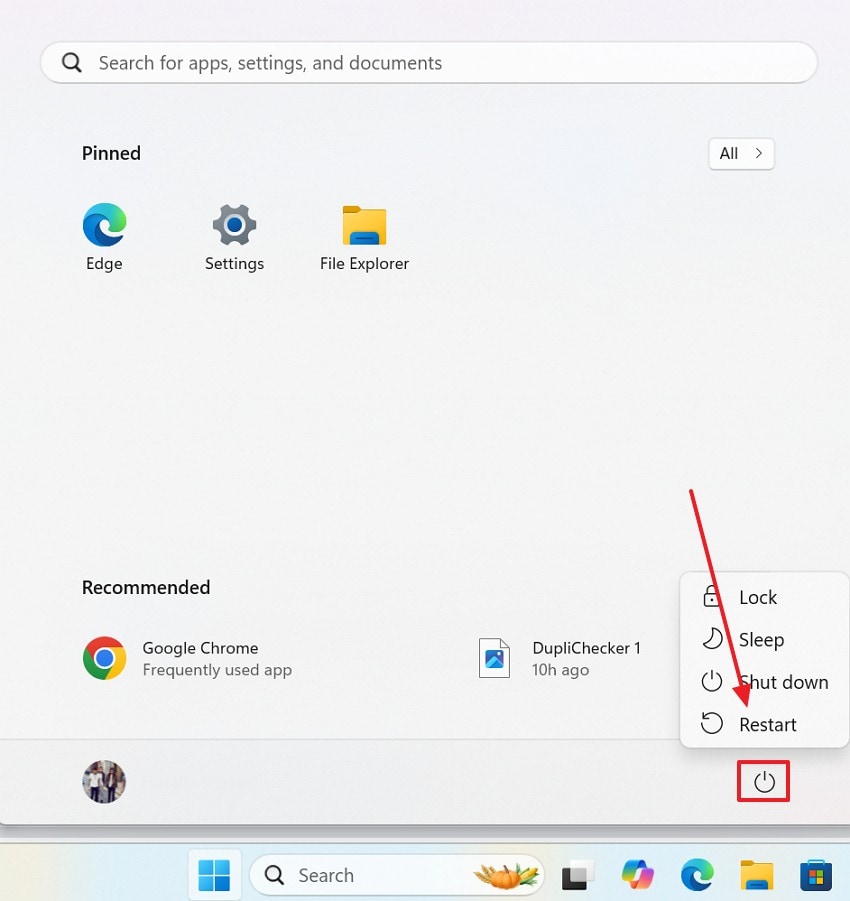
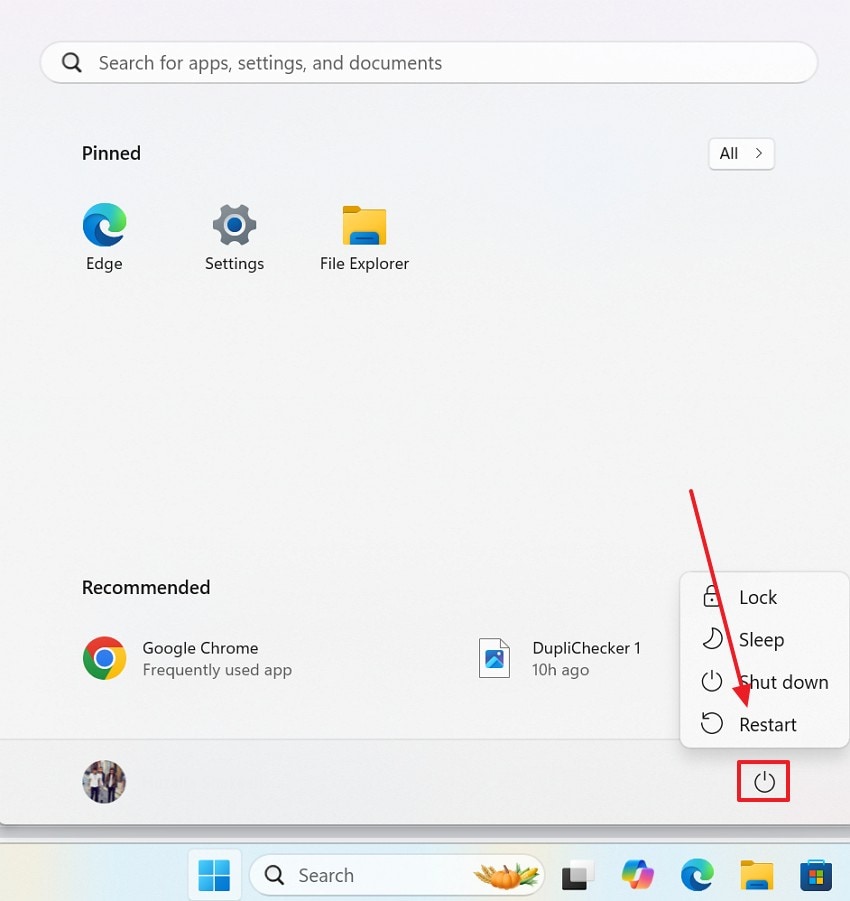
Instructions. Enter the Start menu and hit the "Power" button to "Restart" the device.
2. Flush DNS and Renew IP
This method removes corrupted or outdated cache records that cause incorrect domain resolution responses. Renewing the IP address requests a fresh network configuration from the connected router or server. This combination restores proper communication between your system and DNS servers. Follow the steps below and learn how to flush DNS and renew the IP to resolve the DNS server isn't responding error:
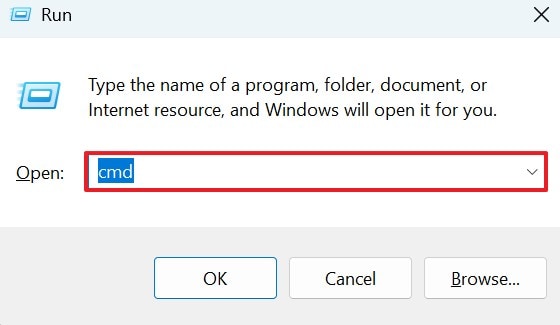
- To begin the process, open the Run window with the "Win + R" keys and the "cmd" command.
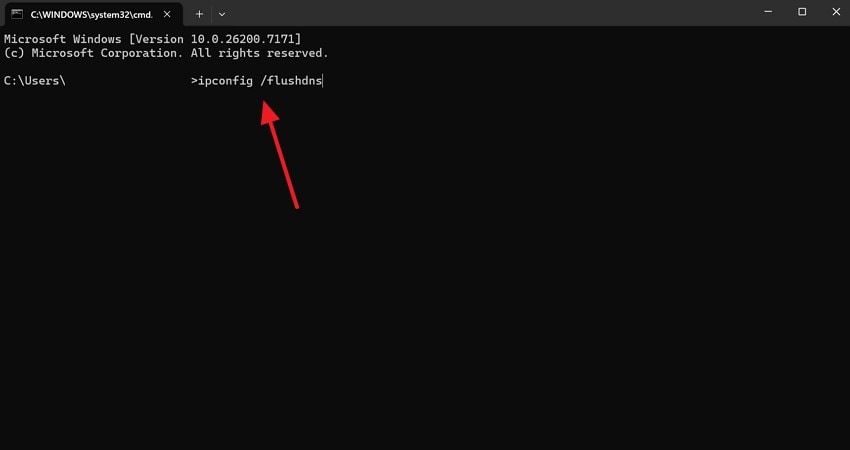
- In the Command Prompt window, give the "ipconfig /flushdns" command and wait for the process completion.
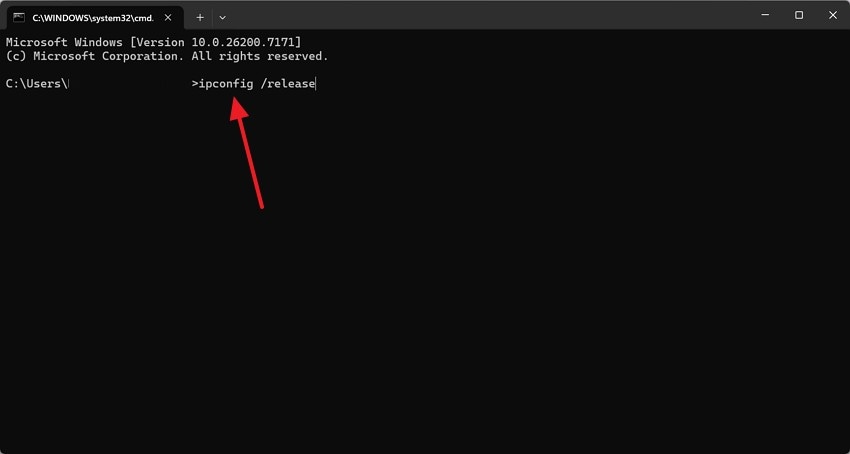
- After the flush DNS is completed, use the "ipconfig /release" command and hit the Enter key. Once it completes, give the "ipconfig /renew" command to get a new IP configuration.
- Now, "Restart" your PC using the "Power" button from the Start menu to ensure that the error is gone.
3. Change DNS Server Address
Using this fix address redirects your connection to more reliable and responsive name resolution services. This bypasses slow or unresponsive default servers that frequently cause browsing interruptions. Using public DNS improves speed and stability for website access requests. It ensures accurate translation of domain names into IP addresses. To learn how to change the DNS server address, follow the guide below:
- In the Settings window, enter the "Network & Internet" tab from the left panel. Now, select the "Advanced Network Settings" option to proceed.
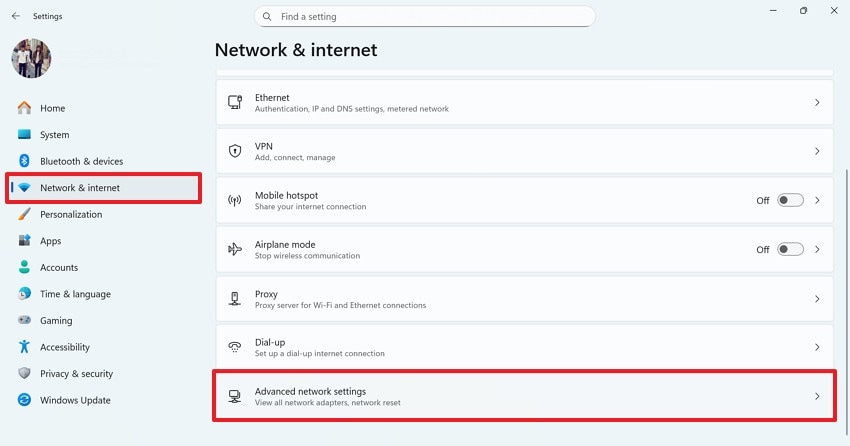
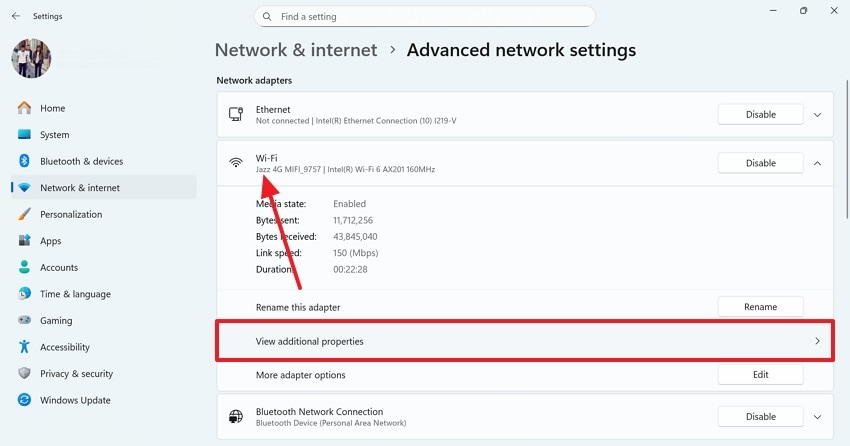
- Using the following interface, select your active Wi-Fi or Ethernet to expand the settings. Now, select the "View Additional Properties" tab to adjust settings.
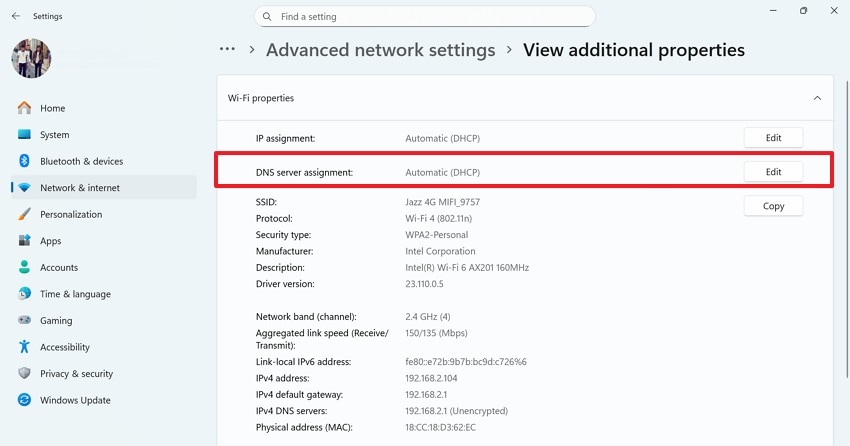
- In the "Properties" window, locate the "DNS Server Assignment" tab and select it.
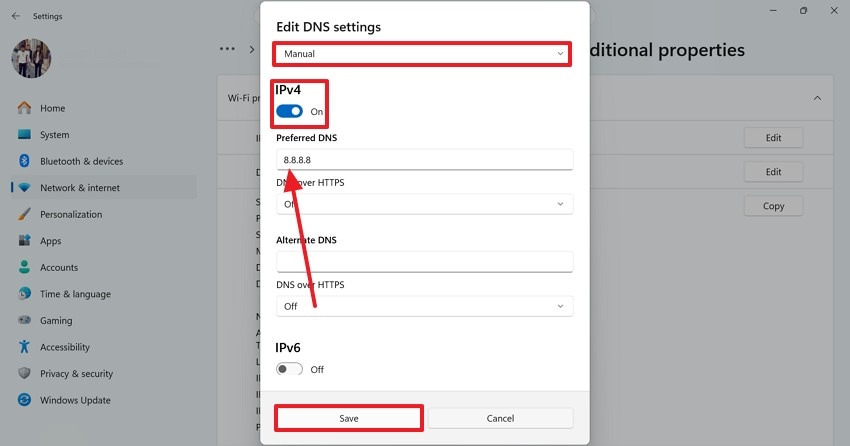
- Switch the DNS mode to "Manual" and turn the "IPv4" toggle on. In the "Preferred DNS," enter "8.8.8.8" or 8.8.4.4. To apply the changes, hit the "Save" button.
4. Disable IPv6
Disabling IPv6 removes compatibility conflicts occurring with certain network configurations and DNS systems. Some routers and ISPs do not fully support IPv6 protocols consistently. Turning it off forces the system to rely on IPv4 for stable communication. This reduces DNS resolution failures caused by protocol mismatches. Follow this guide to learn how to fix "your computer appears to be correctly configured" error using this method:
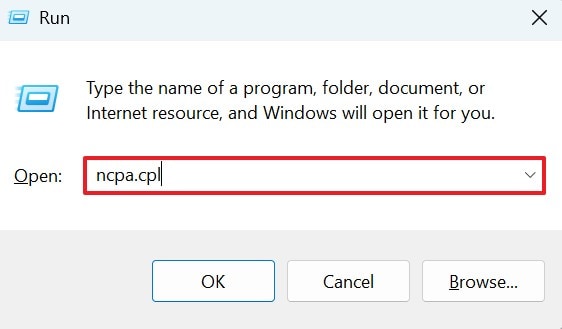
- In the "Win + R" window, type "ncpa.cpl" and hit Enter.
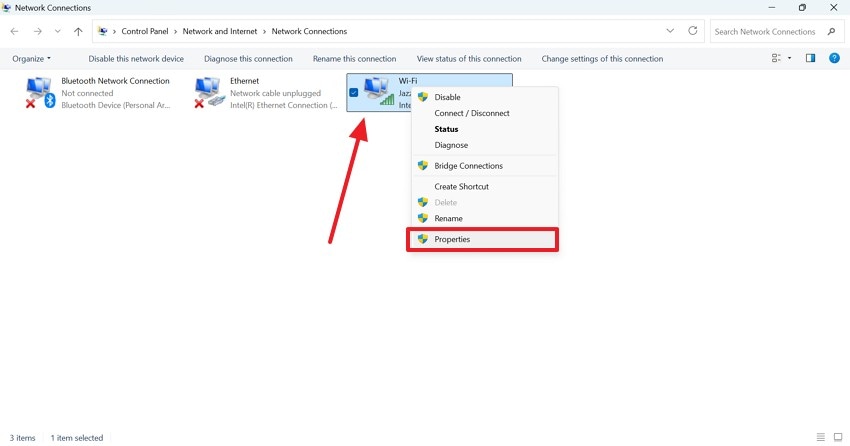
- Now, locate your active Wi-Fi or Ethernet connection and right-click to enter its "Properties."
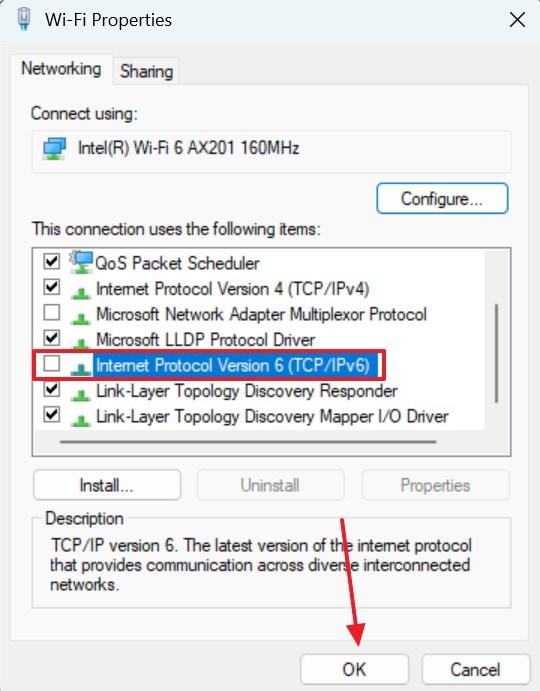
- In the "Wi-Fi Properties" window, locate and uncheck the "Internet Protocol Version 6 (TCP/IPv6)" box.
5. Update or Reinstall Network Adapter Driver
Updating or reinstalling network adapter drivers restores proper communication between hardware and software components. Outdated drivers often cause DNS resolution failures and unstable network performance issues. Installing the latest drivers improves compatibility with system updates and protocols. This ensures smoother data transmission and reliable DNS communication processes. To learn how this process can be executed to resolve the dns server isn't responding error, follow the guide below:
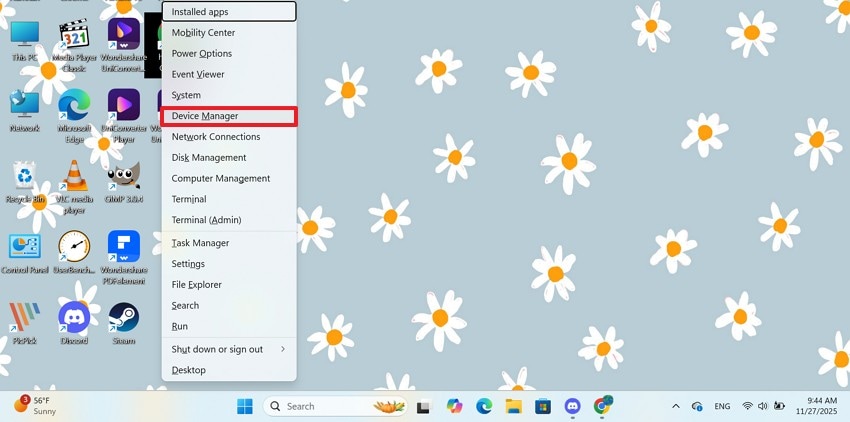
- To begin with, use the "Win + X" keys and select the "Device Manager" option from the pop-up that follows.
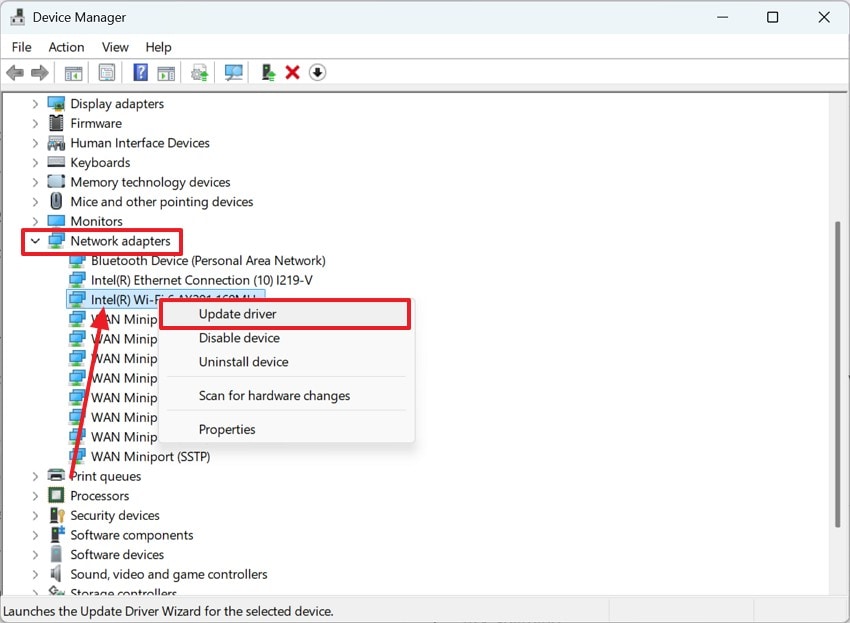
- Now, locate the "Network Adapters" option and expand it to find your active connection adapter. Upon right-clicking on it, select the "Update Driver" option and follow the onscreen instructions to update. You might need to access the official vendor for downloading the latest adapter drivers for your Windows.
6. Temporarily Turn Off Antivirus/Firewall
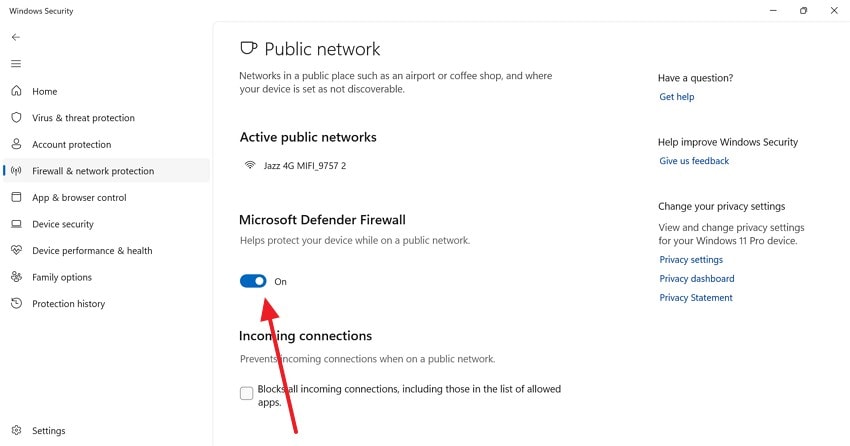
Temporarily disabling antivirus or firewall software helps identify security software blocking DNS communication processes. Some protection tools mistakenly restrict DNS requests and prevent website access. This method confirms whether security settings cause DNS server connection disruption. Follow the steps below and learn how this method can be executed to fix "windows can't communicate with the device or resource" error:
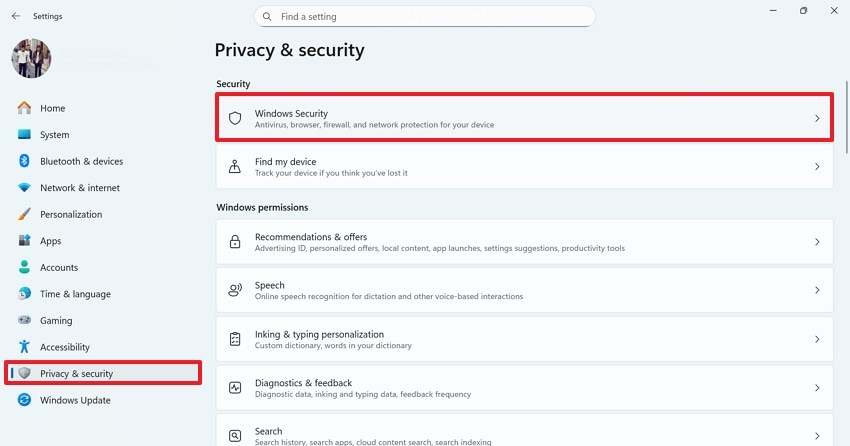
- In your device’s Settings, enter the "Privacy & Security" tab and select the "Windows Security" setting.
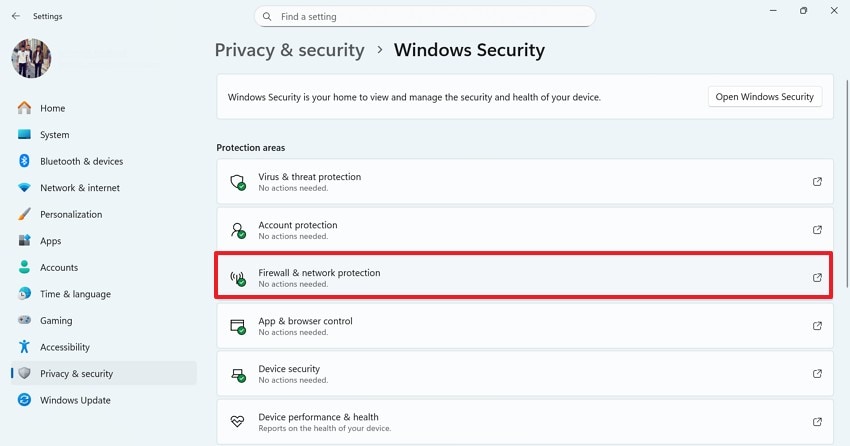
- Locate and click the "Firewall & Network Protection" tab to proceed.
- In the following interface, select your public or private connection and wait for the next screen to open. Here, locate Microsoft Defender Firewall and turn the toggle "Off."
7. Check/Reset Proxy Settings
Checking or resetting proxy settings removes incorrect configurations that interfere with DNS resolution tasks. Improper proxy setup redirects traffic incorrectly and causes connection failures. Resetting the proxy ensures direct communication with DNS servers without unnecessary routing barriers. The following steps feature a guide to resetting proxy settings to fix the "windows can't communicate with the device or resource" error:
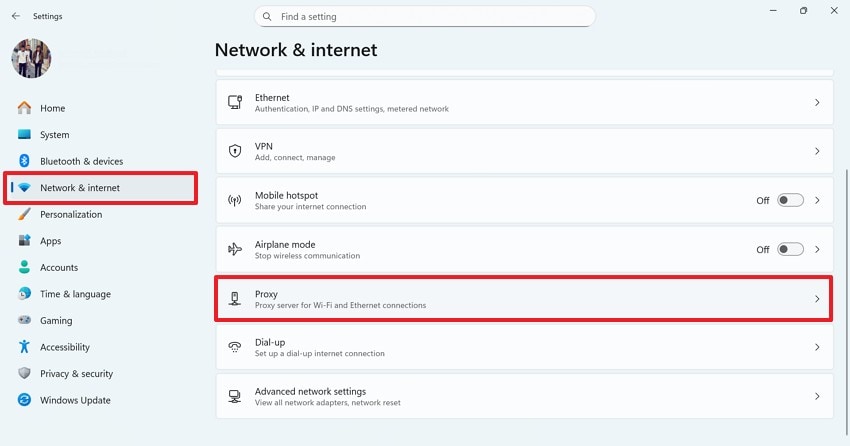
- In the "Settings" window, enter the "Network & Internet" tab and select "Proxy."
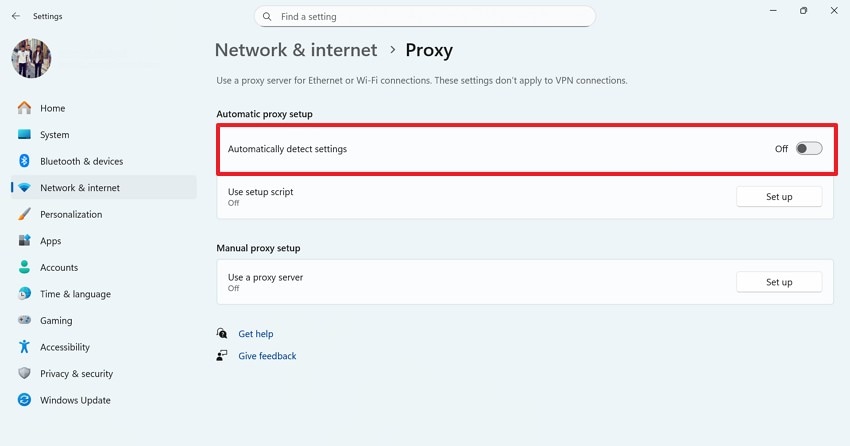
- Now, locate the "Automatically Detect Settings" option and turn it off.
Pro Tip: Keep Calm—Recoverit Recovers Files Lost After DNS System Repairs
Resolving the dns server isn't responding error allows for smooth surfing on the internet, but may subject your files to loss. If you have lost files after executing the repair, it is safe to use a third-party file recovery tool. Recoverit is a safe tool to retrieve missing files, as it offers a 99.5% recovery rate. This platform works on Mac and Windows devices, ensuring to restore files for a wider audience.
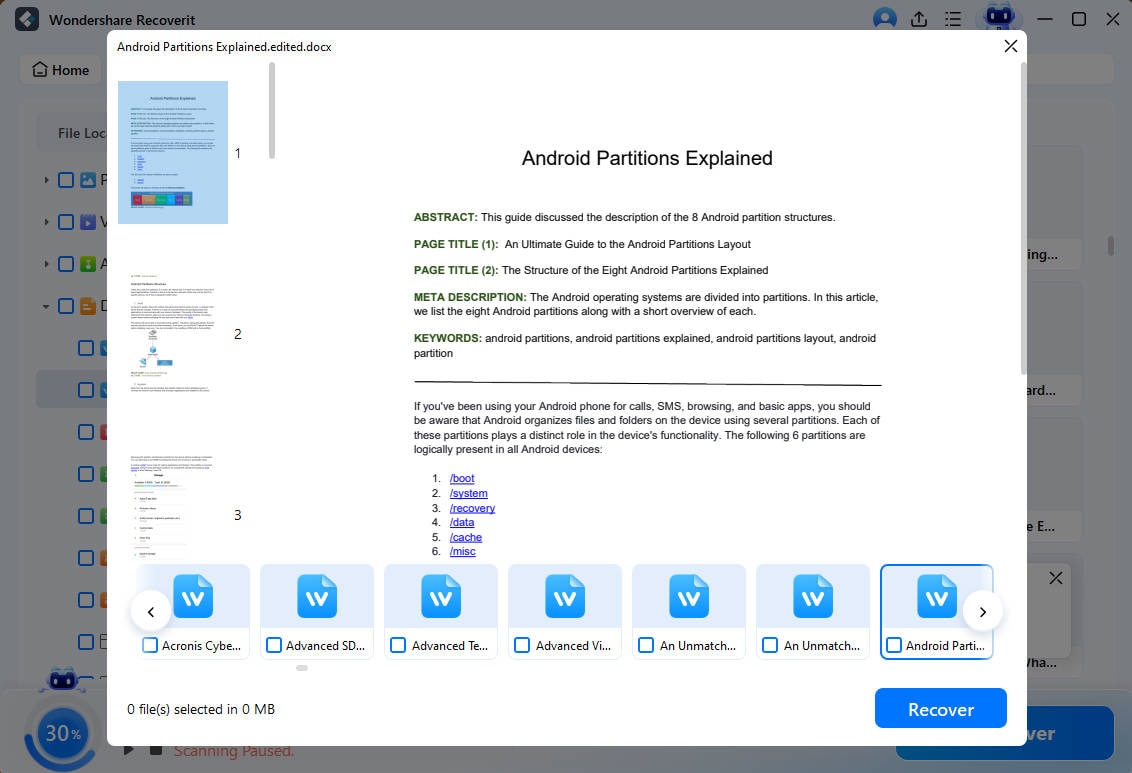
Recoverit is designed for user friendliness and offers a file preview feature to help you analyze results before downloading. The productivity can be further enhanced by executing a batch recovery using its batch processing features. No matter which file is lost, this tool supports over 1,000 file formats and ensures versatility. To top it all off, Recoverit has the ability to retain the file quality after the process.
Key Features
- Lost File Scenarios: Recoverit caters to more than 10,000 lost file scenarios, ensuring versatility.
- File Scan Filter: You can retrieve files by applying a custom search filter or by applying the default automated search.
- Compatible Devices: Recoverit supports over 1 million storage devices, including hard drives, memory cards, and flash drives.
Using Recoverit to Retrieve Missing Files After Repair
Having known the attributes of Recoverit, the next step would be to learn how to use it. Follow the steps below and learn how to use Recoverit to retrieve files lost during the dns server isn't responding repair:
1. Select the Folder of the Missing File
To start the process, open Recoverit and select the folder of your missing file from the left panel.

2. Select the Missing Files and Recover them
As the missing files appear on the next screen, select them and click "Recover" to restore them.

3. Preview the Recovered File and Save it
Once the missing files are recovered, preview them and use the "Recover" button to save it.
Conclusion
The the dns server isn't responding error hinders a smooth surfing experience. To resolve this issue, this article suggests some effective fixes. Although the repair methods are effective, they may end up with lost files on the PC. To recover the documents lost during this repair, Recoverit is a reliable option. With its file preview and batch recovery features, it enhances productivity.
FAQ
-
1. Does changing DNS servers improve connectivity reliability?
Changing DNS servers redirects requests to more stable and responsive alternatives. This bypasses slow or unresponsive default DNS configurations effectively. -
2. Can antivirus software cause this DNS issue?
Some antivirus programs block DNS communication and mistakenly restrict website access. Temporarily disabling them helps identify such interference quickly. -
3. How can I regain access to the images lost in the troubleshooting of this error?
To regain access to the images you lost while troubleshooting, use Recoverit on the desktop. This platform supports more than 1,000 file formats, including various image formats as well. -
4. Is there a recovery tool that can recover videos and images from a PC?
Recoverit is a robust recovery tool that can retrieve images, videos, and 1,000 other formats. It also caters to over 1 million storage devices for file restoration.


