

 TL;DR:
To fix Discord getting stuck on the starting screen, forcefully close all hidden background processes using Task Manager or Command Prompt (`taskkill /F /IM discord.exe`) before relaunching the application.
● Clear the corrupted application cache by opening the Run dialog (Windows + R), navigating to `%APPDATA%/Discord/Cache`, and deleting all files inside the `Cache_Data` folder to force a clean startup.
● Resolve network routing and update blocks by disabling active VPNs and proxies via `inetcpl.cpl`, and explicitly allowing the `Discord/Update.exe` file through your Windows Firewall settings.
● If personal files are accidentally deleted while manually removing Discord app data folders or performing a clean reinstallation, use a third-party tool like Recoverit to scan the drive and restore the missing data.
Ask AI for a summary
 ChatGPT
 Perplexity
 Gemini
 Claude
 Grok
Grok
If "Discord stuck on starting screen" error appears, quick solutions here help restore access. We will also explore a tool that helps recover files lost during fixing issues. Additionally, you will learn tips to keep Discord running later; hence, follow the steps calmly and avoid future problems with confidence.
Try Recoverit to Perform File Recovery
 Security Verified. 3,591,664 people have downloaded it.
In this article
-
- Fix 1. Restart Discord and Your PC
- Fix 2. Force Quit Discord via Command Prompt
- Fix 3. Close Discord Using Task Manager
- Fix 4. Check Internet Connection and Firewall Settings
- Fix 5. Check and Repair Corrupted System Files
- Fix 6. Clear Discord Cache
- Fix 7. Update Discord to the Latest Version
- Fix 8. Reinstall Discord
- Fix 9. Run Discord as Administrator
- Fix 11. Check Proxy and VPN Settings
- Fix 12. Verify Discord Loads Properly

Part 1. Why Discord Gets Stuck on the Starting Screen
Before learning how to fix Discord stuck on the starting screen, review the common causes below:
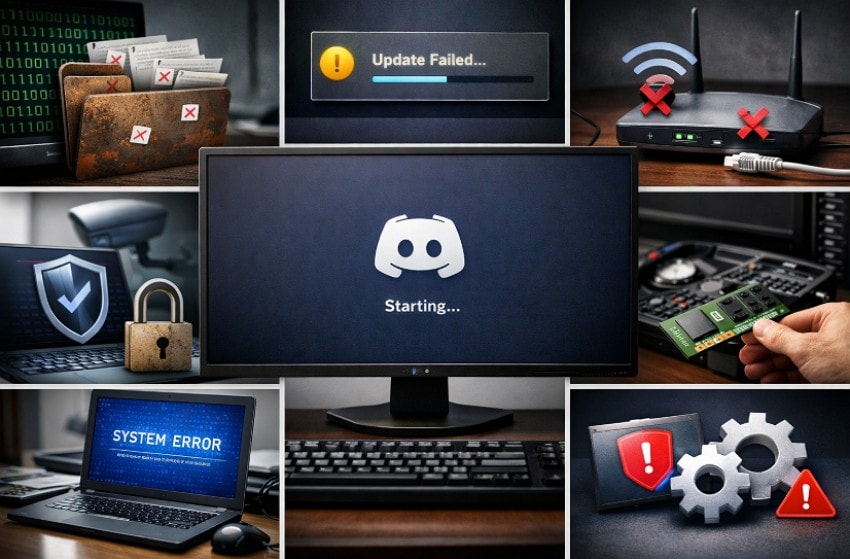
- Corrupted Cache: Temporary files can break over time and stop Discord from opening. Removing app data folders allows Discord to rebuild clean startup files.
- Update Failure: Incomplete updates may freeze the app before the main window loads. A damaged update file often keeps Discord stuck on the starting screen.
- Network Issues: Stable internet access is a must for Discord to connect during startup. Incorrect DNS settings can trigger endless loading or connection loops.
- Security Blocking: Antivirus programs sometimes block Discord files without warning users. Firewall restrictions can prevent updates and interrupt the startup process.
- SystemSupport: Outdated drivers may stop the Discord display from appearing correctly. Improper support settings can result in blank or grey screens.
- Software Conflicts: Background applications may disturb Discord when it launches. Screen overlays or GPU tools can disrupt hardware acceleration functions.
More related: [Top Fixes] How to Fix Discord Not Opening Issue
Part 2. Step-by-Step Fix for Discord Loading Screen Issues
As you are now aware of the causes, let's explore how to fix Discord stuck on the starting screen below:
Fix 1. Restart Discord and Your PC
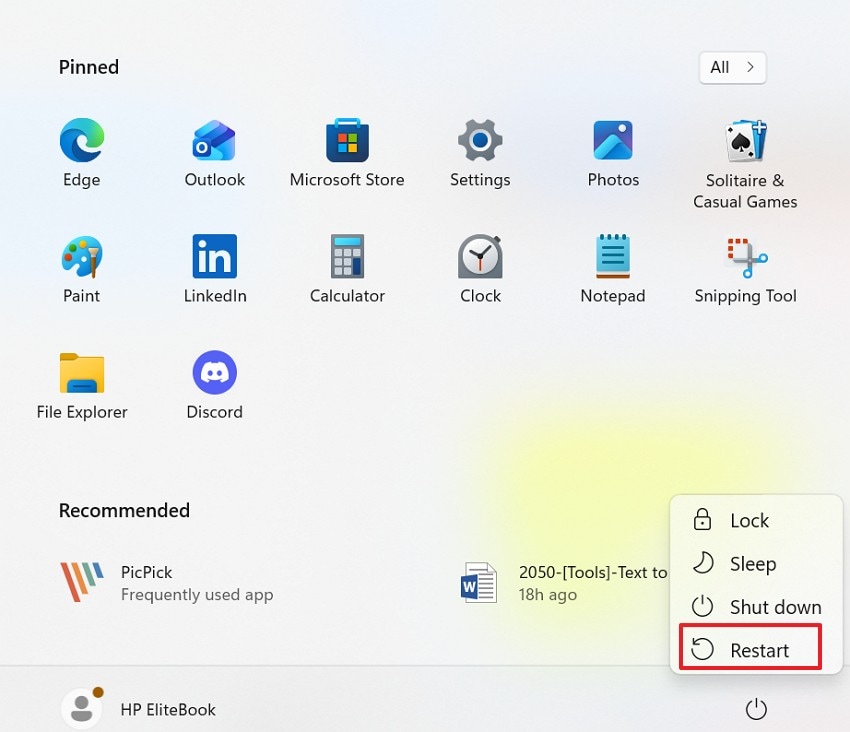
Temporary system glitches often stop Discord from loading properly. Restarting clears memory, refreshes background services, and resets stuck processes. This simple action resolves many startup problems without changing any settings. To do so, simply navigate to the "Windows" icon and press the "Power" icon to choose the "Restart" option.
Fix 2. Force Quit Discord via Command Prompt
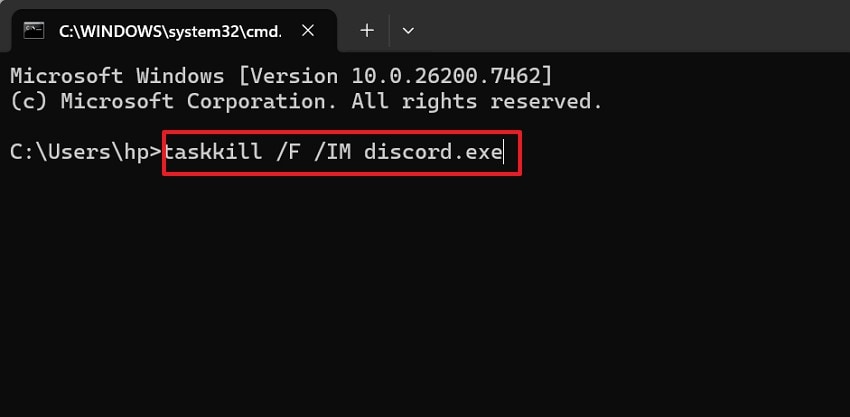
Hidden Discord processes may continue running even after closing the application normally. This situation often appears while learning how to fix Discord stuck on the starting screen. Command Prompt forcefully stops all Discord tasks, blocking a clean launch. After ending processes, Discord starts fresh without any background conflicts, which can be executed as follows:
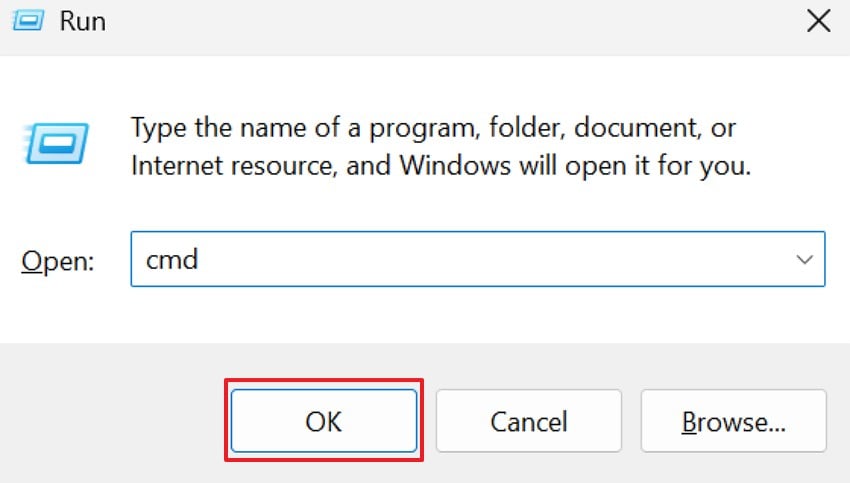
- To start, press "Windows + R" together to access the Run window. After accessing, enter the command "cmd" and hit "OK" to continue.
- Next, in the command prompt window, type "taskkill /F /IM discord.exe" and press "Enter" to force close Discord.
Fix 3. Close Discord Using Task Manager
Discord sometimes remains active in memory despite appearing closed to users. This behavior frequently causes "Discord stuck on starting screen" issue during relaunch attempts. Task Manager allows users to end all related Discord processes fully. Stick to the steps below to use this method to resolve Discord stuck issues:
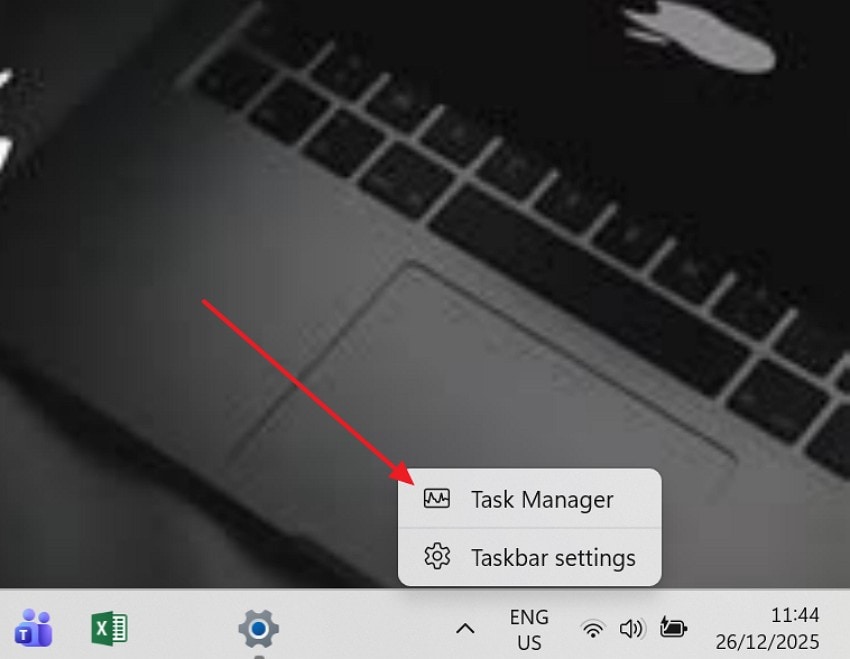
- First, right-click the Windows taskbar and select "Task Manager" from the menu.
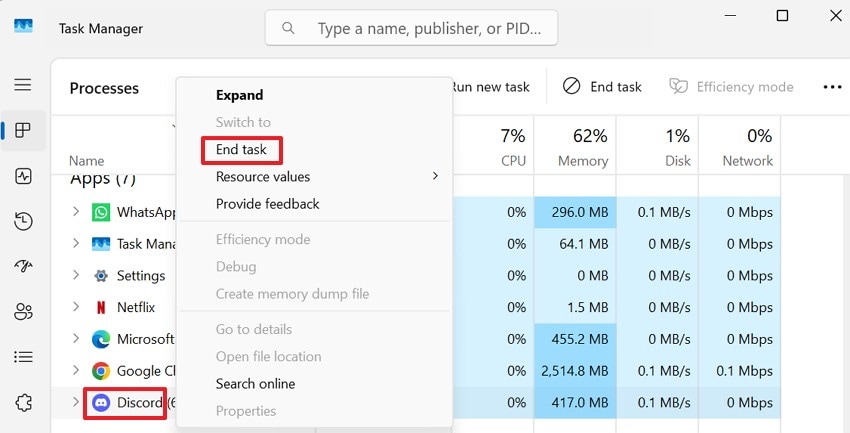
- After that, find Discord under "Apps," right-click it to select "End Task" to close it completely.
Fix 4. Check Internet Connection and Firewall Settings
Discord relies on active internet access before displaying the main interface correctly. Blocked connections often cause problems when learning how to fix Discord stuck on the starting screen. Moreover, firewall rules or weak signals can stop updates and login checks from finishing. A stable network allows Discord to pass startup checks and load normally. So, follow the steps below to check the internet connection and firewall settings:
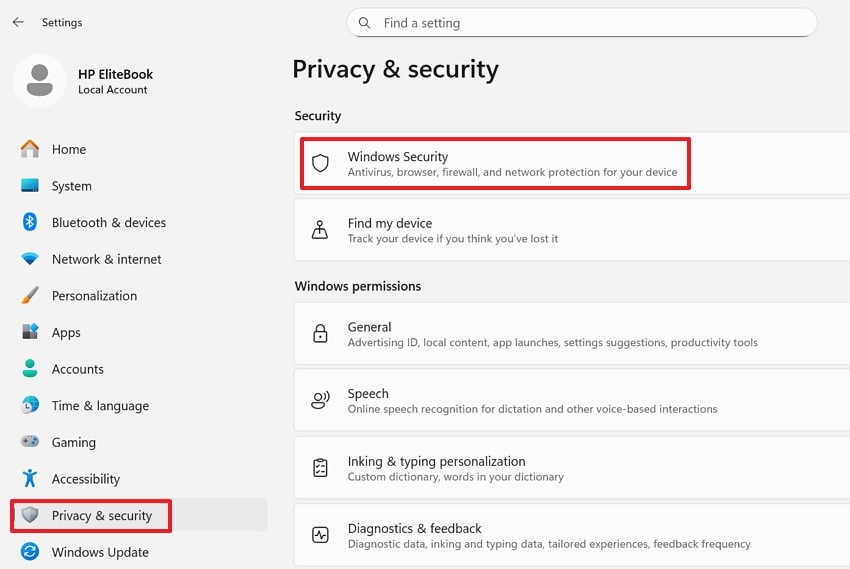
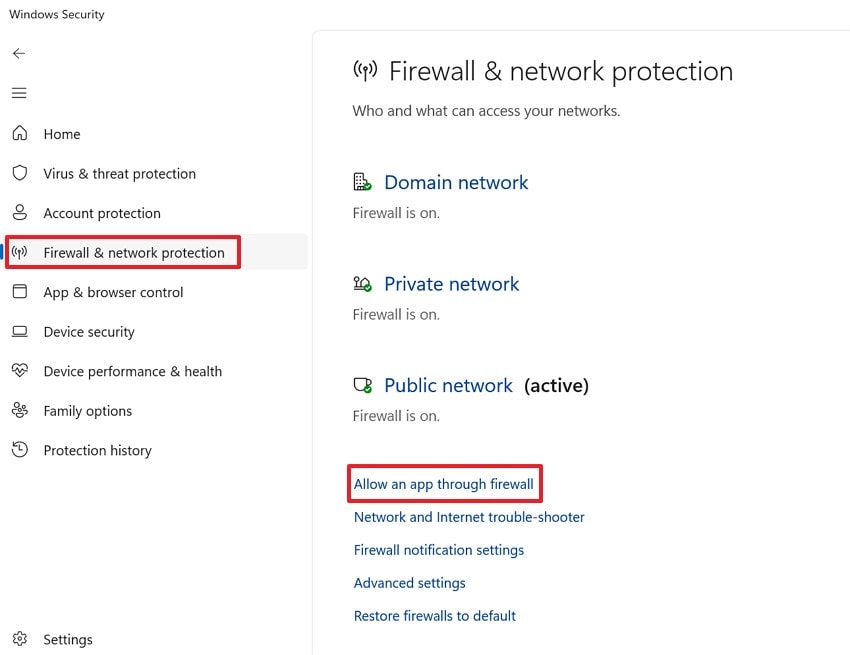
- First, restart your router, reconnect to Wi-Fi, then confirm that other websites load properly. After that, navigate through "Settings > Privacy & Security > Windows Security" to proceed further.
- Next, locate the "Firewall & network protection" section and choose "Allow an app through the firewall."
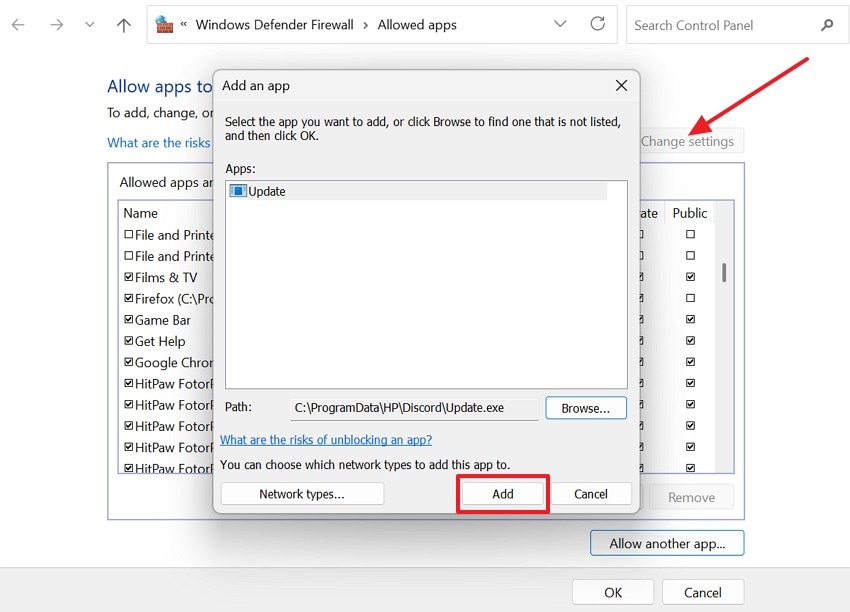
- Afterwards, click "Change settings," select "Allow another app," browse to "Discord/Update.exe," and press "Add" to allow it through the firewall.
Fix 5. Check and Repair Corrupted System Files
Corrupted Windows system files can prevent applications from launching correctly. Such damage often leads to "Discord stuck on the starting screen" problems. System File Checker scans and repairs missing or broken operating system components. Repairing these corrupted Windows system files improves overall system stability and application performance. To determine how to use this command-line-based fix, adhere to the guide below:
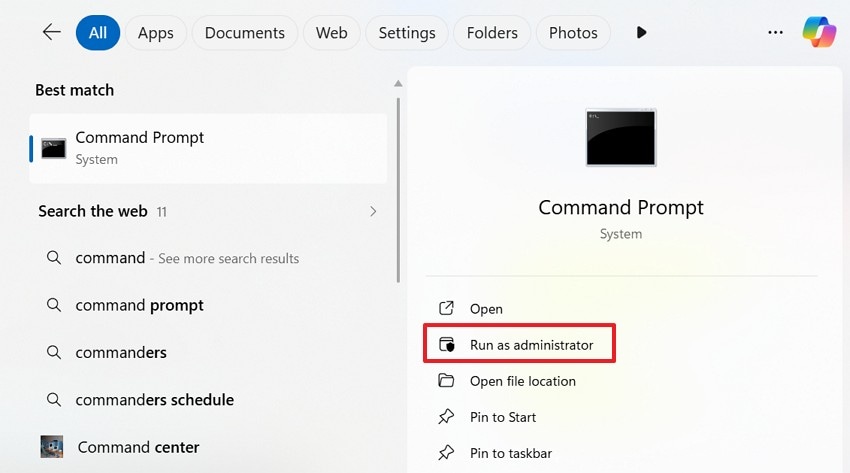
- At first, search "Command Prompt" and then click "Run as administrator" from the right panel.
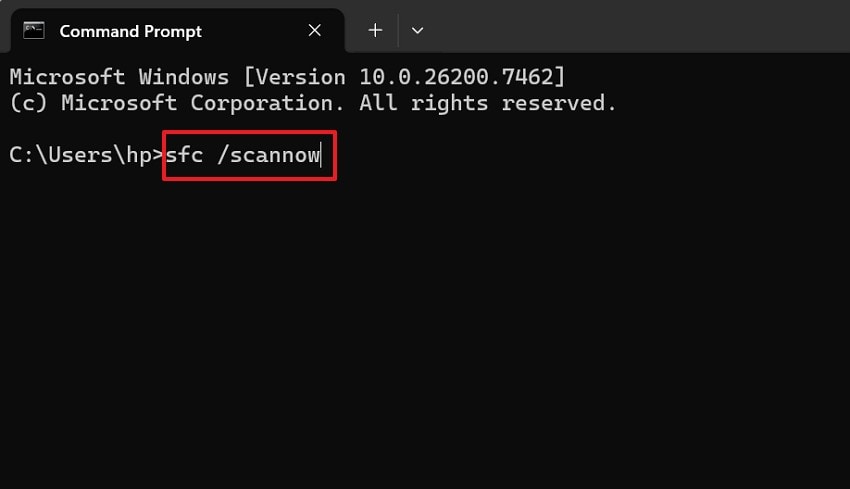
- Later type "sfc /scannow" and hit the "Enter" key to scan and repair corrupted files.
Fix 6. Clear Discord Cache
After several updates, old temporary files may remain and disrupt normal startup behavior. Such file buildup often occurs when trying to fix Discord that is stuck on the start screen. Removing cache data allows the application to recreate fresh startup files. This method frequently resolves loading loops without affecting personal account data. So, stick to the steps below to use this fix accurately:
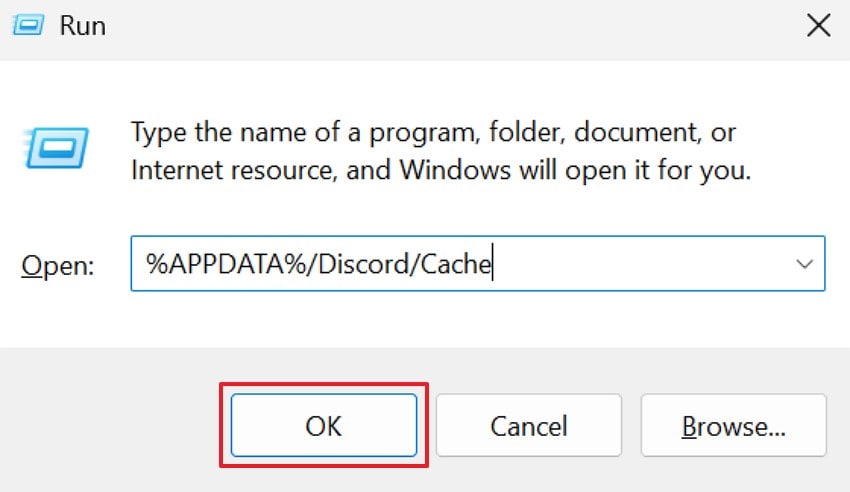
- Start by pressing the "Windows + R" and entering the command "%APPDATA%/Discord/Cache", then choose the "OK" button.
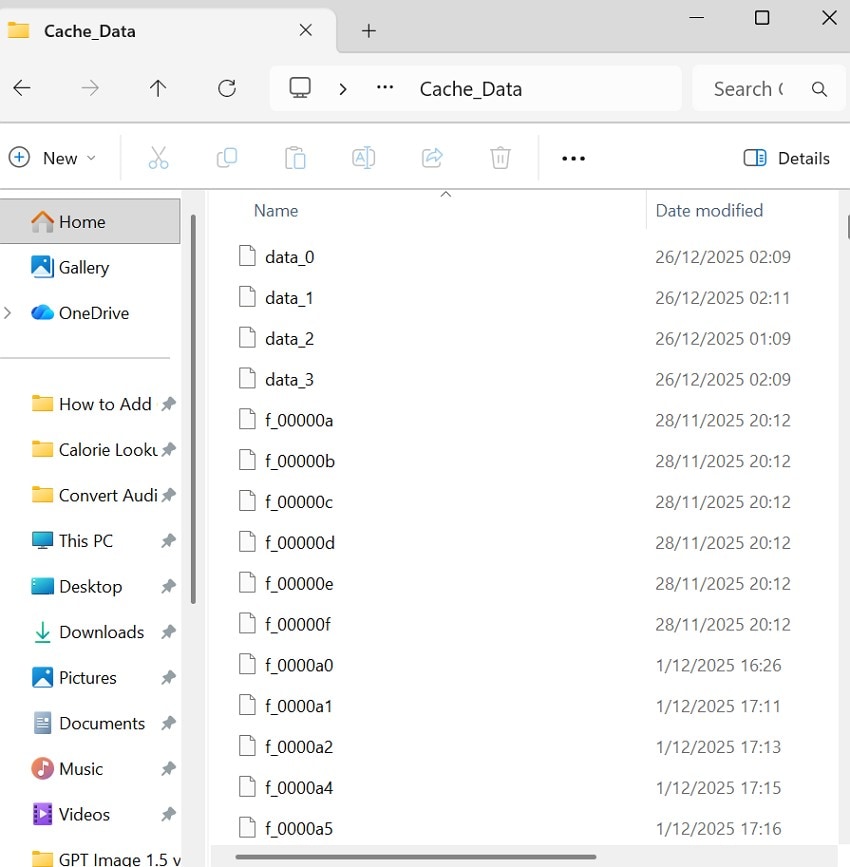
- Here, select all the files inside the "Cache_Data" folder and delete them completely.
Fix 7. Update Discord to the Latest Version
Outdated Discord versions may contain unresolved bugs affecting startup behavior. Updates often resolve issues found while learning how to fix Discord stuck on the starting screen. Installing the latest version improves performance and compatibility. Review the instructions below to check the update for Discord:
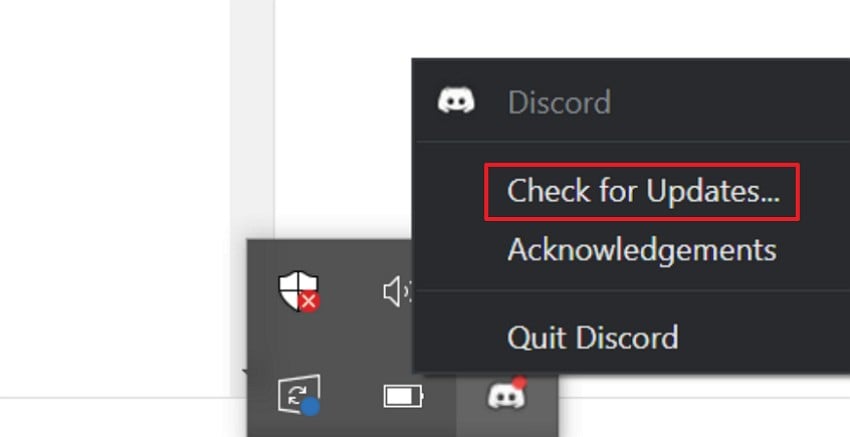
Instructions. First, click the "Discord" icon in the system tray, then right-click it to open the menu. Next, select "Check for Updates..." and wait while Discord downloads and installs the latest version. After updating, reopen Discord to confirm the loading issue is fixed.
Fix 8. Reinstall Discord
Reinstalling Discord removes corrupted files and resets incorrect configuration settings. This approach works well when Discord is stuck on the starting screen and persists. A fresh installation provides a clean application environment for stable startup performance. Now, move towards the guide below to see how to reinstall Discord:
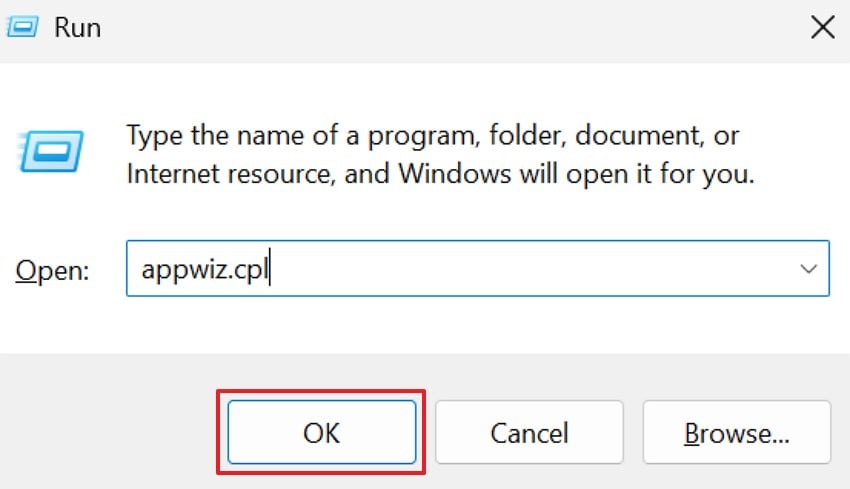
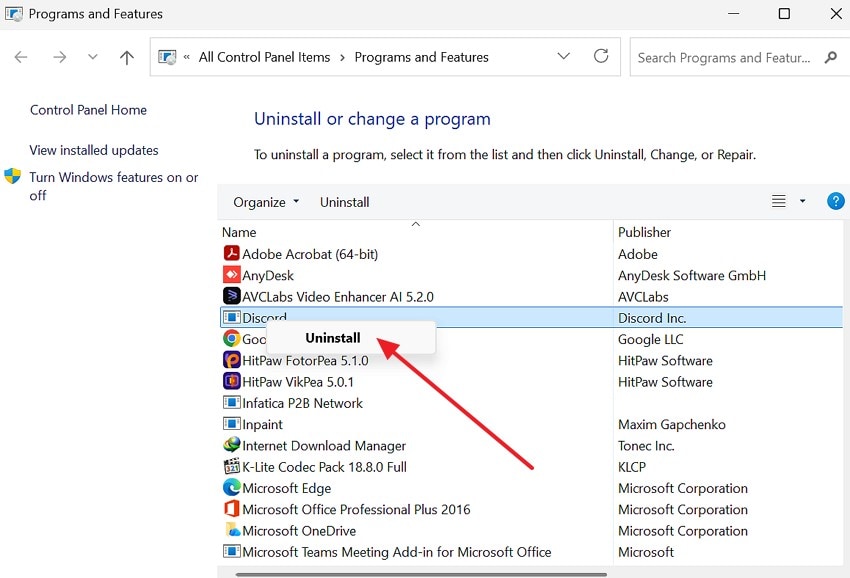
- Firstly, press "Windows + R" and enter "appwiz.cpl" and select "OK" to continue.
- Following up, find Discord in the list and right-click it to later choose the "Uninstall" option.
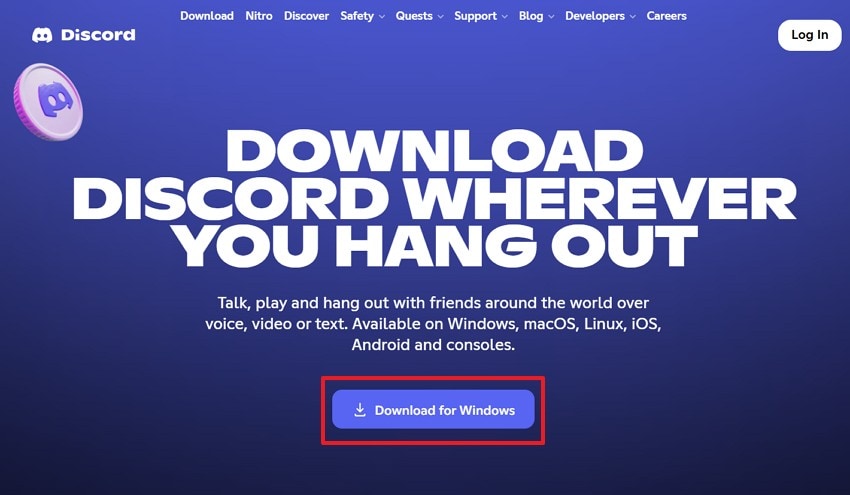
- After uninstalling, access the official Discord website, click "Download for Windows," then run the installer to reinstall Discord.
Fix 9. Run Discord as Administrator
When Discord fails to open, limited permissions may restrict access to system resources. Such limits often appear while learning how to fix Discord stuck on the starting screen. Running Discord as an administrator grants access to required system files and services. Next, adhere to the guide below to apply this fix with ease:
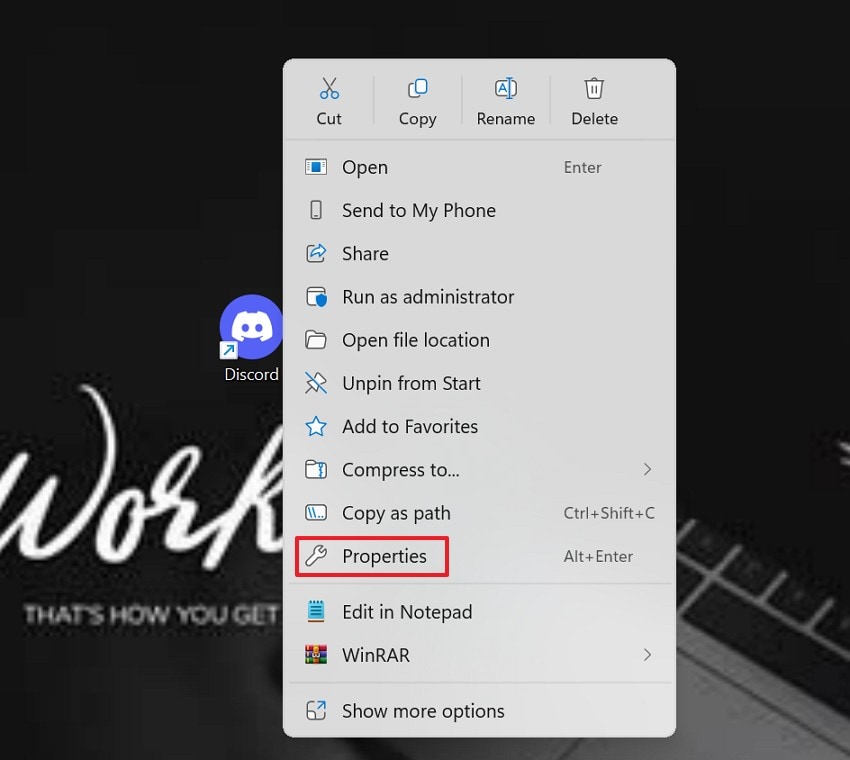
- To start, right-click the "Discord" and navigate towards the "Properties" option from the list.
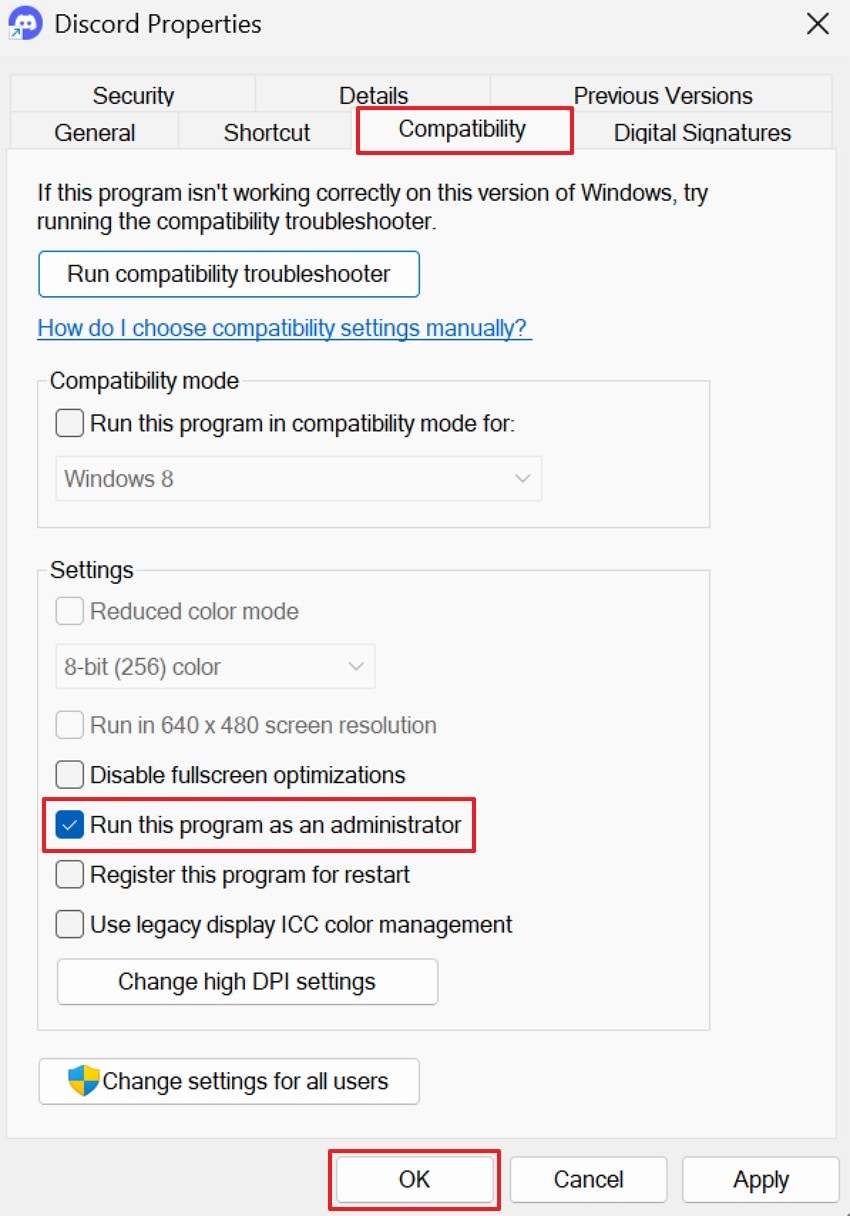
- Next, open the "Compatibility" tab, check "Run this program as an administrator," and then click "OK."
Fix 11. Check Proxy and VPN Settings
Network routing through proxy or VPN services can send Discord traffic incorrectly. This routing issue may cause Discord to get stuck on the startup screen during connection setup. Turning off these services helps identify whether routing creates the loading problem. Running Discord without them helps confirm the source of the issue. Follow the stepwise guide below to check proxy and vpn settings:
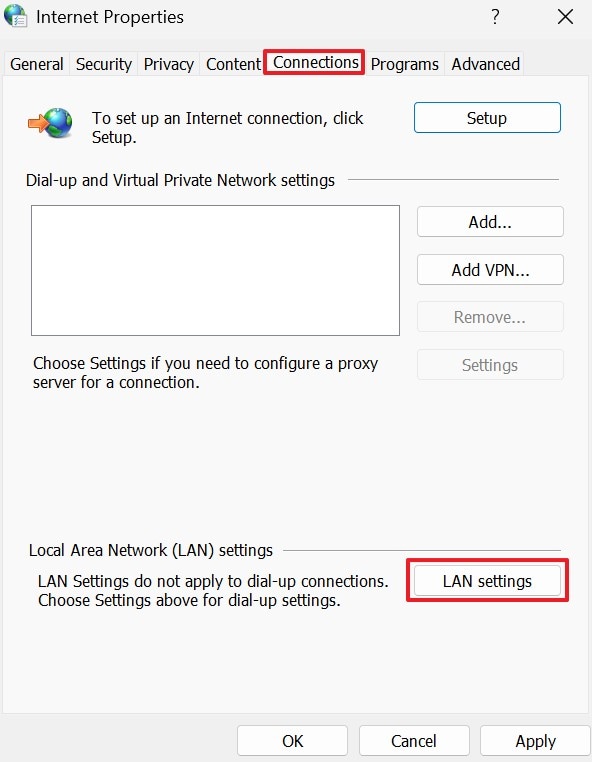
- To start, press "Windows + R," type "inetcpl.cpl," then press "Enter." After that, open the "Connections" tab, click "LAN settings," uncheck all proxy options, and confirm by clicking "OK."
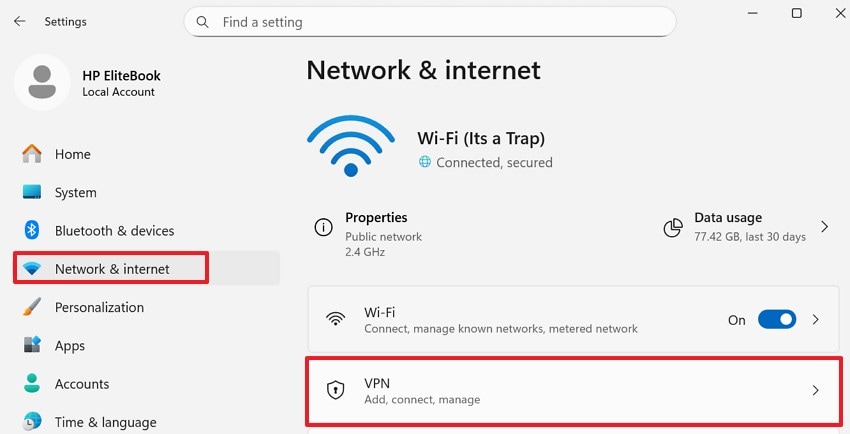
- Later, open "Settings > Network & Internet > VPN," disconnect any active VPN, then fully close and reopen Discord to check if loading works.
Fix 12. Verify Discord Loads Properly
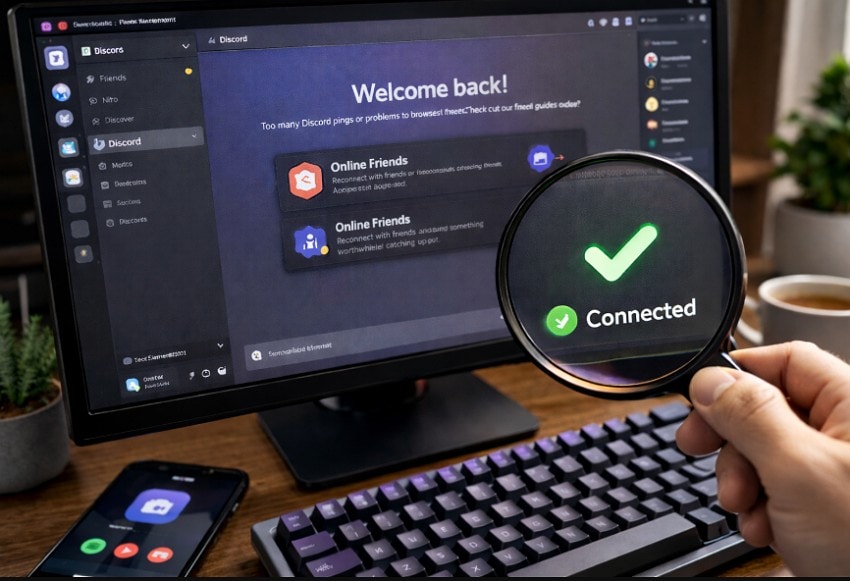
Final checks ensure that previous fixes resolved the Discord loading issue fully. This step confirms that how to fix Discord stuck on the starting screen worked as expected. Watching startup behavior helps avoid repeated troubleshooting in future sessions. A normal launch shows stable application performance and system compatibility. To verify loading, restart the system and open Discord to confirm normal startup.
Bonus Part: Recoverit Tip: Restore Missing or Corrupted Files During Discord Issues
While fixing Discord loading problems, users can lose files by mistake. Removing folders or reinstalling the app may delete chats, videos, or work files. This loss feels upsetting when those files matter for school or daily tasks. When "Discord stuck on the starting screen" appears, file recovery becomes important. In such cases, Recoverit helps restore missing or damaged files.
Recoverit helps bring back files after crashes, deletions, or reinstall issues. The tool feels easy to use, even for people without technical experience. It supports photos, videos, documents, and audio from many devices. Additionally, users can preview files before saving them again to ensure accurate recovery. These features make Recoverit a trusted option for file recovery.
Key Features
- Crash Recovery: Recovers files after system crashes or sudden app shutdowns during Discord fixes.
- Deep Scan Engine: Locates lost files across drives after deletion or formatting with deep scan engines.
- Multi-Device Support: Supports recovery from hard drives, SSDs, USB drives, and memory cards with ease.
Guide to Recover Missing Files During Discord Issues with Recoverit
With key features covered, follow the steps below to recover missing files during Discord issues:
- Select Recovery Location to Proceed
First, access the software and choose "Hard Drives and Locations" from the left panel. After that, select the drive where the files disappeared under the "Quick Access" tab.
- Initiate the Scanning to Find Recoverable Files
Here, the Recoverit scan engine will scan all the recoverable files. Once the scan ends, all the files will appear under the "File Location" tab.
- Preview the Scan Result and Recover
Lastly, preview the files to confirm they are correct and usable. Afterwards, press the "Recover" button to complete the recovery process.
Part 3. Keep Discord Running Smoothly: Tips to Avoid Future Issues
Review the following tips to prevent future loss and to keep your Discord running:
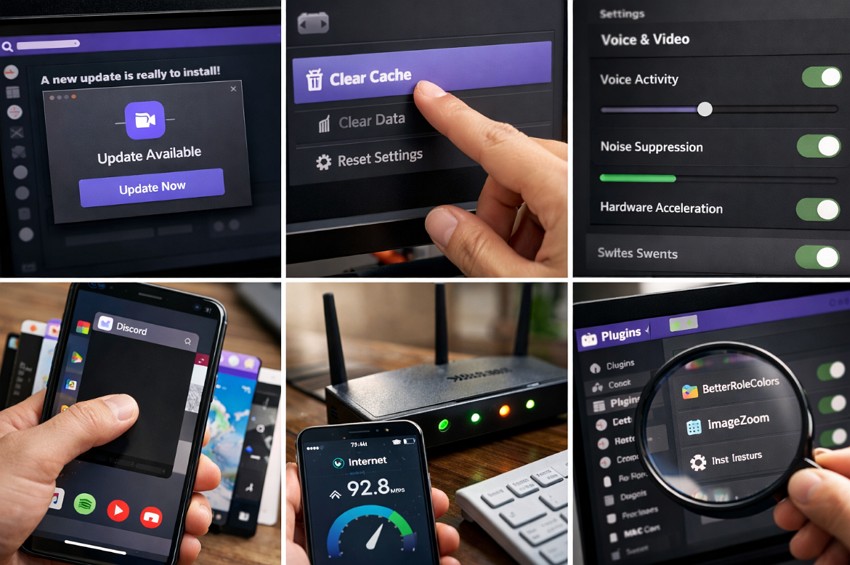
- App Updates: Keep Discord updated to fix bugs and improve overall performance. Update system drivers to avoid freezes, audio problems, and crashes.
- Clear Cache: Delete Discord cache folders to remove broken temporary files. Reinstall Discord fully if problems continue after clearing the cache.
- Smooth Settings: Enable or disable hardware acceleration to test performance. Disable extra visual effects to reduce system strain during use.
- Close Apps: Close heavy apps when Discord runs slowly or sounds cut. Use high-performance mode so Discord gets enough power during calls.
- Good Internet: Use a stable internet and avoid downloads during calls. Restart your router and choose nearby servers for better stability.
- Check Plugins: Remove unused themes or plugins to prevent errors. Review voice settings after updates to avoid any further problems.
Conclusion
To conclude, Discord loading issues can interrupt chats, gaming, and teamwork. In this article, we explained causes, fixes, and tips to prevent future issues. These steps show how to fix Discord stuck on the starting screen using simple methods that work. For reliable file recovery during fixes, consider using Recoverit to restore missing files.
FAQ
-
1. Why does Discord get stuck on the starting screen?
Clear cache files and restart Discord to remove temporary startup problems on Windows. Check the internet connection and firewall settings because blocked access prevents loading issues. -
2. Can failed updates cause Discord loading problems?
Yes, corrupted updates can freeze Discord before the main window opens during startup. Reinstall Discord after deleting appdata folders to fix update-related startup errors. -
3. Can Recoverit help if files disappear during Discord fixes?
Recoverit helps restore files lost during crashes, deletions, or reinstalls on your system. It supports documents, photos, videos, and audio from many types of storage devices today. -
4. How can I prevent Discord loading issues later?
Keep Discord updated and close heavy apps to prevent future loading issues. Stable internet, a clean cache, and simple settings help Discord start without errors.


