

 TL;DR:
Resolve the Windows 0xc000007b startup error by matching your application's 32-bit or 64-bit architecture to your system in Task Manager and running the software with administrative privileges to bypass permission blocks.
● Execute sfc /scannow followed by dism.exe /online /cleanup-image /scanhealth in the Command Prompt to locate and repair corrupted Windows system image files or missing DLLs.
● Restore required runtime components by repairing Microsoft Visual C++ Redistributables in Apps & Features, activating ASP.NET 4 for the .NET Framework, and installing the newest DirectX version via Windows Update.
● If file loss occurs during the application crashes, utilize Wondershare Recoverit on Windows or macOS 10.10+ environments to selectively restore data across FAT16, FAT32, exFAT, and NTFS storage systems.
Ask AI for a summary
 ChatGPT
 Perplexity
 Gemini
 Claude
 Grok
Grok
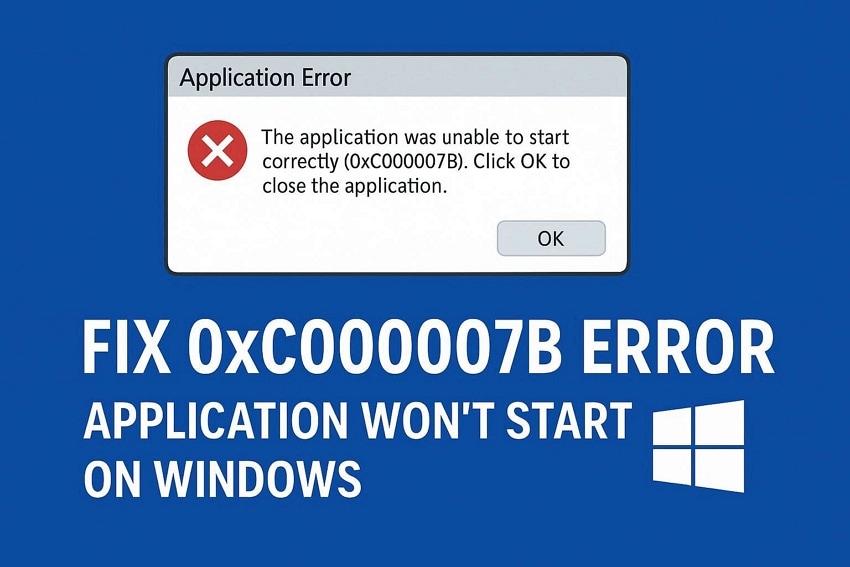
You try to launch an important application or game, but Windows immediately blocks it with the message "The application was unable to start correctly (0xc000007b)." This sudden interruption can disrupt work, delay projects, or ruin a gaming session, leaving you unsure of what to do next. The error feels technical and intimidating, especially when it appears repeatedly.
Fortunately, you don't need to be an expert to deal with it. This guide is designed to walk you through clear, practical solutions that help you get the application running again. By following the steps outlined in this article, you can confidently troubleshoot the error and restore normal access to your software.
Try Recoverit to Perform Data Recovery
 Security Verified. 3,591,664 people have downloaded it.
In this article
-
- Fix 1. Restart Your PC and Try Launching the App Again
- Fix 2. Run the Application as Administrator
- Fix 3. Scan and Repair System Files Using SFC
- Fix 4. Repair Windows Image with DISM Tool
- Fix 5. Install or Repair Microsoft Visual C++ Redistributables
- Fix 6. Update DirectX to the Latest Version
- Fix 7. Update or Install the Latest .NET Framework
- Fix 8. Uninstall and Reinstall the Problematic Application
- Fix 9. Check 32-bit vs 64-bit Compatibility Issues
- Fix 10. Update Graphics and System Drivers
- Fix 11. Test the Application and Keep System Updated

Part 1. What the 0xc000007b Error Means and Why It Happens
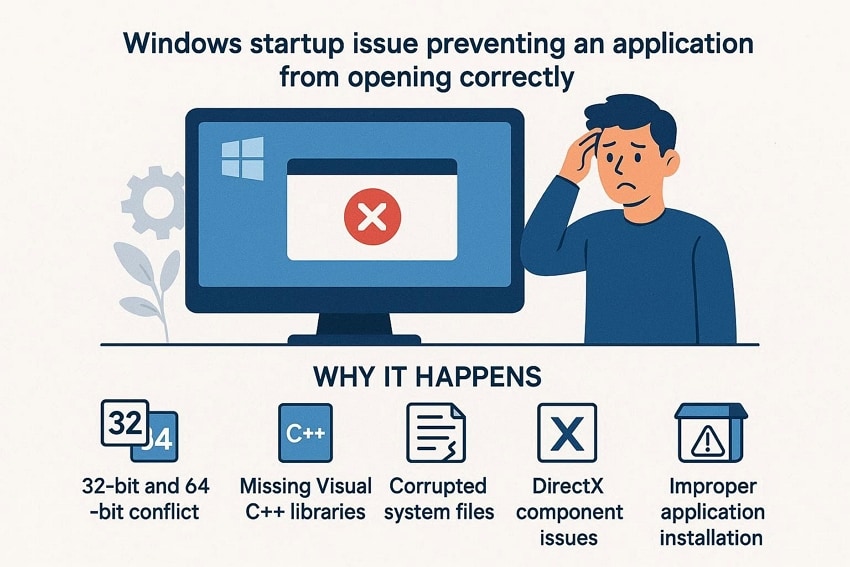
The 0xc000007b error is a Windows startup issue that prevents an application from opening correctly. When it appears, users see the message the application was unable to start correctly 0xc00007b Windows 11, indicating a system-level launch failure.
Why it Happens
- 32-bit and 64-bit Conflict: Mixing 32-bit and 64-bit files causes Windows to fail during the initialization process. Applications cannot load required components when architecture mismatches exist internally within systems.
- Missing Visual C++ Libraries: Missing Microsoft Visual C++ libraries stop many programs from launching successfully. Windows depends on these runtime files to execute installed applications correctly today.
- Corrupted System Files: Corrupted system files interrupt essential background processes required for application startup operations. This disruption leads Windows to block programs before they fully load properly.
- DirectX Component Issues: DirectX issues affect games and graphics software relying heavily on rendering components. When these files fail, Windows cannot initialize the application environment properly today.
- Improper Application Installation: Improper installations leave applications incomplete and unable to start as expected.
Common Scenarios Where 0xc000007b Appears
Understanding how this error appears in real situations helps identify when it occurs. Users often see the "application unable to start correctly 0xc00007b?" error during everyday Windows tasks mentioned below:
- Launching Games or Graphic Software: The error appears when users launch games or graphic-intensive software. Windows displays the Application Unable to start correctly 0xc00007b Windows 11 message.
- Opening Newly Installed Programs: The message appears immediately after installing and opening a new program. The application closes before its main interface loads completely.
- Running Applications After System Updates: Some users notice the error after completing a Windows system update. Previously working applications suddenly stop opening once the error occurs.
- Starting Software That Uses System Libraries: The error occurs when starting software that relies on system libraries. Windows blocks the program during the startup process.
- Launching Programs From External Drives: The error appears when launching applications stored on external drives. Windows fails to initialize the program from removable storage.
Part 2. Resolve "The Application Was Unable to Start Correctly 0xc000007b" - 11 Fixes
Now that you understand when this error commonly appears, it's time to focus on solutions. The following fixes are designed to help you resolve the "application was unable to start correctly 0xc000007b" error:
Fix 1. Restart Your PC and Try Launching the App Again
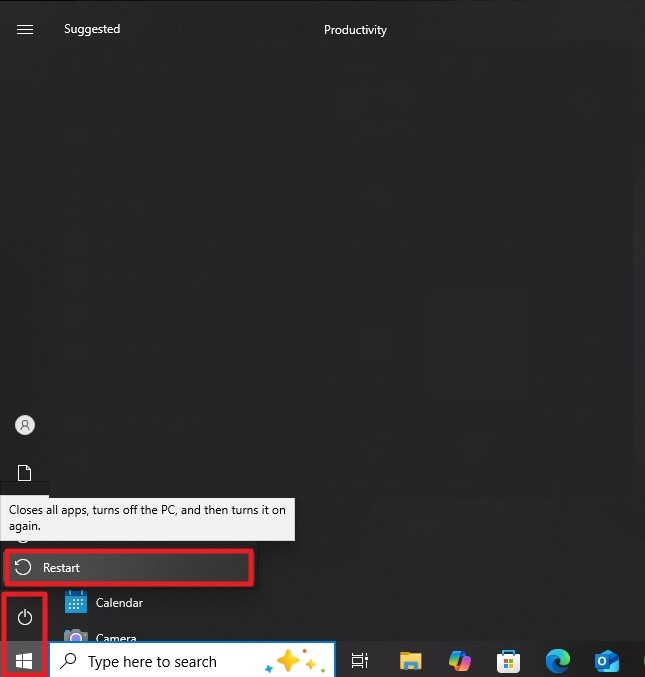
Sometimes, the simplest solution resolves the issue. Restarting your PC can clear temporary system glitches, release locked files, and refresh background processes. Many users find that after a reboot, the "application is unable to start correctly 0xc000007b" error disappears, allowing programs to launch normally without further intervention or complex troubleshooting. To learn how to restart your PC, follow the instructions provided below:
Instructions. To begin, open the "Windows" icon located at the bottom left corner of your screen. Next, select the "Power" option and then click on the "Restart" button to reboot your system successfully.
Fix 2. Run the Application as Administrator
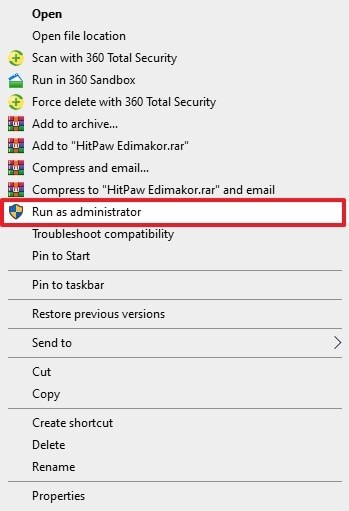
Running an application with administrative privileges can overcome permission-related restrictions that block startup. Many users report that executing the program as an administrator successfully fixes "the application was unable to start correctly 0xc00007b Windows 11" error. Follow the instructions provided next to know how to run the application as admin:
Instructions. Once you have acquired the program within the File Explorer, right-click on it to open a list of options. From here, click on the "Run as Administrator" option to let the program run with administrator's authorities.
Fix 3. Scan and Repair System Files Using SFC
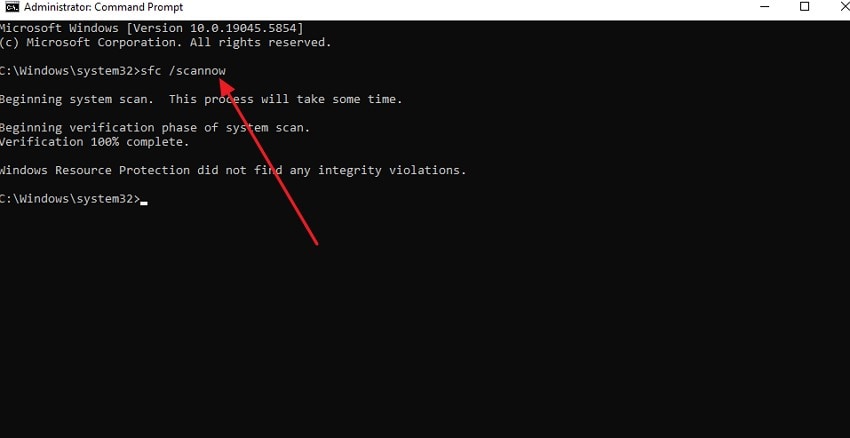
Using the System File Checker (SFC) helps identify and repair corrupted or missing Windows files. This tool scans essential system components and automatically fixes issues that may prevent programs from launching. Running SFC often resolves the " Application was unable to start correctly 0xc00007b error by restoring damaged files required for proper execution. Read the instructions provided next to learn how to run the SFC scan to resolve this error:
Instructions. Launch the Command Prompt and type "sfc /scannow," then press Enter. The System File Checker will scan your system for missing or corrupted files and automatically repair any issues it detects to restore stability.
Fix 4. Repair Windows Image with DISM Tool
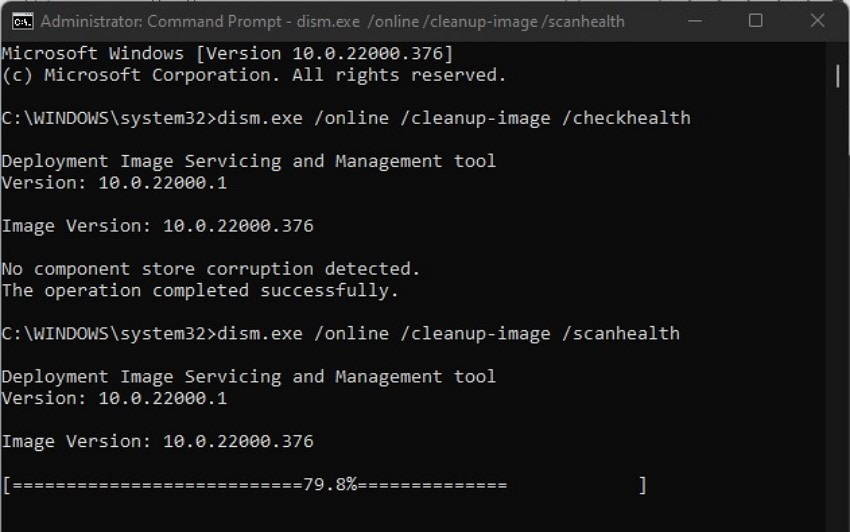
The DISM tool repairs the Windows system image, fixing deeper issues SFC cannot resolve. Using DISM can restore corrupted components and often resolves the "application unable to start correctly 0xc00007b" error, allowing affected applications to launch properly again. To learn how to repair the Windows image with the DISM tool, read the instructions provided next:
Instructions. In the Command Prompt, type "dism.exe /online /cleanup-image /healthcheck" and press Enter to check system health. Next, enter "dism.exe /online /cleanup-image /scanhealth" and press Enter to perform a more thorough scan for errors affecting DLL files.
Fix 5. Install or Repair Microsoft Visual C++ Redistributables
Microsoft Visual C++ Redistributables provide essential runtime components required by many applications. Missing or damaged redistributables can trigger the application was unable to start correctly 0xc00007b error. Installing or repairing them ensures that programs have the necessary files to run smoothly on Windows systems. Follow the steps mentioned below to learn how to repair MS Visual C++ redistributables:
Reinstall MS Visual C++
- Open your system settings and navigate to "App & Features." Scroll through the list to find the Microsoft Visual C++ Redistributable program. Click on it to access the options, then select "Uninstall" to remove the program from your system.
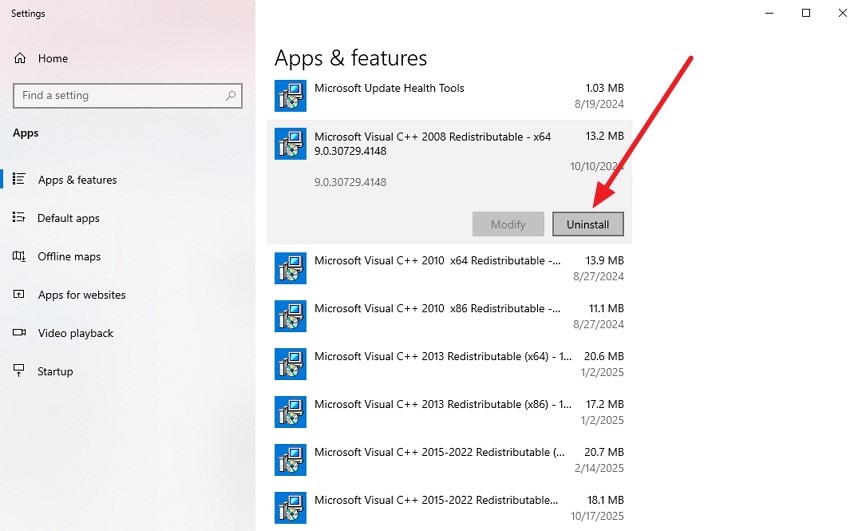
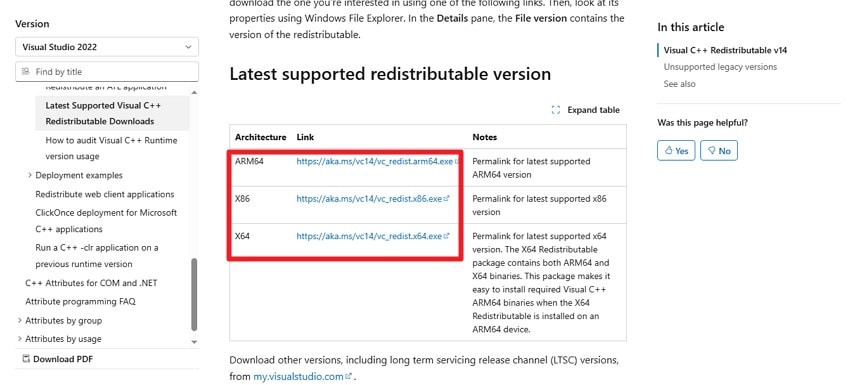
- Next, visit the official Microsoft or Visual Studio website to find the correct redistributable version for your system. Download the appropriate file and follow the on-screen instructions to reinstall the program successfully.
Repair MS Visual C++
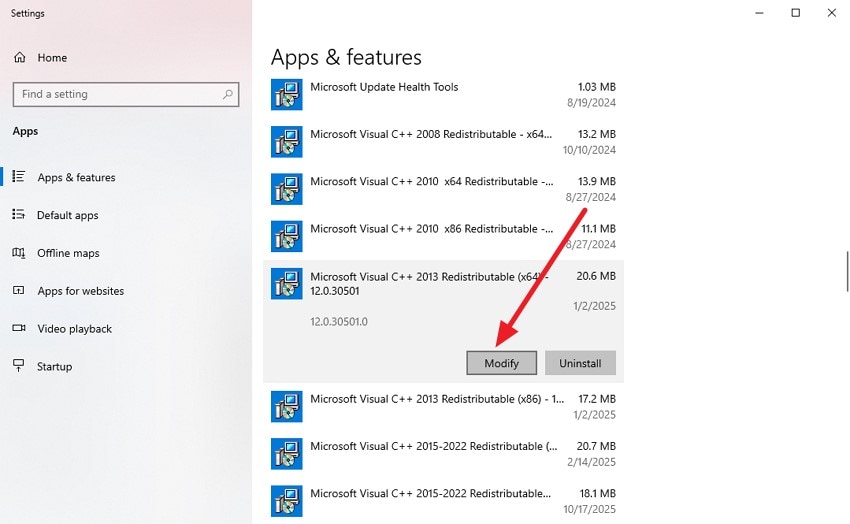
- Start by opening the "Apps" section in your system settings and locating the "Microsoft Visual C++ Redistributable" option. Click on the "Modify" button to continue.
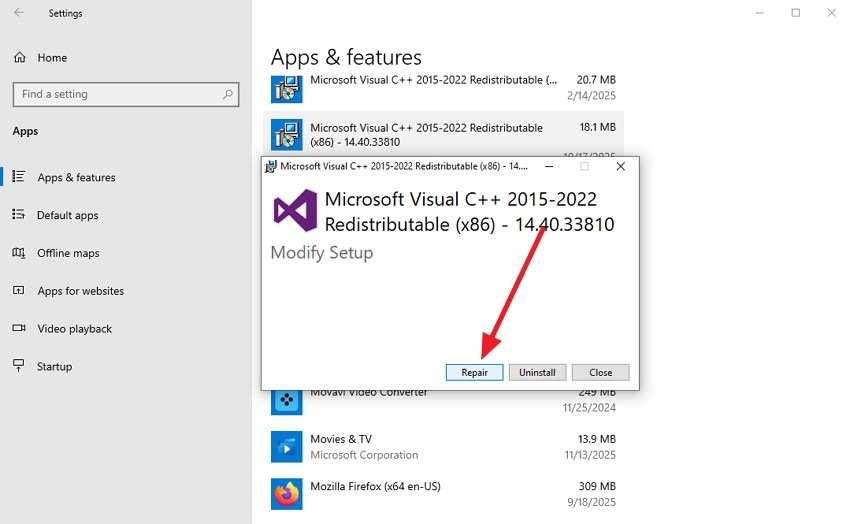
- In the pop-up window that appears, select the "Repair" button. The tool will then perform an automatic repair to fix any bugs or errors.
Fix 6. Update DirectX to the Latest Version
DirectX is crucial for running graphics-intensive applications and games smoothly. Updating to the latest version can fix compatibility issues and often resolve the "Application unable to start correctly 0xc00007b" error. This ensures programs launch and perform correctly on Windows systems. Read the steps provided below to know how to update DirectX to the latest version to resolve this issue:
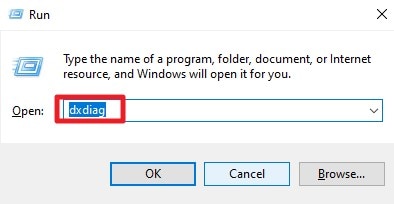
- Press Windows + R, type "dxdiag" across the Run window and press "Enter." The DirectX Diagnostic Tool will display your installed version.
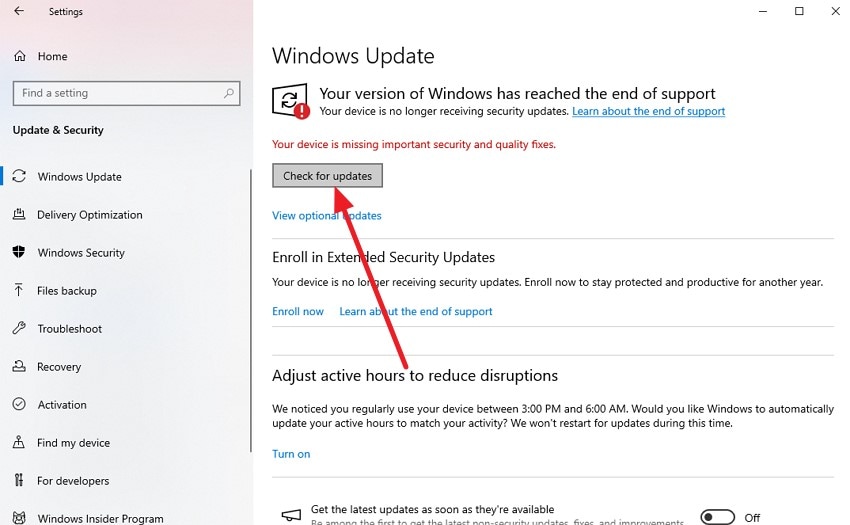
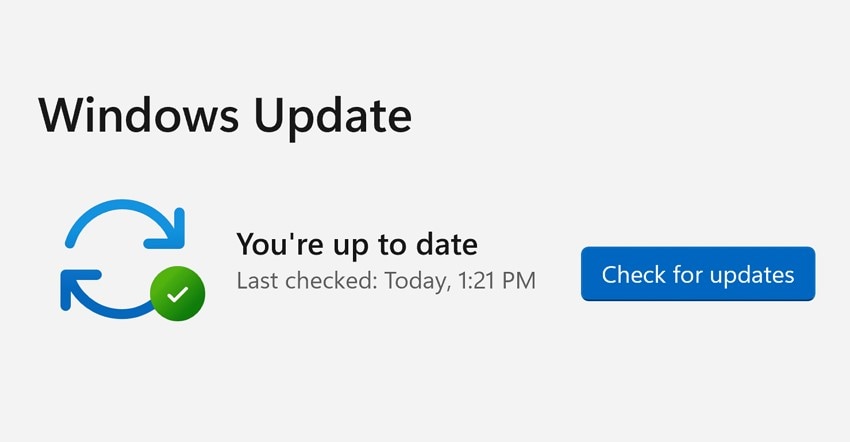
- Open "Settings" and go to "Update & Security." Next, choose "Windows Update" and click "Check for Updates." Windows automatically installs the latest DirectX version available for your system.
Fix 7. Update or Install the Latest .NET Framework
The .NET Framework is essential for many Windows applications to function properly. Installing or updating it to the latest version can fix compatibility problems and often resolves "the application was unable to start correctly 0xc00007b Windows 11." To learn how to update the latest .NET framework, read the instructions provided next:
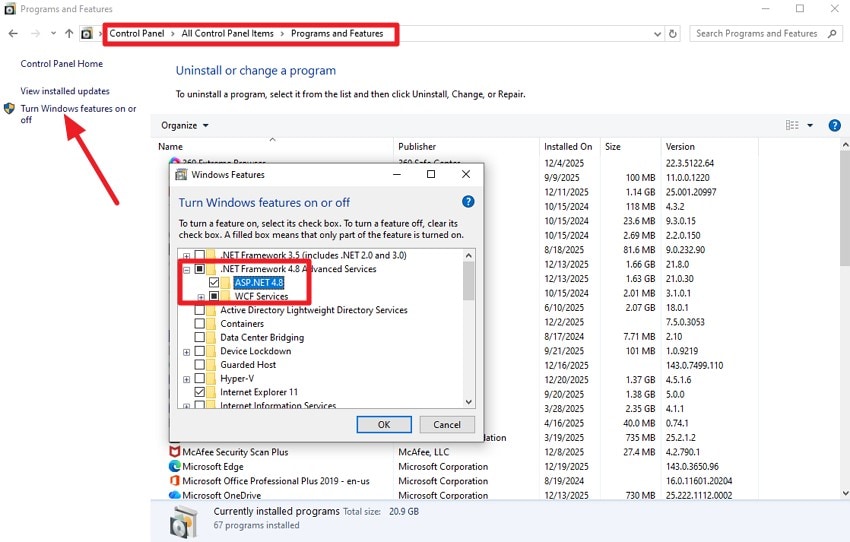
Instructions. Open the Control Panel and access the "Programs and Features" option. Now, click on the "Turn Windows Feature on or off" from the left panel to open a dialogue box. Here, tick the checkboxes for "ASP.NET 4." and press the "OK" button to let the tool begin the update process.
Fix 8. Uninstall and Reinstall the Problematic Application
Sometimes the application itself may be corrupted or missing critical files. Uninstalling and reinstalling the software can restore all necessary components, often resolving "the application was unable to start correctly 0xc00007b" error. This allows the program to run smoothly on Windows devices. Follow the steps mentioned next to learn how to uninstall and reinstall the problematic applications:
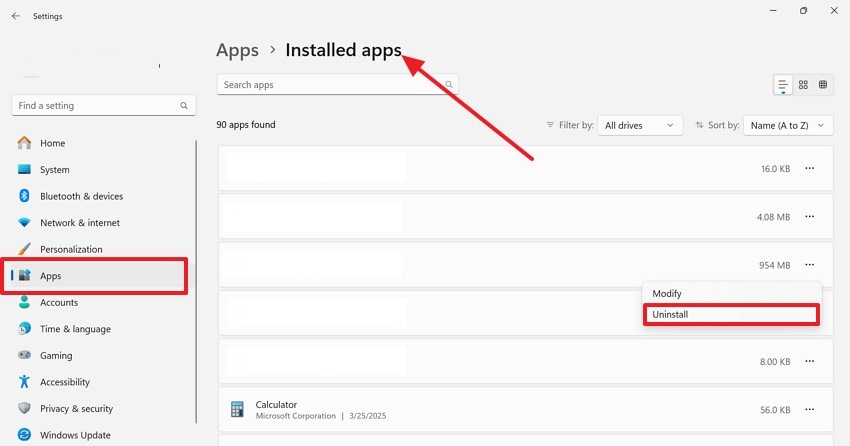
- Begin by opening your device settings and selecting the "Apps" section from the left menu. Next, find the app under "Installed Apps", right-click on it, and choose the "Uninstall" button to remove it from your system successfully.
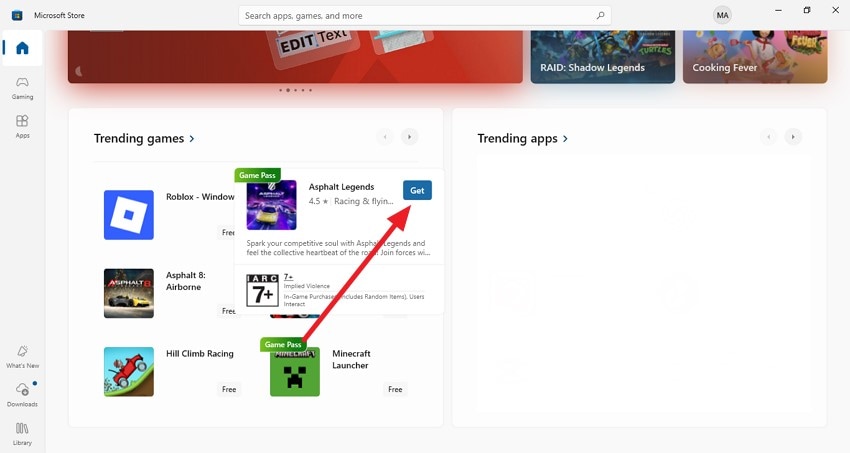
- Now, open the Microsoft Store on your device and select the application from the options. Press the "Get" option to successfully install the application again on your Windows device.
Fix 9. Check 32-bit vs 64-bit Compatibility Issues
Compatibility issues between 32-bit and 64-bit applications often cause startup errors. Ensuring the program matches your system architecture can prevent conflicts and frequently resolves "the application unable to start correctly 0xc00007b" error. Once the compatibility issue is resolved, users can run the application without any errors. Follow the steps mentioned below to check the compatibility issues:
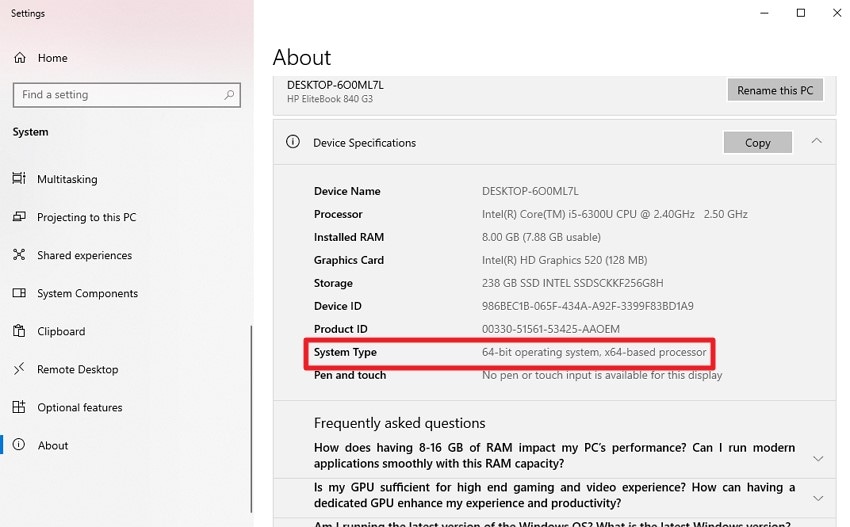
- First, open your system settings and go to "System" then "About." Check the System type to see whether your Windows version is 32-bit or 64-bit.
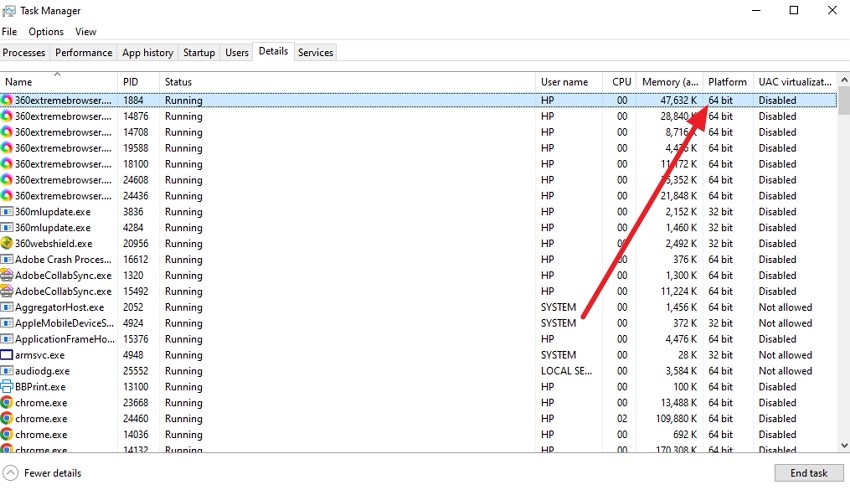
- Access the Task Manager and enable the "Details" tab. Now choose the application by clicking on it and check the compatibility in the "Platform" column. Finally, compare the system and application architectures. Ensure the program matches your Windows version.
Fix 10. Update Graphics and System Drivers
Updating graphics and system drivers focuses on ensuring all hardware components work optimally with Windows and installed applications. Keeping drivers updated helps eliminate execution conflict. To learn how to update the graphics driver to fix the "application was unable to start correctly 0xc00007b" error, read the steps provided next:
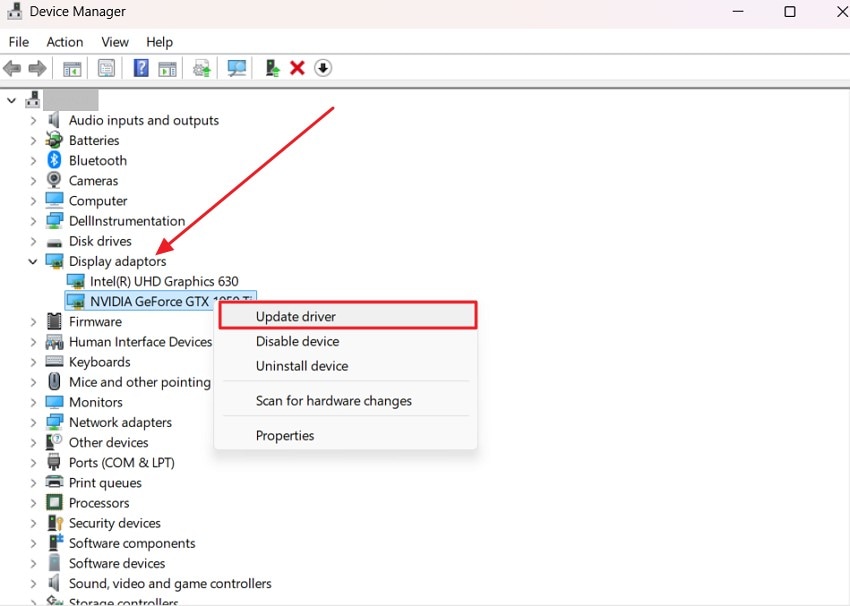
- Start by opening your system's Device Manager and navigating to "Display Adaptors." Expand the section, right-click on your graphics driver, and select the "Update Driver" option from the menu.
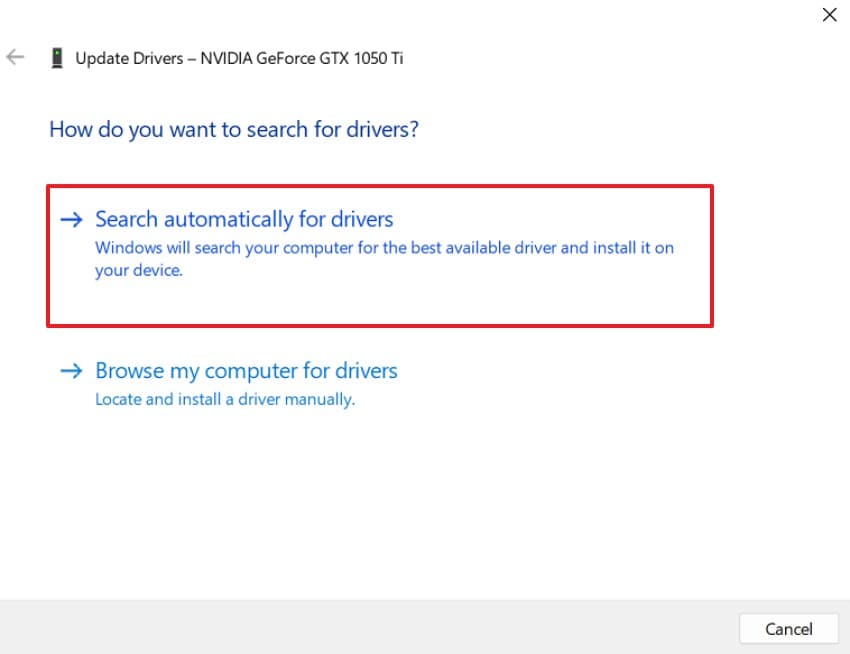
- Next, click on "Search Automatically for Drivers" to let Windows find and install the latest version of the driver successfully.
Fix 11. Test the Application and Keep System Updated
Testing the application and keeping your system updated, focus on maintaining a stable environment for programs to run. Regular updates ensure Windows and its components are current, reducing compatibility issues.
This proactive approach helps prevent and resolve the application was unable to start correctly 0xc00007b. By combining regular testing with system updates, you create a reliable environment that reduces the chances of encountering any errors.
Bonus Part: Recover Lost Files with Recoverit If Crashes Occur
When crashes or unexpected errors cause file loss, Recoverit provides a reliable solution to restore your important data. Using advanced scanning technology, it performs both quick and deep scans to locate missing or corrupted files. The tool supports recovery of files lost due to "the application was unable to start correctly 0xc00007b Windows 11" error. Users can preview files before recovery, ensuring only the necessary items are restored efficiently and accurately.
Recoverit is fully compatible with Windows, macOS, and other systems, supporting versions 10.10 or later. Its features include selective recovery, allowing users to retrieve only needed files, and unlimited file recovery for extensive restoration tasks. Additionally, it ensures safe file restoration without overwriting existing data or compromising system security, making it an ideal tool for recovering lost files after crashes or errors.
Coherent Features Offered by Recoverit
- Selective Recovery: This feature allows users to recover only the specific files they need, skipping unnecessary data.
- Unlimited File Recovery: Users can recover as many lost, corrupted, or deleted files as required using the desktop version.
- Wide File System Support: Recoverit works smoothly with FAT16, FAT32, exFAT, and NTFS file systems. This ensures maximum compatibility across different storage devices.
Steps for Recovering Lost Files With Recoverit
Now that you know what the tool offers, here's how to use Recoverit to restore your missing library files:
- Launch Recoverit and Select File Recovery
Open Recoverit and choose "File Recovery" from the left panel. Choose the location folder in which the file is present by clicking on the drive.
- Select the File and recover
Once the scan is completed, check the files that you want to get back and press the "Recover" button located at the bottom.
- Preview and Restore Library Files
Finally, use the Preview option to verify file integrity, then hit "Recover" to save the selected items safely back to your computer.
Conclusion
To wrap it up, this article provided a complete guide on how to resolve the "the application was unable to start correctly 0xc000007b" error. These system-specific fixes help resolve the issue and run your application without any errors. However, if you lose any of your files, you can recover them using Recoverit. This advanced data recovery tool provides an in-depth scan and gets back your lost files in no time.
FAQ
-
1. What does the error "The application was unable to start correctly 0xc000007b" mean?
This error occurs when Windows cannot properly launch a program. It usually indicates system or compatibility issues that prevent startup. -
2. Can I fix the 0xc000007b error without technical skills?
Yes, many solutions are simple and do not require advanced knowledge. Methods like restarting the PC or running the app as an administrator often work. -
3. How can I recover files lost due to application crashes?
You can use Recoverit, which safely restores lost or corrupted files. It ensures data recovery without overwriting existing files. -
4. Which types of files can Recoverit recover?
Recoverit supports over 1000 file types, including system files, DLLs, documents, media, and program data. This wide support ensures that almost all lost files can be restored.


