
 TL;DR:
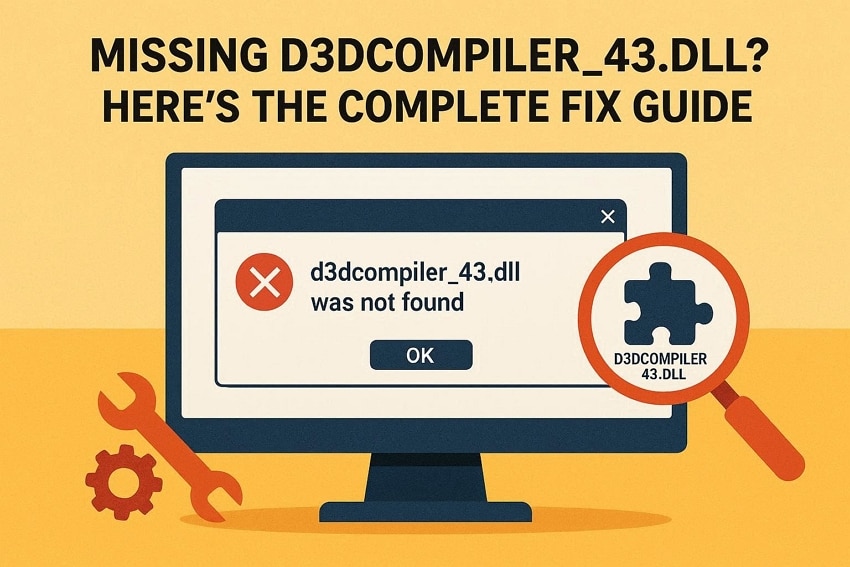
The d3dcompiler_43.dll not found error is a legacy DirectX issue that prevents games from launching, which is most effectively resolved by reinstalling the official DirectX runtime or updating your GPU drivers via Device Manager.
● Executing sfc /scannow in an Administrator Command Prompt replaces corrupted system files with clean backups to repair broken DirectX directory links.
● When manually replacing the missing component, the downloaded DLL must exactly match your Windows architecture and should be pasted directly into the crashing program's folder to bypass system path failures.
● Automated registry cleaners frequently misidentify and delete older DirectX library files required by legacy games, requiring a System Restore rollback to recover the removed components if a manual download is not viable.
Ask AI for a summary
 ChatGPT
 Perplexity
 Gemini
 Claude
 Grok
Grok
When a system file goes missing, everyday tasks and favourite programs stop working. Many users feel confused and worried because errors appear without warning or reason. One common message, "d3dcompiler_43 dll not found," often shows up during games or launches. However, there are so many options to figure out of this situation. Thus, this guide explains why this happens and shares easy steps anyone can follow safely.
Try Recoverit to Perform File Recovery
 Security Verified. 3,591,664 people have downloaded it.
In this article
- Way 1: Reinstall DirectX to Restore the Missing DLL
- Way 2: Update Graphics Drivers to Fix DLL Errors
- Way 3: Scan for System File Corruption Using the SFC Tool
- Way 4: Download d3dcompiler_43.dll from Trusted Sources
- Way 5: Replace the DLL in the System or Program Folders
- Way 6: Run Windows Update to Fix Compatibility Issues
- Way 7: Restore Windows to A Previous Restore Point

Part 1. Understanding the d3dcompiler_43.dll Error
This error appears when Windows cannot find a required graphics support file. The d3dcompiler 43dll file helps games and visual apps show images. Plus, it belongs to DirectX, a Microsoft runtime handling game picture effects rendering. When missing or broken, programs may refuse to open or close without reason. Older games often need this file, even on modern Windows versions today.
Messages usually say the file was not found or failed to load properly. The issue often comes from an incomplete DirectX setup or damaged file installation. However, fresh systems or removed software can accidentally delete needed components during updates. Some people search random sites, but unsafe copies can cause more trouble.
Part 2. Common Causes Behind Missing d3dcompiler_43.dll Files
When d3dcompiler_43 dll was not found, users need clear reasons behind this error. This section explains common causes so readers understand why the file disappears:
- DirectX Missing: Older DirectX parts may be absent, meaning Windows no longer included this required file. Many games still depend on DirectX versions that modern systems no longer install.
- Program Install: Some games bundle DirectX, but fail to copy the DLL file into their folders. Also, incomplete installs or reinstalls can remove the file from program paths.
- File Deletion: Cleaning tools or manual actions sometimes remove important DLL files without reason. Windows then cannot locate the file where programs expect it during startup time.
- DirectX Corruption: Failed updates or sudden shutdowns can corrupt DirectX files during installation. This damage leaves the DLL unreadable even if it still exists on disk.
- System Paths: Registry changes or optimizer tools can break paths pointing to the DLL locations stored. Windows then searches the wrong places and reports the file as missing during launch.
Part 3. Top Ways to Solve d3dcompiler_43.dll Not Found Errors Fast
Users want easy and safe methods to restore common program use when d3dcompiler_43 dll is missing. Below are 7 practical ways to fix this error and make the affected games work again:
Way 1: Reinstall DirectX to Restore the Missing DLL
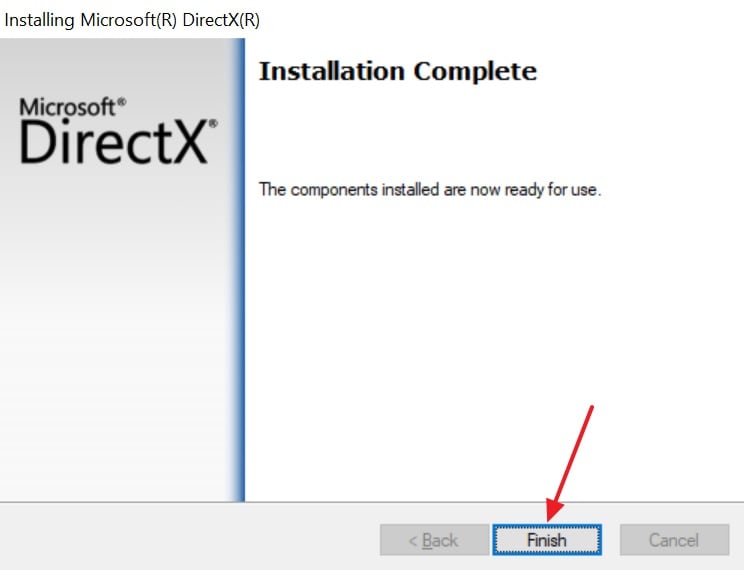
A simple DirectX reinstall often fixes missing file errors affecting games and apps. This works because d3dcompiler 43dll belongs to the DirectX runtime, not Windows itself, and you can't uninstall it from the system. Installing the latest version refreshes damaged or outdated DirectX parts and restores correct system file copies. It also fixes version mismatches that confuse programs. Review the steps below to learn how to reinstall the DirectX:
- To initiate, go to the official site of "DirectX" and click the "Download" button.

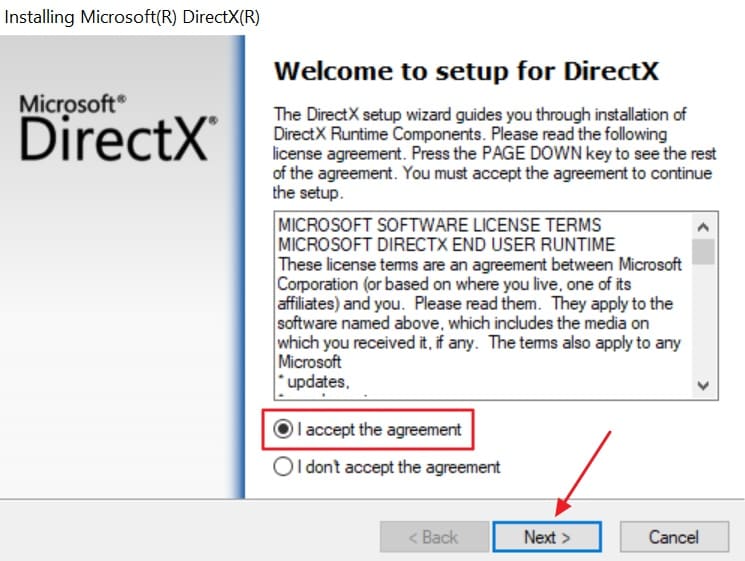
- Once it is downloaded, enable the "I Accept the Agreement" option and opt for the "Next" button.
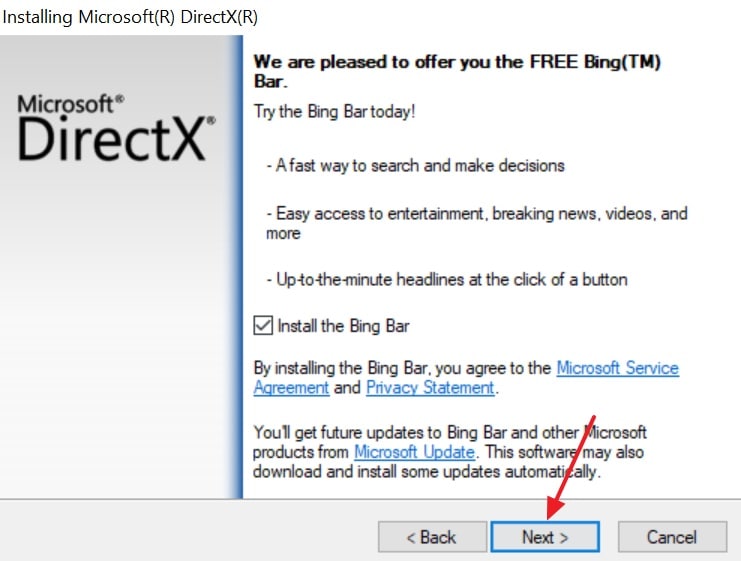
- Upon accessing it, click the "Next" button at the bottom.
- Once it is installed, hit the "Finished" button and restart your computer to apply all updates and restore DLL files.
Way 2: Update Graphics Drivers to Fix DLL Errors
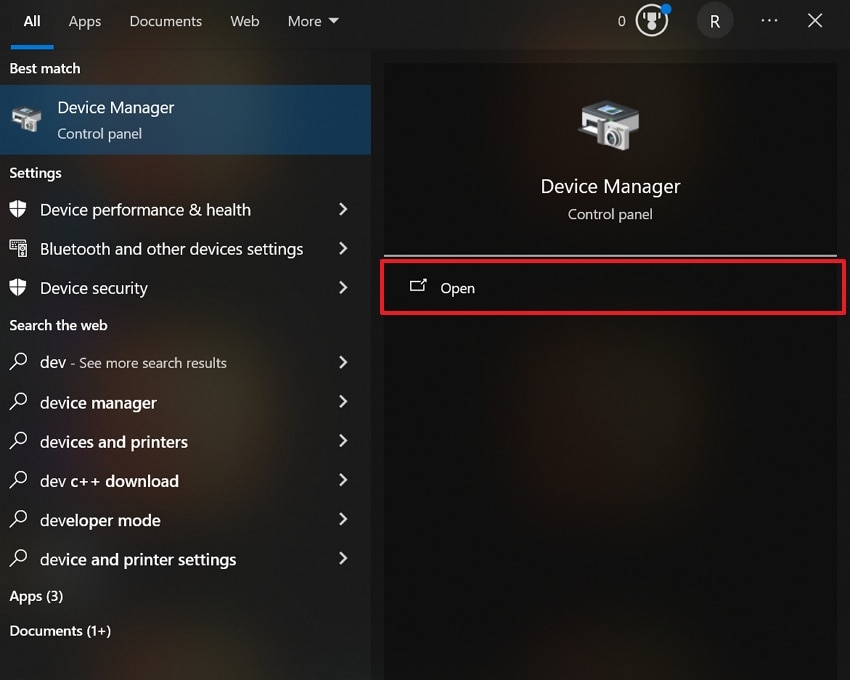
Updating drivers fixes DLL errors by repairing DirectX communication with GPU hardware. When the d3dcompiler_43.dll is missing, applications trigger startup failure errors. They also replace damaged driver parts that fail to use the required DLL files. Plus, new drivers repair broken links between DirectX files and the graphics system. Hence, follow the steps below to update the graphics drivers:
- At first, from the "Start" menu, search for "Device Manager" and select "Open."
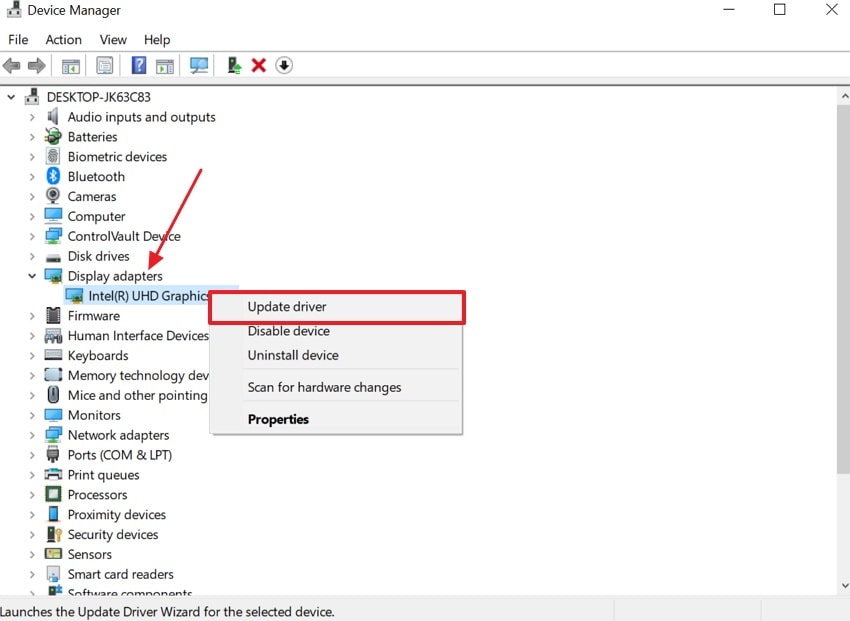
- Next, click the "Display Adapters" option to access the driver. After accessing it, right-click the driver, then choose the "Update Driver" option.
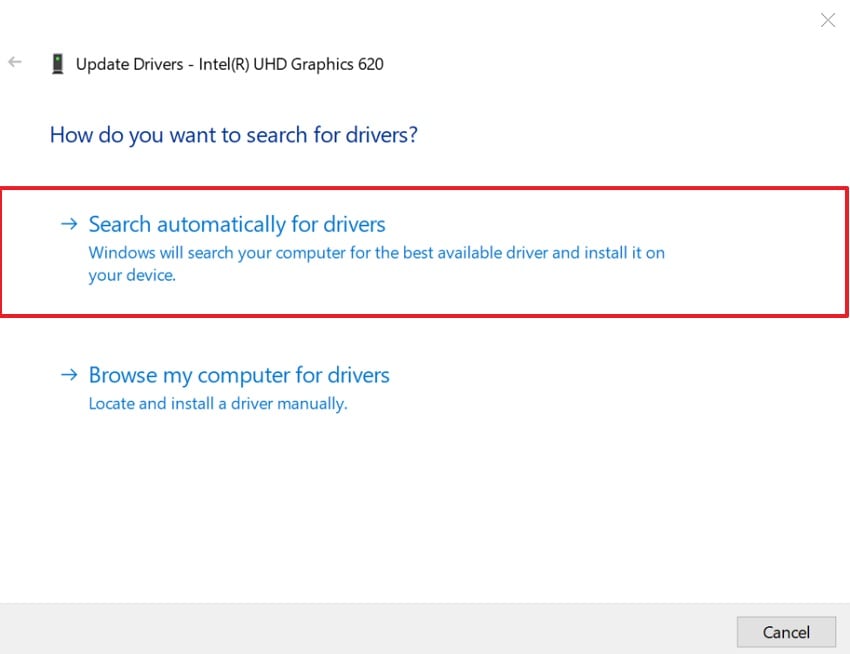
- At last, opt for the "Search Automatically for Driver" option to update a driver.
Way 3: Scan for System File Corruption Using the SFC Tool
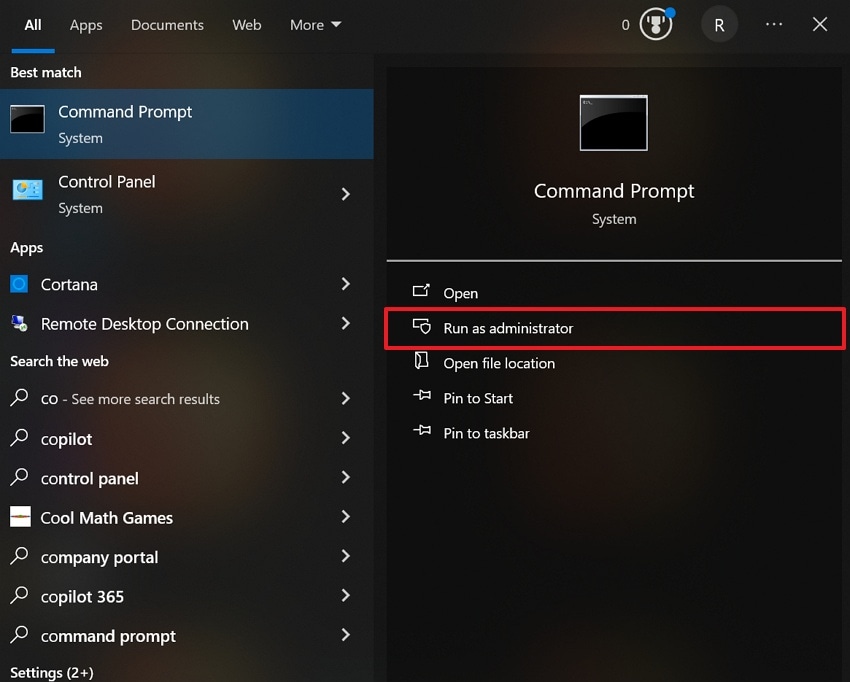
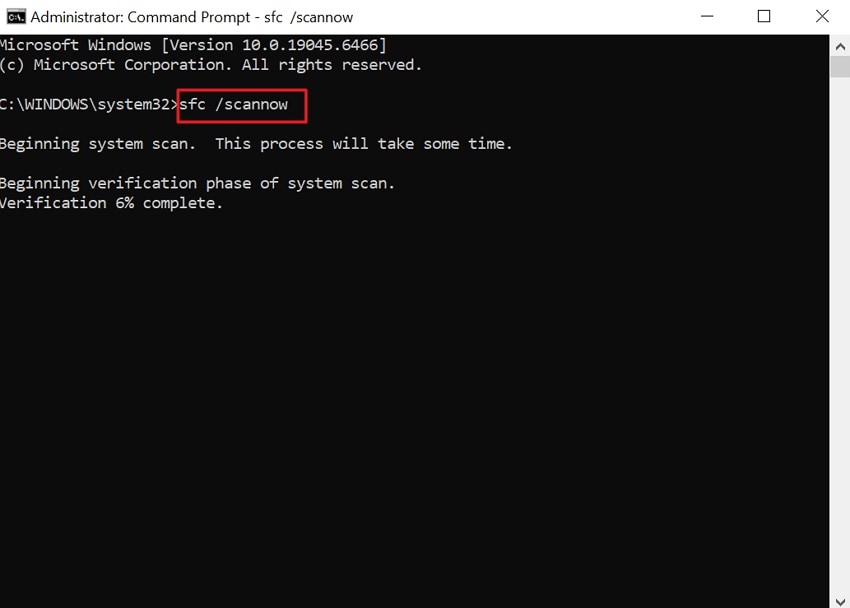
System File Checker scans Windows files to detect hidden damage affecting DirectX components. When the d3dcompiler_43.dll not found, errors appear, and corruption often exists beyond single files. However, SFC compares system files with clean backups and replaces broken versions. This process repairs DirectX links so programs can locate required DLL files. Adhere to the given guide to scan files using the SFC command:
- From the "Start" menu, find "Command Prompt" and select the "Run as Administrator" option.
- After accessing it, type "sfc /scannow" and press "Enter" to start the scan. Once finished, restart your computer to apply all repairs and ensure the error gets fixed.
Way 4: Download d3dcompiler_43.dll from Trusted Sources
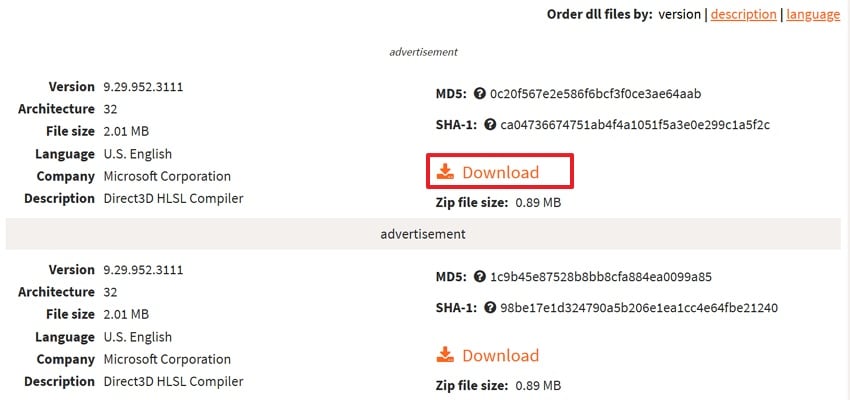
If your game cannot find the required files, a safe d3dcompiler_43 dll download also fixes it. A clean DLL from trusted sources replaces missing or corrupted DirectX components. Using official or verified sites ensures the file matches the Windows version and system architecture. It avoids malware, wrong versions, and conflicts that cause repeated "not found" errors. Let's explore the instructions below to download the d3dcompiler_43 file from a trusted source:
Instructions. Visit the trusted site of d3dcompiler_43.DLL, like "DLL-Files." Next, scroll down and select the preferred version, then click the "Download" option.
Way 5: Replace the DLL in the System or Program Folders
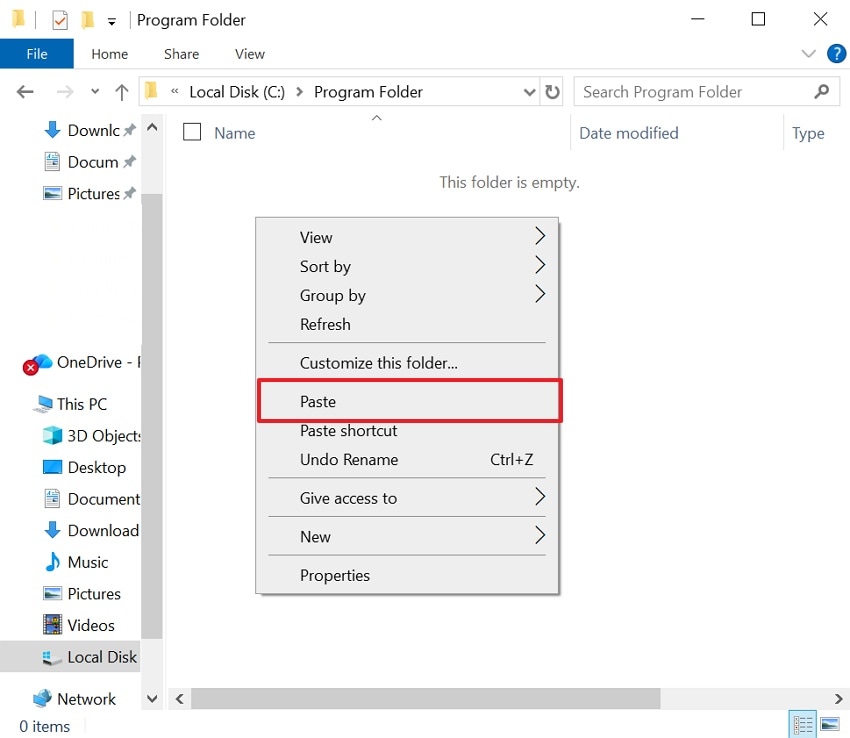
You can replace the d3dcompiler 43.dll in the correct folder to fix missing file errors. A game often searches its own folder, then the Windows directories, for the required DLL. Placing a clean copy restores corrupted files and allows DirectX to load again. Also, dropping the DLL in the game folder bypasses system path issues for loading. Go through the steps to move the DLL to another folder:
- Open the "File Explorer" and head to the place where your DLL file is stored. After that, right-click the "DLL File" and choose the "Copy" option.
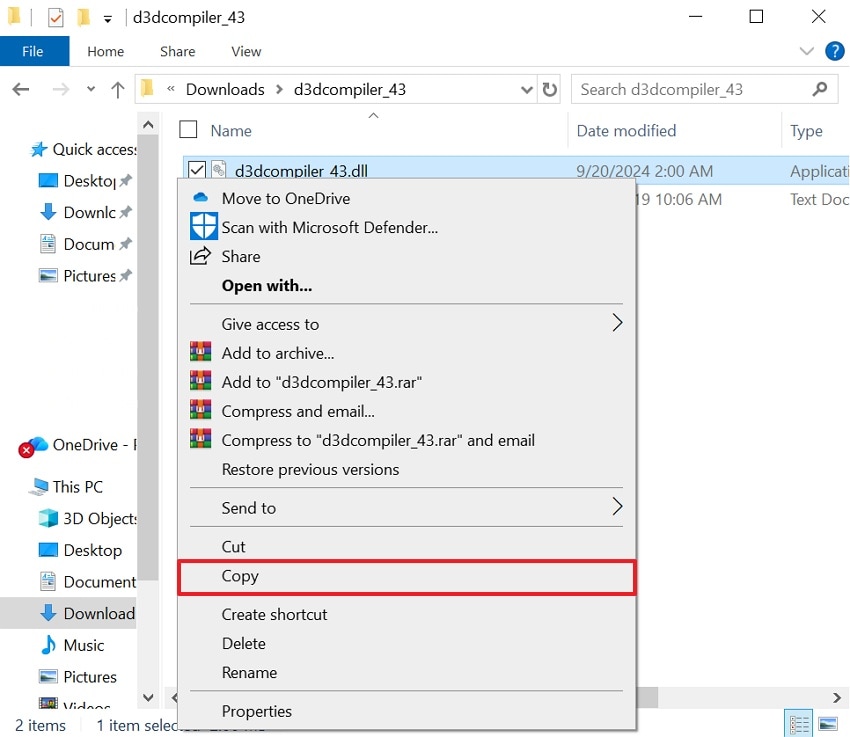
- Now, paste the copied "d3dcompiler_43.dll" into the program folder or system folders.
Way 6: Run Windows Update to Fix Compatibility Issues
Running Windows Update often repairs system components, causing d3dcompiler_43.dll not found errors. It refreshes DirectX integration, graphics stack, and runtime libraries that games depend on. Windows fixes underlying bugs that block DLL loading or create compatibility issues. After updating, many programs can locate the DLL without manual downloads or copying. Review the steps below to run Windows Update to fix the d3dcompiler_43 issue:
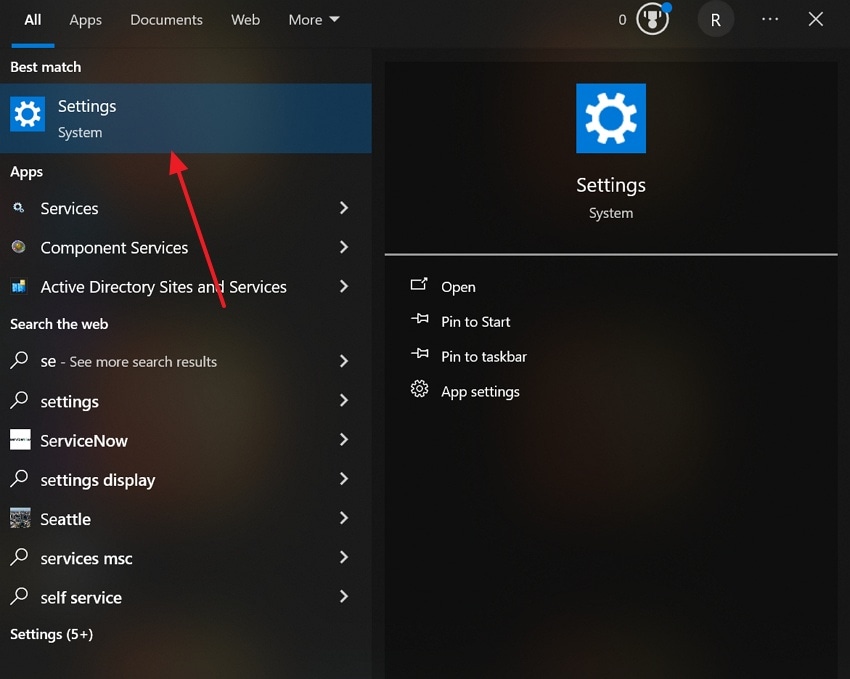
- At first, open the "Settings" app of your system from the "Start" menu.
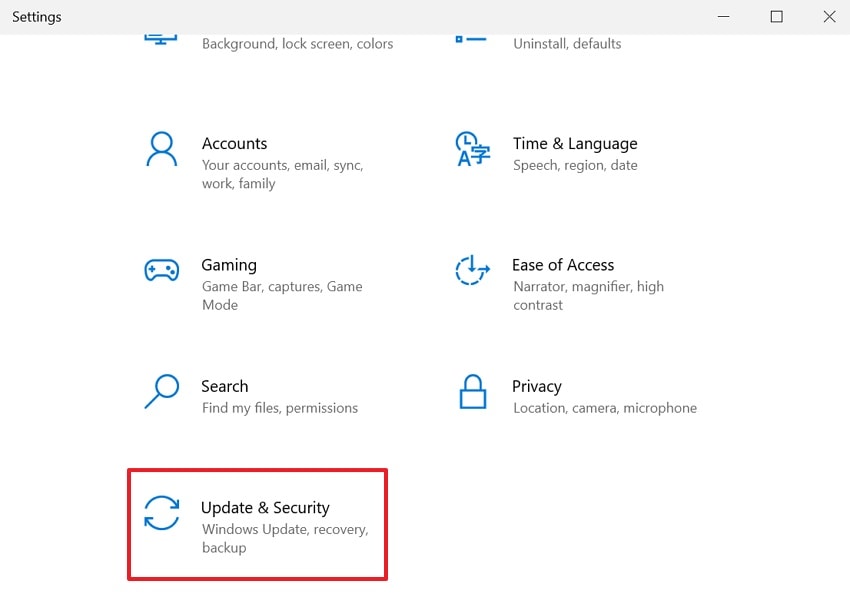
- Upon accessing it, select the "Update & Security" option.
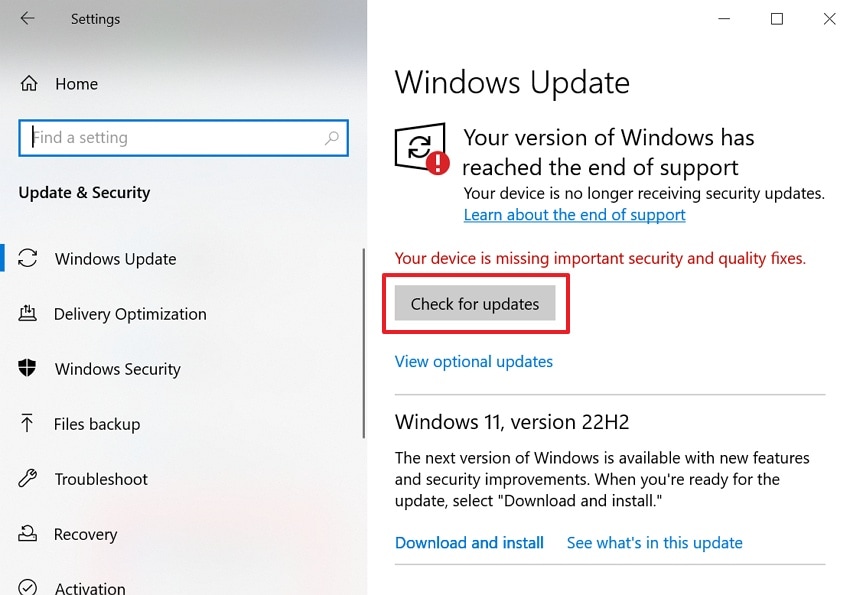
- Next, click the "Check for Updates" button, and if the update is available, then download it. At last, when your Windows gets updated, restart your computer.
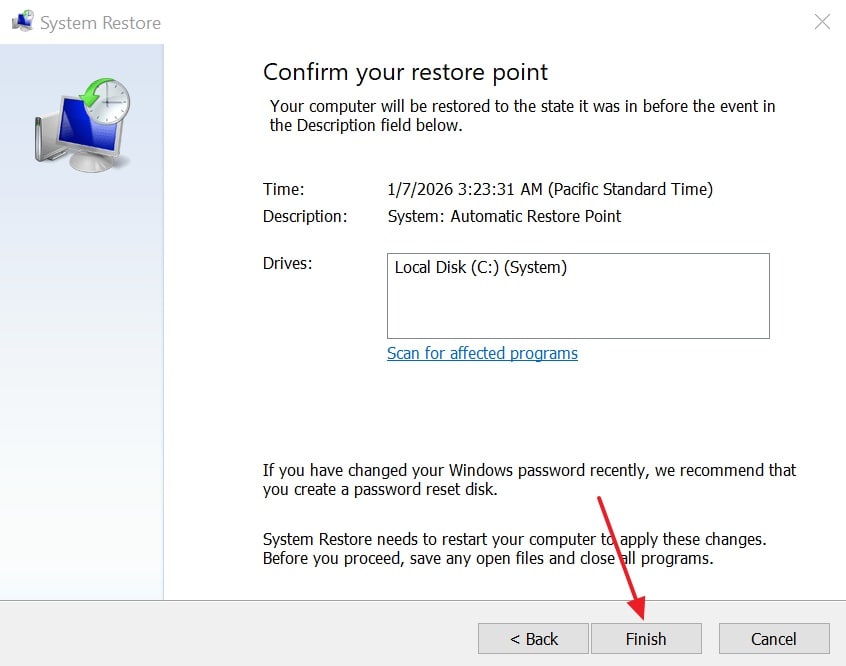
Way 7: Restore Windows to A Previous Restore Point
If recent changes caused errors, restoring Windows to an earlier point helps. When d3dcompiler_43 dll is missing, a restore point replaces broken files with working versions. This method rolls back drivers, DirectX, and system files to a working snapshot. It fixes DLL errors caused by updates or registry modifications. System Restore fixes multiple related components together without copying or editing files. Take guidance to restore Windows to a previous restore point:
- From the "Start" menu, navigate to "Create a Restore Point" and press "Open."
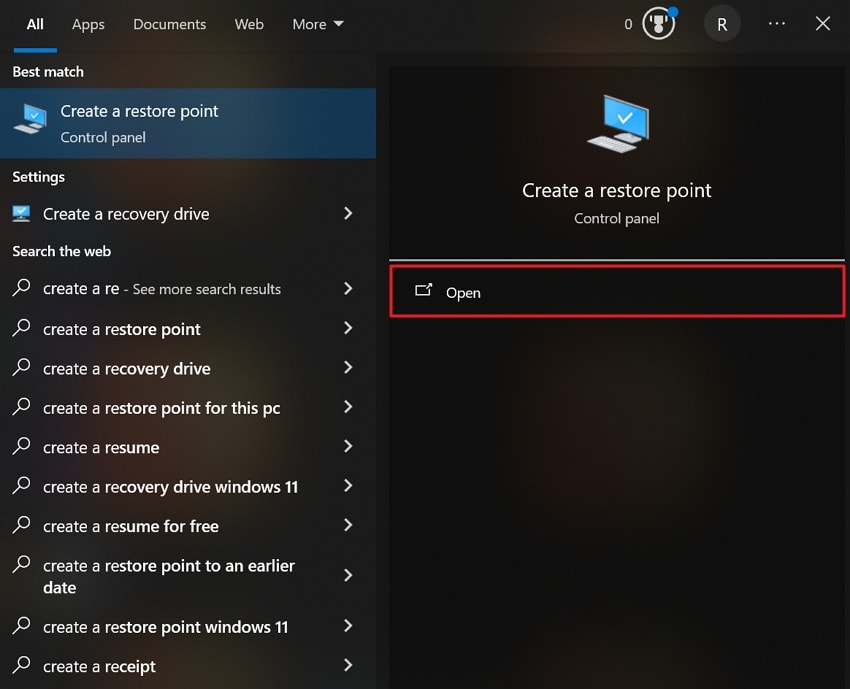
- Afterward, go to the "System Protection" tab and click the "System Restore" button.
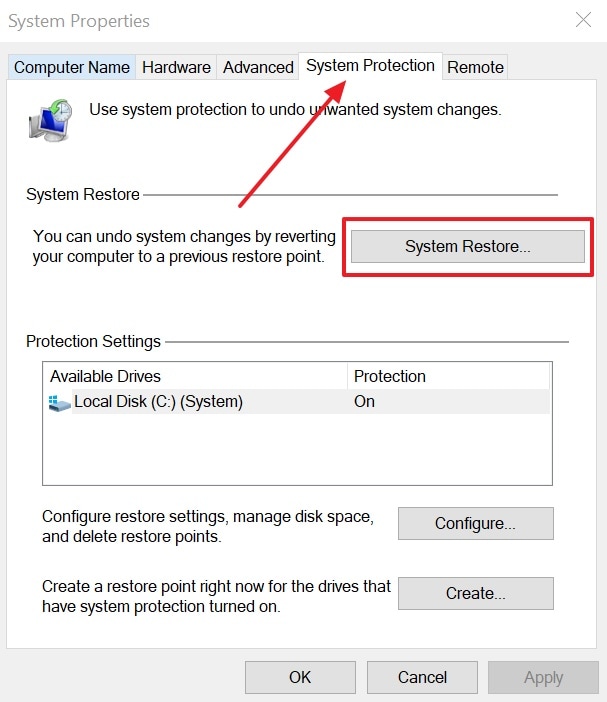
- When you get a new interface, hit the "Next" button.
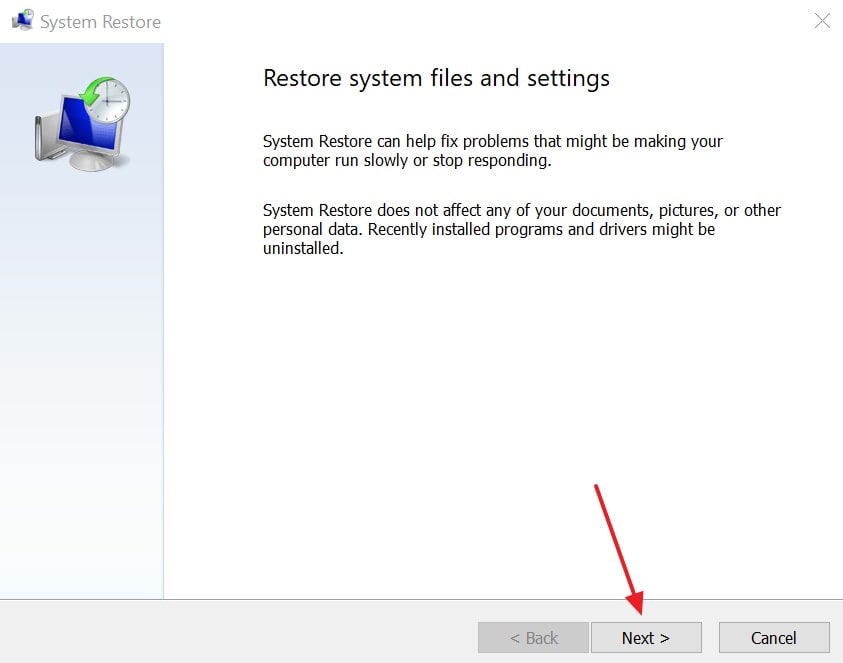
- After that, select a different restore point and hit the "Next" button.
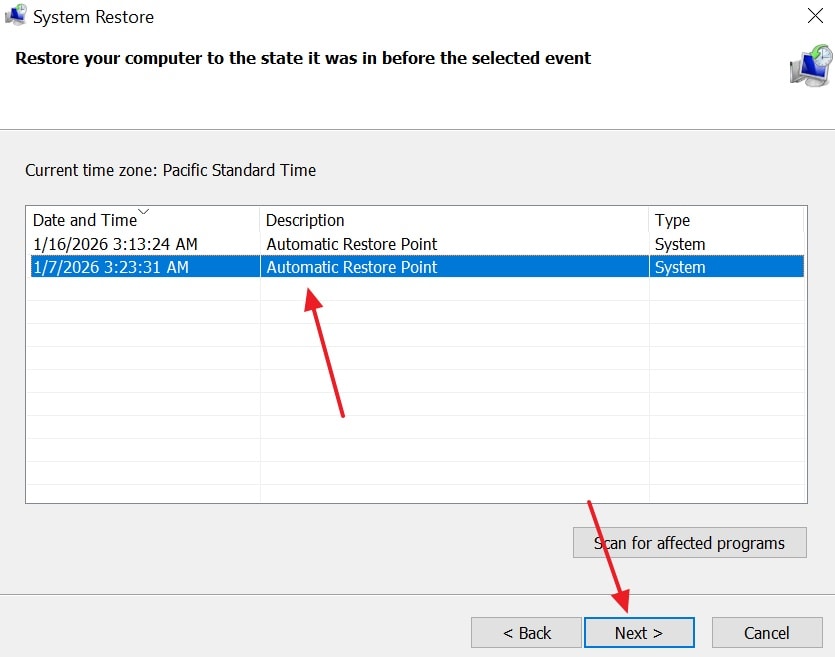
- Once it's done, click the "Finish" button to begin restoration. Now, Windows will restart automatically and restore system files and settings.
Pro Tip: Fix DLL Loss Issues Using Recoverit Recovery Solution
When a missing DLL prevents programs from running, urgent recovery becomes necessary. Many individuals are looking for an easy way to recover their lost files. For this need, Recoverit stands out as the best option as it recovers lost files from 1M+ storage devices. You can recover lost files using intelligent AI-powered detection for accurate restoration. It recovers files from all modern Windows versions without causing system errors.
Users can even restore the files deleted from the system's Recycle Bin or Trash. Recoverit handles 10000+ lost scenarios, including cases where d3dcompiler_43 dll not found errors appear. The program currently allows users to recover up to 500MB of data for free. You can restore deleted or lost files with 1-single click. It recovers multiple files simultaneously without slowing down scanning or restoration.
Key Features
- Auto Recognition: Automatically detects file types during scanning to improve recovery accuracy.
- Safe Recovery: Recovers files without overwriting present data or creating further errors.
- Fast Recovery: Performs file scans in 5 minutes and achieves 99.5% recovery rate for deleted files.
Detailed Guide to Recover Lost Data from Computer to Solve d3dcompiler 43.dll Error
You need to go through the guide below to restore deleted or lost files using Recoverit:
- Pick a Location of Lost Files
As you access the tool, head to the "Hard Drive and Location" section, select a location where your files were lost.
- Scan the Location
The program will initiate a deep scan to locate the lost files, and the results are visible in real-time.
- Preview Lost Files and Restore
Now, you can view the lost files and then click the "Recover" button to recover them.
Part 4. Preventing d3dcompiler_43.dll Errors in the Future
To avoid future crashes, resolving the d3dcompiler 43.dll issue is necessary for stable gaming systems. The following habits reduce file loss risks and keep DirectX environments healthy:
- System Updates: Regular updates refresh DirectX parts, preventing important DLL file corruption. Updated systems reduce the chances of compatibility conflicts that cause recurring DLL errors.
- Safe Sources: Unverified download sites distribute incorrect or infected DLLs, causing recurring issues. Official packages or trusted systems ensure correct file versions matching the Windows architecture.
- Game Components: Some games include older DirectX files needed to support compiler libraries. Allowing bundled runtimes prevents missing components that newer Windows installations may often have.
- Driver Health: Stable graphics drivers maintain communication between games, DirectX, and system files. Broken driver links often confuse applications, even when the required DLL files exist.
- System Protection: Malware or cleaning tools sometimes mistakenly remove DirectX files considered unused. Security monitoring reduces the risks of file damage that leads to sudden DLL errors.
Conclusion
In conclusion, missing DirectX files can disrupt games and applications without warning. The error of "d3dCompiler43.dll not found" is a result of a deficiency of DirectX elements or damage to the system. With the correct fixes, the user is able to regain stability and avoid compound crashes. However, when files are forever lost, reliable recovery becomes essential. Therefore, Recoverit provides a safe and effective way to restore lost system files.
FAQ
1. Is copying DLL files between computers always safe?
Copying DLLs works only if the Windows versions and system architecture match. Mismatched files can cause compatibility errors or application crashes later. This method should remain temporary rather than a permanent solution.2. Can system cleaners increase DLL missing problems?
Yes, registry cleaners often remove files considered unused by automated rules. They may delete DirectX entries still required by games and applications. This increases the chance of recurring DLL not found errors.3. Does upgrading GPU hardware affect d3dcompiler_43.dll behavior?
New GPU hardware may require updated drivers supporting newer DirectX interactions. Older games may still depend on legacy compiler DLL files. Driver mismatches can trigger missing file errors during upgrades.4. Can Recoverit help if the DLL loss happened after a system crash?
Yes, Recoverit restores lost system files after crashes or accidental deletions. Its AI scanning detects missing DLL-related data across system storage. This helps recover essential files without reinstalling Windows or applications.


