

 TL;DR:
"Dispatch Fatal Error" and "LowLevelFatalError" are system-level crashes triggered by corrupt game data, outdated graphics drivers, or hardware stress, which are most effectively resolved by verifying application files, disabling overclocking, or removing conflicting third-party mods.
● Run an integrity check via Steam's "Installed Files" menu to automatically replace missing data, and temporarily unsubscribe from recently updated Workshop items to isolate mod-related engine conflicts.
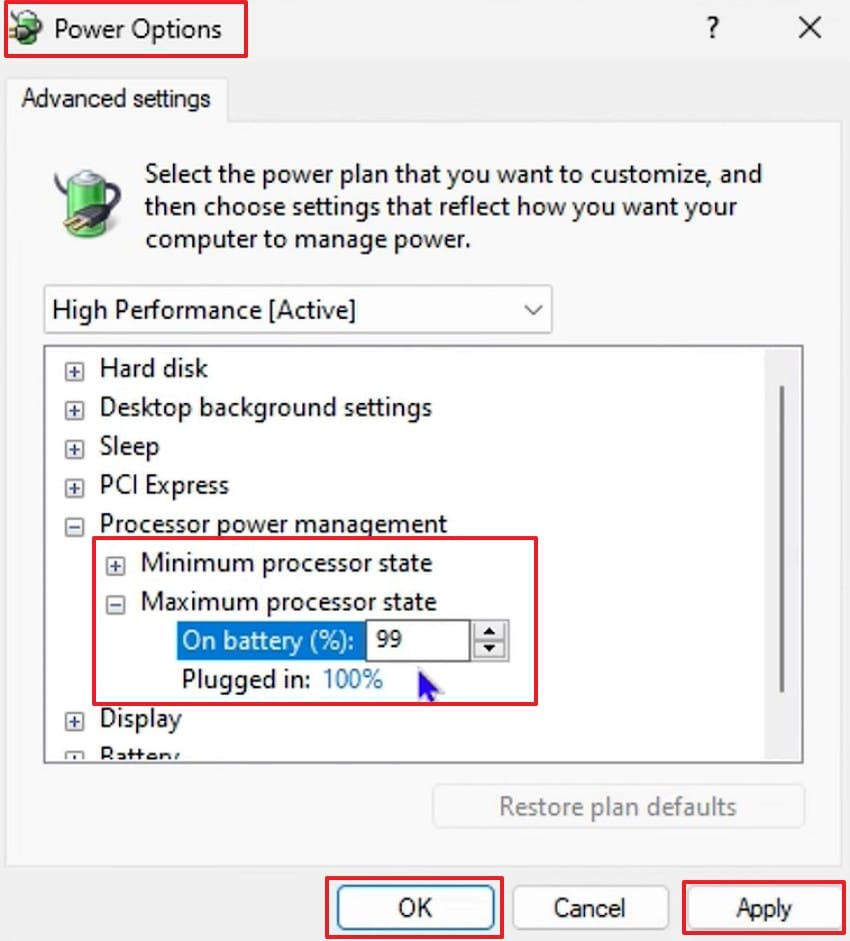
● Test component stability using OCCT software, and lower the Maximum Processor Power State to 99% in Windows Power Options to stop CPU overclocking without entering the BIOS.
● If the crash corrupts local saves or system files, Wondershare Recoverit can scan NTFS, exFAT, and FAT32 drives to restore the interrupted data, though the free license is strictly capped at a 500MB recovery limit.
Ask AI for a summary
 ChatGPT
 Perplexity
 Gemini
 Claude
 Grok
Grok
Many users panic when fatal errors crash games or programs without warning. These errors often appear during gaming launches, updates, or heavy system tasks. Messages like "LowLevelFatalError" confuse users because the causes remain unclear at first glance. Plus, one common trigger includes dispatch related crashes tied to system files.
This guide explains why these errors happen and how simple fixes help. It focuses on clear steps anyone can follow without advanced technical knowledge. You will learn what to check before reinstalling software or resetting systems. By the end, solving the problem feels less scary and more manageable.
Try Recoverit to Perform Game Data Recovery
 Security Verified. 3,591,664 people have downloaded it.
In this article
-
- Fix 1: Verify Game or Application Files via Launcher/Steam
- Fix 2: Update Graphics Drivers and DirectX
- Fix 3: Run the Game or App as Administrator
- Fix 4: Disable Antivirus or Security Software Temporarily
- Fix 5: Reinstall the Game or Application
- Fix 6: Roll Back Recent Updates or Patches if Needed
- Fix 7: Remove Conflicting Mods or Third-Party Plugins
- Fix 8: Check Hardware Stability and Stop Overclocking
- Fix 9: Update Windows and System Drivers
- Fix 10: Adjust Compatibility Settings for Older OS Versions

Part 1. What "Dispatch Fatal Error" or "LowLevelFatalError" Means
This error means a program stopped after hitting a system-level problem. "LowLevelFatalError" shows that the software cannot continue running safely on your system anymore. It often appears during games or apps when critical system parts fail. These failures stop programs quickly to prevent damage or unstable behavior issues.
Common Causes of Dispatch/LowLevelFatalError
Below are common reasons these errors appear during games or program use:
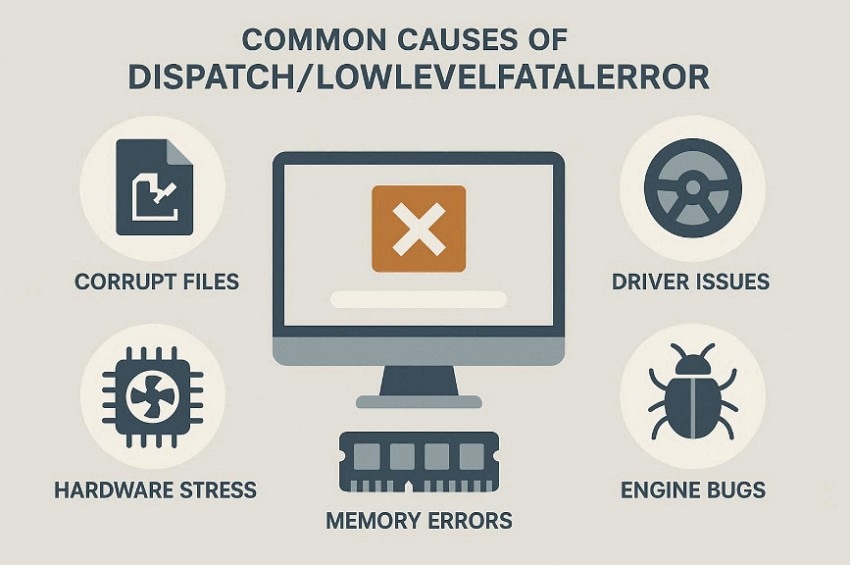
- Corrupt Files: Damaged game files can crash programs when important data fails to load. This usually happens after interrupted updates or sudden system shutdowns.
- Driver Issues: Outdated graphics drivers can trigger fatal errors during rendering task processes. Conflicts appear when drivers mismatch the game engine requirements version settings.
- Hardware Stress: Overheating hardware can force programs to close for safety reasons immediately. High temperatures often occur during long gaming sessions or heavy workloads.
- Memory Errors: Faulty RAM can corrupt data while programs actively read information blocks. These issues cause crashes when the system cannot access required data.
- Engine Bugs: Game engine bugs may break core functions during specific action sequences. This often appears after updates introduce new unstable code paths internally.
Part 2. How to Resolve Dispatch Fatal Error and LowLevelFatalError - 10 Fixes
Let's move to the following easy fixes to resolve Dispatch Fatal Error and "LowLevelFatalError":
Fix 1: Verify Game or Application Files via Launcher/Steam
File issues often cause crashes that confuse users during gameplay or app loading. This problem is commonly linked with Dispatch Fatal Error during startup or loading screens. Checking files automatically replaces missing or broken data without reinstalling everything. Next, follow the steps below to verify files using your launcher:
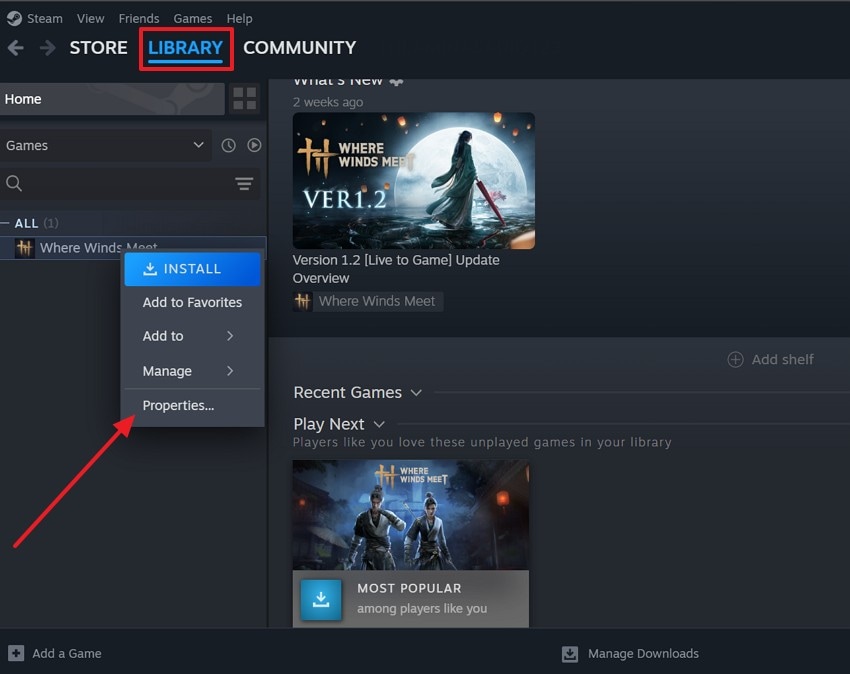
- To start, launch Steam or your game launcher, go to the "Library" and right-click the game to choose "Properties."
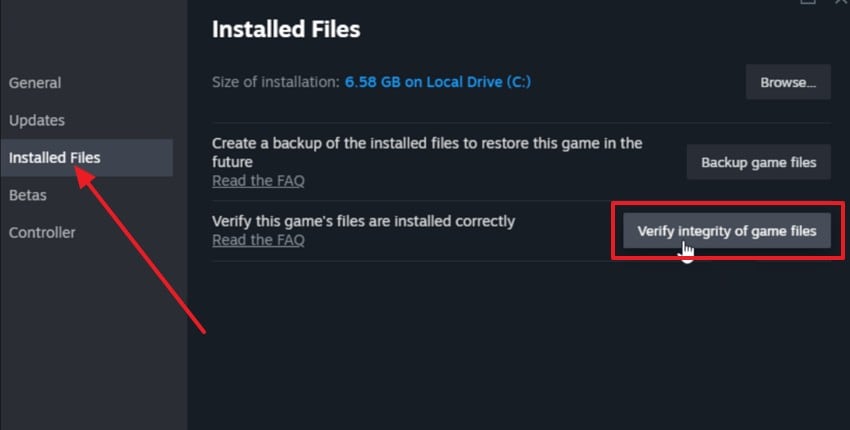
- Here, in the properties, choose the "Installed Files" option to later select the "Verify Integrity of Files" to verify game or application files.
Fix 2: Update Graphics Drivers and DirectX
Outdated drivers often struggle to support modern games and heavy applications properly. This mismatch can trigger lowlevelfatalerror during rendering or scene loading tasks. Thus, updating drivers improves compatibility between your system and graphical workloads. DirectX updates also fix missing components needed for smooth graphics processing. Now, use the steps below to update drivers and DirectX:
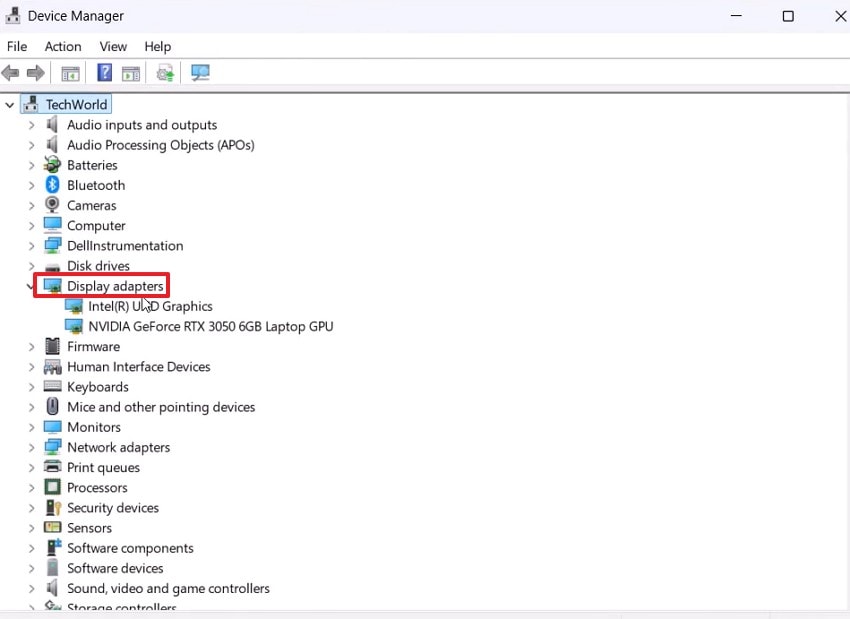
- First, open "Device Manager" from the start menu, locate and expand "Display adapters" to view all installed graphics devices.
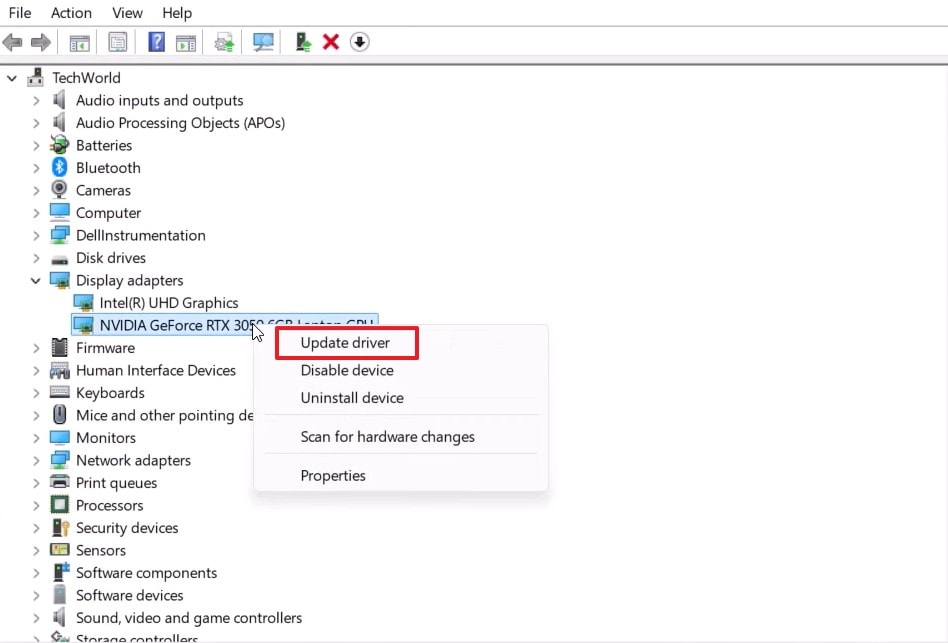
- Next, under "Display adapters," right-click NVIDIA GeForce graphic driver. Then, select "Update driver" from the context menu to confirm the active device.
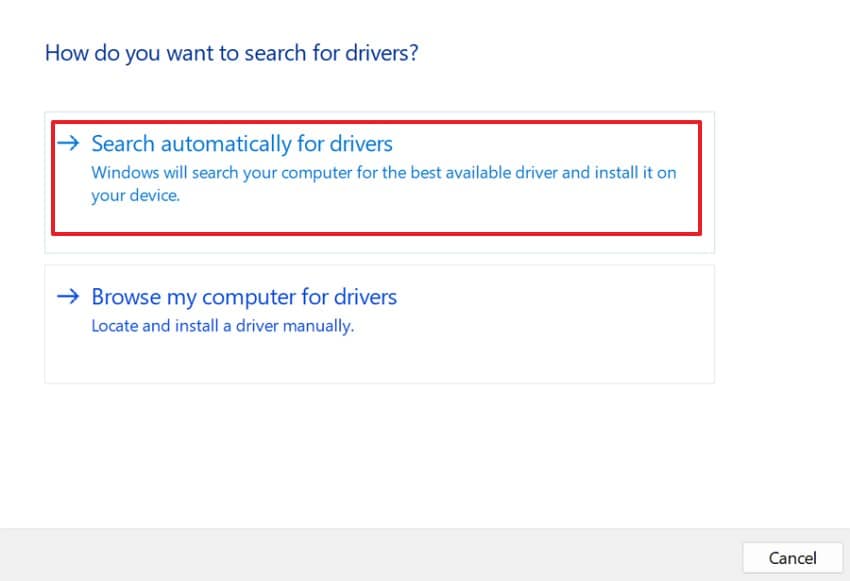
- After that, choose "Search Automatically for Drivers" to allow Windows detect and install any available updates.
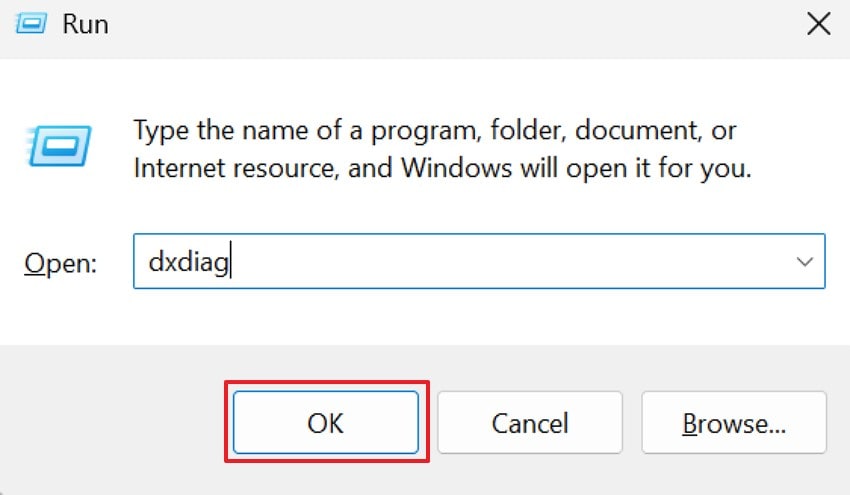
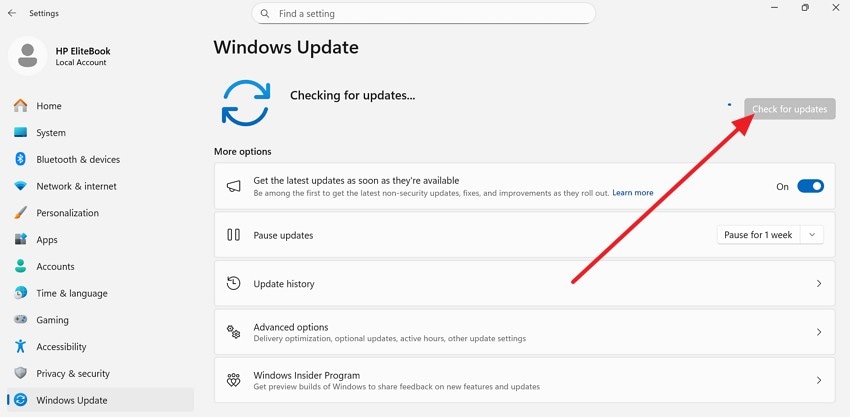
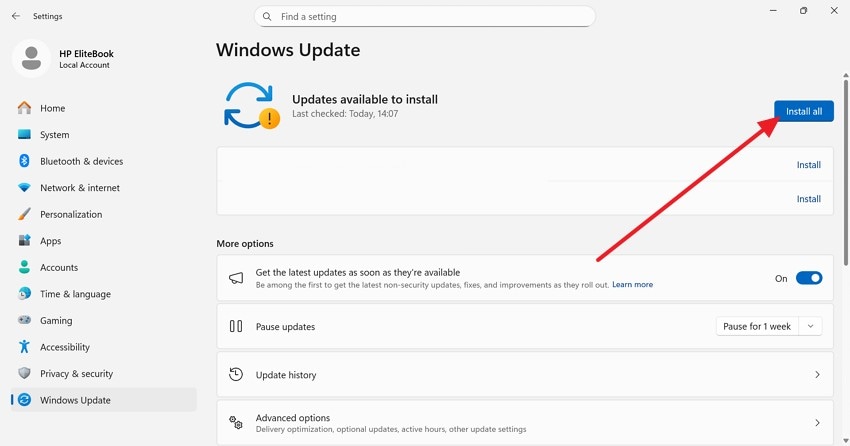
- Now, open "Settings > Windows Update," click "Check for updates," and install all available updates. Press "Windows + R," type "dxdiag," click "OK," and confirm DirectX loads correctly without errors.
Fix 3: Run the Game or App as Administrator
Some programs need higher system access to work correctly on Windows systems. Without permissions, apps may fail and show Dispatch Fatal Error unexpectedly. Administrator mode allows proper access to files and system resources during execution. Stick to the simple steps below to enable administrator access:
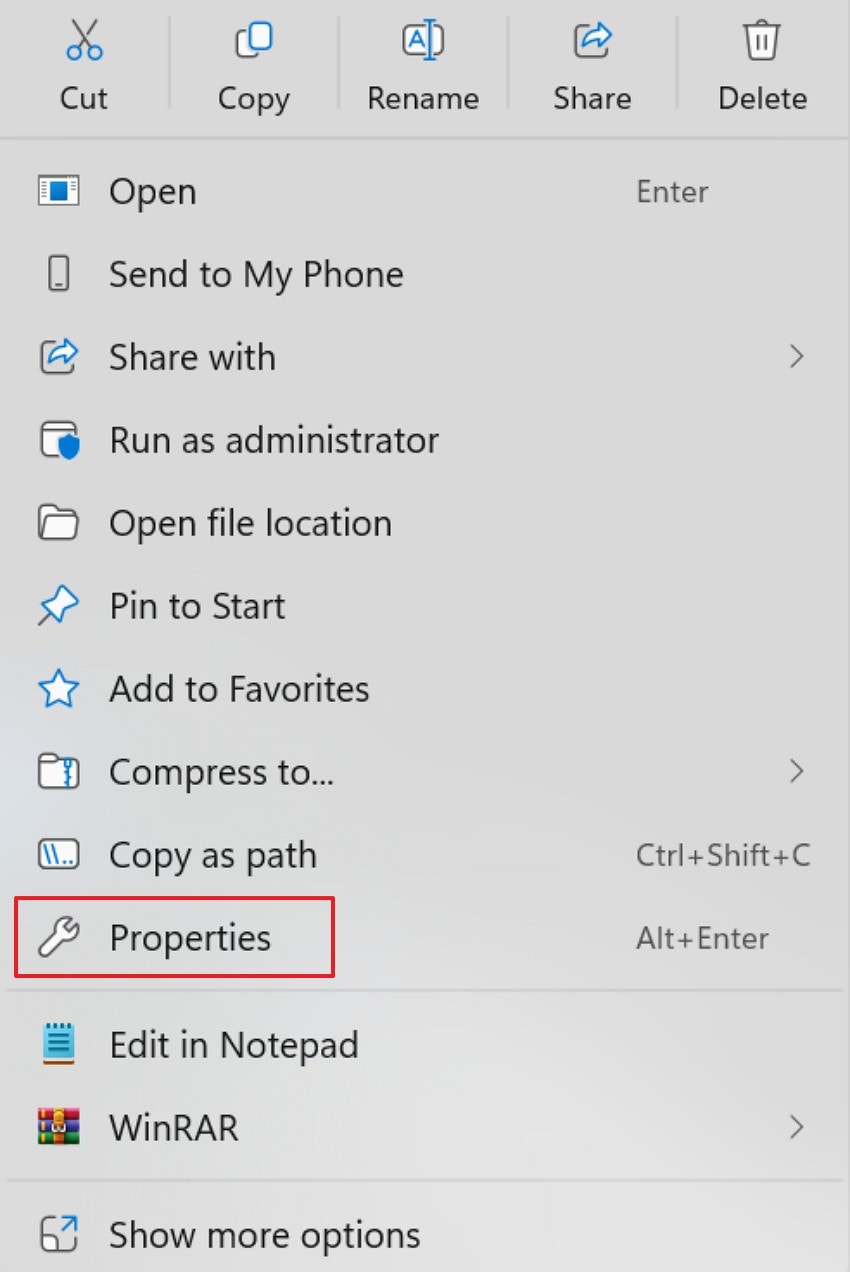
- Locate the game or app shortcut on your desktop and right-click on it to choose the "Properties" option to proceed.
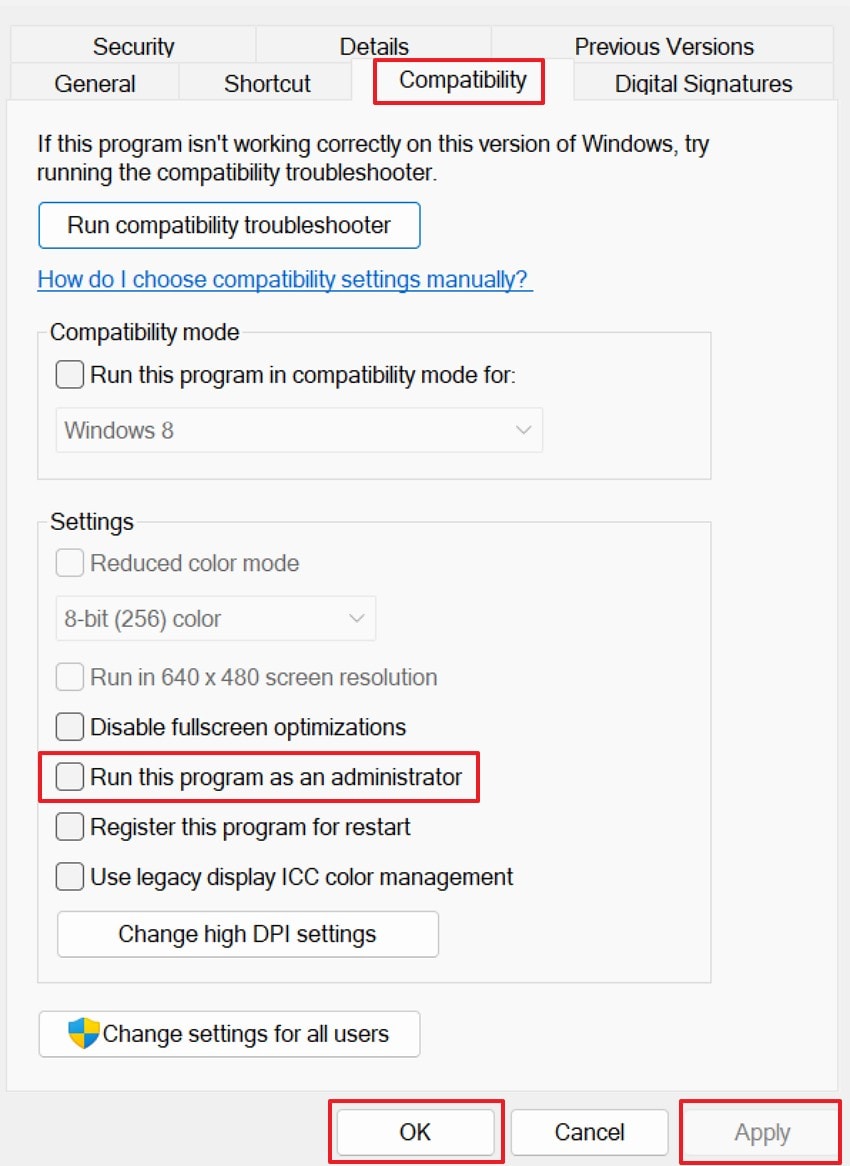
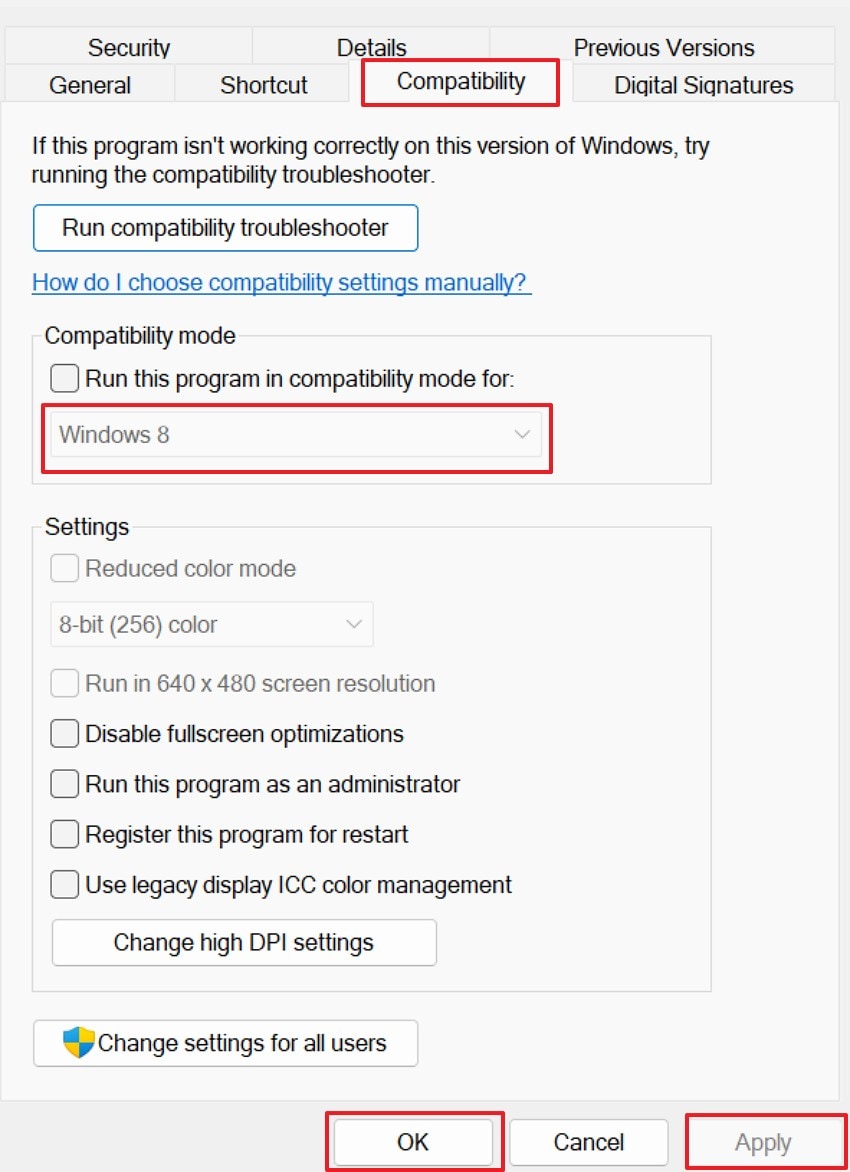
- Select the "Compatibility" tab and check the "Run this Program as Administrator" option. After that, hit "Apply" and then press the "OK" button to continue.
Fix 4: Disable Antivirus or Security Software Temporarily
Security tools sometimes block game files by mistake during background scanning. This behavior can cause "lowlevelfatalerror" when important files are suddenly. Temporarily disabling protection helps confirm if security software causes the crash. This test should be short and only done for trusted applications. Now, try following the guide below to disable protection for testing:
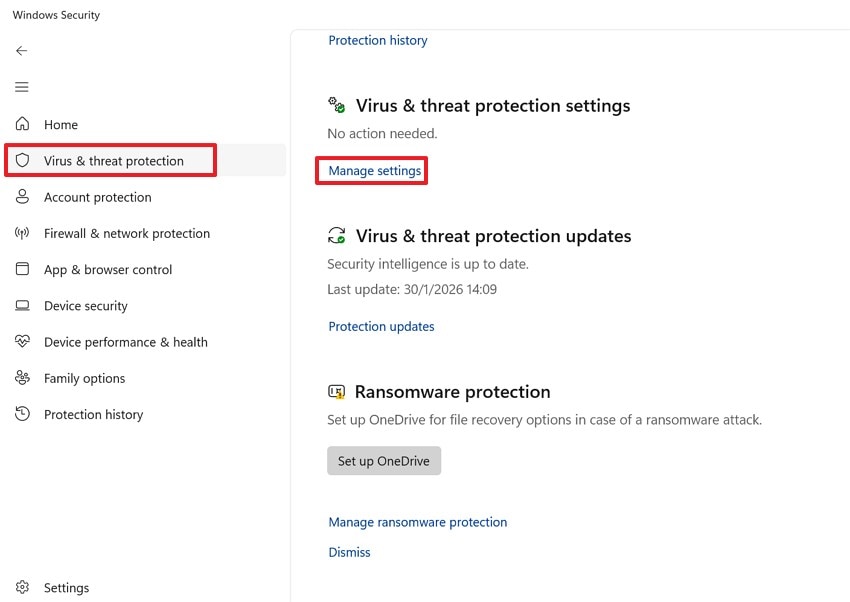
- Start by navigating to "Settings," then choose "Virus & threat protection." After that, select the "Manage Settings" option to continue.
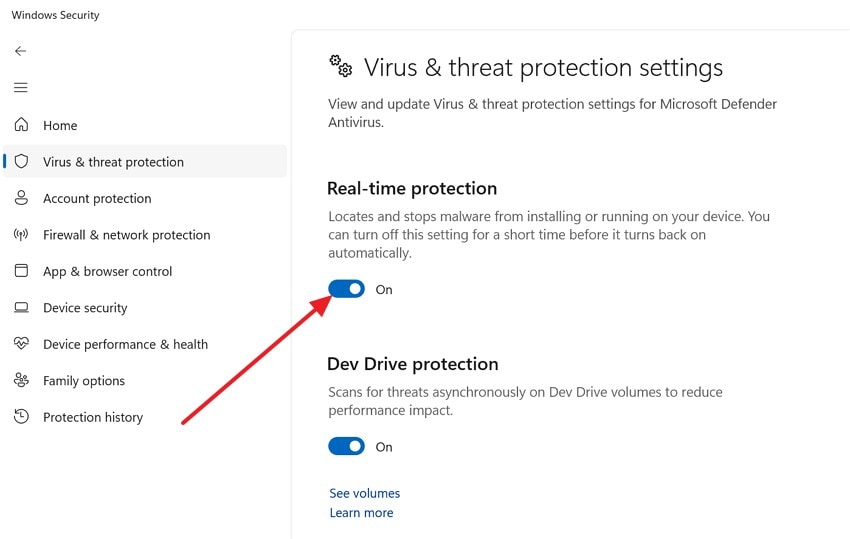
- Under settings, disable "Real-time protection" to turn off antivirus or security software temporarily.
Fix 5: Reinstall the Game or Application
If files are deeply damaged, reinstalling may be the most reliable solution. Broken installations often lead to a Dispatch fatal issue during repeated launches. Reinstalling replaces all files with fresh and complete versions automatically. This method takes time but removes hidden corruption issues with ease. Thus, adhere to the steps below to reinstall the application:
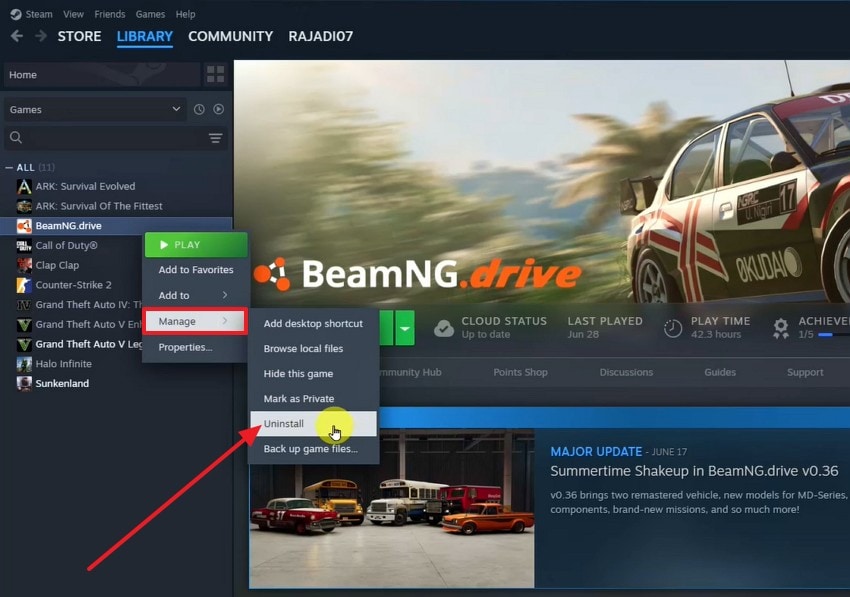
- First, go to "Library," right-click on the game and choose "Manage" to select the "Uninstall" option.
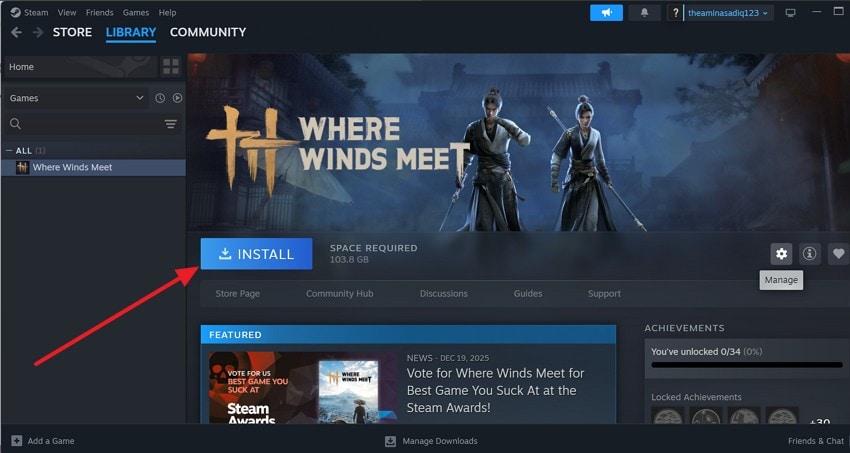
- Afterwards, restart your PC, then choose the game in Steam and select the "Install" button to reinstall the game.
Fix 6: Roll Back Recent Updates or Patches if Needed
New updates sometimes introduce bugs that affect older systems or drivers. These changes may result in low-level fatal errors after recent patch installations. So, rolling back restores earlier stable versions that worked without crashing issues. This fix is helpful when errors appear right after updating. Next, use the steps below to roll back updates safely:
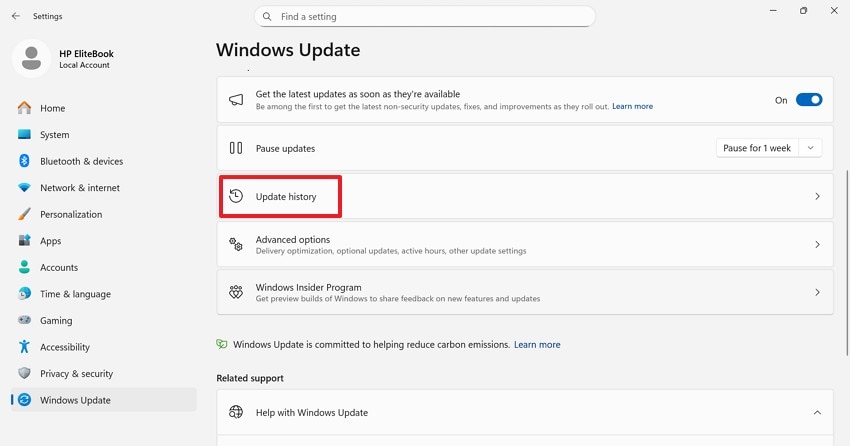
- Upon accessing the "Windows Settings," go to "Update History," then select the "Uninstall Updates."
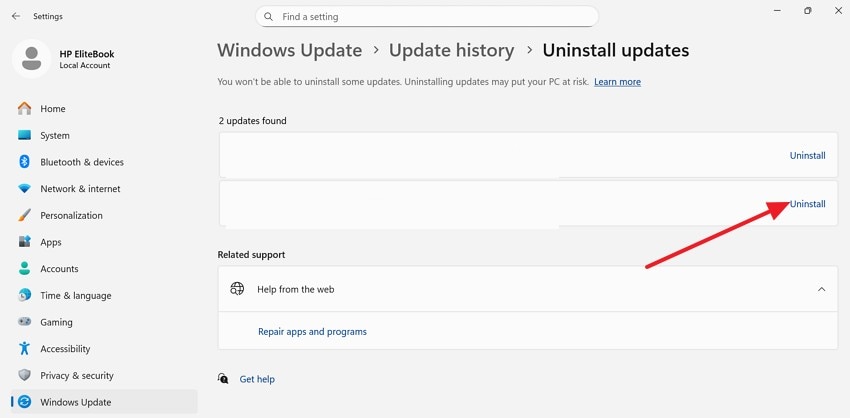
- Next, press the "Uninstall" option to remove the recent update, restart the system, and then test the application again.
Fix 7: Remove Conflicting Mods or Third-Party Plugins
Mods can improve gameplay, but may conflict with game files unexpectedly. Such conflicts often trigger Dispatch Fatal Error during startup or loading. Removing mods helps identify whether third-party files cause instability. Always test the game without mods before reinstalling anything else. Now, follow the stepwise tutorial below to remove mods correctly:
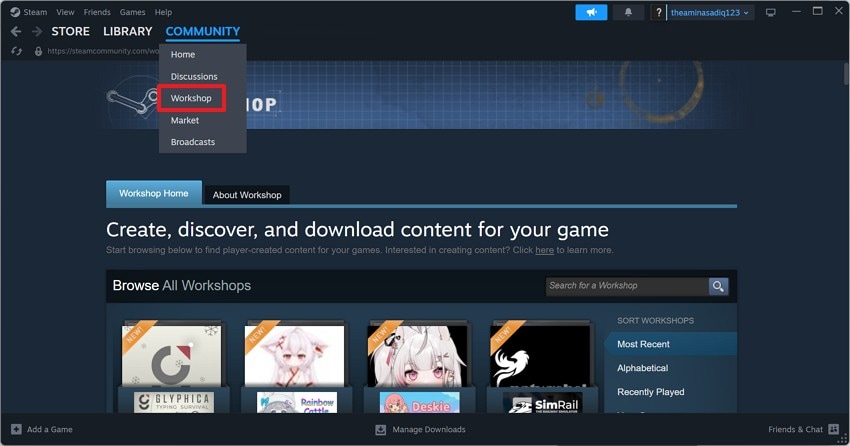
- First, launch Steam and select "Community" from the top navigation bar. Next, click "Workshop" to access all Steam Workshop content.
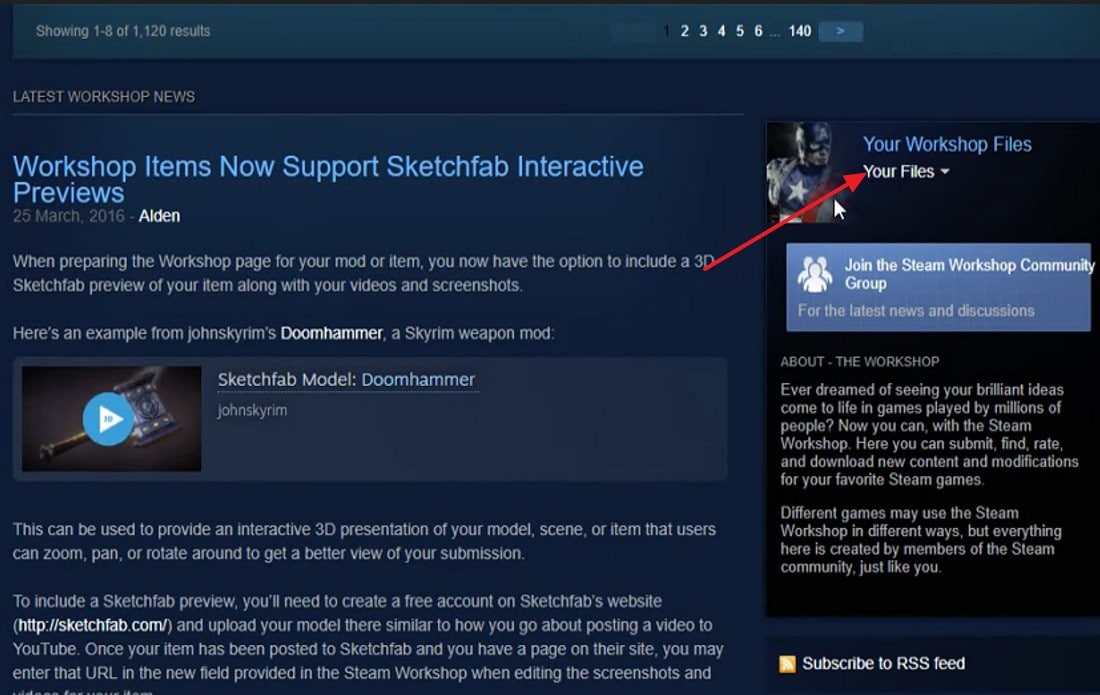
- After that, locate the right-side panel and select "Your Workshop Files." Then, choose "Your Files" to view all currently subscribed mods.
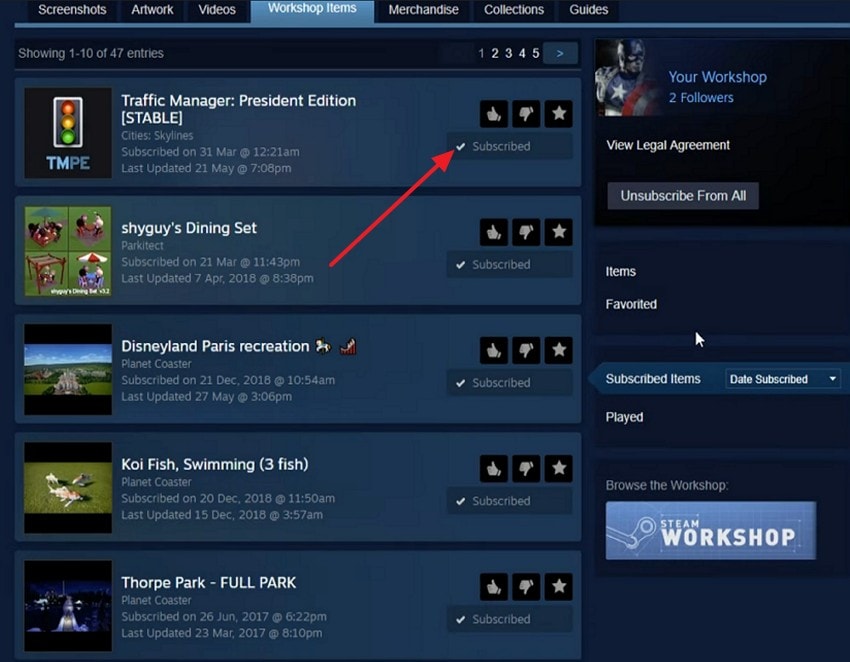
- Here, review the list of subscribed Workshop items carefully. Look for mods recently added or updated before the error appeared. Next, click the "Subscribed" button next to a specific mod. This action removes only the selected mod without affecting others.
Fix 8: Check Hardware Stability and Stop Overclocking
Unreal Engine games may crash with "LowLevelFatalError" when hardware becomes slightly unstable. Overclocking often causes these issues during heavy gameplay sessions. Checking hardware stability and disabling overclocking removes a common crash trigger. Default clock speeds lower heat, reduce power strain, and prevent driver resets. Follow the steps below to reset hardware settings safely and restore system stability.
Check Hardware Stability
- OCCT is considered the best all-in-one software for diagnosing these specific crashes. It tracks errors and can detect if your hardware is stable under stress. Download from the official website, then run it as an administrator to ensure it can detect errors correctly. After that, select the component tab "CPU, Memory, 3D, VRAM, or Power" in the "Stability Test" section.
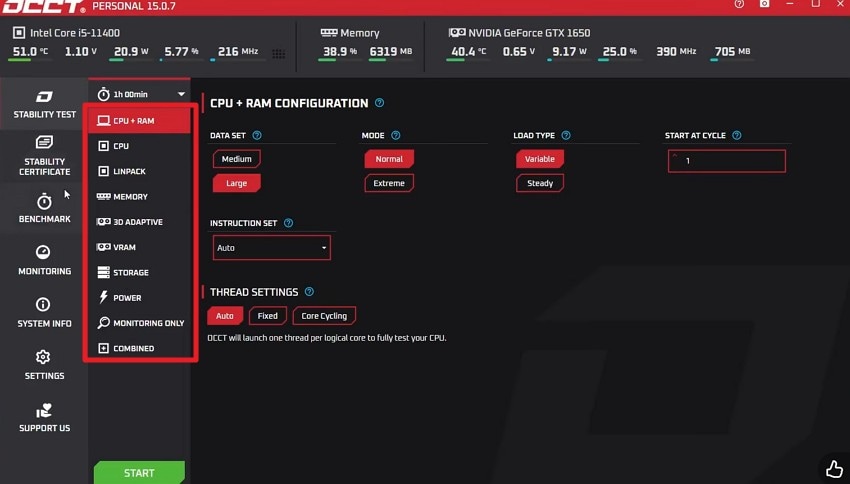
- If you choose "VRAM," select the duration between 30 minutes and 1 hour and the "Memory" in the given section and press "Start."
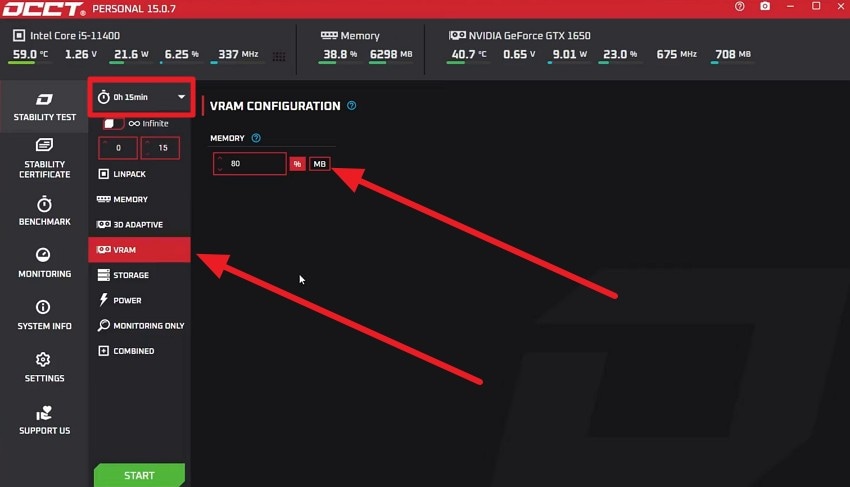
- As the test starts, choose to "Stop" or wait until the tool displays an error under the "VRAM."
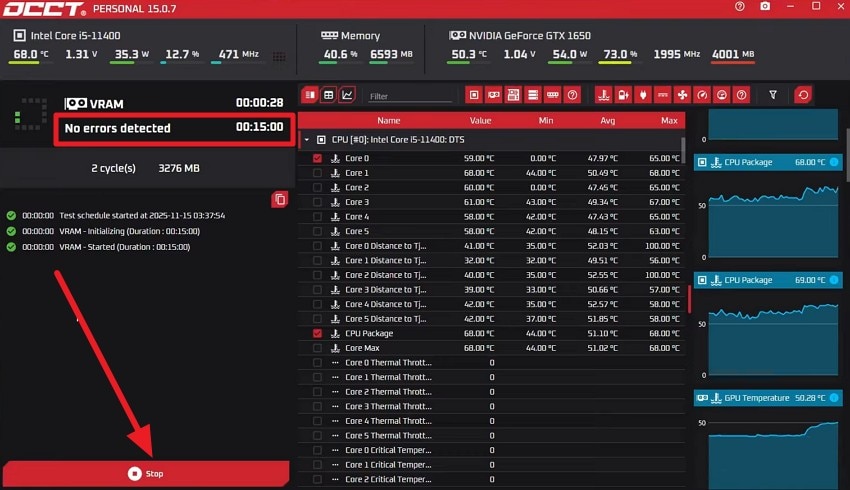
Stop Overclocking
- In the Start menu, type "Power" and choose an option like "Choose Power Plan" and pick the "Change Plan Settings" besides the "High Performance" option.
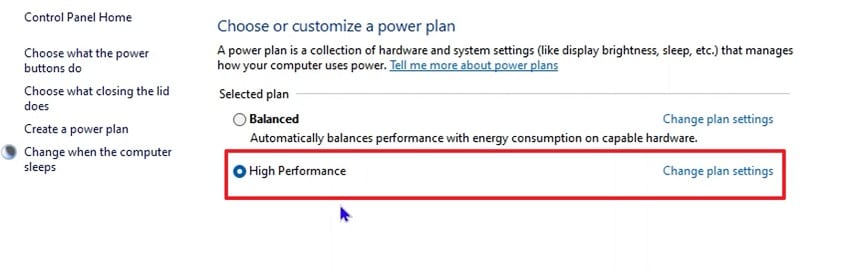
- On the new interface, select the "Change Advanced Power Settings" option, then in the popup menu, select "Processor Power Management."
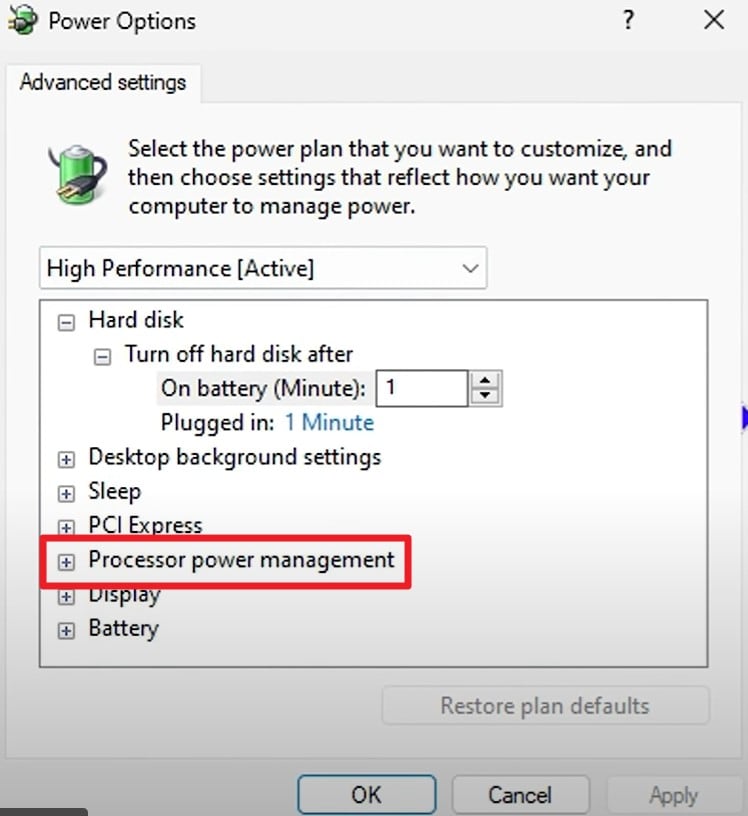
- Go for the "Minimum Power State" or "Maximum Power State" and change them from 100-99%. After that, press the "Apply" and "Ok" buttons to stop overclocking without accessing BIOS settings.
Fix 9: Update Windows and System Drivers
Older system files may not work well with newer games and applications. Such issues can cause sudden crashes or errors during regular computer use. Updating Windows helps improve stability and resolve many common compatibility problems. Drivers also need updates so hardware and software can work together smoothly. Follow the steps below to update Windows and drivers with ease:
- Open Windows Settings, go to Windows Update, then click "Check for updates" to proceed further.
- Then, install all available updates by choosing the "Install all" button. Later, update the drivers through "Device Manager > Display adapters > Update driver."
Fix 10: Adjust Compatibility Settings for Older OS Versions
Some older apps struggle to run smoothly on newer Windows versions. This mismatch can cause a dispatch error during launch or early loading. Compatibility mode helps Windows treat the app like an older system environment. This fix works well for legacy games and outdated software. Now move toward the instructions below to adjust compatibility settings:
- Instructions. Right-click the game executable file, then open "Properties" and the "Compatibility" tab. Next, enable compatibility mode, choose an "Older Windows version," then select the "Apply" button and hit "OK."
Pro Tip: Restore Critical Files With Recoverit When Dispatch Fatal Error Occurs
When a system crashes, some files may be lost or become inaccessible. This usually occurs after games or apps close during normal use. Often, the issue is linked with a Dispatch Fatal Error on Windows. The error may stop files from saving, causing missing or broken data. So, restoring these files helps prevent further problems while troubleshooting continues.
Recoverit helps restore important files affected by sudden system crashes. It scans the storage drive to find files that were not saved. While offering 500MB free data recovery, the tool brings back usable data without changing system settings or programs. This makes it safer for users who want recovery without complex steps. Using this method early can save time before trying advanced fixes.
Key Features
- Preview Files: Shows recoverable files before restoration, helping users confidently select the correct data.
- File Systems: Scans NTFS, exFAT, and FAT32 drives to locate lost files with accuracy.
- Crash Recovery: Detects files interrupted during crashes and restores them through guided scanning.
Guide to Restore Critical Files With Recoverit When Dispatch Fatal Error Occurs
With the features in mind, let's move towards the step-by-step guide below to restore files with Recoverit:
- Choose Location to Proceed with Recovery Process
Upon launching the tool, navigate to the "Hard Drives and Location" option in the left side panel.
- Review the Scanning Results
Now, all the scanned files will appear under the "Name of Lost Files" folder under the "File Location" tab.
- Preview the Files and Recover
Finally, preview the recoverable files and press the "Recover" button to render them to your device.
Part 3. 6 Tips for Preventing Dispatch Fatal Errors in the Future
Below are the habits that will help reduce "lowlevelfatalerror" risks and prevent future crashes:
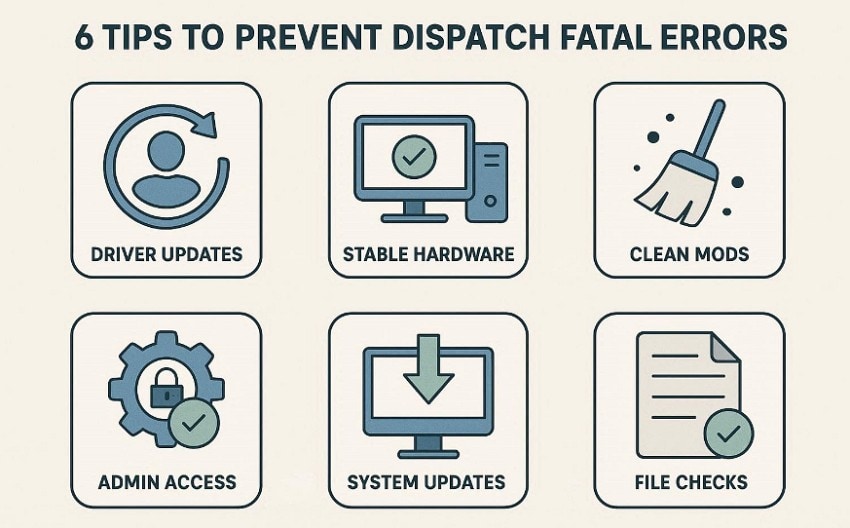
- Driver Updates: Update graphics drivers to match games and system requirements in today's versions. New drivers reduce crashes and prevent errors during heavy gameplay sessions.
- Stable Hardware: Keep hardware speeds at default settings to avoid sudden system crashes. Overclocking raises heat and causes instability during demanding game sessions.
- Clean Mods: Remove mods that conflict with core files or recent game updates. Test games without mods before adding them back after update releases.
- Admin Access: Run games as administrator to allow proper system access permissions usage. Limited permissions can block files and cause launch failures for players.
- System Updates: Install Windows updates to fix bugs and improve system stability overall. Old system files may clash with newer game versions today.
- File Checks: Verify game files to replace missing or broken data pieces now. File checks help stop repeat crashes after update install cycles.
Conclusion
To conclude, System crashes can interrupt work, games, and files without warning on computers. Errors like Dispatch Fatal Error come from system issues or damaged files. Using the fixes above helps reduce future problems and improve system stability. If important files are lost, Recoverit can restore data safely for users. As its current license allows recovering up to 500 MB without extra cost.
FAQ
-
1. What is Dispatch Fatal Error?
Dispatch Fatal Error usually appears when system files or drivers fail unexpectedly today. It often happens during game updates or launches when system stability drops suddenly. -
2. Why does LowLevelFatalError occur?
LowLevelFatalError occurs because hardware stress outdated drivers or corrupted files exist on systems. These problems appear more often during heavy gameplay or demanding application usage sessions. -
3. How can these errors be prevented?
Updating drivers, keeping mods limited, and avoiding overclocking help prevent crashes for users. Regular system updates and file checks reduce errors before serious problems develop later. -
4. Can lost files be recovered after crashes?
Recoverit restores files lost after crashes when fixes cannot recover missing data safely. The current license allows recovering up to five hundred megabytes without payment required.


