

 TL;DR:
To fix the Resident Evil Requiem "Sorry Something Went Wrong" startup error on PC, verify the game files in Steam, clear the Steam download cache, and run both Steam and re9.exe as an administrator.
● Add re9.exe and the game installation folder to your Windows Firewall and Windows Security exclusions to prevent the system from blocking launch-time services.
● Disable performance overlays like Discord or GeForce Experience, delete corrupted shader cache files, and force the game to use your dedicated GPU via Windows Graphics settings.
● Do not enable Windows compatibility mode for troubleshooting, as Capcom officially advises disabling it for both the game executable and Steam if it was previously turned on.
Ask AI for a summary
 ChatGPT
 Perplexity
 Gemini
 Claude
 Grok
Grok
If Resident Evil Requiem keeps showing the “Sorry Something Went Wrong” message on PC, the issue is usually tied to corrupted game files, Steam cache conflicts, Windows Security blocks, overlay interference, outdated graphics drivers, or broken shader cache. The good news is that most players can fix the problem without reinstalling Windows or making risky system changes.
Try Recoverit to Perform Data Recovery
 Security Verified. 3,591,664 people have downloaded it.
In this article
-
- Fix 1: Verify Game Files in Steam
- Fix 2: Clear the Steam Download Cache
- Fix 3: Run Steam and re9.exe as Administrator
- Fix 4: Add re9.exe to Firewall and Windows Security Exclusions
- Fix 5: Disable Overlays and Close Background Apps
- Fix 6: Force the Game to Use the Dedicated GPU
- Fix 7: Delete Corrupted Shader Cache and Update GPU Drivers
- Fix 8: Restart the PC, Check Internet Stability, and Contact Support If Needed
Part 1. Common Causes of Resident Evil Requiem “Sorry Something Went Wrong”
The Resident Evil Requiem sorry something went wrong error normally appears before the game finishes launching, which means the failure happens during startup checks rather than deep gameplay processing. According to Capcom’s official troubleshooting post, the most common causes include missing or corrupted game files, antivirus or firewall interference, outdated GPU drivers, overlay conflicts, corrupted shader cache, and incorrect Windows compatibility settings. The reference video also highlights system restarts, internet stability, and administrator access as useful first-line checks.
Part 2. How to Fix Resident Evil Requiem Sorry Something Went Wrong
Work through the fixes below in order. They are arranged from the most practical and low-risk solutions to the more advanced environment and graphics fixes.
Fix 1: Verify Game Files in Steam
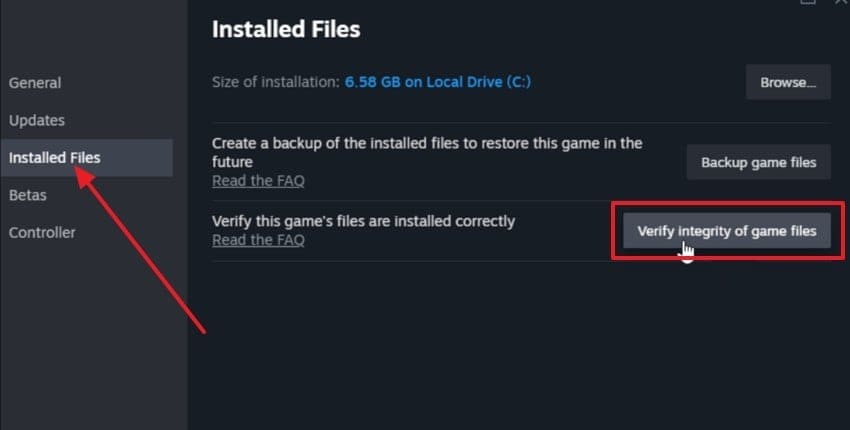
Corrupted or incomplete files are one of the most common reasons Resident Evil Requiem fails to open. Open Steam Library, right-click the game, choose Properties, go to Installed Files, and click Verify integrity of game files. This forces Steam to compare local files against the official version and redownload damaged assets.
Fix 2: Clear the Steam Download Cache
If verification does not solve the problem, clear the Steam download cache. A Steam community report tied directly to the something went wrong issue says clearing the cache and restarting the PC fixed the launch problem. In Steam, go to Settings > Downloads, then use Clear Download Cache. Sign in again after the client restarts and test the game.
Fix 3: Run Steam and re9.exe as Administrator
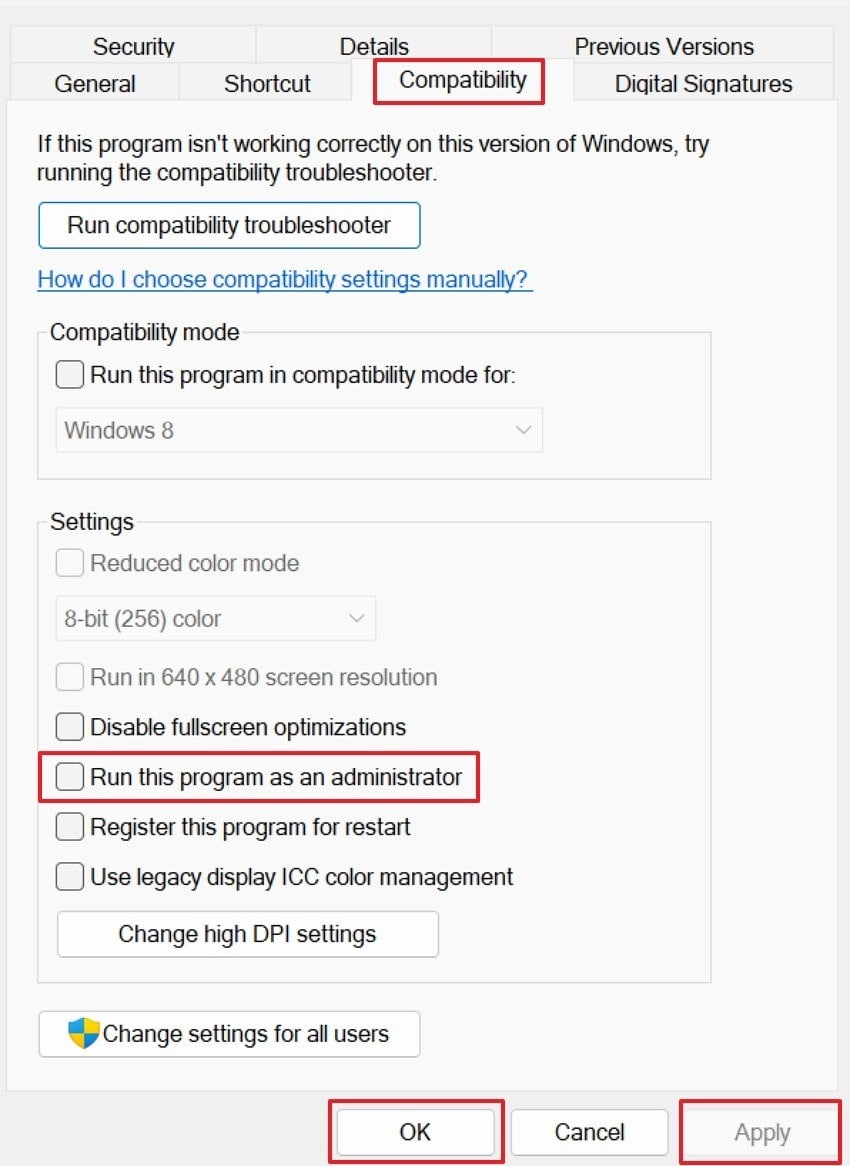
Capcom recommends giving administrator privileges to both Steam.exe and the game executable. This can help when Windows blocks file writes, security handshakes, or launch-time services. Right-click the shortcut or executable, open Properties, go to Compatibility, and enable Run this program as an administrator.
Fix 4: Add re9.exe to Firewall and Windows Security Exclusions
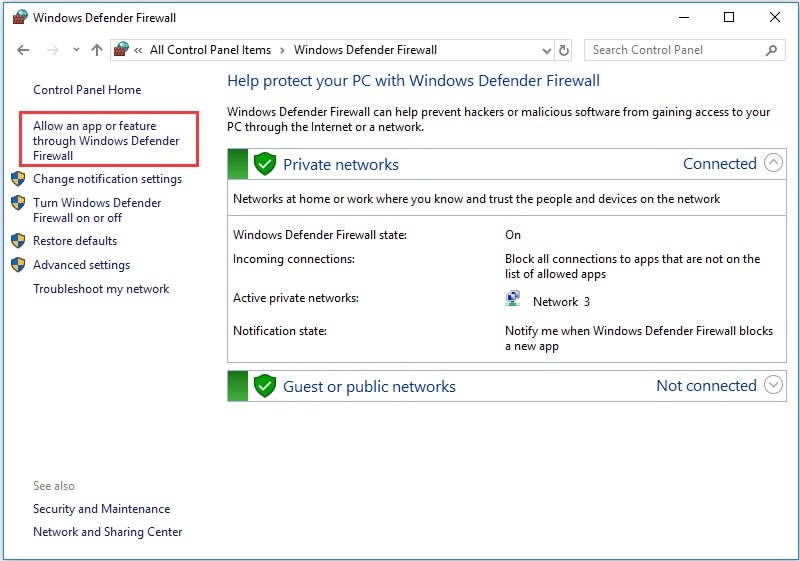
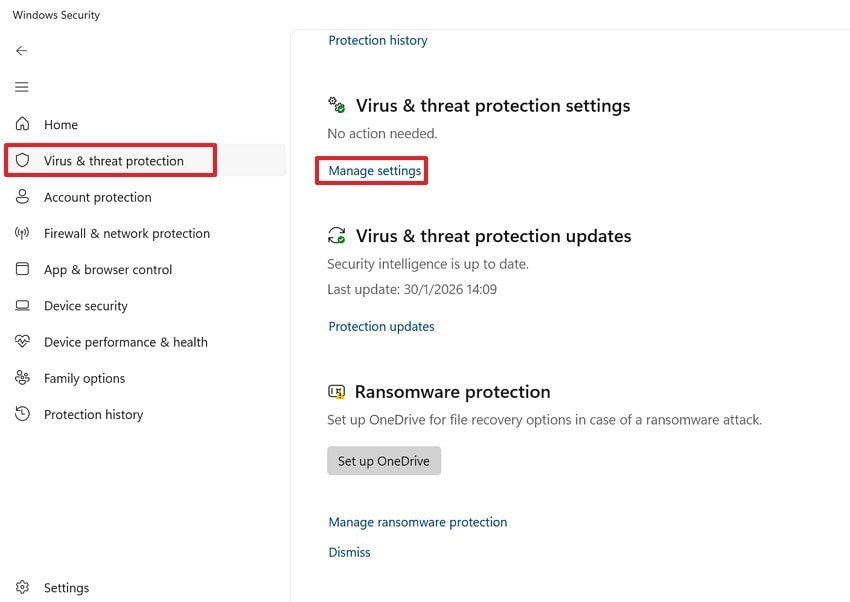
Security tools may block the game even when the installation is legitimate. Capcom advises players to add the game folder and files to security software exclusions, and user reports also mention allowing re9.exe through Windows Firewall. Add the executable under Allow an app through firewall, then add the game install folder under Virus & threat protection > Exclusions.
Fix 5: Disable Overlays and Close Background Apps
Capcom’s official troubleshooting steps warn that performance overlays, video capture tools, and other background apps can hurt stability. The reference video specifically points to Discord overlay, GeForce Experience overlay, and similar background utilities. Close them all before launching the game again. This is especially important if the error started after installing a new overlay, recorder, or system tuning utility.
Fix 6: Force the Game to Use the Dedicated GPU
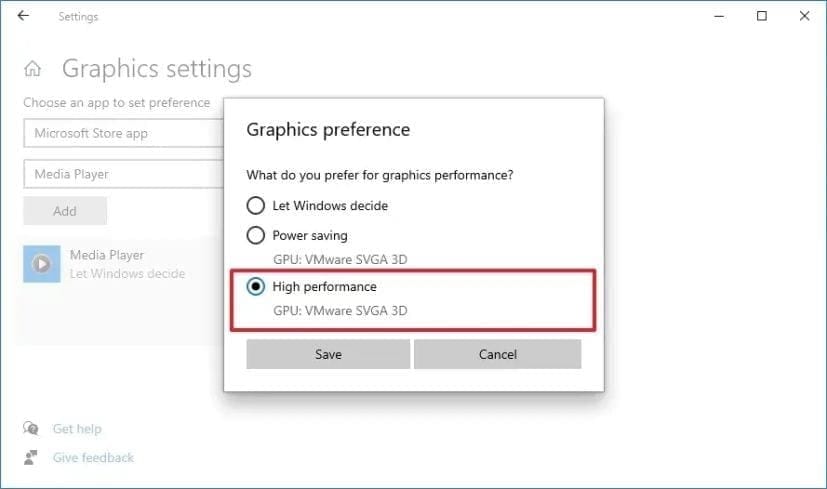
On laptops and hybrid systems, Windows may try to launch the game using integrated graphics instead of the dedicated NVIDIA or AMD GPU. Capcom recommends checking GPU settings and using high-performance mode. Open Windows Graphics settings, add the game if needed, choose the executable, and set it to High performance.
Fix 7: Delete Corrupted Shader Cache and Update GPU Drivers
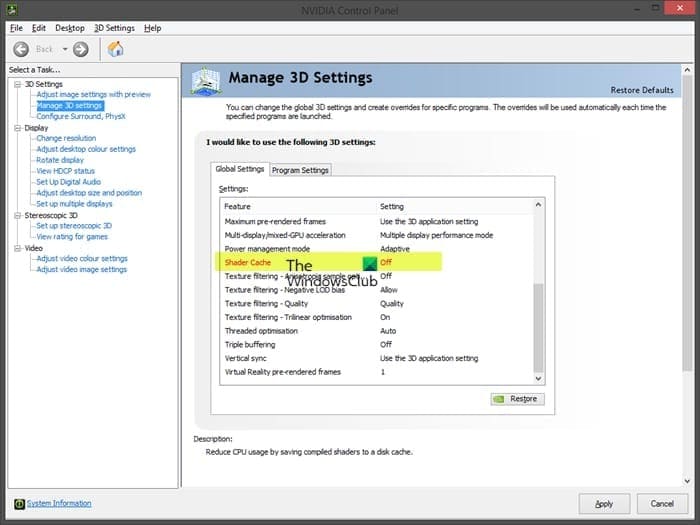
If the game still refuses to launch, move on to graphics-side cleanup. Capcom recommends deleting shader cache files when stability problems appear, and also updating graphics drivers with a clean installation when necessary. If you recently changed drivers or updated Windows, clearing shader cache can remove broken precompiled graphics data that blocks startup.
Fix 8: Restart the PC, Check Internet Stability, and Contact Support If Needed
The reference video recommends a full restart, checking internet stability, and testing again after the basic fixes are done. If nothing works, Capcom says the next step is to contact support with a DxDiag report, your config.ini, and any available crash reports. At that point, you have already ruled out the most common Steam, security, overlay, and graphics problems.
Part 3. Tips to Prevent the Error from Returning
- Keep Steam and Windows updated: outdated launch components can cause authentication or file validation problems.
- Verify files after major patches: this helps catch damaged files before they cause the next startup failure.
- Avoid unnecessary overlays: only run the tools you actually need while gaming.
- Maintain clean GPU drivers: if issues begin after a driver update, consider a clean reinstall.
- Keep Windows Security exclusions accurate: especially after moving the game to a new install folder.
- Do not leave compatibility mode enabled by accident: official guidance suggests turning it off for this game and for Steam when troubleshooting launch failures.
Conclusion
The Resident Evil Requiem “Sorry Something Went Wrong” error may look vague, but the real fixes are usually straightforward. Most players can solve it by verifying game files, clearing Steam cache, running Steam and the game as administrator, adding security exceptions, disabling overlays, and cleaning up their graphics environment. If those steps still fail, collect diagnostics and send them to Capcom support for deeper troubleshooting.
FAQ
-
Why does Resident Evil Requiem say “Sorry Something Went Wrong” on Steam?
In most cases, the error is caused by corrupted files, Steam cache problems, Windows Security blocks, overlays, outdated graphics drivers, or shader cache corruption. -
Can clearing the Steam cache fix Resident Evil Requiem not launching?
Yes. A player report in the Steam discussion specifically says clearing the Steam download cache and restarting the PC solved the launch issue. -
Should I enable compatibility mode for Resident Evil Requiem?
Not as a default fix. Capcom’s official troubleshooting guidance says to disable compatibility mode for both the game executable and Steam if it is already enabled. -
What should I try first?
Start with a full PC restart, verify the game files in Steam, clear the Steam download cache, run Steam as administrator, and add re9.exe to Windows Security exceptions.


