
 TL;DR:
Steam Error Code 50 is a temporary authentication failure—not a permanent account ban—that can typically be resolved by deauthorizing all active sessions in Steam Guard, synchronizing Windows clock settings, or granting the client administrator privileges.
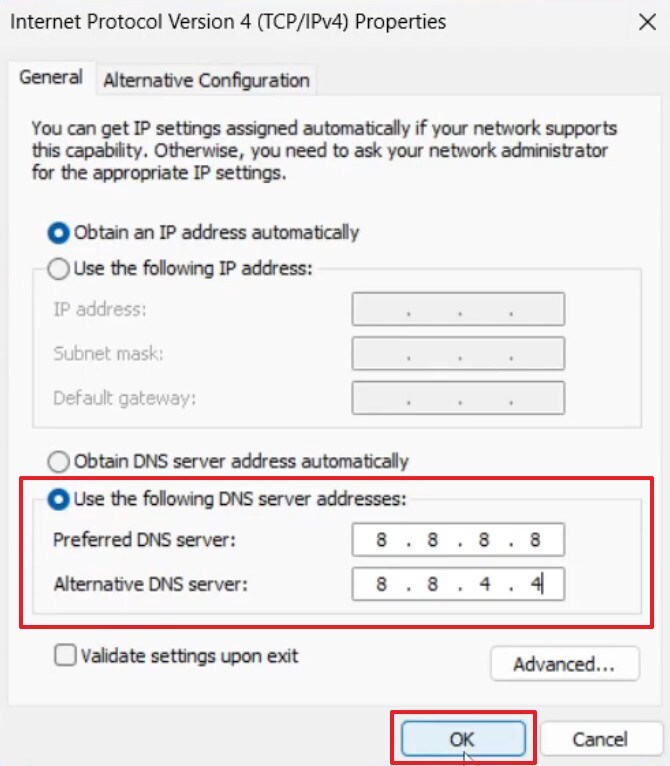
● Network routing mismatches preventing server communication can be fixed by executing the `ipconfig /flushdns` command in an elevated Command Prompt or switching your IPv4 DNS server addresses to 8.8.8.8 and 8.8.4.4.
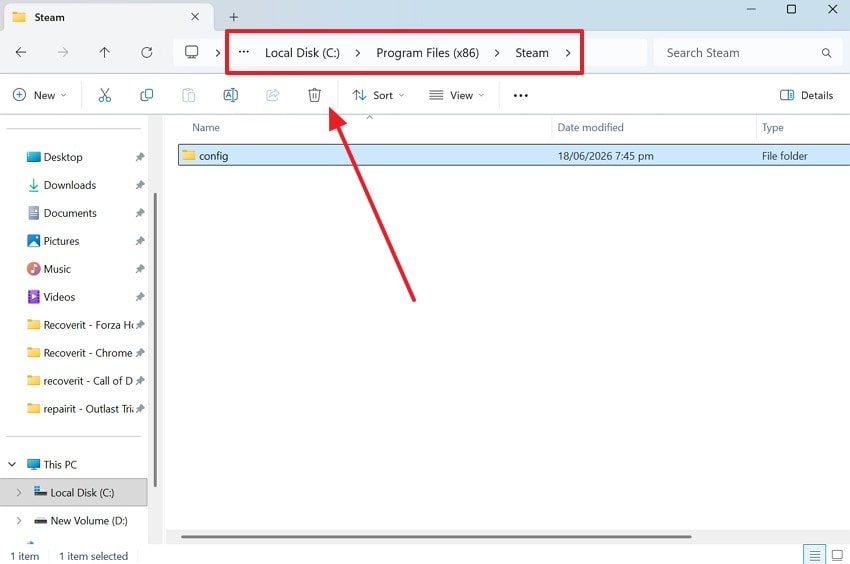
● Corrupted local data packets will continually disrupt the login handshake until you navigate to the `C:\Program Files (x86)\Steam` directory and delete the "Config" folder to force a clean settings generation.
● Active VPNs, proxy setups, and background antivirus programs often trigger unauthorized access flags by hiding your actual network location, requiring you to disable these services to restore direct authentication paths.
Ask AI for a summary
 ChatGPT
 Perplexity
 Gemini
 Claude
 Grok
Grok
A sudden Steam login failure ruins your plans for an exciting session. Many players see a frustrating message that blocks their entire access to Steam. This abrupt interruption stops gamers from launching games or chatting with online friends. In addition, Steam set a new all-time concurrent user record of 42 million in January 2026.
Some users even struggle to understand why Steam suddenly refuses login requests. Nonetheless, proven solutions can restore access without complicated technical procedures. In this ultimate guide, gamers will learn to fix the "Something went wrong while attempting to sign you in" error code 50.
Try Recoverit to Perform Data Recovery
 Security Verified. 3,591,664 people have downloaded it.
In this article
Part 1. What is Steam Error Code 50?
Steam error code 50 is a common digital platform communication issue. Such a specific authentication block happens when your client launches on a desktop. The system fails to complete authentication due to temporary client or network communication issues. As a result, players remain stuck on the starting screen instead of loading profiles.
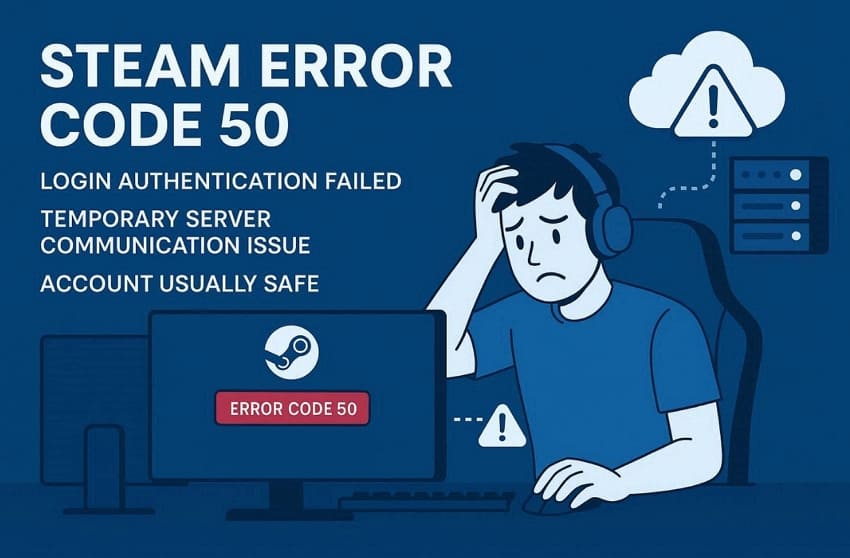
Such a roadblock affects individuals attempting to access games across multiple global regions. Moreover, Atoms’ insights claims that around 60,000 Steam users reported login and connection failures in December 2025. Error code 50 rarely indicates permanent damage to your actual Steam account. Instead, it signals a temporary disruption between your device and Steam servers.
Why Does Steam Show Error Code 50?
Players must understand these causes to fix Steam error code 50 on PC. Thus, the following 5 reasons explain why this disruptive error occurs:
- Session Conflicts: Multiple active logins on different devices create conflicting session tokens. Steam, therefore, blocks every new login until older sessions first expire.
- Admin Permissions: Steam may lack the proper system permissions needed for account verification. Therefore, limited access stops the client from completing this authentication process.
- Clock Mismatch: Game launcher servers require an accurate system time to generate tokens. An incorrect clock setting causes immediate authentication mismatches during sign-ins.
- VPN Blocks: They often mask your real location from Steam's regional verification servers. Steam flags this hidden location as a suspicious unauthorized access attempt.
- Corrupted Files: Damaged local files often disrupt Steam's normal login validation procedure. These corrupted files send incomplete data packets during the authentication handshake.
Part 2. Can't Sign In to Steam? Fix Error Code 50 Today
Various solutions help fix the Steam "Something went wrong while attempting to sign you in" error. So, review the following 4 strategies below to restore your platform connection:
Fix 1. Sign Out of All Other Devices
Multiple active sessions on different devices often trigger the Steam error code 50. Your game launcher detects conflicting login tokens and blocks every new authentication attempt. Therefore, clearing active platform connections can resolve such conflicting digital profile links. This simple action resets your account's active token to only one verified device. Hence, adhere to these instructions to clear every active connection:
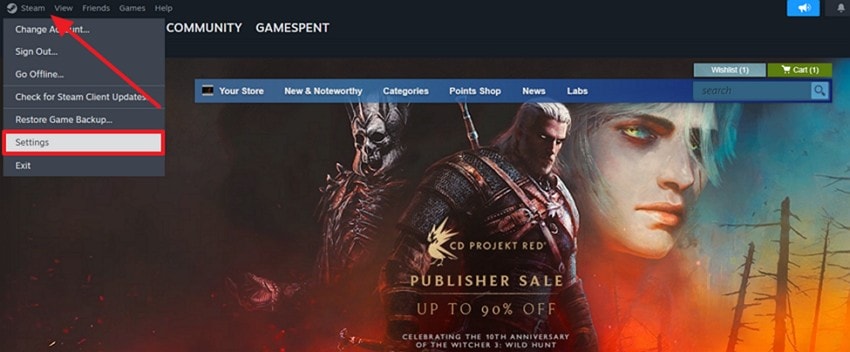
Step 1. Open the already logged-in Steam client, click the "Steam" menu, and opt for "Settings.”
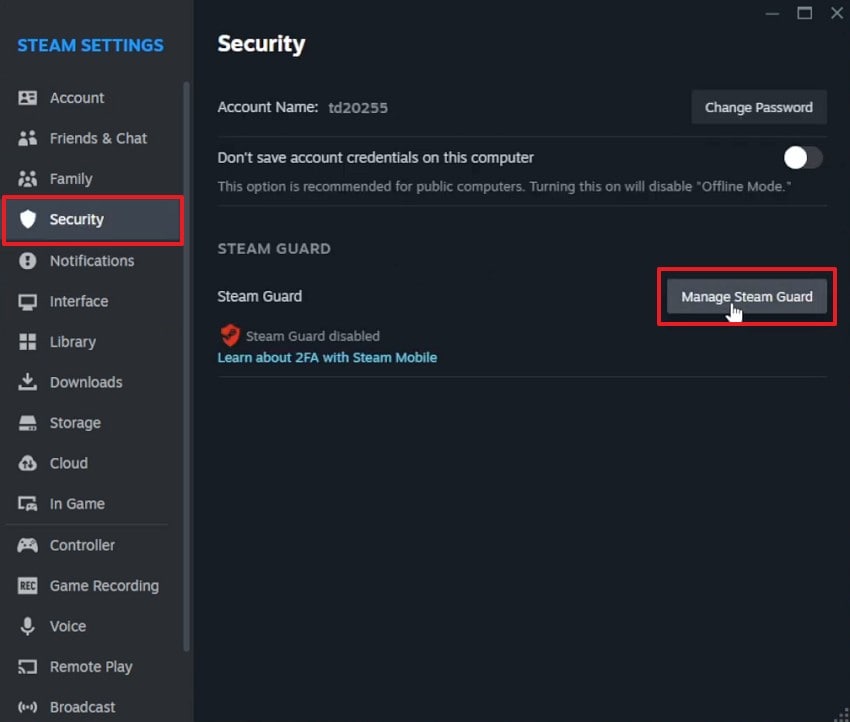
Step 2. Following that, go to the “Security” tab and press the “Manage Steam Guard” button.
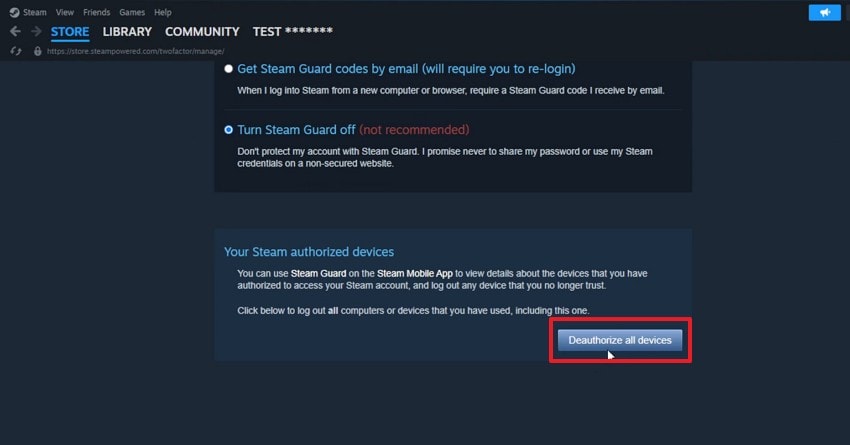
Step 3. After heading to the web version, scroll down and click “Deauthorize All Devices.”
Fix 2. Run Steam as Administrator
The platform may also lack the necessary system permissions to complete its authentication. Without admin rights, the client cannot access certain files needed for secure login. Upon granting access, it gives the launcher full control over required system resources.
This simple modification allows Steam to communicate with regional verification servers. Follow these clear sequential steps below to launch your game store with full rights:
Instructions. Access Steam's shortcut to right-click it and open the client via “Run As Administrator.”

Fix 3. Verify Date and Time Settings
Accurate system time keeps your device synchronized with official, secure Steam servers. Correct time settings allow proper validation of secure session authentication certificates. Yet, your system sometimes resets its clock after updates or power interruptions occur.
This small discrepancy triggers Steam's strict security verification check process. Anyhow, go through these configuration steps below to fix the Steam "Something went wrong while attempting to sign you in" error:
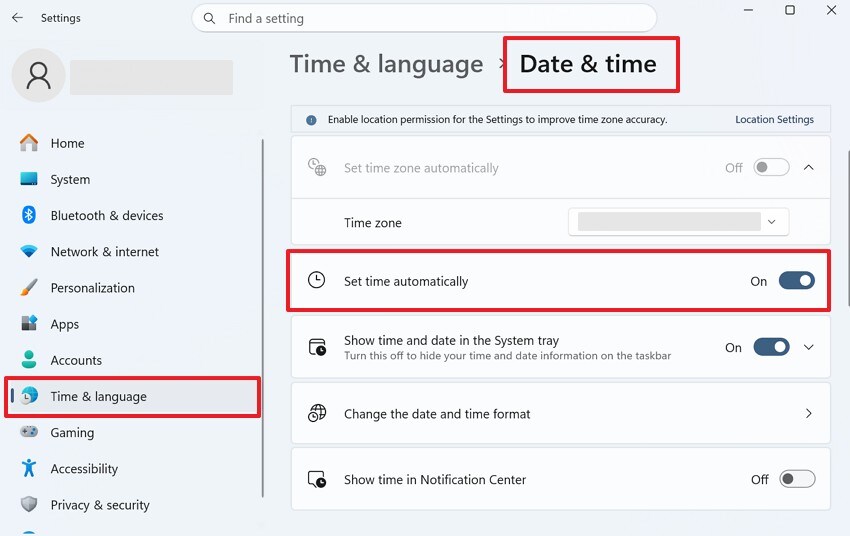
Instructions. Navigate to the “Time & Language” tab after pressing the “Windows + I” keys. After that, access the “Date & Time” category and turn on “Set Time Automatically.”
Fix 4. Disable VPN or Proxy Services
VPN services may also hide your true network location from official Steam servers. Proxy connections create similar location mismatches during the login verification process. Steam flags these unexpected location changes as suspicious unauthorized access attempts.
When players disable these services, it restores a stable and direct connection path. Thus, go through the given guide to fix the Steam error code 50 when signing in via this method:
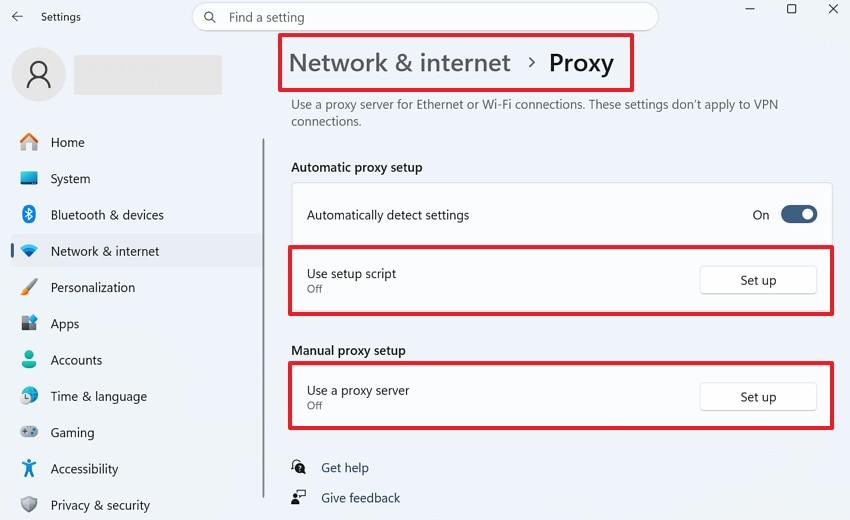
Instructions. From the “Network & Internet” settings, navigate to the “Proxy” section. Moving forward, make sure to turn off both “Use Setup Script” and “Use a Proxy Server.”
Pro Tip. Recover Lost Steam Game Files After Reinstallation
Steam reinstallation can sometimes result in missing local files required for game progress. Save files, recordings, screenshots, and configuration data may also disappear after reinstalls, crashes, file corruption, or accidental deletion. To address these situations, programs such as Recoverit can offer recovery capabilities. This tool can retrieve lost Steam save files from deleted or inaccessible locations.
In addition, Recoverit recovers game recordings removed during reinstallations or system disruptions. Its deep scanning capability locates missing files across internal storage devices. Alongside that, the program supports recovery from hard drives, USB devices, and consoles. Gamers can also use it to restore data lost after crashes caused by software conflicts.
Key Features
- Corruption Repair: Identifies corrupted gaming files and helps restore accessible file versions.
- Preview Feature: Allows checking recoverable Steam files before starting final recovery procedures.
- File Filtering: Organizes recoverable results for quicker Steam file identification tasks.
Guide to Recover Lost Steam Game Files After Reinstallation via Recoverit
Recoverit makes recovering lost Steam game files remarkably simple for everyone. Hence, go through these steps below to restore your missing Steam game data:
Step 1. Select the Location Where Steam Files Were Lost
Choose the drive or folder that previously contained your Steam game files from the “Hard Drives and Locations” tab.

Step 2. Look for Deleted Steam Game Data
The tool then starts scanning after selecting the target location. It will inspect the storage device and list all recoverable Steam saves and other files.

Step 3. Restore the Required Steam Files
Next, review the scan results and preview the detected files to verify their contents. Once you find the desired Steam files, select them and click “Recover” to save the restored data.

Part 3. 4 Advanced Solutions for Persistent Login Problems
Basic fixes sometimes fail to fix the Steam error code 50 on Windows 11 completely. Review these 4 advanced solutions below to resolve persistent Steam login problems:
Fix 1. Flush DNS Cache
Your system stores old network records that no longer match Steam's server addresses. These stale records redirect login requests to incorrect or unavailable server destinations. Therefore, clearing your local network memory addresses resets internal communication linkages. This procedure establishes clean diagnostic paths for incoming information packets. Adhere to the given instructional sequence below to fix Steam error code 50 on PC:
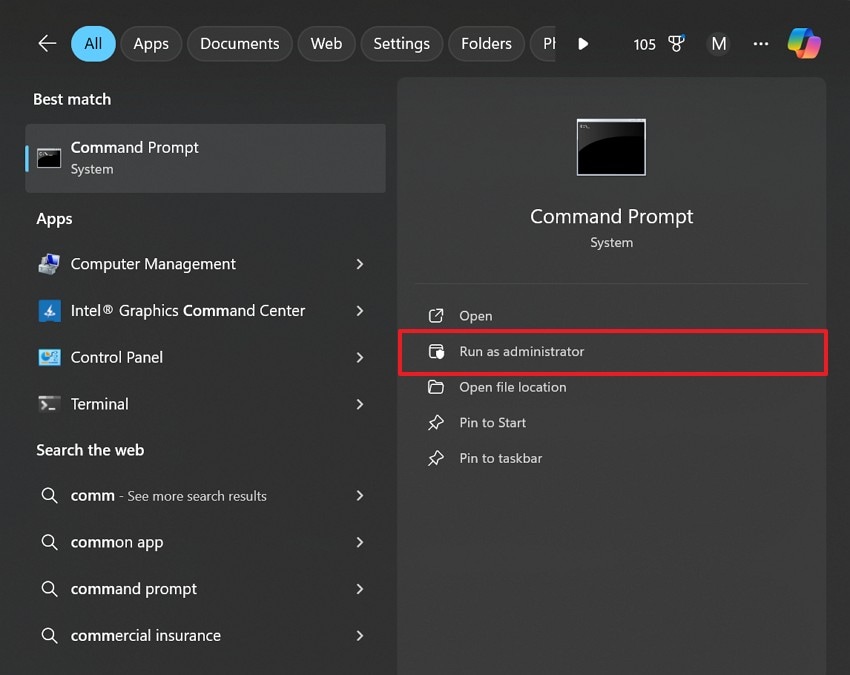
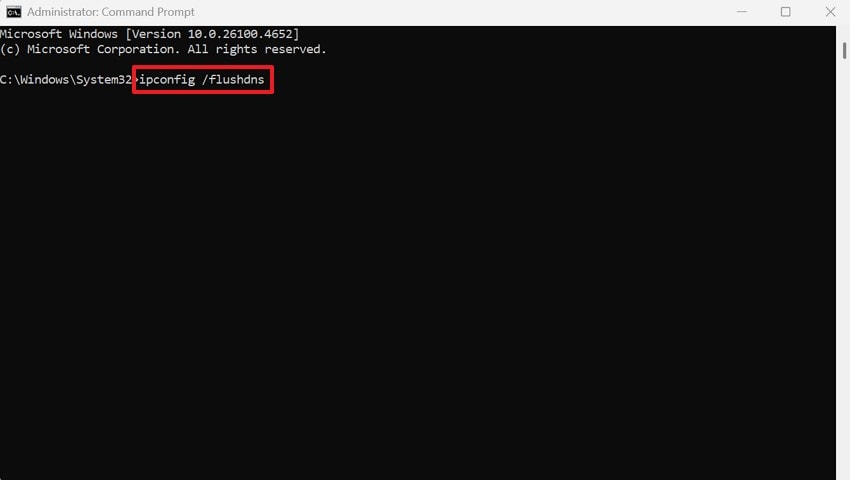
Step 1. Use the “Windows” search bar to find “Command Prompt” and opt for “Run as Administrator.”
Step 2. Inside the appearing display, execute the “ipconfig /flushdns” command. It lets your system remove all cached DNS entries before closing the utility.
Fix 2. Change DNS Servers
Many times, slow or unreliable DNS servers create unnecessary delays. These network drops block authentication packages from completing their validation loops. Nonetheless, switching to faster public DNS servers like Google improves your connection reliability. It also ensures secure global connectivity for your gaming client profiles. Take guidance from the step-by-step guide below to update your platform network routing values:
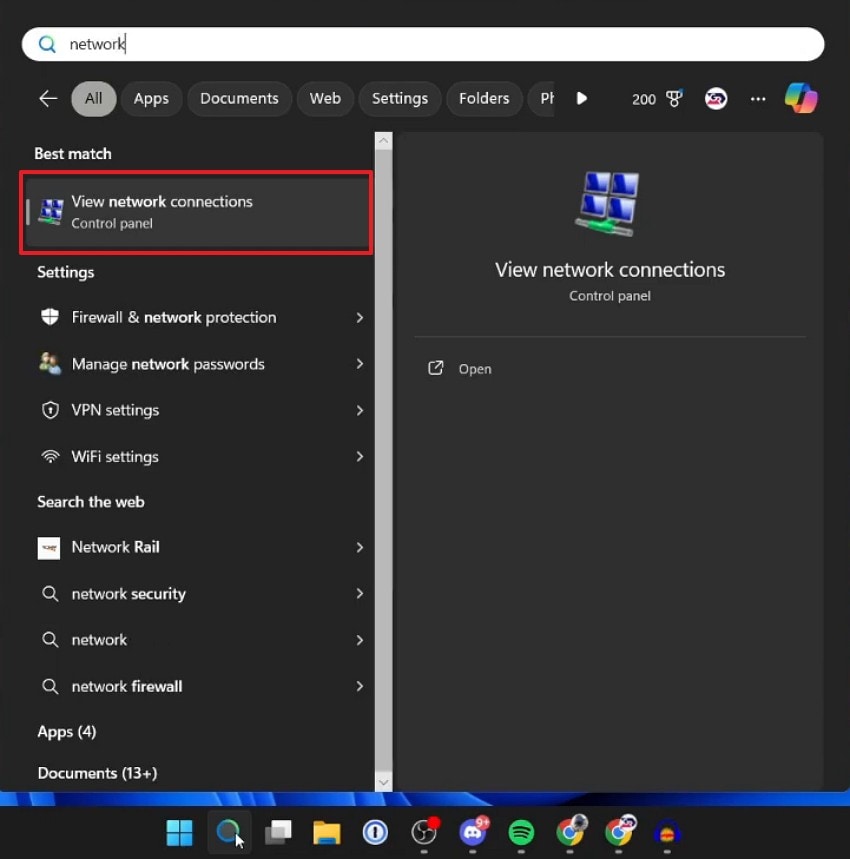
Step 1. To initiate, users need to search for “View Network Connections” and open it.
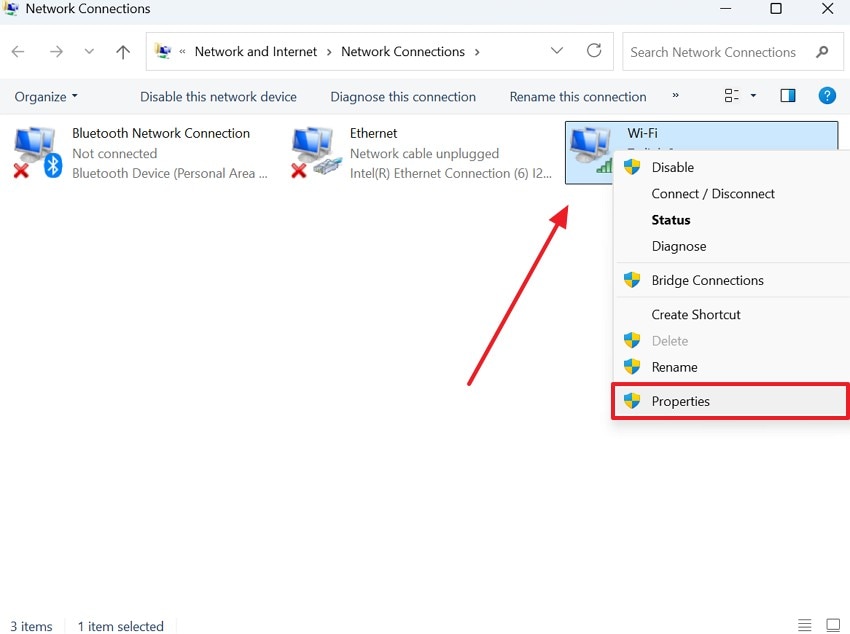
Step 2. Going ahead, right-click the currently used network connection and opt for “Properties.”
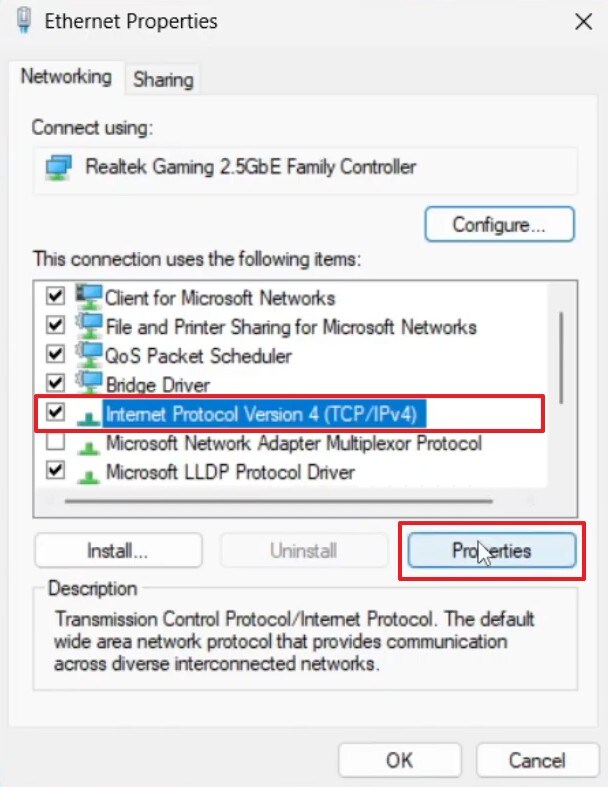
Step 3. From the upcoming panel, press “Properties” upon choosing “Internet Protocol Version 4 (TCP/IPv4).”
Step 4. Following this, you need to mark “Use the Following DNS Server Addresses.” Then, set “Preferred DNS: 8.8.8.8” and “Alternate DNS: 8.8.4.4” to press the “OK” button.
Fix 3. Delete Steam Configuration Files
These files can also block the entire login authentication process. They may contain corrupted local settings that can occasionally interfere with Steam's operation. Steam then fails to complete authentication because these files send broken data packets.
Upon deleting these configuration files, it forces Steam to generate accurate login settings. So, follow these basic file path directories to fix Steam error code 50 when signing in:
Instructions. After heading to “File Explorer,” access the “C:\Program Files (x86)\Steam” path. As you access the exact location, choose the “Config” folder and press the “Delete” icon.
Fix 4. Perform a Clean Boot & Uninstall Interfering Software
Software running in the background often interferes with Steam's login authentication. They consume system resources and block Steam's connection to verification servers. In contrast, a clean boot starts Windows with only essential system services and drivers running. This removes all software conflicts that prevented Steam from completing its login process. Therefore, you now need to go through the given steps to perform this method:
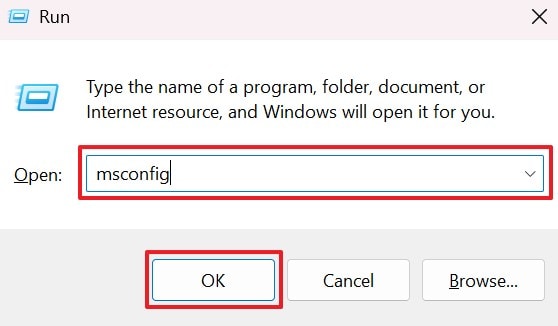
Step 1. Once you press “Windows + R,” enter “msconfig” and click “OK” to access System Configuration.
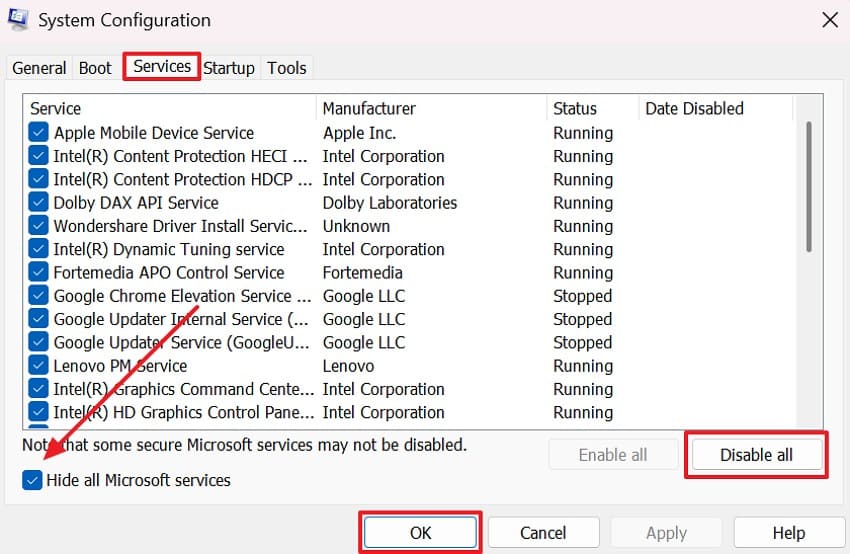
Step 2. Then, switch to the “Services” tab and enable the “Hide All Microsoft Services” option. Following that, click “Disable All” and opt for “OK” to apply these changes.
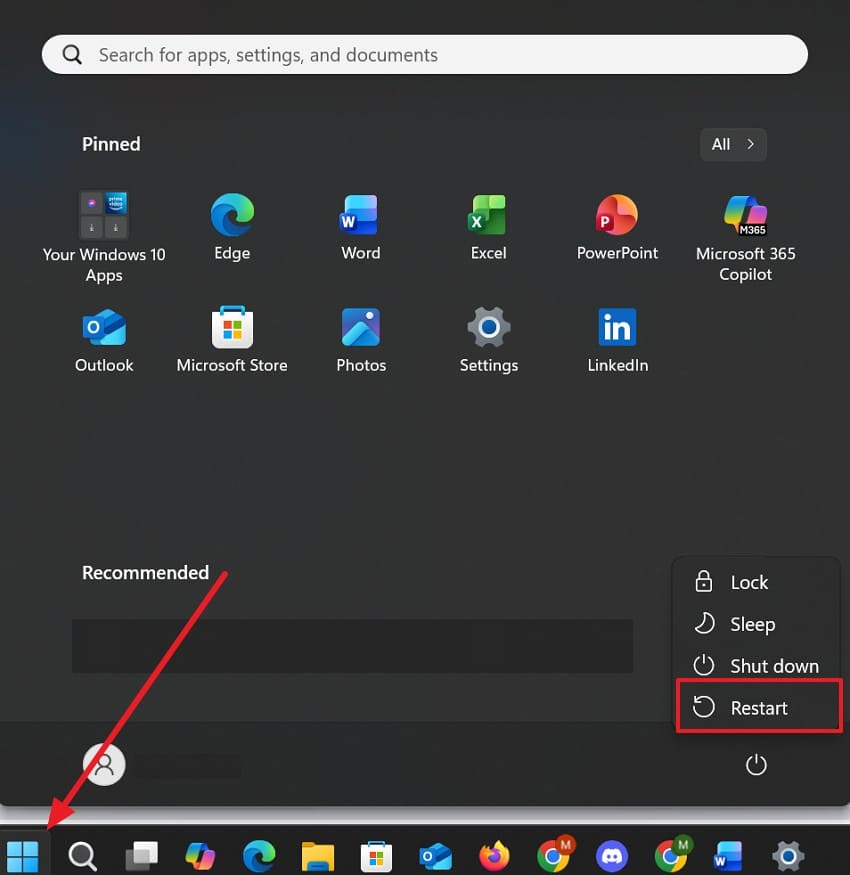
Step 3. Upon doing that, select the “Power” icon from the “Start” menu and opt for “Restart.” Afterward, locate the third-party software interfering with your Steam app and uninstall them.
Conclusion
In summary, the explained solutions help fix the “Something went wrong while attempting to sign you in” error code 50. Players should start with basic fixes prior to attempting the more advanced solutions. Yet, most login issues are resolved after clearing sessions and adjusting a few settings.
Steam Support also receives many account security and recovery requests daily. Persistent problems may require deleting configuration files or performing a clean boot instead. However, if reinstallation causes game data loss, tools like Recoverit can restore all your deleted Steam files.
FAQ
-
Q1. Will Steam error code 50 permanently lock my account?
This specific error never permanently locks or bans your actual Steam account. It only signals a temporary communication failure between your device and Steam servers. Applying any fix from this guide, like flushing DNS, restores full access to your account. -
Q2. Can antivirus software trigger Steam error code 50?
Yes, overprotective antivirus programs sometimes block Steam's connection to its authentication servers. These security tools flag Steam's login requests as suspicious network activity. Thus, you can try to disable your antivirus software to check if it causes the login error. -
Q3. How do I recover Steam game files lost after a failed update?
Failed Steam updates sometimes corrupt or delete important local game files. Players can use tools like Recoverit to scan their drive and recover missing game files. Its deep scan feature locates deleted files after incomplete or failed update installations. -
Q4. How long does Steam's server downtime usually last during login errors?
Server downtime duration varies widely, and there is no typical timeframe for error code 50 incidents. Valve usually resolves server-side issues without requiring any action from affected players. Therefore, checking “steamstat.us” helps confirm whether server downtime is causing login failure.


