

 TL;DR:
To fix the "Steam no licenses" error preventing game launches, you need to force the client to re-authenticate your account ownership by clearing cached data, verifying file integrity, and resolving network or sharing conflicts.
● Clear stale license data and repair damaged installations by navigating to Steam Settings > Downloads to clear the download cache, and right-clicking your game to select Properties > Installed Files > Verify Integrity of Game Files.
● Resolve account and network synchronization blocks by signing out and back into Steam, opting out of Steam Beta participation under the Interface settings, and temporarily disabling active VPNs or firewalls.
● If using Family Library Sharing, check Settings > Family to ensure the game isn't restricted under "Excluded Games"; if the error stems from deleted local files, Wondershare Recoverit can restore up to 500 MB of missing game data for free.
Ask AI for a summary
 ChatGPT
 Perplexity
 Gemini
 Claude
 Grok
Grok
You launch your favorite game after a long day, ready to relax, but instead of the usual loading screen, a message appears: "Steam no licenses." The excitement fades as the platform refuses to start the game you've already purchased. You restart Steam, refresh your library, and even check your internet connection, yet the same notification blocks access.
Your entire collection suddenly feels out of reach. Frustration builds while you search for answers and quick fixes. If this situation sounds familiar, this guide will help you handle the "Steam no licenses" error efficiently and regain access to your games.
Try Recoverit to Perform Steam File Recovery
 Security Verified. 3,591,664 people have downloaded it.
In this article

Part 1. Understanding The Root Causes Of Steam No Licenses Problems
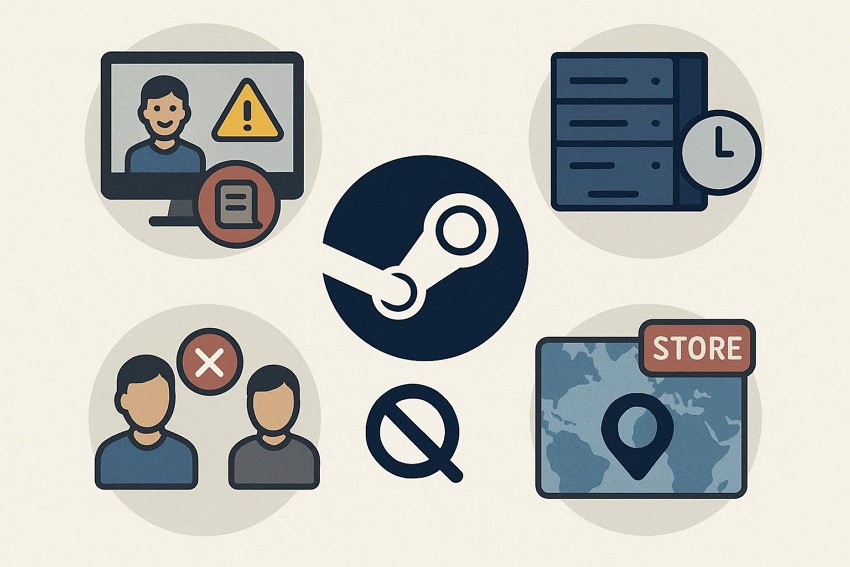
When the Steam licenses message blocks access to your games, it usually signals an underlying account or system-related disruption. Provided below are some of the reasons why this issue occurs in the first place:
- Account Authentication Glitch: Temporary login session errors can prevent Steam from verifying your ownership rights. When authentication fails, your purchased titles may appear inaccessible.
- Corrupted Local License Cache: Steam stores license data locally to speed up validation checks. If these files become corrupted, the platform may fail to recognize your active game licenses.
- Server Synchronization Delays: Sometimes, Steam's servers experience temporary syncing issues. During these delays, your account licenses may not properly load on your device.
- Family Sharing Conflicts: Shared library permissions can create licensing conflicts between accounts. If another user is accessing the same game, Steam may temporarily restrict your access.
- Region or Store Mismatch: Changes in store region or account settings can interfere with license validation. Steam may flag inconsistencies and restrict game access until the mismatch is resolved.
Read this article to understand why this happens and how to fix it with top methods.

Part 2. Troubleshooting Steam Licenses Errors For Beginners -9 Steps
Once you understand what may trigger the issue, the next step is applying practical fixes. The Steam no licenses error can feel overwhelming at first. Follow the fixes provided below that will help you solve the issue:
1. Restart Steam and Your PC
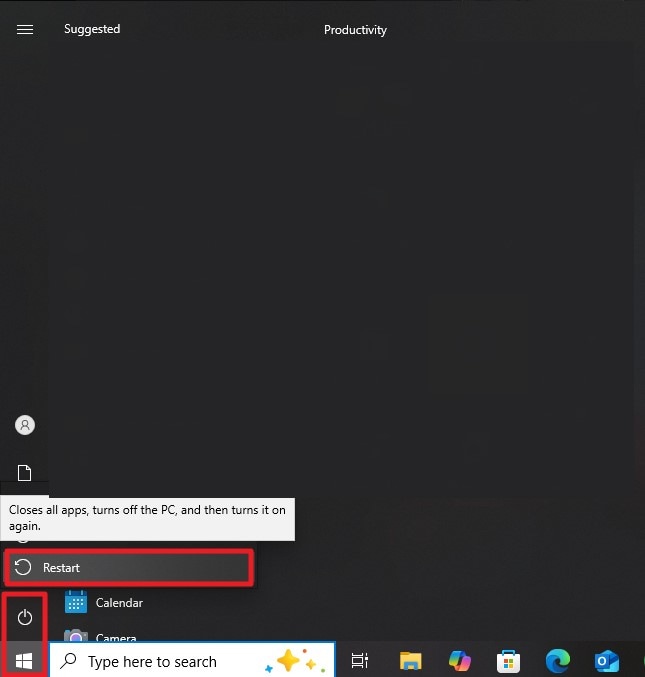
Restarting Steam and your PC clears memory conflicts, refreshes system processes, and reloads network connections. This allows the client to properly authenticate your account, often resolving "Steam no licenses" errors caused by session or cache inconsistencies. Freshly initialized processes ensure the Steam client can revalidate ownership of installed games efficiently. To learn how to restart the computer, follow the instructions below:
Instructions. Click the "Windows" icon located at the bottom-left corner of your screen, then select the "Power" option. From the available choices, choose the "Restart" button to allow your system to reboot properly and complete the restart process.
2. Confirm You Actually Own The Game
Confirming that your account actually owns the game prevents Steam licenses errors during startup. Steam requires accurate purchase records to assign licenses correctly. If ownership is missing or misrecorded, the client cannot validate the title, leading to access failures. Verifying your library ensures the account and server are synchronized for proper license recognition. To learn how to confirm that you actually own the game, access the purchase history by following the steps:
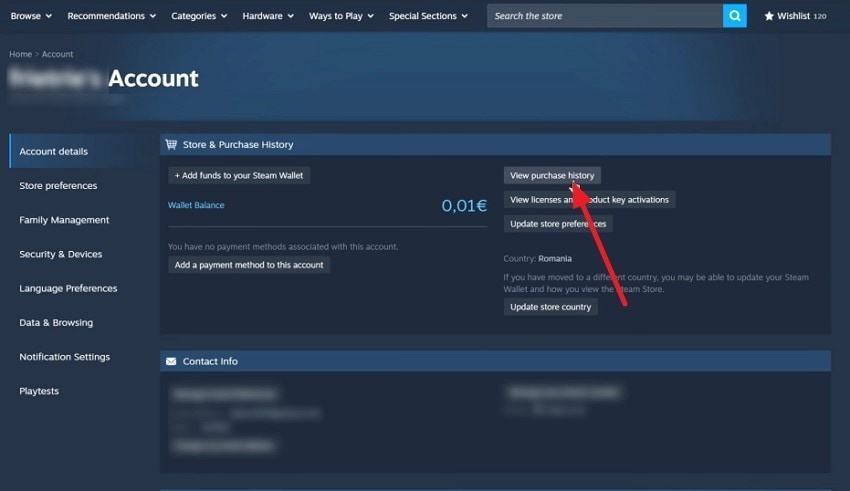
- Launch Steam and head to the top-right corner of the interface to press your profile name. Now, choose the "Account Details" option from the list and click on it.
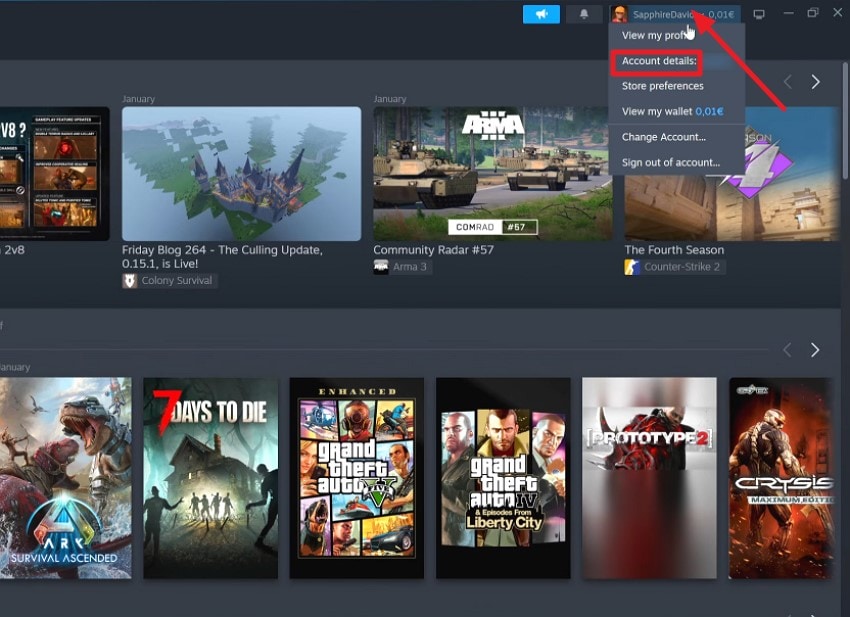
- Next, access the "Account Details" section from the left and press the "View Purchase History" button located within the interface. In the following interface, you can see all the games that you own and confirm.
3. Verify Game Files
Running the integrity check replaces missing or damaged game files, ensuring the client recognizes the installation correctly. Corrupted files can trigger "Steam no licenses" errors by preventing the system from validating the game. This process ensures that local files match server versions, restoring proper license verification and enabling uninterrupted gameplay. Follow the steps provided next to learn how to verify game files in Steam:
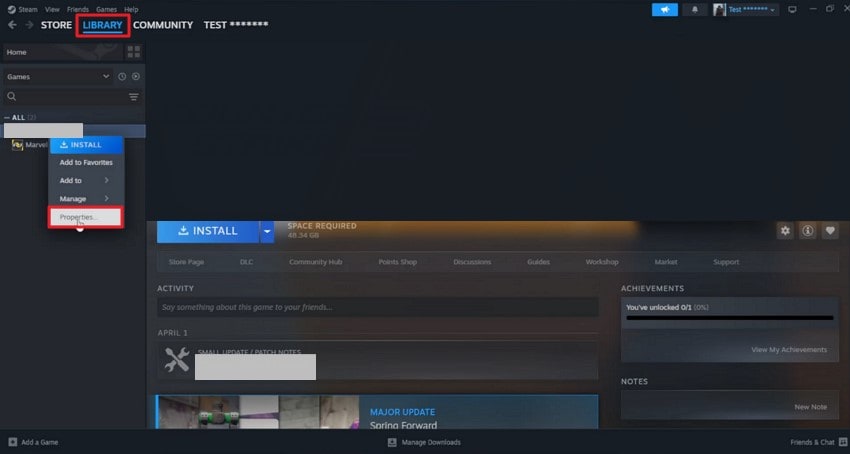
- Open the "Library" tab from the top-left area of the Steam client and locate your game title. Right-click the game and select the "Properties" option from the dropdown menu.
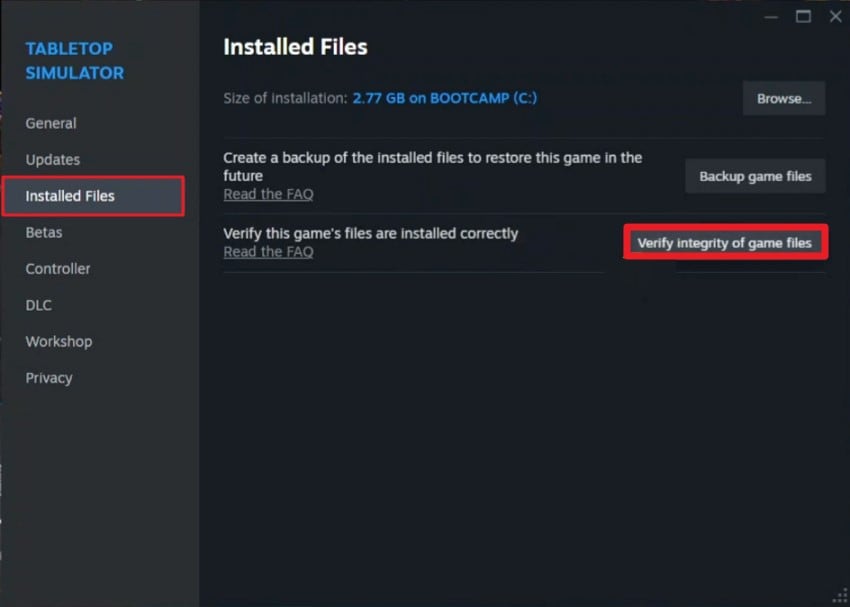
- Next, navigate to the "Installed Files" section on the left panel and click "Verify Integrity of Game Files" to start checking and repairing the game files.
4. Clear Steam Download Cache
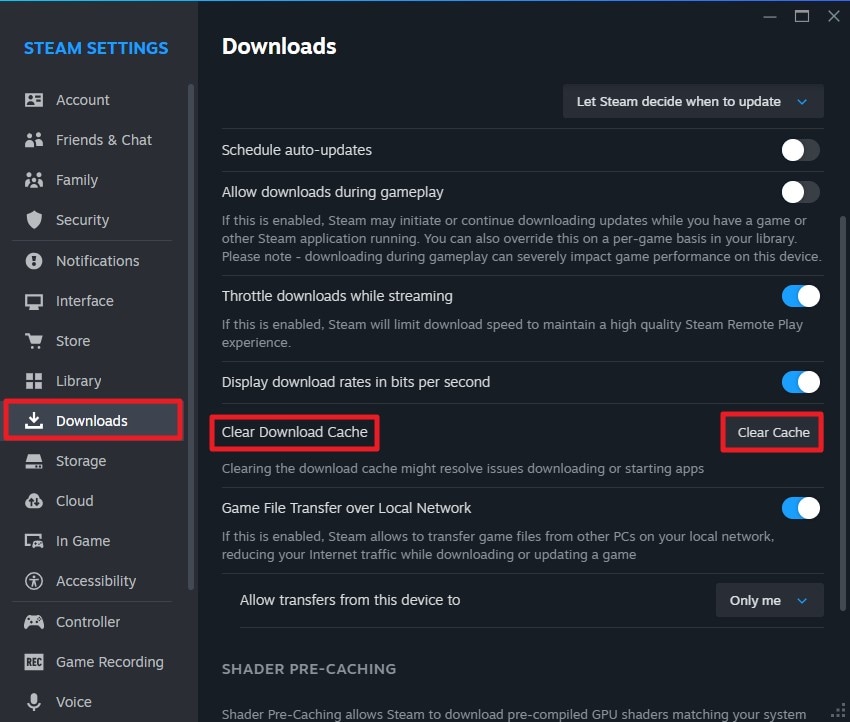
Temporary cache files may store outdated or invalid Steam licenses information. Clearing the download cache forces Steam to re-download game metadata and license validation data. This resolves mismatches caused by corrupted or stale local files, allowing the client to recognize active licenses correctly and prevent errors when launching installed games. To learn how to clear the Steam download cache, read the steps provided next:
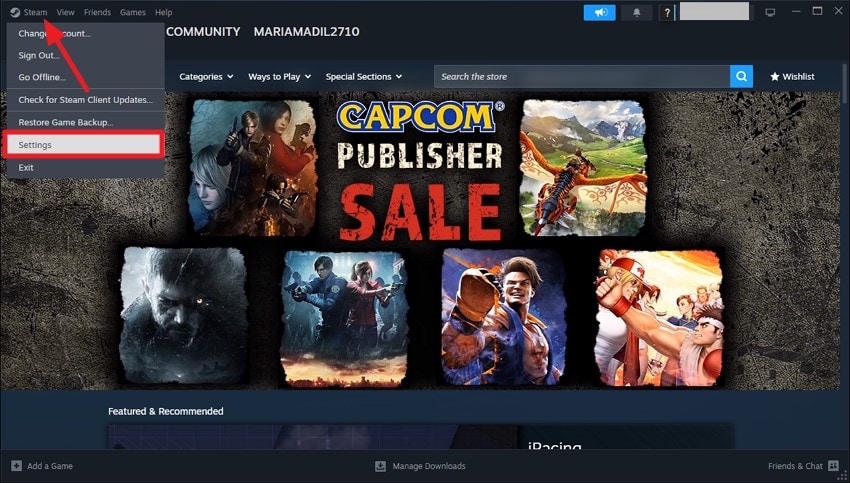
- Open Steam and head to the top-left corner to press the "Steam" option. From here, select the "Settings" option by clicking on it.
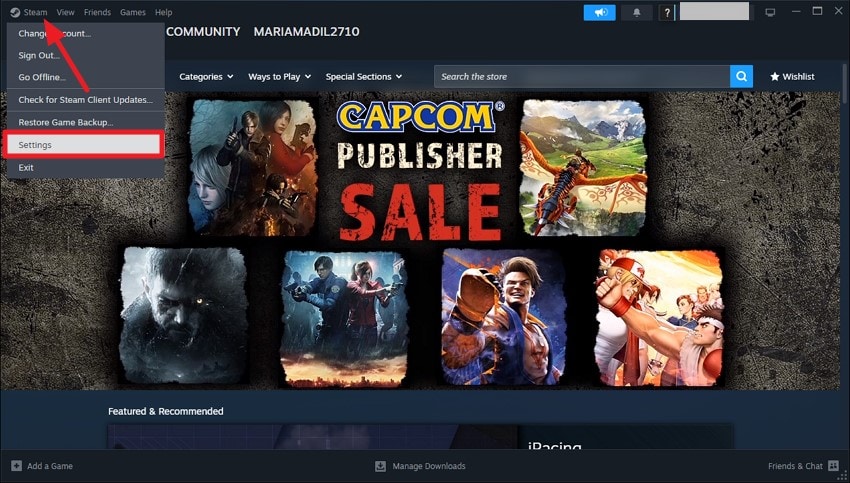
- Next, access the "Downloads" section on the right and access the "Clear Download Cache" option. Press the "Clear Cache" button to successfully remove the temporary files and folders.
5. Toggle Steam Client Beta Participation
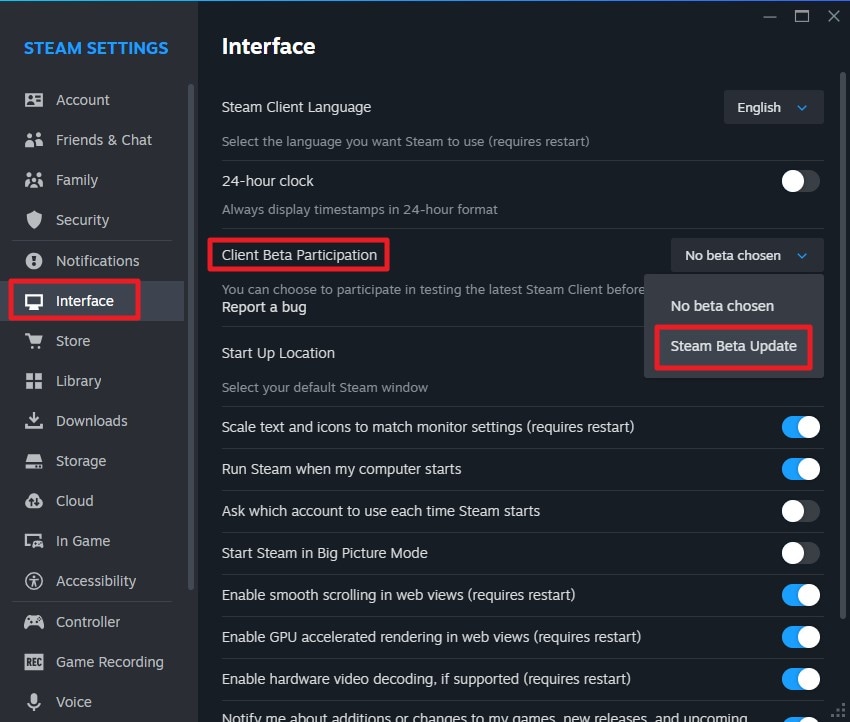
Beta versions can sometimes cause "Steam no licenses" issues due to incomplete or unstable license handling. Exiting Beta returns the client to the stable release, which follows verified authentication protocols. This ensures proper server communication for license verification, reducing conflicts caused by experimental features in test builds. Follow the steps discussed next to learn how to perform this fix on Steam:
- After launching Steam, press the "Steam" option located at the top-left corner. From the expanded list, locate and click on the "Settings" option.
- Next, enable the "Interface" section on the left and select the "Client Beta Participation" option. Now, click on the "Steam Beta Update" option to run the beta version of the program.
6. Disable VPN, Antivirus, Or Firewall Temporarily
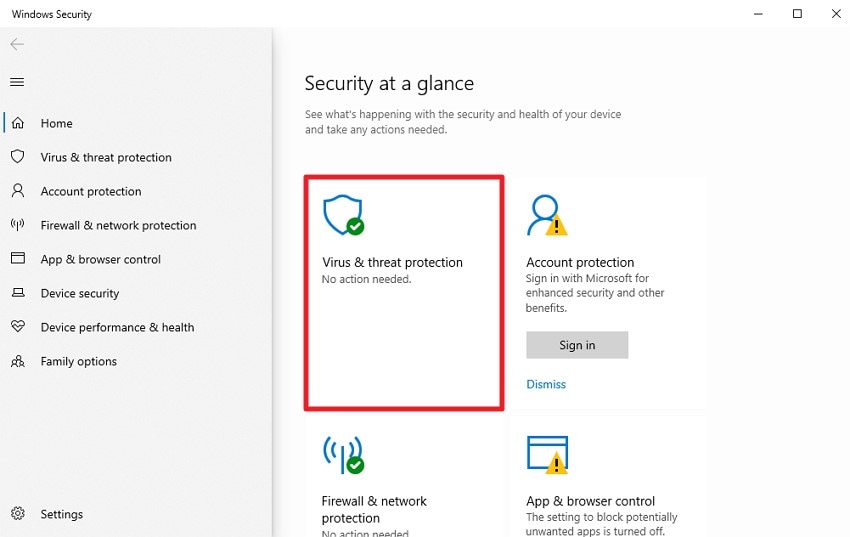
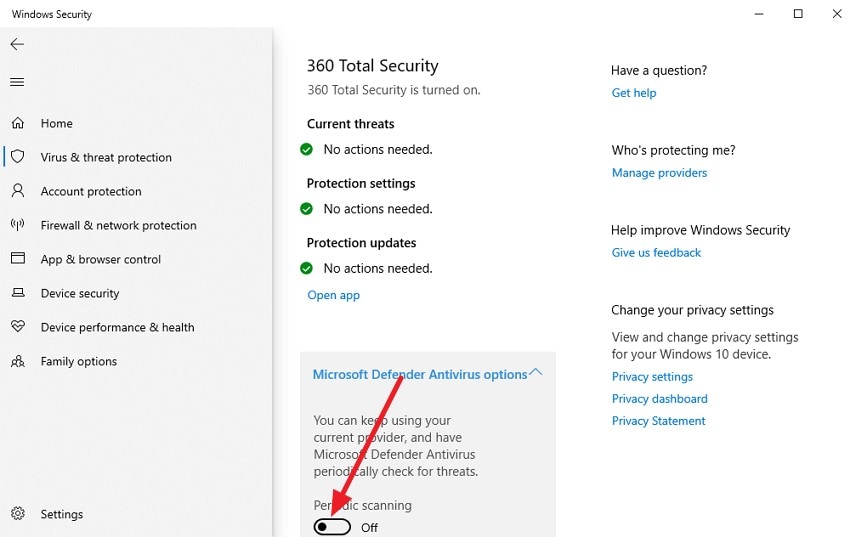
Security software can block Steam licenses verification, resulting in Steam no licenses errors. Temporarily disabling VPNs, firewalls, or antivirus tools ensures uninterrupted communication with Steam servers. With network traffic unrestricted, the client can authenticate game ownership accurately, restoring access to purchased titles without interference from security restrictions. To know how to disable the antivirus, read the steps provided next:
- Launch Windows Security on your computer and navigate to "Virus & Threat Protection." From the displayed networks, select the one currently active to open its configuration settings.
- Within the selected network settings, find "Microsoft Defender Firewall" and turn the toggle off to temporarily disable the firewall protection.
7. Sign Out and Back Into Steam
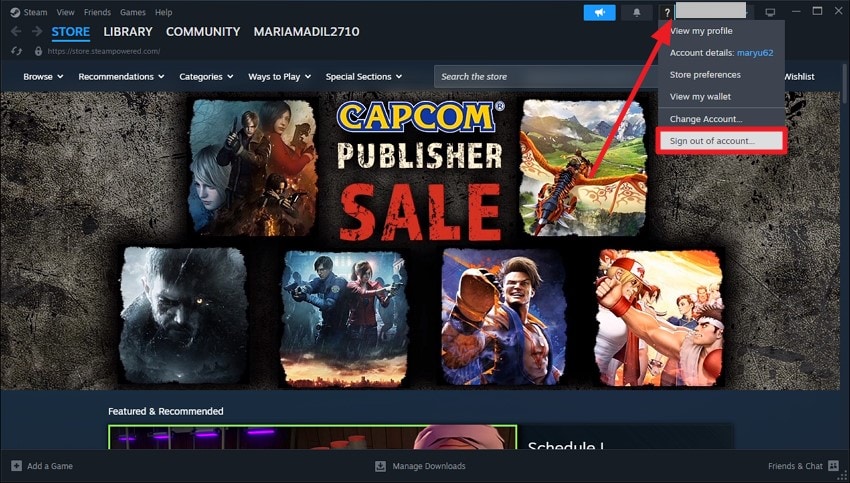
Session token mismatches can produce "Steam no licenses" errors. Signing out invalidates outdated authentication sessions and requests a fresh token from Steam servers. This refresh ensures that all account credentials are current, reestablishing proper license validation and enabling the client to correctly recognize all purchased and installed games. Read the steps provided below to learn how to sign out and then sign back in to Steam:
- Head to your profile option located in the top-right corner and click on it. Press the "Sign Out of Account" option on the expanded list to successfully sign out of your account.
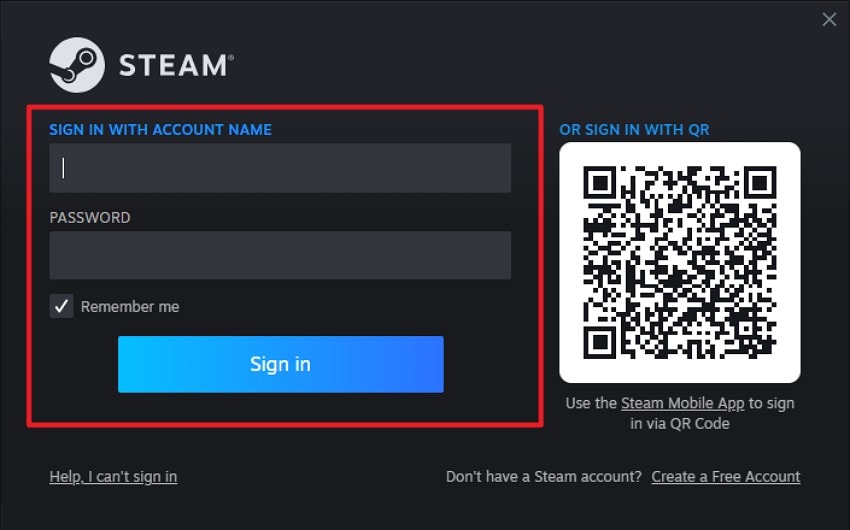
- To sign back in, launch Steam and input your email address and password in the designated fields. Press the "Sign In" button to successfully sign back in to Steam.
8. Check Family Sharing And Restrictions
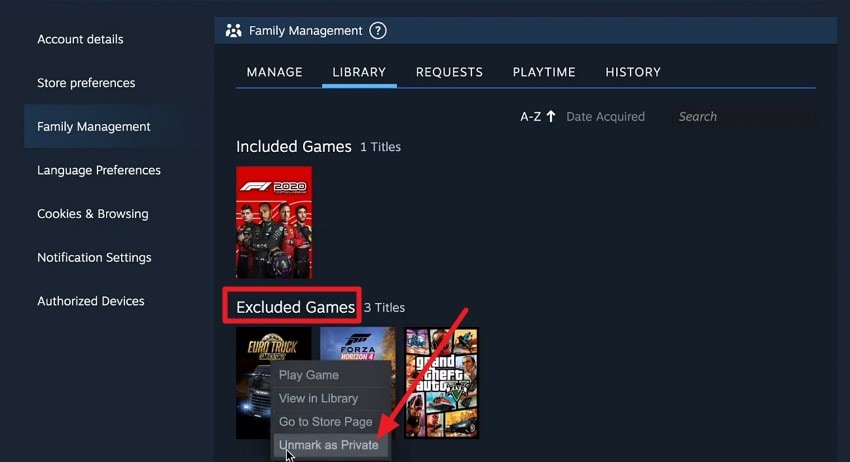
Access conflicts from "Family Library Sharing" or parental controls may block games, generating Steam licenses issues. Ensuring that permissions are correctly configured and conflicting sessions are paused allows the client to validate ownership. Properly managed sharing settings prevent license verification failures and restore uninterrupted access to shared or individually owned titles. To learn how to remove the family sharing restriction from the game, read the steps provided next:
- After opening your "Steam Settings," head to the section on the left and click on the "Family" section. Now, locate the "Manage Your Steam Family" and click on it.
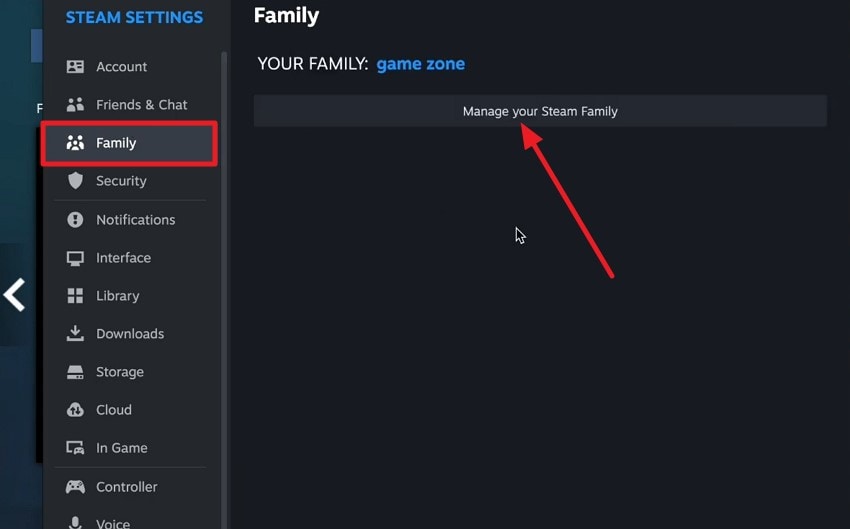
- In the following interface, access the "Excluded Games" section and select the game. Right-click on it and press the "Unmark as Private" option from the expanded list to remove the restriction.
9. Contact Steam Support
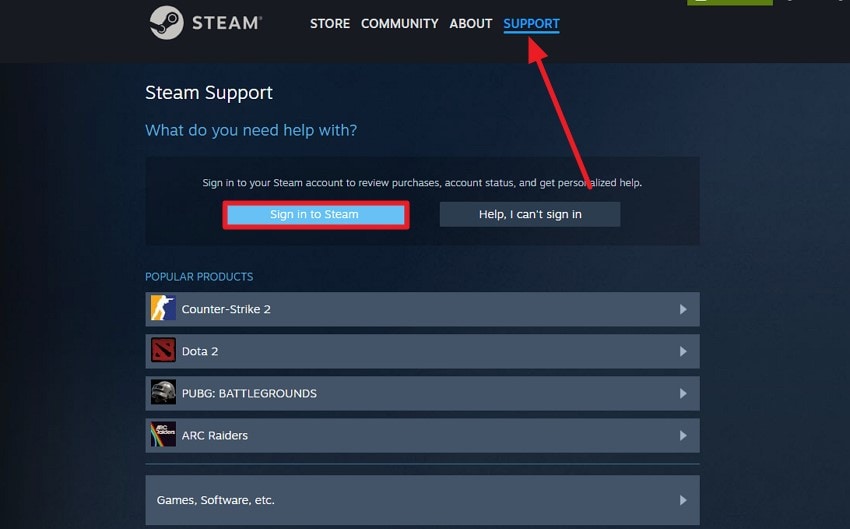
If all client-side fixes fail, Steam no licenses problems may require server-side intervention. Submitting a support ticket with account information and purchase history allows Steam to manually verify licenses, correct corrupted account data, or fix region-specific inconsistencies. Support intervention ensures all purchased games are properly recognized and accessible. If you do not know how to contact Steam support, read the instructions provided next:
Instructions. Open your web browser and visit the Steam official website. Access the "Support" page and sign in to your account to contact the Steam support team.
Pro Tip: Restore Corrupted Or Deleted Steam Game Files Safely
Recoverit provides a reliable way to recover corrupted or accidentally deleted game files on your PC. By scanning your hard drive or SSD, it identifies missing Steam files and restores them to their original location. This process ensures that game integrity is maintained, reducing errors like "Steam no licenses" and allowing the client to recognize installed titles properly.
Additionally, Recoverit repairs damaged file structures and resolves partial data corruption that can block Steam from validating licenses. It works with both standard and hidden folders where Steam stores temporary or local game data, ensuring full recovery. Users can recover critical configuration or installation files up to 500 MBs for free across Recoverit.
Incredible Features Offered by Recoverit
- Multiple File Support: Recoverit can recover a wide range of file types, including documents, videos, images, and game files, in a single scan.
- Preview Before Saving: Users can preview recoverable files before restoring them, ensuring only the needed files are recovered.
- Search Filter: The tool provides a search filter to quickly locate specific files from large scan results, saving time during recovery.
Steps to Restore Corrupted Or Deleted Steam Game Files
As discussed, with Recoverit, users get the ability to get back tier data in no time. To learn how to use this tool for getting back your game files, read the steps mentioned next:
1. Select the Source for Scanning
Open Recoverit and choose the drive, folder, or storage location where the missing game files were stored. The software performs a thorough scan to detect all recoverable files automatically.

2. Identify the Required Files
Once the scan is complete, browse through the recovered items to locate the specific saved games. Select the desired files and press the "Recover" button to proceed.

3. Preview and Restore Data
Use the preview feature to confirm the integrity and usability of the files. After verification, execute the recovery process to save the selected files with the help of the "Recover" button.

Conclusion
To wrap it up, you learned how to solve the "Steam no licenses" issue using different fixes. The article also explained how verifying game files, clearing cache, and managing client updates can prevent errors. For corrupted or accidentally deleted game files, using Recoverit ensures safe recovery, restoring game integrity and allowing Steam to recognize all installed titles without license issues.
FAQ
-
1. What does the "Steam no licenses" error mean?
This error indicates that Steam cannot verify ownership of the game on your account. It usually occurs due to corrupted local files, session issues, or server-side conflicts, preventing the client from recognizing your purchased titles. -
2. How can I fix "Steam no licenses" quickly?
You can try restarting Steam and your PC, verifying game files, clearing the download cache, or signing out and back in. For corrupted or missing files causing the error, Recoverit safely restores game files to ensure proper license recognition. -
3. Can corrupted Steam game files cause license errors?
Yes, corrupted or incomplete files often trigger Steam no licenses errors. Using Recoverit, you can recover damaged or deleted game files, restoring full functionality and allowing Steam to validate licenses correctly without reinstalling the game. -
4. Does Family Sharing affect Steam licenses?
Yes, simultaneous access or restricted permissions can block license validation. If games are inaccessible, check sharing settings. For any lost or deleted files during Family Sharing conflicts, Recoverit helps recover critical game data safely.


