


 TL;DR:
To resolve the Where Winds Meet fatal error on PC, you must eliminate rendering incompatibilities, corrupted files, or resource conflicts by verifying game integrity and adjusting system-level configurations.
● Switch the game's graphics API to Vulkan by adding the kSettingAPI_Vulkan tag inside the System.xml file, and manually delete all files within the NVIDIA DXCache folder to force the system to rebuild error-free shaders.
● Prevent background resource interruptions by disabling the Steam in-game overlay, adding the game folder to Windows Security exclusions, and reverting CPU or GPU overclocking to factory defaults.
● Reinstall missing runtime dependencies, specifically DirectX and Visual C++ Redistributables, to fix initialization failures caused by damaged or incomplete system libraries.
Ask AI for a summary
 ChatGPT
 Perplexity
 Gemini
 Claude
 Grok
Grok
Imagine settling in for a relaxing gaming session, only for Where Winds Meet to crash with a sudden Where Winds Meet fatal error that freezes your screen and disrupts your progress. It’s a frustrating moment that countless players experience, especially when performance issues appear without warning.
This guide breaks down the most common causes behind the Where Winds Meet fatal error. It also walks you through reliable fixes and prevention methods to restore smooth, uninterrupted gameplay on your PC.
Try Recoverit to Perform Game Data Recovery
 Security Verified. 3,591,664 people have downloaded it.
In this article

Part 1. What Is the Where Winds Meet Fatal Error on PC?
The Where Winds Meet fatal error on PC is a system-level crash that abruptly halts the game and forces it to close without warning. It typically appears as a pop-up message indicating the game encountered an unrecoverable issue, preventing it from continuing. When this error occurs, the game either freezes, returns to the desktop, or refuses to launch entirely, disrupting gameplay and blocking access until the problem is addressed.
Part 2. Main Causes Behind the Where Winds Meet Fatal Error on PC
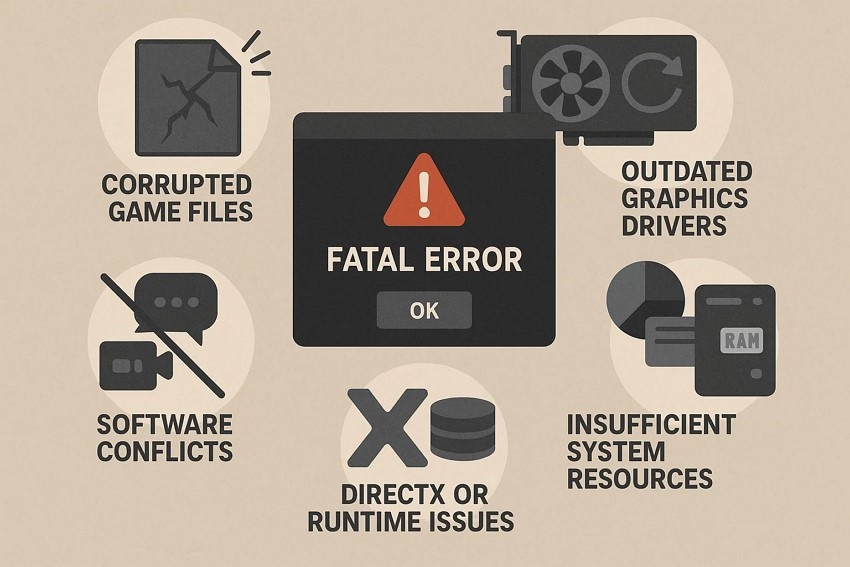
Before jumping into the fixes, it’s important to understand what actually triggers the Where Winds Meet fatal error on PC. Identifying the root cause makes it much easier to apply the right solution and prevent the issue from returning. Mentioned below are some of the reasons this crash occurs when you launch the game:
- Corrupted Game Files: Damaged or incomplete game files can break essential loading processes. When key assets fail to load, the game crashes instantly with a fatal error.
- Outdated Graphics Drivers: Old GPU drivers may struggle to support the game’s rendering requirements. This mismatch often leads to instability, crashes, and fatal error prompts.
- Software Conflicts: Background apps like overlays or recording tools can interfere with the Where Winds Meet game engine. These conflicts cause resource interruptions that trigger sudden crashes.
- Insufficient System Resources: Low RAM, high CPU load, or storage bottlenecks can overload the game. When the system can’t keep up, it forces the game to shut down.
- DirectX or Runtime Issues: Missing or corrupted DirectX and Visual C++ components disrupt in-game functions. Without these dependencies, the game fails during initialization.
Part 3. 10 Quick Checks - Fixing the Where Winds Meet Fatal Error
Now that you know what causes the fatal error, it’s time to move on to practical solutions. This section gathers the quickest and most reliable fixes players can apply to restore stable performance:
1. Update Graphics Drivers
One of the easiest methods to resolve the game-crashing issue is to update the graphics drivers. Updating your graphics drivers involves using your GPU’s official management software or support tool to install the latest version available for your system. This process refreshes the driver package and ensures your hardware is running with the newest enhancements. Here is how you can update your graphics drivers to resolve Where Winds Meet fatal error:
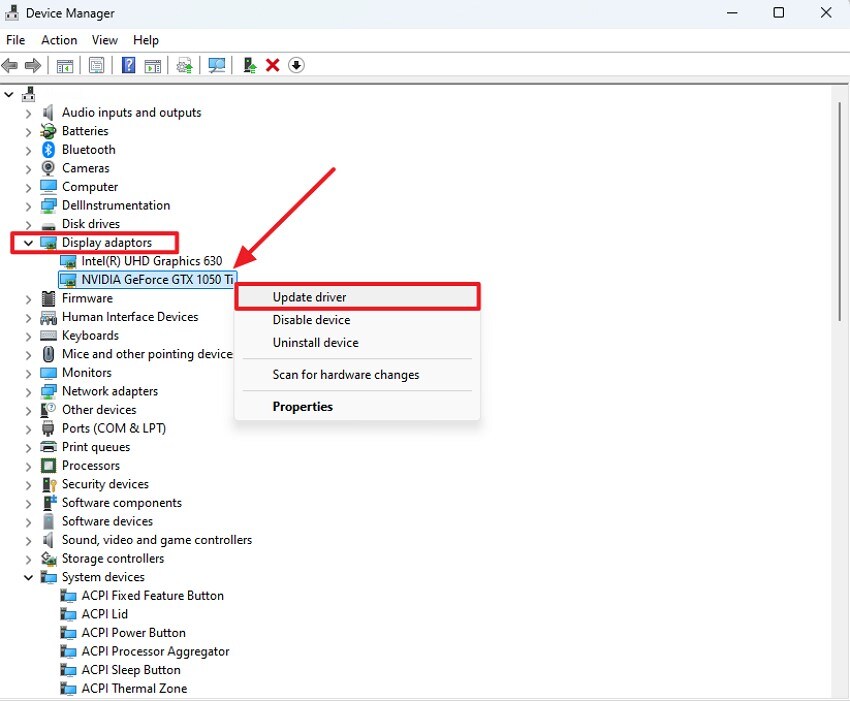
- Launch “Device Manager” on your computer and expand the “Display Adapters” category. Right-click your gaming graphics driver and select “Update Driver” from the menu.
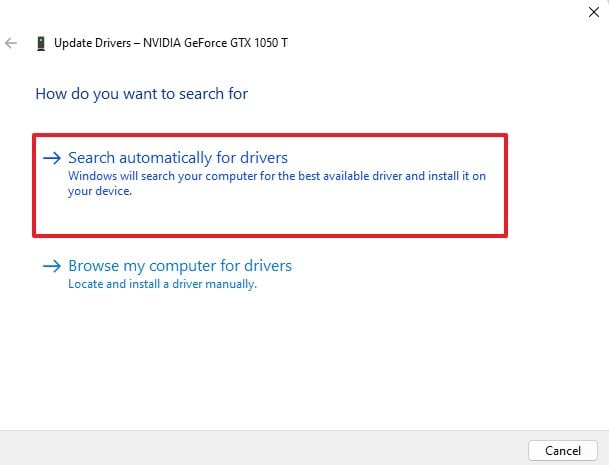
- In the next window, click “Search Automatically for Drivers” to let Windows detect and install any available updates automatically.
2. Verify Integrity of Game Files
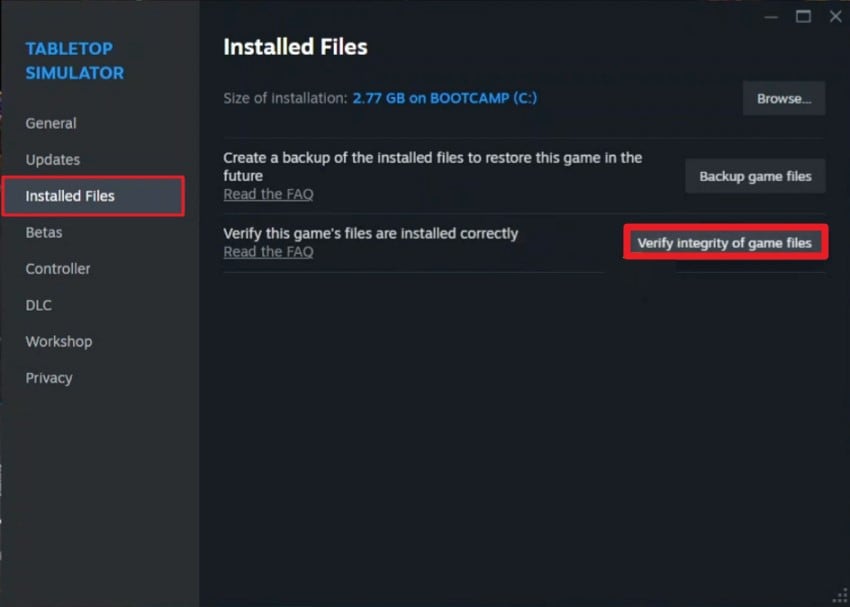
This method ensures that all essential game data is complete and uncorrupted. The process checks your installation against the official game files, automatically repairing any missing or damaged components. Once completed, Where Winds Meet should run more reliably, reducing the likelihood of encountering fatal errors. Follow the steps mentioned below to learn how to verify the game's integrity within Steam:
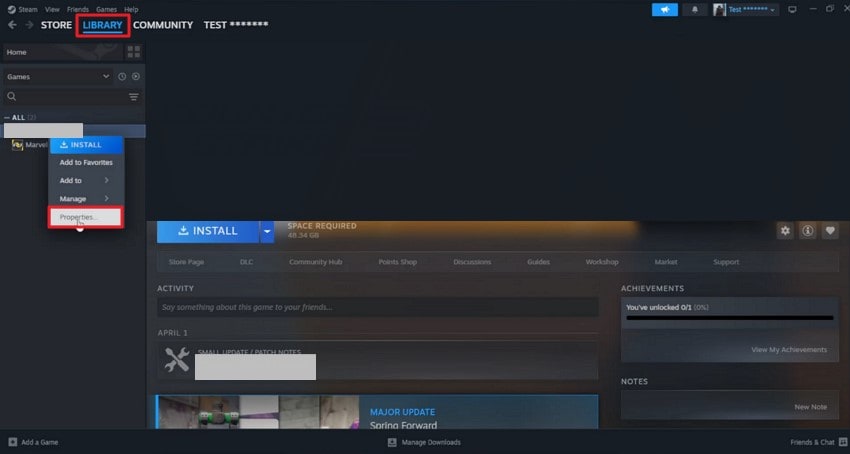
- Launch Steam and open your “Library” from the top of the interface. Locate the game, right-click it, and choose “Properties” from the menu.
- In the “Properties” window, go to the “Installed Files” tab on the left and click “Verify Integrity of Game Files” to begin checking and repairing the game files.
3. Install/Repair Required Dependencies
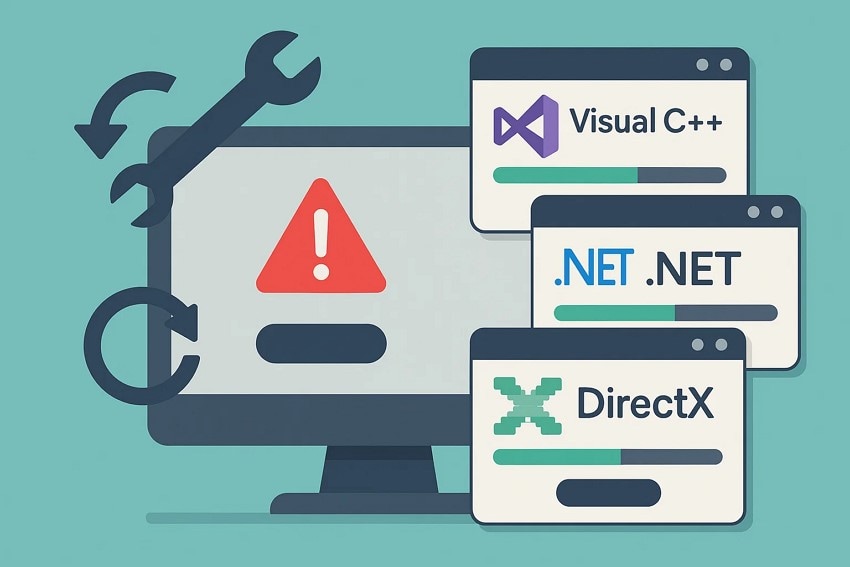
Sometimes the game fails because essential runtime components, like Visual C++ Redistributables, .NET Framework, or DirectX, are missing or corrupted. Reinstalling or repairing these packages restores the core files your system needs to run the program smoothly. This method often fixes launch failures or missing DLL errors by replacing damaged libraries with fresh, working versions.
4. Switch Graphics API
Changing the game's graphics API often resolves fatal errors caused by incompatible rendering modes. Switching to another supported option like DirectX 11 or Vulkan helps the game run with a more stable rendering pipeline. This adjustment reduces driver conflicts, lowers GPU stress, and improves compatibility on older or mid-range hardware. Follow the steps mentioned below to learn how to fix where winds meet fatal error by switching graphics API:
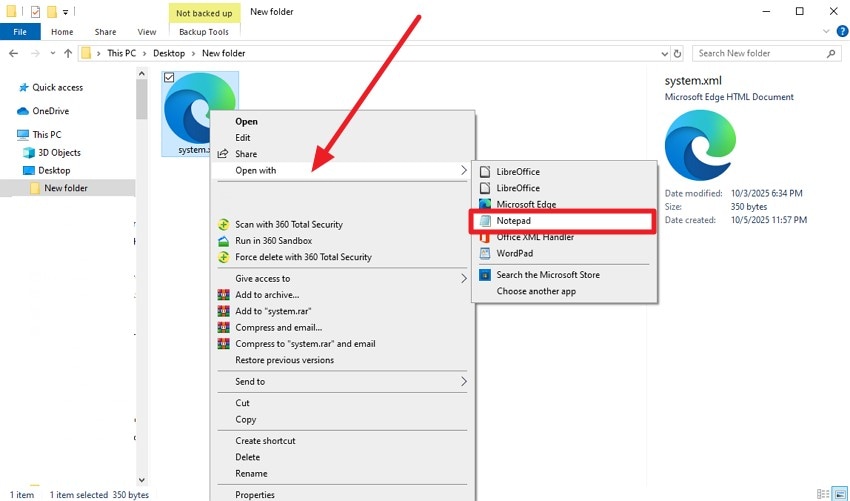
- Find the “System.xml” file inside the game directory through File Explorer. Then right-click it and choose “Notepad” to open the file.
- Inside Notepad, add the tag “
kSettingAPI_Vulkan ” and hit the Ctrl+S shortcut to store your changes.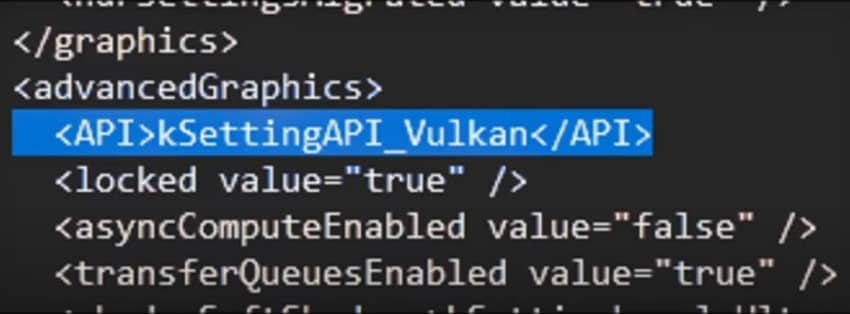
5. Clear Shader Cache
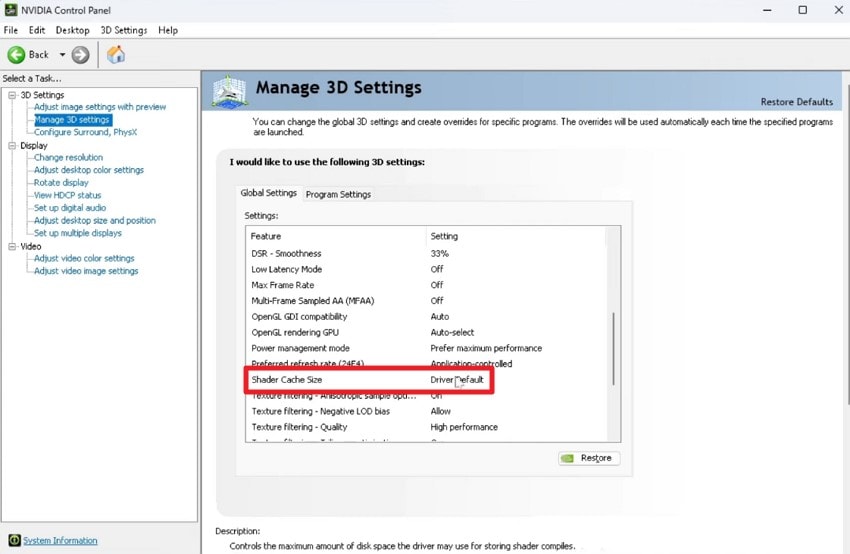
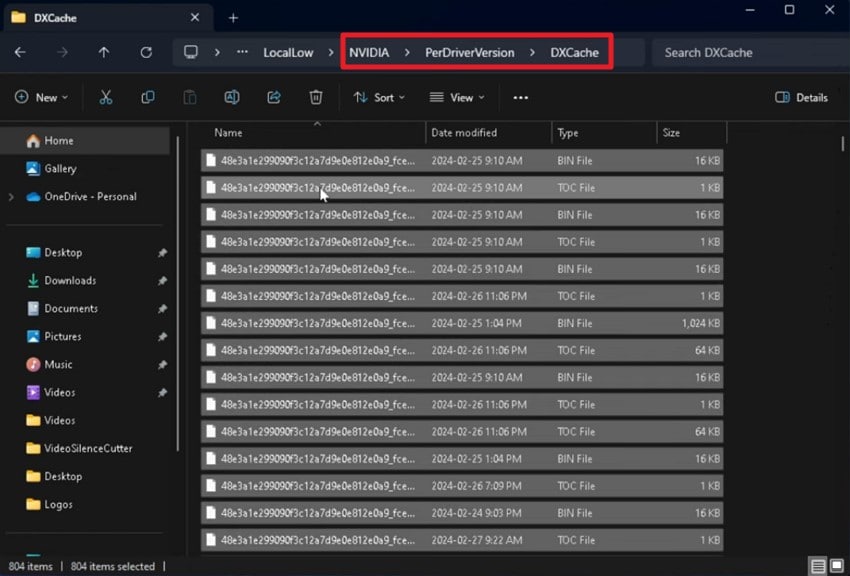
Removing the shader cache often resolves Where Winds Meet fatal error triggered by outdated or corrupted shader files. Clearing the shader cache forces the system to rebuild fresh, error-free shaders, which improves stability and eliminates conflicts that develop after driver updates or game patches. Mentioned below are the steps to disable and clear the shader cache in NVIDIA to resolve the issue:
- Access the NVIDIA Control Panel and disable the “Shader Cache Size” option located within the interface.
- Next, acquire the NVIDIA folder in the File Explorer and open the DXCache folder. Now select all the files and press the "Delete" key on the keyboard to successfully clear the shader cache.
6. Run as Administrator
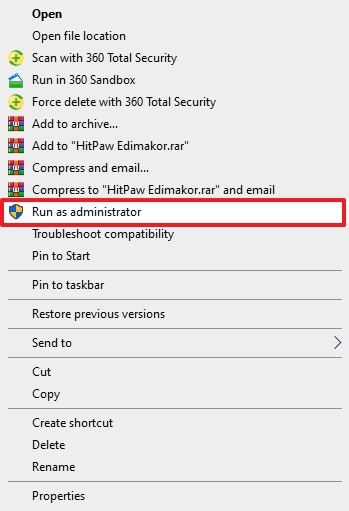
Launching the game with administrative privileges helps bypass permission-related conflicts that trigger fatal errors. Running it as an administrator grants elevated access, ensuring smooth interaction with drivers, libraries, and game data. Provided below are the instructions on how to fix where winds meet fatal error by running the game as admin:
Instructions. After finding the program in File Explorer, right-click on it to reveal the available options. From there, select the "Run as Administrator" choice to launch the game with elevated permissions.
7. Use Compatibility Mode Settings
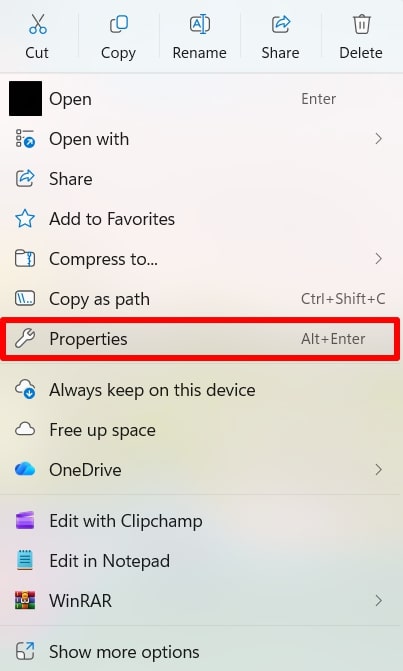
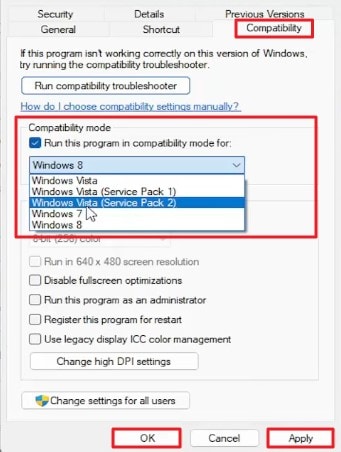
Another efficient way to tackle the Where Winds Meet fatal error is by adjusting the game’s Compatibility Mode settings. Newer Windows builds sometimes clash with older APIs the game depends on, causing sudden crashes. Switching to a previous Windows version creates a more stable environment for the game to run. Provided below are the steps to run the Where Winds Meet game in compatibility mode:
- Open File Explorer, find the Steam application, and right-click it. From the menu that appears, select “Properties” to continue.
- Once the new window appears, head to the "Compatibility" tab and open the “Compatibility Mode” area. Check the “Run this Program in Compatibility Mode For” box, pick Windows from the list, and then finalize the setup by clicking “OK” followed by “Apply.”
8. Disable Overlays and Background Apps
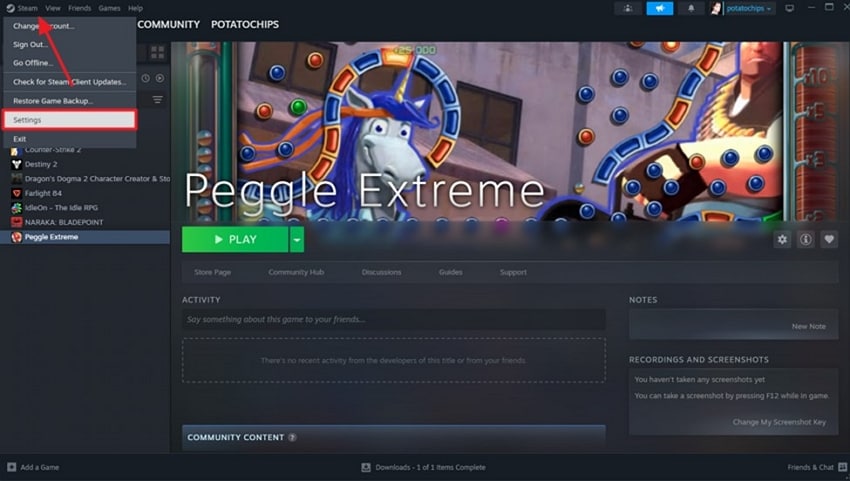
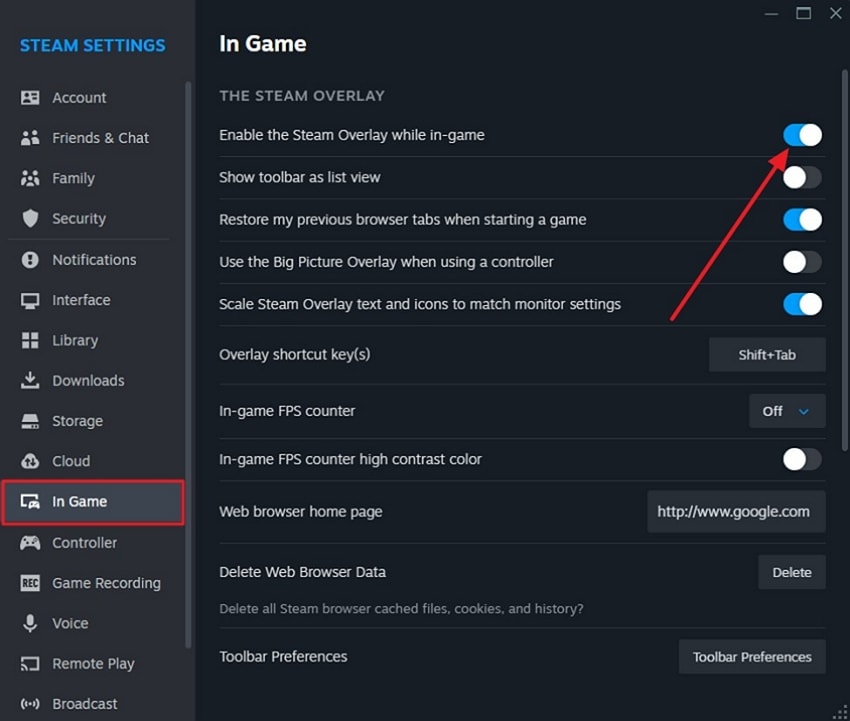
You can reduce the risk of fatal error occurrence in the game by turning off overlays and unnecessary background applications. The Steam overlay may often interfere with the game's rendering process, causing crashes or freezes. Disabling these overlays ensures the game can access your GPU and system resources without conflicts. Read the steps provided next to learn how to disable the overlays and fix Where Winds Meet fatal error:
- Click on the “Steam” menu at the top-left corner of the window, then select “Settings” from the dropdown list.
- On the left panel, open the "In-Game" section and switch off the toggle for “Enable the Steam Overlay While In-Game.”
9. Disable Overclocking
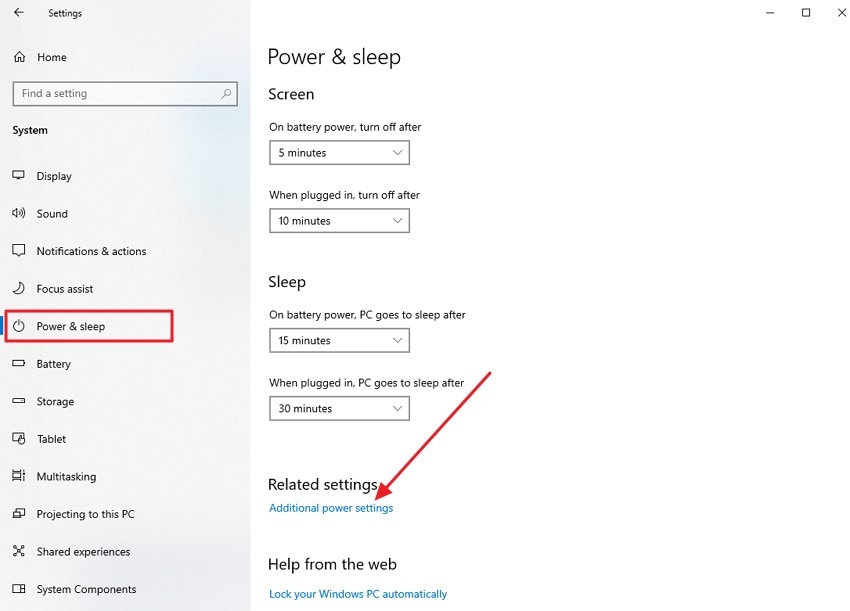
Another efficient method is to disable the overclocking, which ensures your CPU and GPU operate within their stable, factory-set limits. Overclocked hardware can become unstable during intensive gameplay, leading to crashes or fatal errors in Where Winds Meet. Returning components to default settings promotes system stability, helping the game run smoothly without unexpected interruptions. Follow the steps mentioned next to know how to disable the overclocking of the processor:
- Open your computer’s Settings and navigate to the “Power & Sleep” panel on the left-hand side. Under the “Related Settings” section, click on “Additional Power Settings” to access the advanced power options.
- In the new window, find the “Change Plan Settings” link next to your active power plan and click it to proceed to more detailed settings.
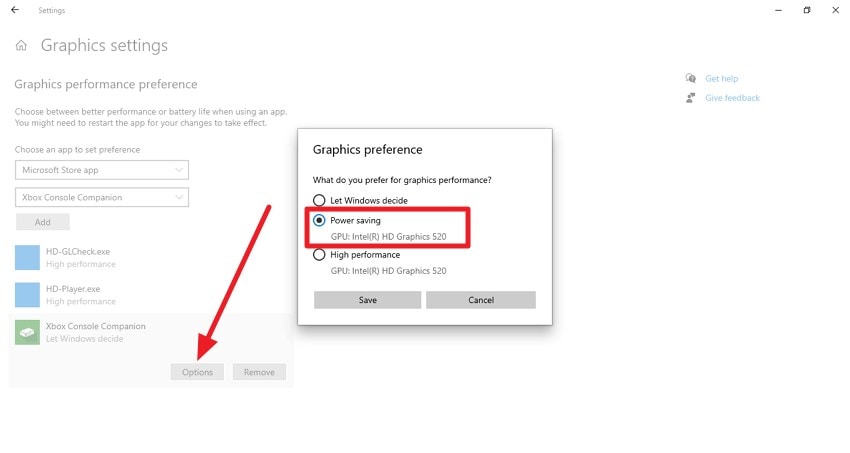
- Next, select “Change Advanced Power Settings.” Here, adjust both the “Minimum Processor State” and “Maximum Processor State” according to your preference, then press “OK” to save and apply the changes.
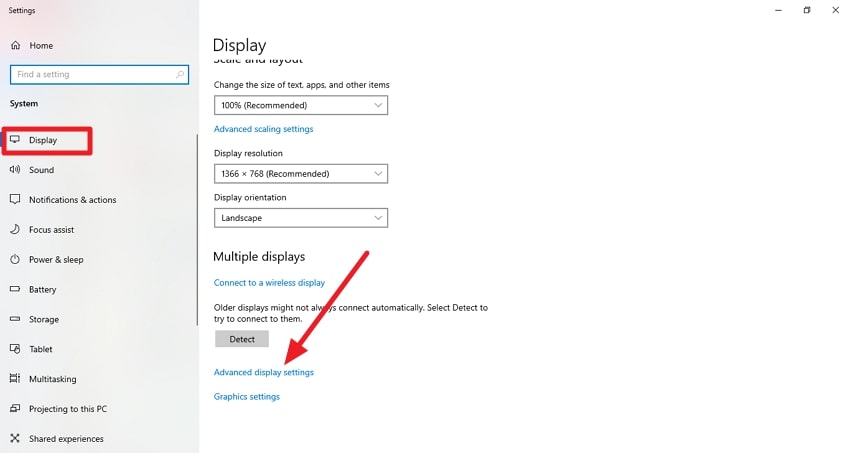
10. Check Antivirus and Firewall
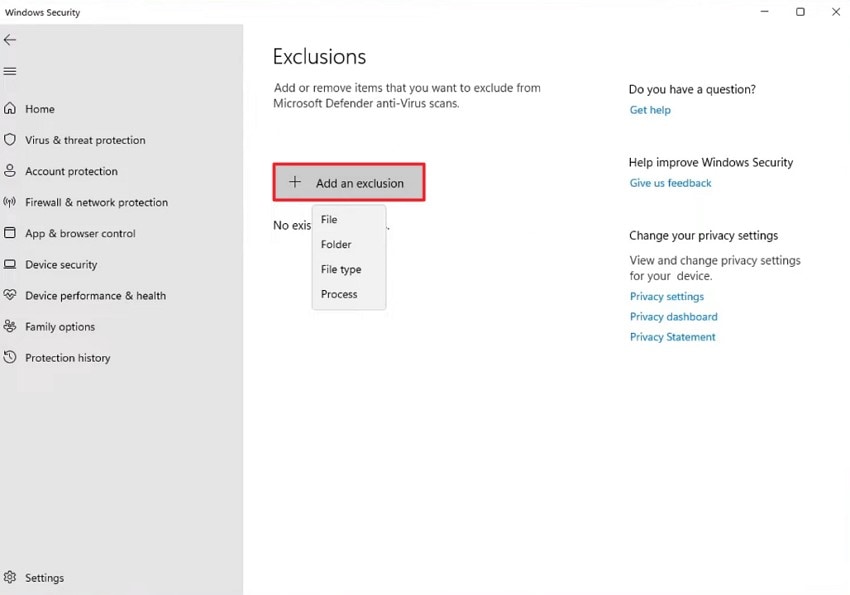
Checking your antivirus and firewall involves reviewing security software settings to ensure that Where Winds Meet is not being blocked or restricted. Sometimes, overly aggressive protection can mistakenly flag game files, preventing them from running properly. Adjusting these settings allows it to launch and operate without interference, reducing the chances of fatal errors. Here is how you can add the game as an exclusion and fix the Where Winds Meet fatal error:
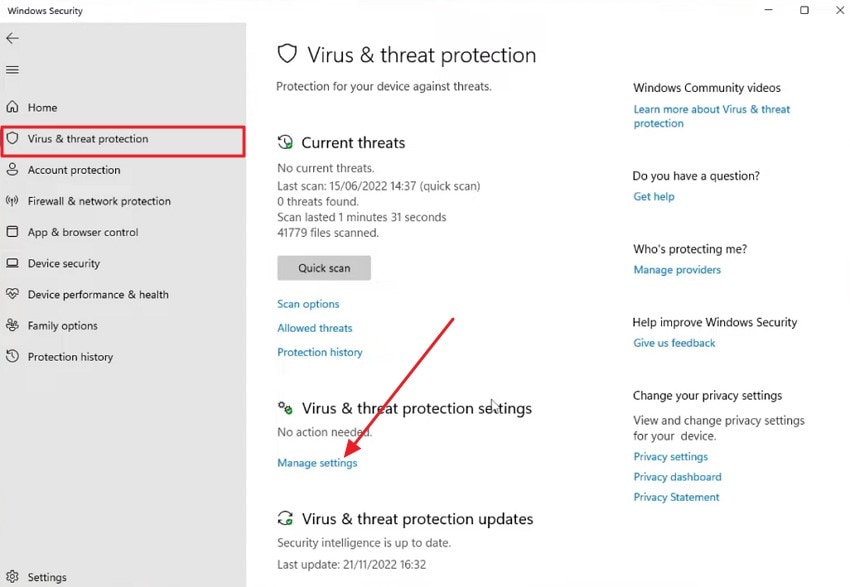
- Begin by opening Windows Settings on your PC and navigating to the “Windows Security” section. Within this area, go to “Virus & Threat Protection” and click on the “Manage Settings” link to access detailed configuration settings for your antivirus protection.
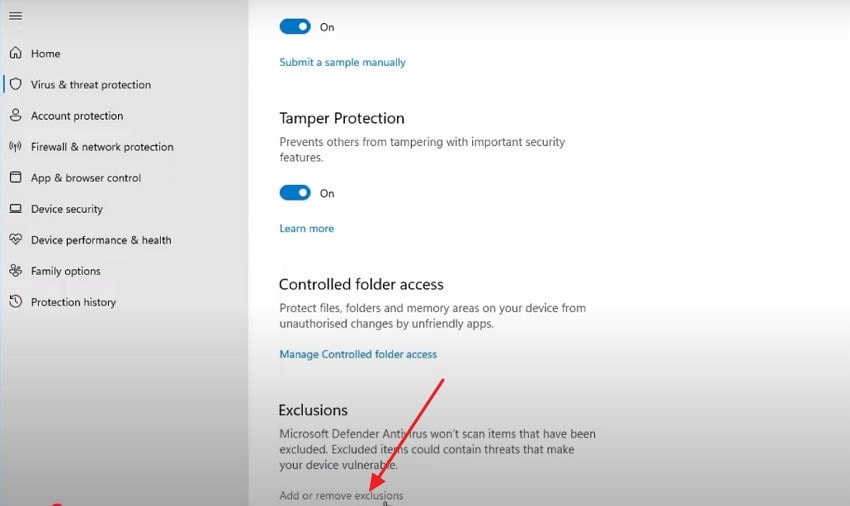
- Next, scroll down within the Virus & Threat Protection settings until you find the “Exclusions” section. Click on “Add or Remove Exclusions” to open the panel where you can control which files or folders are exempt from antivirus scanning.
- Now, press the “Add an Exclusion” button and choose the type that you want Windows Security to ignore. This step ensures that your game files or important folders are not scanned or blocked by the antivirus.
Part 4. Prevent Future Where Winds Meet Fatal Error on PC
After resolving the Where Winds Meet fatal error, it’s crucial to take steps to prevent it from happening again. Implementing the proactive measures mentioned below helps maintain stable gameplay and reduces the chances of encountering crashes:
- Regularly Update the Game: Keeping Where Winds Meet updated ensures you have the latest bug fixes and performance improvements. Developers often release patches specifically to address known crashes and errors.
- Maintain Up-to-Date Drivers: Consistently updating your graphics and system drivers helps your PC run the game efficiently. This prevents compatibility issues that could trigger fatal errors.
- Avoid Background Software Conflicts: Close unnecessary programs and overlays before launching the game. Reducing software interference minimizes the risk of crashes.
- Monitor System Resources: Ensure your PC has sufficient RAM, CPU, and storage available when playing. Avoiding resource overload keeps the game running smoothly.
- Use Stable Hardware Settings: Refrain from aggressive overclocking on your CPU or GPU. Keeping hardware within safe limits reduces the chance of sudden crashes.
Pro Tip: Use Recoverit If Where Winds Meet Crashes Due to Corrupted/Lost Files
Sometimes,Where Winds Meet fatal error may occur because critical files are missing or corrupted. When this happens, playing becomes frustrating, and standard troubleshooting may not help. Recoverit provides a reliable solution, allowing you to retrieve lost or damaged game files quickly. Its advanced scanning technology performs a thorough search across your storage, bringing back all recoverable files in one go.
One of the tool’s strengths is its flexibility; you can pause or resume scans anytime. The interface is user-friendly, featuring a search bar to instantly locate specific files. After recovery, you can preview files within the software, ensuring accuracy before saving them back to your device.
Key Features That Make Recoverit Effective
- Extensive File Support: Recoverit handles over 1000 file types, including videos, game files, and documents.
- Format Flexibility: It works with multiple formats, such as PDF, PPT, JPEG, PNG, and more.
- Deep Recovery Mode: The advanced scan digs deep to recover heavily damaged or corrupted files.
How to Recover Corrupted Game Files With Recoverit
As discussed, Recoverit offers a complete solution to get back your lost or damaged data in no time. Follow the steps mentioned below to learn how to use this efficient tool for game file recovery:
1. Choose the Storage Drive For Recovery
Launch Recoverit and identify the storage device where the lost game files are stored. The software is designed to detect all connected drives efficiently.

2. Scan and Select Files
Once the storage location is selected, Recoverit automatically scans for recoverable files. Browse the results, select the game files, and hit “Recover” to retrieve them.

3. Preview and Save Recovered Game Files
Preview recovered files to ensure everything is correct. Click “Recover” again to save them safely back to your device.

Conclusion
To sum it up, this article provided a complete guide on how to fix the Where Winds Meet fatal error. The article also covered the main causes behind the issue and shared effective prevention tips to avoid future crashes. For recovering any lost or corrupted game files during troubleshooting, tools like Recoverit can help restore your data safely and efficiently.
Next: Where Winds Meet Crashing or Not Launching on PC: Full Fixing Guide
FAQ
-
1. What should I do if Where Winds Meet keeps crashing on my PC?
You should first check for corrupted game files, update your graphics drivers, and close background apps. Using Recoverit can also help restore any accidentally deleted or corrupted game files that may be causing the crash. -
2. Can I prevent the fatal error from happening again?
Yes, keeping your game, system drivers, and runtime components updated, monitoring system resources, and avoiding software conflicts can significantly reduce the risk of future crashes. -
3. Will reinstalling the game fix the fatal error?
Reinstalling can replace missing or corrupted files and often resolves persistent crashes. It’s a reliable method if other troubleshooting steps fail. -
4. How can I recover lost game progress after a crash?
If your saved files are corrupted or missing, Recoverit can help retrieve them safely. This ensures your progress is restored without losing valuable in-game data.


