

 TL;DR:
To resolve Where Winds Meet crashing or launch failures on PC, first verify your system meets the minimum hardware requirements (including Windows 10/11 64-bit and 100 GB of free space) and run the Verify Integrity of Game Files tool in Steam to repair missing components.
● Switch the game graphics API to Vulkan by opening the System.xml file in the game installation folder and inserting the kSettingAPI_Vulkan tag to bypass rendering conflicts.
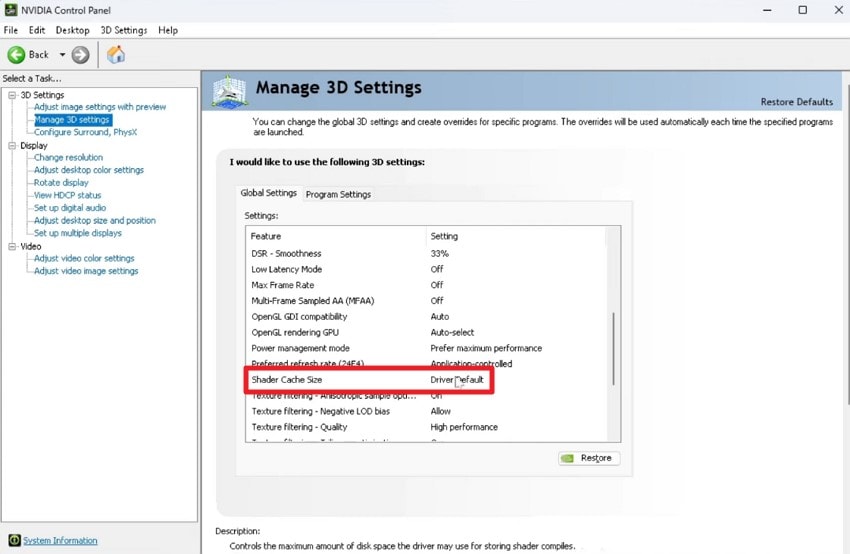
● Delete corrupted temporary data by disabling the Shader Cache Size in the NVIDIA Control Panel and completely emptying the NVIDIA DXCache folder.
● If standard game file verification fails to resolve persistent launch errors caused by permanently damaged data, use Recoverit to perform a deep scan on your storage drive and restore the specific missing game files.
Ask AI for a summary
 ChatGPT
 Perplexity
 Gemini
 Claude
 Grok
Grok
You might get ready to dive into Where Winds Meet, only for the game to crash the moment you launch it. Unfortunately, this is a common scenario for many PC players who face unexpected crashes or launch failures.
This guide is designed to help you navigate these challenges with clear, practical solutions. From basic troubleshooting to advanced fixes, you’ll learn how to restore smooth gameplay, prevent future errors, and get back to enjoying the game.
Try Recoverit to Perform Game Data Recovery
 Security Verified. 3,591,664 people have downloaded it.
In this article

Part 1. Why Where Winds Meet Crashes or Fails to Launch
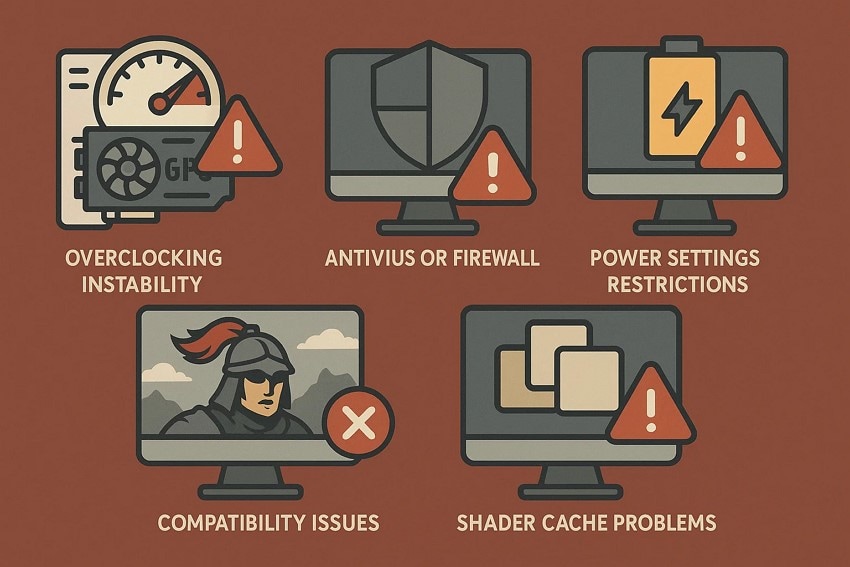
Before diving into fixes, it’s essential to understand why Where Winds Meet crashing or failing to launch. Mentioned below are several reasons that can cause your favorite game to crash on launch:
- Overclocking Instability: Overclocked CPUs or GPUs can push hardware beyond safe limits. This often causes crashes when the game demands stable performance under heavy load.
- Antivirus or Firewall Blocking: Security software may mistakenly flag game files as threats. Such interference can prevent the game from launching or running correctly.
- Power Settings Restrictions: Aggressive power-saving modes limit CPU and GPU performance. When resources are throttled, the game may freeze or fail to start.
- Compatibility Issues: Running the game on an unsupported OS or hardware configuration can cause errors. Older systems may not properly handle modern game engines.
- Shader Cache Problems: Accumulated or corrupted shader cache files disrupt rendering processes. This leads to crashes during loading or gameplay.
Part 2. Check System Requirements Before Fixing Where Winds Meet Crashing
Before attempting complex fixes, it’s important to ensure your PC meets the game’s system requirements. Many crashes and launch failures occur simply because the hardware or software environment cannot support the game’s demands. Here are the system requirements that must be met before you start playing theWhere Winds Meet game:
| Minimum Requirement | Recommended Requirements | |
|---|---|---|
| CPU | Core i7-4770K/Ryzen 5 2400G | Core i7-10700/Ryzen 7 3700X |
| RAM | 8 GB | 32 GB |
| Dedicated Video RAM | 2048 MB | 8192 MB |
| Free Disk Space | 100 GB | 100 GB |
| OS | Windows 10/11 64bit | Windows 10/11 64bit |
Part 3. Basic Troubleshooting Before Deep Fixes: Where Winds Meet Crashing or Not Launching on PC
Once you’ve confirmed that your PC meets the necessary system requirements, the next step is to address common issues. Provided below are some of the common fixes that you can try to resolve the Where Winds Meet not launching issue in minimal time:
1. Update Graphics Drivers
One of the simplest ways to fix Where Winds Meet crashing or launch issues is by updating your graphics drivers. Outdated or incompatible drivers can prevent the game from rendering correctly. Keeping your GPU drivers current ensures compatibility with the latest game updates, improves performance, and reduces the likelihood of errors during gameplay. Follow the steps mentioned below to learn how to update the graphics drivers of your Where Winds Meet game:
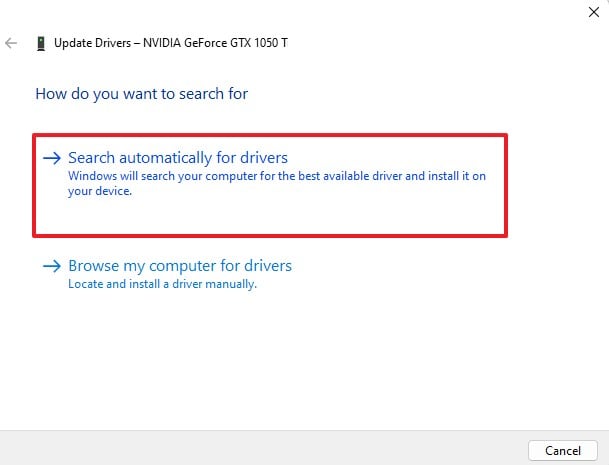
- Open Device Manager on your PC and locate the “Display Adapters” section. Right-click on your graphics card driver and choose “Update Driver” from the options.
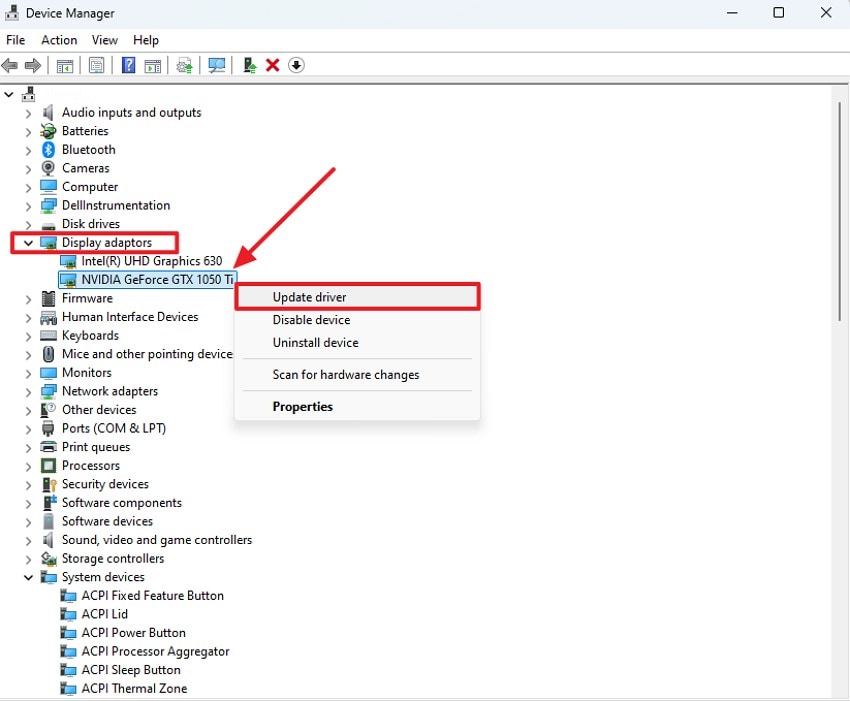
- In the following window, select “Search Automatically for Drivers” so Windows can find and install the latest updates for your graphics hardware without manual input.
2. Run as Administrator
Running the game as an administrator is a simple method to resolve the Where Winds Meet crashing issues. This ensures the game has full access to system resources and necessary permissions, preventing interference from Windows restrictions. If you do not know how to run the game as an administrator, read the instructions mentioned next:
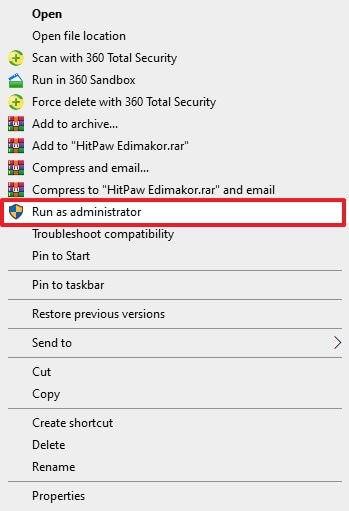
Instructions. Locate the program in File Explorer and right-click it to display the context menu. Then, choose “Run as Administrator” to open the game with administrative privileges.
3. Verify Game Files
If you want to make Where Winds Meet run smoothly, verifying game files is a reliable method. This process detects missing or corrupted files and automatically restores them. Ensuring all files are complete and intact helps prevent crashes, launch errors, and other gameplay interruptions. Read the steps provided next to learn how to verify game files effortlessly in no time:
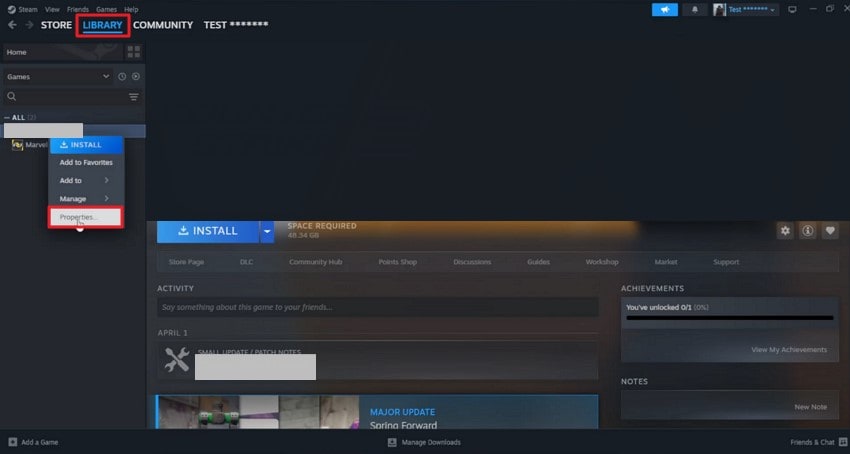
- In Steam, access your Library, select the game you want to fix, and open “Properties” from the options.
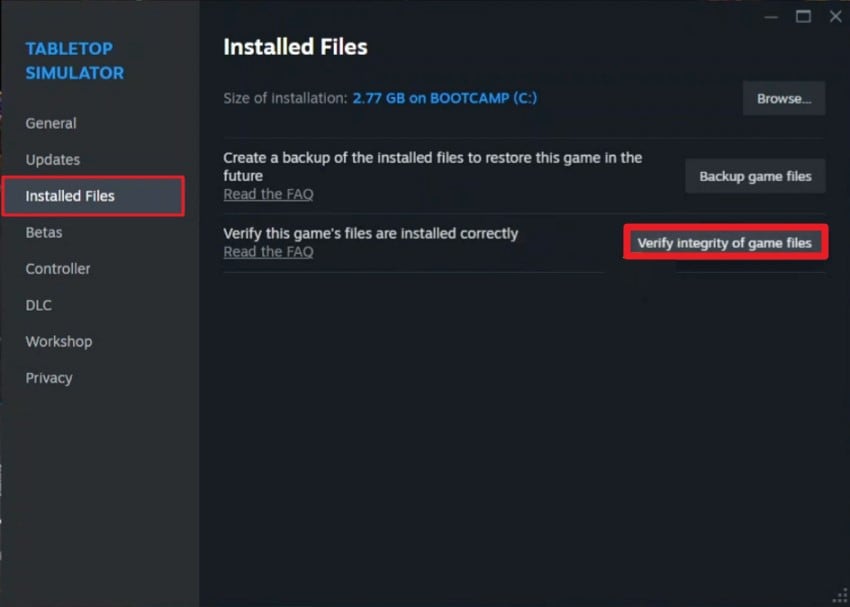
- Within the “Properties” window, switch to the “Installed Files” tab on the left. Then click “Verify Integrity of Game Files” to check for missing or corrupted files and automatically repair them.
4. Install/Repair Visual C++/DirectX
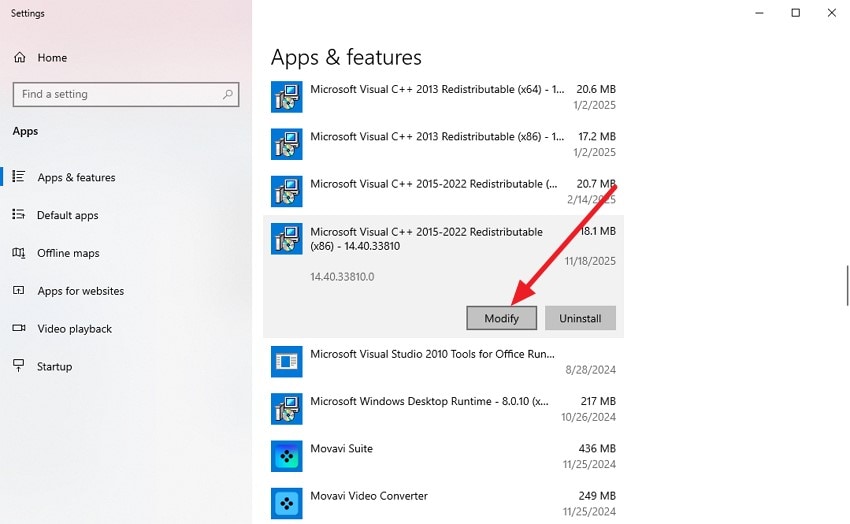
For people who want to ensure that they run without crashes or launch issues, installing or repairing Visual C++ and DirectX is essential. These components provide critical runtime libraries that the game relies on for graphics and system operations. Keeping them updated or repairing corrupted installations helps resolve Where Winds Meet not launching issues. If you do not know how to repair Visual C++, read the steps provided in the section below:
- Access the “App & Features” utility by opening your device settings and then locating the Visual C++ redistributables. Now click on it and press the “Modify” button.
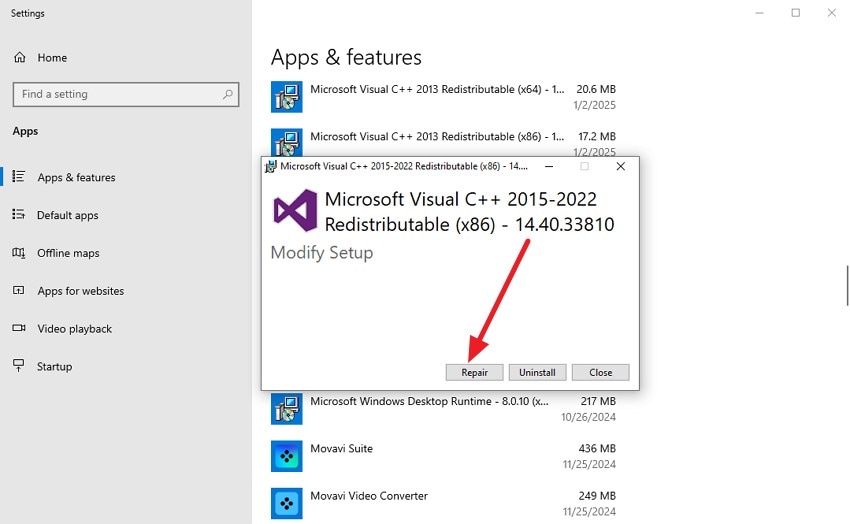
- In the following dialogue box, click the “Repair” button to begin the repair process instantly.
5. Disable Overlays & Background Apps
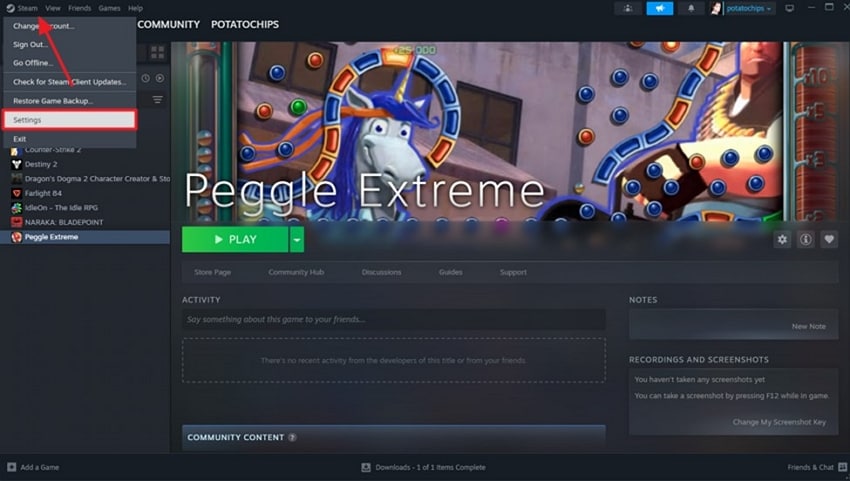
Another efficient method to fixWhere Winds Meet crashing or launch issues is to disable overlays and background applications. Programs like Discord, Steam Overlay, or recording software can interfere with the game’s processes, causing instability. Turning off these overlays and unnecessary background apps frees up system resources. If you are new to this, follow the steps mentioned below to learn how to disable the overlay in Steam for smoother gameplay:
- From the top-left corner of the Steam window, click the “Steam” menu and choose “Settings” from the dropdown.
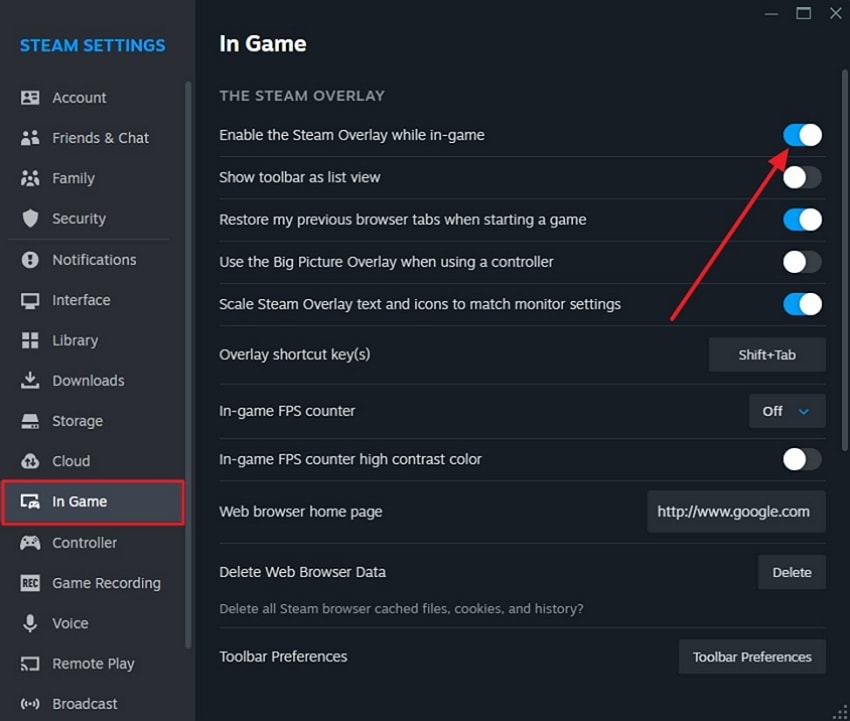
- In the left-hand panel, select the “In-Game” section and disable the toggle for “Enable the Steam Overlay While In-Game.”
6. Temporarily Turn Off Antivirus/Firewall
Temporarily turning off your antivirus or firewall is another method to resolve the Where Winds Meet crashing issues. Security software can sometimes block game files or interfere with processes, preventing the game from starting. Here is how you can turn off the antivirus and resolve the game launching issue:
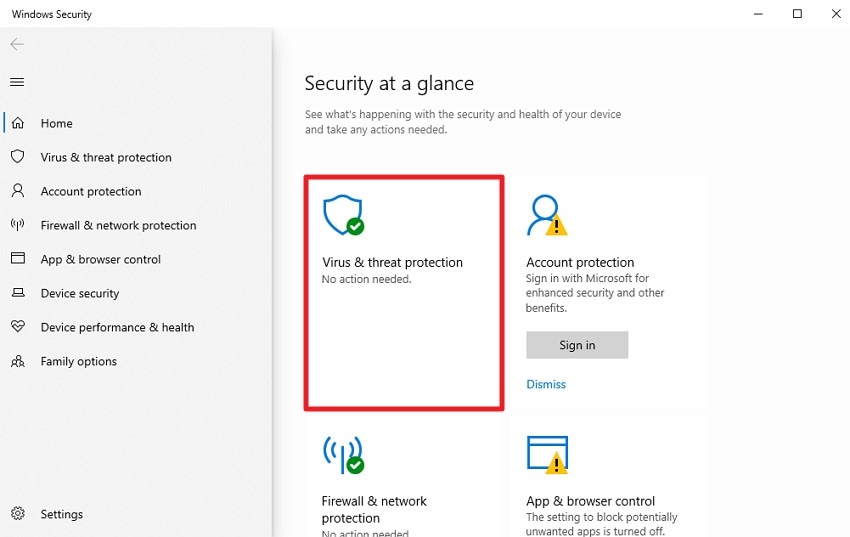
- Launch the Windows Security window on your computer and click on “Virus & Threat Protection.”
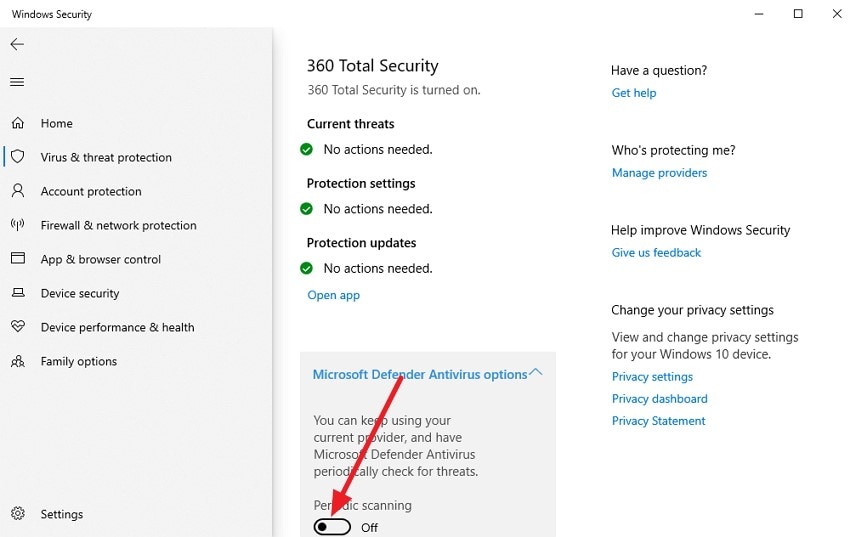
- In the next window, locate the “Microsoft Antivirus Defender” option and switch the toggle off to temporarily disable the firewall.
7. Free Up System Resources
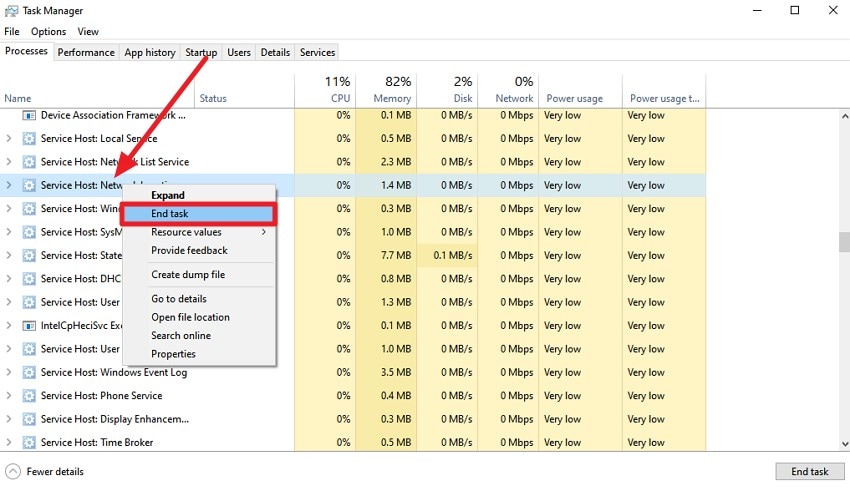
Freeing up system resources is an effective way to prevent Where Winds Meet from crashing or failing to launch. Closing unnecessary programs and background processes reduces CPU, RAM, and GPU load, allowing the game to access more system power. Optimizing resource usage ensures smoother gameplay and minimizes performance-related errors or freezes. Follow the instructions provided next to learn how to end a task and free up system resources:
Instructions. Open the Task Manager within your system and locate the tasks and programs that are uselessly running in the background. Right-click on them and press the “End Task” option to successfully end the task.
8. Switch Graphics API
Switching the graphics API is a useful method to fix the Where Winds Meet not launching issues. Different APIs, such as DirectX or Vulkan, interact with your GPU in unique ways, and some may be more stable on your system. Changing the API can resolve compatibility problems, improve performance, and prevent crashes caused by rendering conflicts. To learn how to switch the graphics API within your system, read the steps mentioned next:
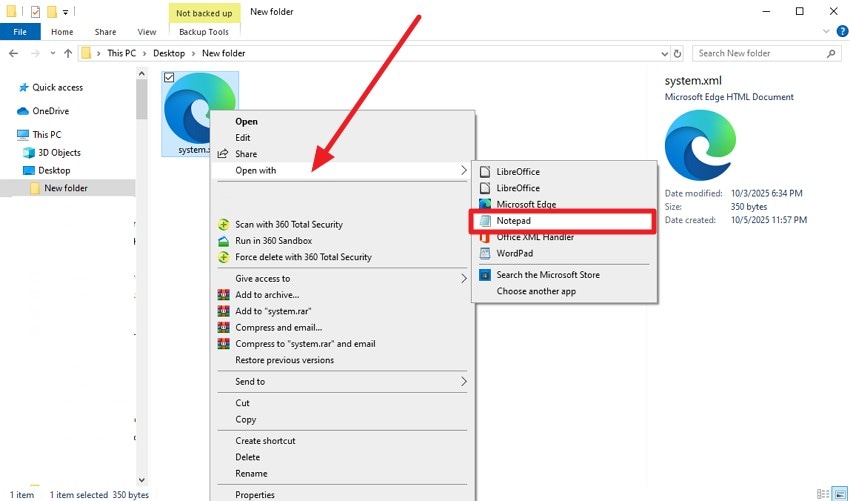
- Using File Explorer, navigate to the game folder and locate the “System.xml” file. Right-click the file and select “Notepad” to open it.
- In Notepad, insert the tag “
kSettingAPI_Vulkan ” and press Ctrl+S to save the changes.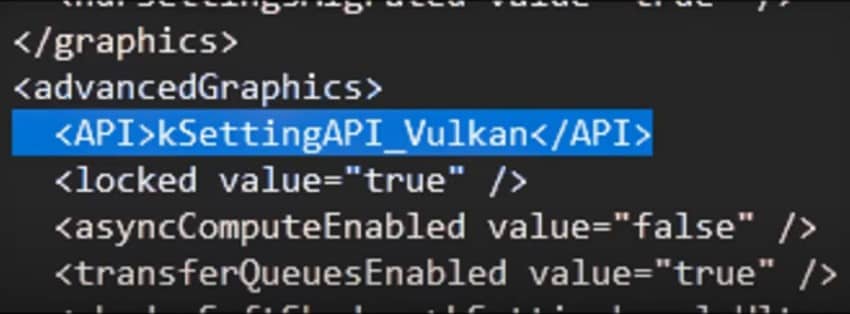
9. Check for Windows Updates
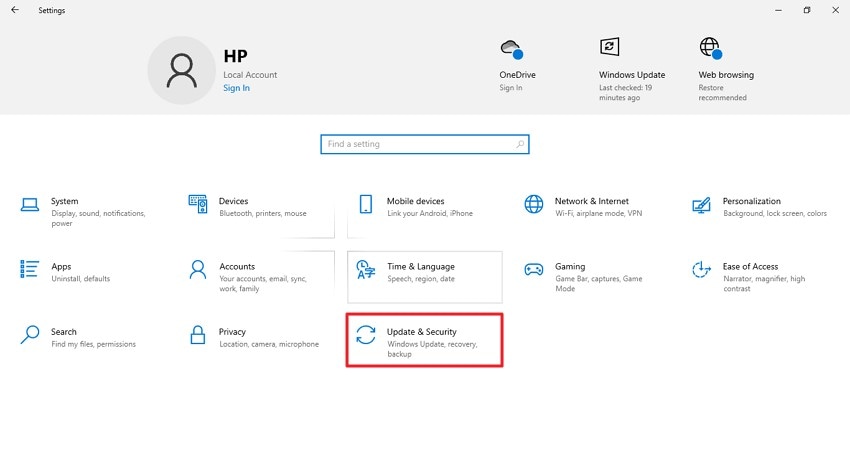
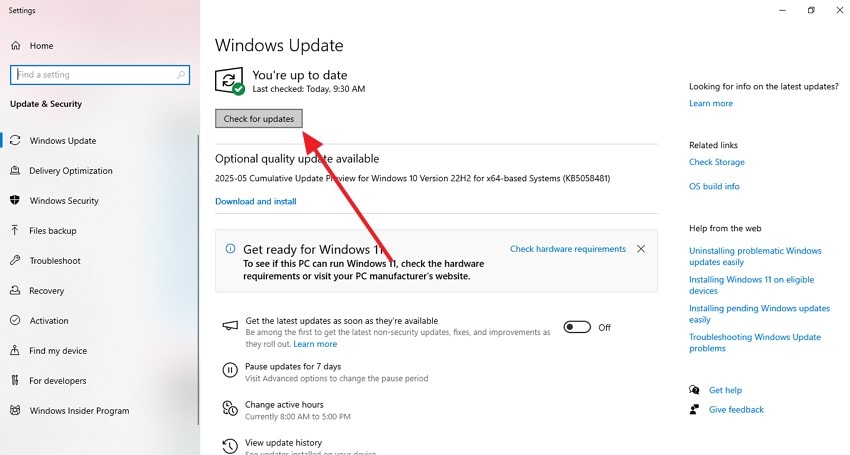
If you want to ensure that Where Winds Meet runs smoothly, checking for Windows updates is an important step. System updates often include critical patches, driver improvements, and security fixes that enhance game compatibility. If you do not know how to check for updates on your PC’s OS, read the steps mentioned below:
- Open your device’s Settings and find the “Update & Security” option, then click to access it.
- Go to the “Windows Update” section and select “Check for Updates.” If your system is outdated, the available updates will appear for you to download and install.
10. Clear Shader Cache
A helpful method to prevent Where Winds Meet crashing is clearing the shader cache. Over time, shader cache files can become corrupted or bloated, leading to rendering problems and sudden game closures. Deleting these files allows the game to regenerate them correctly, improving graphics performance and overall stability. To learn how to clear the shader cache, read the steps mentioned below:
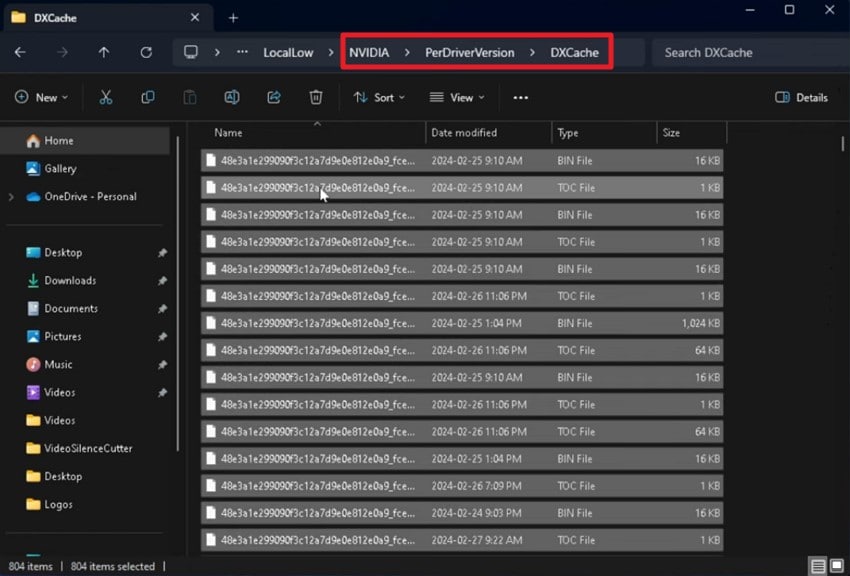
- Open the NVIDIA Control Panel and turn off the “Shader Cache Size” option within the settings.
- Navigate to the NVIDIA folder and access the DXCache folder. Select all the files inside and press the “Delete” key to clear the shader cache completely.
11. Reinstall the Game
If none of the other methods work, reinstalling Where Winds Meet can resolve persistent crashing or launch issues. This ensures that all game files are fresh, complete, and correctly installed. A clean installation often fixes errors caused by corrupted data or incomplete updates, restoring stable gameplay. Read the steps provided next to learn how to reinstall the game and experience smoother gameplay:
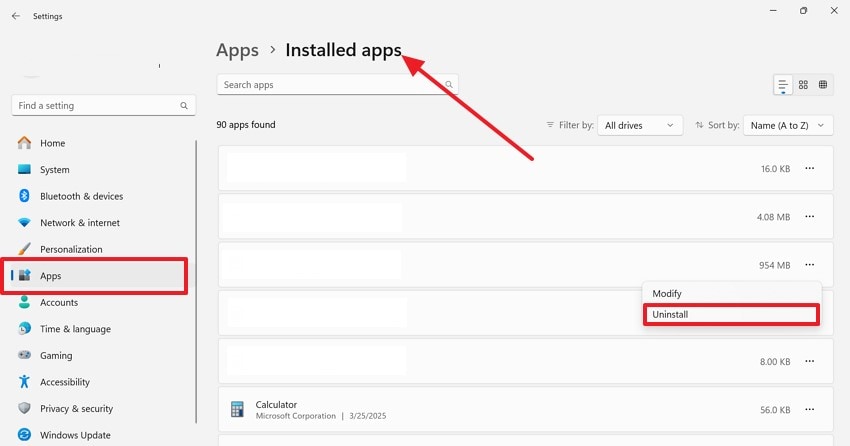
- Open the “Apps” settings on your device and go to “Installed Apps.” Find the game in the list, right-click it, and choose “Uninstall.”
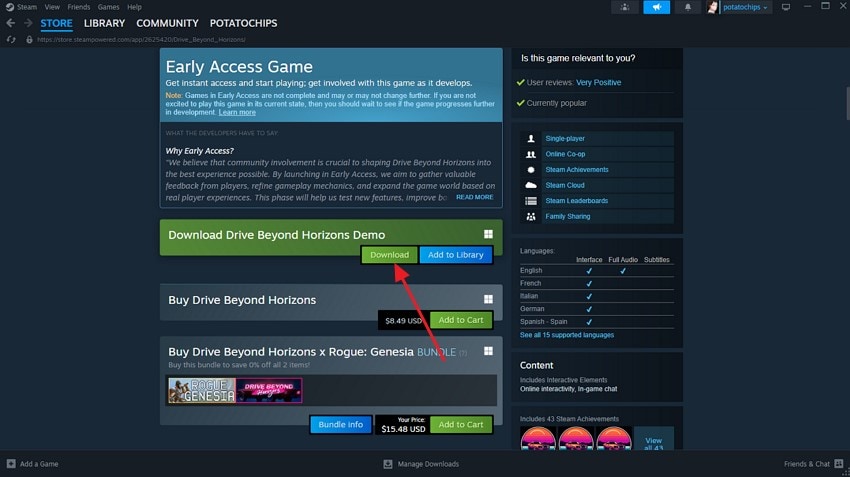
- After uninstalling, open Steam and search for the game by name. Click the “Download” button to reinstall it successfully.
Pro Tip: Use Recoverit to Recover Lost or Corrupted Where Winds Meet Files
Sometimes, the frustrating Where Winds Meet not launching error arises due to missing, corrupted, or damaged game files. When this happens, the game may crash repeatedly, and typical troubleshooting methods often fail to fix the problem. That’s where Recoverit comes in, offering a reliable and efficient solution to restore lost or corrupted files.
Using advanced scanning algorithms, Recoverit performs a thorough search across your entire storage system, ensuring that all recoverable game files are retrieved quickly. With Recoverit, users get the ability to start and stop the scanning process according to their preferences. Moreover, you get the ability to preview the recovered files within the tool’s interface before saving them to your device.
Incredible Features Offered By Recoverit
- Batch Data Recovery: Recoverit allows you to recover multiple files at once, saving time and effort during large-scale restorations.
- Numerous File Format Support: The software supports over 1000 file types, including documents, videos, images, and game files.
- Extensive Support for Storage Devices: It works seamlessly with hard drives, SSDs, USB drives, memory cards, and other storage devices.
Steps for Recovering Lost or Corrupted Game Files with Recoverit
With Recoverit, users get the ability to get back their lost or corrupted game files in no time. Mentioned below is the step-by-step guide on how to use this incredible tool for Where Winds Meet data recovery:
1. Select the Storage Drive For Data Recovery
Open Recoverit and identify the drive or storage location where the missing game files are stored. The software quickly detects all connected drives, including external storage devices.

2. Scan and Choose Files
Once the storage location is selected, Recoverit initiates a deep scan for all recoverable files. Browse the results, locate your game files, and select the ones you need to restore. Then, click “Recover” to retrieve them.

3. Preview and Save Files
Before finalizing recovery, preview the retrieved files within Recoverit to ensure accuracy. Once verified, click “Recover” again to safely save the files back to your system.

Conclusion
All in all, this article provided a comprehensive guide for troubleshooting Where Winds Meet crashing and launch issues on PC. We explored the common causes behind these problems and discussed practical steps to prevent them. By following these solutions, players can enjoy a seamless gaming experience while minimizing interruptions. For added reliability, tools like Recoverit can help recover corrupted game files or related data.
Next: Fixing Where Winds Meet Save Files Missing on PC
FAQ
1. Why does Where Winds Meet keep crashing on my PC?
Crashes can result from multiple factors, including hardware limitations, software conflicts, or temporary file issues. Ensuring your system meets the recommended requirements and performing basic troubleshooting often resolves the problem.2. How can I prevent Where Winds Meet from not launching?
Check system specifications, update drivers, and disable conflicting background applications. Regular maintenance, like clearing temporary files and verifying game integrity, also helps prevent launch issues.3. Can I recover corrupted game files if the game keeps crashing?
Yes, tools like Recoverit can help recover corrupted or missing game files safely. Restoring these files can often solve persistent crashes and launch errors.


