
 TL;DR:
For users struggling with TestDisk's text-only interface, Wondershare Recoverit, EaseUS Data Recovery Wizard, Disk Drill, PhotoRec, and R-Studio provide alternative recovery solutions tailored to different technical skill levels and specific storage setups.
● Wondershare Recoverit, EaseUS Data Recovery Wizard, and Disk Drill are best for non-technical users requiring guided graphical interfaces and file previews, but their free versions strictly cap the total amount of data you can recover before requiring a paid license.
● PhotoRec is a completely free, open-source option ideal for signature-based raw file carving on severely corrupted file systems, with the limitation that its text-based interface cannot restore original file names or folder structures.
● R-Studio is designed specifically for IT professionals managing complex RAID arrays and network-based recoveries, requiring advanced technical knowledge to configure scan parameters and interpret forensic-grade diagnostic results.
Ask AI for a summary
 ChatGPT
 Perplexity
 Gemini
 Claude
 Grok
Grok
TestDisk is a powerful open source utility for recovering lost partitions and repairing damaged file systems, but its command line interface and steeper learning curve are not ideal for everyone. If you want a more intuitive experience, extra features like preview, or broader platform support, several modern testdisk alternatives can help you recover data with far less friction.
By comparing GUI-based disk recovery tools, free and paid options, and utilities focused on file system repair or partition restoration, you can find a testdisk alternative that matches your technical comfort level and specific recovery situation.
Try Recoverit to Recover Lost Data
 Security Verified. 3,591,664 people have downloaded it.
In this article
What Is TestDisk?
TestDisk is an open source, command line disk recovery tools utility designed primarily to recover lost partitions and repair non-booting disks. It can rebuild damaged partition tables, fix corrupted boot sectors, and restore access to file systems that have become unreadable due to software errors, malware, or user mistakes. TestDisk supports a wide range of file systems, including FAT, exFAT, NTFS, ext2/3/4, and others, making it especially useful for mixed Windows and Linux environments.
Typical use cases for TestDisk include restoring accidentally deleted partitions, fixing drives that suddenly show up as RAW, and repairing boot issues so an operating system can start again. It is frequently used by IT technicians, system administrators, and power users who are comfortable with text-based interfaces and detailed disk structure concepts. While TestDisk is extremely powerful and completely free data recovery software, it deliberately prioritizes flexibility and technical depth over user-friendliness, which can be challenging for non-technical users.
Why You Might Need Alternatives for TestDisk?
There are several reasons why you might need a substitute for TestDisk. Here are a few:
- 🧭 Complex UI and steep learning curve: TestDisk relies on a text-only interface with keyboard-driven menus, which can slow down your workflow if you are used to modern GUIs. Misreading prompts or choosing the wrong option can have serious consequences for your partitions, so non-experts may feel stressed and uncertain at every step.
- 🧩 Limited file-centric features compared to rivals: While TestDisk excels at partition and file system repair, it is less focused on convenient file-level recovery tasks like rich preview, filtering by type, or sorting by date. Competing testdisk alternatives often offer thumbnail previews, category-based views, and streamlined recovery flows that save time when restoring photos, videos, and documents.
- 📉 Recovery success and stability in everyday scenarios: TestDisk is optimized for logical partition issues, not always for recovering scattered deleted files on healthy volumes. In day-to-day accidents such as emptied recycle bins or formatted USB drives, GUI-based free data recovery software may surface more recoverable files with clearer status indicators and fewer stability issues during long scans.
- 🛠️ Missing convenience and advanced controls: Many users expect integrated disk imaging, one-click cloning, or pause-and-resume scans, which TestDisk does not provide out of the box. Advanced visual maps of sectors, session saving, and automated health checks are also more common in modern disk recovery tools, making troubleshooting and deep analysis easier.
- 💰 Value considerations for support and updates: Although TestDisk is free, it does not include dedicated customer support, SLAs, or guided onboarding, which some businesses and professionals require. Paid testdisk alternatives may deliver better long-term value through active support channels, regular feature updates, and bundled utilities that reduce the need for additional tools.
5 Best TestDisk Alternatives
1. Wondershare Recoverit
Wondershare Recoverit is a full-featured data recovery solution best for users who want a polished GUI and high recovery success on Windows and macOS. It focuses on simplicity while delivering robust scanning and recovery for over 1000 file formats, covering everything from office documents to high-resolution videos.
Key Features Offered by Recoverit
- Intuitive GUI with clear, step-by-step workflows that guide you from selecting a drive to previewing and restoring files, even if you have never used disk recovery tools before.
- Support for a wide range of data loss situations, including accidental deletion, formatted partitions, OS crashes, and external device failures, with optimized algorithms for photos, videos, and documents.
- Advanced features such as video repair, bootable media for crashed systems, and flexible filters that let you narrow results by file type, size, or modification date.
Step-by-Step Guide on How To Recover Lost Data
1. Choose a Location to Recover Data
After installing and launching Recoverit, start by selecting the drive, partition, or external device where you lost your files. You can pick system partitions, external HDDs, USB sticks, memory cards, or other connected media. This step ensures the software targets the correct source, which is crucial when multiple disks or volumes are attached.

2. Deep Scan the Location
Click the scan button to let Recoverit perform a comprehensive search for deleted, lost, or formatted data. The software will list files in real time as they are discovered, and you can pause or stop the process if you already see what you need. For severely damaged or formatted drives, allow the deep scan to finish so that the tool can reconstruct as many items as possible.

3. Preview and Recover Your Desired Data
When the scan is complete, browse the results using categories or search by file name and extension. Preview supported files, especially photos, videos, and documents, to verify integrity before recovery. Finally, select the items you want and restore them to a safe destination drive that is different from the original source to avoid overwriting data.

2. PhotoRec
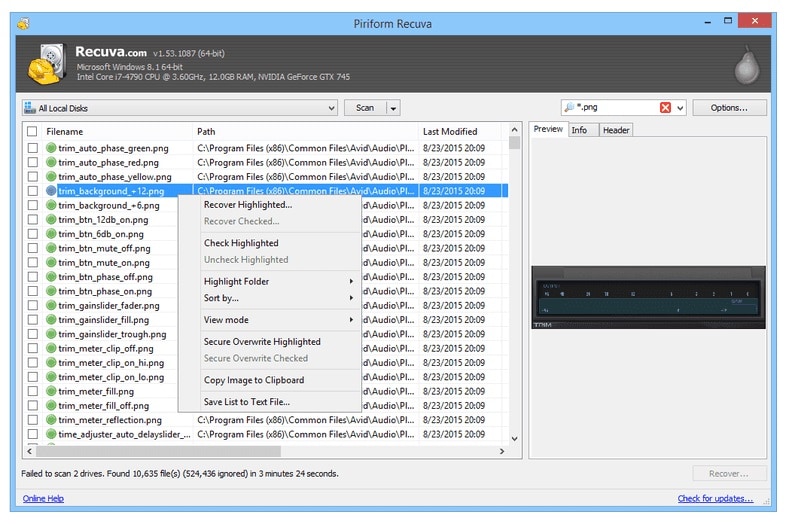
PhotoRec is an open source companion to TestDisk that specializes in raw file recovery from severely damaged or missing file systems. It is best for users who need a free tool that can carve data based on file signatures when normal directory structures are no longer available.

3. EaseUS Data Recovery Wizard
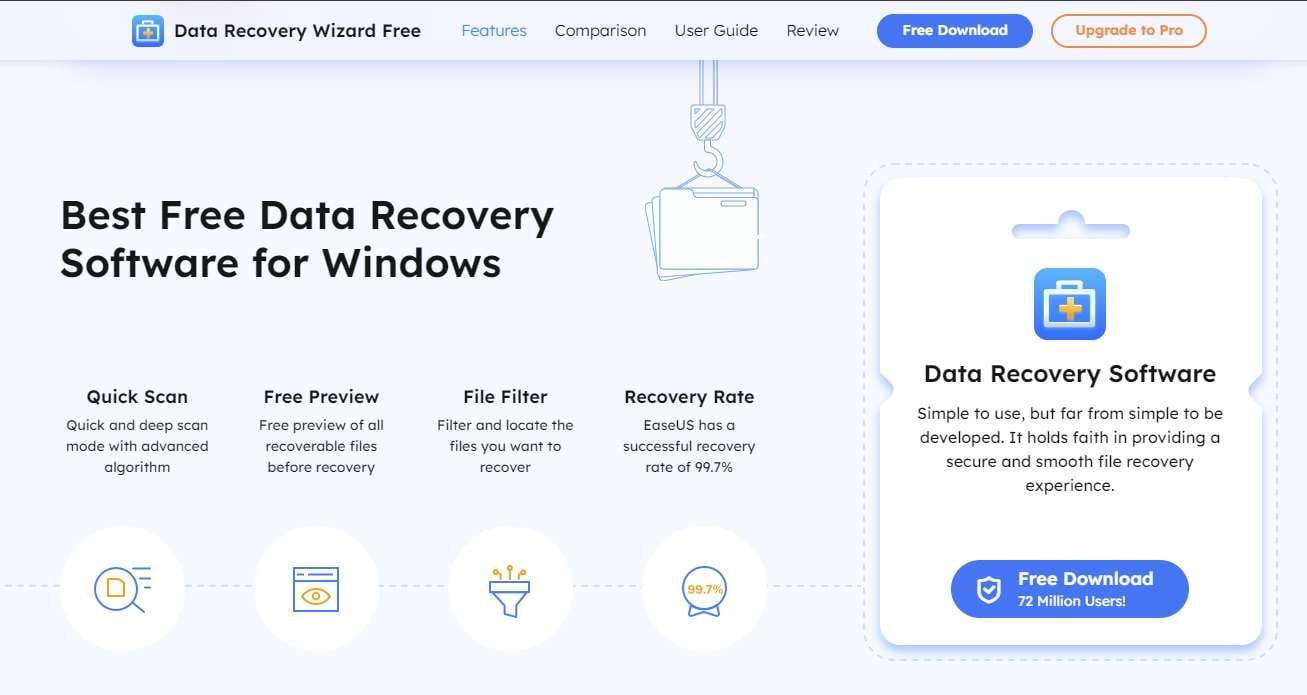
EaseUS Data Recovery Wizard is a mainstream commercial application recommended for beginners who want a guided, wizard-style experience. It walks users through recovering deleted, formatted, or otherwise lost data with a clear, step-by-step interface and real-time scan feedback.
4. Disk Drill
Disk Drill is best suited for users who want a combination of data recovery, disk health monitoring, and protection tools in one modern app. It supports multiple file systems and can handle partition recovery, file-level scans, and data backup features.

5. R-Studio
R-Studio is a professional-grade data recovery suite aimed at IT specialists and data recovery technicians. It excels in complex environments with advanced RAID reconstruction, network-based recovery, and detailed forensic analysis tools.
Side-by-Side Comparison Table of TestDisk Alternatives
| Software | File System Support | Price | Free Version | Ease of Use | Scan Speed | Recovery Success Rate | Key Features |
|---|---|---|---|---|---|---|---|
| TestDisk | FAT, exFAT, NTFS, ext2/3/4 and more | Free, open source | Yes, fully featured | Low, text-based interface | Fast for partition scans, moderate for deep checks | High for partition and boot repairs | Partition recovery, boot repair, file system repair, cross-platform CLI |
| Wondershare Recoverit | FAT, exFAT, NTFS, HFS+, APFS and others | Paid with different plans | Yes, limited data recovery | Very high, modern GUI | Fast quick scan, moderate deep scan | High for deleted, formatted, and lost partitions | File preview, crashed PC recovery, video repair, wide file type support |
| PhotoRec | Works independently of file system, supports most media | Free, open source | Yes, fully featured | Low, text-based menus | Moderate to slow on large volumes | High for raw file carving | Signature-based recovery, extensive file type library |
| EaseUS Data Recovery Wizard | FAT, exFAT, NTFS, HFS+, ext2/3 | Subscription or perpetual license | Yes, with small data cap | High, wizard-driven | Fast quick scan, moderate deep scan | High for common deletion and format cases | Guided recovery, partition loss recovery, file preview |
| Disk Drill | FAT, exFAT, NTFS, HFS+, APFS, ext2/3/4 | Paid, single-user and business licenses | Yes, limited by platform and data | High, visual interface | Moderate | High for consumer use | Recovery vault, S.M.A.R.T. monitoring, partition recovery |
| R-Studio | FAT, exFAT, NTFS, ReFS, HFS+, APFS, ext, UFS and more | Paid, professional-level pricing | Demo with file size limits | Medium to low for non-experts | Variable, optimized for complex scenarios | Very high in expert hands | RAID reconstruction, network recovery, forensic tools |
Conclusion
TestDisk remains a powerful and respected tool for partition recovery and file system repair, but it is not the easiest option for many everyday users. If you prefer clear visuals, guided workflows, or more specialized features for photos, videos, or complex storage setups, switching to a modern testdisk alternative can significantly streamline your recovery process.
Recoverit offers a strong balance of usability and performance, while tools like PhotoRec, EaseUS Data Recovery Wizard, Disk Drill, and R-Studio cover everything from free data recovery software for raw carving to professional forensic work. By matching your skill level, budget, and recovery scenario to the right testdisk alternatives, you greatly improve your chances of getting critical data back safely.
Next: Photorec Alternatives
FAQ
-
Is TestDisk still safe and reliable to use?
Yes, TestDisk is widely regarded as safe and reliable when used correctly, and many professionals rely on it for partition repair tasks. However, because it works at a low level on partitions and file systems, choosing the wrong options can cause further damage or data loss. If you are unsure about the prompts or underlying concepts, a GUI-based testdisk alternative with clearer guidance may be a safer option. -
What is the best TestDisk alternative for beginners?
For beginners, user-friendly tools such as Recoverit and EaseUS Data Recovery Wizard are strong choices. They offer intuitive interfaces, guided steps, and file preview capabilities, making it easier to see what you are recovering and avoid altering the wrong partition. This is especially helpful if you have never used disk recovery tools or command line utilities before. -
Are there any free alternatives to TestDisk?
Yes, PhotoRec is a fully free and open source option that focuses on raw file carving and works well when the file system is badly damaged. In addition, many commercial testdisk alternatives such as Recoverit, Disk Drill, and EaseUS provide free tiers with limited recovery capacity, which are useful for small tasks or evaluating performance before purchasing. -
Can TestDisk alternatives recover data from formatted drives?
Most leading disk recovery tools, including Recoverit, Disk Drill, and EaseUS Data Recovery Wizard, can recover files from accidentally formatted drives. They scan for lost file records and raw data on the formatted volume, then reconstruct documents, photos, videos, and other content. For best results, stop using the drive immediately after formatting to avoid overwriting recoverable sectors. -
When should I choose a professional tool like R-Studio over simpler options?
You should consider a professional tool like R-Studio when dealing with complex RAID arrays, heavily corrupted storage, or forensic investigations that require detailed reporting. These solutions provide granular control over scan parameters, advanced reconstruction features, and in-depth diagnostics that consumer-oriented free data recovery software typically lacks. For routine deletions or simple formatting incidents, a more approachable testdisk alternative such as Recoverit is usually sufficient.



