

 TL;DR:
To successfully recover lost or corrupted data from an NTFS drive, you must immediately stop writing new files to the disk to prevent overwriting and apply the appropriate recovery method based on the severity of the loss.
● For accidental deletions or minor file system errors, utilize native Windows solutions by checking the Recycle Bin, running CHKDSK via Command Prompt to repair disk structures, or using the command-line Windows File Recovery tool.
● For severe cases such as accidentally formatted drives, deep corruption, or inaccessible partitions, utilize dedicated third-party software like Recoverit to scan the drive and restore files without requiring command-line expertise.
● If the NTFS drive is completely unresponsive or causes system instability, physically remove it and mount it on a secondary PC to safely isolate the drive and extract the remaining data.
Ask AI for a summary
 ChatGPT
 Perplexity
 Gemini
 Claude
 Grok
Grok
Hard drives and SSDs often use the NTFS file system. This system is stable and trusted. Many people choose it because it works well with large files. It also keeps permissions and helps protect important information.
Even a trusted system can fail. Files may go missing after a crash. You might press delete by mistake. Malware can also cause trouble. It is still possible to bring files back. Smart NTFS recovery software makes this task easy. You can learn how to recover data from NTFS drives using simple steps.
Table of Contents:
Part 1: Common Causes: NTFS Data Loss Scenarios
NTFS keeps data safe most of the time. Still, many problems can take place. When this happens, you may use NTFS recovery methods or smart NTFS recovery software to bring files back. When you try to recover lost data from NTFS-formatted drives, always avoid writing new files to the same disk.
Common causes
- Accidental Delete: You may delete a file by mistake. It can happen when clearing folders. Then you need to recover deleted data from NTFS-formatted drives. If quick action is taken, recovery is simple.
- Format by Mistake: A format clears the file system. You can still recover lost data from NTFS-formatted drives using smart NTFS recovery software. Full format takes longer, but files can still be saved.
- Drive Corruption: A corrupt drive can show errors. You might see requests asking you how to fix corrupt NTFS. You can repair some damage and recover corrupted data from NTFS partitions.
- Bad Sectors: Blocks on the disk may turn bad. This can harm stored files. You can try to recover deleted data from NTFS-formatted drives. Many tools help avoid more damage.
- Malware Infection: Bad programs can change or remove files. If this happens, you must run NTFS recovery steps to recover corrupted data from NTFS partitions.
- System Crash: An operating system may stop working without warning. It can lead to lost files. You can recover lost data from NTFS-formatted drives using smart NTFS recovery software.
- Power Loss: The system might stop while saving. This can damage the file structure. It becomes urgent to know how to fix corrupt NTFS.
- File System Errors: Wrong shutdown or wrong handling can bring problems. NTFS recovery steps help repair the structure and recover lost data from NTFS-formatted drives.
Part 2: How to Recover Lost Data from NTFS?
Many users worry when files go missing. There is no need to panic. You can still recover corrupted data from NTFS partitions. The right tools and the right method help. You can also learn how to fix a corrupt NTFS. Try simple steps first. Then try advanced ways. The goal is to recover lost data from NTFS-formatted drives without hurting the disk.
Below you will see reliable ways to restore files. A few tools help you recover deleted data from NTFS-formatted drives fast. Smart NTFS recovery software can guide you when the damage looks serious. These methods also help when learning how to recover data from NTFS systems.
Method 1: Use the Recoverit Tool
If you're dealing with lost or corrupted data on an NTFS-formatted drive, Recoverit offers a reliable and user-friendly solution. This intelligent NTFS recovery software is trusted by millions for its consistent performance and intuitive design. Whether you're trying to recover deleted files, restore data from damaged partitions, or fix a corrupt NTFS file system, Recoverit simplifies the process.
How to Use Recoverit for NTFS Recovery
Getting started is quick and straightforward:
Step 1. Download and install Recoverit on your computer. Launch the tool and select the NTFS drive or partition you want to recover.

Step 2. Recoverit will search for lost, deleted, or corrupted files.

Step 3. Preview and save your recovered files to a secure location.

What Is A File System?

Method 2: Check the Recycle Bin
This is the simplest choice. You may recover deleted data from NTFS-formatted drives with ease when they sit in the Recycle Bin. You should start here. This helps avoid a longer NTFS recovery. It also teaches you how to recover data from NTFS when you act fast. It is smart to check the Bin before trying smart NTFS recovery software.
How to check the recycle bin:
- Open the Recycle Bin.
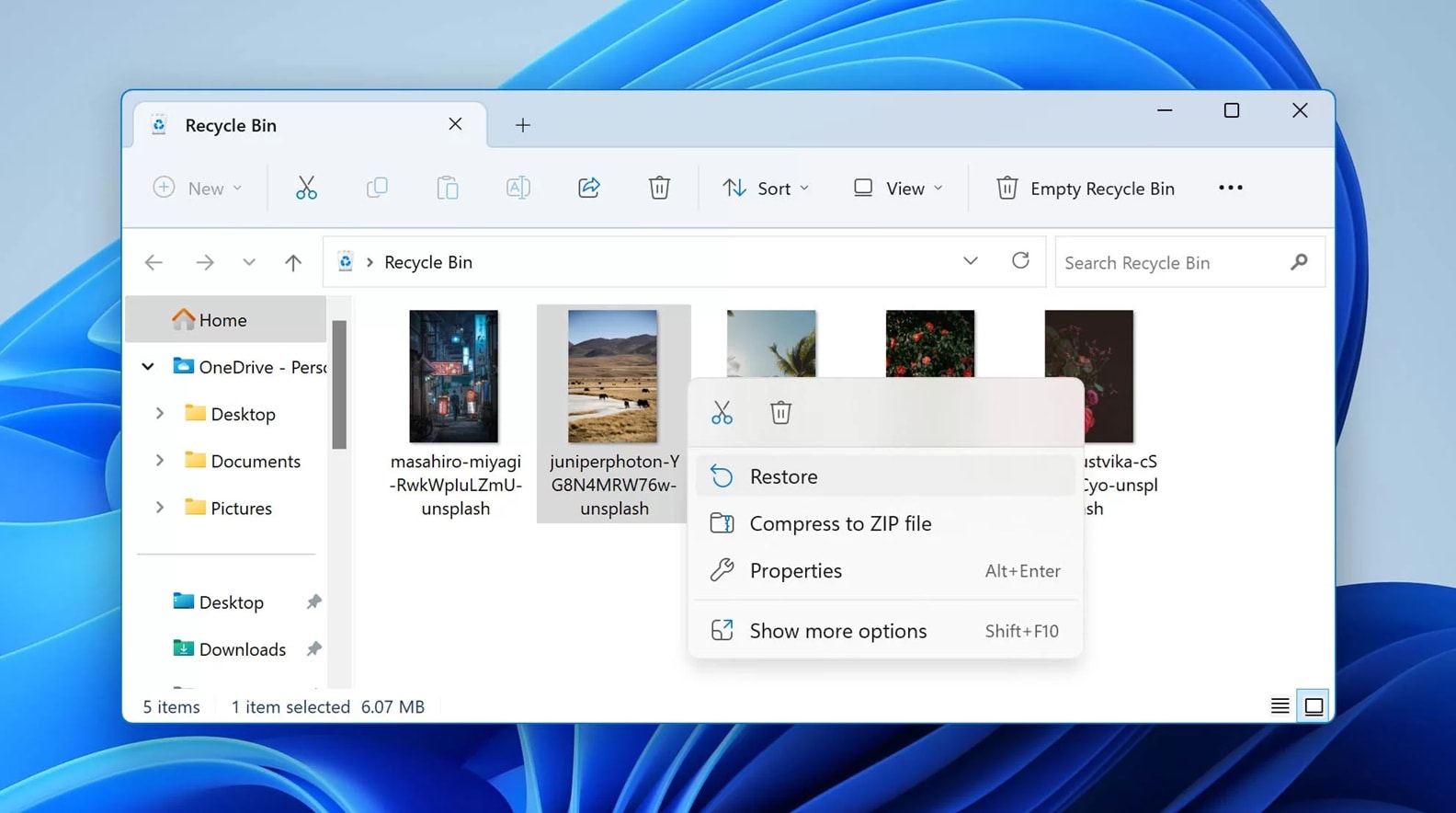
- Click Restore. Restore the file
Method 3: Use CHKDSK to Repair File System Errors
CHKDSK fixes file structure. It also helps with how to fix corrupt NTFS. When the file system has bad areas, it can try to repair them. It may help you recover corrupted data from NTFS partitions. This tool works in a command window. It is helpful when a drive shows errors. It supports NTFS recovery when used early.
How to Use CHKDSK to Repair File System Errors:
- Open Command Prompt
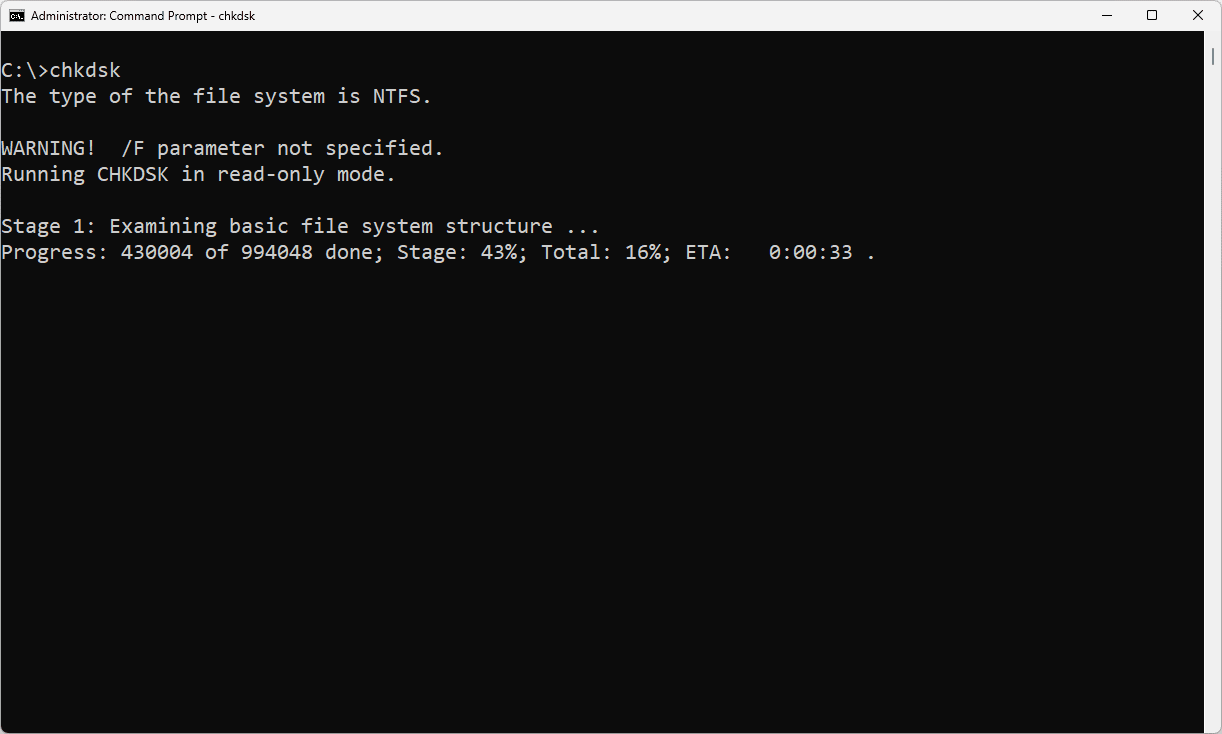
- Type chkdsk and run repair.
Method 4: Run Windows File Recovery Tool
This tool from Microsoft helps you recover deleted data from NTFS-formatted drives. It is a command line choice. It also helps when you want to learn how to recover data from NTFS. You can point to a drive and search. It may bring files back even after a clear loss. It is slower than smart NTFS recovery software, yet it is trusted.
Steps:
- Open the Windows File Recovery tool.
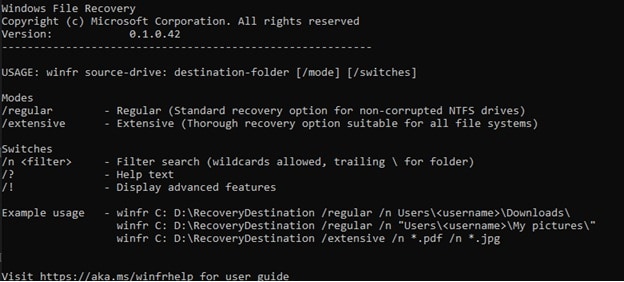
- Run the scan command.
Method 5: Restore from Backup or System Restore
Backups can save you. They help you recover lost data from NTFS-formatted drives. They also help when viruses attack. System Restore brings the system back to an older state. This works best if you set up restore points. It is not always enough. Still, it is helpful before advanced NTFS recovery. You may also fix trouble and learn how to fix corrupt NTFS.
Steps:
- Open Backup or System Restore.
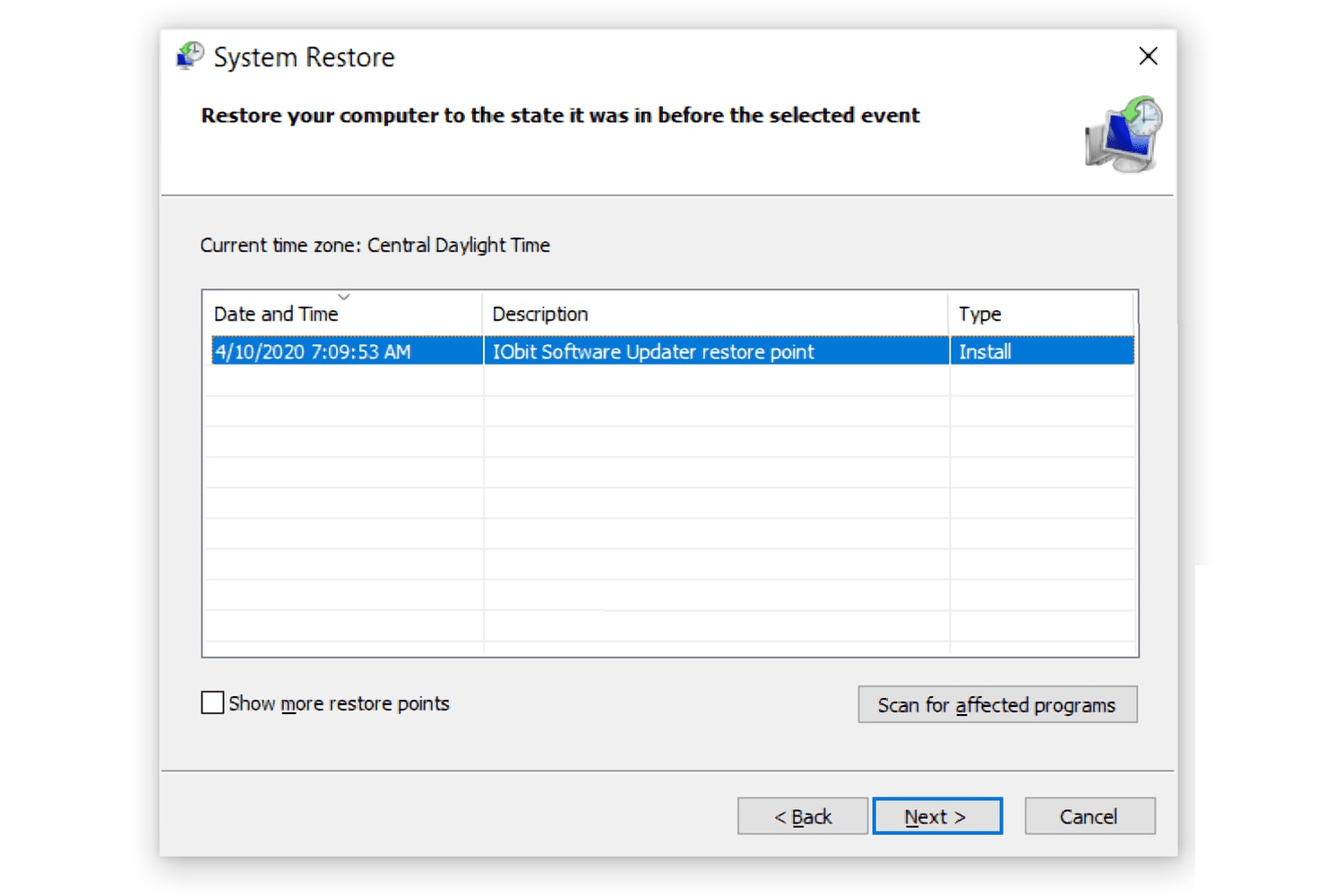
- Choose an old state
Method 6: Mount the Drive on Another PC
Some drives do not open on your system. You can mount the disk on another computer. The new system may show your files. Then you can learn how to recover data from NTFS more safely. This method can help you recover corrupted data from NTFS partitions. It can also help recover deleted data from NTFS-formatted drives. Use smart NTFS recovery software if the issue remains.
Steps:
- Remove the drive.
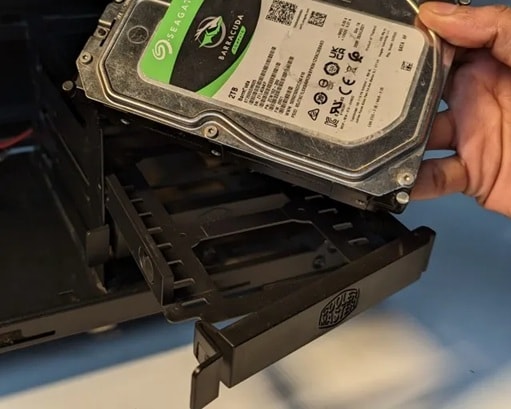
- Mount it on another PC
Part 3: Pro Tips to Prevent NTFS Data Loss
It is better to stop trouble before it starts. Good habits protect your data. When you know how to recover data from NTFS, you also understand how to prevent loss. You do not want to repeat NTFS recovery steps often. You can also reduce the need to recover lost data from NTFS-formatted drives with these simple ideas.
- Keep Backups Backups save time. They help you in many cases. They reduce the need to recover deleted data from NTFS-formatted drives.
- Use a Good Power Supply Stable power protects drives. Sudden loss can force how to fix corrupt NTFS later.
- Update System Updates fix bugs. They also keep NTFS stable. This reduces the need for smart NTFS recovery software.
- Scan for Malware Use good tools. Malware destroys files. Scanning helps avoid recover corrupted data from NTFS partitions.
- Handle Disks with Care Do not drop them. They are sensitive. Care reduces NTFS recovery cases.
- Do Not Force Shutdown Stop the wrong shutdown. It often harms file structure and triggers how to fix corrupt NTFS.
- Do Not Keep Disk Full Leave space. A full disk may go bad. Good space lowers the need to recover lost data from NTFS-formatted drives.
- Watch for Bad Symptoms Look for a strange noise. Also, watch for slow work. Help arrives early. Then you will not need to recover corrupted data from NTFS partitions.
Conclusion
NTFS works well for many users. Still, problems can take place without warning. When this happens, you must know how to recover data from NTFS. You can try simple ways like the Recycle Bin. If these do not work, try CHKDSK. You can also use Windows File Recovery or mount the disk somewhere else.
Smart NTFS recovery software is useful when the damage looks severe. These tools help you recover deleted data from NTFS-formatted drives. They can recover corrupted data from NTFS partitions. Always try not to write new files to that disk. It keeps data safe until recovery is complete. The more you prepare, the less fear you face.
Try Recoverit to Recover Lost Data
 Security Verified. Over 7,302,189 people have downloaded it.
FAQs
-
1. Can I bring back deleted files after a format?
Yes. You can often recover lost data from NTFS-formatted drives after a format. Smart NTFS recovery software can scan and find many items. The best chance comes when you do not add new content. -
2. Why did my NTFS drive stop working?
Many causes are possible. Power loss, damage, malware, or wrong removal can harm a drive. You can try to recover corrupted data from NTFS partitions. You may also learn how to fix a corrupt NTFS using CHKDSK. -
3. Should I fix a noisy drive?
A noisy drive is a warning. It is best to stop use at once. Try to mount it on another system. Then run a tool to recover deleted data from NTFS-formatted drives. Many times, you can still save files.


