 TL;DR:
To resolve software crashes or boot failures, turn off your Steam Deck completely and hold the Volume Down and Power buttons to access Recovery Mode options.
● The "Re-image Steam Deck" option requires an 8GB or larger USB drive and takes 15-30 minutes to complete, but it will permanently erase all local games, saves, and personal data.
● For minor system corruption, select "Repair SteamOS Installation" to fix OS files in 10-20 minutes without losing installed content, or use "Reset User Data" specifically to resolve account profile issues.
● If data is lost during a failed recovery or accidental reset, you must connect the Steam Deck to a computer via a USB cable and use recovery software like Recoverit to scan the storage drive for deleted files.
Ask AI for a summary
 ChatGPT
 Perplexity
 Gemini
 Claude
 Grok
Grok
Is your Steam Deck acting up? It might freeze. Games may not load. The system could crash. That’s frustrating. But don’t worry. The Steam Deck runs on SteamOS. It’s a Linux-based system. It’s powerful. It’s portable. But it’s not perfect. When things go wrong, you need a fix. That’s where Steam Deck Recovery comes in. It helps reset your device.
Steam Deck recovery helps fix these problems. It restores your device to working condition. This guide shows you how to recover Steam Deck when issues arise. You'll learn about Steam Deck recovery mode, Steam Deck recovery instructions, and Steam Deck recovery tools. We'll cover everything step by step. Don't worry! It's easier than you think.
You may be also interested in: Steam Deck Image Recovery: How to Recover Steam Deck with Steam Deck Recovery Image?
Table of Contents:
Part 1: What is Steam Deck Recovery?

Steam Deck recovery is a process that fixes software problems. It helps when your device won't start. It solves issues with corrupted files. Recovery can restore system settings. It can also reinstall the entire operating system.
Think of Steam Deck recovery as a safety net. Your device has built-in recovery options. These options help you fix problems without losing everything. Steam Deck recovery mode is a special startup mode. It gives you access to Steam Deck recovery tools. These tools can repair or restore your system. Understanding Steam Deck recovery instructions is important. It helps you solve problems quickly.
Part 2: Steam Deck Recovery Instructions: A Quick Glance
Before diving deep, here's a quick overview of Steam Deck recovery instructions. These steps give you a basic idea of the process.
- Power off your Steam Deck completely before starting any recovery process
- Hold Volume Down and Power buttons together to enter Steam Deck recovery mode
- Connect to stable Wi-Fi for downloading recovery files and updates
- Use a Steam Deck recovery USB when re-imaging is necessary
- Back up important data before performing any major recovery operations
- Choose the right recovery option based on your specific problem
- Follow on-screen prompts carefully during the recovery process
- Allow sufficient time for recovery operations to complete without interruption
Part 3: Preparation Before Recovery
Proper preparation makes Steam Deck recovery smoother. Getting ready beforehand saves time and prevents data loss.
- Back up your save files to Steam Cloud or external storage before starting
- Charge your Steam Deck fully to avoid power loss during recovery
- Prepare a Steam Deck recovery USB if you plan to re-image the device
- Write down your Wi-Fi password as you'll need it during setup
- Check your internet connection to ensure it's stable and fast
- Download recovery files from the official Steam website if needed
- Close all running games and applications before beginning recovery
- Note your Steam account credentials for signing back in after recovery
Part 4: Steam Deck Recovery: Best Methods
This section covers the best methods to recover Steam Deck. Each method solves different problems. Choose the one that fits your situation.
Method 1: Boot into Recovery Mode
Booting into Steam Deck recovery mode is the first step for most fixes. This mode gives you access to various Steam Deck recovery tools. It's the foundation for many recovery operations.
Recovery mode is safe and built into your device. You don't need external tools to access it. Most basic problems can be solved from here.
Step 1: Power off your Steam Deck completely. Hold the power button for several seconds. Wait until the screen goes completely black. Make sure the device is fully shut down.
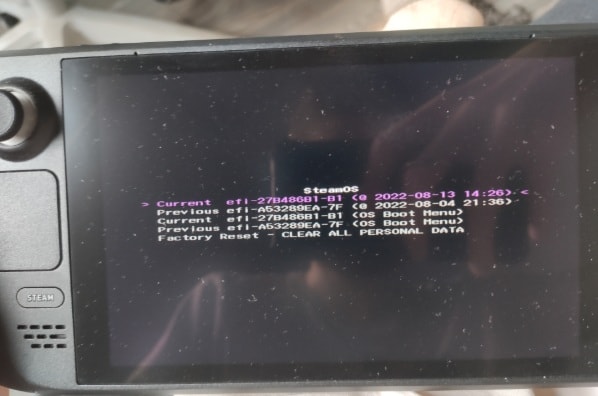
Step 2: Press and keep holding Volume Down. While holding it, press the Power button. Keep holding both buttons. Release them when you see the boot menu. Select "Recovery Mode" from the options. Your Steam Deck will enter Steam Deck recovery mode.
Method 2: Re-image the Steam Deck
Re-imaging means installing a fresh copy of SteamOS. This method uses Steam Deck image recovery. It's useful when the system is badly corrupted. This is one of the most thorough Steam Deck recovery instructions.
Re-imaging erases everything on your device. It's like getting a brand new Steam Deck. Your games and saves will be gone. That's why backup is crucial. But this method fixes almost any software problem.
Step 1: Download the Steam Deck recovery image from Steam's official website. You'll need a USB drive with at least 8GB of space. Use a tool like Etcher or Rufus to create a Steam Deck recovery USB. Carefully follow the steps on the Steam support page. Check that your USB drive is correctly formatted.
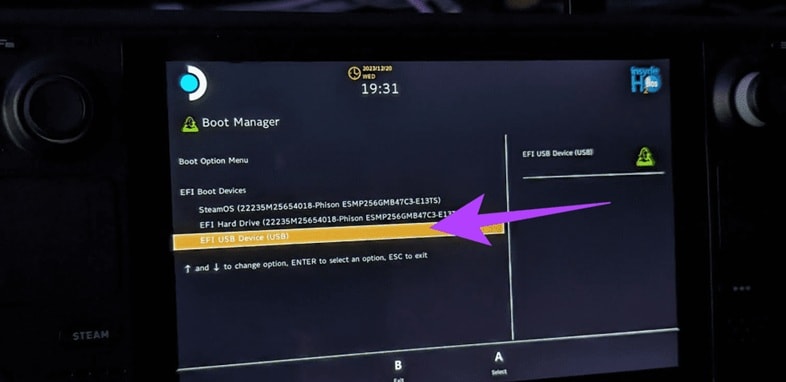
Step 2: Insert the Steam Deck recovery USB into your device. Boot into Steam Deck recovery mode using Volume Down and Power buttons. Select "Boot from USB" or "Re-image Steam Deck" from the menu. Follow the on-screen Steam Deck recovery instructions. The process takes 15-30 minutes. Don't interrupt it. Your device will restart automatically when complete.
Method 3: Repair SteamOS Installation
Sometimes you don't need a complete re-image. Repairing the installation can fix many issues. This method keeps your data intact. It only fixes system files that are broken.
This is a gentler approach than re-imaging. It takes less time. Your games and settings usually stay safe. Use this when your system has minor corruption. It's one of the most convenient Steam Deck recovery tools available.
Step 1: Enter Steam Deck recovery mode by holding Volume Down and Power buttons. Once in recovery mode, look for "Repair SteamOS Installation” option. This option scans your system files. It identifies corrupted or missing files.
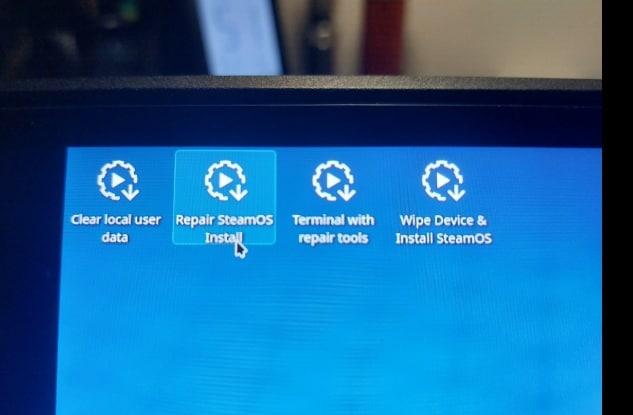
Step 2: Select the repair option and confirm your choice. The system will check all SteamOS files. It replaces damaged files with working versions. This process takes 10-20 minutes. Your device will restart when finished. Your games and saves should remain untouched.
Method 4: Reset User Data
Resetting user data clears your personal settings. It removes user-related problems. Your system files stay intact. This is useful for account or settings issues.
This method is quick and less invasive. It doesn't remove the operating system. Your games stay installed. Only your preferences and user data are cleared. It's helpful when you have profile corruption.
Step 1: Access Steam Deck recovery mode through the Volume Down and Power button combination. Navigate to "Reset User Data" or "Factory Reset" option. Read the warning message carefully. This will log you out of Steam. Your local saves may be deleted.
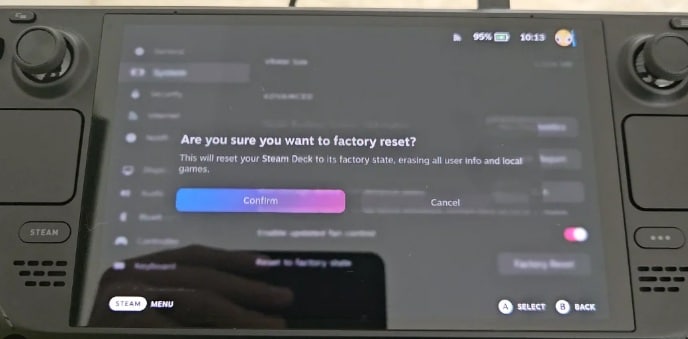
Step 2: Confirm the reset operation. The system will clear user data. It keeps the OS and most installed content. The process finishes in a few minutes. After a restart, you'll need to log in to Steam again. Reconfigure your settings as needed.
Method 5: Contact Steam Support
Sometimes DIY methods aren't enough. Hardware problems need professional help. Steam Support can assist with complex issues. They have advanced Steam Deck recovery tools and expertise.
Don't hesitate to reach out for help. Support can guide you through specific problems. They can also arrange repairs if needed. This is especially important if you have warranty coverage.
Step 1: Visit the Steam Support website on a computer or phone. Navigate to the Steam Deck section. Describe your problem in detail. Include what you've already tried. Mention any error messages you've seen. Upload screenshots if possible.
Step 2: Follow the response from the Steam Support team. They might suggest additional Steam Deck recovery instructions. They could send you specialized recovery files. In some cases, they'll arrange a repair or replacement. Keep communication clear and check for updates regularly.
Part 5: Lost Steam Data? Use Recoverit Data Recovery Tool Today!
Data loss can happen during Steam Deck recovery. You might accidentally delete important files. A failed recovery could erase your data. Game saves might disappear. That's where Recoverit Data Recovery Tool helps.
Recoverit is a powerful recovery software. It works with various devices and file types. The tool can scan your Steam Deck's storage. It finds deleted or lost files. Even if you've formatted your device, Recoverit can help.
The software is user-friendly. You don't need technical knowledge to use it. Recoverit supports multiple file formats. It can recover photos, videos, documents, and game saves. The tool has a high success rate for data recovery.
Try Recoverit to Recover Permanently Deleted Files
 Security Verified. Over 7,302,189 people have downloaded it.
Simple Steps to Use Recoverit
Step 1: Download and install Recoverit on your computer. Connect your Steam Deck to the computer using a USB cable. Launch Recoverit and select your Steam Deck as the target device. The software will recognize your device.

Step 2: Click "Start" to begin the scanning process. Recoverit will search for all recoverable files. This might take time, depending on storage size. You can pause and resume the scan anytime.

Step 3: Preview the found files once scanning completes. Select the files you want to recover. Click "Recover" and choose a safe location to save them. Don't save recovered files back to the Steam Deck immediately. Use your computer or external storage first.

Part 6: Post-Recovery Tips: Steam Deck Recovery
After completing Steam Deck recovery, follow these tips. They help prevent future problems. They also optimize your device's performance.
- Update SteamOS immediately after recovery to get the latest fixes and features
- Reinstall games gradually instead of all at once to avoid system strain
- Enable Steam Cloud for automatic save file backups in the future
- Create a recovery USB and keep it ready for emergencies
- Check storage regularly and delete unnecessary files to maintain system health
- Avoid forced shutdowns as they can corrupt system files over time
- Use official Steam Deck accessories to prevent hardware compatibility issues
- Monitor system performance and address any unusual behavior quickly
Conclusion
Steam Deck recovery doesn't have to be scary. With proper Steam Deck recovery instructions, anyone can do it. This guide covered Steam Deck recovery mode, Steam Deck image recovery, and using a Steam Deck recovery USB. Each method serves different purposes.
Remember to prepare before starting any recovery. Back up your data when possible. Choose the right method for your problem. Follow the Steam Deck recovery instructions carefully. Use Steam Deck recovery tools wisely. If something goes wrong, Steam Support is there to help. With these tips, you can recover the Steam Deck successfully. Your handheld gaming experience will be back on track quickly.
FAQs
-
Q1: How do I enter Steam Deck recovery mode?
Power off your Steam Deck completely. Press and hold the Volume Down button. While holding it, press the Power button. Keep both buttons pressed until you see the boot menu. Select "Recovery Mode" from the options. This enters Steam Deck recovery mode, where you can access recovery tools. -
Q2: Will Steam Deck recovery delete my games?
It depends on the recovery method. Entering Steam Deck recovery mode doesn't delete anything. Repairing the installation usually keeps your games. However, re-imaging withthe Steam Deck recovery USB will erase everything. Always back up important data before major recovery operations to be safe. -
Q3: How long does Steam Deck recovery take?
Recovery time varies by method. Booting into Steam Deck recovery mode takes seconds. Repairing the installation needs 10-20 minutes. Using Steam Deck image recovery for complete re-imaging takes 15-30 minutes. Reset operations finish in just a few minutes. Always allow extra time and don't interrupt the process.



