

 TL;DR:
Recovery mode is an emergency diagnostic state on iOS and Android devices that bypasses the main operating system to fix critical boot failures, apply system updates, or execute factory resets.
● iPhone recovery requires a wired connection to a computer running iTunes or Finder (macOS Catalina or later), whereas Android utilizes a standalone, on-device text menu navigated via manufacturer-specific physical button combinations.
● Always select the "Update" option first to repair the system software without deleting your personal files, reserving the "Restore" or "Wipe data" commands strictly as a last resort since they initiate a complete data wipe.
● On iOS, Recovery Mode operates at the software level and is distinct from DFU mode, which is required for deeper firmware restorations; if a full restore is unavoidable, third-party software like Wondershare Recoverit can attempt post-reset data retrieval.
Ask AI for a summary
 ChatGPT
 Perplexity
 Gemini
 Claude
 Grok
Grok
Your phone won't turn on? Is the screen frozen? Apps keep crashing? These problems can be scary. But there's a special tool built into your phone. It's called recovery mode. This mode can fix many serious issues. It works on both iPhone and Android devices.
What is recovery mode? It's a diagnostic mode in your phone. It lets you fix software problems. You can restore your device. You can update the system. You can even erase everything if needed. Think of it as your phone's emergency room. When normal fixes don't work, recovery mode steps in.
Table of Contents:
Part 1: What Is Recovery Mode?
Recovery mode is a special startup mode. It runs before your regular operating system loads. This mode uses minimal software. It bypasses the normal startup process. What is recovery mode used for? It helps when your phone has serious software issues.
Your phone has two main software layers. The first is the operating system. The second is the recovery system. Recovery mode accesses that second layer. It works independently of your main system. This separation is important.

Even if your main system crashes, recovery mode still works.
Why Use Recovery Mode?
- Fix boot problems: Your phone won't start normally
- Install system updates: Manual updates when automatic ones fail
- Restore factory settings: Remove all data and start fresh
- Fix corrupt software: Repair damaged system files
- Remove problematic apps: Delete apps that cause crashes
- Recover from malware: Clean infected systems
- Downgrade iOS versions: Return to older iPhone software
- Access advanced repairs: Tools for tech-savvy users
Part 2: Recovery Mode on iPhone
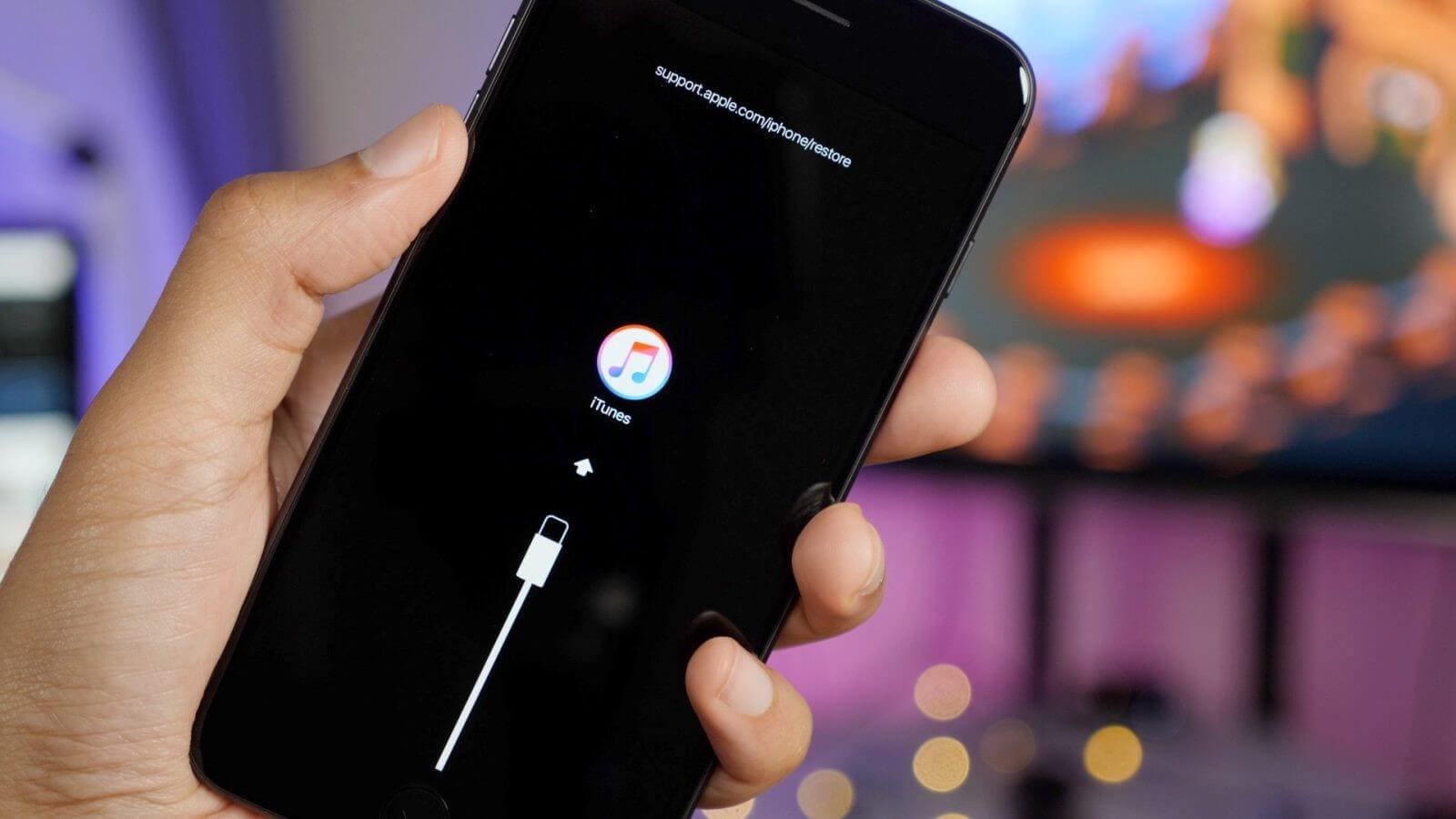
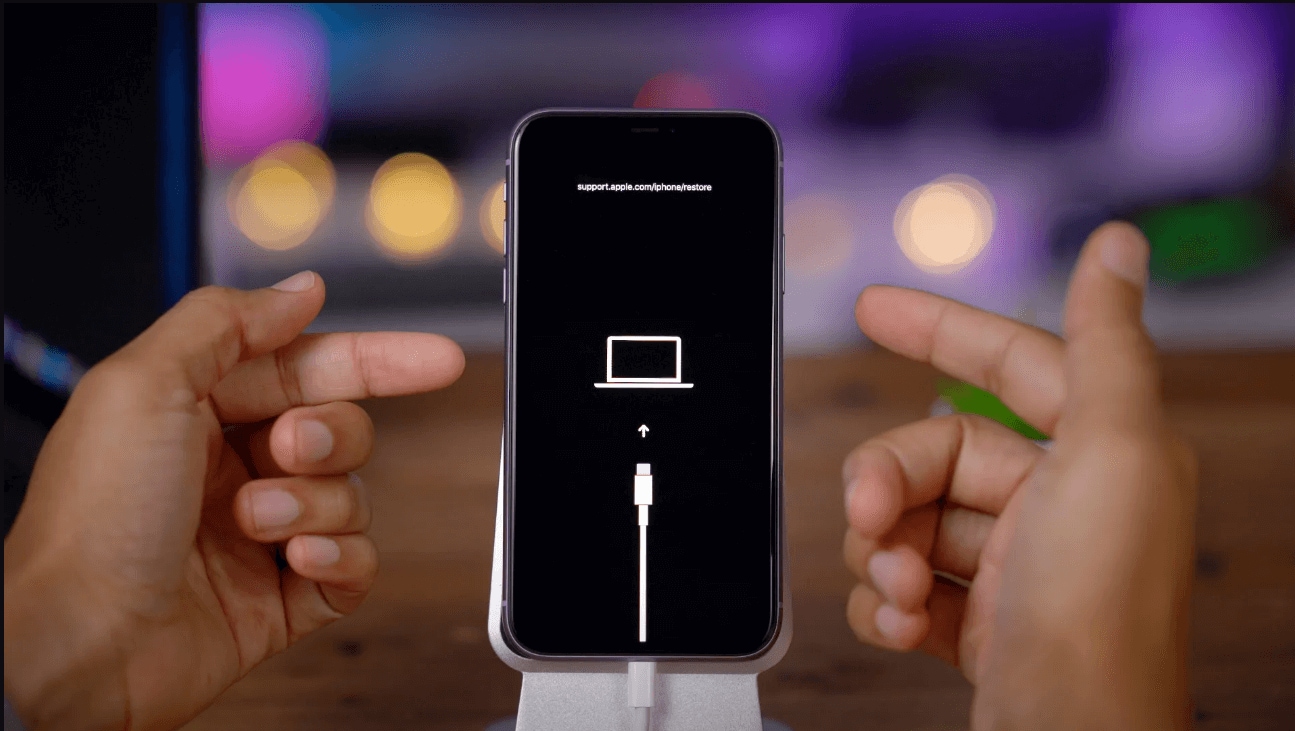
What is recovery mode in iPhone? It's Apple's built-in repair tool. You use it with iTunes or Finder on a computer. The screen shows a computer and cable icon. This tells you the phone is in recovery mode. You can then restore or update iOS.
What is restore mode on iPhone? Some people confuse terms. Recovery mode and restore mode are the same thing on iPhone. What is the restore screen on iPhone? It's the screen you see in recovery mode. It displays the "Connect to iTunes" message. This screen means your iPhone needs computer help.
How to Enter Recovery Mode on iPhone
Step 1: Prepare Your Computer
Connect your iPhone to a computer. Use a Lightning or USB-C cable. Open iTunes on Windows or older Macs. Use Finder on newer Macs (macOS Catalina or later). Make sure iTunes or Finder is running before you start.
Step 2: Enter Recovery Mode
The button combination depends on your iPhone model:
- iPhone 8 and newer: Press and release Volume Up. Press and release Volume Down. Hold the Side button until the recovery screen appears.
- iPhone 7 series: Hold Volume Down and Sleep/Wake buttons together. Keep holding until you see the recovery screen.
- iPhone 6s and older: Hold Home and Sleep/Wake buttons together. Release when the recovery screen shows.
Your computer will detect the iPhone. A message pops up. It offers "Update" or "Restore" options. Choose Update to keep your data. Choose Restore to erase everything.
Part 3: Recovery Mode on Android
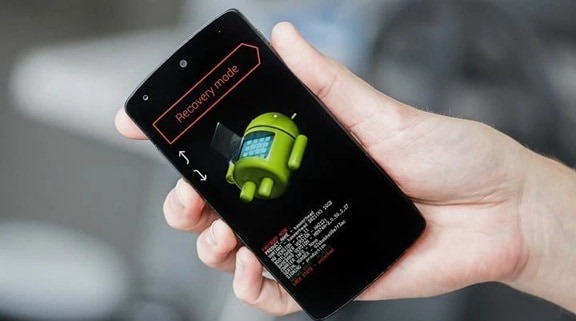
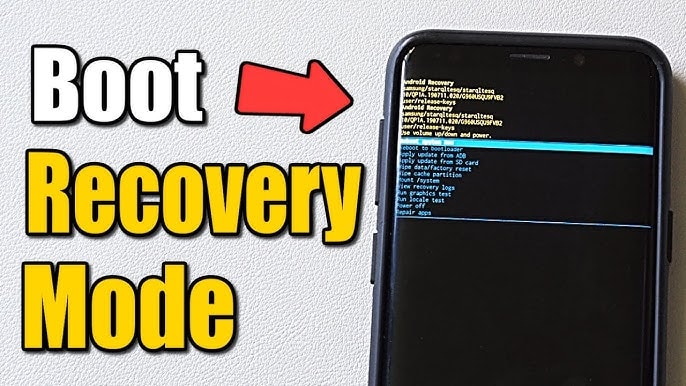
What is recovery mode on Android? It's a bootloader-based mode. Android recovery looks different from iPhone. You see a text menu. Options include "Reboot system now," "Wipe data," and "Apply update." You navigate using volume buttons. The power button selects options.
What does recovery mode do on Android? It performs system-level operations. You can factory reset your device. You can install official updates. Some devices let you clear the cache partition. Advanced users can install custom software. But that's beyond basic recovery use.
How to Enter Recovery Mode on Android
Step 1: Power Off Your Device
Turn off your Android phone completely. Don't just let the screen go dark. Actually, power it down. Press and hold the power button. Tap "Power off" or "Shut down." Wait for the phone to completely turn off. This takes about 10 seconds.
Step 2: Use Button Combination
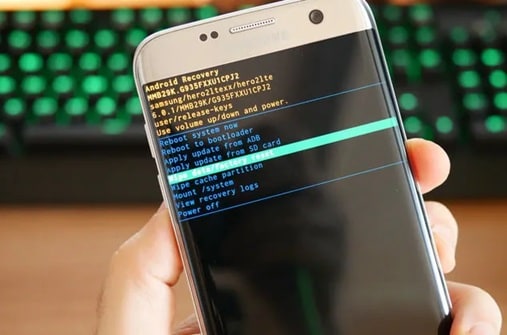
The button combo varies by manufacturer:
- Samsung: Hold Volume Up + Power buttons together
- Google Pixel: Hold Volume Down + Power, then select Recovery
- OnePlus: Hold Volume Down + Power, then navigate to Recovery
- LG: Hold Volume Down + Power, release when logo appears, then press again
- Motorola: Hold Volume Down + Power together
Hold the buttons until you see the Android logo. Then release. The recovery menu should appear. If you see "No command," press Volume Up + Power briefly. This reveals the menu.
Part 4: DFU/Restore Mode vs Recovery Mode on iPhone
People often ask about different iPhone modes. What is restore mode on iPhone compared to other modes? Let's clear up the confusion. Recovery mode and restore mode are the same. But there's also DFU mode. That's different.
| Feature | Recovery Mode | DFU Mode |
| Screen Display | Shows iTunes/computer icon | Completely black screen |
| Purpose | Update or restore iOS | Deep firmware restore |
| Difficulty | Easy to enter | Harder to enter correctly |
| Data Safety | Can update without erasing | Usually requires a full restore |
| Usage | Common problems | Severe issues only |
| Recovery Level | Software level | Firmware level |
Part 5: What to Do If Your Phone Is in Recovery Mode?
What to do if your phone is in recovery mode unexpectedly? Don't panic. Your phone entered this mode for a reason. Maybe an update failed. Maybe the system detected corruption. Sometimes it's an accident. You need to decide: update or restore.
Steps to Take When Your Phone Is in Recovery Mode
- Try updating first: This keeps your data safe. It only reinstalls the system software. Your photos and apps stay intact.
- Connect to a computer: You need iTunes, Finder, or manufacturer software. A computer connection is essential.
- Check cable quality: Bad cables cause failed restores. Use original cables when possible.
- Ensure stable power: Plug your computer into power. Make sure it won't sleep during the process.
- Back up if possible: If you can exit recovery mode temporarily, back up immediately.
- Read error messages: iTunes shows specific error codes. Write them down for troubleshooting.
- Allow time: Updates take 15-60 minutes. Restores can take longer. Don't interrupt the process.
- Restore as a last resort: This erases everything. Only do this if updating fails.
Part 6: What If Recovery Mode Doesn't Work?
What to do if recovery mode doesn't work? Several things can go wrong. Understanding these helps you find solutions. Recovery mode isn't perfect. Hardware issues can block it. Software corruption can be too severe.
Common Issues and Solutions
Stuck in Recovery Mode Loop
- Your phone keeps returning to recovery mode. You try to restore, but it fails. The phone boots back to recovery mode.
- Update iTunes or system software first
- Try a different USB port directly on the computer
- Use a different computer if available
- Check for iOS updates in recovery mode
- Let the battery drain completely, then charge and retry
Unresponsive Recovery Screen
- The recovery screen appears, but won't respond. Your computer doesn't detect the phone.
- Restart both the phone and the computer
- Try different cables
- Disable antivirus temporarily
- Update device drivers (Windows)
- Reset SMC on Mac if applicable
Failed Restore Attempts
- iTunes shows error codes. The restore process stops halfway. You get messages like "iPhone could not be restored."
- Check the error code meaning on Apple's website
- Free up computer hard drive space
- Temporarily disable security software
- Download the iOS file again
- Try DFU mode instead of recovery mode
Part 7: Recovery Mode Failed? Recoverit Can Still Save Your Files!
Sometimes recovery mode can't fix your phone. You might need to restore completely. This erases all your data. But what about your precious files? Photos, videos, messages—all gone. This is where Wondershare Recoverit comes in.
Recoverit is data recovery software. It retrieves lost files from phones and computers. Even after a factory reset, some data remains recoverable. The software scans deep into your device storage. It finds deleted files that seem gone forever. This tool has saved countless memories.
What is recovery mode in Android devices compared to data recovery? They're different. System recovery mode fixes the phone. Data recovery software saves your files. You need Recoverit when system recovery fails. It's your backup plan.
Try Recoverit to Recover Permanently Deleted/Lost Data
 Security Verified. Over 7,302,189 people have downloaded it.
Why Use Recoverit?
- Recovers after factory reset: Even erased data leaves traces
- Supports multiple formats: Photos, videos, documents, audio files
- Works on both platforms: iPhone and Android are supported
- Simple interface: No technical knowledge needed
- Preview before recovery: See files before restoring them
- High success rate: Industry-leading recovery algorithms
How to Use Recoverit
Step 1: Install and Launch

Download Recoverit. Install it on your computer. Windows and Mac versions available. Open the program. Connect your phone to the computer. The software should detect your device automatically.
Step 2: Scan Your Device

Select your phone from the device list. Click the "Scan" button. The software begins searching for recoverable files. This process takes time. Larger storage means longer scans. You can pause and resume anytime. The scan finds deleted and existing files.
Step 3: Preview and Recover

Browse the scan results. Preview files by clicking on them. Select the files you want back. Click the "Recover" button. Choose where to save the files. Don't save to the same phone. Use your computer or external drive. The software restores your selected files.
Related Video >>: How to Recover Permanently Deleted Files?

Part 8: Tips to Avoid Recovery Mode Emergencies
You can avoid many recovery mode situations. Smart habits protect your phone. Regular maintenance prevents disasters. Following these tips saves you stress.
Prevention Tips
- Regular backups: Use iCloud, Google Drive, or computer backups weekly
- Stable updates: Only update on WiFi with a full battery
- Avoid interruptions: Don't use the phone during updates
- Quality accessories: Use certified cables and chargers
- Storage management: Keep at least 20% storage free
- Trusted apps only: Download from official app stores
- Restart regularly: Weekly restarts clear temporary issues
- Monitor battery health: Replace degraded batteries promptly
Conclusion
What is recovery mode? Now you know. It's your phone's emergency toolkit. Both iPhone and Android have this feature. It fixes problems that normal troubleshooting can't solve. You can update, restore, or repair your device. Recovery mode is powerful but should be your last resort.
Remember the key differences. What is recovery mode in iPhone involves iTunes or Finder. What is recovery mode on Android uses built-in menu systems. Both serve the same purpose. They give you control when things go wrong. And if recovery mode fails, tools like Recoverit can still save your data. Stay prepared. Back up regularly. Your digital life deserves protection.
FAQs
-
Q1: Can I exit recovery mode without losing data?
Yes, you can often exit safely. On iPhone, try force restarting. On Android, select "Reboot system now" from the menu. If you use the Update option instead of Restore, your data stays intact. Always try updating before restoring. -
Q2: How long should recovery mode take?
A typical recovery mode update takes 15-45 minutes. A full restore takes 30-90 minutes. Time depends on the device model and the data amount. If it takes longer than two hours, something is wrong. Try restarting the process. -
Q3: Will recovery mode delete my photos?
Not automatically. Choosing "Update" keeps your data. Only the "Restore" or "Wipe data" options delete everything. If unsure, connect to a computer and back up first. What to do if your phone is in recovery mode is to check what option you select before proceeding.


