 TL;DR:
You can recover permanently deleted emails by utilizing built-in server recovery options, restoring from backups, or using data recovery software depending on how your messages are stored.
● Outlook and Gmail offer a built-in recovery feature to restore messages from server logs for a short period after they have been emptied from the Trash folder.
● Software tools like Recoverit can only retrieve emails if they are saved locally on your device's drive as PST, OST, MBOX, or EML files, and will not work for cloud-only accounts.
● Restoring emails from a local or cloud backup may either merge the old messages with your current inbox or replace existing data, depending on the specific backup method used.
Ask AI for a summary
 ChatGPT
 Perplexity
 Gemini
 Claude
 Grok
Grok
People lose emails for many reasons. A quick tap on the delete key can remove something important. A sync error can hide a folder without warning. An app crash can make your inbox look empty for a moment. When this happens, many people assume the emails are gone for good, but that is not the case. Most deleted emails can be recovered with the right steps.
You do not need expert skills to recover deleted emails. You only need to act calmly and choose the method that suits your situation. Some email apps save copies of your messages on the device. Others keep them on the server for a limited time.
With the right tools and features, you can restore lost mail at home or at work. This guide will walk you through every safe and simple option.

Try Recoverit to Recover & Repair Video/Photo/Docs etc.
 Security Verified. Over 7,302,189 people have downloaded it.
Table of Contents
Part 1: Common Causes – Why Emails Get Deleted
Emails can vanish due to simple mistakes or deeper system issues. It helps to know these causes. When you know the reason, you can use the right recovery option and act fast.
Accidental clicks You may hit delete while clearing other messages. This small action can remove a key email.
Cleanup actions Some people use bulk select. This can remove items that did not need deletion.
Sync problems Email apps can stop syncing. When this happens, folders may look empty.
App crashes An app crash can lead to missing emails when the app restarts.
Storage trouble When a device has low space, the app may skip downloads or remove cached mail.
Malware A virus can harm stored email files. This can remove messages or block access.
Account errors Wrong login or password issues can hide emails. They may return after the fix.
Device resets A reset can remove local email files when no backup exists.
Part 2: How to Recover Deleted Emails
You can recover deleted emails in many simple ways. Some methods work fast. Others help when the email is older or removed from more than one place. Choose the option that matches how your message was lost. If one method does not help, you can try another without worry.
Each method in this guide explains what it does, when it works best, and how to follow the steps. You will find clear instructions that make the process easy, even if you have never tried email recovery before.
Method 1: Use Recoverit Data Recovery Tool to restore deleted or lost email files from local storage
Some email apps store data as PST, OST, MBOX, or EML files. These files sit inside folders on your computer. If you delete them or if malware harms them, your emails can vanish. A tool like Recoverit scans the drive for lost data. It can bring back email folders, attachments, and old mail archives. It also helps when your file system has issues.
People often try recovery tools when their email app cannot open stored data or when important email files vanish from the device. These tools scan the computer for traces of deleted email folders, old database files, and cached mail that the app no longer shows. They can locate items that would be hard to find on your own.

This method helps when you remove stored mail files by mistake. It also helps after a virus harms your system. It can fix loss caused by sudden crashes that damage local data. It is also useful when your email app refuses to load older mail files or stops responding altogether.
Steps
Step 1: Install Recoverit and open it. Wait for the home screen to appear. Make sure your computer is not running heavy apps. This helps the scan work better.

Step 2: Choose the drive where your email files were stored. Start the scan.

Step 3: Let the tool check every folder. When the results appear, review the list and select the email files you want to restore.

Method 2: Check the Trash or Deleted Items folder in your email client
This is the fastest way to bring back missing emails. Email apps do not remove messages at once. Deleted messages go to the Trash or Deleted Items folder. They stay there for days or weeks. You can restore them with one click.
This works when you delete by mistake. It helps when filters move emails. It works on phones and computers. You do not need tools or extra steps.
Steps
Step 1: Open the Trash or Deleted Items folder.
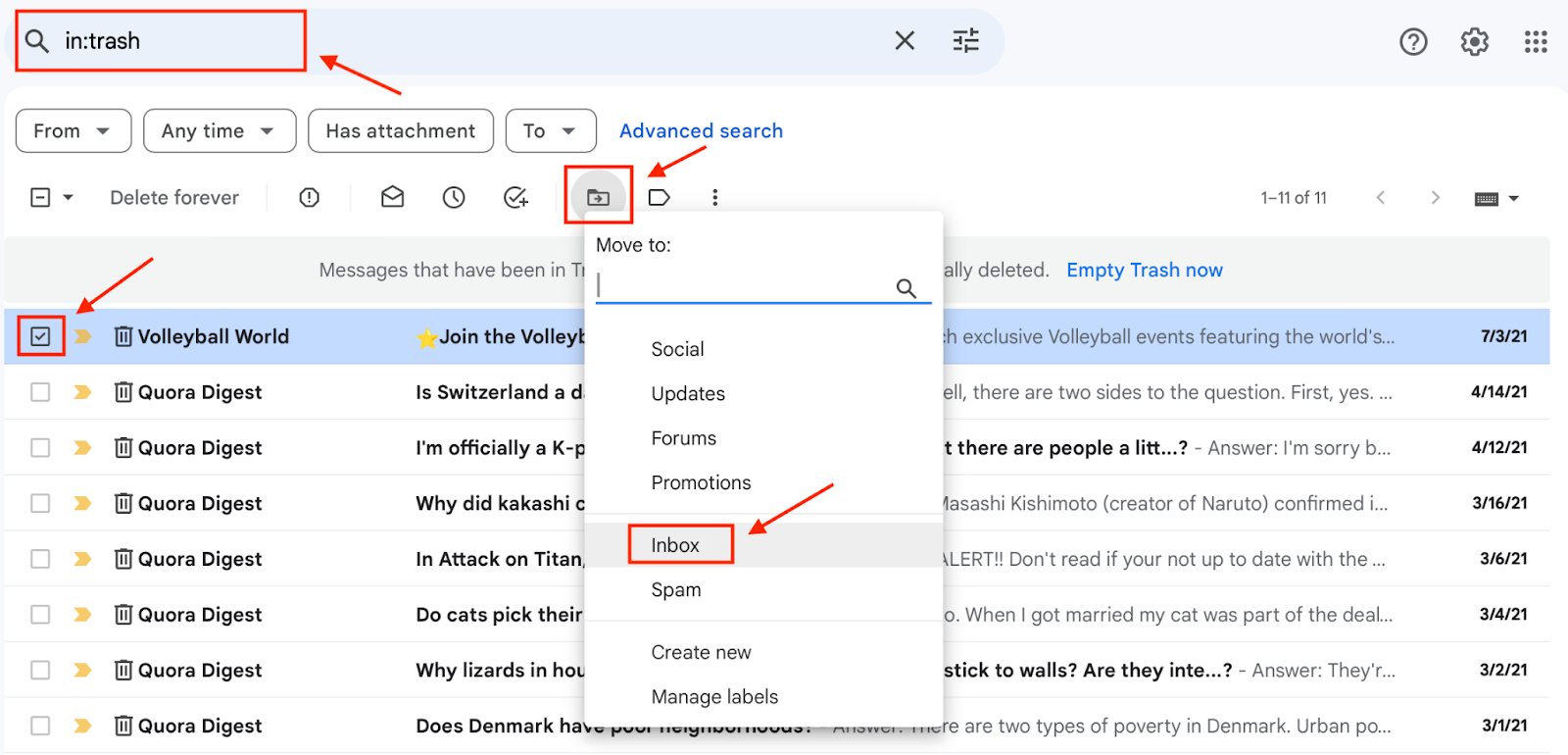
Step 2: Move the email to your inbox.
Method 3: Use the Recover Deleted Items option
Many email apps have a special tool for deeper recovery. Outlook, Gmail, and other services offer a feature that can bring back emails no longer in Trash. This option works for a short period after deletion. You can recover messages that were removed during cleanup, sync errors, or rule filters.
This method is best when the email is not in the Trash. It recovers emails from server logs. It also helps after bulk delete actions.
Steps
Step 1: Open your email settings or recovery page.
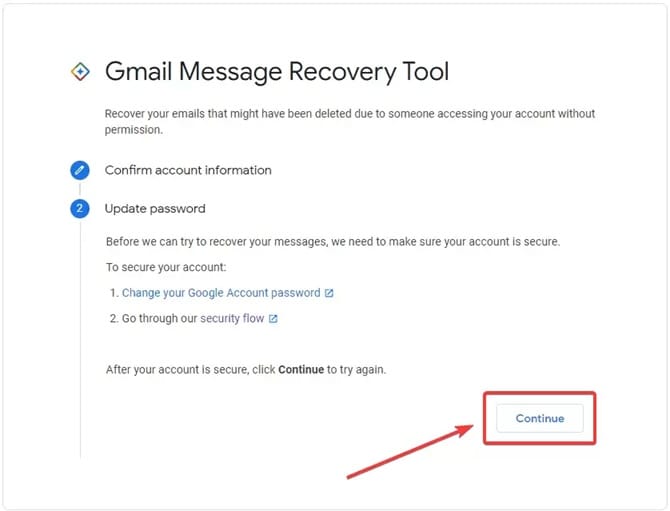
Step 2: Select the message and restore it.
Method 4: Restore emails from backups (local or cloud)
Backups are helpful when an email gets removed long ago. Many people use cloud backups for their phones and computers. Some email apps also allow local export of old mail. You can load a backup file to bring back old messages.
This method helps if the email was lost due to resets. It restores old folders. It can help after malware removal. It is safe and simple.
Steps Step 1: Find your mail backup.
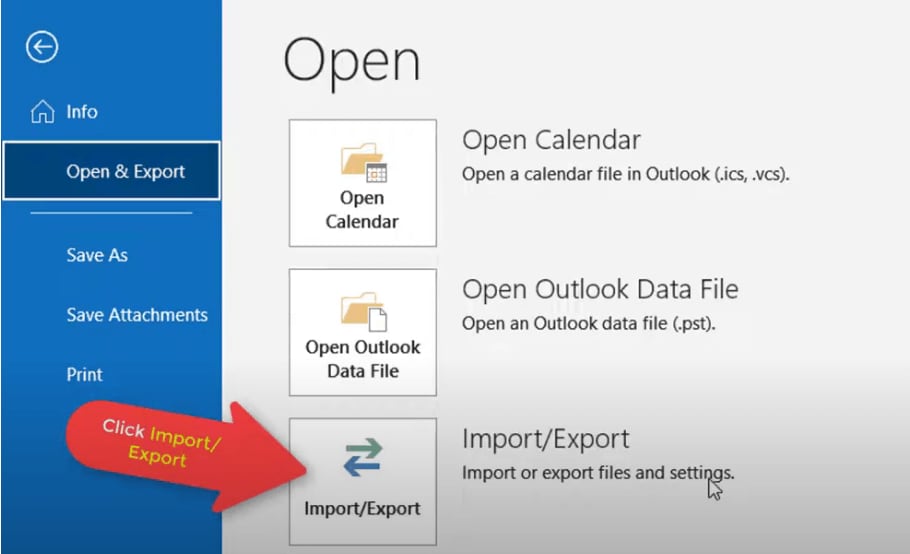
Step 2: Import or restore it in your email app.
Method 5: Contact your email service provider for server-side recovery options
If nothing else works, you can ask your email service provider for help. Some providers keep server backups for a limited time. They can restore mail from your account. You will need to verify your identity. They can bring back important messages or folders.
This works well when your emails disappear because of server issues. It also helps when you cannot use recovery tools on your device. It is useful for work accounts where an admin manages the system. Server recovery is often the best choice when the email was stored only in the cloud and never saved on your device.
Steps
Step 1: Contact support and explain the loss.

Step 2: Follow the steps they share and wait for recovery.
Conclusion
Deleted emails can cause stress. Important files, work details, or personal notes can vanish. The good thing is that most deleted emails can return. You have many simple ways to restore them. You can use built in email options. You can check Trash. You can use recovery tools. You can load backups. You can even get help from your service provider.
The best way to stay safe is to follow good habits. Keep backups. Avoid fast bulk cleanup. Watch for malware. Keep your inbox organized. If you follow these steps, you can avoid future loss and keep your email secure.
FAQs
-
1. Can I recover emails deleted months ago?
Yes, but it depends on your backup. If you saved a backup on time, you can load it. If your provider keeps long server logs, you may get the email back. -
2. Do recovery tools work for all email apps?
They work for apps that store mail files on your device. They help with PST, OST, MBOX, and other file types. If your email is cloud only, you must use the provider tool. -
3. Will I lose my current emails when I restore a backup?
Some backups replace old data. Others merge with your inbox. Read the restore details before you use the file.


