 TL;DR:
Free online 7z password recovery tools can sometimes unlock archives with weak or partly remembered passwords, but they cannot realistically bypass AES-256 encryption for long, random passwords and pose significant privacy risks for sensitive files.
● Browser-based guessing services like Aspose 7ZIP Password Recovery and Password-Online require uploading your archive to a third-party server, making safer local desktop software the necessary choice if your files contain private or regulated data.
● If you already know the correct password and only need to extract the contents without installing software, use ezyZip, which safely performs local browser extraction without uploading your data.
● If your .7z archive is deleted, missing, or stored on a damaged drive, use Recoverit File Recovery to restore the actual file, keeping in mind that it strictly recovers lost data and cannot crack or remove forgotten passwords.
Ask AI for a summary
 ChatGPT
 Perplexity
 Gemini
 Claude
 Grok
Grok
A forgotten 7z password can lock away photos, documents, project files, backups, and other important data. Many users search for 7z password recovery online because online tools seem faster than installing software.
However, 7z archives can use strong AES-256 encryption. If the password is long, random, and unique, no free online tool can guarantee recovery. Online tools may help with weak or partly remembered passwords, but they also require careful privacy judgment because some services ask you to upload the archive.
This guide explains what 7z password recovery online free tools can realistically do, which safer options to try first, when to stop recovery attempts, and how Recoverit File Recovery can help if the 7z archive itself is lost, deleted, or damaged. Important note: Recoverit restores lost files and archives; it does not crack or recover 7z passwords.
In this article
Part 1. What Does 7z Password Recovery Online Mean?
7z password recovery online means using a browser-based service to attempt to identify the password that protects a .7z archive. These tools usually test possible passwords based on length, character sets, common words, or hints you provide.
This is different from normal extraction. If you already know the correct password, you only need 7-Zip, WinRAR, ezyZip, or another archive tool to open the file. If you forgot the password, the tool has to guess it, and success depends heavily on password strength.
7z Password Recovery vs Opening a Password-Protected 7z File
| Aspect | 7z Password Recovery | Opening a Password-Protected 7z File |
| Goal | Find or recover a forgotten password | Extract files using a password you already know |
| When needed | You forgot or lost the password | You have the correct password |
| How it works | Tests possible password combinations | Decrypts the archive with the entered password |
| Typical tools | Online recovery services or desktop recovery tools | 7-Zip, WinRAR, ezyZip, or other archive managers |
| Success depends on | Password length, complexity, hints, and tool limits | Whether the password is correct |
Why 7z AES-256 Encryption Is Hard to Break
The official 7-Zip format documentation lists strong AES-256 encryption as a feature of the 7z format. It also explains that 7-Zip derives the encryption key from the user's text password using SHA-256 and many iterations, which increases the cost of exhaustive password search.
NIST's AES standard also specifies AES-128, AES-192, and AES-256 as AES variants for protecting electronic data. In practical terms, if a 7z file uses a long random password, the realistic weakness is usually the password, not the encryption itself.
- Long passwords create more combinations: Every extra character increases the number of guesses needed.
- Random passwords remove useful patterns: Dictionary attacks work best when the password contains common words or predictable substitutions.
- 7z key derivation slows guessing: More computation is required for each password attempt.
- Header encryption can hide file names: If enabled, even the list of files may be hidden until the correct password is entered.
What Free Online 7z Password Recovery Tools Can and Cannot Do
| Free Online Tools Can | Free Online Tools Cannot |
| Try short, weak, or common password patterns | Guarantee successful recovery |
| Use password hints such as known words or length ranges | Quickly recover long, random, unique passwords |
| Help with small, non-sensitive archives | Remove the need for legal authorization |
| Offer quick attempts without installing software | Guarantee privacy if the archive is uploaded to a server |
| Open a 7z file if you already know the password | Recover files from a deleted or corrupted archive by password guessing alone |
When Recovery Is Unlikely Without the Original Password
Recovery is unlikely when the password was long, randomly generated, unique, and never reused. If you remember no words, patterns, dates, character sets, or length range, recovery tools have little useful information to narrow the search.
In that case, searching for backups, original uncompressed files, password manager entries, old messages, or the archive creator is usually more practical than running endless recovery attempts.
Part 2. What to Check Before Trying 7z Password Recovery
Before uploading a 7z archive to any online recovery website, protect your legal position, privacy, and original file.
Confirm You Are Authorized to Access the Archive
Only attempt 7z password recovery on archives you own or have permission to access. Do not use recovery tools on archives belonging to another person, employer, customer, or organization without authorization.
Make a Copy of the 7z File Before Testing Tools
Create a backup copy of the protected archive before trying any tool. Keep the original unchanged. This prevents accidental file corruption or deletion during repeated testing.
Try Password Variations and Old Hints First
Before using 7z password recovery online free services, try likely variations manually. Check uppercase and lowercase changes, old dates, project names, initials, symbols, and common substitutions you may have used.
Check Password Managers, Notes, Emails, and Messages
Search password managers, browser-saved passwords, notes apps, old emails, chat messages, cloud documents, and file transfer records. Many archive passwords were shared or saved somewhere when the archive was created.
Avoid Uploading Sensitive Archives to Unknown Sites
If the 7z archive contains business files, personal IDs, financial data, contracts, private photos, or client information, avoid unknown online tools. A local desktop method or asking the creator for the password is safer than uploading sensitive files to a third-party server.
Part 3. Best 7z Password Recovery Online Options to Try
The options below are best treated as recovery attempts, not guaranteed fixes. For strong 7z passwords, expect limited success unless you can provide useful hints.
Option 1. Aspose 7ZIP Password Recovery
Aspose 7ZIP Password Recovery is a browser-based tool for recovering forgotten 7z archive passwords. It lets you upload a 7z file and set recovery parameters such as minimum password length, maximum password length, included words, digits, and character sets.
How to use it:
Step 1. Open the Aspose 7ZIP Password Recovery page.
Step 2. Click Browse for file or drag the 7z archive into the upload area.
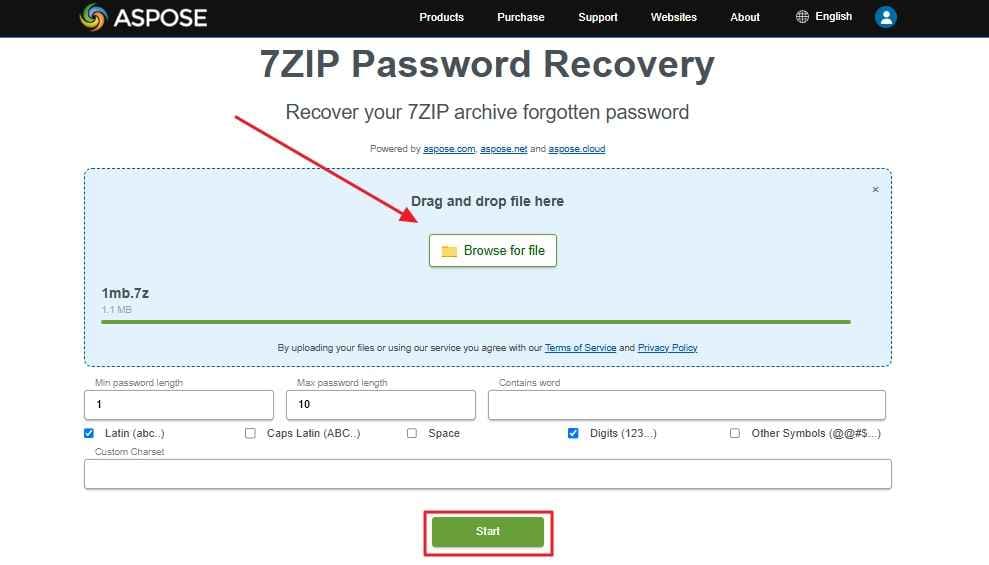
Step 3. Set the password length and character options if you remember them.
Step 4. Click Start and wait for the result.
Step 5. If the password is recovered, copy it and use it to open the archive in 7-Zip or another archive tool.
Option 2. Password-Online Archive Recovery
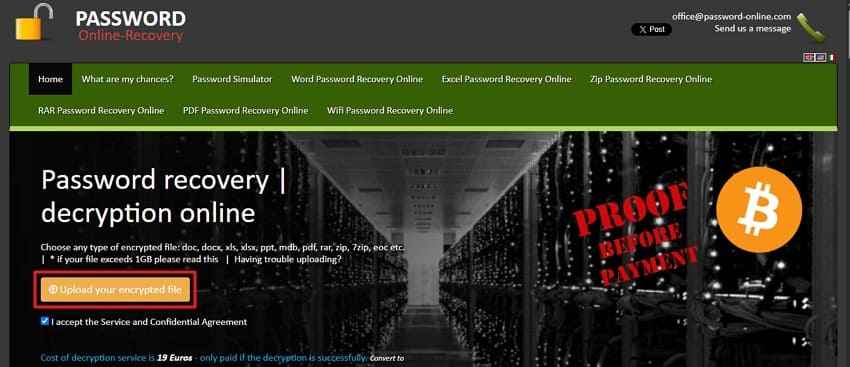
Password-Online is an online password recovery service for encrypted files and archives. It can be useful when you need a server-side recovery attempt and are comfortable uploading the file to a third-party service.
How to use it:
Step 1. Open the Password-Online website.
Step 2. Upload the encrypted archive through the official upload area.
Step 3. Enter your email address for status or recovery updates.
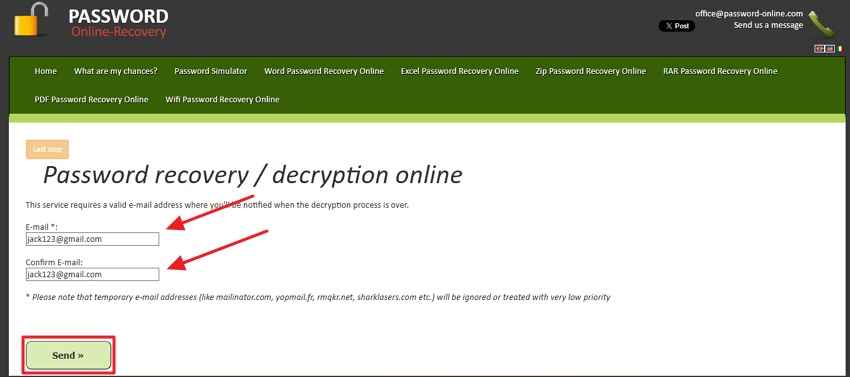
Step 4. Check the status page or email updates for the recovery result.
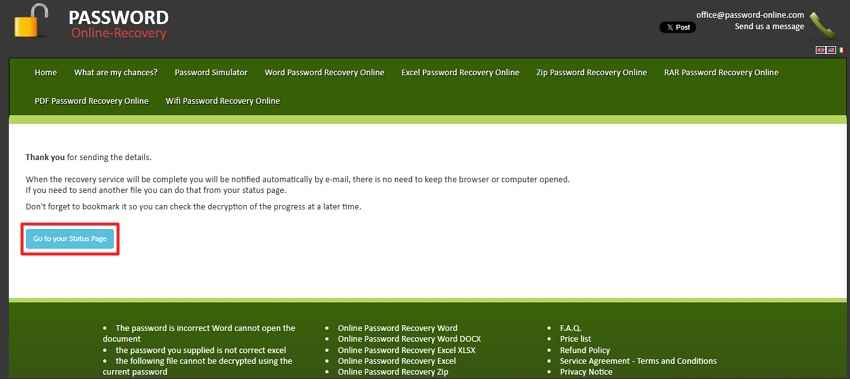
Use this type of service only for files you are allowed to access and only after checking its privacy terms. For sensitive archives, a local method is usually safer.
Option 3. ezyZip for Opening Password-Protected 7z Files
ezyZip is useful when you already know the password and want to open a password-protected 7z file in the browser. It is not the same as recovering a forgotten password, but it can help confirm whether a password you found is correct.
ezyZip states that archive extraction runs locally in the browser without upload for its extraction tools. That makes it a safer option for opening a known-password archive than uploading private files to a recovery server. If you do not know the password, you still need a password recovery method or the original password source.
Option 4. Ask the Sender or Archive Creator
Sometimes the fastest recovery method is not a tool. Contact the person who created or shared the 7z archive. They may still have the password in a password manager, file transfer note, email thread, or project documentation.
This option also protects your privacy because you do not need to upload the archive to any online service.
Online Tool Comparison: Privacy, Limits, and Best Use Case
| Option | Best For | Privacy Consideration | Main Limitation |
| Aspose 7ZIP Password Recovery | Quick online recovery attempts with password length or word hints | Requires file upload | Strong passwords may not be recovered quickly |
| Password-Online | Server-side archive recovery attempts | Requires upload and email | Not ideal for sensitive archives |
| ezyZip | Opening a protected 7z file when you already know the password | Extraction is designed to run locally in the browser | Does not recover an unknown password in the free browser opener |
| Sender or creator | Shared archives, work files, or old backups | No upload needed | Depends on whether the creator still has the password |
Part 4. Free Online Tools vs Desktop 7z Password Recovery Tools
Free online tools are convenient, but desktop tools can be safer for private files and longer recovery attempts.
When Free Online 7z Recovery Is Enough
Free online tools may be enough when the archive is small, not sensitive, and protected by a weak or partly remembered password. They are also useful when you only want a quick test before investing more time.
When Desktop Recovery Software Is Safer
Desktop recovery software is safer when the archive contains private, business, or regulated data because the file can stay on your device. Desktop tools may also allow longer recovery attempts, custom dictionaries, masks, and GPU acceleration, depending on the software.
| Feature | Free Online Tools | Desktop Tools |
| Installation | No installation required | Requires installation |
| Privacy | Some services require uploading the archive | Archive can stay on your computer |
| Best case | Weak or short passwords | Longer attempts and sensitive archives |
| Limitations | File size, time, and server limits | Still cannot guarantee strong password recovery |
When to Stop Attempting Recovery and Search for Backups
If you have no password hints and the archive used a strong random password, stop before wasting hours on unlikely attempts. Search for another copy of the files in cloud drives, external disks, email attachments, old computers, NAS storage, or the original device where the files were created.
Part 5. What If the 7z File Is Missing, Deleted, or Damaged?
Sometimes the issue is not the password. The 7z file may be deleted, missing, corrupted, or stored on a damaged drive. In that case, password recovery tools are the wrong first step.
Lost 7z File vs Forgotten 7z Password
| Problem | What It Means | Correct Tool |
| Forgotten 7z password | The archive exists, but you cannot open it | Password recovery tool or original password source |
| Deleted 7z file | The archive itself is missing from the drive | File recovery software |
| Corrupted 7z file | The archive is damaged or cannot be read normally | File recovery or archive repair options |
| Lost original files | You need the files that were inside or used to create the archive | File recovery from the original storage device |
When Recoverit File Recovery Can Help
Recoverit File Recovery can help when the 7z archive or the original files were deleted, lost after formatting, stored on a crashed drive, or missing from an external storage device. It is useful for recovering archives and source files before you try to open or repair them.
What File Types and Storage Devices Recoverit Supports
| Category | Examples |
| Archive files | 7Z, ZIP, RAR, TAR, ISO, and other archive formats |
| Documents | DOC, DOCX, XLS, XLSX, PPT, PPTX, PDF, TXT |
| Media files | JPG, PNG, MP4, MOV, AVI, MP3, WAV, and more |
| Storage devices | Internal drives, external HDDs, SSDs, USB drives, memory cards, and lost partitions |
| Loss cases | Deletion, formatting, system crash, virus attack, corrupted storage, and inaccessible drives |
Guide to Recover Lost or Deleted 7z Archive Files With Recoverit
Stop using the drive where the 7z archive was stored. New files can overwrite deleted archive data and reduce recovery chances.
Step 1. Select the Lost 7z File Location
Open Recoverit, go to Hard Drives and Locations, and choose the drive, folder, or external device where the lost 7z archive was last stored.

Step 2. Scan the Selected Location
Recoverit starts scanning the selected location. You can use filters or search to locate archive files such as .7z, .zip, or .rar more quickly.

Step 3. Preview and Recover the 7z Archive
Select the recoverable 7z archive or original source files, then click Recover. Save the recovered files to another safe drive, not back to the same location where they were lost.

Important Note: Recoverit Does Not Crack 7z Passwords
Recoverit can restore lost, deleted, formatted, or inaccessible files. It cannot reveal, bypass, crack, or remove a forgotten 7z password. If the recovered 7z archive is still password-protected, you still need the correct password or a separate authorized password recovery method.
Part 6. How to Prevent Lost 7z Passwords
Preventing password loss is easier than recovering a strong 7z password later.
Use a Password Manager for Archive Passwords
Save archive passwords in a trusted password manager. Use the archive name, project name, date, or storage location in the entry so you can find it later.
Keep Secure Password Hints Separate From the Archive
A hint can help you remember the password without exposing it. Store hints in a secure note, not in the same folder as the archive.
Share Archive Files and Passwords Through Separate Channels
If you send a 7z archive by email, share the password through another secure channel. Do not send the archive and password together in the same message.
Keep an Unencrypted Backup When Security Is Not Required
If the files are not sensitive, keep a normal backup copy on an external drive or trusted cloud service. This gives you another way to access the files if the archive password is forgotten.
Conclusion
7z password recovery online tools can sometimes help with weak, short, or partly remembered passwords. They are not magic, and they cannot guarantee recovery against strong AES-256 protected archives with long random passwords. For sensitive files, avoid unknown upload-based tools and use safer local options or ask the archive creator for the password.
If the real problem is that the 7z file was deleted, lost, or damaged, use Recoverit File Recovery to recover the archive or original files first. Recoverit restores files; it does not crack 7z passwords.
FAQ
-
Can I recover a 7z password online for free?
Sometimes. Free online tools may recover short, weak, or common passwords, especially if you remember part of the password. They usually cannot recover long, random, complex passwords in a practical time. -
Why is 7z password recovery so hard?
7z supports strong AES-256 encryption and uses password-based key derivation that increases the cost of guessing. If the password is long and random, recovery becomes extremely difficult. -
Is it safe to upload a 7z archive to an online recovery tool?
It depends on the service and the archive content. Avoid uploading sensitive, private, business, legal, or financial files to unknown websites. For sensitive archives, use a trusted local method or contact the archive creator. -
Can Recoverit recover my 7z password?
No. Recoverit does not crack, reveal, or remove 7z passwords. It can recover lost, deleted, or inaccessible 7z archives and original files from storage devices. -
What should I do if the 7z password recovery fails?
Search for backups, original files, old emails, chat messages, password manager entries, or the archive creator. If the archive itself is missing or deleted, recover the 7z file or source files with file recovery software.



