If Outlook is stuck on Updating Inbox, first check the same mailbox in a web browser. If recent messages arrive in Outlook on the web but not in the Windows app, the problem is more likely to involve desktop synchronization, its connection, account settings, or a local cache. If the web inbox is also out of date, look at mailbox rules, account delivery, or service health before changing local files.
This guide walks through 12 fixes for classic Outlook for Windows, then shows the separate sync controls in new Outlook. Start with low-risk connection checks. Only repair a PST, rebuild an OST, or create a new profile after confirming what exists on the server and backing up any unique local mail. File-recovery software is relevant only if a local email archive has actually been lost.
In This Article
-
- Fix 1. Check Your Internet Connection and Outlook Server Status
- Fix 2. Turn Off Work Offline and Manually Update Your Inbox
- Fix 3. Check Outlook Send/Receive Group Settings
- Fix 4. Restart Outlook and Your Computer
- Fix 5. Update Microsoft Outlook
- Fix 6. Verify Your Outlook Account Settings and Repair the Connection
- Fix 7. Check Cached Exchange Mode Settings
- Fix 8. Start Outlook in Safe Mode and Disable Conflicting Add-ins
- Fix 9. Repair Corrupted Outlook PST Files Using SCANPST.EXE
- Fix 10. Rebuild the Outlook OST File
- Fix 11. Create a New Outlook Profile
- Fix 12. Repair Microsoft 365 or Office
Part 1. Why Is Outlook Stuck on Updating Inbox?
The status Updating Inbox means Outlook is still attempting to synchronize a folder; it does not prove that messages were lost. Compare the same account in Outlook on the web, classic Outlook, and new Outlook (if installed). This quick comparison reveals whether the fault is local to one client, affects multiple clients, or may involve the mailbox service.
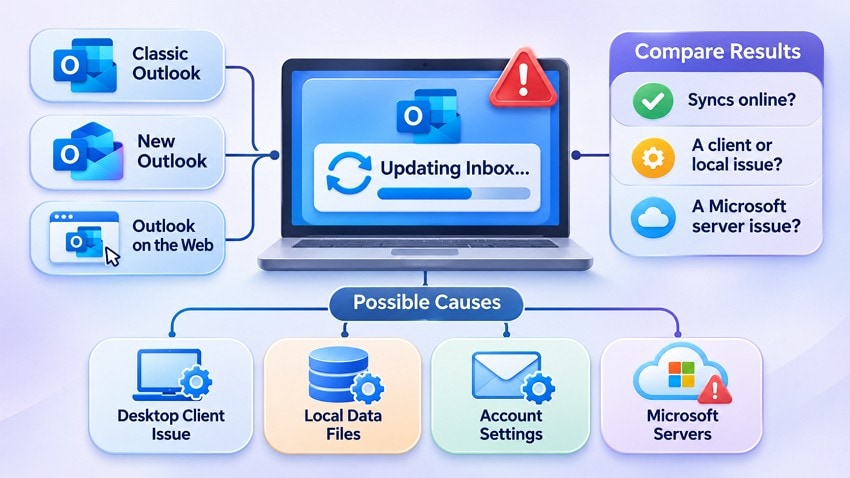
Start with the result that matches your situation. It helps you avoid rebuilding a healthy local cache when the underlying issue is delivery, a rule, or an Exchange Online service problem.
| What You See | Likely Source | Where to Look |
| New Mail on the Web, None in Classic Outlook | Desktop synchronization, offline mode, account settings, or local cache | Fixes 2-8, 10-12 |
| New Mail Missing on the Web as Well | Mail delivery issues, inbox rules, filters, account problems, or server outages | Fix 1, mailbox rules, and service health |
| New Outlook Current, Classic Outlook Behind | Classic Outlook settings, conflicting add-ins, profile issues, or damaged OST files | Fixes 2-8, 10-12 |
If every client is missing the same message, check mailbox rules, Junk Email, the recipient address, and any incident reported in Microsoft 365 service health. Microsoft documented a specific classic Outlook folder sync error, 0x80004005, in June 2026; that incident is marked fixed and should not be treated as a current cause for every frozen Inbox. See Microsoft's issue record only when the same error appears.
A user in a 2022 r/Office365 discussion reported that manually refreshing folders or reopening Outlook made messages appear temporarily, even after an OST rebuild and profile changes. That is one user report, not proof of a single universal fix.
Part 2. How to Fix Outlook Stuck on Updating Inbox
Use these fixes in order, stopping once messages synchronize and stay current. Fixes 1-8 cover connection and account settings; Fixes 9-12 address local files, profiles, and the Office installation. Before Fixes 9-12: verify the mailbox online and preserve any POP mailbox, PST archive, locally saved draft, or item that has not synchronized. Do not delete PST files to fix an OST problem.
Fix 1. Check Your Internet Connection and Outlook Server Status
When Outlook is stuck updating, test the internet connection and the mailbox separately. Open your account in Outlook on the web (Microsoft 365 work or school) or Outlook.com (personal), or use your provider's own webmail. A web inbox with current messages suggests the desktop client needs attention; missing messages on the web call for delivery and account checks. Microsoft 365 administrators can check Exchange Online incidents in the admin center.
Step 1. Open a website to verify your internet connection. Then, sign in to Outlook on the web for work or school accounts, or Outlook.com for personal accounts. Check whether recent emails appear in your "Inbox."
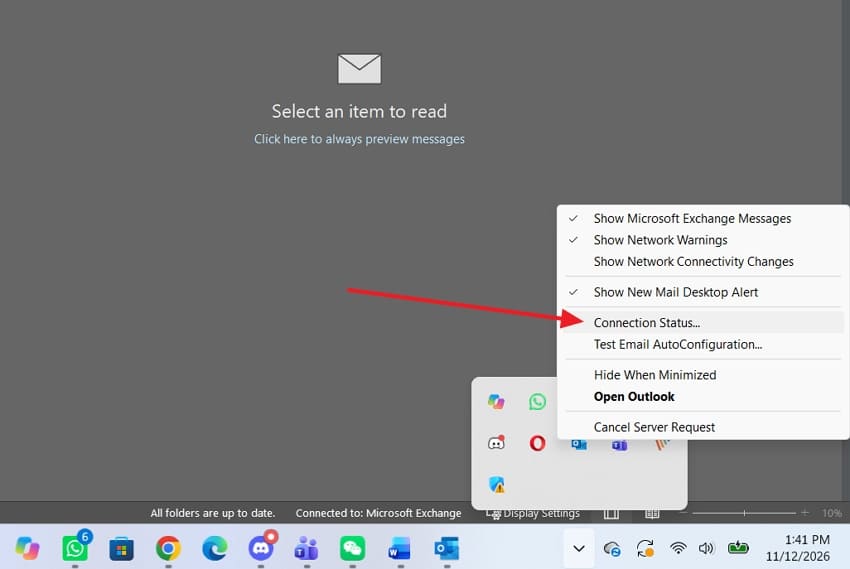
Step 2. In classic Outlook with an Exchange or Microsoft 365 mailbox, you can hold Ctrl and right-click Outlook's notification-area icon, then select Connection Status if that command is available. Ask your admin to review Microsoft 365 admin center > Health > Service health for a matching incident. If the web mailbox is current and the desktop is disconnected, proceed to Fix 2.
Fix 2. Turn Off Work Offline and Manually Update Your Inbox
In classic Outlook, Working Offline or Disconnected on the status bar means the client is not currently receiving mail from the server. This is a quick, non-destructive check. The ribbon commands below do not apply to new Outlook.
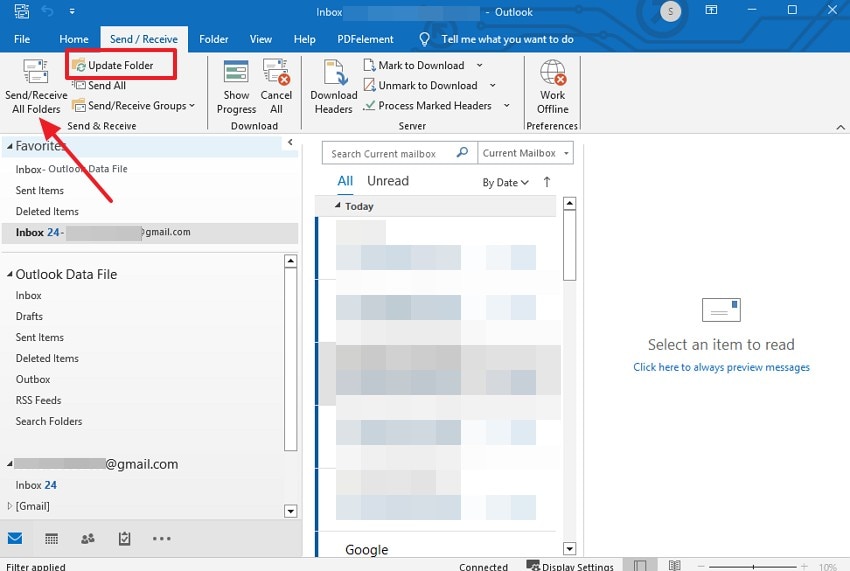
Step 1. In Classic Outlook, open the "Send/Receive" tab and click "Work Offline" if it is highlighted. Check that "Working Offline" no longer appears on the status bar.
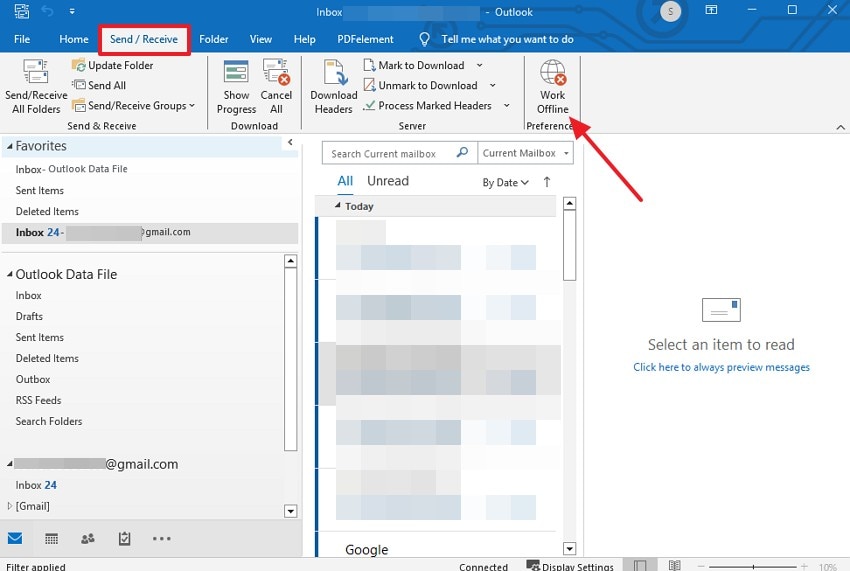
Step 2. Choose Send/Receive > Update Folder for the selected folder, or Send/Receive All Folders (F9) for the configured accounts. If new messages appear and remain current, stop. If manual refresh works but automatic updates do not, continue to Fix 3.
Fix 3. Check Outlook Send/Receive Group Settings
For classic Outlook accounts that use Send/Receive Groups, a disabled schedule or an excluded account can explain why manual updates work but automatic checks do not. Exchange and Microsoft 365 automatic push behavior differs, so do not treat this as a universal fix for every mailbox.
Step 1. In classic Outlook, press Ctrl + Alt + S or open Send/Receive > Send/Receive Groups > Define Send/Receive Groups. Select All Accounts and review the automatic send/receive interval for accounts that use it.
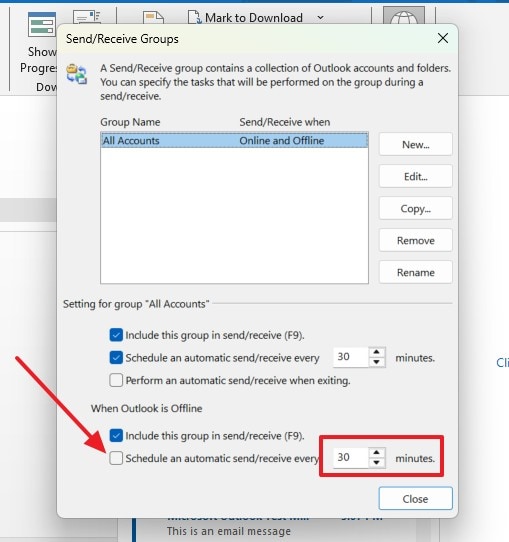
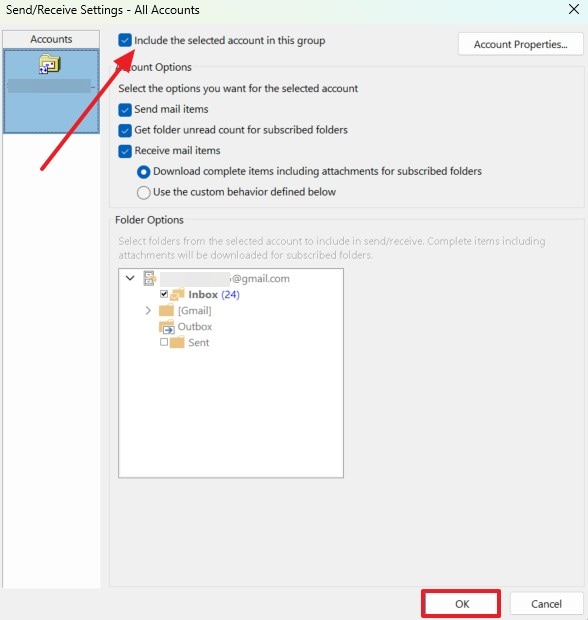
Step 2. Click "Edit," select the affected email account, and enable "Include the Selected Account in This Group." Choose "OK" to save the changes, then restart Outlook and check whether automatic synchronization works.
Fix 4. Restart Outlook and Your Computer
A restart can clear a temporary client connection problem, but repeated freezes may indicate a service, add-in, or profile issue. Before ending Outlook through Task Manager, save any draft that is still accessible.
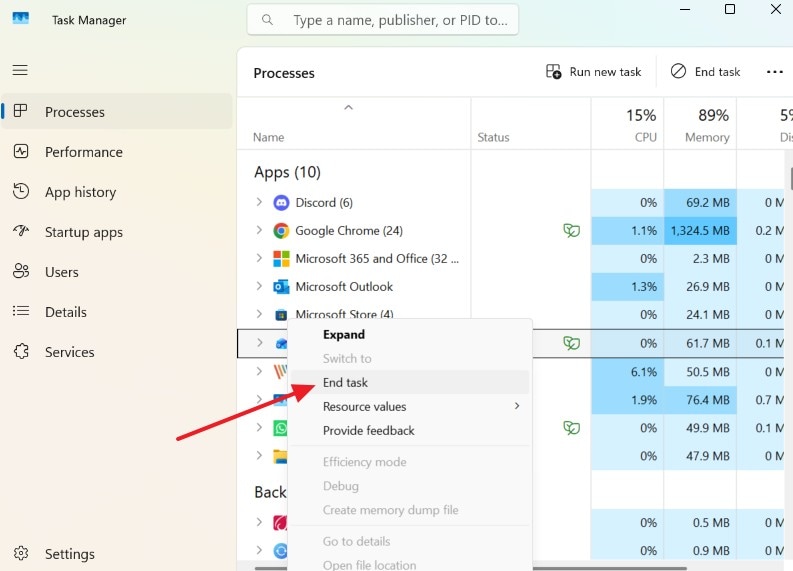
Step 1. Close Outlook, then press "Ctrl + Shift + Esc" to open "Task Manager." Under "Processes," locate any remaining "Microsoft Outlook" process. Right-click it and select "End Task" if Outlook has stopped responding.
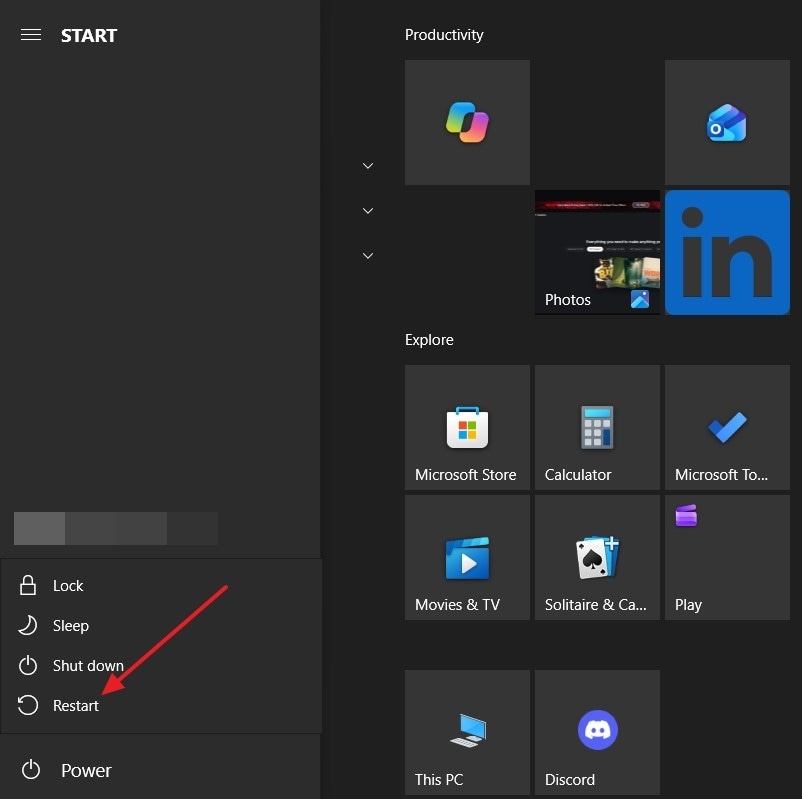
Step 2. Navigate to "Start > Power > Restart" to reboot Windows, as explained in Microsoft's restart guide. Once your computer restarts, open Outlook and check whether the "Inbox" synchronizes properly.
Fix 5. Update Microsoft Outlook
Microsoft publishes Outlook fixes through Microsoft 365 and Office updates. Install approved updates before changing data files, especially if several users have the same symptoms. An organization-managed installation may require an administrator.
Step 1. Open Classic Outlook and navigate to "File > Office Account > Update Options > Update Now." If updates are disabled, activate "Enable Updates" first.
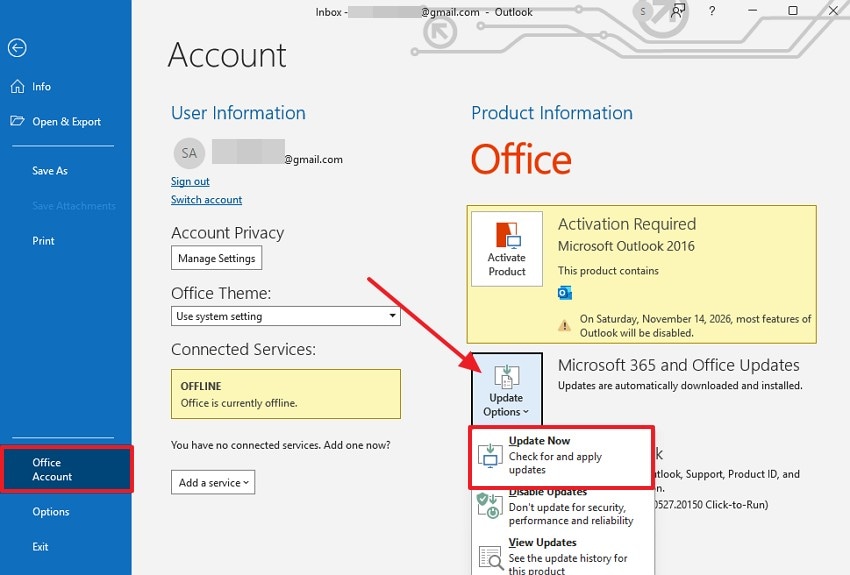
Step 2. Wait for the update process to finish, close and reopen Outlook, and check whether your Inbox synchronizes. If "Update Options" is unavailable, check for updates through Windows Update or contact your organization's IT administrator.
Fix 6. Verify Your Outlook Account Settings and Repair the Connection
Authentication changes, expired sign-in sessions, or incorrect POP/IMAP server settings can block new mail. The Repair option in classic Outlook is available for some account types and versions, but Microsoft notes it is unavailable for Outlook 2016 Exchange connections. Recheck settings with the actual email provider before changing security or server values.
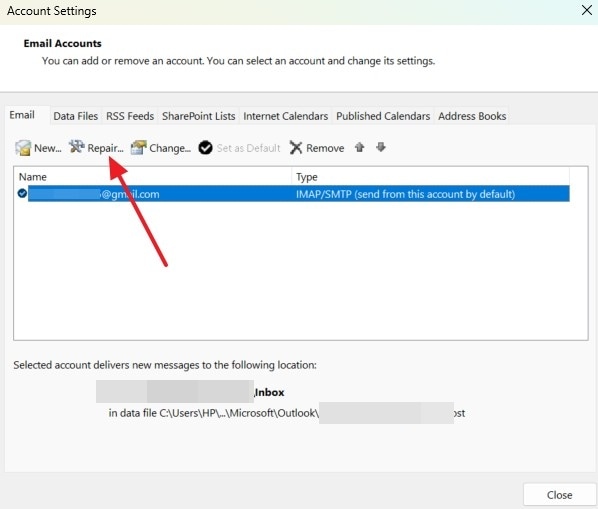
Step 1. In Classic Outlook, navigate to "File > Account Settings > Account Settings." Under the "Email" tab, select the affected account and click "Repair." Follow the on-screen instructions and restart Outlook.
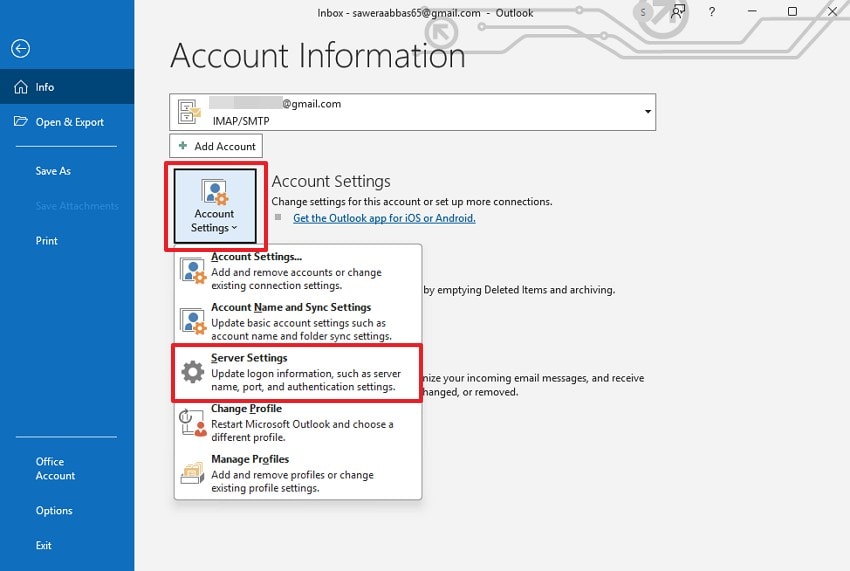
Step 2. For IMAP accounts, open "File > Account Settings > Server Settings" or select "Change" in older Outlook versions. Verify the incoming and outgoing server names, ports, encryption, and authentication settings using your provider's official instructions, such as Outlook.com's IMAP settings or Gmail's IMAP settings. Save your changes and check whether synchronization works.
Fix 7. Check Cached Exchange Mode Settings
For supported Exchange and Microsoft 365 accounts in classic Outlook, Cached Exchange Mode stores a local copy of server mail. A very large cache can affect performance, but changing the download range only changes which older messages are kept offline; it does not delete them from Exchange. The slider is not a substitute for fixing a server-side sync incident.
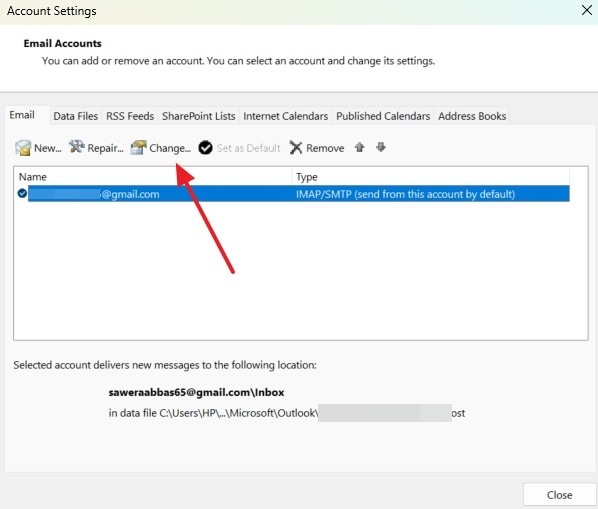
Step 1. In Classic Outlook, navigate to "File > Account Settings > Account Settings" and open the "Email" tab. Select your Microsoft 365 or Exchange account, then click "Change" or double-click the account.
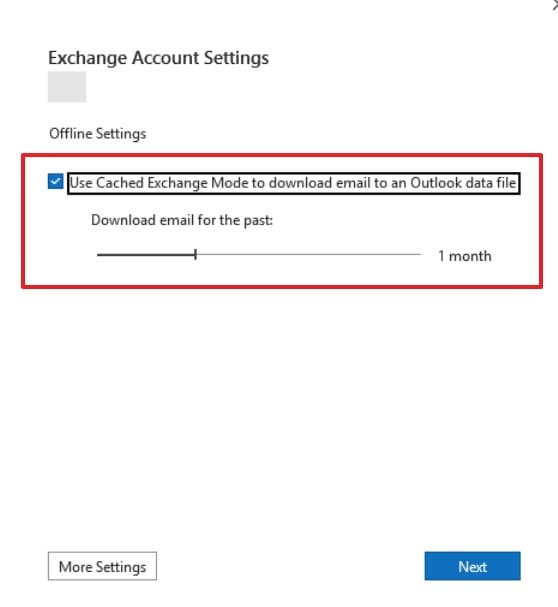
Step 2. Under Offline Settings, confirm Cached Exchange Mode is enabled where supported. If you have a very large mailbox, consider reducing Download email for the past, then restart classic Outlook and allow time for a fresh synchronization. Older messages should remain available on the server.
Expected result: After the restart, the Inbox continues to receive recent server mail. If it still stalls while webmail is current, move to the add-in and data-file checks rather than repeatedly reducing the offline range.
Fix 8. Start Outlook in Safe Mode and Disable Conflicting Add-ins
A conflicting COM add-in can delay classic Outlook. If the Inbox works in Safe Mode, return to normal mode and disable one add-in at a time to identify the source. This diagnosis does not apply to new Outlook.
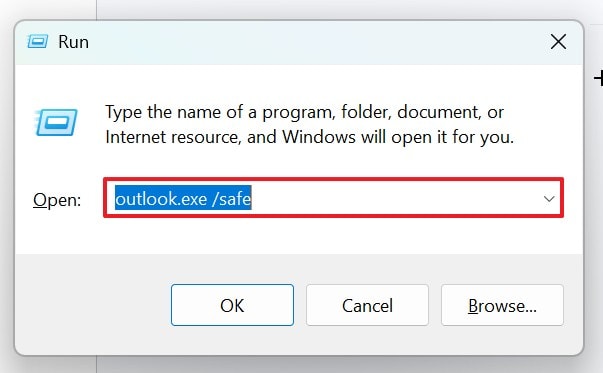
Step 1. Press "Windows + R," type "outlook.exe /safe," and press "Enter." Select your Outlook profile if prompted, then check whether the inbox synchronizes normally.
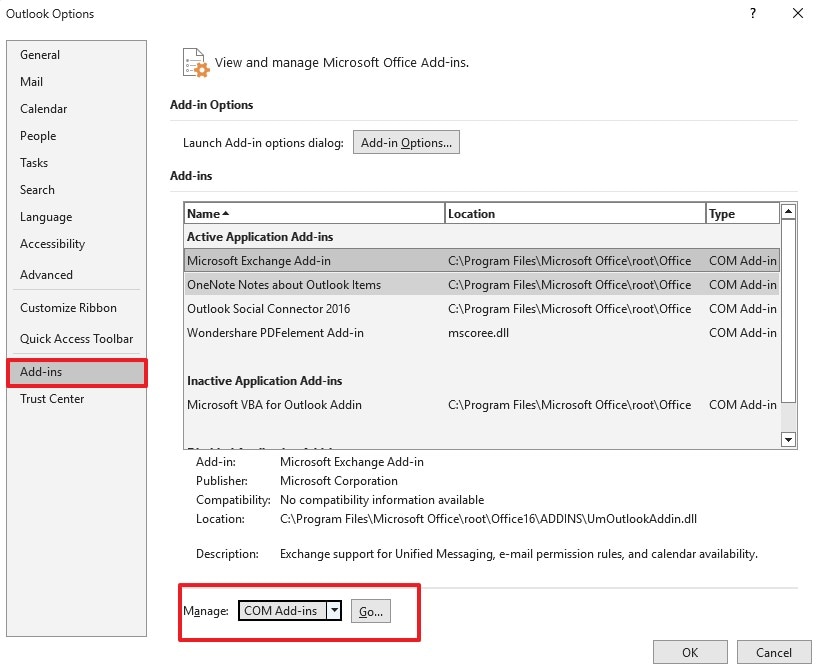
Step 2. Close Safe Mode and reopen Outlook normally. Navigate to "File > Options > Add-ins," select "COM Add-ins" under "Manage," and click "Go." Uncheck one add-in at a time, restart Outlook, and test synchronization after each change.
Fix 9. Repair Corrupted Outlook PST Files Using SCANPST.EXE
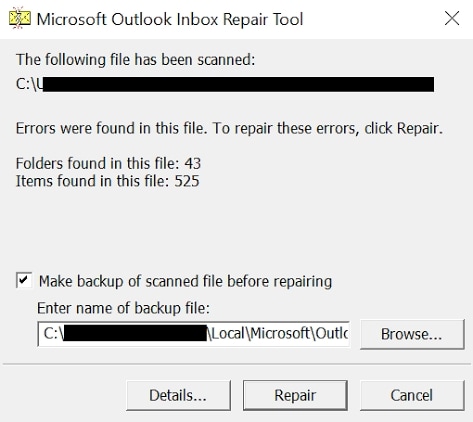
Use Microsoft's Inbox Repair Tool (SCANPST.EXE) when a local PST archive or POP mailbox file is damaged, missing folders, or producing data-file errors. It checks local files, not Exchange Online mail. Back up the entire PST first and run repair on a copy if possible; SCANPST is not a routine first response to a cloud mailbox lag. See Microsoft's PST/OST repair instructions.
Step 1. Exit classic Outlook. Locate the affected .pst file and make a verified backup. Find SCANPST.EXE in your Office installation folder; a common Microsoft 365 location is C:\Program Files\Microsoft Office\root\Office16, although locations vary by version.
Step 2. Open SCANPST, choose Browse to select the PST copy, then Start. If errors are found, allow it to create a backup and select Repair. Reopen classic Outlook and confirm that the archive opens and its items are available. If a file cannot be repaired, preserve the original and consider restoring a backup.
Fix 10. Rebuild the Outlook OST File
For a synchronized Exchange or Microsoft 365 account in classic Outlook, an OST file is a local cache of server mail. Re-creating it can solve a corrupted cache, but only after you confirm the mailbox is current online. Do not rebuild an OST if important unsent, unsynchronized, or local-only items may exist without a separate copy. POP mail and PST archives are different and must not be renamed or deleted here.
Step 1. Sign in to the same account in Outlook on the web and verify recent Inbox, Drafts, Sent Items, and any folders needed. Preserve any local-only items before proceeding. If messages are also missing online, stop and investigate server-side recovery instead.
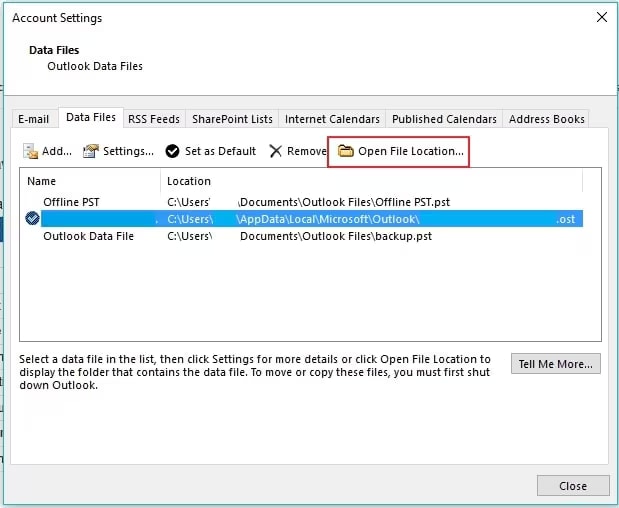
Step 2. In classic Outlook, open File > Account Settings > Account Settings > Data Files, select the relevant .ost, and choose Open File Location. Close Outlook completely. Rename only that OST to a .old backup name, then reopen Outlook and allow a fresh cache to download. Keep the old file until you have verified the new sync.
Note: Never delete a PST during OST troubleshooting. The new cache can re-download synchronized server data, but it cannot recreate unsynchronized local-only items.
Fix 11. Create a New Outlook Profile
A damaged classic Outlook profile can interfere with connection settings. Create a separate test profile first rather than removing the original, particularly when it references local POP accounts, PST archives, or custom rules.
Step 1. Close classic Outlook and hold Shift while starting it to open the profile picker, or open Control Panel > Mail > Show Profiles. Choose the option to create a profile while keeping the existing profile intact.
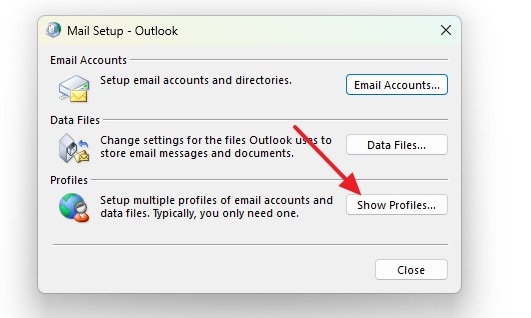
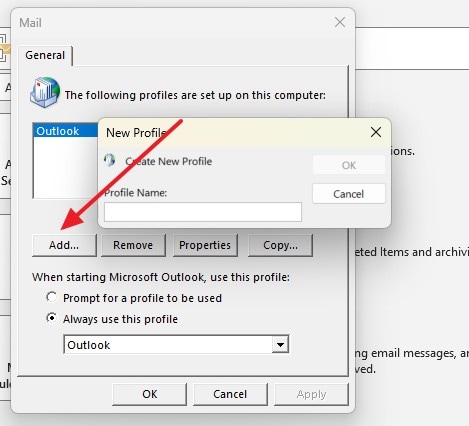
Step 2. Select Add, name the new profile, and follow the account setup prompts. Restart Outlook, choose the new profile, and test incoming mail. If it works, migrate needed archives and settings deliberately; do not delete the old profile until local data has been accounted for.
Fix 12. Repair Microsoft 365 or Office
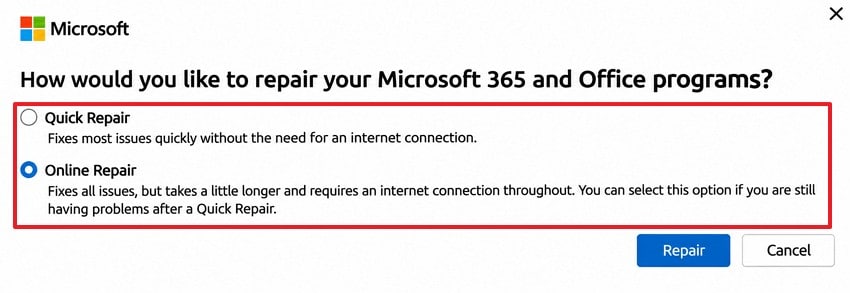
If client files are damaged, Microsoft recommends Quick Repair followed, if needed, by Online Repair. This affects the installed Office suite rather than a mailbox on the server. Managed computers may require IT approval, and Online Repair needs an internet connection.
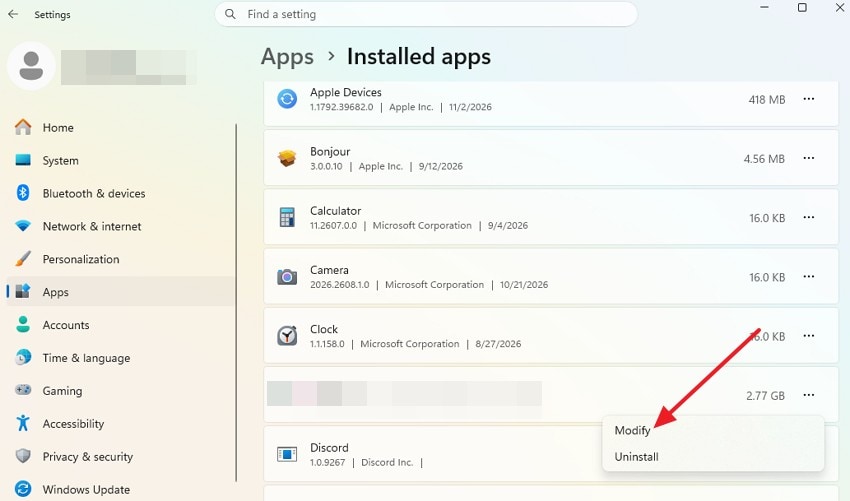
Step 1. Close Outlook and other Office applications. Right-click "Start" and open "Settings > Apps > Installed Apps." Locate "Microsoft 365 or Office," click "More Options > Modify," and approve the permission prompt if it appears.
Step 2. Select "Quick Repair" and follow the on-screen instructions. If Outlook still fails to synchronize, return to the repair menu and choose "Online Repair," which requires an internet connection. Once the repair finishes, restart Outlook and check whether synchronization works.
Part 3. How to Fix Outlook Inbox Not Updating in New Outlook
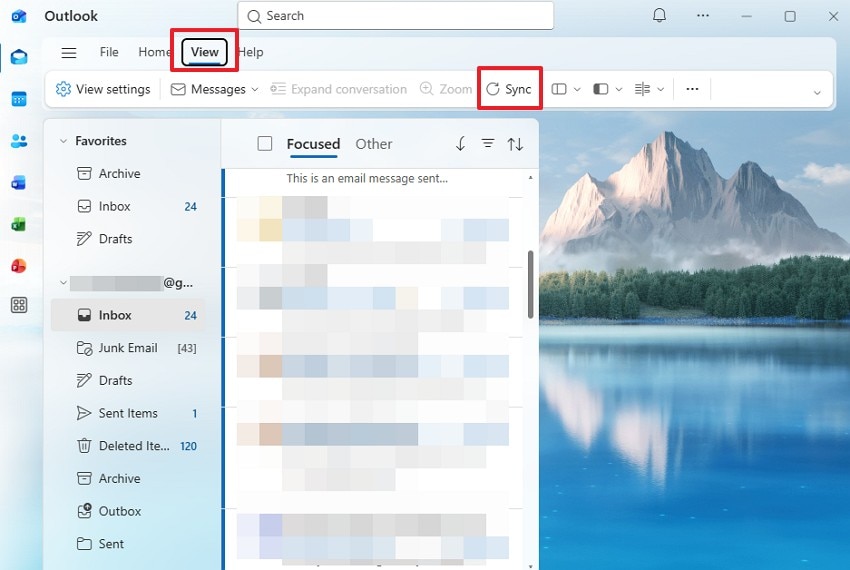
New Outlook for Windows uses View > Sync instead of the classic Send/Receive tab. It does not use the classic COM add-in, Send/Receive Group, or Cached Exchange Mode controls above. Start with the web mailbox, then use the new app's manual sync and account options. If a shared mailbox was automatically mapped, its folder-sync behavior may differ from a mailbox added as an account.
Step 1. Open new Outlook, select the affected folder, and choose View > Sync or press F9. Confirm whether recently received messages appear. For supported account types, Microsoft documents this in its new Outlook sync guide.
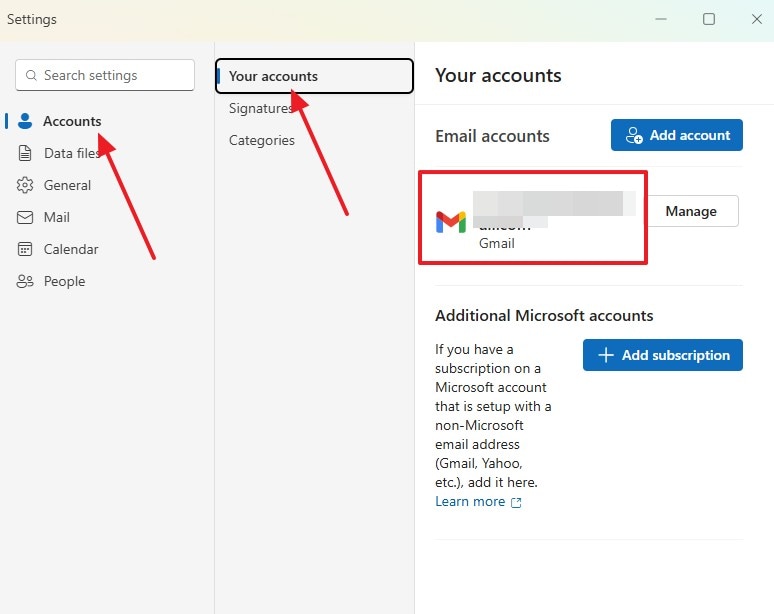
Step 2. Open Settings > Accounts > Your accounts, select Manage for the affected account, and check connection or sign-in prompts. Compare the same account in webmail before making changes. Do not remove an account with unique unsynchronized content; some account-removal options also remove cached Microsoft Cloud data.
Step 3. If the problem affects only messages available offline, review Settings > General > Offline and the supported folders/days saved. These controls govern offline availability; they do not restore messages absent from the server.
Note: In new Outlook, shared mailboxes added automatically may not auto-sync their Inbox. If this is a work mailbox, ask your admin whether adding it as an account is appropriate.
Part 4. What to Do If Outlook Emails Are Missing After Synchronization
If the Inbox refreshes but a message still seems missing, determine whether it was never delivered, is hidden in a folder, or is absent only from the local client. Check Outlook on the web before attempting a file scan. Use the following branches rather than treating all missing emails as deleted local files:
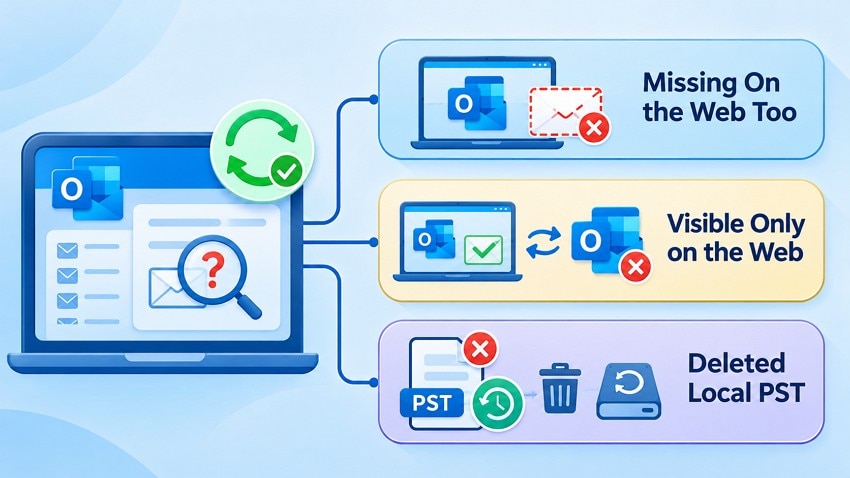
- Missing on the Web Too: Search Deleted Items, Junk Email, Archive, and all other folders. Check Inbox rules, Focused/Other, and the recipient account. For supported Exchange mailboxes, use Recover Items Deleted from This Folder while the retention window remains open. If the message never reached the server, ask the mail administrator to trace delivery.
- Visible Only on the Web: Review desktop filters, selected folder, account sign-in, and the local synchronization range. In classic Outlook with Exchange, older items outside the offline range may only be available from the server. Use the cache repair in Fix 10 only after confirming the web copy exists.
- Deleted Local PST: If a POP mailbox file or independent PST archive is missing from disk, check the Recycle Bin, File History, and backups first. Stop writing to the affected drive if it was deleted. Only this local-file-loss scenario may call for disk-level recovery software.
For help recovering deleted messages that still exist in Exchange, follow Microsoft's deleted-item recovery guidance before using local disk recovery.
Pro Tip. Recover Lost Outlook Email Files with Recoverit
A missing PST archive or locally saved EML file is a different problem from an Outlook Inbox that has stopped synchronizing. If an important local mail file was deleted and is no longer in the Recycle Bin or a backup, stop saving new data to that drive and check whether recovery is possible. Recoverit cannot repair an Outlook account connection, read mail held only on a server, or guarantee an intact PST.
For an eligible locally deleted Outlook archive on a readable drive, Wondershare Recoverit email recovery can scan the storage device for recoverable PST, OST, EML, and other supported file formats. You can search the scan results by filename or file type and save selected files to a different drive. Preview support varies by file format; do not assume Recoverit can open or display every message inside a recovered PST.
Use Recoverit only for lost files on readable local storage. If the missing messages exist exclusively in Microsoft 365, Exchange Online, or another webmail service, use the provider's mailbox-recovery tools instead.
Key Features
- Local Email File Search: Scan a readable drive for an eligible deleted PST archive or exported email file, subject to overwrite and storage conditions.
- File and Folder Recovery: When directory information is still intact, recovered files may retain recognizable names and paths; this is not guaranteed after RAW recovery.
- Scan Filtering: Narrow recoverable results by file type, filename, and other supported filters instead of scanning an Exchange Online mailbox.
- Separate-Destination Recovery: Save selected recovered files to a healthy drive to reduce overwrite risk.
- Format Limits: A recovered PST may still be damaged, and OST caches normally require their original account context. Recoverit recovers eligible files, not server-side Outlook messages.
Guide to Recover Lost Outlook Email Files Using Recoverit
If the original PST/archive file disappeared from local storage, use Recoverit only after checking the Recycle Bin and existing backups. Install it on another healthy drive when possible, then:
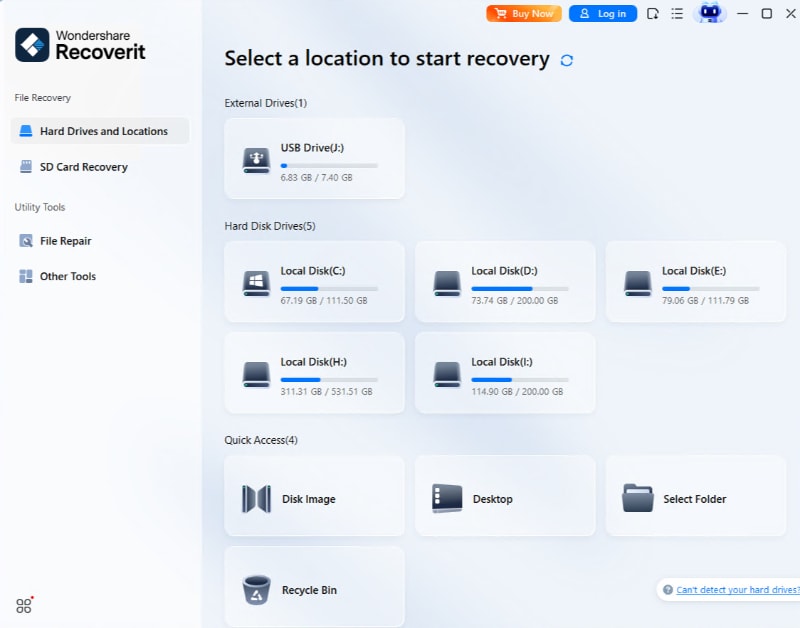
Step 1. Find the Drive Holding Your Email Archives
Open Recoverit and choose the drive that previously stored the missing email archive. Start the scan. Do not install or save recovered files to the affected drive.
Step 2. Narrow Down the Scan Results
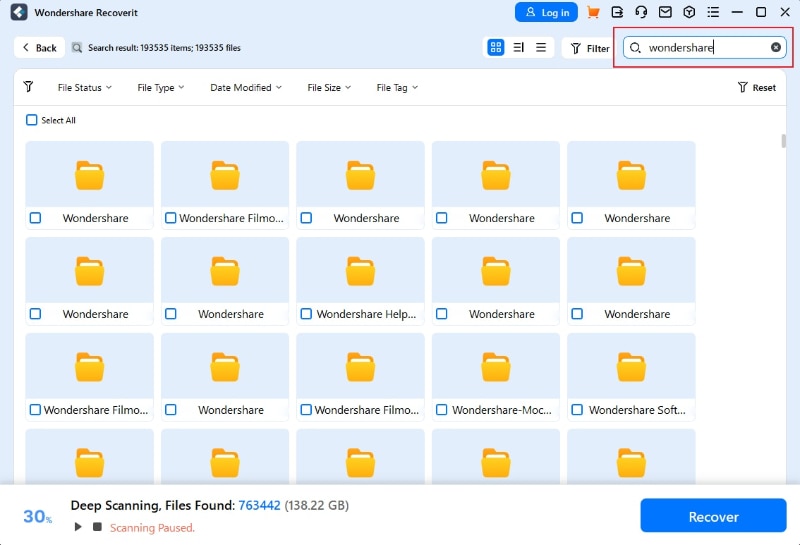
During the scan, filter by relevant file types or search for the missing PST or EML filename. If no eligible file appears, do not treat the absence as a server-sync failure.
Step 3. Save the Recovered Email Files
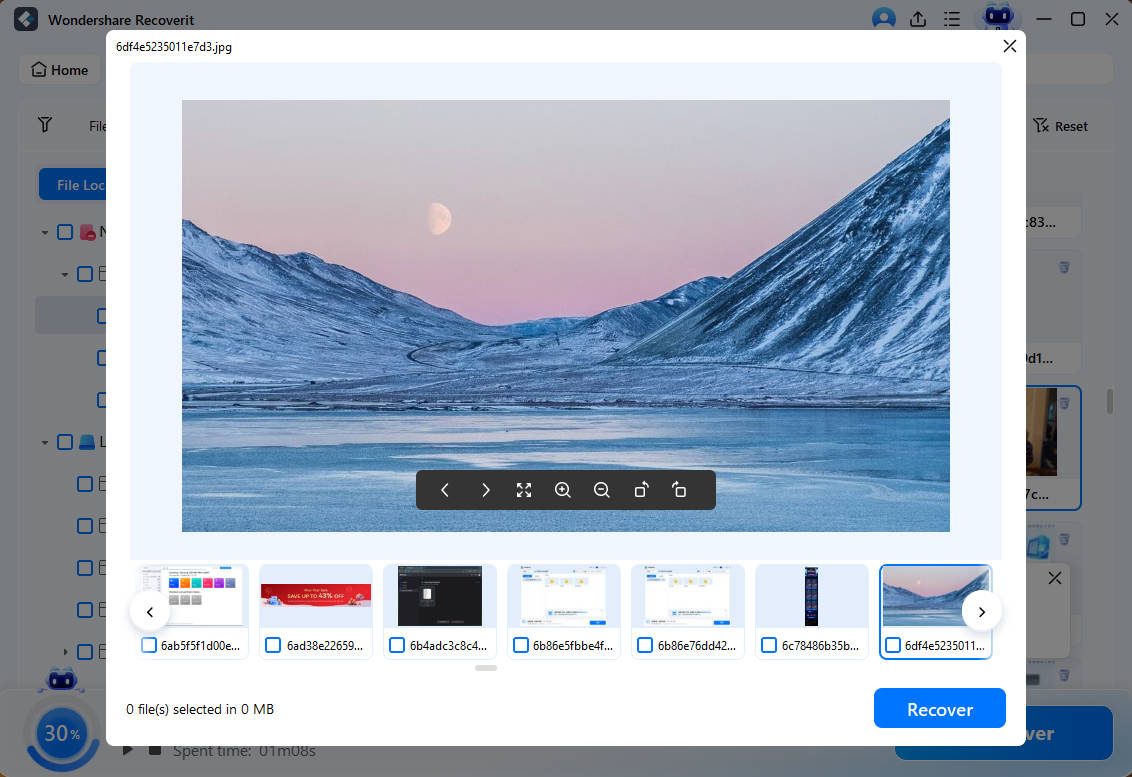
Select the eligible recovered file and choose Recover. Save it to a separate drive, then check its integrity with an appropriate email client or backup workflow. A recovered archive is not guaranteed to be usable.
Conclusion
If Outlook is stuck on Updating Inbox, compare the account in Outlook on the web first. In classic Outlook, check connectivity, Work Offline, manual refresh, and Send/Receive settings before moving to add-ins or local data-file repairs. New Outlook uses its own Sync command and account controls, so classic-only fixes do not apply.
Only rebuild an OST after verifying a server copy and safeguarding unsynchronized content. If messages are truly missing from the server, use mailbox recovery and administrator options. If a separate local PST or email archive was deleted, Recoverit may help recover that file from readable storage; it does not fix synchronization itself.
FAQ
-
Why does Outlook keep showing "Updating Inbox" without finishing?
The status can remain visible because the desktop connection is interrupted, a local synchronization task is stalled, or the mailbox service is having trouble. Check whether the message exists in Outlook on the web. A current web inbox points toward a client-side issue; a stale web inbox calls for mailbox and service checks. -
Why is my Outlook inbox not updating automatically?
In classic Outlook, the account may be offline, excluded from a Send/Receive Group, or set to an unsuitable sync interval. Authentication or cached-mail problems can also affect delivery. Test Send/Receive All Folders and then check whether later messages arrive automatically. -
How can I force Outlook to synchronize all email folders?
In classic Outlook, choose Send/Receive > Send/Receive All Folders or press F9; Update Folder targets one folder. In new Outlook, choose View > Sync or press F9. These actions request synchronization but cannot fix a service-side outage. -
Will rebuilding the Outlook OST file delete my emails?
Rebuilding an OST normally retrieves server-stored Exchange or Microsoft 365 messages again, but unsynchronized drafts, changes, and other local-only items may be lost. First verify recent Inbox, Drafts, and Sent Items online and preserve anything unique. Never remove a PST when rebuilding an OST.


