If Outlook is running slow on Windows 11 or Windows 10, check which version you use and what actually lags. Classic Outlook may start slowly, freeze during folder changes, or return incomplete search results. New Outlook can feel sluggish while loading messages or working with offline mail. Because the apps work differently, the same troubleshooting steps do not always apply.
Start with low-risk checks such as restarting Outlook, updating the app, and checking Windows resources. In classic Outlook, add-ins, mailbox size, indexing, and local data files deserve attention. Before compacting a PST, rebuilding an OST, or resetting new Outlook, save important mail and verify unsynchronized drafts. These steps help you isolate the delay without risking local data.
In this article
-
- Fix 1. Restart Outlook and Check Background Processes
- Fix 2. Update Outlook and Windows
- Fix 3. Start Outlook in Safe Mode and Disable Unnecessary Add-ins
- Fix 4. Reduce Mailbox Size and Archive Old Emails
- Fix 5. Optimize Cached Exchange Mode Settings
- Fix 6. Reduce Unnecessary Shared Mailboxes and Folders
- Fix 7. Check Windows Search Indexing and System Resources
- Fix 8. Compact Large Outlook Data Files
- Fix 9. Repair a Damaged PST File with SCANPST.EXE
- Fix 10. Rebuild a Server-Backed Outlook OST Cache
- Fix 11. Create a New Classic Outlook Profile
- Fix 12. Repair the Microsoft 365 or Office Installation
Part 1. Why Is Outlook Running So Slow?
The quickest way to diagnose slow Outlook performance is to identify the exact action that stalls. Before you change anything, open Task Manager and check CPU, memory, and disk usage. If other applications are slow too, address the Windows resource problem first.
Also identify your edition. Classic Outlook has the familiar File menu and supports COM add-ins, PST and OST management, and the desktop Safe Mode command. New Outlook uses a different interface and offline storage controls. Do not apply classic-only menus to the new app.
| What feels slow | Common explanation | Where to start |
| Outlook takes a long time to start | Background tasks, add-ins, app updates, or a damaged profile | Fixes 1-3; then 11 |
| Switching folders or shared calendars lags | Large cached mailbox, crowded folders, or shared-folder sync | Fixes 4-6 |
| Search returns incomplete results or takes too long | Indexing has not finished, or the search index needs attention | Fix 7 |
| Opening attachments causes freezes | A large file, antivirus integration, or insufficient Windows resources | Fixes 1, 3, and 7 |
| Mail stays at Updating Inbox / is not syncing | Account connectivity or synchronization trouble rather than general UI lag | Check sync status; see the separate sync guide |
| New Outlook has delayed loading | Connection, offline settings, or an app issue | Part 3 |
If Outlook is mainly stuck at Updating Inbox while other actions respond normally, check your account connection and synchronization errors first. This is different from general sluggishness; see the Outlook synchronization error guide for that specific problem.
Microsoft documents the impact of add-ins, large data files, search indexing, and shared folders in its Outlook performance guidance.
Part 2. How to Fix Outlook Running Slow on Windows 11 and 10
The following 12 fixes are intended for classic Outlook for Windows. Try the least disruptive methods first, and retest the exact activity that was slow. If you are using new Outlook, skip to Part 3 instead of applying classic-only PST, COM add-in, or cached Exchange instructions.
Protect your data first. If you use a POP account, a local PST archive, or any mailbox with pending drafts or synchronization errors, save a separate copy of important local files and confirm server-side mail before attempting file maintenance. Repairing a data file does not restore a deleted email automatically.
Fix 1. Restart Outlook and Check Background Processes
Use this first if Outlook becomes sluggish after running for hours or appears to stop responding during a large attachment or archive operation. Wait for any active status-bar task to finish before force-closing the app.
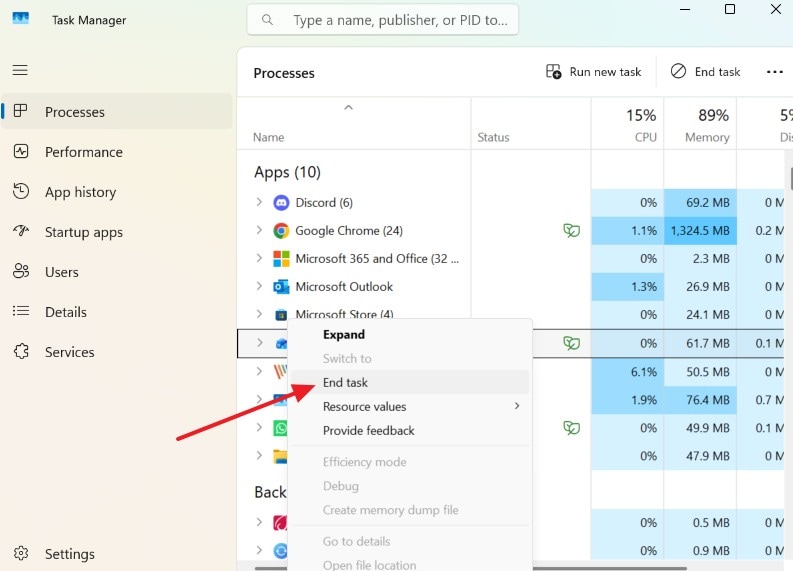
Step 1. Close Outlook normally. If it remains unresponsive, press Ctrl + Shift + Esc to open Task Manager.
Step 2. Find Microsoft Outlook in the process list. If it has stopped responding, select End task, reopen Outlook, and time the same action again. Save any unsent work first if you can.
Fix 2. Update Outlook and Windows
If performance changed after a software update or Outlook regularly freezes, install current fixes before rebuilding any local files. Microsoft also publishes known-issue notices when a specific update affects Outlook.
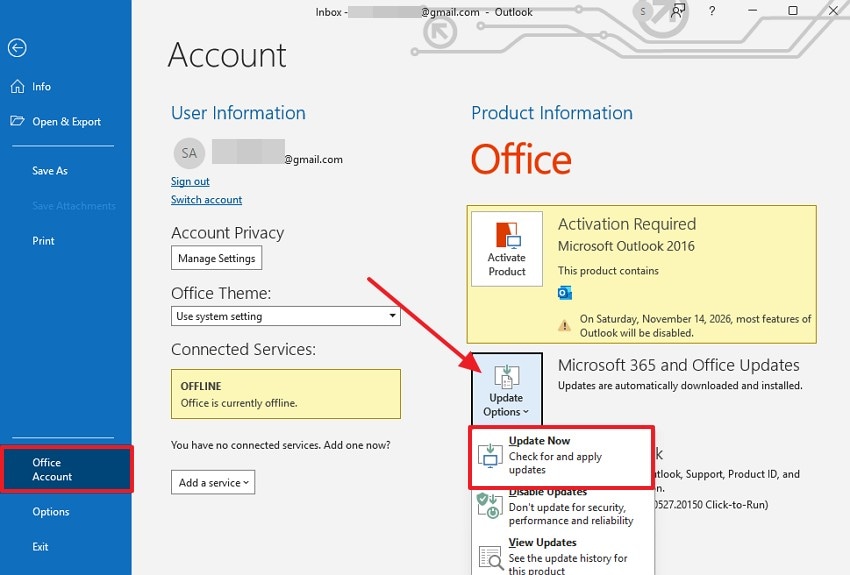
Step 1. In classic Outlook, open File > Office Account > Update Options > Update Now, when the update control is available.
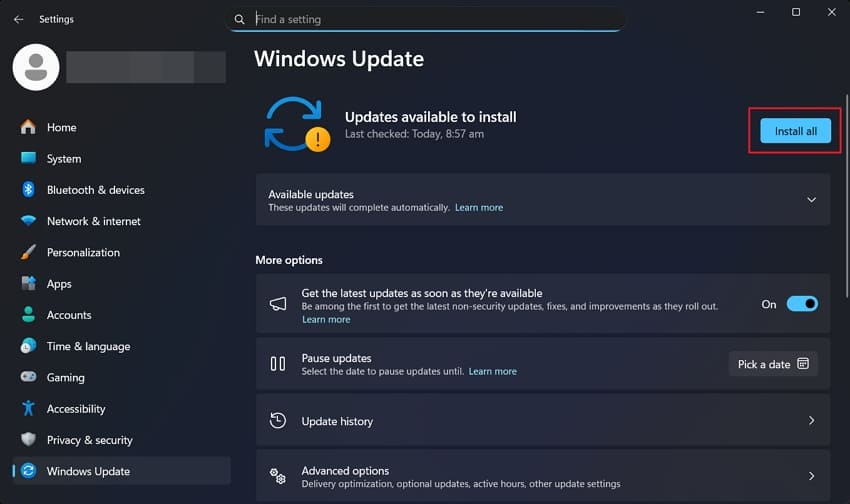
Step 2. Open Windows Settings > Windows Update, install available updates, and restart Windows when prompted. Test Outlook again.
Note: If the Office update controls are managed by your organization, ask IT to check the installed build rather than attempting to bypass policy.
Fix 3. Start Outlook in Safe Mode and Disable Unnecessary Add-ins
If Outlook starts faster with add-ins disabled, the slow behavior may come from an add-in rather than a corrupted mailbox. This test is for classic Outlook, not new Outlook.
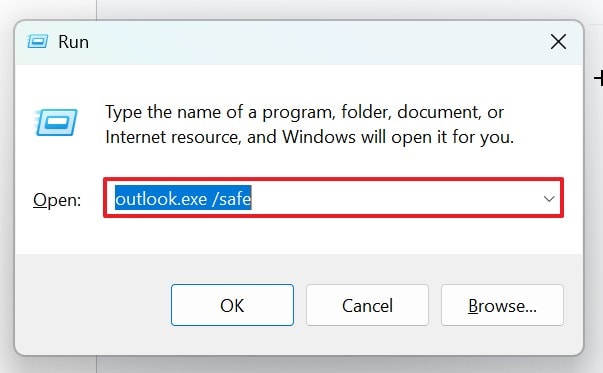
Step 1. Press Windows + R, enter outlook.exe /safe (including the space), and click OK. Check whether startup or folder navigation improves.
Step 2. Open Outlook normally. Go to File > Options > Add-ins, select COM Add-ins next to Manage, and click Go. Disable optional add-ins one at a time, restarting between tests.
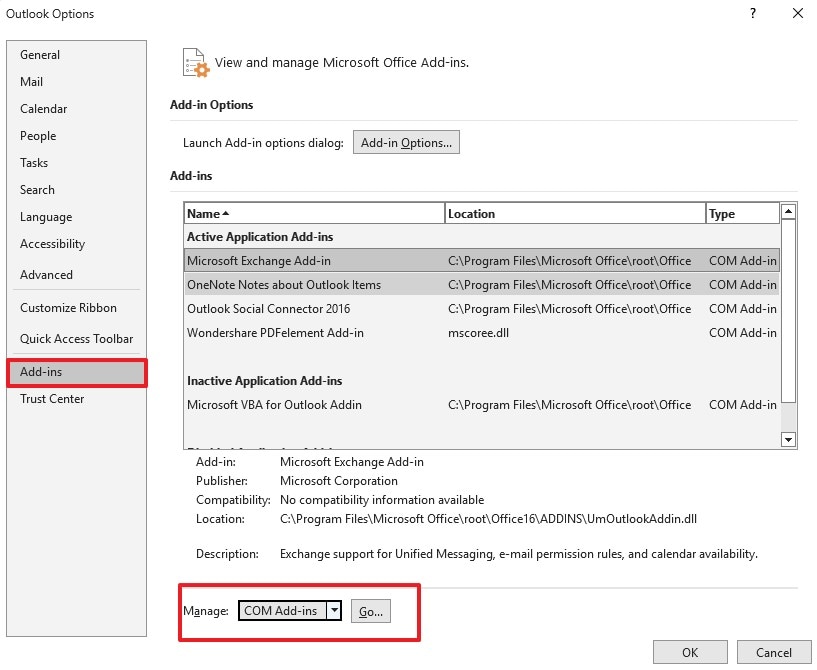
If disabling one add-in fixes the delay, update or remove that particular add-in through the proper provider. Do not remove required enterprise add-ins without approval.
Fix 4. Reduce Mailbox Size and Archive Old Emails
Large local stores and folders containing very high item counts can slow message navigation. Check the folders and data files that are actually causing delays; deleting mail indiscriminately is unnecessary.
Step 1. In classic Outlook, open File > Tools > Mailbox Cleanup > View Mailbox Size where available. Identify oversized folders, archives, and attachments.
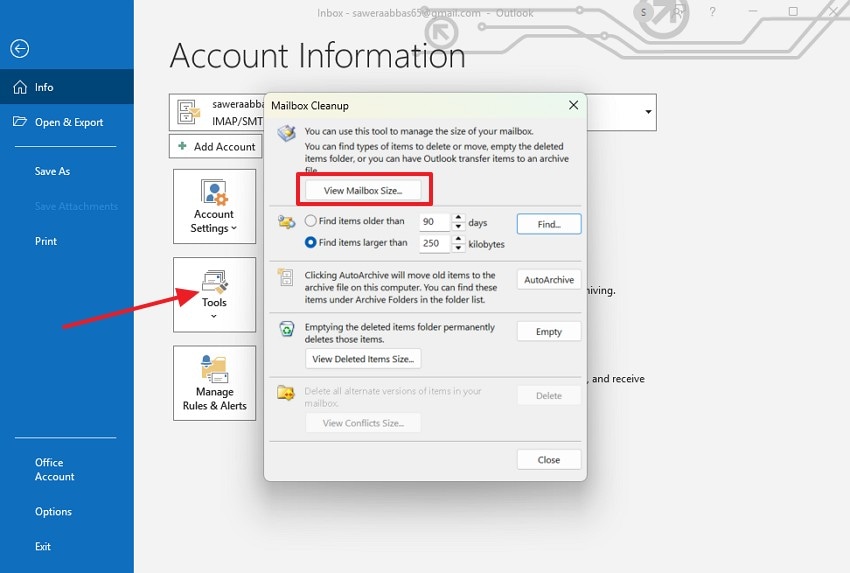
Step 2. Move older items into a supported archive, or use your organization's Online Archive if enabled. Before emptying Deleted Items, check that no messages need to be restored. Retest folder switching.
Note: Archiving and deleting are different actions. Confirm where archived messages will be available before moving items, especially with local PST or POP accounts.
Fix 5. Optimize Cached Exchange Mode Settings
For supported Microsoft 365 or Exchange accounts in classic Outlook, a large OST cache can increase local work. Cached Exchange Mode is not a general switch for every POP or IMAP account.
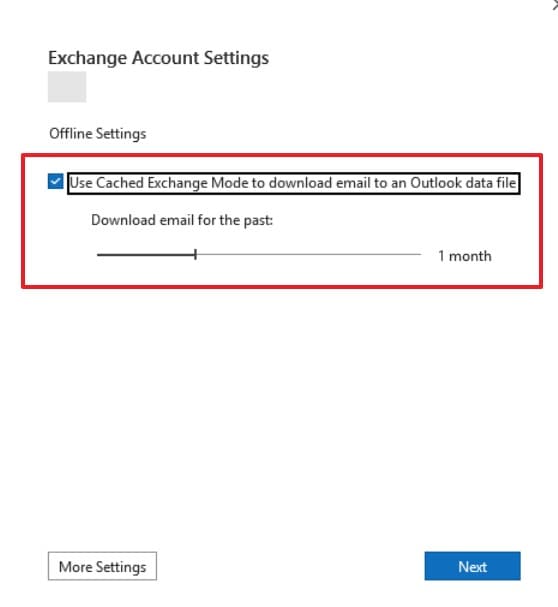
Step 1. Open File > Account Settings > Account Settings. Select your Exchange or Microsoft 365 account, then choose Change if that option is provided.
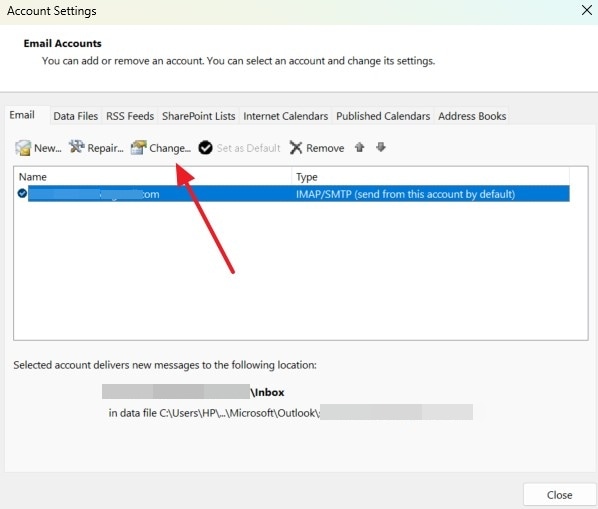
Step 2. Keep Use Cached Exchange Mode enabled when recommended for your account. If the offline mailbox is too large, shorten the Download email for the past range; older messages remain on the server and require connectivity to view.
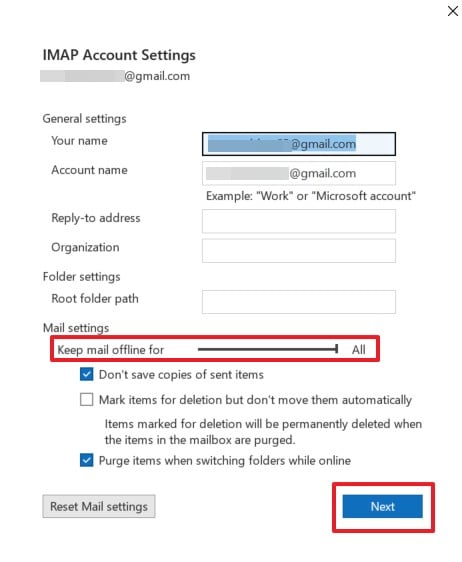
IMAP accounts can expose a different Keep mail offline for control. Adjust only the setting available for your account; do not look for an Exchange toggle in IMAP settings.
If Outlook becomes faster after reducing the local cache, you have narrowed the cause without deleting mailbox history. For version-specific details, see Microsoft's offline Outlook instructions.
Fix 6. Reduce Unnecessary Shared Mailboxes and Folders
This matters mainly for classic Outlook with Exchange accounts that cache many shared mailboxes or calendars. A large number of shared folders can slow synchronization and folder changes.
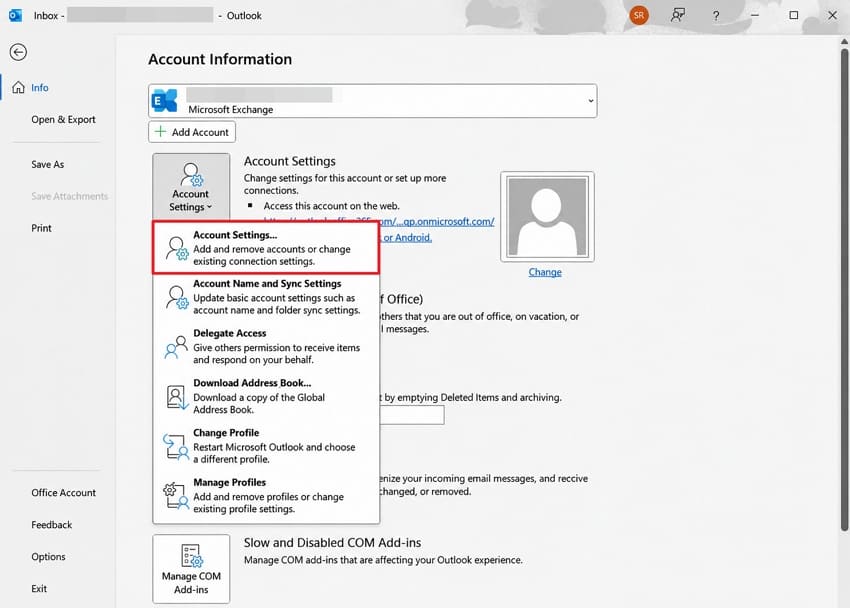
Step 1. Open File > Account Settings > Account Settings, select the Exchange account, and inspect More Settings > Advanced where available.
Step 2. If your organization permits it, turn off Download shared folders or remove only shared mailboxes you no longer need. Restart Outlook and check whether navigation improves.
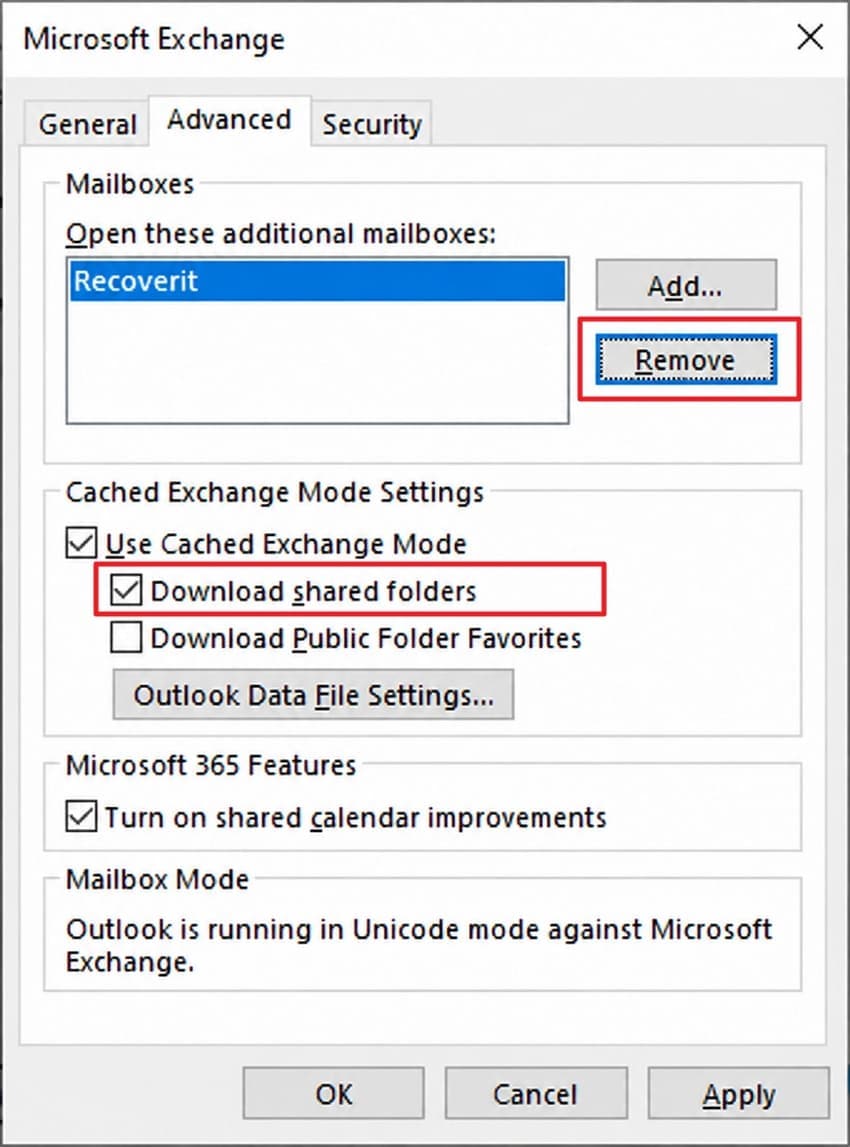
Note: Changing shared-folder caching can affect offline access. Ask your administrator before removing managed mailbox permissions or shared calendars.
Fix 7. Check Windows Search Indexing and System Resources
Choose this method when search results are particularly slow or incomplete. A general Outlook slowdown with normal search results is not a reason to rebuild the entire Windows search index.
Step 1. In classic Outlook, click the Search box, open Search Tools > Indexing Status, and check whether items remain to be indexed. Leave Outlook running while indexing completes.
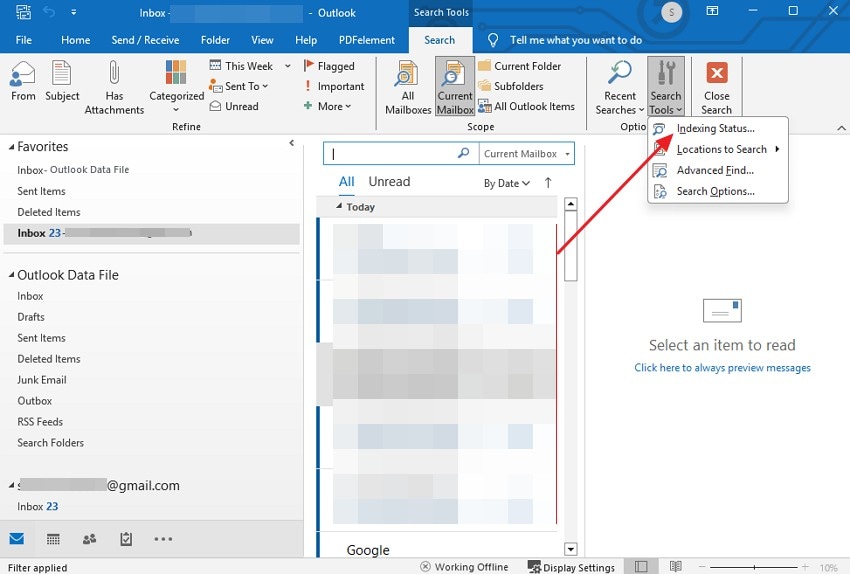
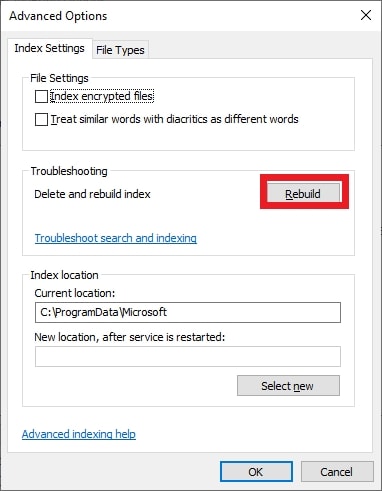
Step 2. If search remains incomplete after indexing finishes, review File > Options > Search > Indexing Options > Advanced and consider Rebuild. Expect temporary search disruption while Windows recreates its index.
Also open Task Manager and check whether another application, high disk activity, or insufficient memory is slowing Windows overall.
Fix 8. Compact Large Outlook Data Files
Compaction removes unused space from a supported PST or OST file after content has been deleted. It does not bring deleted messages back, and it is not a general cure for all performance issues.
Step 1. Confirm that your mail is synchronized and copy any important PST archives to a separate healthy location. In classic Outlook, open File > Account Settings > Account Settings > Data Files.
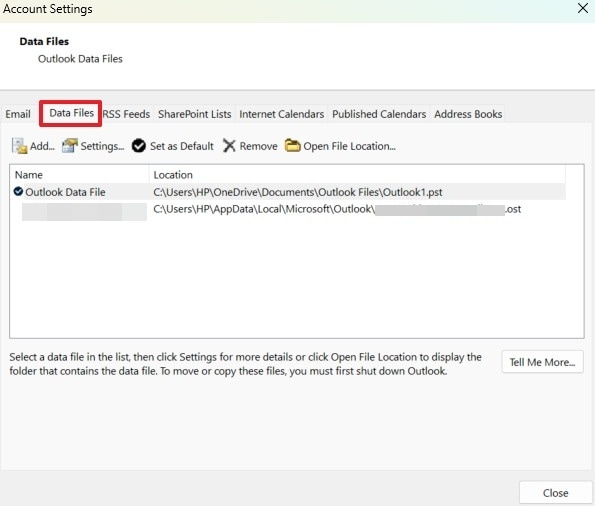
Step 2. Select the affected data file, click Settings, and use Compact Now where available. Exchange OST files may require Advanced > Outlook Data File Settings first. Let the operation finish without shutting down the PC.
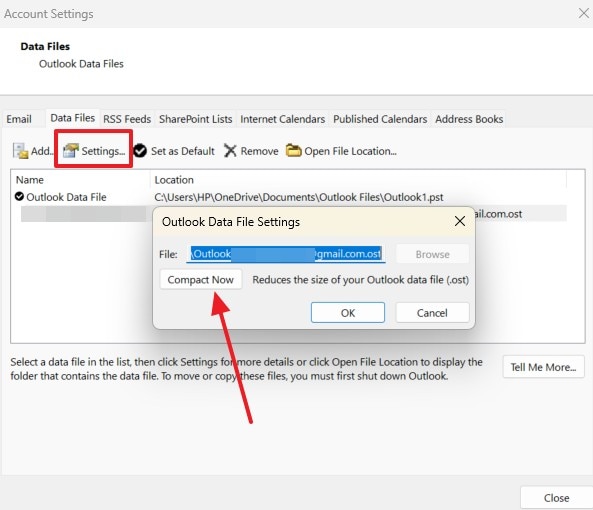
Outlook can also compact automatically during idle time when enough unused space exists. Microsoft explains the conditions in its mailbox and data-file size guide.
Fix 9. Repair a Damaged PST File with SCANPST.EXE
Use this if classic Outlook reports a data-file error or you have other evidence that a PST is damaged. SCANPST checks local file structure; it does not scan the mail server or recover every permanently deleted message.
Step 1. Close classic Outlook. Find the PST through File > Account Settings > Data Files, then make a separate backup copy. Locate SCANPST.EXE in the Microsoft Office installation folder.
Step 2. Run SCANPST.EXE, choose Browse, select the affected .pst file, and click Start. If it reports errors, ensure a backup is retained before choosing Repair.
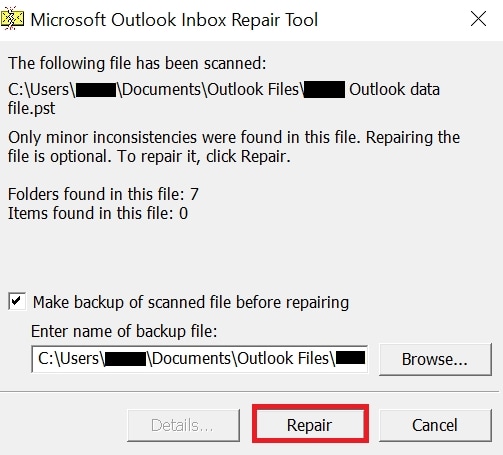
Reopen Outlook and inspect important folders after the scan. If the PST still reports errors, follow Microsoft's Inbox Repair Tool instructions rather than repeatedly making changes to the only remaining copy.
Fix 10. Rebuild a Server-Backed Outlook OST Cache
Only consider this after less disruptive fixes fail and you have confirmed that a Microsoft 365 or Exchange mailbox is fully synchronized on the server. Renaming the cached OST makes Outlook download a new copy; it is not suitable for preserving unsynced local changes or as a universal fix for IMAP accounts.
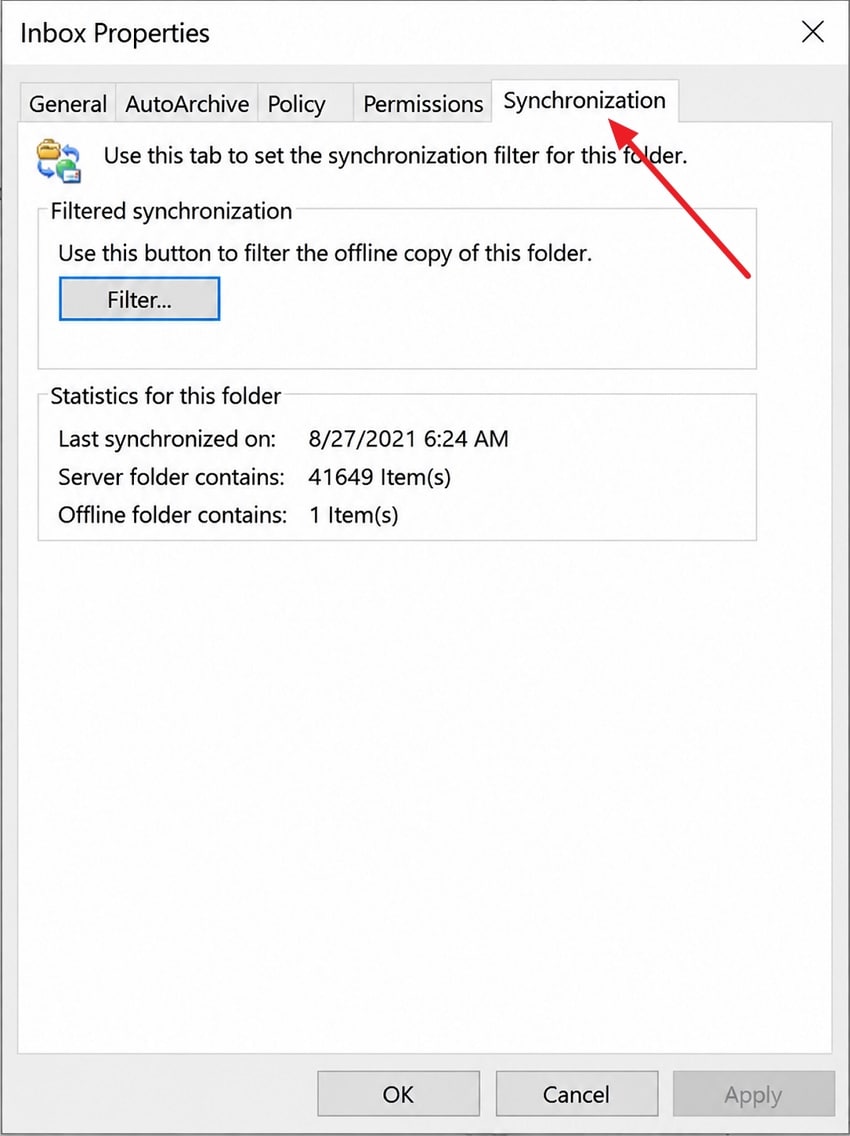
Step 1. Check the affected folder's Properties > Synchronization if available, compare key messages with Outlook on the web, and save unsent drafts, local-only calendar items, and anything absent from the server. Do not proceed until you can account for those items.
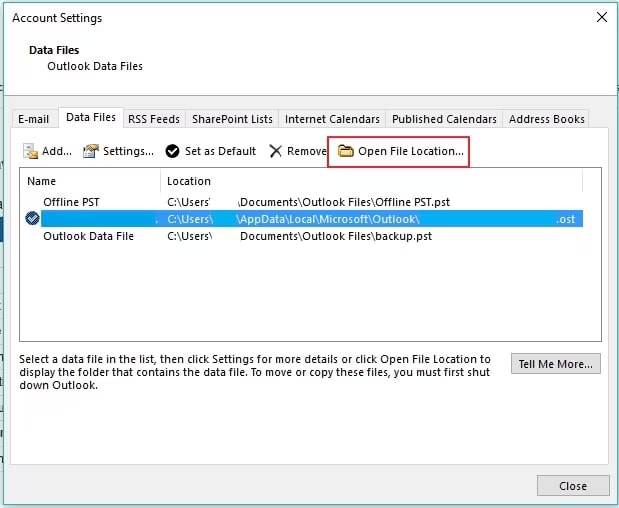
Step 2. Open File > Account Settings > Account Settings > Data Files, select the confirmed Exchange OST and choose Open File Location. Exit Outlook. Rename only that cache from .ost to .ost.old, reopen Outlook, and allow full synchronization.
Note: Do not delete or rename a PST archive. If the account uses IMAP, the server copy is incomplete, or you cannot confirm what is local-only, stop and seek help before touching the file.
Fix 11. Create a New Classic Outlook Profile
When the same mailbox works elsewhere but classic Outlook remains slow, a damaged profile is possible. A second profile allows a safe comparison without removing the existing configuration.
Step 1. Close Outlook and hold Shift while starting classic Outlook to open the profile picker where supported. Select Options > New, give the profile a name, and add your account.
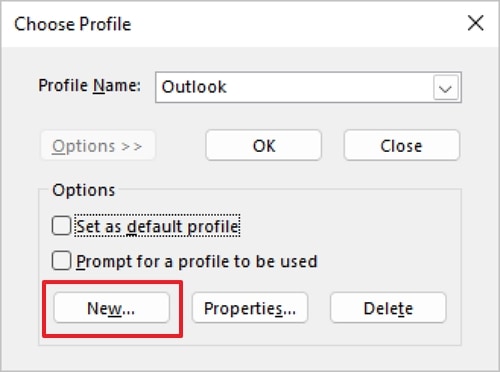
Step 2. Alternatively, use Control Panel > Mail > Show Profiles > Add to create a separate profile. Start Outlook with it and compare startup and folder performance.
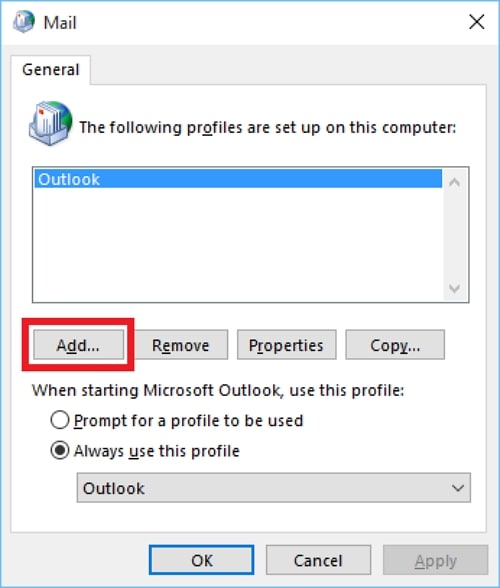
Keep the original profile and any PST archives until you have verified every account, calendar, and locally stored item in the new profile.
Fix 12. Repair the Microsoft 365 or Office Installation
If file and profile checks do not explain the slowdown, damaged Office installation components may be responsible. This repairs the Office suite, not just your mailbox.
Step 1. Close Office applications, then open Windows Settings > Apps > Installed apps. Find Microsoft 365 or the installed Office suite and choose Modify if available.
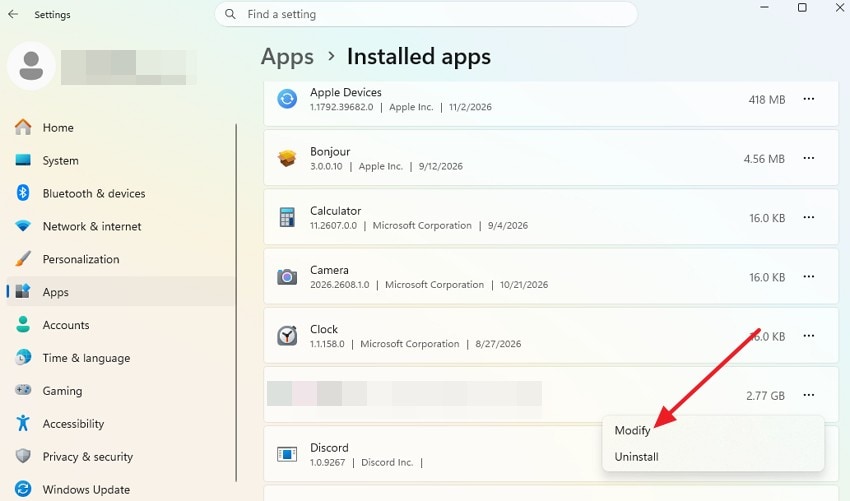
Step 2. Choose Quick Repair first. If the problem remains, run Online Repair while connected to the internet and follow any sign-in or restart prompts.
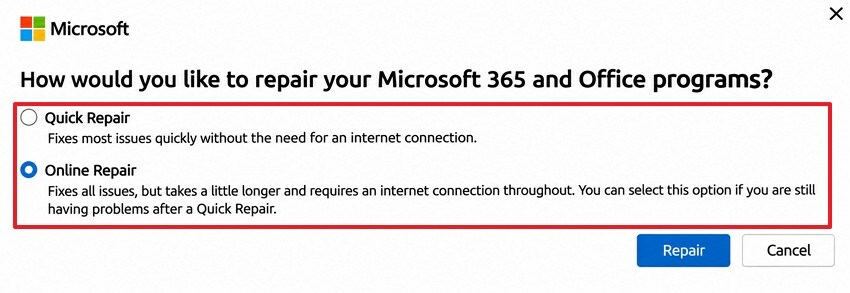
If the same issue persists, record your Outlook version, account type, and error messages for Microsoft or your organization's IT support.
Part 3. How to Fix Slow Performance in New Outlook for Windows
New Outlook does not use the classic COM add-in, profile picker, or Cached Exchange Mode workflows in Part 2. If messages load slowly or the app freezes, restart the new app, confirm your connection, and install current Windows and Outlook updates before changing offline storage or repairing the installation.
Method 1. Review New Outlook Offline Email Storage
Offline access is managed inside new Outlook. A shorter local mail period can reduce cached content on devices with limited storage, but it also limits what you can access without internet.
Step 1. Open Settings > General > Offline in new Outlook. Check whether offline access is enabled for the affected account.
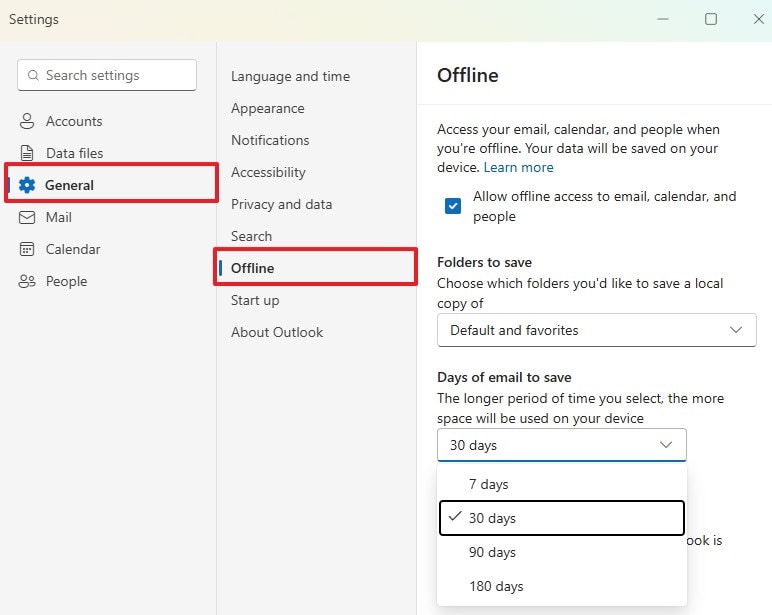
Step 2. Under Days of email to save, select the available range that fits your needs: 7, 30, 90, or 180 days. Review Folders to save, save the setting, and compare message loading again.
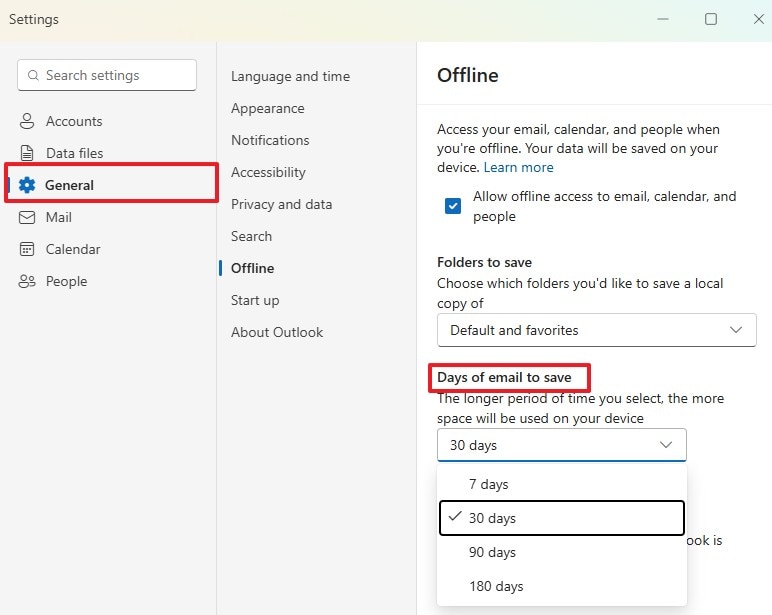
Note: Microsoft lists 30 days as the default for this setting. The available menu and the amount actually stored depend on the app version, account, and local disk space. See Microsoft's new Outlook offline guidance.
Method 2. Repair New Outlook Through Windows Settings
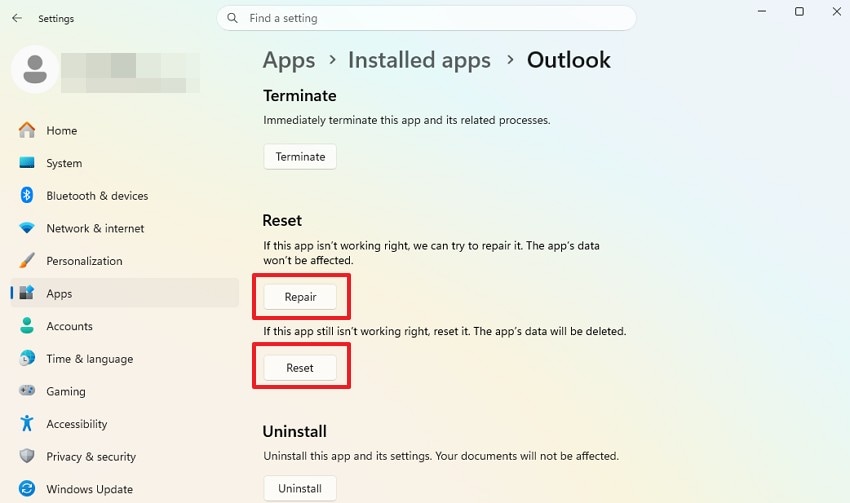
If the new app remains unresponsive, use its Windows repair options where supported. Repair is different from Reset, which may remove app settings and locally stored or unsynchronized content.
Step 1. Close new Outlook. Open Windows Settings > Apps > Installed apps, find Outlook (new), and choose Advanced options if offered.
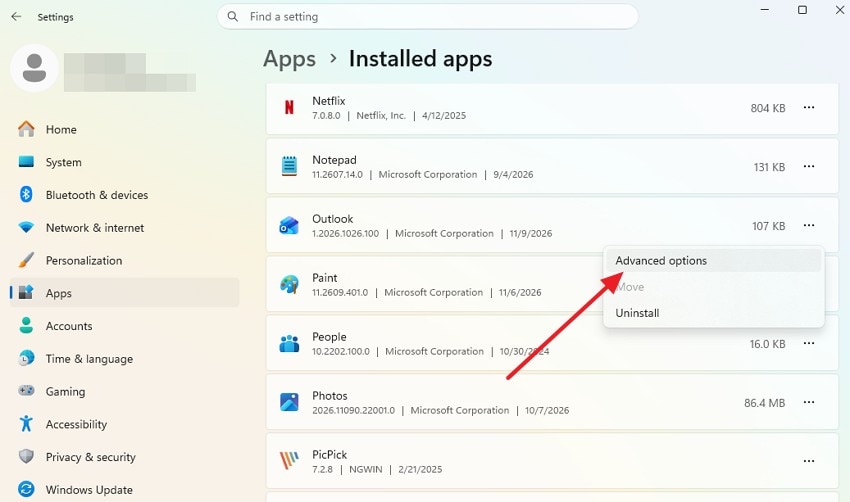
Step 2. Try Repair and reopen Outlook. Only consider Reset after checking webmail and saving unsynced drafts, local copies, and account details. If Repair or Reset is unavailable, use Microsoft's current reinstall guidance instead.
For version-specific troubleshooting, consult Microsoft's new and classic Outlook troubleshooting steps.
Part 4. How to Prevent Outlook From Running Slowly Again
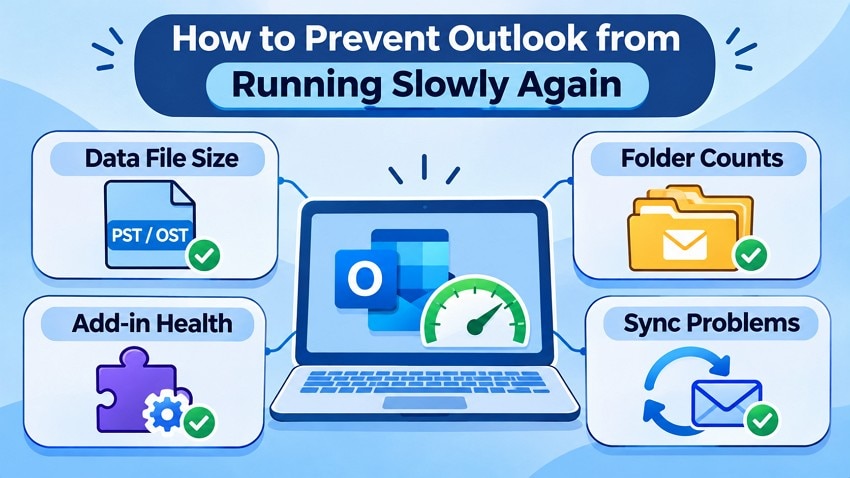
You do not need to clear caches every day. Focus on what actually caused the delay: add-ins, mailbox size, server synchronization, system resources, or incomplete indexing. Recheck the same symptom after major Outlook updates.
- Keep mail manageable: Review crowded folders and local archives. Do not delete mail just to reach an arbitrary size target.
- Monitor add-ins: In classic Outlook, disable only optional COM add-ins that measurably slow the app.
- Protect data files: Back up important PST archives separately. Avoid keeping the only working PST in a cloud-synced folder that can lock or conflict with it.
- Check synchronization: Confirm new messages appear in webmail before touching any local cache. If the primary problem is a stuck mailbox update, troubleshoot account sync instead.
Pro Tip: Recover Lost Outlook PST Files with Wondershare Recoverit
Recoverit is not a way to speed up Outlook, repair a corrupted PST, or recover emails that exist only on a mail server. It can be relevant if a local PST archive or PST backup was accidentally deleted while you were cleaning up Outlook and the storage device is still detectable.
First check the Recycle Bin, your backup, and the original file location. If the PST is still missing, avoid downloading or saving new files to the affected drive. Deleted-file recovery depends on drive condition, overwrite activity, and SSD TRIM; no tool can guarantee a usable result.
Wondershare Recoverit can scan supported local drives for potentially recoverable Outlook data files. After recovery, Outlook may still need to import or open the restored PST; file recovery and PST structural repair are separate tasks. See the Recoverit email recovery page for eligible file-loss scenarios.
How to Recover an Accidentally Deleted PST File
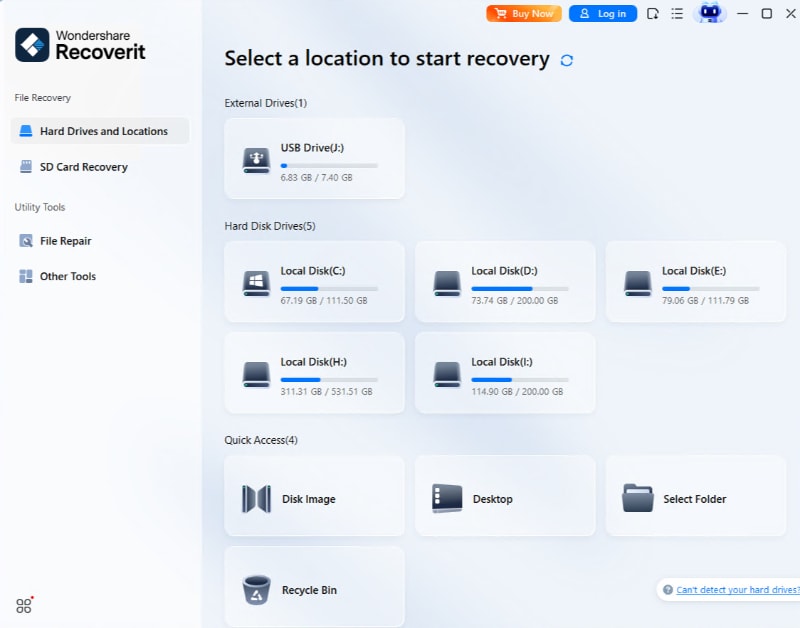
Step 1. Install and run Recoverit from a different storage device where possible. Select the drive or external disk that originally contained the missing PST archive.
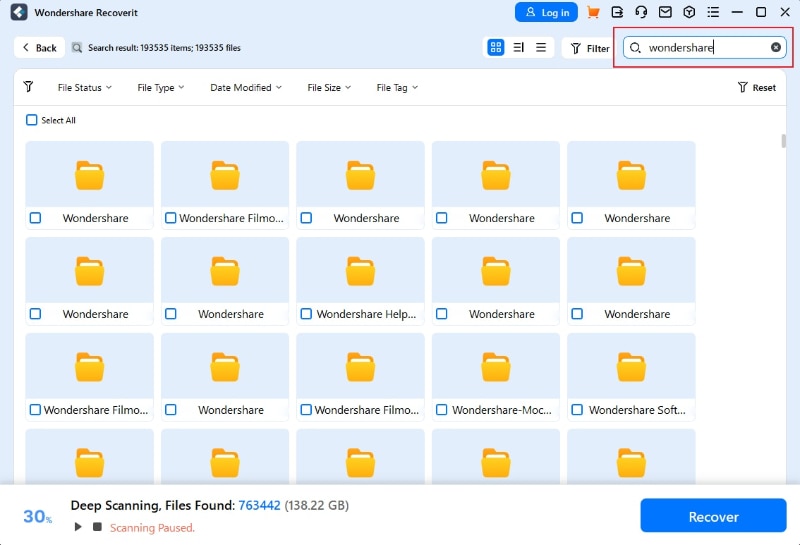
Step 2. Scan the selected location and search for the known PST filename or filter for the relevant file type if that option is available. Let the scan finish if you have not found the file yet.
Step 3. Choose the likely PST file and select Recover. Save it to a separate healthy physical drive, then verify the file in classic Outlook before relying on it as an archive.
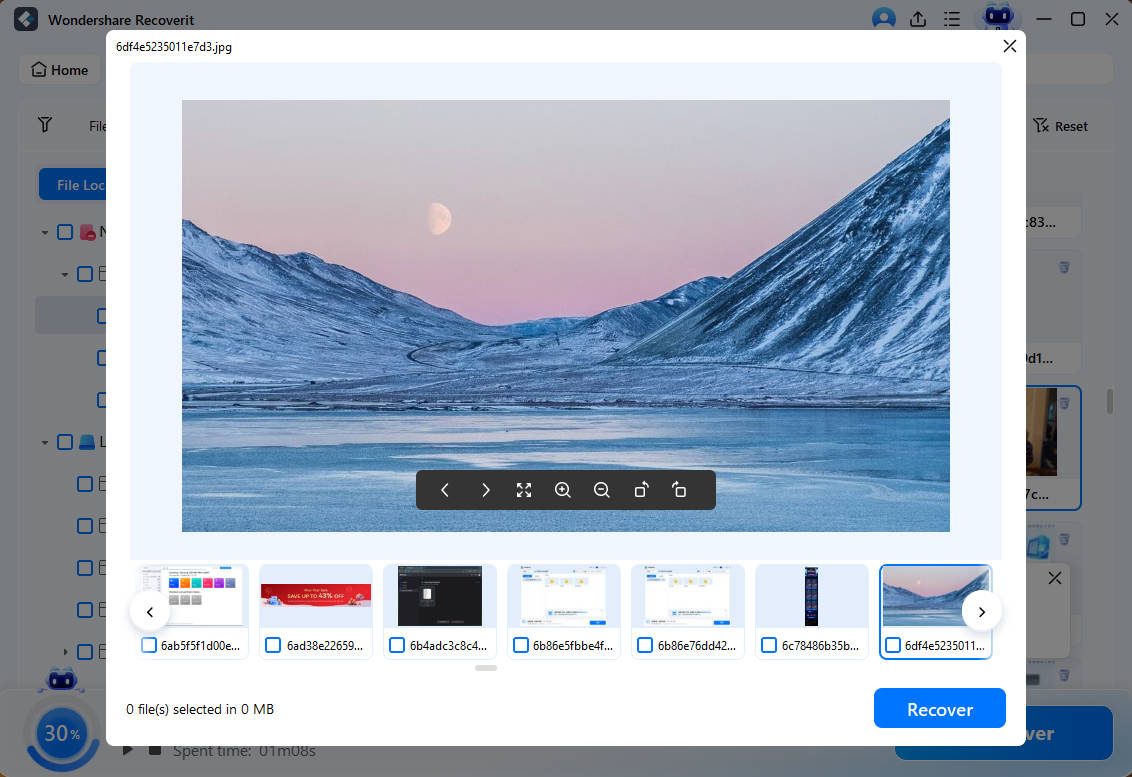
Note: The example recovery interface can show media thumbnails; that does not establish that the contents of every PST can be previewed. Confirm the recovered filename, size, and whether Outlook can open the file.
Conclusion
Outlook running slow on Windows 11 or 10 is usually easier to diagnose when you separate startup delays, folder navigation, search, and synchronization. In classic Outlook, begin with updates and add-in checks before adjusting caches or repairing files. In new Outlook, check offline settings and its own repair options. Back up local archives and verify unsynced mail before touching PST or OST files. If an important PST was accidentally deleted during cleanup, Recoverit may help retrieve the local file when recovery conditions allow.
FAQ
-
Why is Outlook running slowly even with a fast internet connection?
Fast internet does not fix a slow local data file, add-in, search index, or overloaded Windows PC. Check which Outlook version you use, then test the exact slow action. If only synchronization is delayed, compare the same mailbox in webmail and check service status. -
Does having too many emails make Outlook run slower?
It can, particularly in classic Outlook when an OST or PST file is large or individual folders contain very high item counts. Review folder size and the offline sync period before archiving messages. Mailbox size is not the only possible cause. -
How can I speed up Outlook startup on Windows 11?
Restart Outlook, install current Office and Windows updates, and check Task Manager. In classic Outlook, try outlook.exe /safe to test whether COM add-ins are responsible. If a new classic profile launches faster, the existing profile may need attention. -
Will deleting the Outlook OST file improve performance?
Sometimes rebuilding a damaged Exchange cache can help, but only after you verify the mailbox is fully synchronized and preserve unsent or local-only data. Do not delete an OST on an account with uncertain synchronization, and never confuse an OST cache with a PST archive.


