
 TL;DR:
The correct recovery method for a locked Telegram app depends entirely on whether you forgot your Two-Step Verification account password, which requires a recovery email to reset, or your local app passcode, which can be bypassed by reinstalling the application.
● If you lack a recovery email for the Two-Step Verification password, you must use Telegram's official in-app reset process, which involves a waiting period and risks permanent account data loss.
● Reinstalling the app clears a local passcode and restores regular cloud chats upon your next login, but it permanently deletes all device-specific Secret Chats and local cache files.
● Recoverit Windows Data Recovery can retrieve previously downloaded media and Telegram Desktop exports from local Windows drives or memory cards, but it cannot recover passwords, bypass security locks, or access cloud servers.
Ask AI for a summary
 ChatGPT
 Perplexity
 Gemini
 Claude
 Grok
Grok
If you forgot your Telegram password, the right fix depends on which lock is blocking you. Telegram has a two-step verification password for account sign-ins, a login code sent to your phone number or active Telegram session, and an optional local passcode lock for the app on one device. These are different problems, so the recovery steps are different too.
For example, users searching for forgot my Telegram password usually need help with the two-step verification password. Users searching for forgot Telegram passcode or Telegram passcode lock forgot often need to unlock the app on the current phone. Mixing them up can lead to unnecessary resets and possible local data loss.
This guide explains how Telegram password reset works, what to do if no recovery email is available, how to handle a forgotten local passcode, and how Recoverit Windows Data Recovery can help recover local Telegram photos, videos, documents, or exported files after a reset or reinstall. Recoverit cannot recover a Telegram password, bypass Telegram security, or restore Secret Chats from Telegram servers.
In this article
Part 1. Forgot Telegram Password or Passcode? Know the Difference
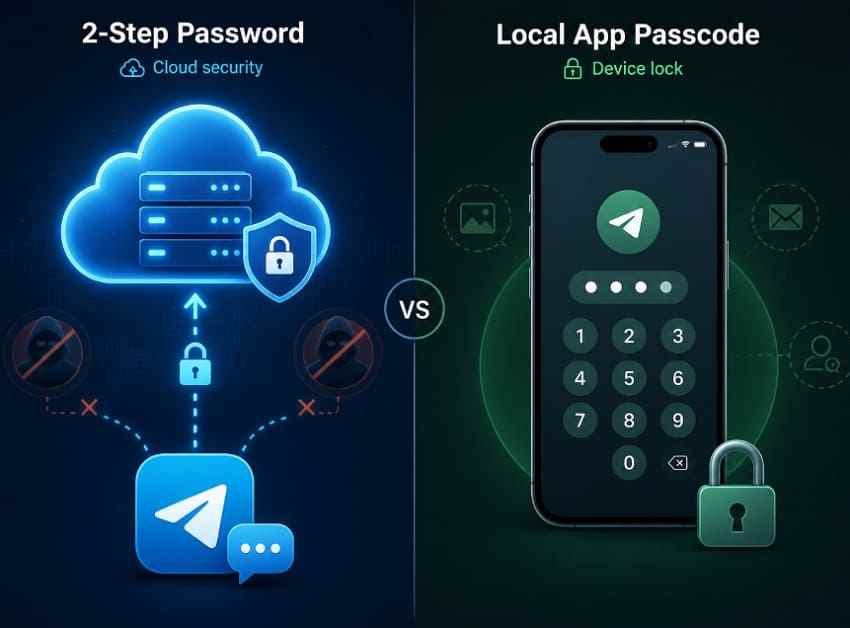
Before you try any Telegram password recovery steps, identify what Telegram is asking for. A two-step verification password protects account sign-ins. A local passcode protects only the Telegram app on one device. A login code verifies that you control the phone number or another active Telegram session.
Telegram Two-Step Verification Password
The two-step verification password is an optional account-level password. When enabled, Telegram asks for it after you enter the login code on a new device. Telegram's FAQ explains that this password adds another layer of protection beyond the SMS or in-app login code.
If you forgot this Telegram password, the safest recovery path is the recovery email you added during setup. If no recovery email exists, you must follow Telegram's in-app reset process and carefully read the warning shown on your screen.
Telegram Local App Passcode Lock
The local app passcode is different. It locks Telegram on the current phone, tablet, or computer. If you are searching for i forgot my Telegram passcode, you are usually dealing with this local app lock, not the account password.
A forgotten Telegram passcode does not automatically mean you lost the account. Other devices may remain signed in, and regular cloud chats can sync again after reinstalling. However, Secret Chats and device-only files can be lost if you uninstall or log out.
Telegram Login Code and Phone Number Access
Telegram accounts are tied to phone numbers. When you sign in, Telegram sends a login code by SMS or to another active Telegram session. If you no longer control the registered phone number and you have no active session, Telegram password reset becomes much harder. In most cases, you need to regain the phone number from your mobile carrier first.
Which Recovery Situation Matches Your Problem?
| What You See | Likely Problem | Best Next Step |
| Telegram asks for a password after the login code | Forgot Telegram two-step verification password | Use recovery email or Telegram's in-app reset process |
| Telegram opens but asks for a passcode immediately | Forgot Telegram local passcode | Use biometrics, another logged-in device, or reinstall after backing up local files |
| You cannot receive the SMS login code | Lost access to the registered phone number | Recover the phone number with your carrier before trying Telegram login again |
| You are logged in on a computer but not on your new phone | Active session still exists | Save important data, check settings, and use official login recovery |
Why Telegram Cannot Show Your Old Password
Telegram does not simply reveal your old two-step verification password. Account security systems are designed to verify a password without exposing it. This is why Telegram password recovery focuses on reset options, recovery email, phone number control, and in-app confirmation instead of showing the old password.
Part 2. What to Check Before Resetting Telegram
Do these checks before you reset the Telegram password, reinstall the app, or remove local data. They can prevent avoidable data loss.
Check Whether You Are Still Logged In on Another Device
Open Telegram on your old phone, tablet, desktop app, or web session. If you are still logged in, you may be able to read messages, save important files, export Telegram data from desktop, and manage active sessions before attempting recovery.
On a logged-in device, go to Settings > Devices to review active sessions. Remove unfamiliar sessions only after you are sure your own devices still have access.
Confirm You Still Control the Telegram Phone Number
Make sure the SIM card linked to Telegram is active and can receive codes. If you changed carriers, replaced your SIM, or lost the phone number, contact your mobile carrier and recover that number first. Without the login code and without an active Telegram session, you may not be able to access the account.
Check the Recovery Email and Password Manager
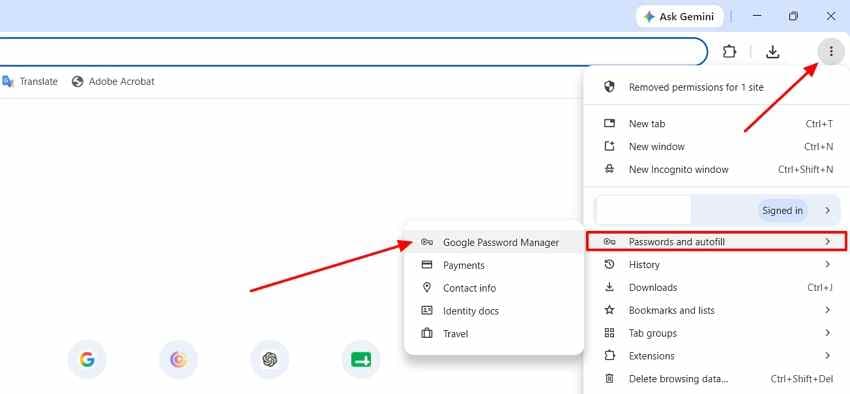
Search your inboxes for Telegram messages, recovery emails, and security notifications. Also check your browser or password manager for saved Telegram passwords or notes.
Step 1. Open Chrome, click the three-dot menu, and go to Password Manager.
Step 2. Search for Telegram or related email accounts. If you find a saved password, use it only in the official Telegram app or website.
Back Up Local Media Before You Reinstall or Reset
Before removing Telegram, save important downloads, photos, videos, and documents outside the app. On Windows, check the Downloads folder and the Telegram Desktop folder. On Android, check accessible Telegram media folders and any SD card storage. On iPhone, save important media to Photos, Files, iCloud, or a computer before uninstalling.
Avoid Fake Telegram Password Recovery Services
Do not share Telegram login codes, two-step verification passwords, recovery email codes, or screen-sharing access with third-party "recovery" services. They cannot bypass Telegram security and may steal your account. Use only the official Telegram app, Telegram website, or Telegram Support.
Part 3. How to Reset a Forgotten Telegram Two-Step Password
If Telegram asks for a password after the login code, follow these methods in order.
Method 1. Reset With the Recovery Email
This is the best method when a recovery email was added during two-step verification setup.
Step 1. Open Telegram and enter your phone number. Enter the SMS or in-app login code when prompted.
Step 2. When Telegram asks for the two-step verification password, tap Forgot password?.
Step 3. Choose the recovery email option and continue.
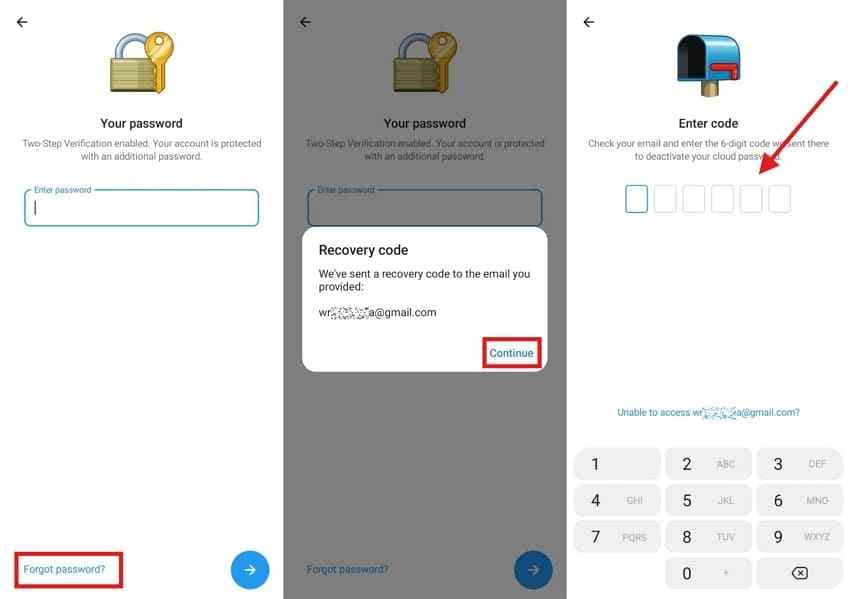
Step 4. Open the recovery email inbox, copy the code from Telegram, and enter it in Telegram to set a new password.
Step 5. After signing in, add or update your recovery email in Settings > Privacy and Security > Two-Step Verification.
Method 2. Use a Logged-In Device to Protect Your Data First
If you are still logged in on another device, use that session before resetting anything. Save important files, check active sessions, and export data from Telegram Desktop if needed. A logged-in device may also receive the login confirmation code for a new sign-in.
Do not assume a logged-in device can remove your forgotten two-step verification password without verification. Telegram may still ask for the existing password when changing security settings.
Method 3. Use Telegram's In-App Reset if No Recovery Email Is Available
If no recovery email is available, Telegram may offer an in-app reset flow after you tap Forgot password?. This usually involves a waiting period or a warning screen. Follow the instructions shown inside Telegram and read the data warning carefully before confirming.
This step is important: an account reset may remove account data or make some data unrecoverable. Do not use reset until you have checked logged-in devices, saved local files, and confirmed that no recovery email is available.
Method 4. Regain Access to Your Phone Number First
If you cannot receive the login code, recover the registered phone number before trying to reset the Telegram password. Contact your carrier, request a replacement SIM or eSIM for the same number, and confirm that SMS works. Then return to Telegram and restart the login process.

Method 5. Contact Telegram Support for Login Problems
If the app flow fails or you believe the account was compromised, contact Telegram Support. Explain the problem clearly, but do not send passwords, verification codes, passport scans, payment card numbers, or other sensitive data unless Telegram specifically requests information through an official channel.
Telegram Support cannot simply tell you the old password or bypass two-step verification. Support can review login problems, but account security checks still apply.
Part 4. What If You Forgot the Telegram App Passcode?
If Telegram opens on your phone and immediately asks for a passcode, you are probably dealing with the local passcode lock. This is different from Telegram password reset for account login.
Signs You Forgot the Local Telegram Passcode
- Telegram asks for a passcode as soon as you open the app.
- You can still receive notifications, but cannot open chats inside the locked app.
- Other logged-in Telegram devices still work normally.
- The problem affects only one phone, tablet, or desktop app.
Use Face ID, Fingerprint, or Device Unlock if Enabled
If biometric unlock was enabled in Telegram, open the app and use Face ID, fingerprint, or the device unlock prompt. Once inside, go to Settings > Privacy and Security > Passcode Lock and update or disable the local passcode.
Use Another Logged-In Telegram Device
A local passcode lock affects only the locked device. If Telegram still works on another phone, tablet, or computer, use that device to continue messaging and save important files. Then decide whether to reinstall Telegram on the locked device.
Reinstall Telegram on Android
Reinstalling removes the local app lock, but it may also remove local-only data. Save accessible Telegram files before uninstalling.
Step 1. Open Google Play Store, tap your profile icon, and choose Manage apps and device.
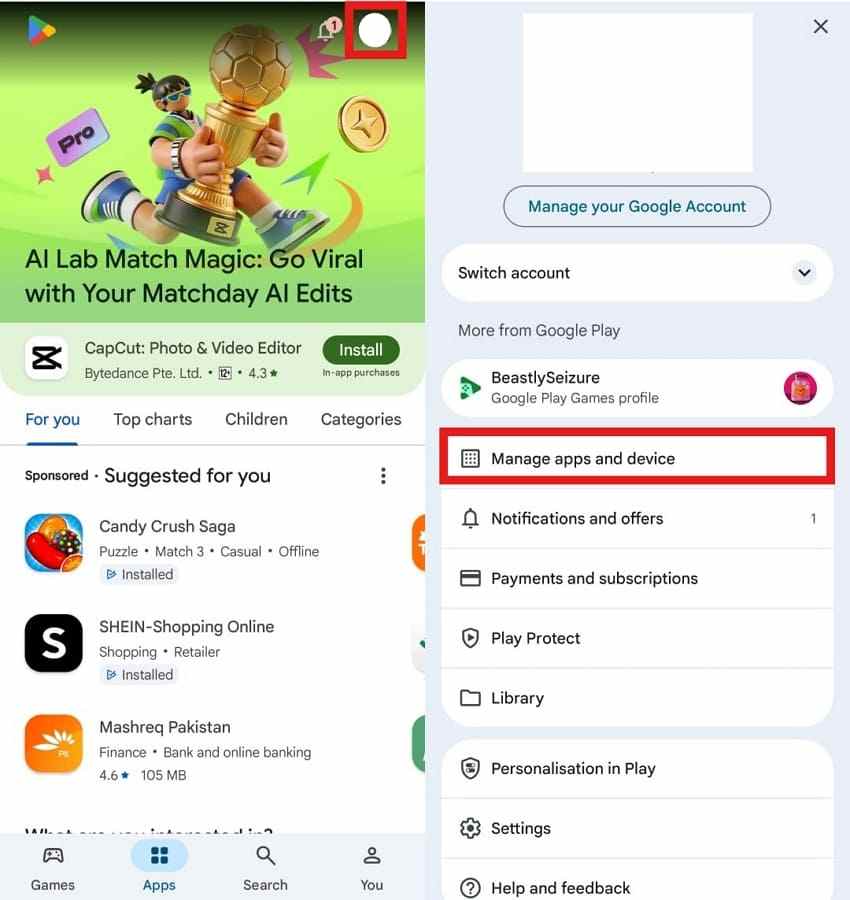
Step 2. Find Telegram in the app list and choose Uninstall.
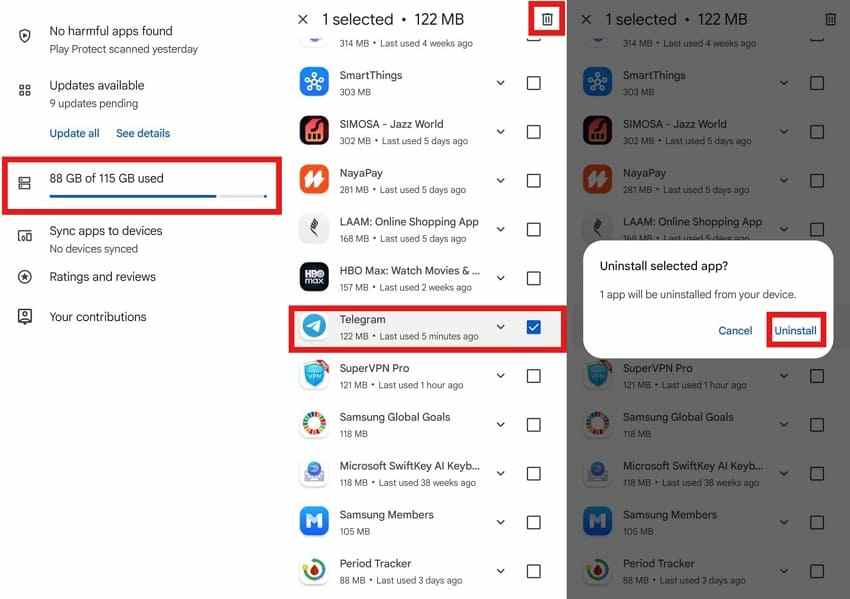
Step 3. Reinstall Telegram from Google Play, enter your phone number, and complete the login code process.
Reinstall Telegram on iPhone
On iPhone, make sure important Telegram media is saved to Photos, Files, or iCloud before uninstalling the app.
Step 1. Long-press the Telegram app icon on the Home Screen.
Step 2. Tap Remove App, then choose Delete App to uninstall Telegram.
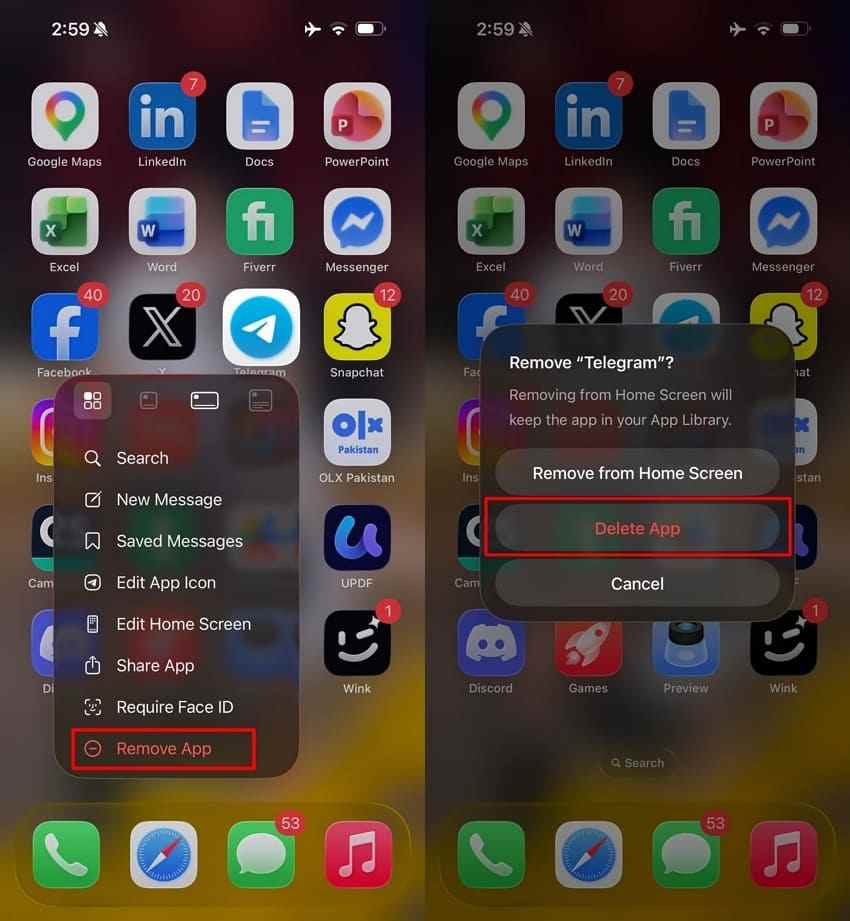
Step 3. Reinstall Telegram from the App Store and sign in with your registered phone number.
Part 5. What Happens to Telegram Chats, Secret Chats, and Files?
Before you reset Telegram, understand what is stored in the cloud and what may exist only on your device.
Regular Cloud Chats and Groups
Regular Telegram cloud chats, groups, and channels are synced with your account. If you reinstall Telegram and sign in successfully, those cloud chats usually sync again. This does not apply if you reset or delete the account in a way that removes account data.
Secret Chats
Secret Chats are device-specific and are not stored in Telegram's cloud in the same way as regular chats. If you log out, uninstall Telegram, reset the app, or lose the original device, Secret Chats and their encryption keys can be permanently lost.
Downloaded Media, Documents, and Cache Files
Downloaded photos, videos, documents, voice notes, ZIP files, PDFs, and Telegram Desktop exports may be stored locally. If they were saved outside Telegram's cache, data recovery software may be able to recover them from a Windows drive, SD card, USB drive, or accessible storage if they were not overwritten.
What If You Also Lost the Telegram Phone Number?
If you forgot the Telegram password and also lost the registered phone number, focus on recovering the phone number first. Telegram accounts rely on that phone number for login verification. Without the number and without an active session, normal Telegram account recovery may not be possible.
Part 6. Recover Lost Telegram Photos, Videos, and Documents After Reset or Reinstall
If resetting or reinstalling Telegram caused local files to disappear, stop using the affected drive or storage device. New files can overwrite deleted data and reduce recovery chances.
When Recoverit Can Help
Recoverit Windows Data Recovery can help recover local files from Windows drives, external drives, USB drives, memory cards, and accessible storage devices. It is useful when Telegram photos, videos, documents, or exported files were saved locally and later deleted, lost, formatted, or trapped on a crashed computer.
Common examples include Telegram Desktop downloads, exported chat files, saved photos, downloaded videos, PDF attachments, and files copied from a phone or SD card to a Windows computer.
When Recoverit Cannot Help
Recoverit cannot recover your Telegram password, reset two-step verification, bypass Telegram passcode lock, access Telegram servers, restore a deleted Telegram account, or recover Secret Chats from Telegram's cloud. It also cannot reliably recover data from app areas that modern iPhones or Android phones do not expose to Windows.
What Telegram Files Recoverit May Recover
| File Type | Examples | Likely Location |
| Photos and videos | Saved images, downloaded clips, screen recordings | Windows drive, SD card, USB drive, exported phone folders |
| Documents | PDFs, Word files, spreadsheets, ZIP files, voice notes | Downloads folder, Telegram Desktop folder, external storage |
| Telegram Desktop exports | HTML exports, JSON exports, media folders | Export folder selected in Telegram Desktop |
| Device backups | Copied Telegram media folders or local backup folders | External drive, memory card, backup drive |
How to Recover Telegram Files With Recoverit
Use Recoverit only for local files. If the lost item existed only inside a Telegram Secret Chat or only on Telegram's servers, Recoverit cannot retrieve it.
Step 1. Choose a Storage Location
Launch Recoverit, go to Hard Drives and Locations, and choose the drive, folder, SD card, USB drive, or external storage where the Telegram files were saved.

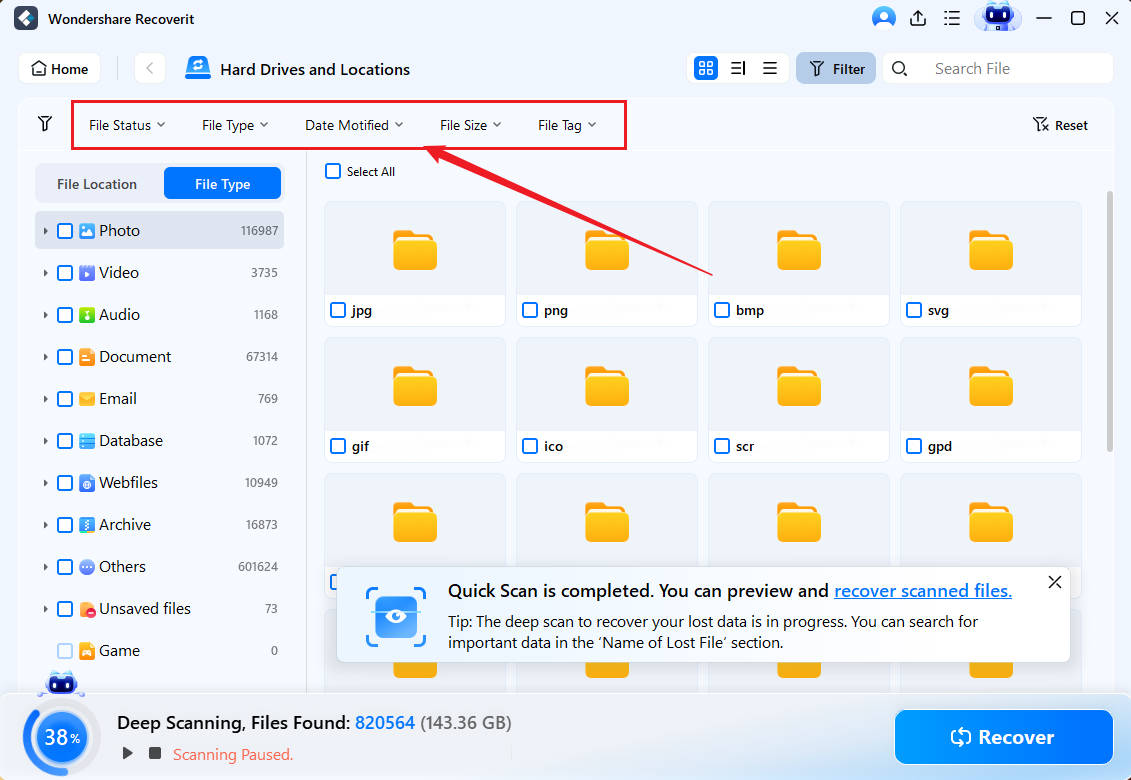
Step 2. Scan and Filter the Results
Let Recoverit scan the selected location. Use file type, time, size, or keyword filters such as Telegram, video, photo, PDF, ZIP, or export to narrow the results.
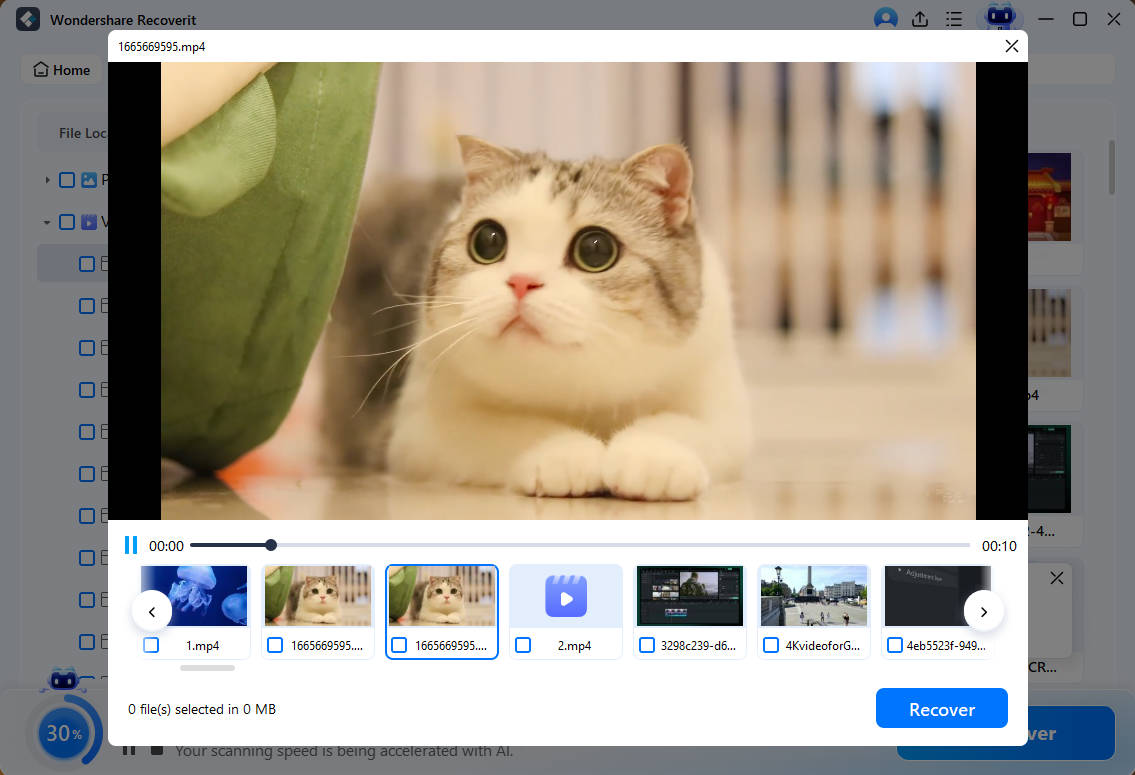
Step 3. Preview and Recover the Files
Preview recoverable files when available, select the Telegram photos, videos, documents, or exports you need, and click Recover. Save the recovered files to a different safe location, not the same drive you are scanning.
Part 7. How to Avoid Telegram Password and Passcode Problems Again
After you regain access, fix the weak points that caused the Telegram password recovery problem.
Add a Recovery Email for Two-Step Verification
Go to Settings > Privacy and Security > Two-Step Verification and add a recovery email you actively use. This is the most important backup path if you forget the two-step verification password again.
Keep Your Telegram Phone Number Active
Keep your registered phone number active and update Telegram before changing numbers. If you are moving to a new number, use Telegram's built-in number change option while you still control both numbers.
Store the Password in a Trusted Password Manager
Use a reputable password manager to store your Telegram two-step verification password and recovery email. Avoid storing the password in an unlocked note or screenshot.
Use a Local Passcode With Biometrics
A local passcode is useful, but enable Face ID, fingerprint, or device unlock as a backup if your device supports it. This reduces the chance of being locked out by a forgotten Telegram passcode.
Back Up Important Telegram Files Outside the App
Save important media, work files, legal documents, receipts, and exported chats outside Telegram. Use a computer, external drive, cloud backup, or another secure location so a reinstall or account reset does not become a data loss event.
Conclusion
If you forgot your Telegram password, first identify whether Telegram is asking for the two-step verification password, the local app passcode, or a login code. Use the recovery email when available, keep access to your registered phone number, and avoid resetting or reinstalling before saving important local files.
If you lost Telegram photos, videos, documents, or exported files from local storage after a reset or reinstall, Recoverit Windows Data Recovery can help scan supported storage devices and recover local files. It cannot recover Telegram passwords, passcodes, accounts, or Secret Chats, but it can help with recoverable files stored outside Telegram's servers.
FAQ
-
What should I do if I forgot my Telegram password?
If Telegram asks for a password after the login code, tap Forgot password and use the recovery email if one was added. If no recovery email exists, follow Telegram's in-app reset instructions and read the warning carefully before confirming. -
Is Telegram password the same as Telegram passcode?
No. A Telegram two-step verification password protects account sign-ins on new devices. A Telegram passcode lock protects only the app on the device where it was enabled. -
Can I reset Telegram password without recovery email?
Possibly, but only through Telegram's official in-app reset process. Telegram may require a waiting period or account reset warning. Save important accessible data first because some data may become unrecoverable. -
Will I lose chats if I reinstall Telegram?
Regular cloud chats usually sync again after you sign in successfully. Secret Chats, local downloads, cache files, and device-only data may be lost after uninstalling, logging out, or resetting the app. -
Can Recoverit recover my Telegram password or passcode?
No. Recoverit cannot recover or reset Telegram passwords, passcodes, or accounts. It can help recover local files such as Telegram photos, videos, documents, exported chats, and downloaded attachments from supported storage devices.



