If Outlook keeps crashing when you open it or freezes while sending mail, first identify whether you use classic Outlook or new Outlook for Windows. The fixes are different: classic Outlook supports Safe Mode, COM add-in troubleshooting, and PST repairs, while new Outlook has its own Windows app repair and reset options. Do not reset an app or rebuild an email data file before checking what is stored locally.
Start by restarting Outlook and checking Microsoft's current known-issues notices if the problem began after an update or affects several people. Then follow the section for your version. If you use a POP account or keep local PST archives, protect those files before changing profiles, repairing data files, or resetting Outlook.
In This Article
-
- Fix 1. Check Hidden Dialogs and Close a Truly Frozen Outlook Process
- Fix 2. Start Classic Outlook in Safe Mode and Isolate COM Add-ins
- Fix 3. Update Classic Outlook and Windows
- Fix 4. Reset the Classic Outlook Navigation Pane
- Fix 5. Use SCANPST.EXE to Repair a Damaged PST Copy
- Fix 6. Rebuild an OST Cache Only After Checking Unsynced Mail
- Fix 7. Address PST Files Stored in OneDrive
- Fix 8. Check Antivirus Integration Without Disabling Protection
- Fix 9. Test with a New Classic Outlook Profile
- Fix 10. Repair Microsoft 365 or Office Installation
- If a PST File Was Deleted, Recover the File Rather Than Repair Outlook
Part 1. Why Does Outlook Keep Crashing? Identify Your Version and Symptom
An Outlook window that disappears immediately is not the same problem as a frozen inbox or a temporary send/receive delay. Before changing settings, note when Outlook stops responding, whether Outlook on the web still works, and whether the failure began after a particular update. Then use the following checks to choose the right repair.
Identify Classic Outlook vs. New Outlook for Windows
Classic Outlook has a File tab, the COM Add-ins settings, and traditional Outlook data-file controls. New Outlook has a more web-oriented interface with a Settings gear and does not use classic Outlook's Safe Mode or its COM add-in panel. The installed app names can also appear as Outlook (classic) and Outlook (new). If the app will not open, check its name in Start or Windows' Installed apps list.
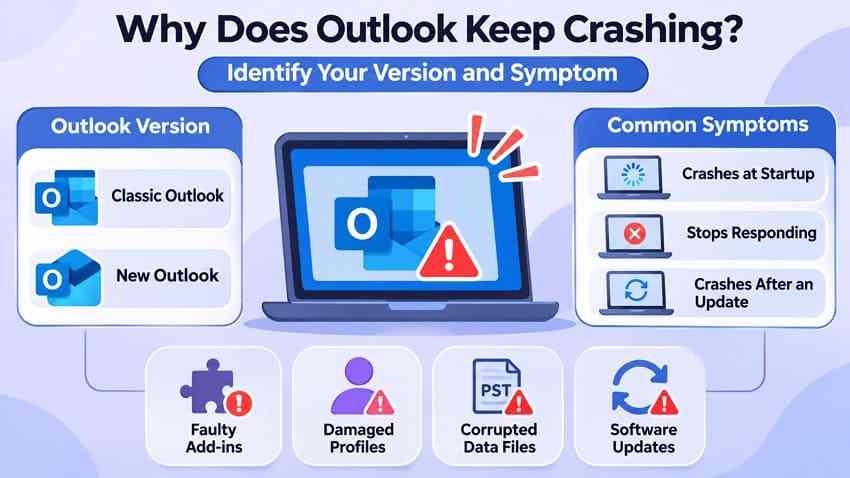
Microsoft documents separate troubleshooting paths for the two apps in Microsoft's version-specific Outlook troubleshooting guide. Do not run outlook.exe /safe, /resetnavpane, or SCANPST.EXE as a generic repair for new Outlook.
Match the Crash, Freeze, or Update Symptom to the First Check
| What you see | More useful first check | Best section |
| Outlook closes as soon as it opens | Confirm the app edition; for classic, test Safe Mode and an updated Office build | Part 2, Fixes 2 and 3; Part 3 for new Outlook |
| The window says Not Responding during sync or archiving | Look for a hidden dialog and active status-bar work; compare webmail | Part 2, Fix 1; see the separate inbox-sync guide |
| Classic Outlook cannot open its window or folders | Check the navigation pane, profile, and PST file only if the relevant error appears | Part 2, Fixes 4, 5, and 9 |
| Crashes began immediately after an Office or Windows update | Check the exact build and Microsoft's known-issue status before changing data files | Part 4 |
| New Outlook closes at launch | End its process; use Windows Repair before Reset | Part 3 |
| Outlook is only slow, but never crashes | Investigate performance rather than applying PST or profile repairs blindly | Outlook running slow guide |
If only the inbox stays on Updating Inbox while the rest of Outlook responds, use the Outlook inbox synchronization guide instead of treating that as a startup crash.
Back Up Local PST Files and Check Server Sync Before Repairing
A PST can contain POP mail, local archives, and exported messages that are not necessarily duplicated on the mail server. An OST is normally a synchronized local cache for Exchange, Microsoft 365, Outlook.com, or some IMAP accounts. Rebuilding an OST can lose items that have not reached the server. Do not confuse either file with a backup.
Step 1. In classic Outlook, open File > Account Settings > Account Settings > Data Files. Identify any .pst file, select it, and choose Open File Location.
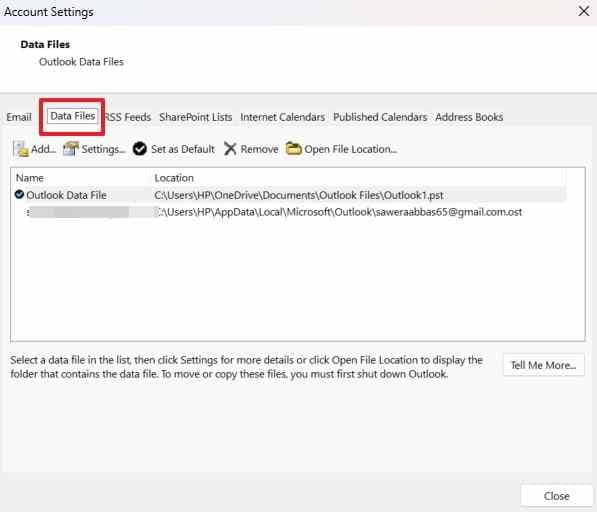
Step 2. Close Outlook completely before copying the PST. Save a separate copy to another healthy drive or an approved backup destination. Keep the original file until you have verified that the copy exists and is accessible.
Step 3. For Microsoft 365/Exchange or other synchronized mailboxes, open Outlook on the web and check recent messages. Also inspect the classic Outlook Outbox, local drafts, and any mail that has not yet synchronized. If these items exist only locally, preserve them before renaming a cache or resetting an app.
Note: If Outlook will not open, locate your PST through File Explorer or ask your organization's IT administrator for the correct data-file location; do not delete an unfamiliar .pst or .ost file to make Outlook start.
Part 2. How to Fix Classic Outlook Crashing or Freezing on Windows
These steps apply to classic Outlook for Windows, not to new Outlook. Start with reversible checks and stop when Outlook opens, stays responsive, and synchronizes correctly. If a crash always happens while sending or receiving one particular message, note that detail before trying file-level repairs.
Fix 1. Check Hidden Dialogs and Close a Truly Frozen Outlook Process
Classic Outlook can look frozen while processing a large attachment, archiving, or downloading mailbox content. If its status bar shows progress, give the task time to finish. Check for a hidden confirmation window before ending the process, because forced closing can discard unsaved drafts.
Step 1. Press Alt + Tab and check whether a reminder, sign-in, or other Outlook dialog is waiting for a response. Close it or complete the prompt.
Step 2. If there is no progress and Outlook remains unresponsive, press Ctrl + Shift + Esc to open Task Manager. Find Microsoft Outlook or OUTLOOK.EXE, select End task, and reopen the app.
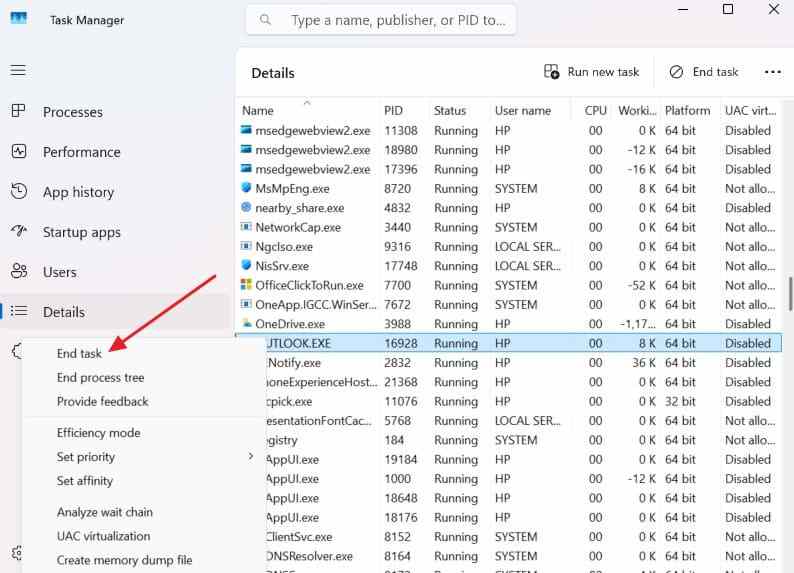
If Outlook now works, continue using it and monitor for another freeze. If it closes immediately on every launch, go to the Safe Mode test rather than repeatedly ending its process.
Fix 2. Start Classic Outlook in Safe Mode and Isolate COM Add-ins
Use this when classic Outlook crashes at startup or after opening a feature provided by an add-in. Safe Mode starts classic Outlook without its usual COM add-ins. A stable Safe Mode session points toward an add-in or customization conflict, but it does not prove that every crash has that cause.
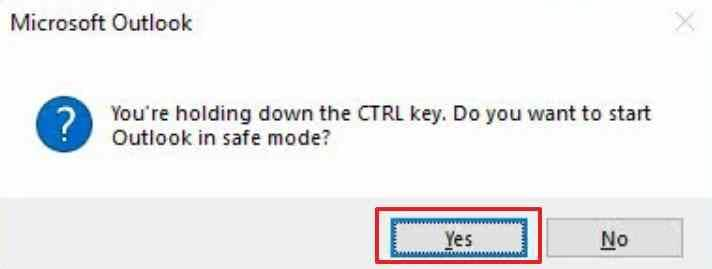
Step 1. Close Outlook. Press Windows + R, enter outlook.exe /safe, and select OK. Accept your normal profile if prompted. You can also hold Ctrl while launching classic Outlook and confirm the Safe Mode prompt.
Step 2. If Outlook works in Safe Mode, open File > Options > Add-ins. Next to Manage, select COM Add-ins and Go. Record the enabled add-ins, uncheck them, and select OK. Do not use the Remove button for this test.
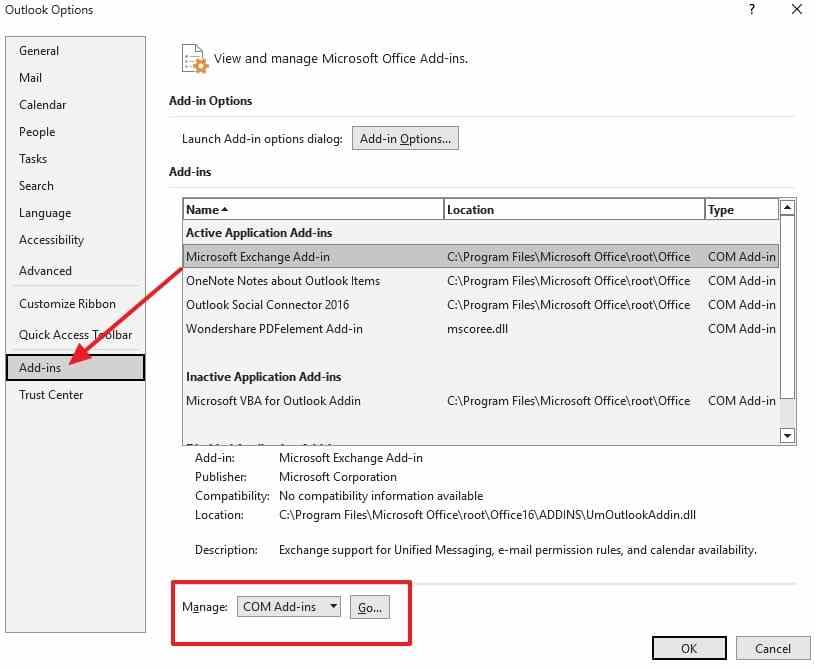
Step 3. Restart classic Outlook normally. If the crash stops, re-enable one add-in at a time and restart between tests. Leave the culprit disabled and look for a supported update from its developer or your IT team.
Note: If Outlook still crashes in Safe Mode, skip repeated add-in changes and move to updates, navigation-pane, or profile checks. The Safe Mode command does not apply to new Outlook.
Fix 3. Update Classic Outlook and Windows
Outdated Office builds and recent add-in changes can cause launch failures. In March 2026, Microsoft documented a specific crash involving older classic Outlook builds and a newer Teams Meeting add-in. Microsoft later marked that issue fixed and advised updating Outlook. Check the installed build rather than assuming the same issue applies to every computer.
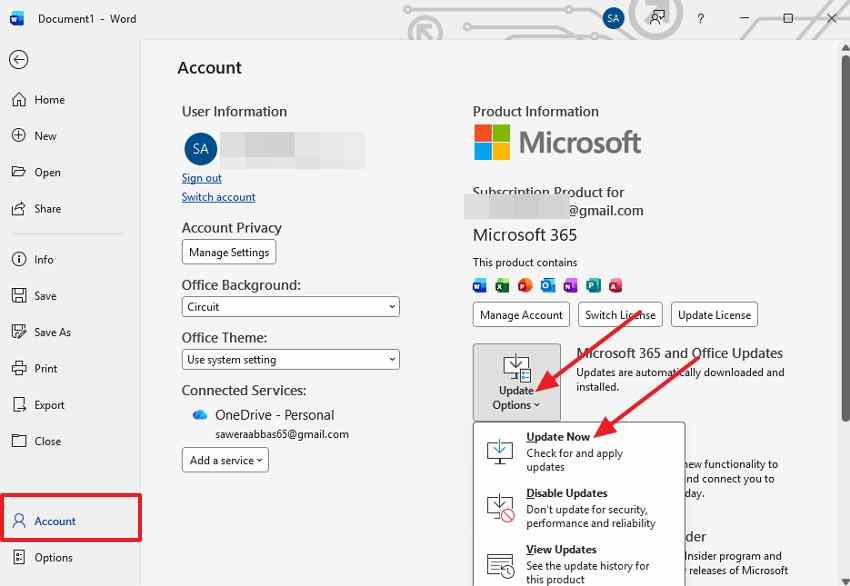
Step 1. If Outlook will not open, launch another Office app such as Word. Select File > Account > Update Options > Update Now. Install available Microsoft 365 or Office updates.
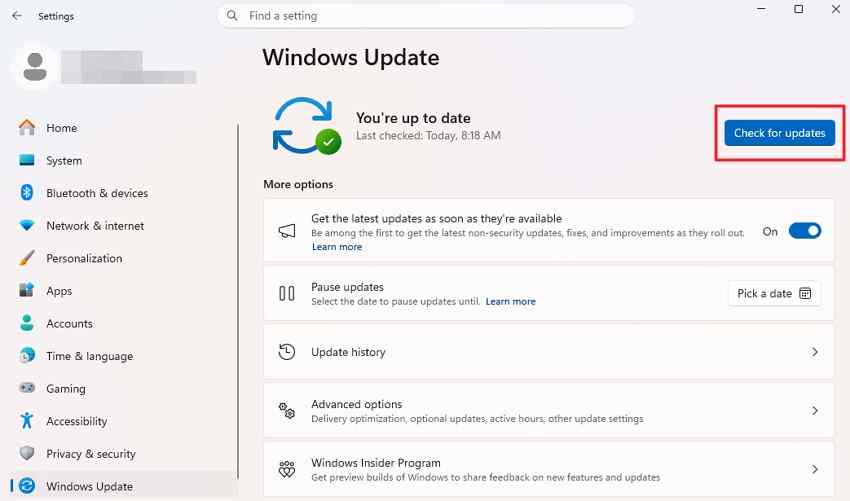
Step 2. On Windows 11, open Settings > Windows Update > Check for updates. On Windows 10, use Settings > Update & Security > Windows Update. Apply supported updates and restart if requested.
Reopen Outlook and repeat the action that previously caused the crash. On organization-managed computers, Office updates may be controlled by IT; do not change update channels or disable security tools to bypass policy.
Note: Standard Windows 10 support ended on October 14, 2025. Windows 10 update availability now depends on the device and any eligible extended-security-update arrangement; where possible, plan a supported Windows version upgrade.
Fix 4. Reset the Classic Outlook Navigation Pane
Use this if classic Outlook reports Cannot start Microsoft Outlook or Cannot open the Outlook window, especially when navigation settings are damaged. This command resets folder-pane customizations; it is not a data-file repair and does not delete your mailbox.
Step 1. Exit classic Outlook and press Windows + R. Enter outlook.exe /resetnavpane with the space before the slash, then press Enter.
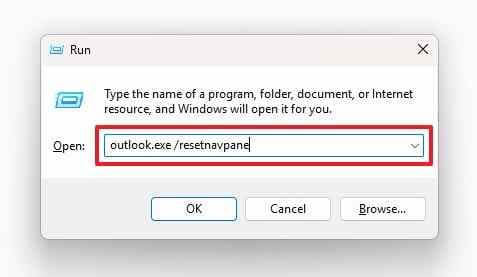
If Outlook opens, check the folder list and restore your preferred shortcuts. If it still fails, return to the error message and test the profile or data file only when indicated.
Fix 5. Use SCANPST.EXE to Repair a Damaged PST Copy
A PST error is more likely when Outlook cannot open a set of folders, reports a damaged Outlook data file, or freezes when loading a particular local archive. Microsoft's Inbox Repair Tool guide documents SCANPST.EXE for classic Outlook data-file errors. It repairs file structure; it is not a way to restore a deleted PST or guarantee recovery of damaged messages.
Step 1. Close Outlook. Locate the affected PST and make a separate backup before changing it. For a safer first test, work with a copy while keeping the original untouched. Find SCANPST.EXE in the Office installation directory (often under Microsoft Office\root\Office16; the actual path varies).
Step 2. Open the tool, select the PST copy, and choose Start. If it reports errors, review its backup option and select Repair. Allow the process to finish. Do not overwrite or remove the original PST just because the scan completed.
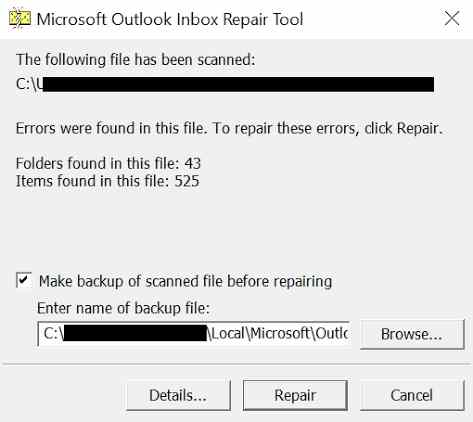
Step 3. Open the repaired copy in classic Outlook using File > Open & Export > Open Outlook Data File, where available, and check folders and representative messages. If corruption remains, consult Microsoft's repair guidance before attempting repeated repairs. Severe damage can leave items unrecoverable.
Fix 6. Rebuild an OST Cache Only After Checking Unsynced Mail
An OST is typically a local copy of a mailbox stored on the server. A damaged cache can cause sync-related hangs, but renaming it is only appropriate once you can confirm the server-side copy and protect any locally pending work. Do not treat OST deletion as a universal crash fix.
Step 1. Open the mailbox in Outlook on the web and compare recent messages and folders. Check the local Outlook Outbox and any unsent drafts. If you cannot confirm that important content exists on the server, stop and seek IT support rather than rebuilding the cache.
Step 2. In classic Outlook, open File > Account Settings > Account Settings > Data Files. Select the appropriate .ost entry and choose Open File Location.
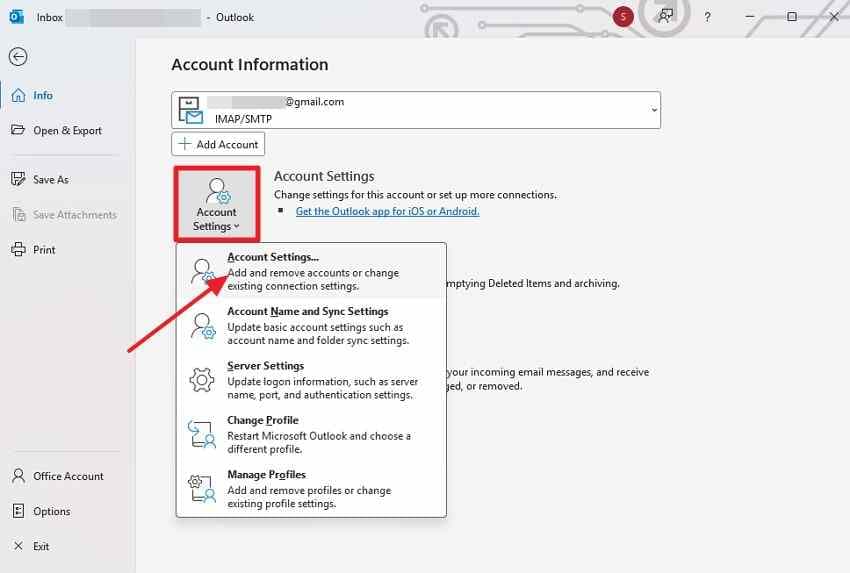
Step 3. Close Outlook completely. In File Explorer, rename only the identified OST file to an .ost.old extension; do not delete it. Reopen Outlook and let it recreate and synchronize the cache from the server. The rebuild can take time with large mailboxes.
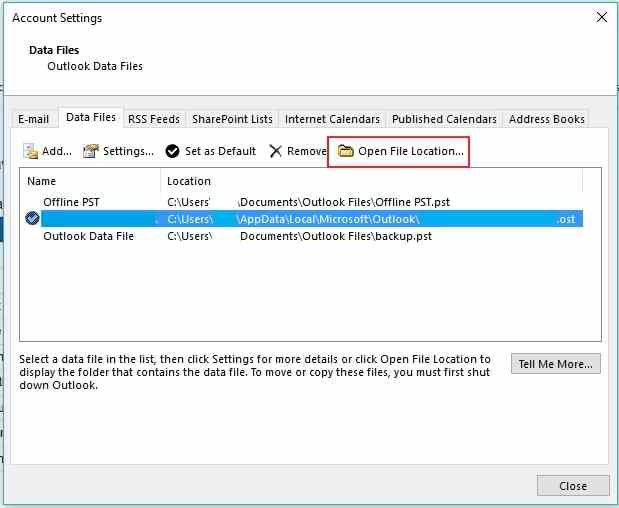
Check recent mail and folder synchronization after the rebuild. If the server copy is incomplete or the account is offline, leave the renamed file untouched and ask your administrator for recovery guidance.
Fix 7. Address PST Files Stored in OneDrive
This is a specific classic Outlook case, not a general Windows audio or cloud problem. Microsoft confirmed that some POP/PST profiles hung after the January 13, 2026 Windows updates; that incident is now marked fixed and should first be addressed through current Windows updates. Active PST files stored in OneDrive can also cause file-in-use and sync conflicts independent of that historical incident.
Step 1. If your PST is in a OneDrive-synchronized folder, first make sure Windows is fully updated. Close Outlook, allow OneDrive sync to finish, then copy the PST into a local folder outside OneDrive. Rename the copied file so you can distinguish it from the original backup.
Step 2. Reopen classic Outlook and go to File > Account Settings > Account Settings. On the Email tab, select the relevant POP account and choose Change Folder if that option appears.
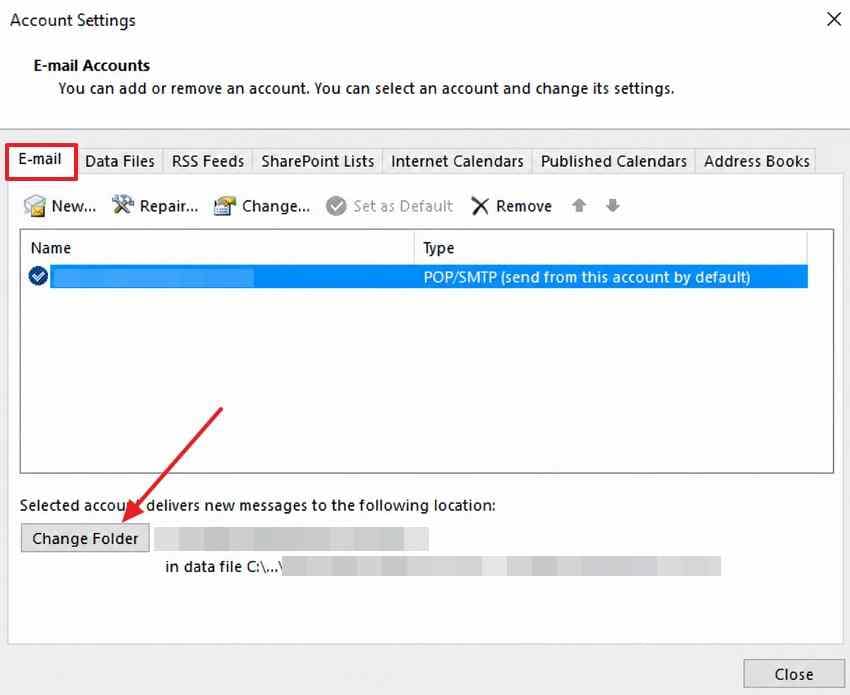
Step 3. Select New Outlook Data File and browse to the copied local PST. Verify the correct account and destination. On the Data Files tab, disconnect the OneDrive-based PST only after the copied file is connected and confirmed. If it is the default data file, set the correct local file as default first.
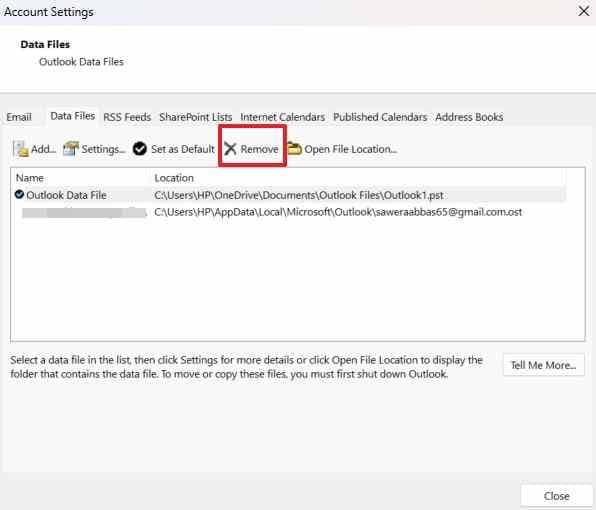
This follows Microsoft's PST-from-OneDrive instructions. Retain the original OneDrive copy until messages, archives, and new deliveries work correctly. If Change Folder is missing or your account uses a different data-file model, do not force these steps.
Fix 8. Check Antivirus Integration Without Disabling Protection
If crashes begin after a security-software update or happen during a particular Outlook action, inspect the Windows application crash record. In June 2026, Microsoft reported crashes involving a Kaspersky module named mcou.dll; that notice remains marked investigating on Microsoft's known-issues page. This is one vendor-specific example, not a reason to disable antivirus protection generally.
Step 1. Press Windows + R, type eventvwr.msc, and open Windows Logs > Application. Find an Outlook crash near the time it happened, often an Application Error event with ID 1000. Record the Faulting module name.
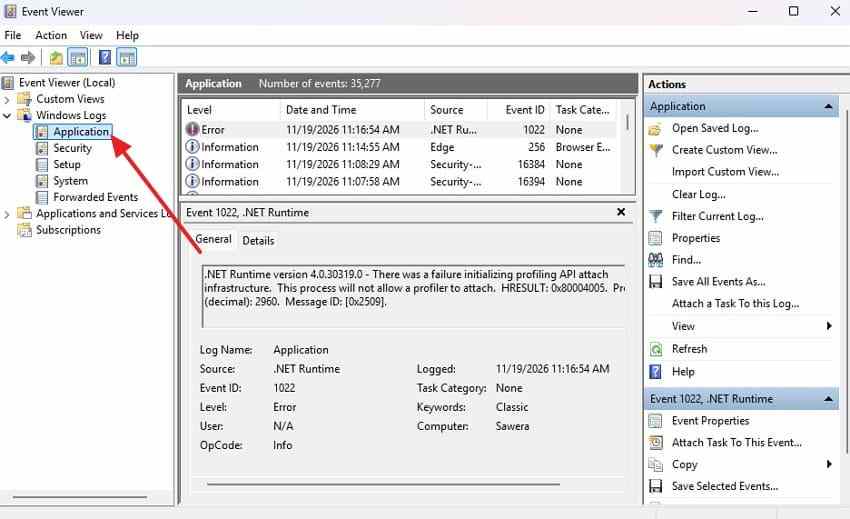
Step 2. If it identifies a security product, check for supported updates to the product and its Outlook integration. Ask the vendor or organizational IT team for a documented solution. Do not permanently disable endpoint security or add broad exclusions merely to test Outlook.
Fix 9. Test with a New Classic Outlook Profile
An Outlook profile stores account connections and local configuration. A new profile helps identify profile damage without immediately removing the old one. Before proceeding, back up PST archives, identify accounts and passwords, and protect locally unsynchronized mail.
Step 1. Close Outlook. Open Control Panel > Mail (Microsoft Outlook) > Show Profiles. On installations where it is available, Windows + R then control mlcfg32.cpl may open the Mail setup dialog.
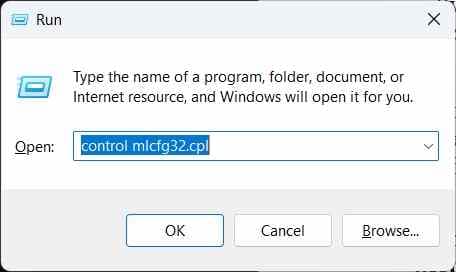
Step 2. Select Add, name the new profile, and follow your account setup prompts. Choose Prompt for a profile to be used, then start Outlook with the new profile.
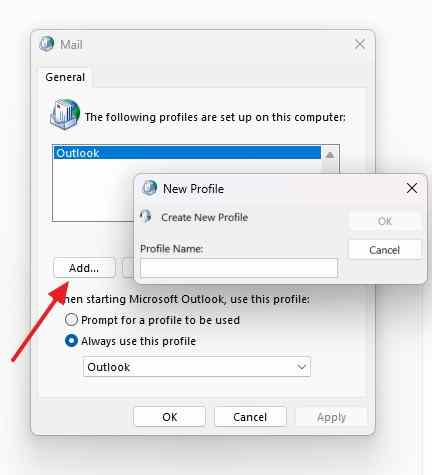
If the new profile stays stable and the mailbox syncs, investigate the original profile. Keep the old profile and its PST data until you have confirmed all local archives and unsynced messages are accounted for. Managed accounts may require administrator-assisted setup.
Fix 10. Repair Microsoft 365 or Office Installation
When Outlook still crashes with a clean profile, application files may be damaged. Windows can repair the Office suite. Try the less disruptive Quick Repair first; use Online Repair only if needed and after preserving important local data and closing open Office documents.
Step 1. Close Office apps. On Windows 11, open Settings > Apps > Installed apps; on Windows 10, use Settings > Apps > Apps & features. Select Microsoft 365 or Office, choose Modify or Change, and start Quick Repair.
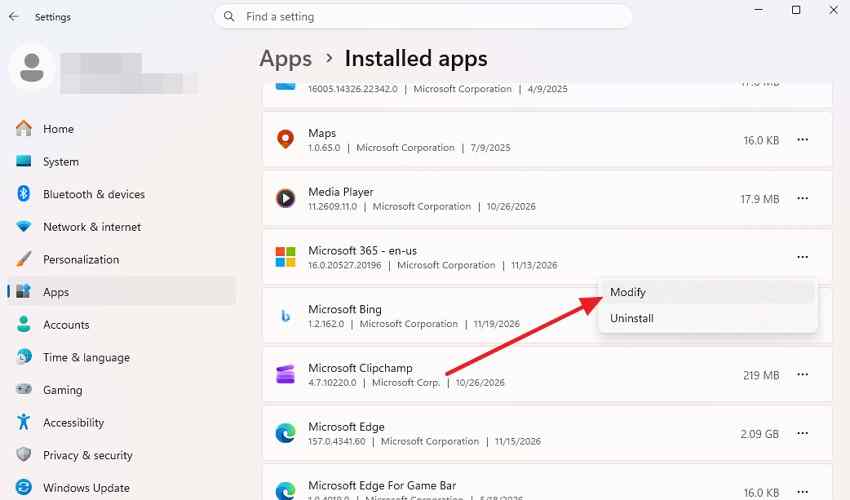
Step 2. If the issue persists, back up PST files, confirm account access, and run Online Repair from the same screen. It uses the internet and can repair other installed Office apps as part of the suite.
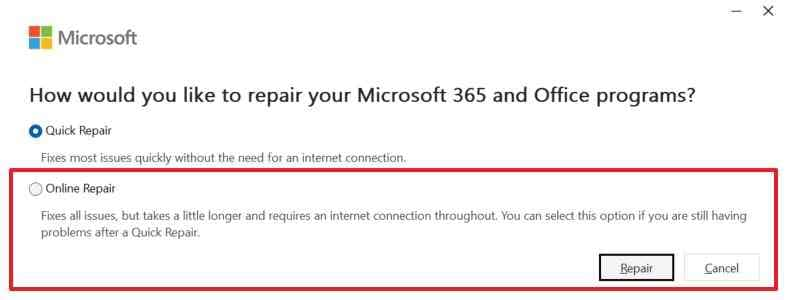
Open classic Outlook again and check startup, folder switching, a test message, and mailbox synchronization. If all these fail across multiple managed computers, check service and build-level issues in Part 4 before editing more local data.
If a PST File Was Deleted, Recover the File Rather Than Repair Outlook
A missing PST is a separate file-loss situation. SCANPST cannot repair a file that is no longer present. Check your backups, Windows Recycle Bin, and any applicable OneDrive file history first. If the PST was deleted from a locally detectable drive, stop saving new files to that drive because overwriting may reduce recovery chances.
For that specific case, Recoverit Email Recovery describes scanning supported local storage for recoverable email files, including PST. It does not fix an Outlook crash, repair a profile, retrieve messages that exist only in a cloud mailbox, or guarantee that a missing file can be recovered.
Step 1. On a suitable working computer, install recovery software to a different drive if the missing PST was on the system drive. In Recoverit, select the original detectable drive where the PST was stored. Do not run repairs or keep writing new data to the original drive.
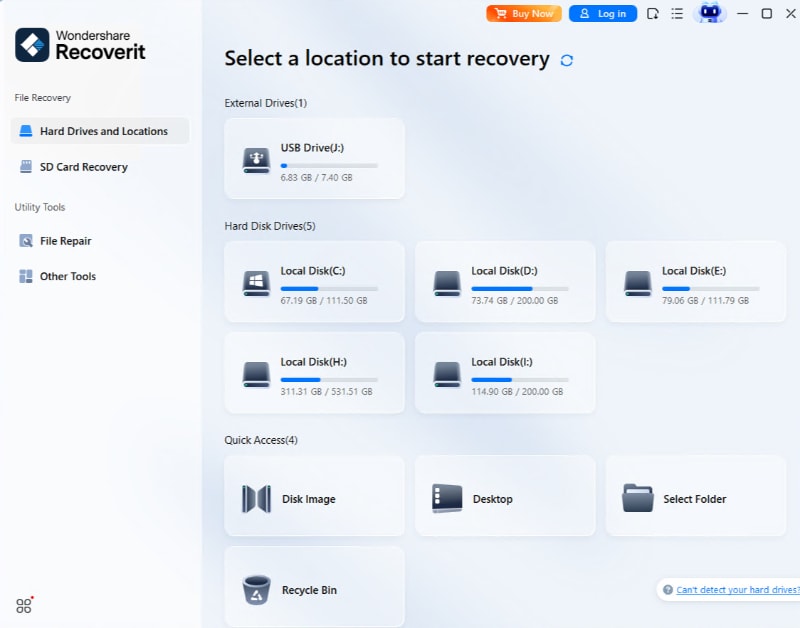
Step 2. Let the scan complete where possible. Search or filter the results by the original PST filename or extension, such as .pst or archive.pst. Select relevant candidates and save any recovered file to a different healthy drive.
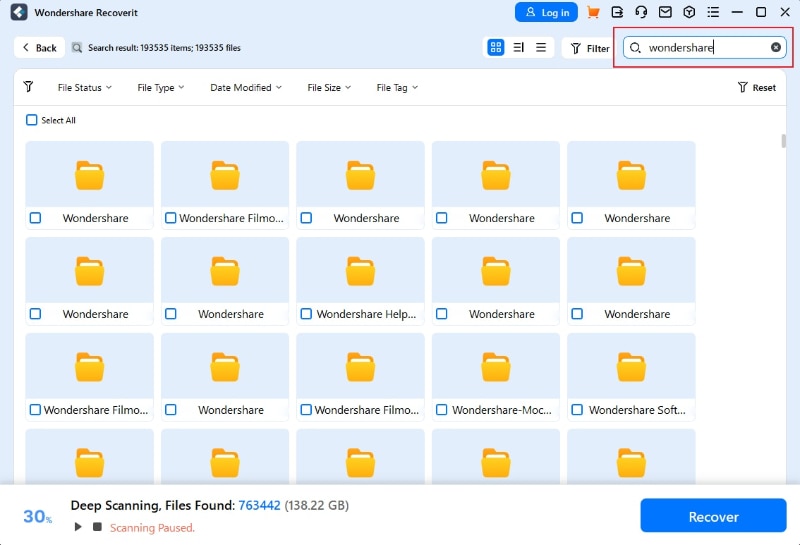
Step 3. Check the recovered file before relying on it. Only attempt to open it with a compatible Outlook workflow after preserving a second copy. A file appearing in search results does not prove it is complete or usable.
Note: The Recoverit screenshots illustrate drive selection and file search, not a verified PST recovery test. File integrity and availability depend on storage condition and overwriting. For more on local Outlook files, see the Outlook file recovery overview.
Part 3. How to Fix New Outlook for Windows Crashing
These fixes apply to new Outlook for Windows. It does not use classic Outlook's COM add-in Safe Mode, navigation-pane reset, or classic profile workflow. Begin by checking whether you can access the account through Outlook on the web; that helps separate app instability from a broader sign-in or service issue. Save any drafts or locally available information that might not be synchronized before a reset.
Fix 1. Force Close and Restart New Outlook
A stuck background process can prevent the new app from opening again. Ending it is a sensible first test, but you could lose text that has not been saved.
Step 1. Press Ctrl + Shift + Esc to open Task Manager. Select Microsoft Outlook for the new app, choose End task, and confirm that its process has closed.
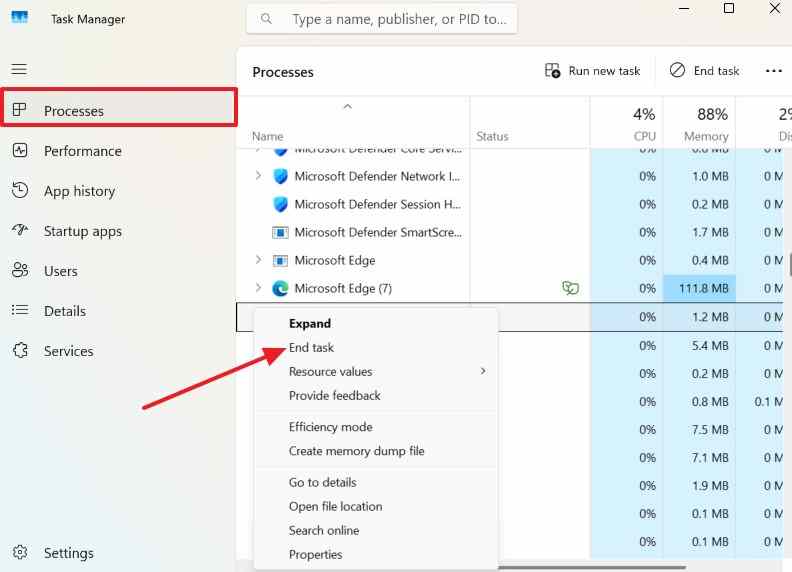
Step 2. Reopen Outlook (new) from Start. If it immediately closes again, restart Windows once and continue to Repair rather than repeatedly force-closing the app.
Fix 2. Repair, Then Consider Reset for New Outlook
Windows app Repair is the safer first option because it is intended to fix the installation without removing app data. Reset removes local app state and may require adding accounts again. Unsynced drafts or offline content should be checked before using it.
Step 1. On Windows 11, open Settings > Apps > Installed apps. Find Outlook (new) or Outlook for Windows, select the more-options menu, and open Advanced options if offered. On Windows 10, start in Settings > Apps > Apps & features.
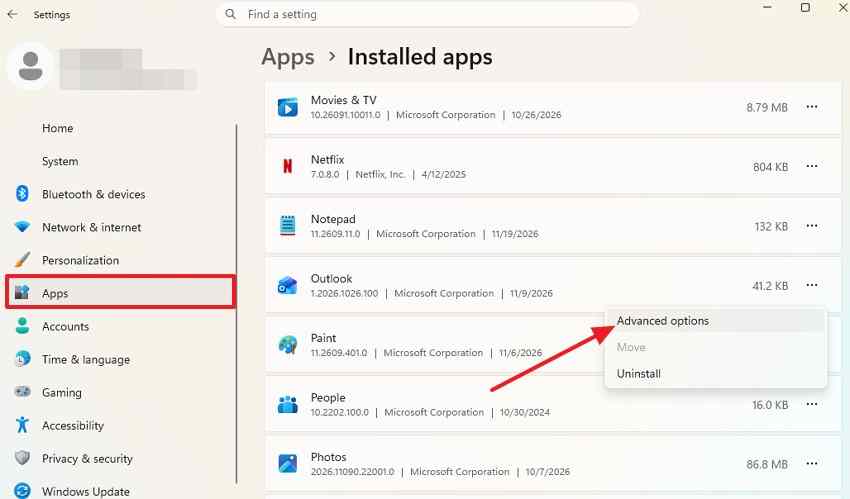
Step 2. Choose Repair, wait for it to finish, and reopen new Outlook. If it still crashes, verify mailbox access in webmail, preserve unsynced information, and only then consider Reset. The controls can differ by Windows edition and app installation.
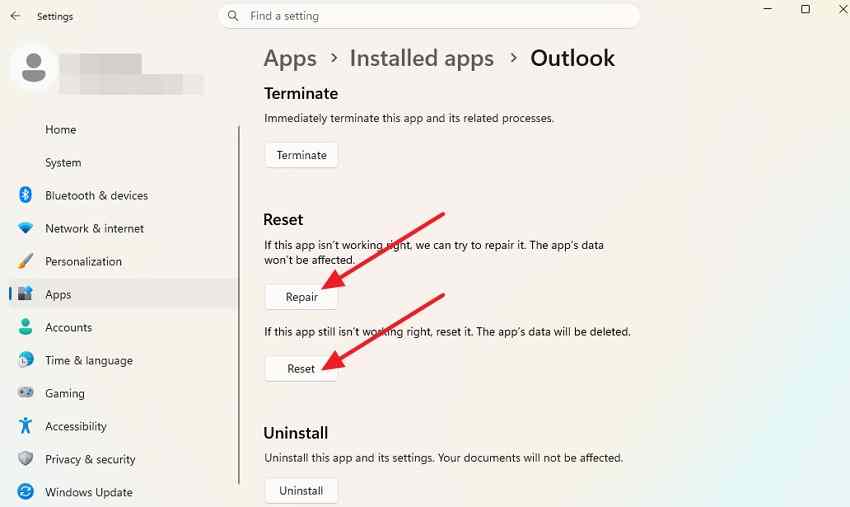
If Repair and Reset are not available, use the Microsoft Store app guidance rather than attempting classic Outlook commands. If new Outlook is required by your employer, get IT approval for a reset.
Fix 3. Uninstall and Reinstall New Outlook
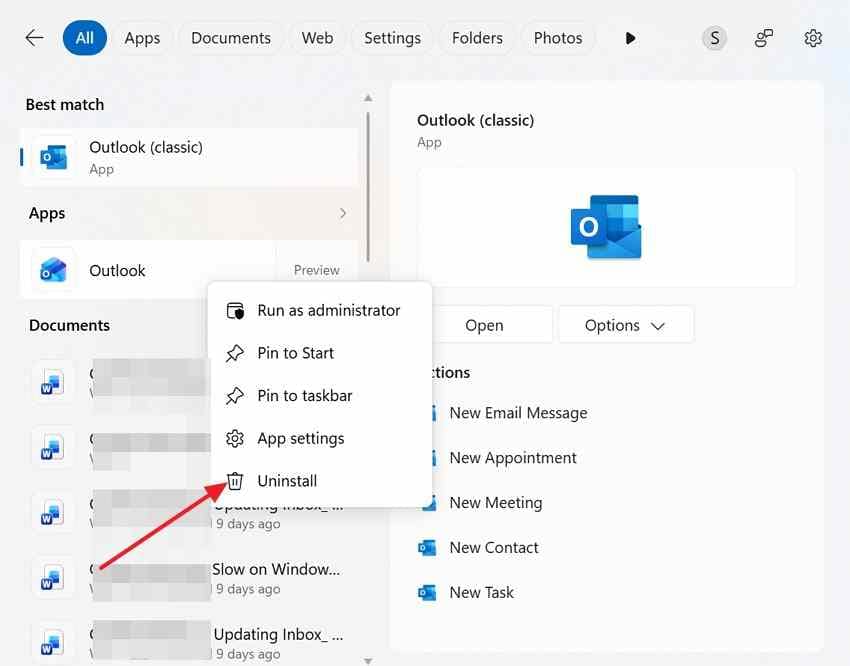
Use reinstallation when restart and supported app repair options have failed. The installed app is replaced, so local preferences and accounts may need to be set up again. Verify online mailbox data and preserve local drafts first.
Step 1. Close new Outlook. In Start or Installed apps, select the new Outlook app and choose Uninstall when available.
Step 2. Open Microsoft Store, search for Outlook for Windows, select the Microsoft listing, and choose Get or Install. Sign in if the account is not restored automatically.
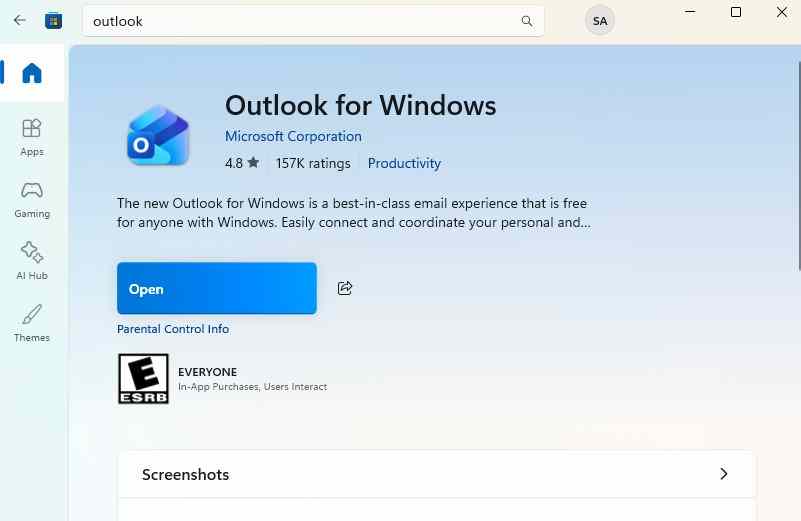
After reinstalling, open a few folders, send a test email, and verify that incoming mail and calendar data load. Microsoft lists a minimum Windows 10 build for new Outlook; older or restricted installations may need a supported Windows or deployment path.
Part 4. What If Outlook Crashes After a Windows or Office Update?
When a crash starts on the same day as an update, record what changed before adjusting PST files or user profiles. A client application crash, a mailbox connection outage, and a frozen synchronization operation can look similar, but they do not have the same fix.
Check Current Microsoft 365 Service Health, Builds, and Known Issues
Step 1. For a work or school mailbox, ask a Microsoft 365 administrator to check Health > Service health in the Microsoft 365 admin center. For desktop crash details, review Microsoft's classic Outlook known-issues page and the corresponding new Outlook notices. Service health incidents may explain connection failures, but they do not automatically explain a local OUTLOOK.EXE crash.
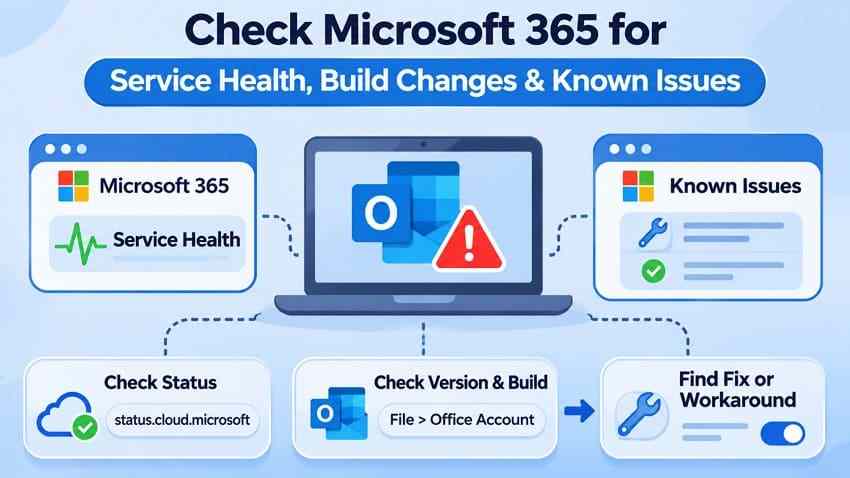
Step 2. For classic Outlook, check your actual build in File > Office Account > About Outlook, or use Word if Outlook will not open. In Windows, review Settings > Windows Update > Update history. Match the date, version, and exact symptom to an official issue notice before applying a workaround.
For example, Microsoft marked the January 2026 POP/PST freezing incident fixed through Windows updates and the March 2026 Teams Meeting add-in startup-crash incident fixed. A separate June 2026 Kaspersky integration crash notice was still listed as investigating when checked. These statuses are examples, not evidence of a current widespread Outlook outage.
Confirm Stability After the Fix
Reopen Outlook and reproduce the action that previously failed. Then verify both responsiveness and data synchronization:
- Startup: Outlook opens repeatedly without closing or showing a crash prompt.
- Interaction: Folder switching and message opening work without a prolonged Not Responding state.
- Mail: Send a test message and check the Sent Items folder; receive a test message and compare it with webmail.
- Local data: Confirm PST archives and any previously unsent drafts are accounted for.
- Known incident: If multiple managed devices remain affected, note the installed build, failure time, and Windows Event Viewer faulting module, then escalate to Microsoft or the IT administrator.
If your main symptom is a prolonged synchronization stall rather than crashing, use the Outlook Updating Inbox troubleshooting guide for that narrower issue.
Conclusion
If Outlook keeps crashing, your first step is to identify the version and exact symptom. For classic Outlook, test Safe Mode and add-ins, install current updates, and only then consider navigation, profile, PST, or OST repairs when the evidence points there. For new Outlook, restart the app, try Windows Repair, and protect local information before Reset or reinstalling.
Confirm that Outlook opens reliably, responds while you work, and can send and receive test mail. Keep local PST archives backed up, and review Microsoft's known-issues guidance when failures begin after an update. If a PST file was actually deleted from a detectable drive, file recovery is a separate task; restoring the missing file is not the same as fixing the Outlook app.
FAQ
-
Why does Outlook crash immediately after opening?
In classic Outlook, startup crashes can stem from COM add-ins, navigation settings, an outdated Office build, or a damaged profile. Start with outlook.exe /safe and the current known-issues notices. In new Outlook, use its Windows app restart and Repair workflow; classic Safe Mode is not available there. -
How can I tell if an Outlook add-in is causing the crash?
Launch classic Outlook with outlook.exe /safe. If it works, go to File > Options > Add-ins > COM Add-ins > Go, temporarily uncheck the add-ins, and restart normally. Re-enable them one by one and retest until the failing add-in is identified. Do not remove enterprise-managed add-ins without approval. -
Can repairing Outlook or creating a new profile delete my emails?
Mail already synchronized to a server is normally separate from a local Outlook profile, but POP messages, PST archives, unsynced drafts, and offline changes may exist only on the computer. Back up PST files and verify webmail before repairing data files, renaming an OST, creating a new profile, resetting new Outlook, or performing an Office repair. -
What should I check when Outlook starts crashing after an update?
Check whether several users are affected, note your exact classic Outlook build or new Outlook app version, and review Microsoft 365 service health and official known-issue notices. Install approved fixes and test the same crashing action again. A previously fixed 2026 Outlook incident does not prove that the same bug is happening today.


