You can open an Adobe Illustrator (.ai) file without installing Illustrator or paying for a subscription. A free online AI viewer renders the artwork in your browser so you can check a logo, label, or layout before sending it to print or to a client.
Not every viewer works the same way. Some upload the file to a vendor server; others process it locally in your browser and keep it on your device. Upload limits, export options, and whether the file must contain PDF-compatible content all differ. This guide compares six free online AI viewers, explains why an .ai file sometimes fails to open, and shows what to do when the original artwork is missing.
In This Article
-
- 1. GroupDocs AI Viewer: Best for Quick Illustrator File Previews
- 2. Aspose.PSD AI Viewer: Best for Viewing and Converting AI Artwork
- 3. Jumpshare AI Viewer: Best for Viewing and Sharing Illustrator Files
- 4. Photopea: Best for Viewing and Editing AI Files Online
- 5. FileProInfo AI Viewer: Best for Simple AI File Viewing
- 6. Litehost AI Viewer: Best for Private Browser-Based AI Previews
- Comparison of the Best Free Online AI File Viewers
Part 1. 6 Best Free AI Format Viewers Online
Choosing the best free AI viewer depends on how you plan to use the artwork. Some viewers process files on cloud servers, while others handle artwork locally in the browser. That difference matters when you are working with confidential designs or client projects, because a cloud viewer stores a temporary copy on a third-party server.
Based on information available in November 2026, here are six free online AI viewers. The comparison below covers Illustrator file compatibility, upload limits, export options, and how each tool handles the file. Details such as exact file caps and retention windows change over time, so verify the current limits on each tool's page before relying on it for production work.
1. GroupDocs AI Viewer: Best for Quick Illustrator File Previews
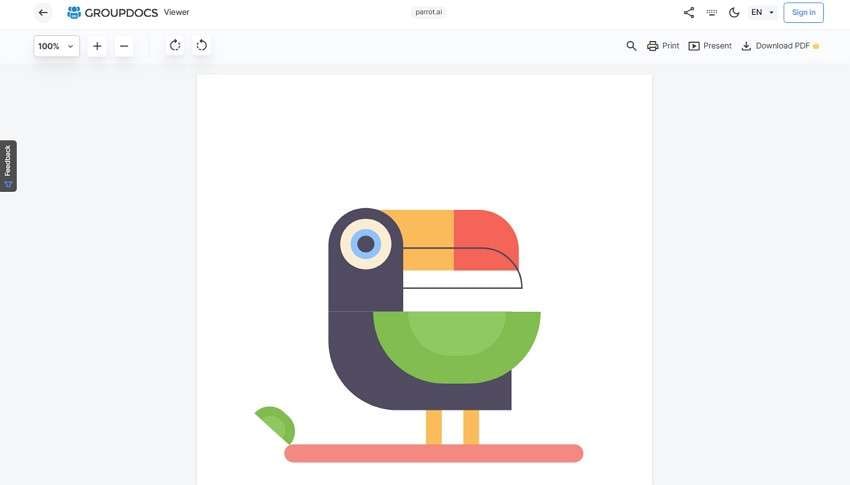
GroupDocs AI Viewer is a browser-based tool for opening Illustrator artwork without installing desktop software. It renders files through the GroupDocs.Viewer engine, which supports a large number of formats, including AI. Free viewing is subject to an upload size limit and a daily document cap, and rendered files are kept for a limited retention window before deletion. Check the live page for the current limits and deletion controls.
Key features:
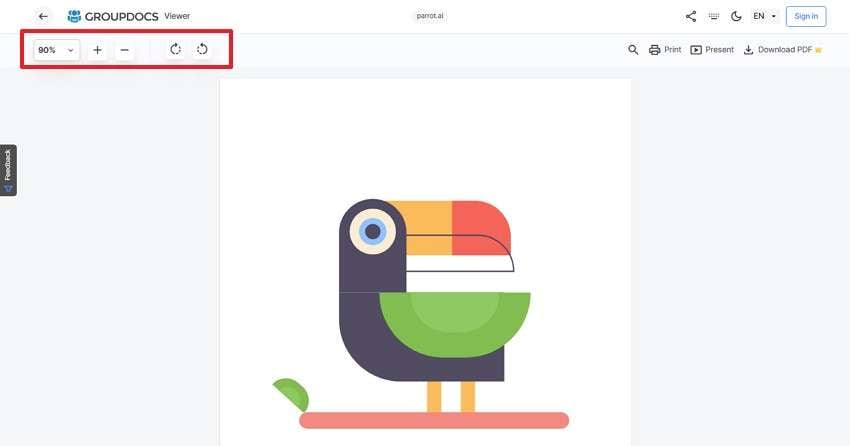
- Adjustable zoom and rotation controls for inspecting artwork details at different magnifications.
- Page navigation and presentation mode for reviewing multi-page designs and showcasing artwork.
- Direct browser printing, so you can print without downloading or converting first.
2. Aspose.PSD AI Viewer: Best for Viewing and Converting AI Artwork
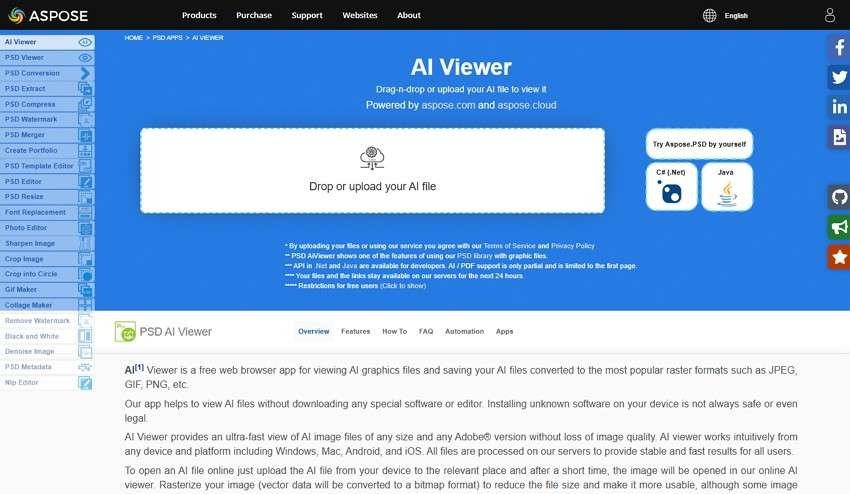
Aspose.PSD AI Viewer is an online tool for previewing supported Illustrator artwork and converting it into other formats. Powered by Aspose APIs, it interprets the embedded PDF representation of an AI file rather than the native Illustrator vector editing model, and preview coverage can be limited. Processing happens on Aspose servers, and files and download links are kept for a limited window. Confirm the current page and format limits before converting.
Key features:
- Exports Illustrator artwork to raster formats such as PNG, JPG, TIFF, and others available on the live page.
- Supports ZIP uploads so you can process multiple files in one batch, subject to the current archive limits.
- Offers larger upload allowances for registered accounts, with limits that change over time.
3. Jumpshare AI Viewer: Best for Viewing and Sharing Illustrator Files
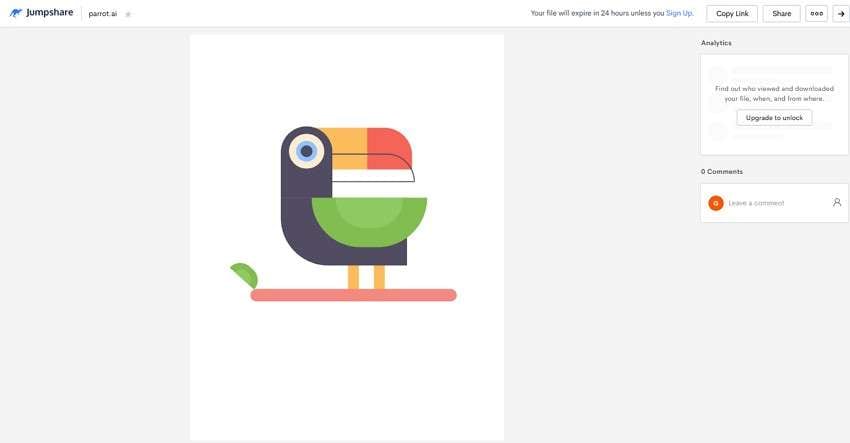
Jumpshare AI Viewer lets you preview and share Illustrator artwork for client feedback. It supports a broad set of file formats, including AI, EPS, and SVG. Because sharing uploads a copy to Jumpshare's cloud, that copy can be exposed to collaborators; guest uploads are removed after a retention period. Check the current plan limits and access settings before sharing confidential work.
Key features:
- Generates shareable links that recipients can open without installing software or creating an account.
- Supports threaded comments so clients and designers can exchange feedback on the artwork.
- Transmits uploads over HTTPS; review the current plan for encryption and access details.
4. Photopea: Best for Viewing and Editing AI Files Online
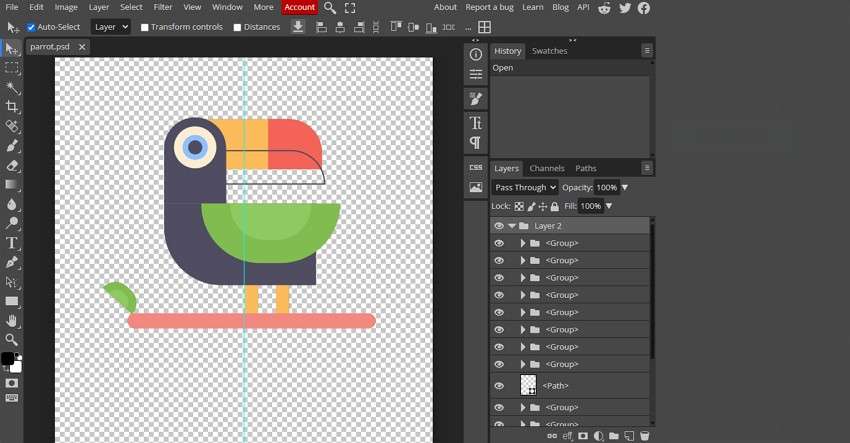
Photopea is a browser-based graphics editor for opening and working with compatible Illustrator files. It introduced AI file support in version 5.0, and its documentation states that locally opened files are processed on your device. It can also run offline after the initial load. Because it is an editor, not just a viewer, you can modify artwork and export it to formats such as JPG, PNG, SVG, or PDF.
Key features:
- Preserves editable text, vector paths, layer groups, opacity settings, and blending modes during AI import.
- Keeps raster images as Smart Objects so non-destructive transformations do not alter the original image data.
- Saves imported artwork as layered PSD files for further editing in compatible design applications.
5. FileProInfo AI Viewer: Best for Simple AI File Viewing
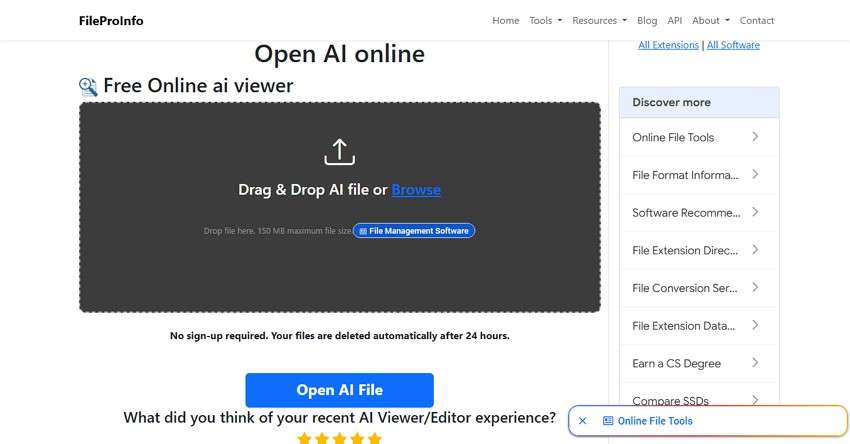
FileProInfo AI Viewer is an online viewer for opening supported Illustrator files through a web browser. It accepts larger files without registration, with processing on its servers and automatic deletion after a retention window. Verify the current file cap, any sign-up requirements for conversion or download, and the deletion policy before uploading.
Key features:
- Offers a dedicated conversion utility for turning Illustrator artwork into PDF and other supported formats.
- Provides a comparison utility for comparing two Illustrator files online.
- Includes companion splitting and merging utilities for managing supported files.
6. Litehost AI Viewer: Best for Private Browser-Based AI Previews
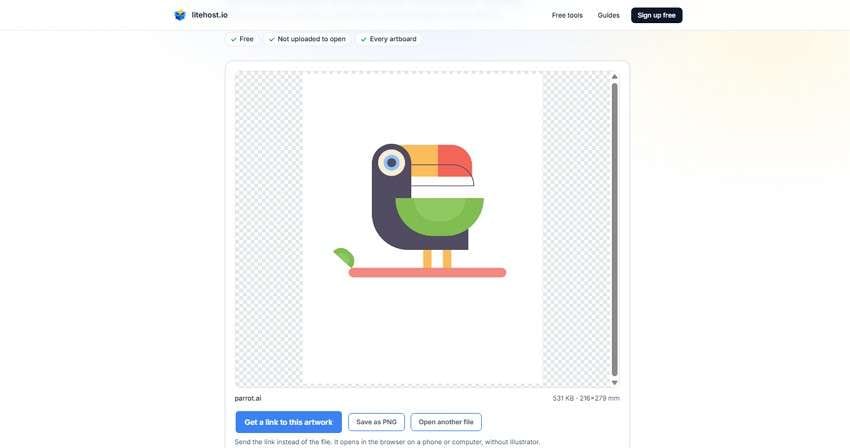
Litehost AI Viewer is a browser-based tool for previewing PDF-compatible Illustrator artwork locally. Its page describes processing files without uploading them during preview, which keeps the artwork on your device; this claim reflects the vendor's own documentation and was not independently network-tested. It renders the embedded PDF content from compatible AI files, with no stated size limit for local viewing.
Key features:
- Exports individual artboards as PNG images.
- Generates temporary sharing links with size limits that depend on account status.
- Displays shared artwork as PDF content across desktop and mobile browsers without requiring recipient registration.
Comparison of the Best Free Online AI File Viewers
A larger upload allowance does not automatically mean better compatibility or rendering accuracy. This table summarizes the practical differences among the six viewers. Cloud-based tools upload a temporary copy, while browser-local tools keep the file on your device. None of these viewers guarantees editable layers or objects for every AI file.
| Online AI Viewer | Free Access | Preview and Export Options | File Processing Method | Key Limitations |
| GroupDocs | Free with per-file and daily limits | Page previews, zoom, rotation, printing | Cloud processing with limited retention | No editable layers; PDF export may require a paid tier |
| Aspose.PSD | Free with per-file and ZIP limits | Preview and raster exports (PNG, JPG, TIFF, and more) | Cloud processing with limited retention | Interprets the embedded PDF preview; page coverage can be limited |
| Jumpshare | Free guest uploads with size limits; paid plans add more | Online previews, shareable links, comments | Cloud processing and storage | Sharing exposes an uploaded copy; advanced controls may require a paid plan |
| Photopea | Free without registration | Editable layers; JPG, PNG, SVG, PDF, PSD | Local device processing | Complex Illustrator effects may change during import |
| FileProInfo | Free with per-file limits and no registration | Browser previews and separate conversion utilities | Cloud processing with limited retention | Individual artboard and layer controls not documented |
| Litehost | Free local previews with no stated size limit | Artboard previews and PNG exports | Local preview processing; uploads only for sharing | Requires PDF-compatible AI files; guest sharing is limited |
GroupDocs is a practical choice for occasional artwork inspection, while Photopea suits users who need editing flexibility. For confidential projects, a browser-local tool such as Litehost or Photopea keeps the file off a third-party server. Always test rendering accuracy before relying on any viewer for professional artwork, and confirm the current limits on the tool's own page.
Part 2. How to View Adobe Illustrator Files Online Using GroupDocs
Before opening Illustrator artwork, make sure the file has finished downloading or transferring to your device. GroupDocs AI Viewer is one example of opening a supported AI file through a browser. Do not upload confidential client artwork without permission, and remove any hosted share when you no longer need it. Follow these steps to check the artwork's visual appearance.
Step 1. Open GroupDocs AI Viewer in Your Browser
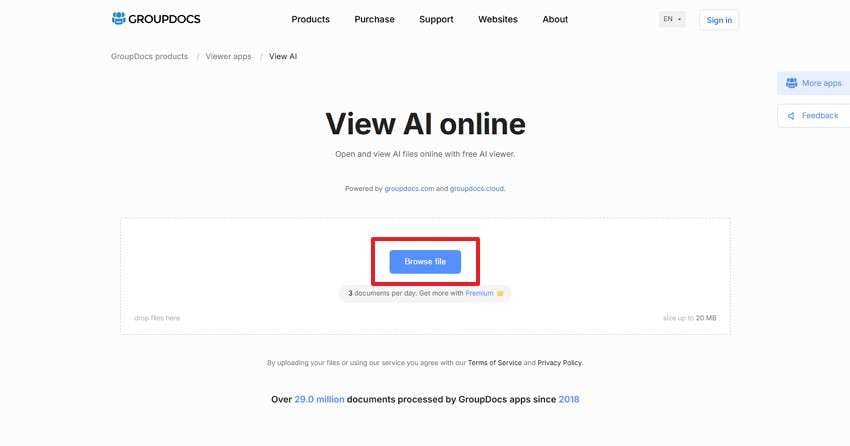
Open GroupDocs AI Viewer in your preferred browser on a computer or mobile device. Click the Browse File button to select your AI file. If the upload fails, check whether the file exceeds the current size limit or whether you have reached the daily document cap.
Step 2. Upload the Adobe Illustrator (.AI) File
Upload only a non-confidential file that you have the right to share. Wait for the viewer to load the artwork. The filename appears near the top of the interface. If the file does not load, confirm the transfer completed and review the viewer's current limits and error messages.
Step 3. Preview the AI File and Download a PDF if Needed
Scroll or use the navigation controls to move between pages and artboards, and adjust zoom and rotation as needed. Confirm that the pages and artboards you expect actually appear. If the interface offers a PDF download, use it for offline viewing, keeping in mind that availability depends on the current interface and version, and that a downloaded copy does not preserve Illustrator's native editing capabilities.
Part 3. Why Some AI Files Do Not Open Correctly in Online Viewers
Opening an Illustrator file online does not always produce an accurate representation of the original artwork. Since Illustrator CS, AI files are saved with an embedded PDF-compatible version, and that is what many third-party viewers actually render. When that embedded data is absent, the viewer may show nothing useful. The table below lists common symptoms, likely causes, and what to request from the file's creator.
| Symptom in the Viewer | Likely Cause | What to Request |
| Placeholder text or a blank page | Missing PDF-compatible content or rendering limits | A PDF-compatible AI file or a separate PDF |
| Placed images are missing | Broken image links or incomplete rendering | A new AI file with relinked images and PDF compatibility |
| Wrong or substituted fonts | Missing fonts or unsupported font rendering | A PDF with embedded fonts or outlined text |
| Older file fails to load | Unsupported legacy Illustrator format | An AI file saved in a newer format with PDF compatibility |
| Upload fails | File exceeds the viewer's upload limit | A smaller AI file or a compressed PDF |
| Some artboards are missing | Viewer supports only limited pages | A multi-page PDF containing all required artboards |
| File also fails to open in Illustrator | Possible corruption, access restrictions, or software issues | A verified working copy or an earlier backup |
How to Fix Common AI File Viewer Problems
If an online viewer keeps failing, try these steps before switching tools:
- Verify the file extension: confirm the artwork has the correct .ai extension. Renaming another format to .ai does not convert it into Illustrator artwork.
- Check transfer completion: make sure the file downloaded or transferred completely by comparing its size with the original.
- Simplify complex artwork: ask the creator to simplify complex effects, clipping masks, or transparency in a duplicate file.
- Clear the browser cache: clear cached data if the viewer repeatedly freezes or fails to load.
- Disable interfering extensions: temporarily disable browser extensions, or try the viewer in a private browsing window.
How to Save AI Files for Better Viewer Compatibility
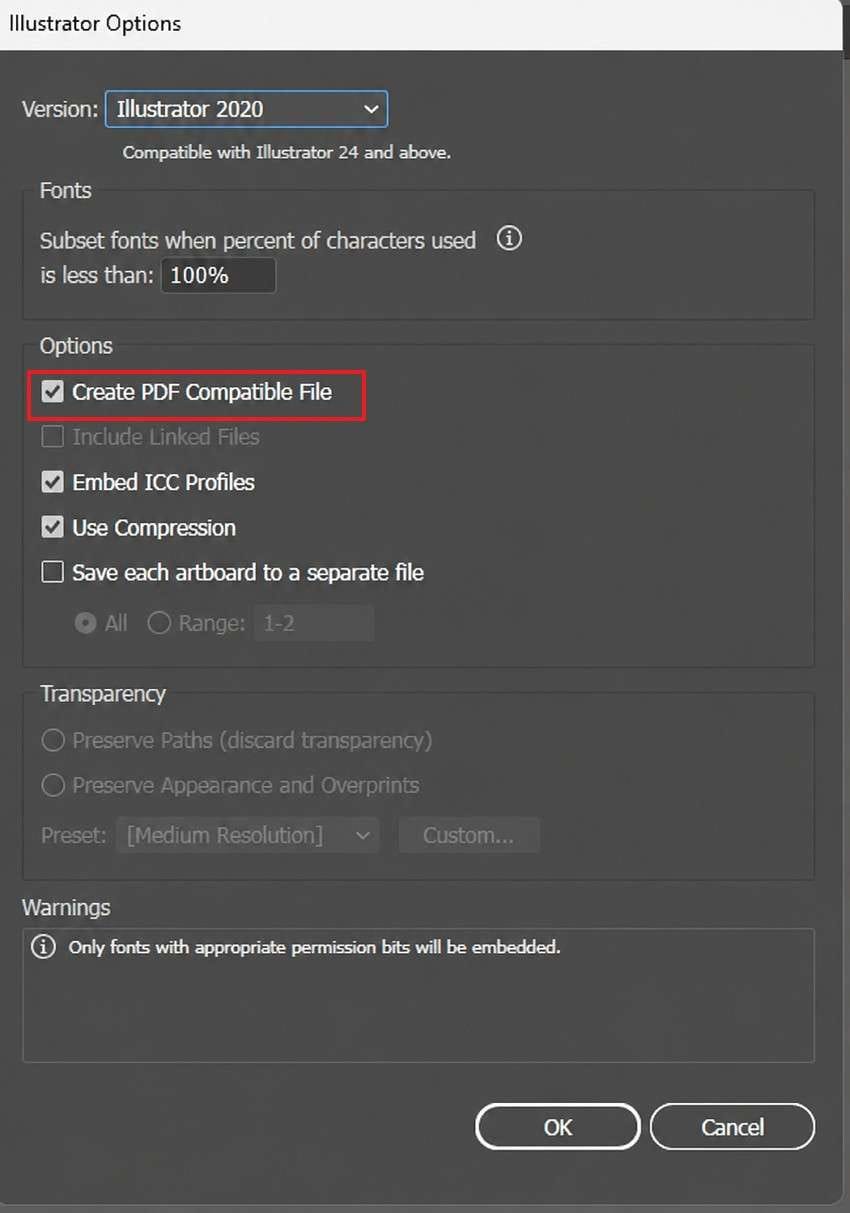
Ask the file's creator to open the artwork in Illustrator, choose File > Save As, and enable Create PDF Compatible File in the Illustrator Options dialog before saving. Alternatively, request a separate PDF for viewing and sharing. Enabling Preserve Illustrator Editing Capabilities when saving a PDF retains Illustrator-specific editing information in the copy. For background on the AI format, see Adobe's file-type overview.
An unsupported AI file is simply one the viewer cannot read; a corrupted file is damaged and may not open anywhere, including Illustrator itself. Viewing the artwork online also does not guarantee access to editable layers or objects, and no viewer should be expected to repair a corrupted file.
Pro Tip. Recover Deleted Adobe Illustrator Files Using Recoverit
An online AI viewer can only display artwork that still exists on your device. Accidental deletion, drive formatting, or an interrupted transfer can leave Illustrator projects missing. Start by checking the Recycle Bin, Trash, or available backups. If those fail, stop using the affected storage device, because continued activity could overwrite recoverable data.
Recoverit File Recovery can help when no backup is available. It scans internal drives, external hard drives, memory cards, and USB flash drives for missing artwork. Available for Windows and Mac, it supports file systems including NTFS, exFAT, FAT32, APFS, and HFS+. Recoverit is not an Illustrator viewer and cannot guarantee the repair of corrupted artwork.
Key features:
- Recovers graphic design file formats such as AI, PSD, INDD, EPS, and SVG.
- Searches for recoverable file data even when original filenames or directory records are missing.
- Recovers files from supported disk images without repeatedly scanning the original storage device.
- Restores individual files or project folders containing artwork and linked design assets.
How to Recover Deleted Adobe Illustrator Files with Recoverit
Follow these steps to retrieve missing Illustrator files with Recoverit, then reopen the recovered artwork in a compatible AI viewer to verify its contents.
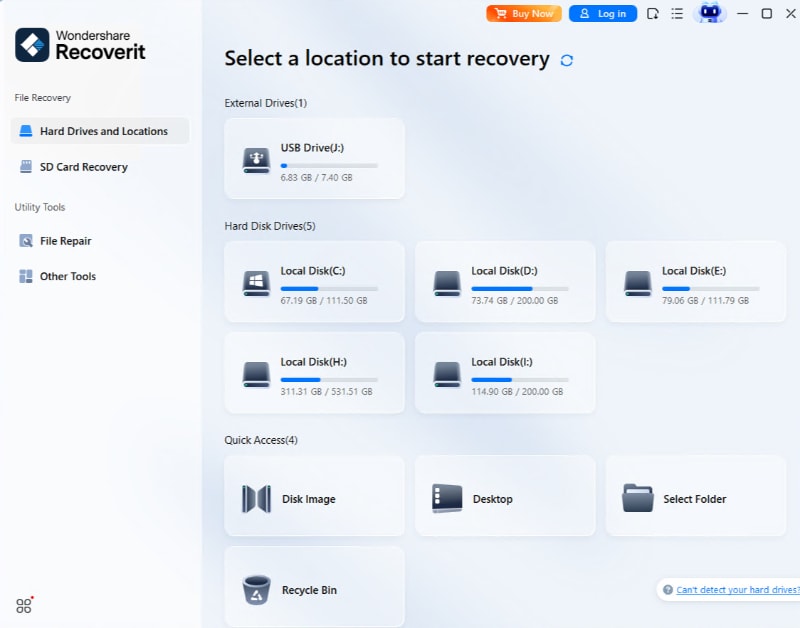
Step 1. Select the drive containing the lost AI files. Launch Recoverit after installing it on an unaffected drive. In the Hard Drives and Locations tab, select the drive that previously stored your Illustrator projects.
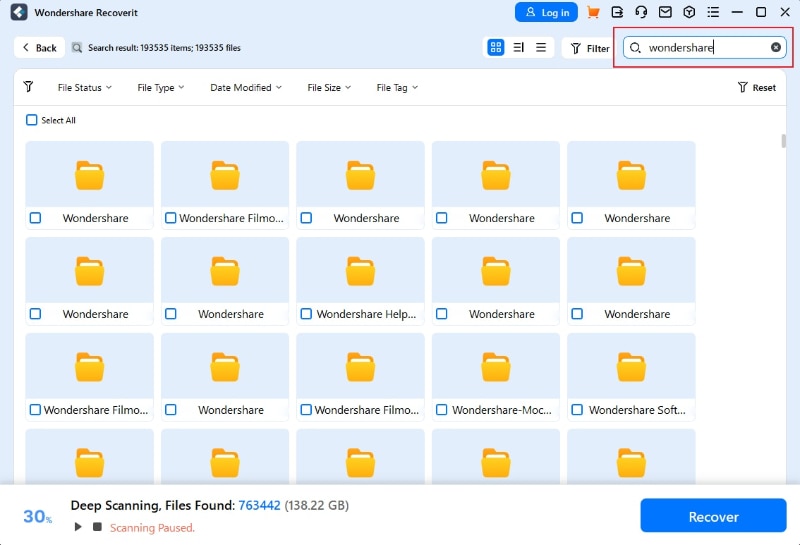
Step 2. Scan and filter for Adobe Illustrator files. Let Recoverit scan the selected drive for deleted or missing artwork. Use the File Type filter or search by the original filename or the .ai extension.
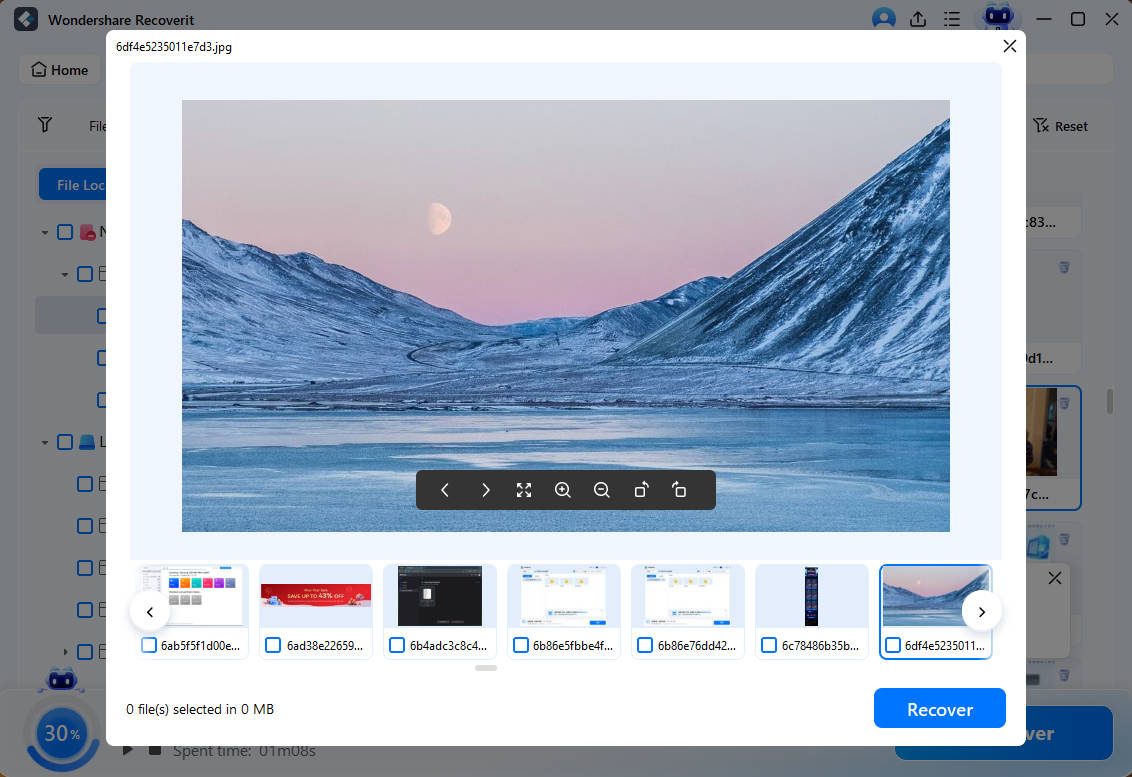
Step 3. Recover and verify the Illustrator artwork. Review the filenames, sizes, and available previews to identify the artwork. Select the files, click Recover, and save them to a different drive. Open each recovered file in a compatible AI viewer to verify its contents.
Conclusion
A free AI viewer makes Adobe Illustrator artwork accessible without an Illustrator subscription. The six tools here cover different viewing, editing, and sharing needs, so choose by whether each can preview the embedded PDF, how it handles privacy, and the editing fidelity you need. When an original AI file will not display, request a plain PDF or a PDF-compatible AI copy from the creator.
No viewer can restore missing artwork. If Illustrator projects are accidentally deleted or lost, Recoverit File Recovery can help you retrieve the .ai files from readable storage. Recover the files to a safe location, then reopen them in a compatible viewer. Recoverit does not replace an Illustrator viewer and cannot guarantee repair of corrupted artwork.
FAQ
-
Can I open an Adobe Illustrator AI file online for free?
Yes. Free online tools such as GroupDocs, Aspose, FileProInfo, Photopea, Litehost, and Jumpshare can open compatible Illustrator files, though file limits and export options vary, and some viewers require PDF-compatible content. -
How can I view an AI file without Adobe Illustrator?
Use a free online AI viewer such as GroupDocs or a browser-based editor such as Photopea. You can also open a PDF-compatible AI file or a separate PDF export in a PDF reader such as Adobe Acrobat Reader. -
Why is my AI file not opening in an online viewer?
Common causes include missing PDF compatibility, an unsupported Illustrator version, a file-size limit, and possible corruption. Try another viewer, and if the problem persists, request a PDF-compatible AI file or a separate PDF. -
Can I edit an AI file using a free online viewer?
Photopea supports editing compatible Illustrator files, including some text layers and vector paths, though complex gradients and effects can change during import. Most other tools here provide previewing and conversion rather than full editing.


