
 TL;DR:
Here are the quick fixes to unlock an Excel file that is locked for editing due to background processes, temporary file conflicts, network issues, or other users.
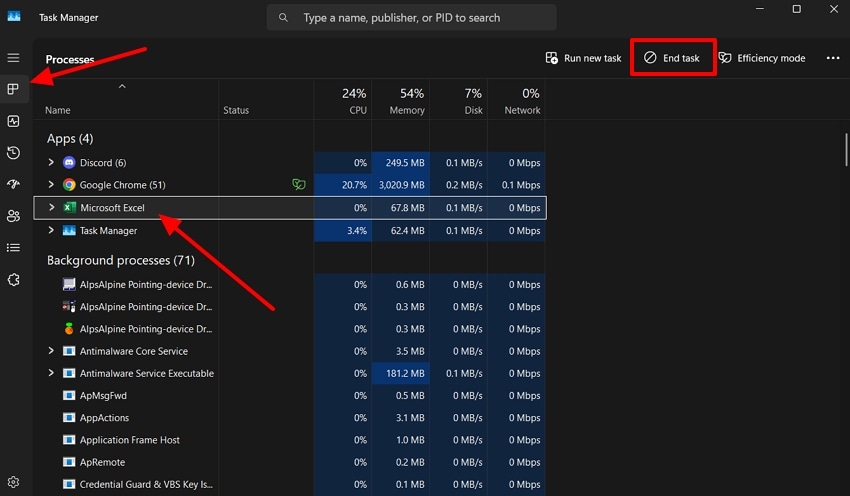
● End all hidden Excel sessions by opening the Task Manager, navigating to the "Processes" tab, selecting "Excel," and clicking "End Task."
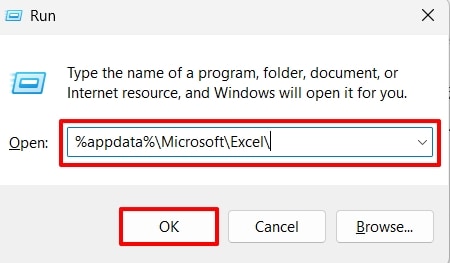
● Remove residual data fragments by opening the Run Command (Windows + R), typing `%appdata%\Microsoft\Excel\`, and deleting the temporary files listed.
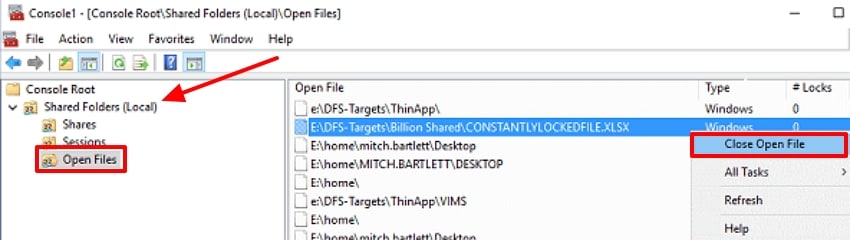
● Terminate stubborn background processes using the Windows Management Console by adding the "Shared Folders" snap-in, selecting "Open Files," right-clicking the locked Excel file, and choosing "Close Open File."
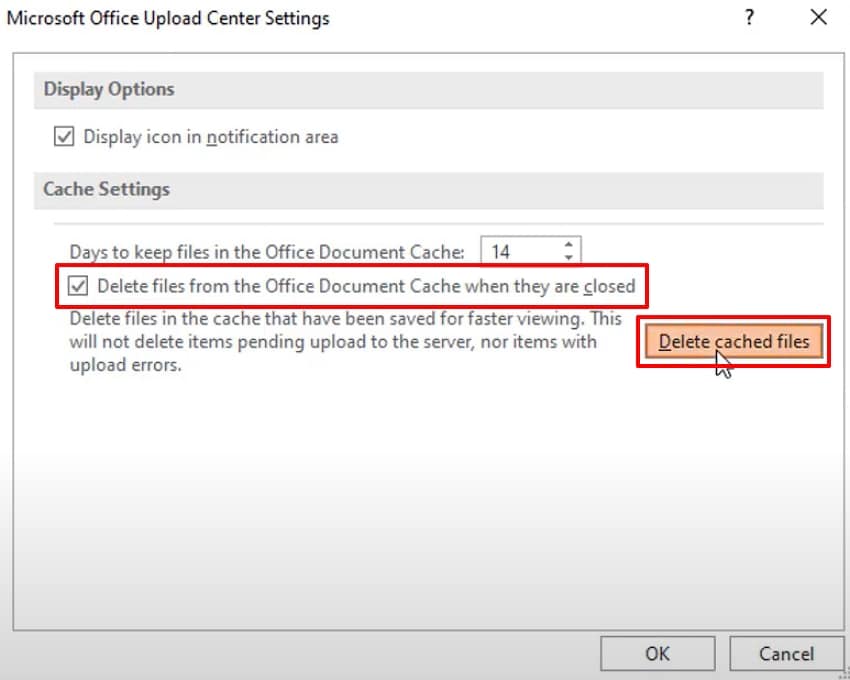
● Clear the Office Upload Center cache by navigating to its "Settings," checking "Delete Files From the Office Document Cache When They Are Closed," and clicking "Delete Cached Files" to resolve conflicts with SharePoint or cloud documents.
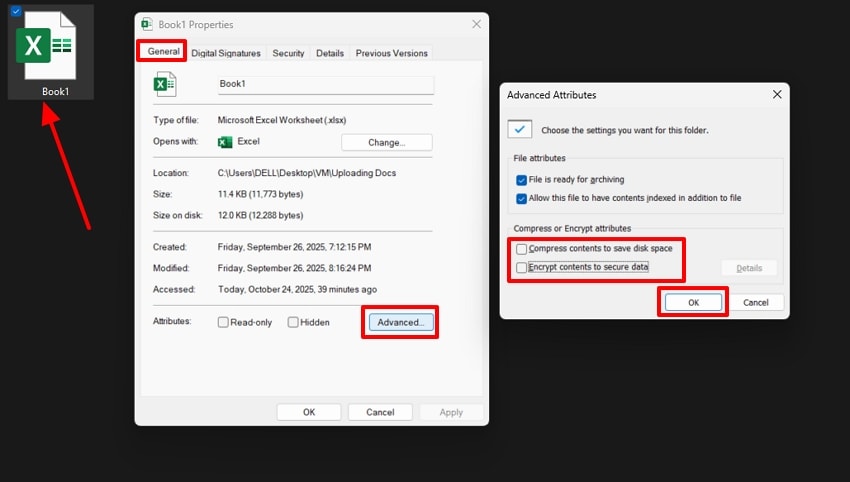
● Bypass file restrictions by right-clicking the locked file in File Explorer, selecting "Properties," clicking "Advanced" under the "General" tab, unchecking "Compare or Encrypt Attributes," and clicking "OK."
Ask AI for a summary
 ChatGPT
 Perplexity
 Gemini
 Claude
 Grok
Grok
Have you ever opened an Excel file and found out that you cannot make any changes to it? It is a generic issue that might arise when another user is editing the file, when a process is running in the background, or when the file is password-protected. Loss of access to a computer can reduce productivity when it comes to a group project or work with sensitive information.
Luckily, one can unlock an excel file is locked for editing by another user securely and successfully in a number of ways. This guide will address the reasons, solutions, and methods to repair broken Excel files
Try Recoverit to Perform Excel Data Recovery
 Security Verified. 3,591,664 people have downloaded it.
In this article
-
- Quit All Instances of Excel
- Wait for the File to Be Released
- Communicate With the Other User
- Delete Excel Temporary Files
- Use Windows Management Console
- Check and Remove Workbook or Sheet Protection
- Disable Add‑Ins Causing Locks
- Clear File Cache from Office Upload Center
- Save a Copy in a New Format
- Remove File Restrictions or Encryption

Part 1. Reasons Behind the ‘File Is Locked for Editing’ Message in Excel
Before we dive into the fixes you need to carry out to fix the excel file locked by another user, you need to be aware of the underlying issue. Jump into the reasons discussed below to get a better understanding of the reasons behind it:
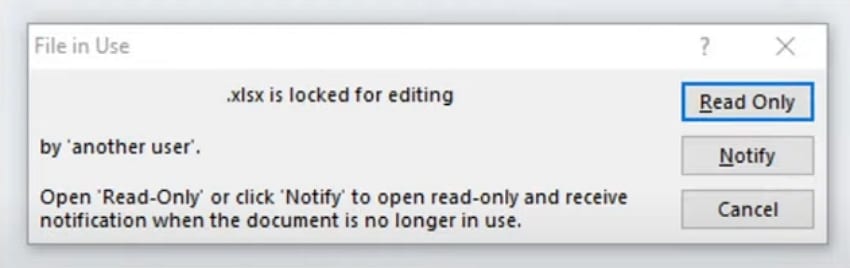
- File Opening By Another User: When someone else has the Excel file opened on a shared network during collaborations, it might get locked for others.
- Background Excel Process Running: In some cases, Excel does not close and leaves a hidden process running, which prevents the file from reopening.
- Temporary File Conflict: If the temporary Excel files are not deleted in a correct manner, they can cause the main file to get locked up.
- File Saved on a Network Drive: Network delays or connectivity issues can trigger a false “Locked For Editing” message.
- Read/Write Permission Issues: Some limited access rights or restrictions on the file location of the Excel files can cause prevention in editing.
- Password Protection or Encryption: In case the file is password-protected or encrypted because of confidential information, it will be locked until you insert the appropriate credentials.
Part 2. Quick Fixes for ‘Excel File Is Locked for Editing’ Error
Now that you are aware of the reasons behind the excel locked for editing by another user, here are the quick fixes you can follow:
1. Quit All Instances of Excel
There are instances when a file is held by several hidden Excel processes in spite of appearing to be closed. Removing all instances is a sure way to ensure there is no background process holding an Excel file hostage. It is a viable approach since it removes any invisible Excel sessions. Before you follow the steps below, you need to make sure that all your current work is saved:
Instructions. Once you save all your current Excel files, close the Microsoft Excel windows. Open up the Task Manager window on your device and jump to the “Processes” tab. Here, click on the “Excel” program and hit the “End Task” button to quit all the instances of Excel.
2. Wait for the File to Be Released
Waiting until the other user finishes a file may be the easiest and most secure option when the excel file is locked by another user. This will help you avoid conflicts or overwriting missing files, which leads to permanent loss of data.
It is good in shared files where more than one user will be working using the network drive. When the other individual closes the file, you will have to refresh the Window and automatically get access back to editing the Excel sheet.
3. Communicate With the Other User
It is possible that there are situations when the lock occurs because of the mistake of another user who does not close the file. One-on-one communication can be undertaken to help identify the owner of the file and help him/her close the file in a safe way.
This is a reliable solution in case the organization has multiple people who are going back and forth in the field. Communicating with each other can help you stay in touch with and coordinate with the user to release the file.
4. Delete Excel Temporary Files
Excel creates temporary files when one is editing, and these can be left even after closing the document. The removal of such files will immediately fix the locking problems and enhance the performance. It removes remaining data fragments that can confuse the system, leading it to believe the file is still open. Dive into the steps below and figure out how to fix the excel file locked for editing by another user:
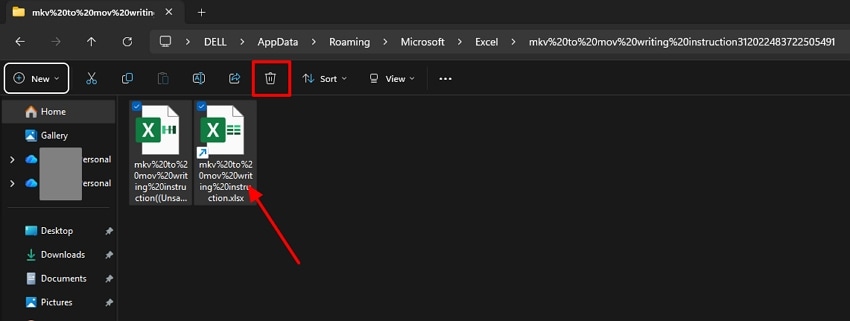
- On your device keyboard, press the “Windows” + “R” keys to open the Run Command. Here, type in “%appdata%\Microsoft\Excel\” in the box and hit the “OK” button.
- This will show you a list of temporary Excel files. Now, select the files and hit the “Trash” icon to delete them and get access to the locked Excel files.
5. Use Windows Management Console
Windows Management Console can be used to terminate a background process that the Excel program cannot close. It is particularly useful in situations where the usual closing practices fail. This is a reliable solution that will make sure that no background activities will leave your files inaccessible. In the following section, we will discuss the steps to fix the issue of excel file locked by another user:
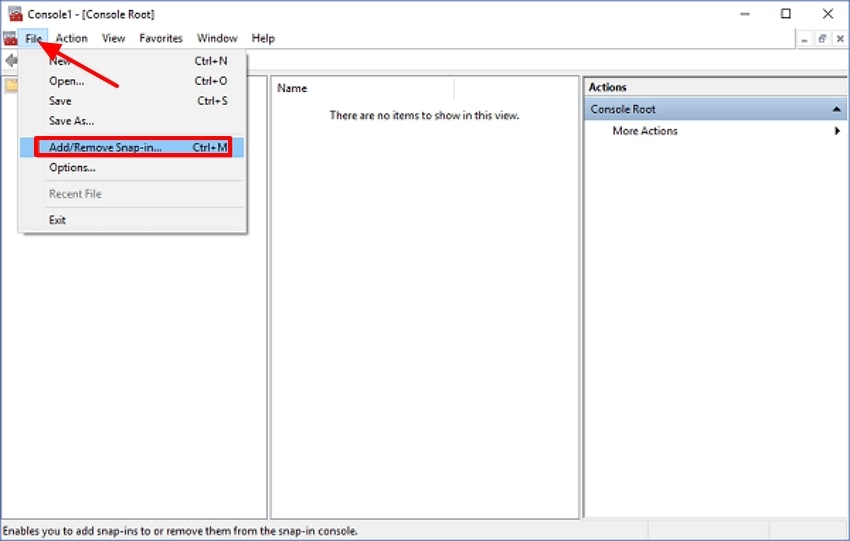
- Access the Microsoft Management Console and click on the “File” tab to pick the “Add/Remove Snap-in” option from the drop-down menu.
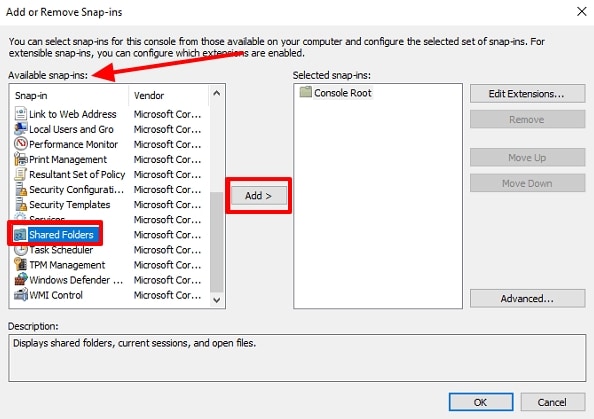
- From the pop-up “Add or Remove Snap-ins” window, check the list of “Available snap-ins” and pick the “Shared Folders” option, and hit the “Add” button.
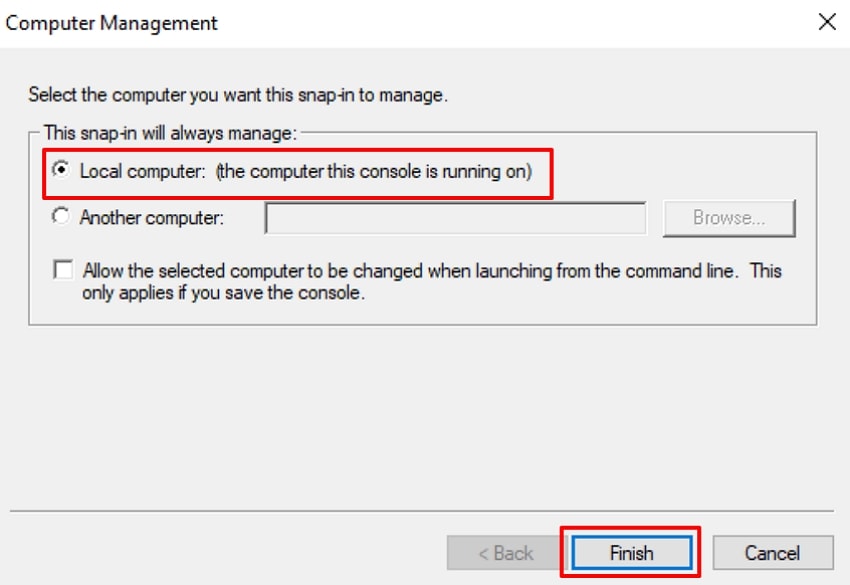
- Next, under the “Select the Computer You Want This Snap-in to Manage,” check the “Local Computer” option and hit the “Finish” button.
- Choose the “Shared Folder” and select the “Open Files” option, and pick the Excel files to right-click on them and click on the “Close Open File” button.
6. Check and Remove Workbook or Sheet Protection
Even if your file is accessible, password-protected sheets or workbooks might remain locked. By removing these restrictions, you can access all data freely and edit, format, or update it at your own will. It is a fast solution for files that were deliberately secured and no longer require any security restrictions. Let us move on to the sanctions you need to take to unprotect files without any problems:
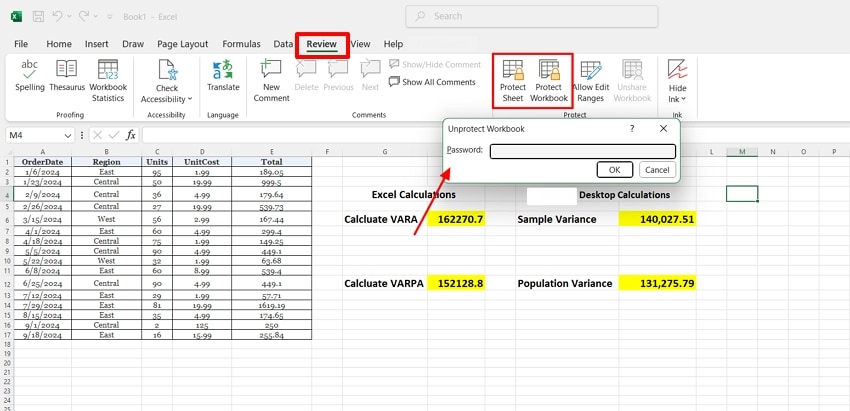
Instructions. Once you access the Excel file, click on the “Review” tab and choose the “Protect Sheet” to unlock the sheet. Furthermore, select the “Protect Workbook” option to set a password and unlock the file.
7. Disable Add‑Ins Causing Locks
Some of the Excel add-ins have the potential to disrupt file access by running their processes in the background. Such add-ins can easily be disabled to improve the stability and prevent unintended excel file locked by another user. This workaround is helpful for users who rely heavily on third-party integrations, as it helps them identify problematic tools.
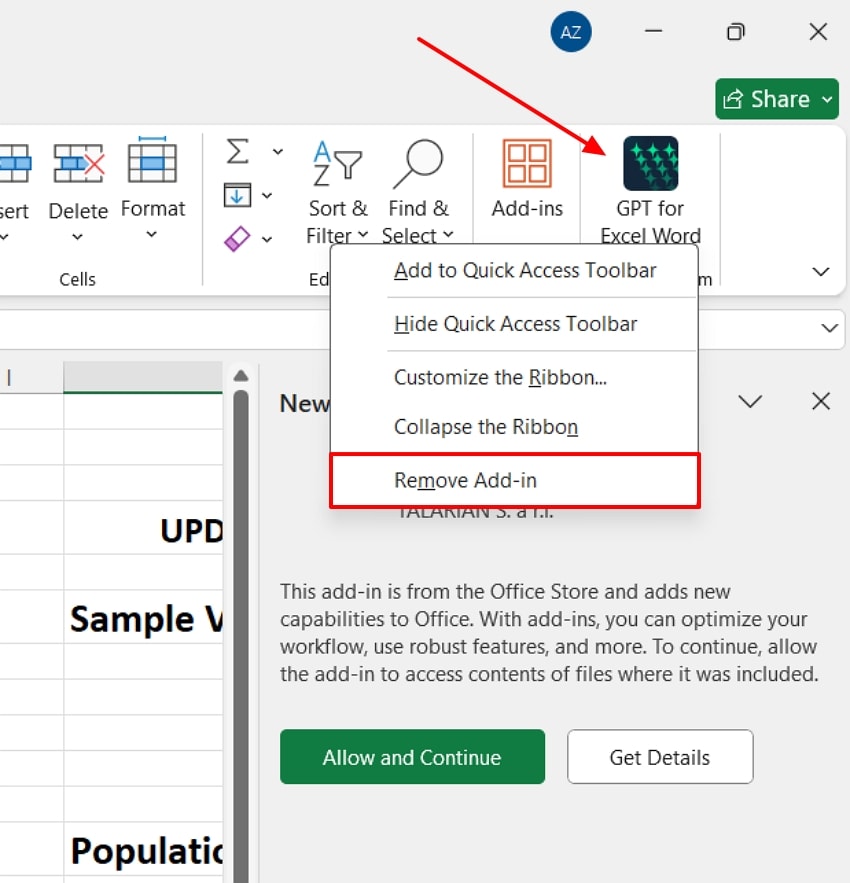
Instructions. At the Excel workbook home interface itself, in the right corner of the toolbar, right-click on the “Add-in” and choose the “Remove Add-in” option to disable it.
8. Clear File Cache from Office Upload Center
Office Upload Center may have some conflicts with files that are already ready and stored in the cache. To do this, it is essential to clear this cache to avail the most updated version of the file to edit. The solution is dependable for users who work with cloud or SharePoint documents. It assists in ensuring consistency in data and avoiding duplicate errors.
- Navigate to the “Upload Center” on your device and select the “Settings” option.
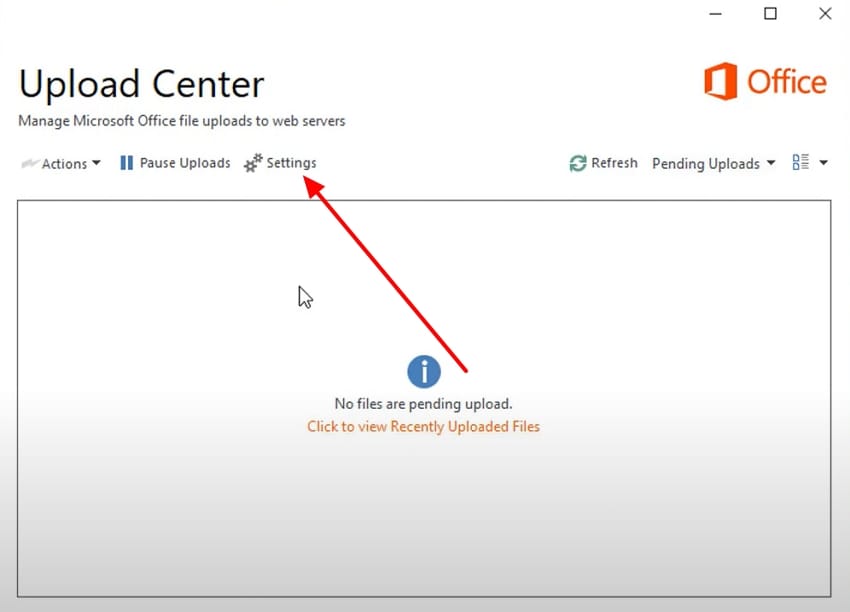
- From the Microsoft Office Upload Center Settings, hit the “Delete Files From the Office Document Cache When They Are Closed” box and hit the “Delete Cached Files” button.
9. Save a Copy in a New Format
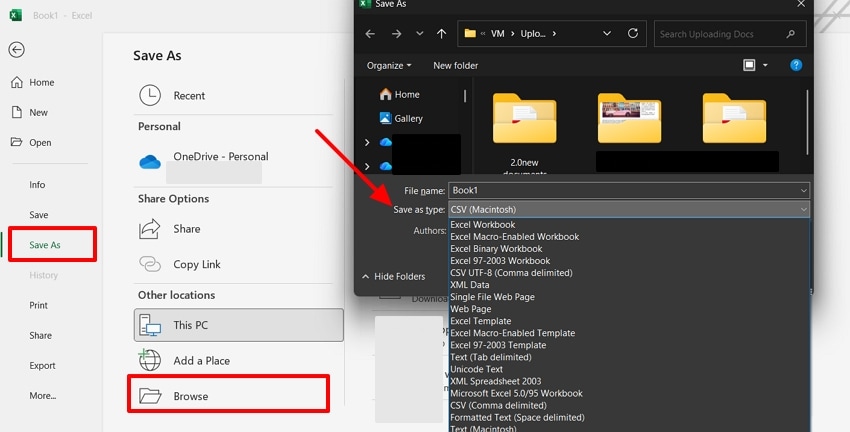
In case the file remains locked, you can save it as a different file with a different name or format, and the restriction will be resolved. It works because Excel will not treat the new file as one with any restrictions. To learn how to make a copy of the locked excel file locked for editing by another user, follow the following steps:
Instructions. Once you open the locked file, click on the “Save As” option from the left sidebar. Here, pick the “Browse” option and select the “Save As Type” section to choose the file format.
10. Remove File Restrictions or Encryption
Advanced, encrypted, or edited files may seem locked to unauthorized users. The elimination of these barriers enables total access, which allows you to edit or share the file without any limits. This technique comes in handy where permission access is highly restricted or password-protected. We will be discussing the steps on how to remove file restrictions or encryption:
Instructions. Locate the locked Excel file and right-click on the file to pick the “Properties” option from the list. From the pop-up window, pick the “General” tab and hit the “Advanced” option to open an extended window. From the “Advanced Attributes” window, uncheck the “Compare or Encrypt Attributes” and hit the “OK” button.
Pro Tip. Rescue Your Lost or Damaged Excel Workbooks Using Recoverit
While attempting to unlock files in situations like an excel file locked for editing by another user, you might accidentally lose or damage your files. When this happens, you should access a recovery tool that will assist you in recovering the lost files. Introducing Recoverit, an advanced tool that allows you to recover Excel files from over 10,000 various scenarios.
With the help of this tool, you get the ability to retrieve damaged or lost Excel files from over 1M storage devices. Moreover, it gives you access to both internal and external storage devices. You can perform batch recovery to ensure you save time and effort. Recoverit lets you preview the lost Excel files after retrieving them to make sure the integrity is maintained.
Key Features of Recoverit
- Multiple File Formats: You can rely on this tool to deal with more than 1000 types of files rather than having to focus on Excel files.
- Deep Scanning: This feature lets users make sure the tool scans the missing file locations deeply to see all the missing files.
- Filter Out Missing Files: Recoverit allows users to filter out files using the File Path and File Type to locate and recover the missing files.
Guide on How to Recover Lost or Damaged Excel Files
Here is a quick guide on how to use Recoverit to recover lost or damaged Excel files:
1. Select a Location After Launching Recoverit
Start the process by launching Recoverit on your device and selecting the “Hard Drives and Locations” option. Then, choose the location of your missing files to start the scanning process.

2. Begin the Quick Scan Process and Use the Filter Buttons
Once you are in the chosen location, start the “Quick Scan” process. From the top bar, use the “File Type” and “File Location” buttons to filter out the exact missing files.

3. Preview and Recover the Missing Excel Files
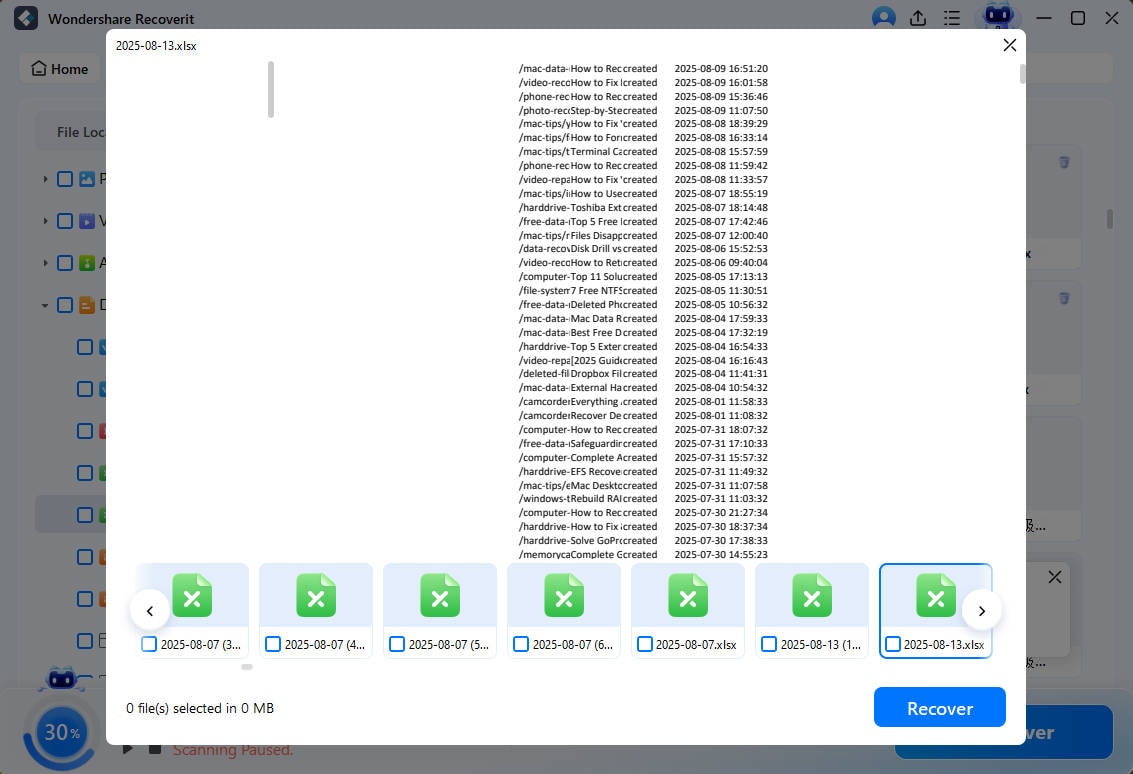
After the scan is complete, hit the “OK” button and hit the “Preview” button to preview the Excel files. Finally, once you are satisfied with the files' outlook and format, hit the “Recover” button to save the results.
Part 3. Prevent Excel Files from Getting Locked in the Future
Before we conclude this discussion, here are some of the tips you need to keep in mind to avoid excel file locked by another user in the future:
- Always Close Files in the Proper Way: Before closing your computer or disconnecting from a network drive, it is always important to save your Excel files in the proper way.
- Avoid Simultaneous Editing: Do not allow more than one person to work on the same file; use the co-authoring option in Excel rather than directly editing the network.
- Erase Temporary Files: Deleting the temporary files of Excel will assist you in preventing the occurrence of conflicts, which will result in the lock-up of files.
- Use Updated Excel Versions: Having Excel or Office updated is a guarantee of bugs being fixed, as well as better file-handling stability.
- Check File Permissions: Make sure that the users who need access have proper read or write permissions to avoid accidental locks.
- Save Files Locally Before Editing: To prevent locking of files caused by the network, you need to save the file locally (on your computer) and then edit it.
Conclusion
In conclusion, this guide has looked into the primary reasons why the excel file is locked for editing by another user. We then dived into the top-most effective and reliable fixes you can apply to unlock and access the Excel files.
Moreover, we discussed additional information on how to recover missing or damaged files through an advanced recovery tool like Recoverit. Apart from that, we provided you with a few tips to remember to avoid locked Excel files in the future.
FAQ
-
1. How do I enable editing in Excel?
To edit, open the file and hit the “Enable Editing” option on the yellow bar at the top of the sheet to edit. When the option is not available, the permissions in the file could be checked, or protection could be removed in the Review tab. -
2. How do I turn off file lock in Excel?
Close all open instances of Excel and ensure no one else is editing the file. You can also disable file locking by saving a local copy or deleting any temporary Excel files. -
3. Where is the unlock button in Excel?
There isn’t a specific “unlock” button, but you can unprotect a sheet by going to Review > Unprotect Sheet. In case it has a password, then a correct password will be required to unlock the file. -
4. How do I change Excel from read-only to edit mode?
Save a new copy of the file using File > Save As to remove the read-only attribute. Alternatively, right-click the file in File Explorer, open “Properties,” and uncheck “Read-only” under the “Attributes” section.


