
 TL;DR:
The Microsoft Excel "Sharing Violation" error occurs when the application is blocked from overwriting a file due to permission conflicts, background syncing, or antivirus interference, which can usually be resolved by modifying file access properties or changing the save destination.
● To immediately bypass cloud or network restrictions causing the error, rename the file using the "Save As" function or save the spreadsheet directly to a local hard drive before uploading it back to syncing folders like OneDrive, Google Drive, or Dropbox.
● System-level interruptions can be fixed by enabling the "Use Sharing Wizard" option in File Explorer's View settings, allowing folder contents to be indexed via the file's Advanced General properties, or temporarily disabling real-time antivirus protection.
● If the conflict leads to file corruption or accidental deletion, use Excel's built-in "Open and Repair" command to fix the damage, or restore the lost document using the Wondershare Recoverit tool.
Ask AI for a summary
 ChatGPT
 Perplexity
 Gemini
 Claude
 Grok
Grok
When working in Microsoft Excel, encountering a “Sharing Violation” error can be frustrating, especially when you’re in the middle of saving essential changes to a spreadsheet. The error message, which usually reads “Your changes could not be saved to ‘Filename.xlsx”, indicates that Excel cannot complete the save operation.
This type of error occurs due to various reasons, including temporary interruptions from other systems. If you are experiencing the same sharing violation in Excel error, you have come to the right place. This guide will explore the reasons behind Excel’s sharing violation error and provide practical methods to fix it.
Try Recoverit to Perform Excel Data Recovery
 Security Verified. 3,591,664 people have downloaded it.
In this article
-
- Check File Permissions
- Enable the Sharing Wizard
- Save the File Locally
- Rename the File
- Turn On Folder Indexing
- Move File to a Trusted Location
- Run Excel in Safe Mode
- Temporarily Disable Antivirus
- Repair the Excel File or App (Open and Repair)
- Avoid Saving Directly to Syncing Folders (OneDrive, Google Drive, Dropbox)

Part 1. Why Excel Shows the ‘Sharing Violation’ Message in the First Place
Before you explore the fixes, it is essential to understand the underlying causes of this “Excel won’t save” error, which are discussed below:
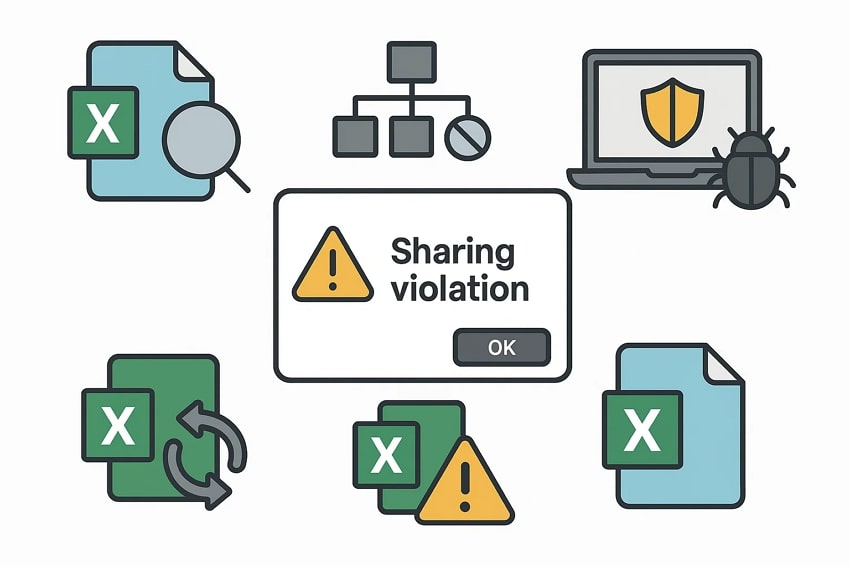
- File Indexing Restrictions: If the folder containing the Excel file is not permitted to have its contents, it may result in failing to save updates.
- Disabled Sharing Wizard: When Windows sharing is turned off, Excel may misinterpret and trigger a sharing violation.
- Antivirus or Security Interference: Some antivirus programs temporarily lock files during scanning, which can cause an error to appear.
- Frequent Saving Behavior: Saving the same spreadsheet multiple times in quick succession can cause Excel to conflict with its own temporary file.
- File Corruption: Corrupted Excel spreadsheets or files saved outside a reliable device location can also produce this kind of error.
Part 2. How to Fix “Sharing Violation Error” When Saving Excel Files - 10 Solutions!
Now that you understand what causes this issue, let’s move on to the most effective ways to resolve the Microsoft Excel sharing violation error:
1. Check File Permissions
If you are facing this error, start by checking the file permissions, as this is often a straightforward solution. Users simply navigate to its properties, verify the desired permissions, and edit it if needed. It will ensure that Excel can freely write, overwrite, or delete temporary files during the save process. So let's explore it in a detailed stepwise guide to know how to use this method:
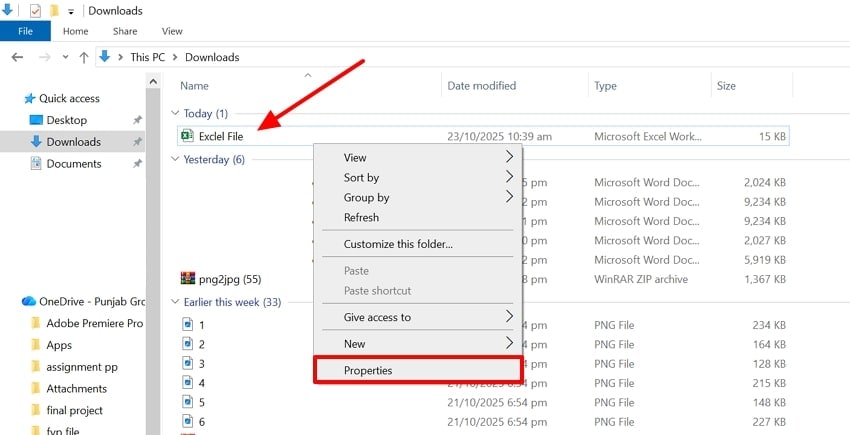
- Go to the "File Explorer" and navigate towards the targeted Excel file that has an error. Afterwards, right-click on it and select the "Properties" option from the pop-up menu.
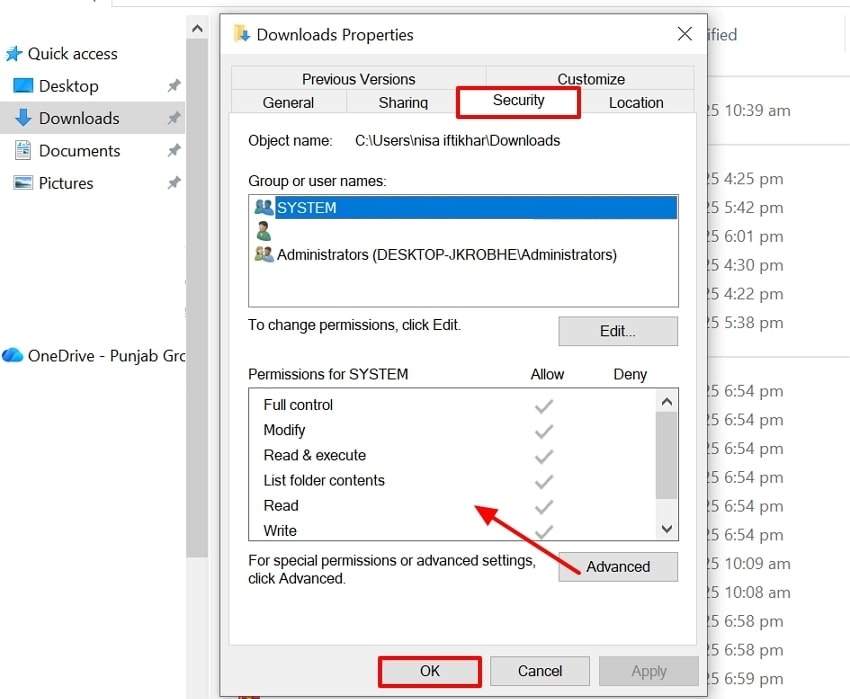
- Next, select the "Security" tab and check the permissions in the "Permissions for System" menu. Here, ensure that all the settings boxes are checked, and you can even edit them by clicking on the "Edit" button.
2. Enable the Sharing Wizard
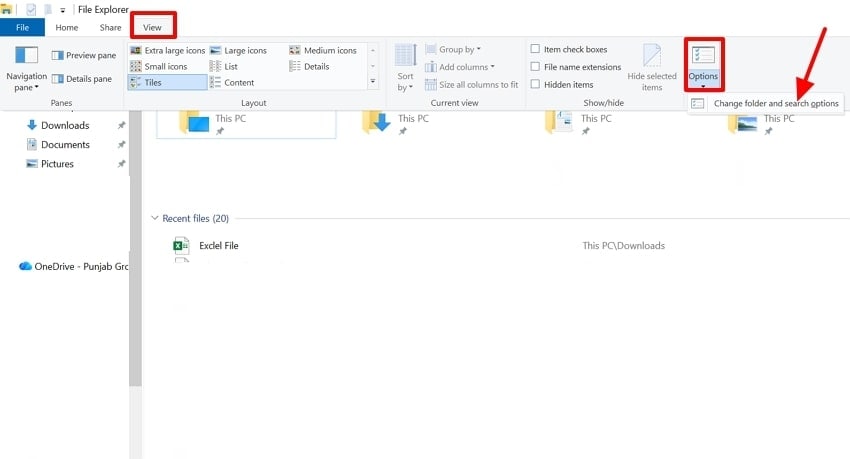
Enabling the Sharing Wizard in Windows is an essential troubleshooting method for fixing Excel’s “Sharing Violation in Excel" error because it restores proper handling of the file. Re-enabling it resolves these false access errors to ensure that Windows manages file operations correctly. Besides Excel, this method is beneficial for resolving errors within Word, PowerPoint, and other Office applications. Upon hearing features, let's have a look at its detailed guide below:
- Open the File Explorer app and click on the "View" menu located at the top of the interface. Select the "Options" menu and hit the "Change Folder and Search Options."
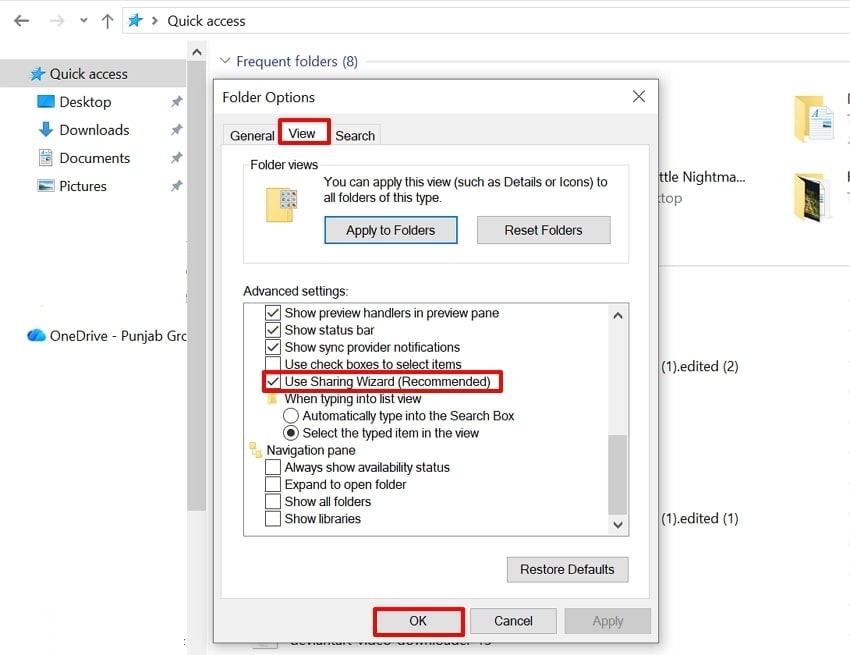
- Here, choose the "View" tab and ensure that the "Use Sharing Wizard (Recommended)" option is checked. Afterwards, click the "OK" button to save the new changes to the device.
3. Save the File Locally
This method is beneficial for bypassing the network or cloud-based restrictions that often block Excel from saving updates. These methods ensure that the file is saved to a fully accessible location on your computer's hard drive. It helps users to determine whether the issue is location-related or if the file itself is causing the error. Thus, if you are facing the "Excel won't save" error, explore the following:
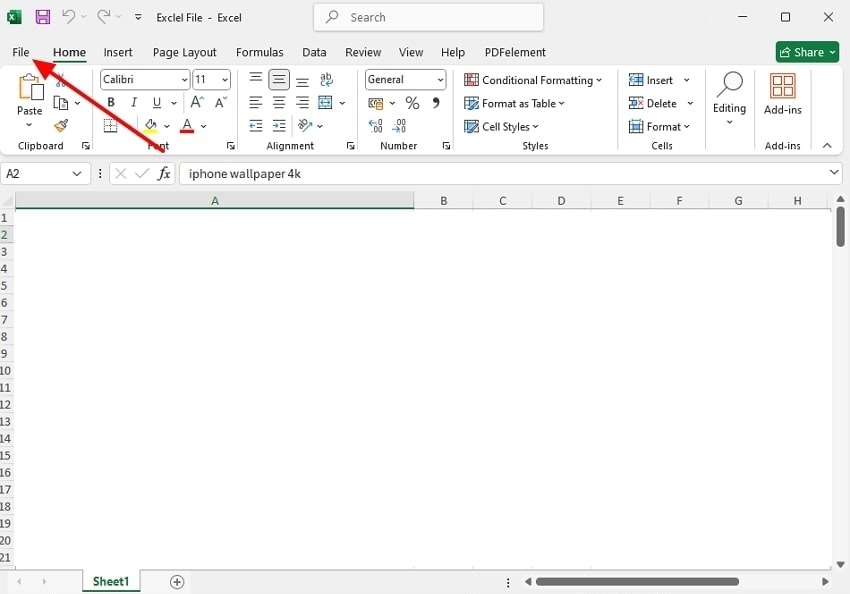
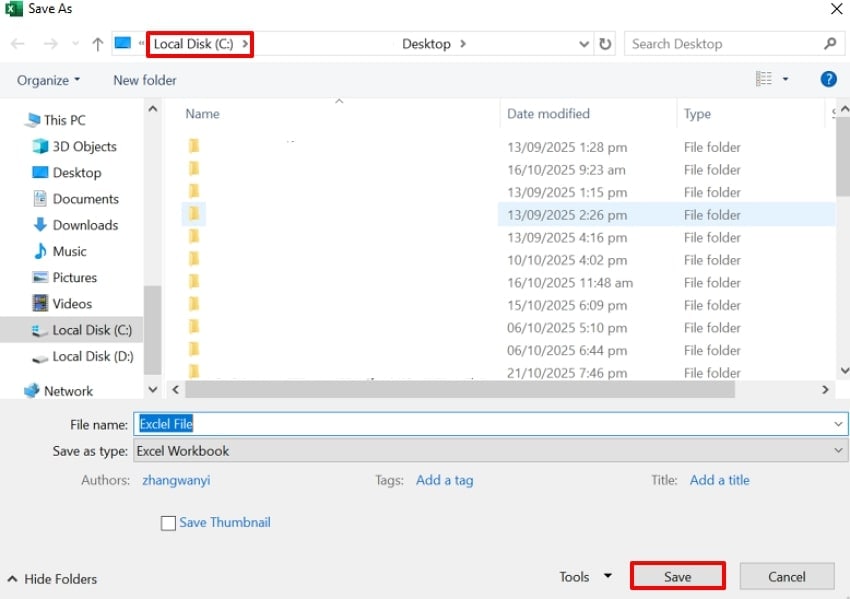
- Open your “Excel” file and click on the “File” menu at the top left of this interface.
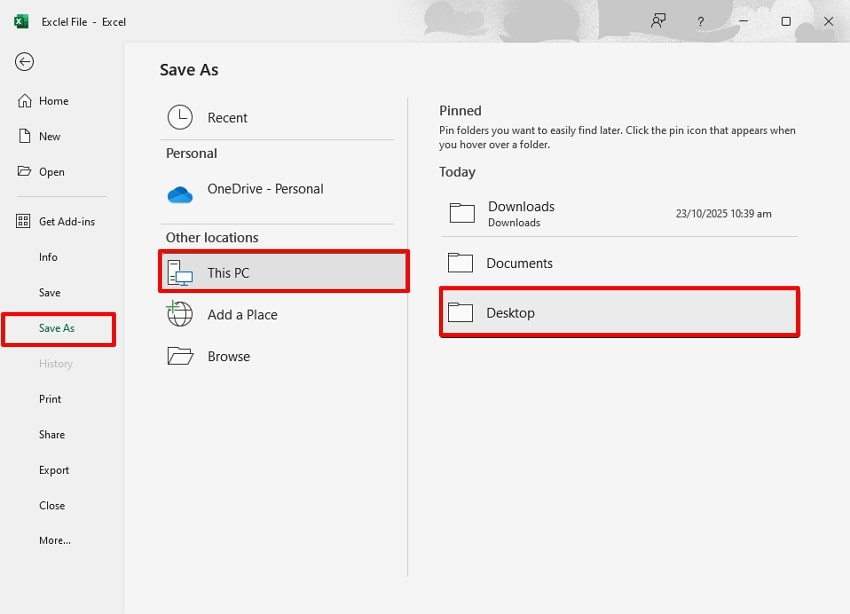
- Click on the "Save as" menu and choose the "This PC" option. Afterwards, click on the desired "Desktop" folder to let the file save in this location.
- Next, click the "Save" button to save it to the location you selected on the respective disk drive.
4. Rename the File
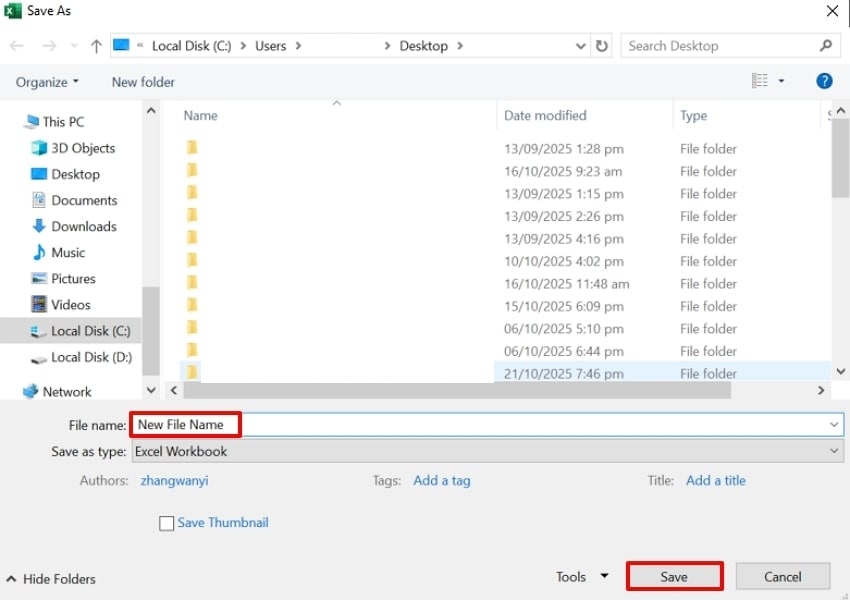
It is one of the simplest methods to resolve the error, which states "a sharing violation occurred while accessing." Users simply change the Excel file name, which will generate a new cache for the file. Plus, if the file has a minor internal corruption or damaged metadata error, this method will instantly restore normal saving. So, before moving to the advanced method, follow the given guide to try this method:
Instructions. Open the Excel file, click on the "File" menu, and choose the "Save As" option. Afterwards, rename the desired file and click the "Save" button to save it with the new name.
5. Turn On Folder Indexing
Enabling Folder Indexing is a powerful and often overlooked fix for resolving the "Excel won't save" error. By enabling indexing, Windows continuously tracks file properties and versions, allowing Excel to save changes without interruption. Furthermore, this method helps Excel coordinate with systems like OneDrive or SharePoint for automatic syncing. Once indexing is active, Excel can write and update its temporary files without permission, so let's have a look at the guide:
- After entering the "File Explorer" app, navigate to the desired Excel file and right-click it to select the "Properties" option.
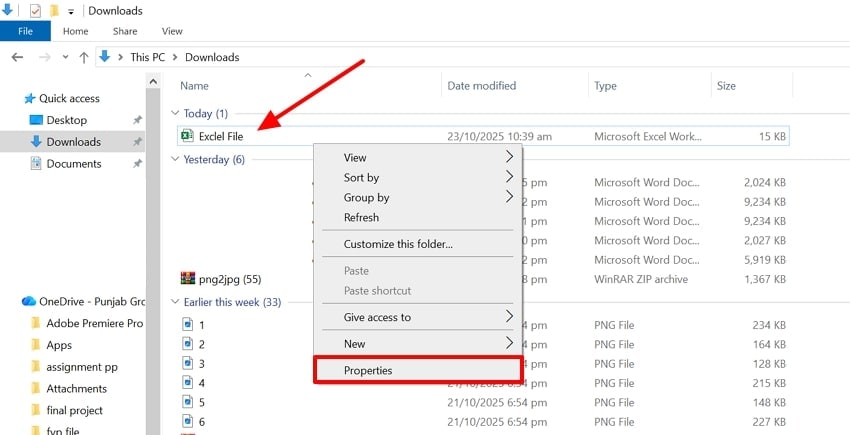
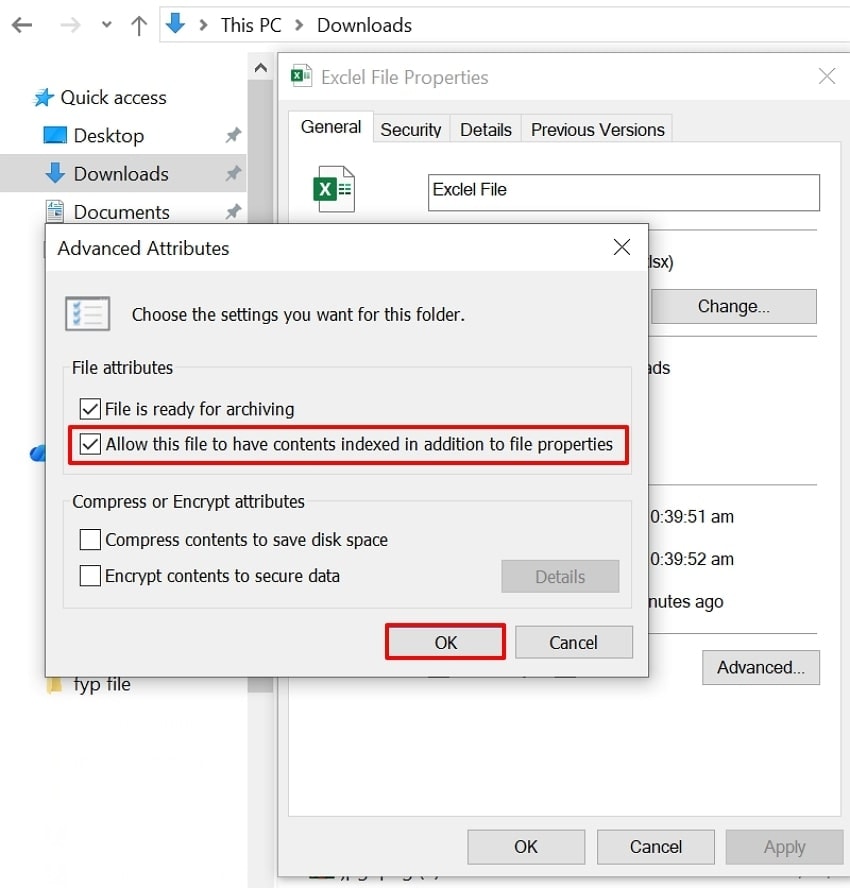
- Here, choose the “General” tab and hit the “Advanced” option to access its settings.
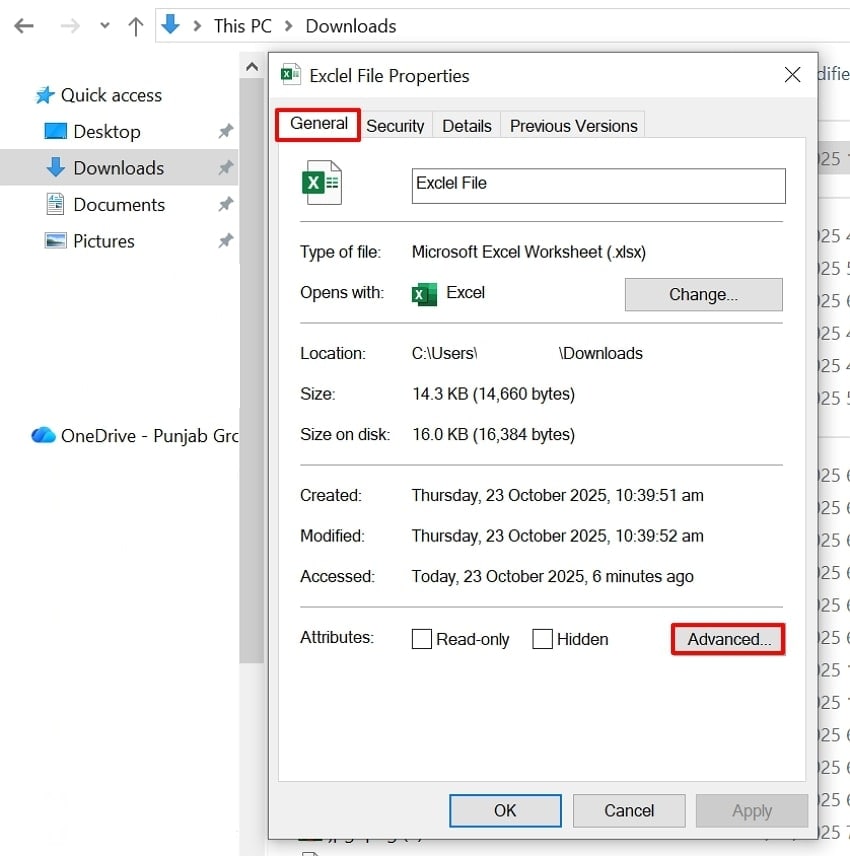
- Afterwards, toggle the “Allow this File to Have Contents Indexed in Addition to File Properties” and hit the “OK” button.
6. Move File to a Trusted Location
To resolve the "Excel won't let me save" error, users can try this method, which provides Excel with unrestricted access to open, edit, and save files safely. When a folder is marked as a Trusted Location, Excel automatically disables most security features, allowing smoother saving and fewer file conflicts. This method is especially helpful for files with automation scripts or frequently edited files.
- Click on the “File” menu at the top left of the Excel file and hit the “More” option from this interface.
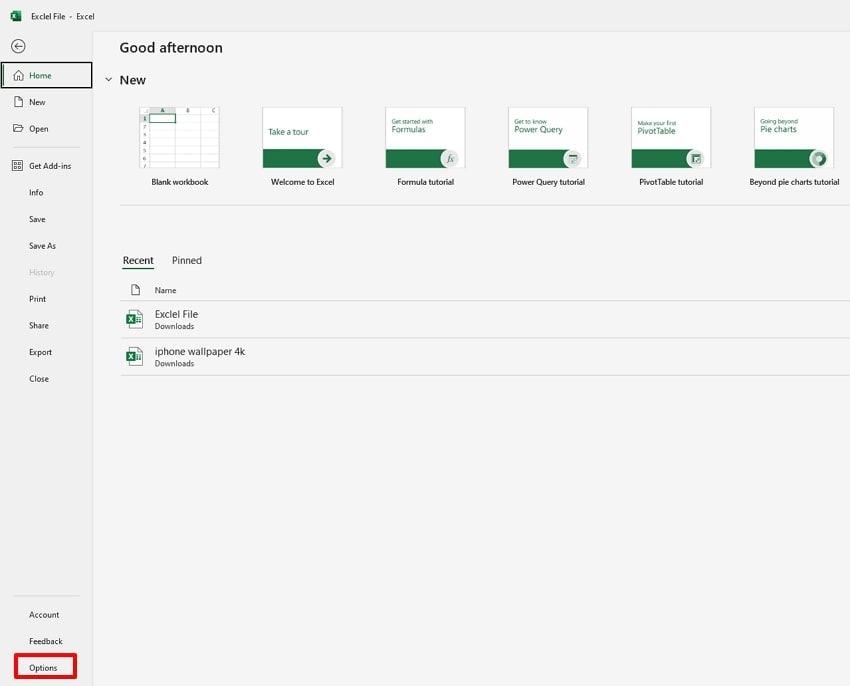
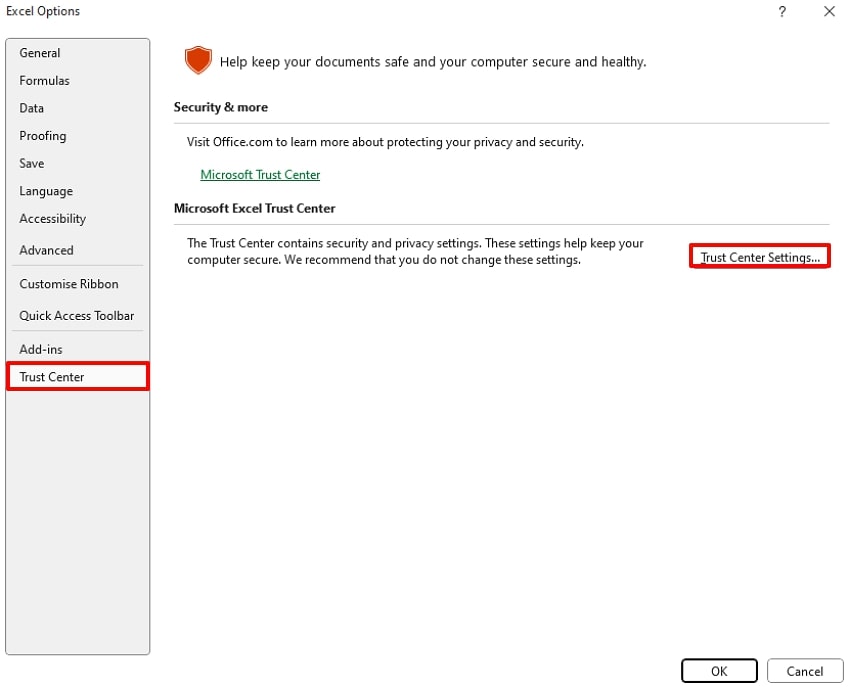
- Click on the “Trust Center” option in the left tab and hit the “Trust Center Settings” button to access its settings.
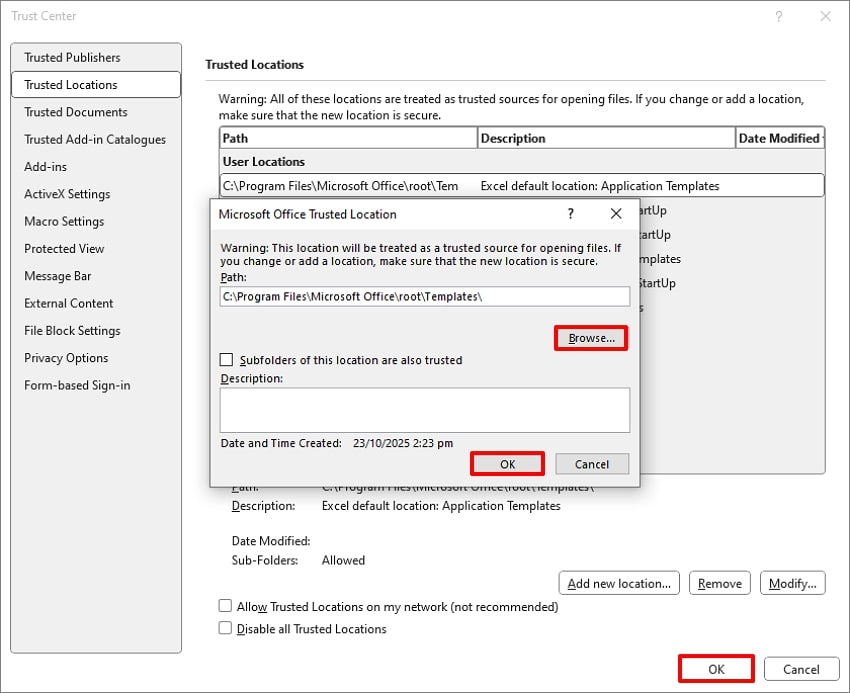
- Here, hit the "Trusted Location" option in the left tab and click on the "Add New Locations" to choose the desired location to save the Excel file.
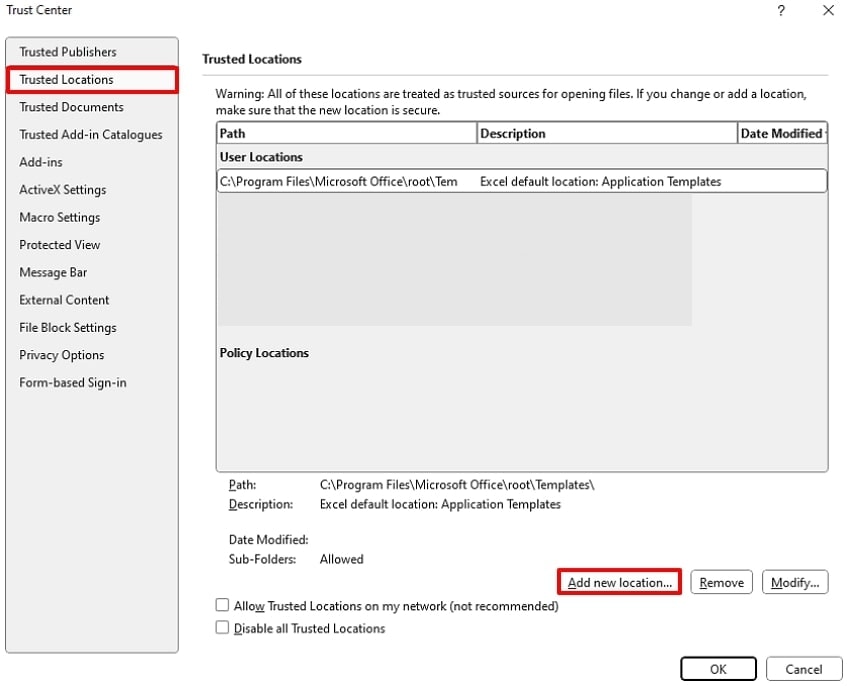
- Hit the "Browse" button to choose the desired location and click the "OK" button. Afterwards, again hit the "OK" button to get the trusted location updated to the device.
7. Run Excel in Safe Mode
This is one of the powerful diagnostic methods that helps you identify and fix the "Microsoft Excel sharing violation" error. With this method, you simply use the command line interface and open the file to repair its errors. When Excel opens in Safe Mode, it loads only essential components, allowing you to determine whether external elements are causing the issue. Upon hearing the key features of this method, let's explore its guide:
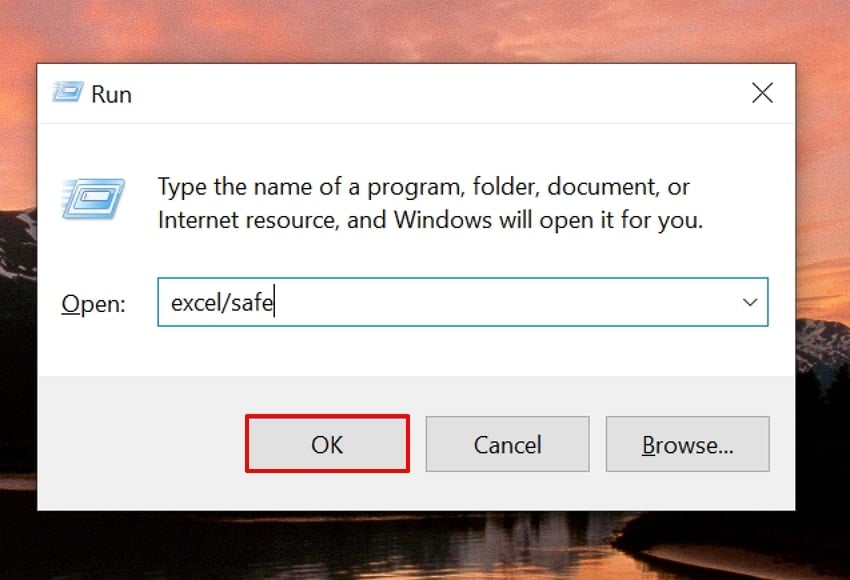
Instructions. Initiate by typing "Windows + R" keys on the keyboard to open the command line interface. Here, type the "Excel/safe" command and hit the "OK" button. Afterwards, select the desired error file and hit the "Open" button to access it in safe mode.
8. Temporarily Disable Antivirus
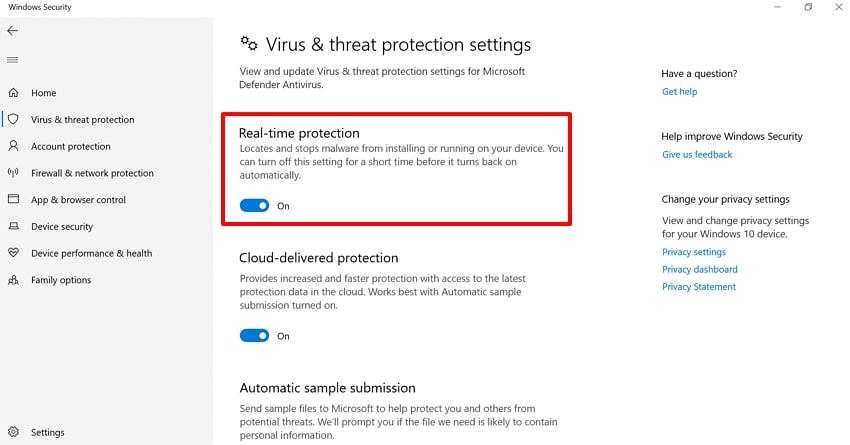
Users can temporarily disable the antivirus from the Windows security app to check if it is causing the error. These real-time protections can mistakenly classify Excel's temporary or autosave files as suspicious, preventing Excel from writing changes. So, you simply toggle off the Real-time protection option, and it will automatically stop showing the error. Here, we have provided a detailed step-by-step guide to fix the "sharing violation in Excel” error.
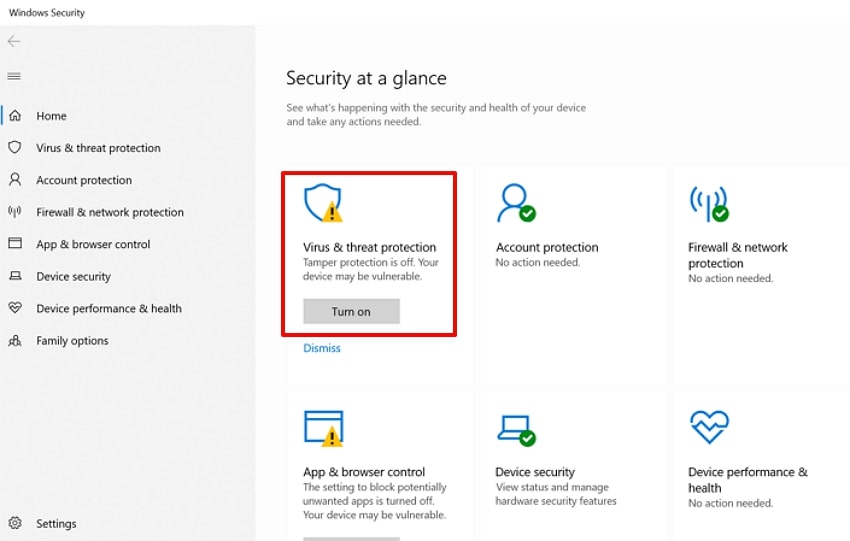
- Access the “Windows Security” app and hit the “Virus and Threat Protection” option available at the main interface.
- Now, choose the “Manage Settings” available beneath the “Virus and Threat Protection Settings.”
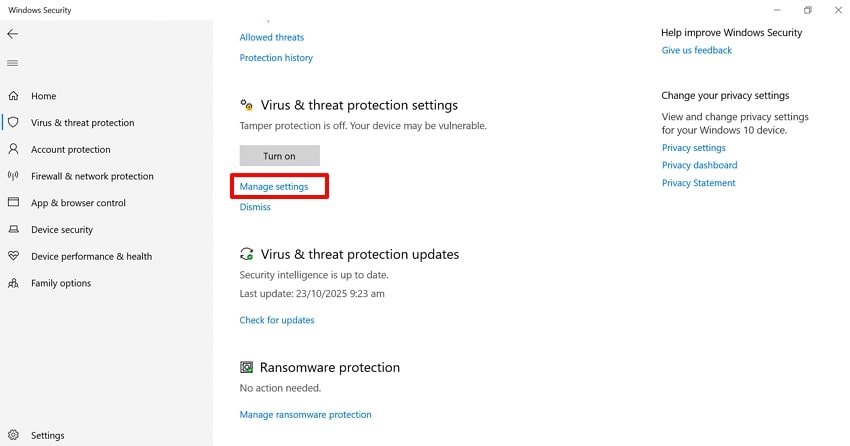
- Toggle off the "Real-Time Protection" button to disable the antivirus software and easily access the Excel file.
9. Repair the Excel File or App (Open and Repair)
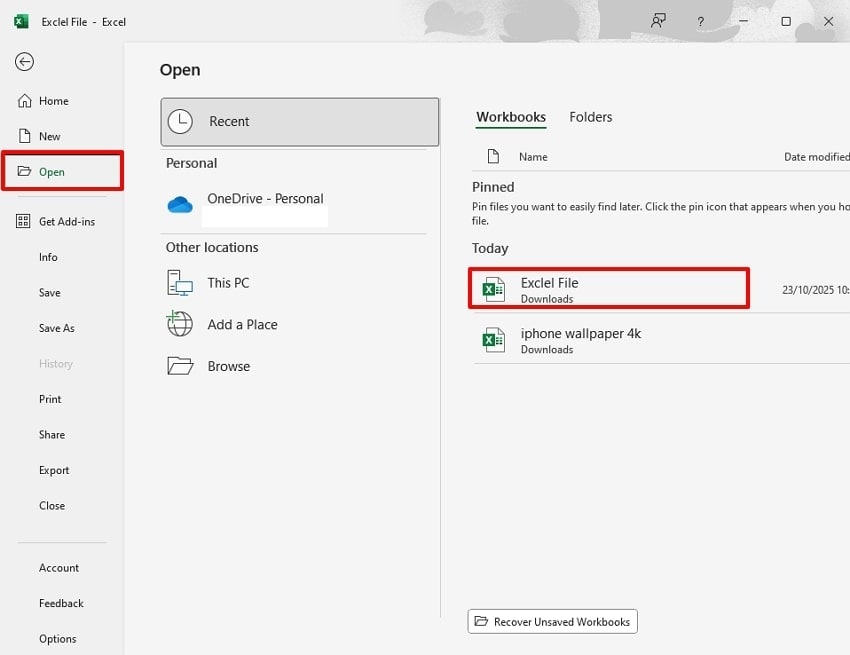
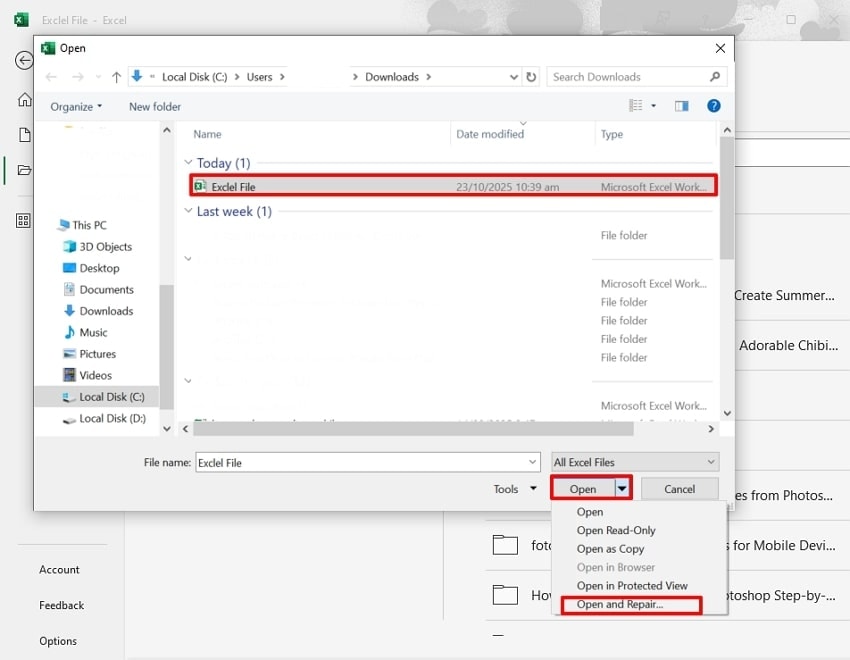
One can use this method to fix the "Microsoft Excel sharing violation" error, especially if the issue is linked to file corruption. Users need to simply open their corrupted file by choosing the "Open and Repair" option. It is one of the quickest methods to repair the corrupted file without downloading any third-party repairing software. It preserves data format during the repair process, so let's jump to its stepwise guide:
- Select the "File" menu and choose the "Open" menu to further click on the desired corrupted Excel file from the options.
- Here, select the desired corrupted Excel file and expand the "Open" menu. Afterwards, choose the "Open and Repair" option in the pop-up menu to get the app to automatically open the file after repairing it.
10. Avoid Saving Directly to Syncing Folders (OneDrive, Google Drive, Dropbox)
Saving Excel files directly to syncing folders like OneDrive, Google Drive, or Dropbox can often lead to the "Excel won't let me save" error. The best way to avoid this is to save your Excel files locally first and then move or upload them to your cloud service once the editing session is done. Furthermore, you can even change the default location for the file to the local disk.
Bonus Part: What If Your Excel File Disappears After the Error? Recover It Easily!
Imagine you have been working on an essential file for a client presentation due tomorrow. You are just finishing the file, and all of a sudden, the PC freezes, and you are unable to access anything. To resolve this, you restart your computer just to realize the file is deleted. In this situation, besides panicking, we recommend using Recoverit, which recovers data with 99.5% accuracy.
This tool lets you recover any file format, including images, email, and more. Furthermore, it provides wider support to numerous storage devices and different operating systems. While recovering, it provides both "Quick and Deep" Scanning options, making it easy for users to choose. Furthermore, Recoverit gives the ability to preview the recovered file to ensure accuracy before saving it to the device.
Key Features
- Recovery Types: This tool supports a wide range of recovery types, including NAS data recovery, Linux data recovery, AI Enhancement photo recovery, and much more.
- Batch Processing: To save users time efficiently, Recoverit lets them access a batch processing system to recover all their files simultaneously.
- Accessibility: One can access this tool through its web, desktop, or mobile version, making it an ideal solution for all sorts of users.
Detailed Guide To Use Recoverit To Restore Corrupted Files
While facing “sharing violation in Excel error," if you want to restore your corrupted Excel file, follow the given detailed stepwise guide.
- Select the Hard Drives and the Location to Choose the Location
As you access the tool, click on the "Hard Drives and Location" option from the left tab. Afterward, choose the desired location of the lost file within the "Quick Access" menu.

- Initiate the Recovering File Procedure
As you select the location of the lost file, it will automatically start the "Quick Scanning" procedure for restoration. However, if it fails, you can also opt for the "Deep Scanning" option, which is specifically designed to cater to the complex data loss scenarios.

- Preview and Render the Restored Outcome
Finally, the lost file has been restored now you can preview it by clicking on the "Preview" button. Following this, click on the "Recover All" button to get the retrieved file saved to the device folder.

Part 3. Keep the Error Away — Prevent Future Excel File Conflicts
To prevent future Excel file conflicts and keep the "sharing violation in Excel" error, you should follow the tips listed below:
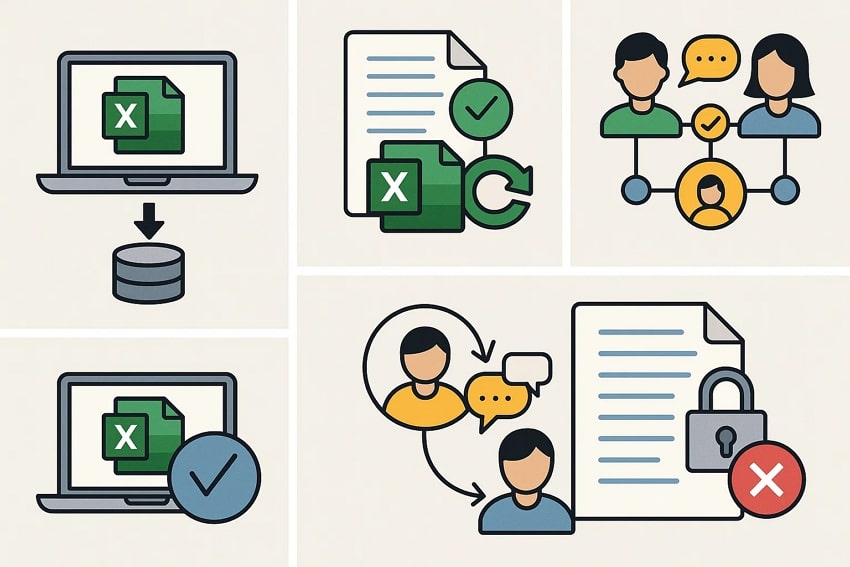
- Always File Locally: One should always save their Excel files in local memory first and then share them with other cloud drives to avoid "sharing violation" errors.
- Enable Version Control: Ensure you use track changes and version controls to help identify who made specific changes and prevent accidental overwrites.
- Establish Clear Collaboration Rules: Make sure you specify how your teams will communicate before editing shared files to avoid simultaneous access conflicts.
- Use Check-Out System: For critical files, enable the "Check Out" feature in SharePoint, which allows only one user to edit the file at a time.
- Set Proper Access Permissions: Restrict editing rights to approved users and provide "read-only" access where appropriate to maintain the file integrity.
Conclusion
Summing up, dealing with the “Sharing Violation Error in Excel" can be frustrating, but using an appropriate method by understanding its root causes makes it much easier. In this guide, we have listed the most efficient methods that you can opt for to fix your Excel file error. Furthermore, while fixing, if you lose your Excel file, we recommend using Recoverit, which ensures 99.5% accuracy while recovering.
FAQ
-
1. What if the error happens even when no one else is using the file?
Even when multiple users are not accessing the file, there are other reasons, like indexing, syncing, or autosaving, that can be the cause. However, users simply opt for proper methods to resolve this issue, and the file will be accessible. -
2. What are “Trusted Locations” and why should I use them?
These are the locations that are marked as saved in Excel's Trust Center." By storing your file in the trusted folders, you will bypass unnecessary permissions and enhance file reliability. -
3. If my Excel file is corrupt, how can I fix it without losing data?
Absolutely, you can access the Excel built-in repair tool by simply selecting the "Open and Repair" option. However, if the file has complex corruption, you can opt for an advanced repairing tool or seek further technical help. -
4. Can I restore the file if it gets deleted while dealing with this error?
Yes, it is completely possible by using an advanced yet reliable data recovery tool like "Wondershare Recoverit." We recommend using this tool as it is capable of recovering data from any complex scenarios by providing both "Quick and Deep Scanning" options.


