
 TL;DR:
To significantly reduce the size of an Excel file without compromising data, convert completed formulas to static values, delete unused cells beyond your active dataset, and save the document as an Excel Binary Workbook (.xlsb).
● Disable the "Save source data with file" option in PivotTable settings to prevent dataset duplication in the cache, and use the "Compress Pictures" tool set to 150 ppi to shrink embedded media.
● Locate hidden bloated ranges by pressing "Ctrl + End" to delete active but empty rows or columns, and use the "Manage Rules" menu to clear redundant layered conditional formatting.
● If unexpected system crashes or accidental deletions cause file loss during the compression process, the Wondershare Recoverit software can scan hard drives to restore damaged XLS, XLSX, and CSV file fragments.
Ask AI for a summary
 ChatGPT
 Perplexity
 Gemini
 Claude
 Grok
Grok
Large Excel files can slow down computers and complicate sharing among different users. Some Excel files are even too large to open. Learning how to compress Excel files helps you save space and keep your work smooth. Smart reduction deletes repeated formulas and large images that slow Excel. These small actions reduce load time, enhance stability, and maintain sheet accuracy.
This guide walks you through Excel’s built-in and manual compression options step-by-step. Clean spreadsheets handle large inputs without losing their structure or numeric precision. Balanced file size keeps the system quick, even with complex tables and conditional rules.
Try Recoverit to Perform Excel Data Recovery
 Security Verified. 3,591,664 people have downloaded it.
In this article
-
- Remove Unused Worksheets and Hidden Data
- Delete Unused Rows, Columns, and Blank Cells
- Clear Conditional Formatting
- Compress or Remove Images
- Convert Formulas to Values
- Avoid Saving PivotTable Cache
- Save the File in Binary Format (.xlsb)
- Use ZIP Compression
- Use Online Compression Tools
- Split the Workbook into Smaller Files

Part 1. What Actually Makes Excel Files So Large?
Understanding what increases file size helps users compress Excel file later. So, before learning methods, it is important to know what makes Excel files large:
- Hidden Cells: Excel continues to format data, even for blank cells marked as active space. These hidden ranges quietly grow file weight, adding unnecessary load during saving and opening.
- Style Overuse: Multiple fonts, borders, and patterns across wide ranges create thousands of extra styles. Each copied or reused sheet increases storage data, making the workbook heavy and slow.
- Inserted Media: Large pictures, charts, and inserted objects occupy memory inside the workbook. Every added visual layer expands the data load, raising the total file storage requirement.
- Pivot Cache: Pivot tables store complete dataset copies within their private memory section. Large caches can enlarge workbooks, which affects calculation speed and file stability.
- Complex Formulas: Recalculating functions repeatedly triggers internal indexing. This ongoing process adds extra background entries, making the overall Excel file larger.
Part 2. How to Compress Excel Files - 10 Ways!
The hidden factors increase file weight, making it vital to know how to reduce an excel file size. Once the reasons are understood, the next step is to apply fixes for smoother performance:
1. Remove Unused Worksheets and Hidden Data
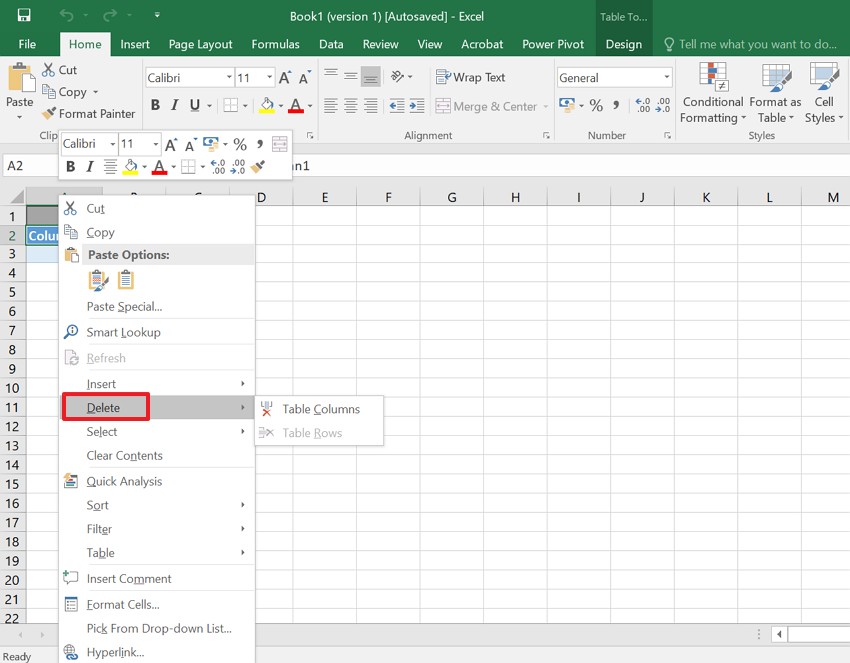
Extra worksheets and hidden data consume memory and increase Excel file load. Excel counts these hidden ranges as active, even when they appear blank. Deleting them keeps your workbook lighter and stable during frequent saves. Cleaning unused content is the first step in how to compress Excel files. Follow the steps below to remove unused sheets and hidden data safely:
- First, open the workbook and “Right-click” any unused sheet or tab, then select “Delete.”
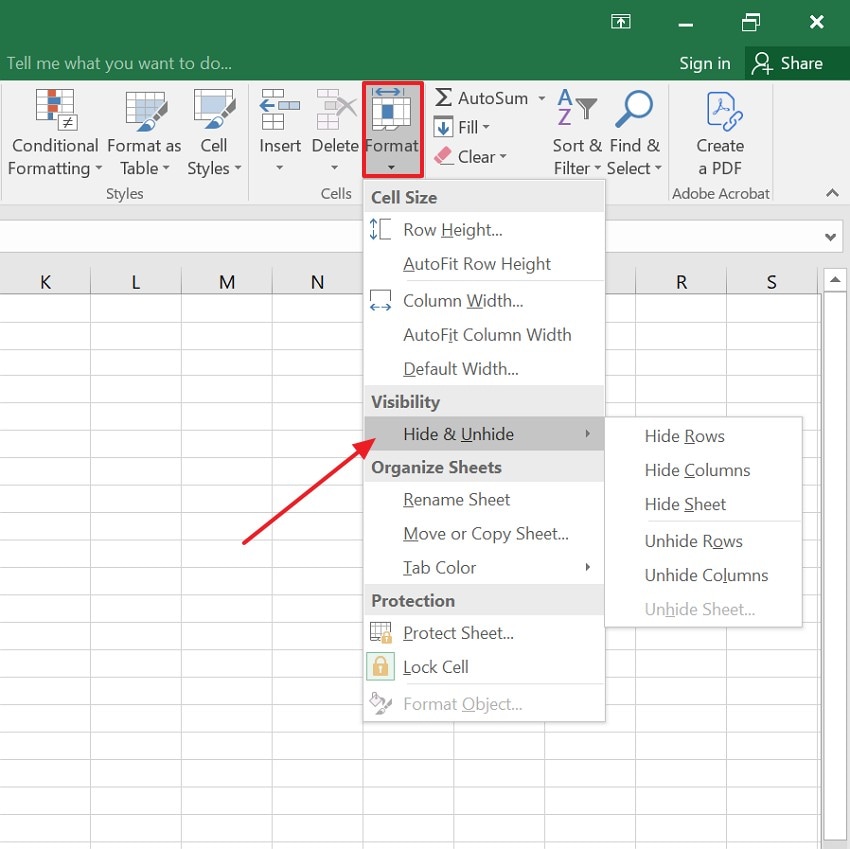
- Next, navigate to “Home > Format > Hide & Unhide” to reveal or remove hidden data.
2. Delete Unused Rows, Columns, and Blank Cells
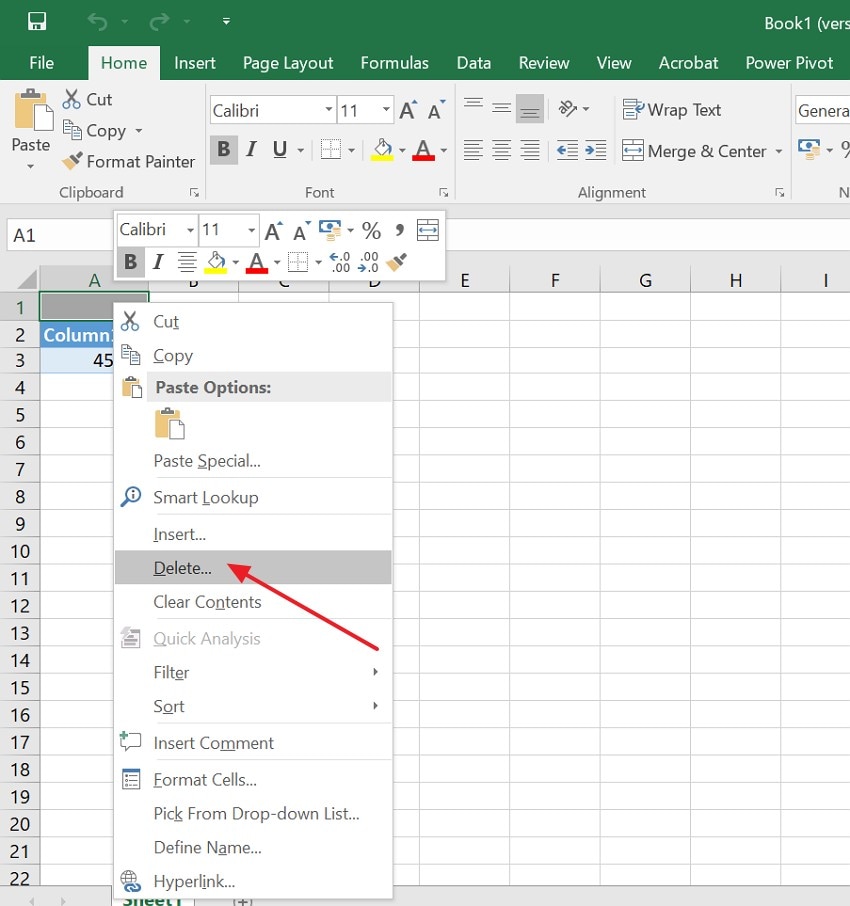
Excel stores each cell inside its active range, even if it looks empty. These invisible ranges increase file size and significantly slow down the saving process. Delete rows and columns beyond the actual data to improve file responsiveness. This cleanup plays a major role in shrinking an Excel file easily. Adhere to the instructions below to clean empty cells and reduce the workbook size:
Instructions. First, press “Ctrl + End” to locate the last active cell in your dataset. Select blank rows and columns beyond the data, right-click, and choose “Delete” to remove.
3. Clear Conditional Formatting
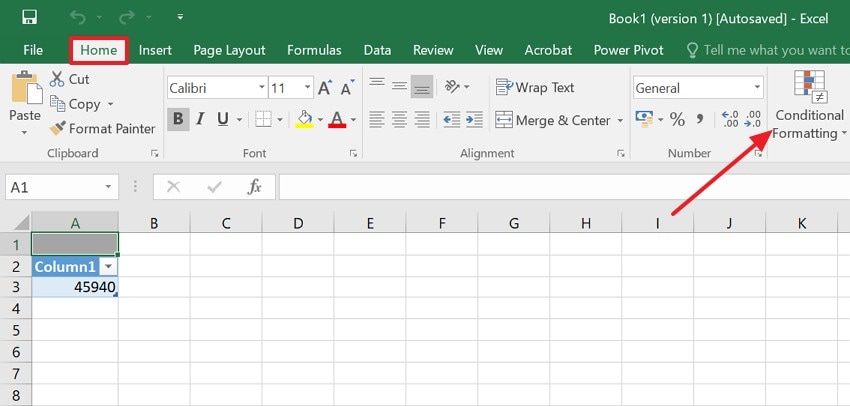
Layered formatting rules add background data that inflates the workbook size. Removing excessive color scales and merged patterns lightens Excel’s internal memory usage. This streamlining is essential knowledge for anyone learning how to compress xlsx file. Apply the stepwise instructions below to simplify and clear extra formatting rules:
- First, navigate to the “Conditional Formatting” option in the “Home” section to proceed further.
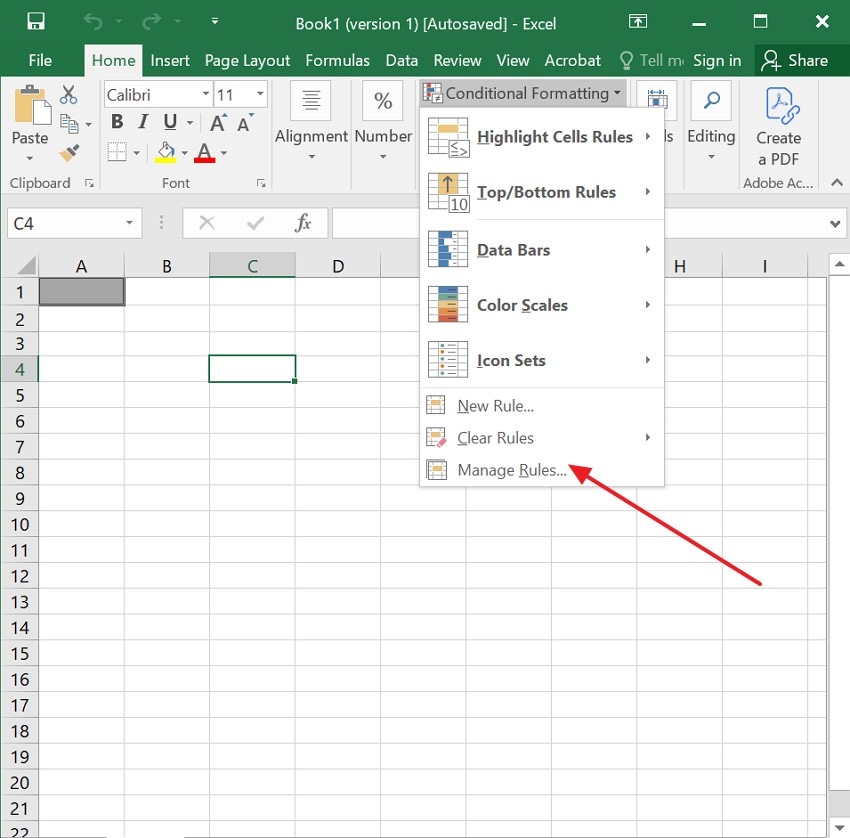
- Later, click on the “Manage Rules” to view all the active rules and delete the unnecessary rules.
4. Compress or Remove Images
Large images occupy significant space within an Excel workbook. Lowering image resolution or removing duplicates decreases memory pressure. Keeping visuals under control ensures faster sharing and smoother saving across devices. This action remains vital for anyone asking how do i compress an excel file. Use the following steps to compress or remove unnecessary images with ease:
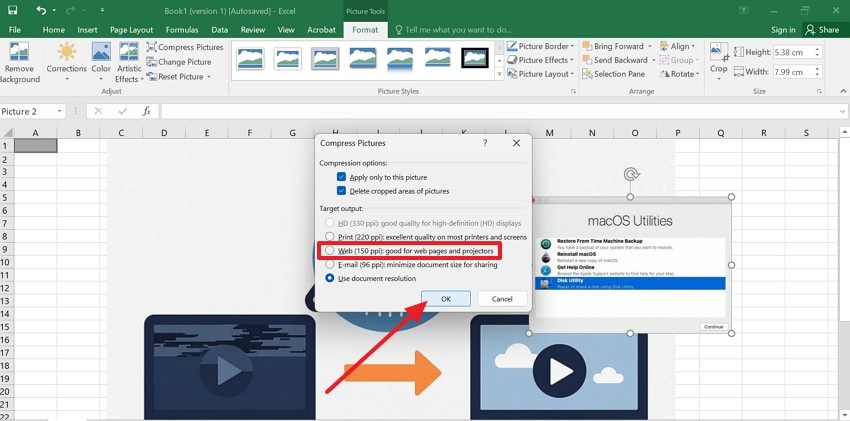
- Start by selecting the “Picture Format” and later choose the “Compress Pictures” Option.
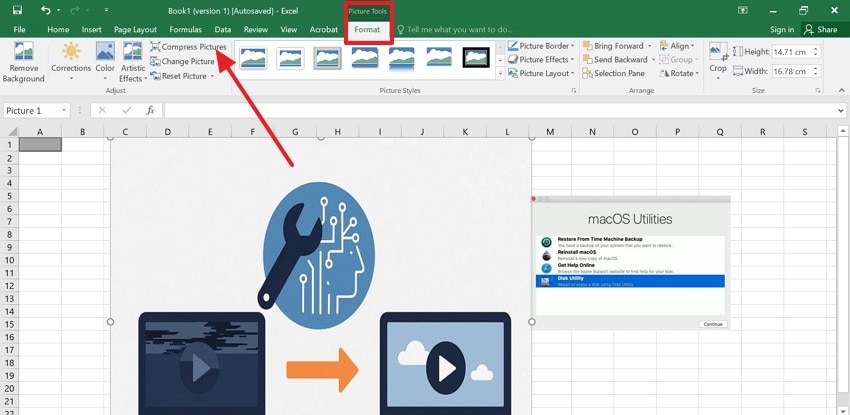
- Afterwards, choose “150 ppi” for optimal quality and file size, and hit “OK”.
5. Convert Formulas to Values
Heavy formulas force Excel to recalculate repeatedly, which slows file operations. Replacing completed formulas with static values helps prevent excess processing. It keeps performance consistent while maintaining the accuracy of saved numbers. To compress Excel file, such a conversion is an important step. Follow the stepwise guide below to convert formulas into plain numeric values:
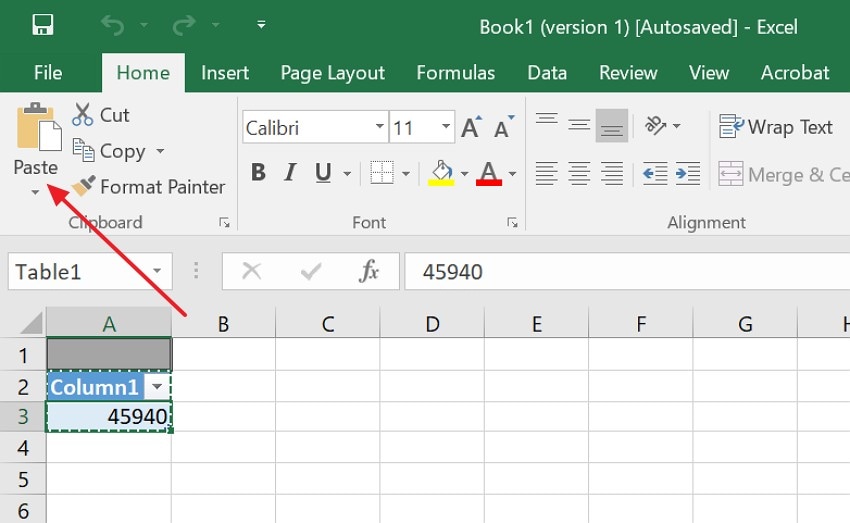
- First, select your complete data range, press “Ctrl + C” to copy the selected formula, and navigate to the “Paste” option at the top.
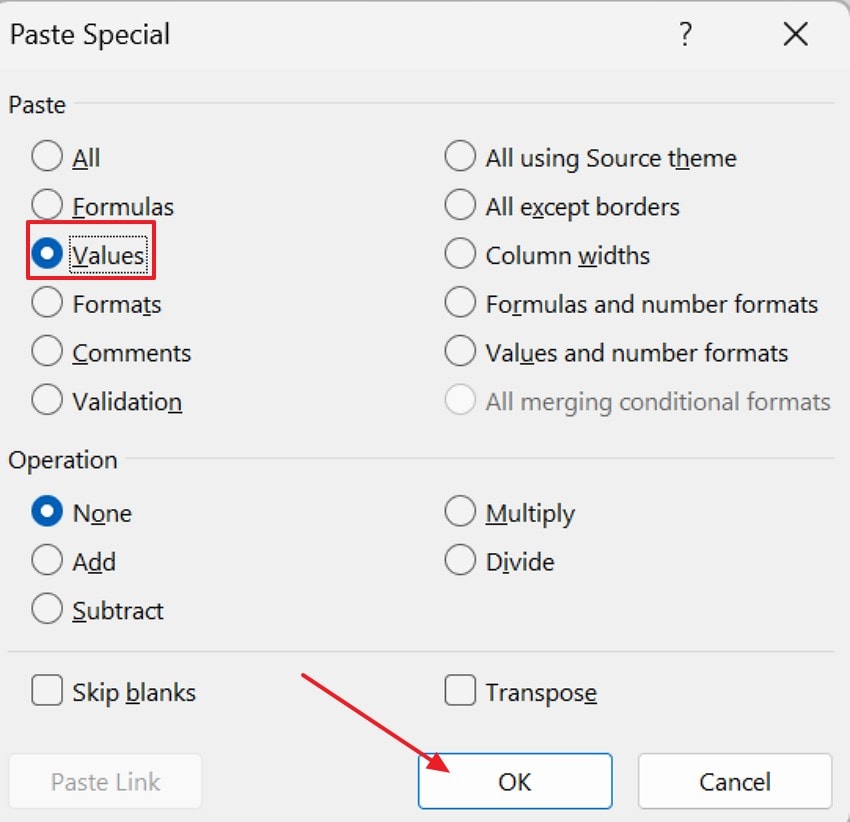
- Later, select “Paste Special” from the menu, choose the “Values” option, and hit “OK”.
6. Avoid Saving PivotTable Cache
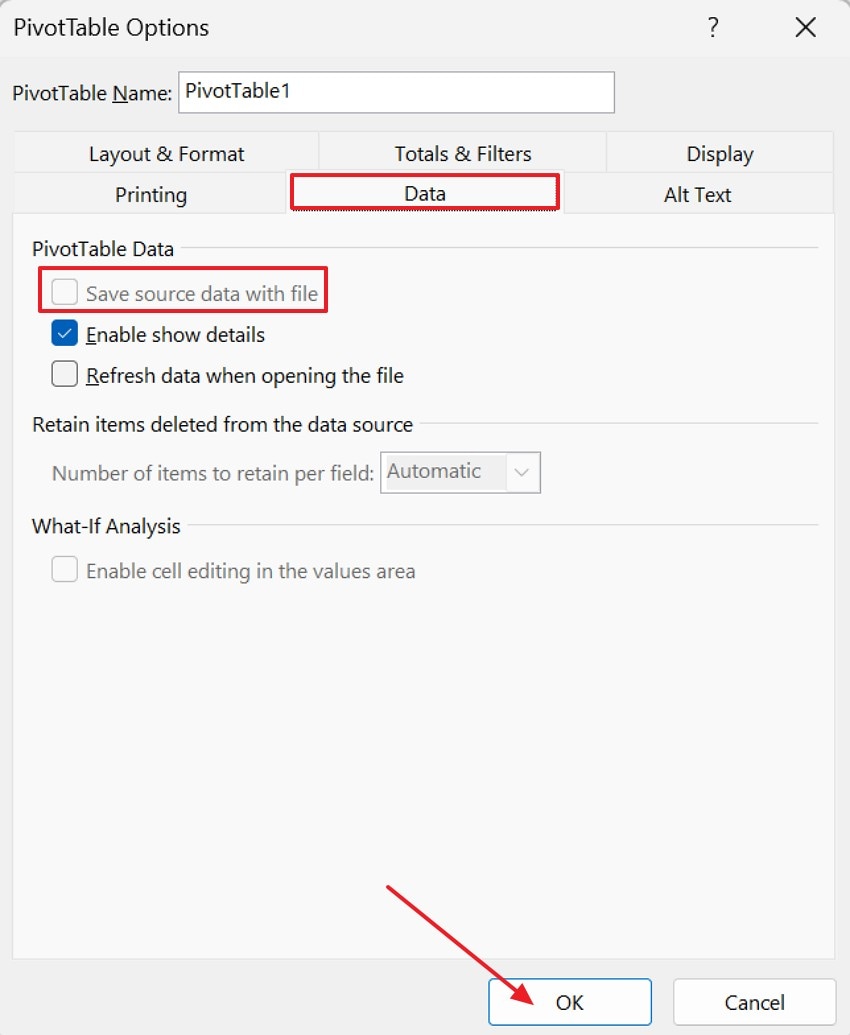
PivotTable caches duplicate datasets, making files heavier during each save. Disabling cache prevents Excel from storing repeated source data automatically. It reduces refresh time for large tables or reports. Applying this control helps users understand how to minimize excel file size effectively in practice. Proceed with the steps below to manage PivotTable cache settings efficiently:
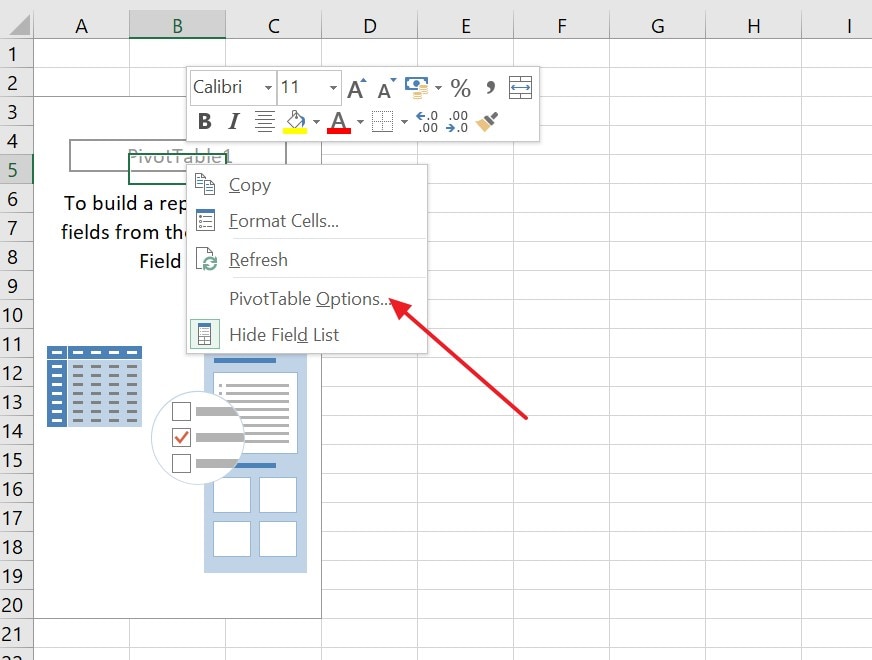
- First, right-click on the “PivotTable”, then go to “PivotTable Options” to proceed further.
- After that, click on the “Data” option and uncheck the “Save source data with file” and select “OK.”
7. Save the File in Binary Format (.xlsb)
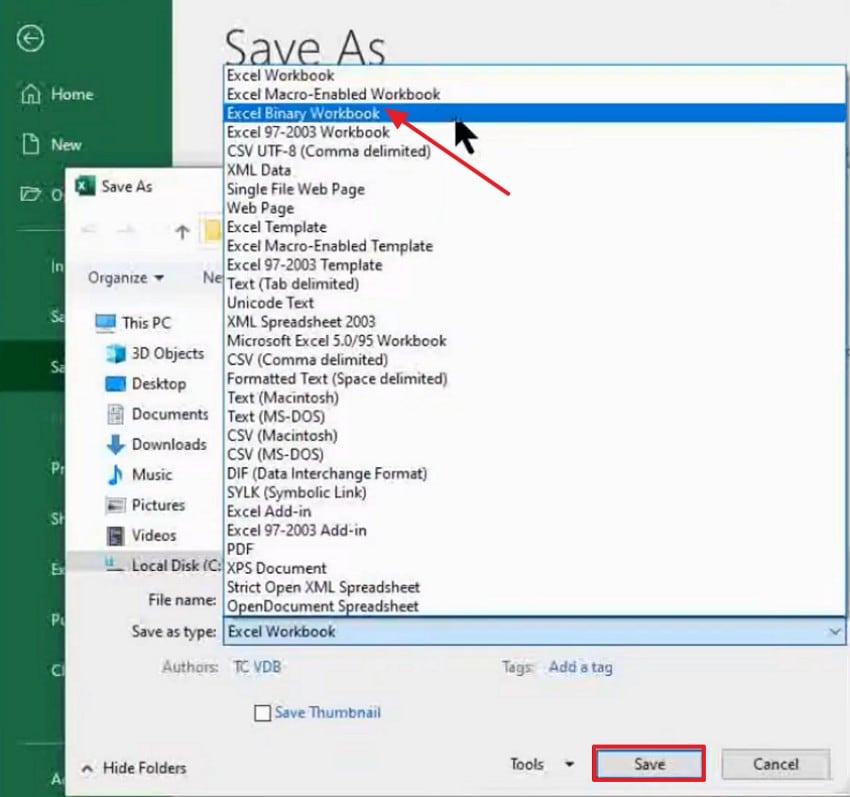
Smaller file types store Excel data in a compact, machine-readable structure. It loads faster and saves smaller than regular .xlsx files. This choice suits heavy spreadsheets containing macros or numerous formulas. Using a smaller file type is a proven approach to compressing Excel files efficiently. Let’s walk through the instructions below to save your workbook safely in a smaller file:
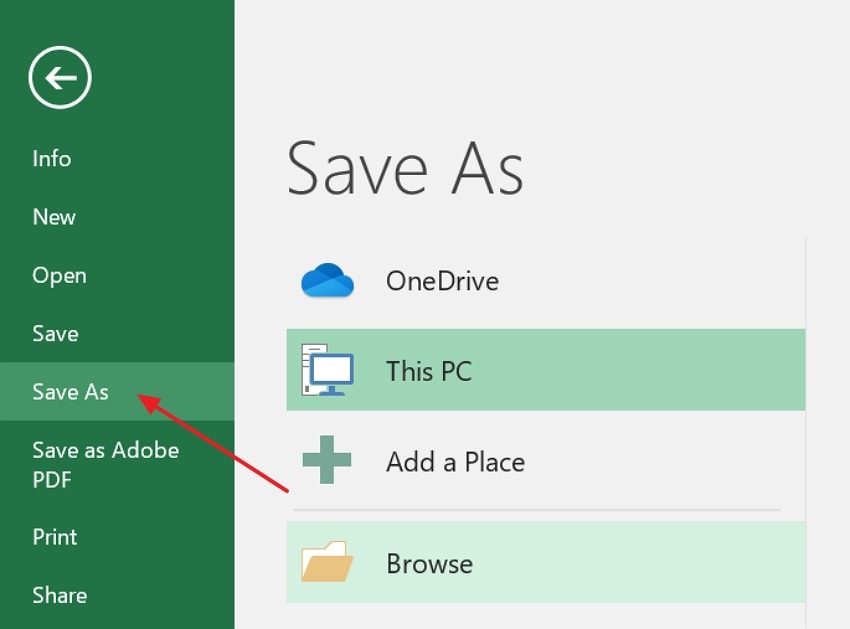
- First, choose the “File” option in the top left corner and navigate to the “Save As” option.
- Then, select the “Excel Binary Workbook” and click on the “Save” button.
8. Use ZIP Compression
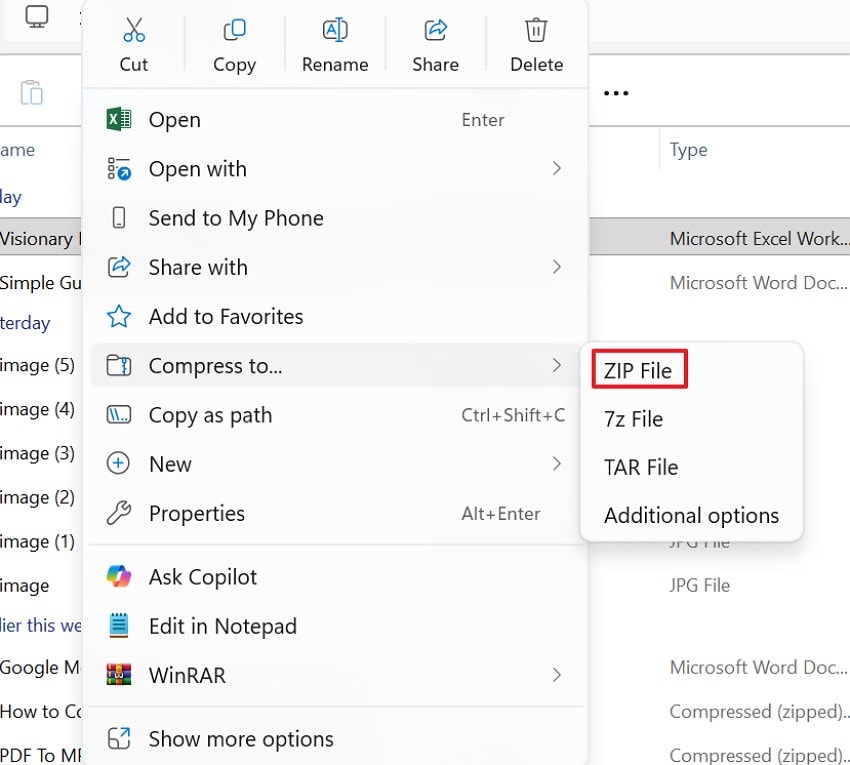
ZIP compression reduces storage use without changing Excel files' content or layout. It makes transferring large Excel reports by email or cloud easier. Right-click the file and send it to a compressed folder. This direct method remains a quick way to compress an excel file easily. Adhere to the steps below to apply ZIP compression to your Excel file:
- Start by locating your “Excel File” and “Right-Click” to view the “Compress to” option.
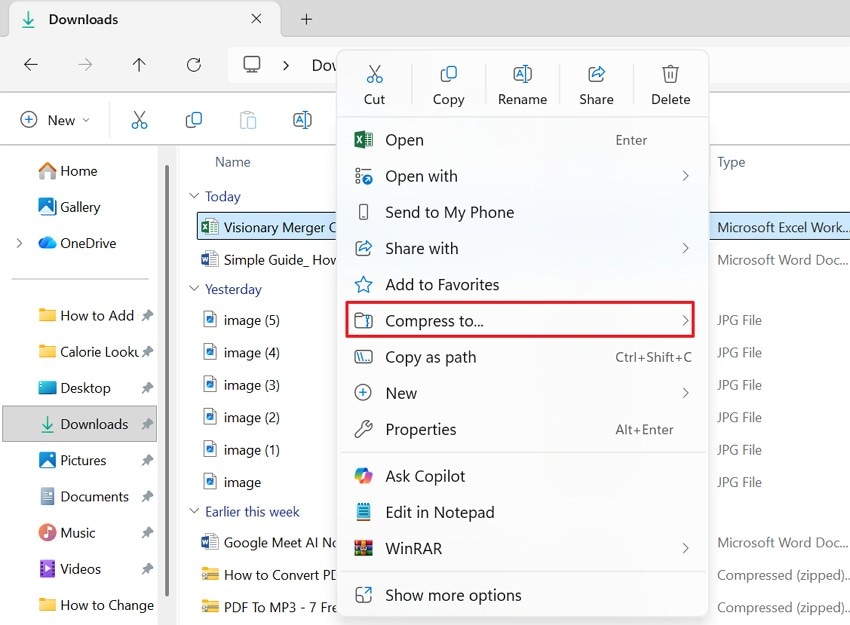
- Later, click on the “Compress to” option and choose “ZIP File” from the list.
9. Use Online Compression Tools
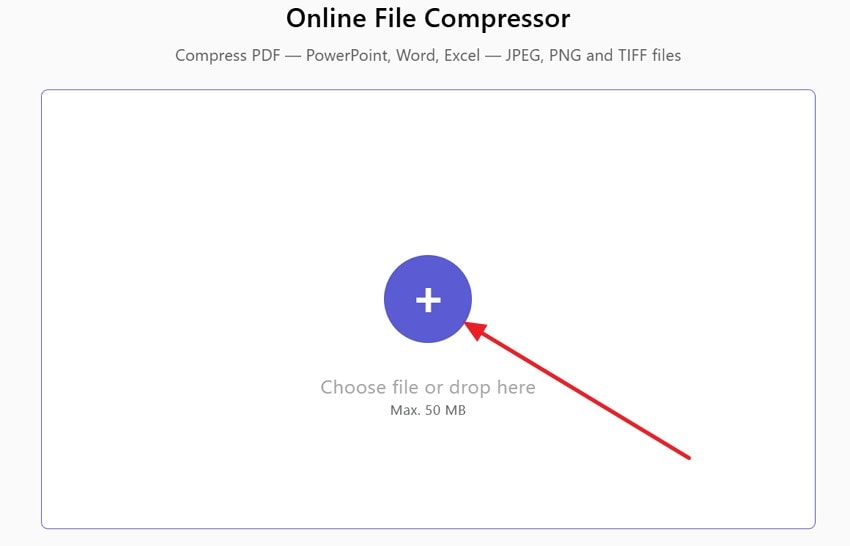
Online utilities detect large images, unused styles, and redundant file elements. They remove bloat automatically, helping users avoid manual cleanup tasks. Many tools preserve formatting and protect formulas during compression. These resources are ideal for learning how to compress xlsx file without technical knowledge. Consider using the following steps to perform an online compression tool:
- Select the “Plus” icon to upload your file to the online compression tool.
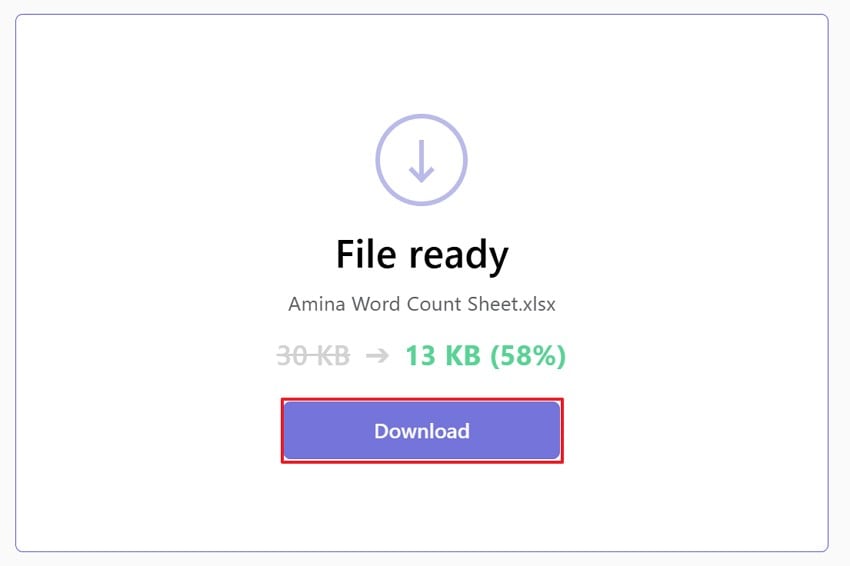
- Next, once compression completes, hit the “Download’ button to save the compressed Excel file.
10. Split the Workbook into Smaller Files
Large workbooks containing multiple sheets often overload memory and crash systems. Dividing them into smaller linked files improves steadiness and opening speed. Each smaller file remains easier to edit, store, and share. This division is a trusted practice in how do i compress an excel file responsibly. Let's proceed with the stepwise guide below to split the workbook into smaller files:
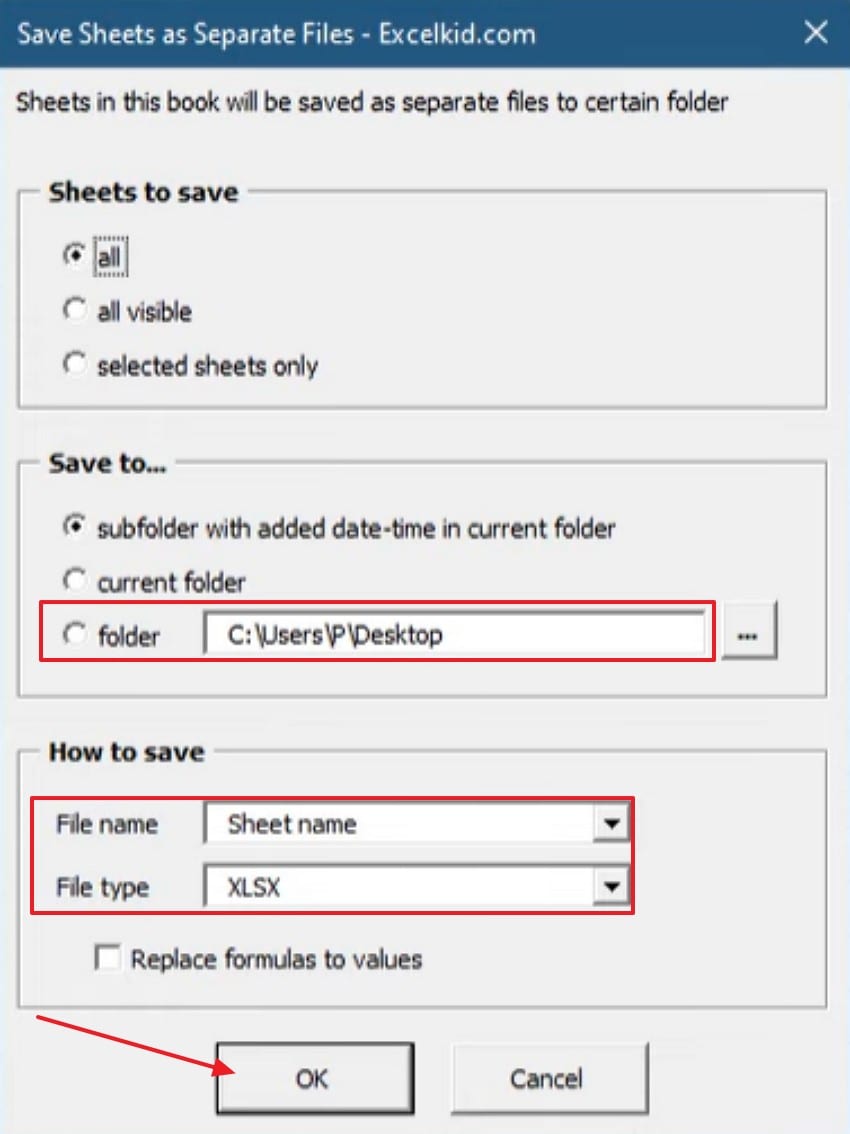
- First, choose the “Data XL” option, then click on the “Worksheets” option. Later, choose “Split Sheets to Files” from the drop-down menu.
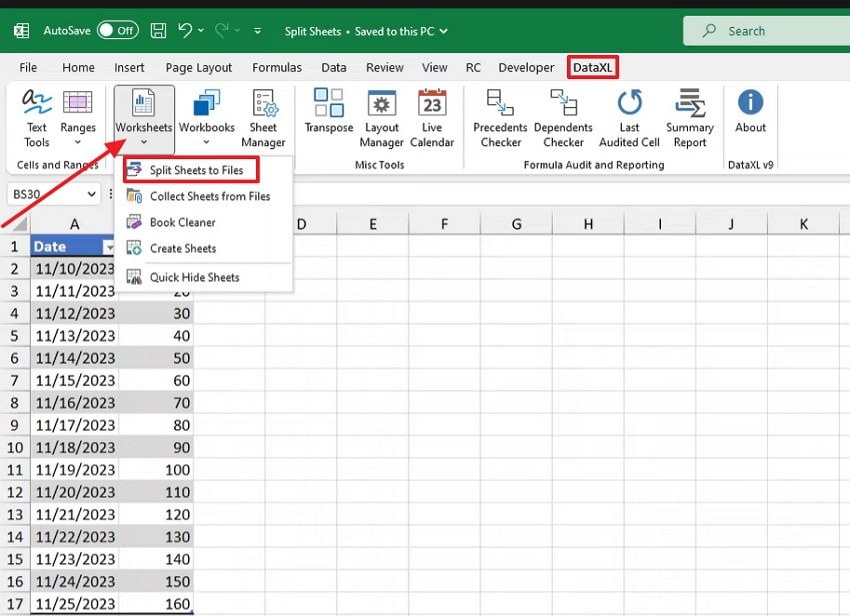
- Later, select the “Folder,” “File name,” and “File Type” and hit “OK” to save.
Pro Tip: What If the File Gets Lost While Compressing? Use Recoverit
Sometimes Excel files may get corrupted or disappear during shrinking or saving. In such moments, knowing how to compress Excel files is not enough; recovery becomes essential. Recoverit helps restore damaged or deleted Excel files safely without affecting stored information. It provides dependable protection against data loss during file adjustment.
Furthermore, it works smoothly with Excel files, scanning storage sectors to find missing or broken files. It supports multiple formats and brings back data from hard drives easily. This ensures your compressed files remain secure and accessible, even after unexpected system failures or accidental deletions during file adjustments.
Key Features
- Deep Scan: Detects hidden Excel fragments and restores them without overwriting the original data.
- Multi-Format: Supports over 1000+ file types, including XLS, XLSX, CSV, and other formats.
- Preview Options: Allow users to verify recovered Excel sheets before restoring final versions safely.
Stepwise Guide to Recover Lost Files with Recoverit
If the file vanishes while compressing, follow these steps to restore it through Recoverit:
- Select the Location to Recover
First, navigate to the “Hard Drives and Locations” in the left sidebar to initiate the recovery process.

- Initiate the Scanning Process
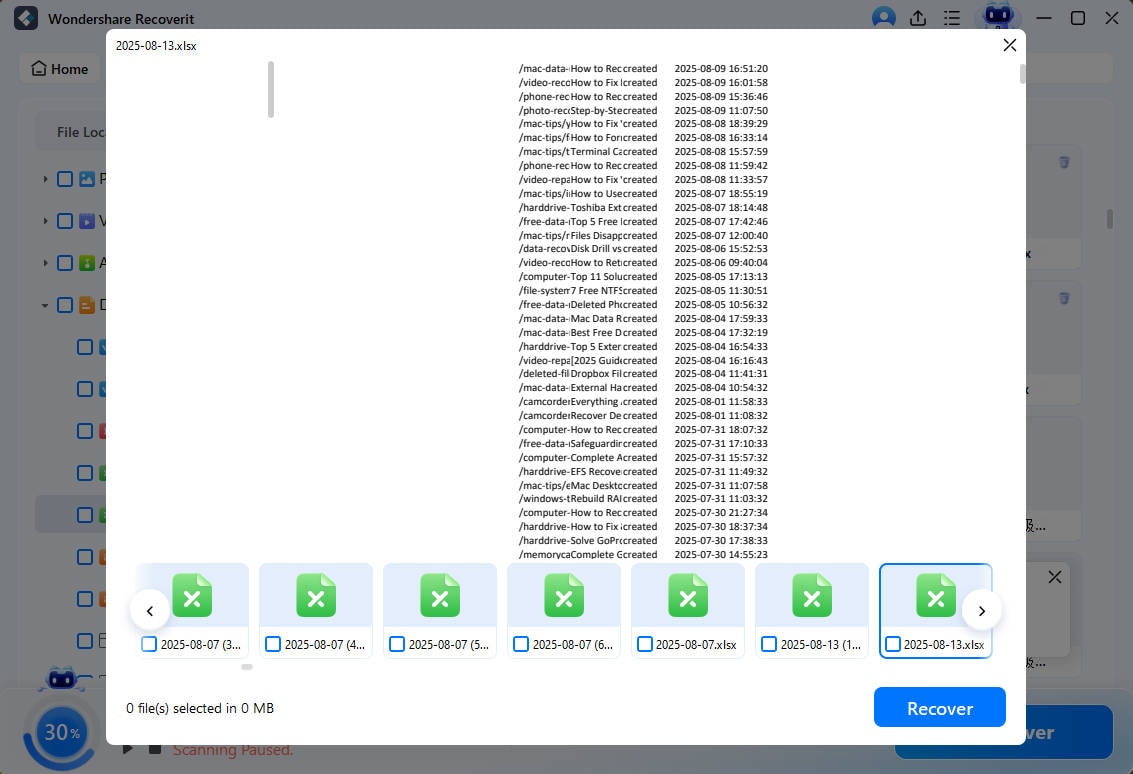
Once the scanning starts, recoverable files will appear under the “Name of Lost Files” folder.

- Preview the File and Recover
Lastly, preview the file and hit the “Recover” button to complete the recovery process.
Part 3. Stay Light: Smart Habits to Keep Excel Files Small
To prevent future slowdowns, start using these smart Excel size-control habits below:
- Data Cleanup: Remove unused sheets and empty ranges to prevent hidden cells from increasing in size. Press Ctrl + End to confirm Excel’s last active cell matches your visible data.
- Formula Control: Change finalized formulas into static values to stop repeated recalculations during edits. Copy and paste values only to preserve accuracy and reduce file load safely.
- Simple Formatting: Use one clear font style and avoid full-column formatting across many ranges. Remove extra borders or themes to prevent hidden style objects from bloating sheets.
- Content Management: Delete or reduce heavy images, charts, and shapes that slow the files. Replace large visuals with linked or smaller versions to improve overall file performance.
- Efficient Saving: Save files as smaller or zipped files to reduce file size. These formats store data compactly and load faster without changing any saved details.
Conclusion
To summarize, large Excel files slow down work, cause crashes, and make sharing difficult across systems. In this article, we explained clear methods to compress Excel file for better performance and a smooth workflow. If a file gets lost during reduction, use Recoverit to restore it to keep your Excel data secure.
FAQ
-
1. Why do Excel files become slow and large over time?
Excel saves hidden cells, extra styles, and cached data that increase the file size quickly. Regular cleaning prevents memory overload, ensuring sheets open faster and run more smoothly overall. -
2. How can I safely compress Excel files without losing important data?
Remove unused ranges, heavy images, and formulas before saving to a smaller format. Always back up your file first to keep every record secure during adjustments. -
3. What happens if my Excel file gets corrupted during compression?
Corruption may stop access to your saved sheets and stored calculations entirely. Use Recoverit to restore your Excel file safely and recover all lost content. -
4. Which file format is best for reducing Excel size efficiently?
The .xlsb binary format stores data compactly while preserving layout and accuracy. It opens faster, uses less space, and keeps your file reliable during daily use.


