

 TL;DR:
You can save an Excel workbook as a securely formatted, uneditable PDF directly within the application using the "Save As" function, via Office 365 cloud integrations like OneDrive, or through online converters like Smallpdf.
● Before saving the file, specify the exact print area and verify your page setup margins to prevent content cutoff, awkward page breaks, or the inclusion of blank pages in the final PDF.
● Office 365 users can open files directly from OneDrive or SharePoint in the desktop app to save them as PDFs while utilizing the AutoSave toggle to continuously back up spreadsheet progress in real time.
● If an Excel file is lost, deleted, or corrupted, the Wondershare Recoverit tool can scan Windows, Mac, or external storage drives to retrieve the document across 10,000 supported data loss scenarios.
Ask AI for a summary
 ChatGPT
 Perplexity
 Gemini
 Claude
 Grok
Grok
After spending hours crafting a project plan in Excel, you want to share it with your manager without worrying about formatting changes. Saving your Excel workbook as a PDF is the best solution for sharing a polished, uneditable version.
However, most people working on the spreadsheets do not know how to convert or save their Excel sheets as PDFs. In this article, we will learn how to save an Excel workbook as a pdf conveniently.
Try Recoverit to Perform Excel Data Recovery
 Security Verified. 3,591,664 people have downloaded it.
In this article

Part 1. Why Save an Excel workbook as a PDF
Saving an Excel workbook as a PDF offers numerous practical benefits that enhance sharing and presentation. Mentioned below are some of the critical reasons why you should opt for converting an Excel workbook into a PDF:
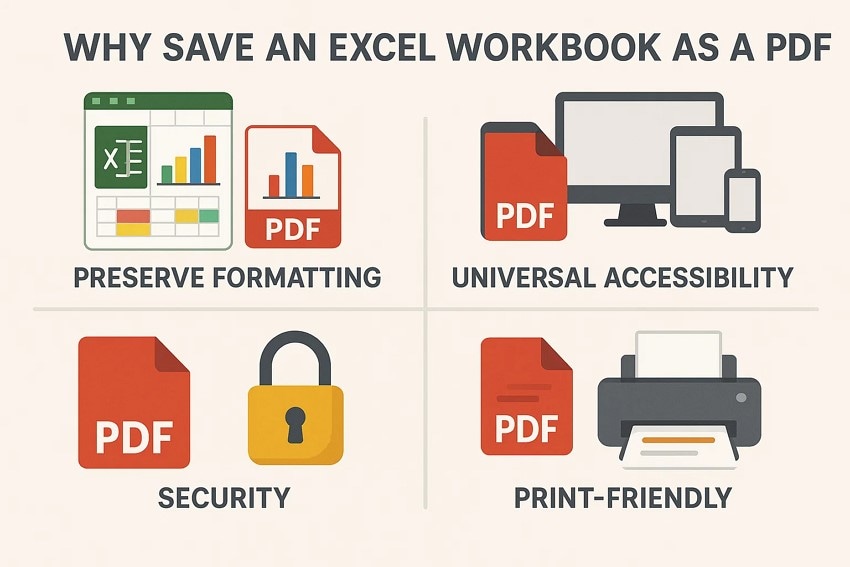
- Preserve Formatting: When you convert to PDF, all fonts, colors, charts, and cells remain exactly as designed. This prevents layout shifts or misalignments that can occur when others open Excel files on different devices or versions.
- Universal Accessibility: PDFs can be opened on virtually all devices regardless of operating system or installed software. This ensures recipients can view your workbook without needing Excel.
- Security: PDF files are generally non-editable by default and can be password-protected. This keeps your data safe from accidental or unauthorized changes.
- Print-Friendly: PDFs maintain consistent formatting for printing, avoiding cutoff tables or misaligned pages. This makes hard copies look professional without extra adjustment for users looking for solutions on how to save Excel worksheet as a pdf.
Part 2. How to Save an Excel workbook as a PDF — Basic Method
If you are new to learning the methods for saving Excel as PDF, the following are some of the basic methods that you can use to perform the task:
Method 1. Save Using the Save Button or Shortcut
The first method for saving an Excel workbook as a PDF involves using the familiar Save button or a keyboard shortcut within the Excel application. This approach leverages built-in functions that allow users to quickly create a PDF version of their workbook without leaving the program interface. To learn how to save an Excel worksheet as a pdf using the “Save” button, read the steps mentioned below:
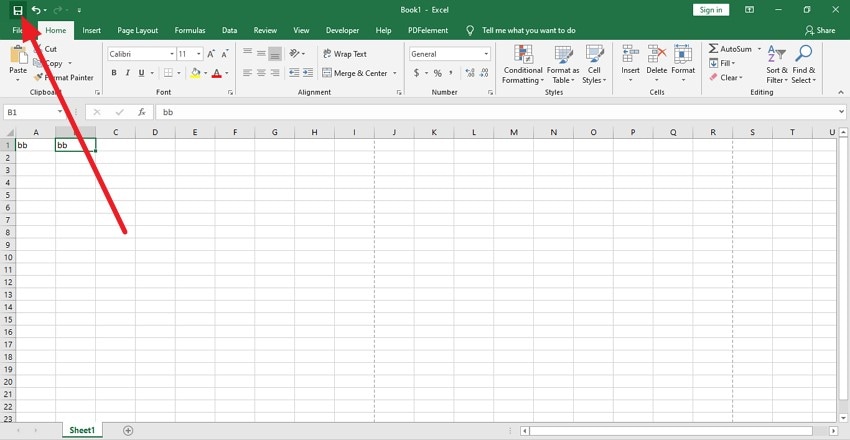
- Head to the extreme top-left corner of the interface and locate the small "Save" icon from there to click on it. Alternatively, you can press the shortcut keys "Ctrl+S" on your keyboard to initiate the saving process.
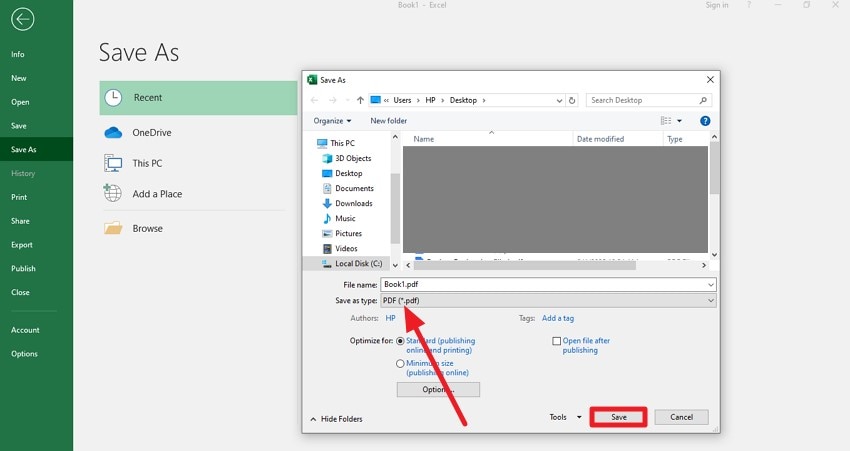
- In the following interface, select the location for the file and select the format as “PDF” by expanding the respective drop-down menu. Finally hit the “Save” button to successfully save it as a PDF.
Method 2. Save As (to a New Name, Location, or Format)
The Save As method in Excel allows you to create a PDF version of your workbook by saving it under a new name, location, or file format. This method provides flexibility to preserve the original Excel file while generating a separate PDF copy for sharing or printing. Follow the steps mentioned below to learn how to save an Excel workbook as a pdf using the Save As utility:
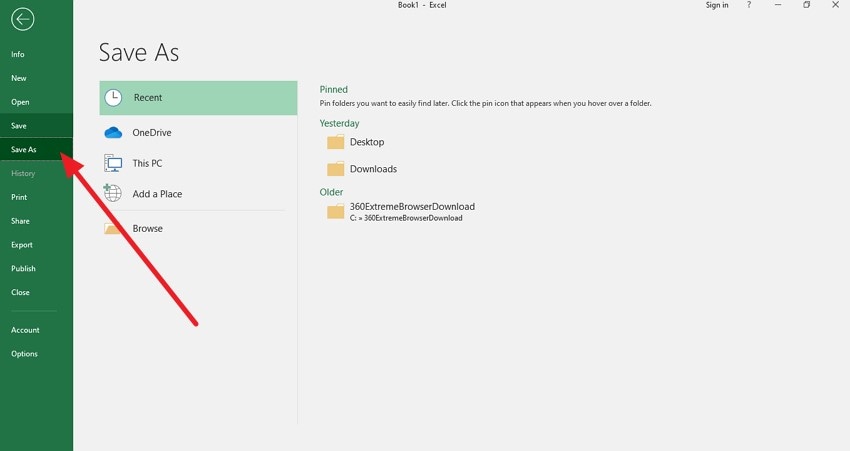
- Start by heading to the top-right corner and choosing the “File” menu. Next, click the “Save As” option available on the left side of the interface.
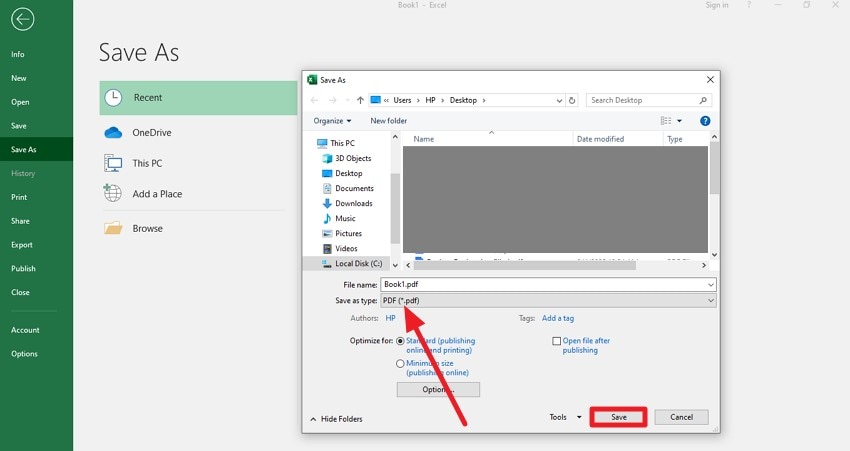
- Select the location for the Excel file that you want to save as a PDF to your device. In the small window, change the name of the document and set the format as “PDF” from the options provided. Finally, click the “Save” button to successfully save the file to your device.
Method 3. AutoSave (Cloud/Office 365 Only)
The AutoSave method in Excel, available with Office 365 and cloud storage like OneDrive, continuously saves changes to your workbook in real-time. This feature ensures that your work is automatically backed up in the cloud without needing manual saves. Read the instructions provided below to learn how to enable the AutoSave option for people wondering how do you save an Excel workbook as a pdf:
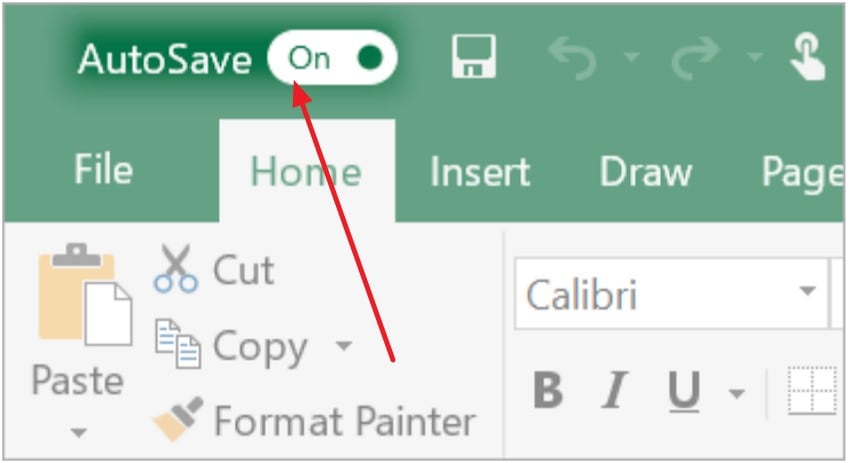
Instructions. Once you are done editing your sheet, head to the top-left corner of the interface and locate the “Auto-Save” option. Next, turn the toggle on located next to the option to enable the automatic saving of the progress as you work on the sheet.
Part 3. Alternative Solutions to Saving an Excel worksheet as a PDF
Having learned the basic methods to save the Excel file as a PDF, let us have a look at the alternative solutions for saving these sheets:
1. Save an Excel workbook as a PDF with Online Converters
Saving an Excel workbook as a PDF with online converters like Smallpdf offers a software-free solution. The online tool instantly converts the spreadsheet to a professional-quality PDF while preserving layouts and formatting. After conversion, users can download, share, or further edit the PDF. To learn how to save an Excel worksheet as a pdf with this online tool, read the steps mentioned below:
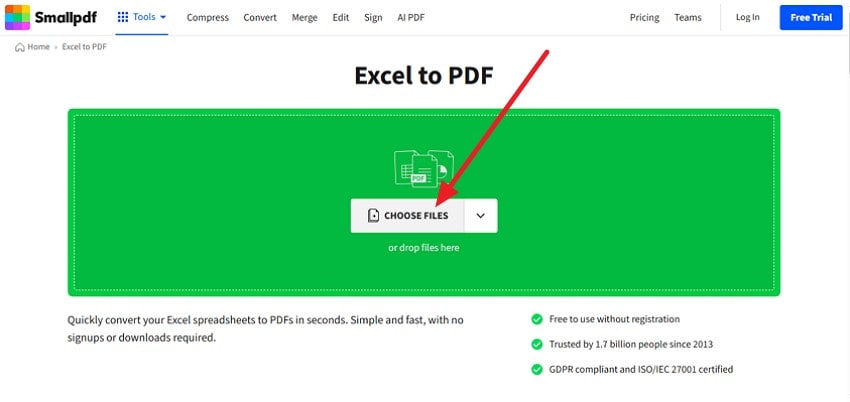
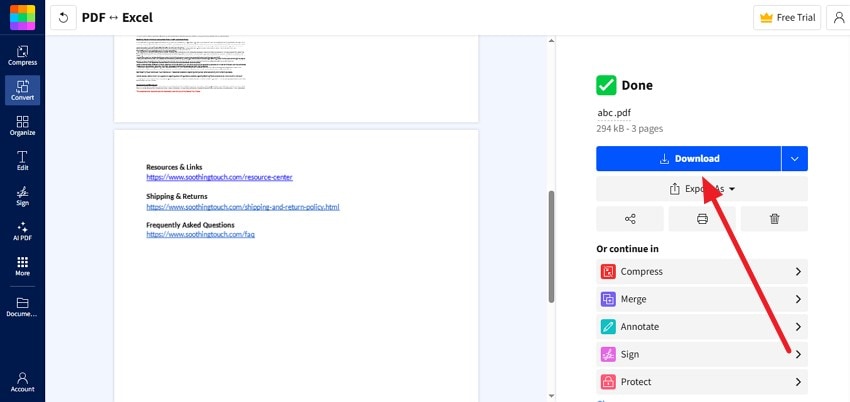
- Start by accessing Smallpdf on your browser and clicking the “Choose Files” button. Now add your Excel file, and the tool will instantly begin the conversion process.
- Once the file is converted into PDF, click the “Download” button in the following interface to save the final file to your device.
2. Save an Excel workbook as a PDF in OneDrive or SharePoint
Another approach to save an Excel workbook as a PDF when working with files is to utilize Excel's integration with OneDrive or SharePoint. This method involves opening the Excel file directly from the cloud storage in the desktop app. Read the steps mentioned below to learn how to save an Excel workbook as a pdf in OneDrive or SharePoint:
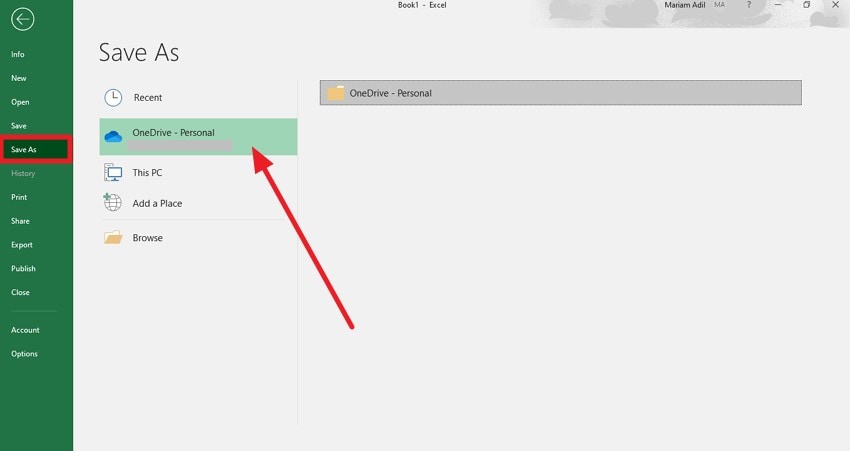
- After you have completed your work on the Excel sheet, head to the top-left corner of the interface to press the "File" option. Next, access the "Save As" option from the left and choose the "OneDrive" option.
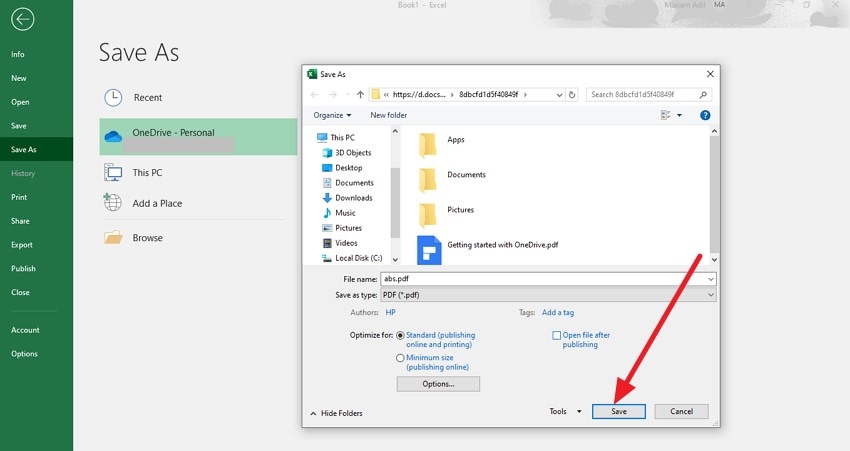
- Next, rename the file if you want, and select the format as "PDF" before pressing the "Save" button.
Part 4. Lost Your Excel workbook? Recover Lost Files with Recoverit
If you lost your saved Excel files, you do not need to worry, as you can recover them conveniently using tools like Recoverit. This advanced data recovery tool performs a deep scan within your storage device to get back files and folders that are missing. Moreover, users get the ability to use this tool on different storage devices, such as Windows, Mac, and external hard drives.
Moreover, users can recover more than one file at a time to save the time and effort of recovering each file separately. It also allows users to pause and start the recovery process according to their preferences. Additionally, it offers a dedicated search bar to search for specific files by applying filters.
Coherent Features Offered by Recoverit
- Advanced Recovery Mode: The advanced recovery mode allows users to retrieve heavily damaged or lost files with minimal effort.
- Numerous File Format Support: This efficient data recovery tool supports retrieval of files for more than 1000 formats.
- Vast Scenario Support: Users get the ability to perform recovery for more than 10,000 scenarios of data loss or damage.
Step-by-Step Guide On How to Recover Lost Files With Recoverit
Having learned about this data recovery tool in detail, let us now learn how to use Recoverit for lost Excel files recovery:
1. Select the Location For Recovery
Begin the process by launching Recoverit on your device. Once done, select the location of the lost Excel file to begin the scanning process.

2. Choose the File For Recovery
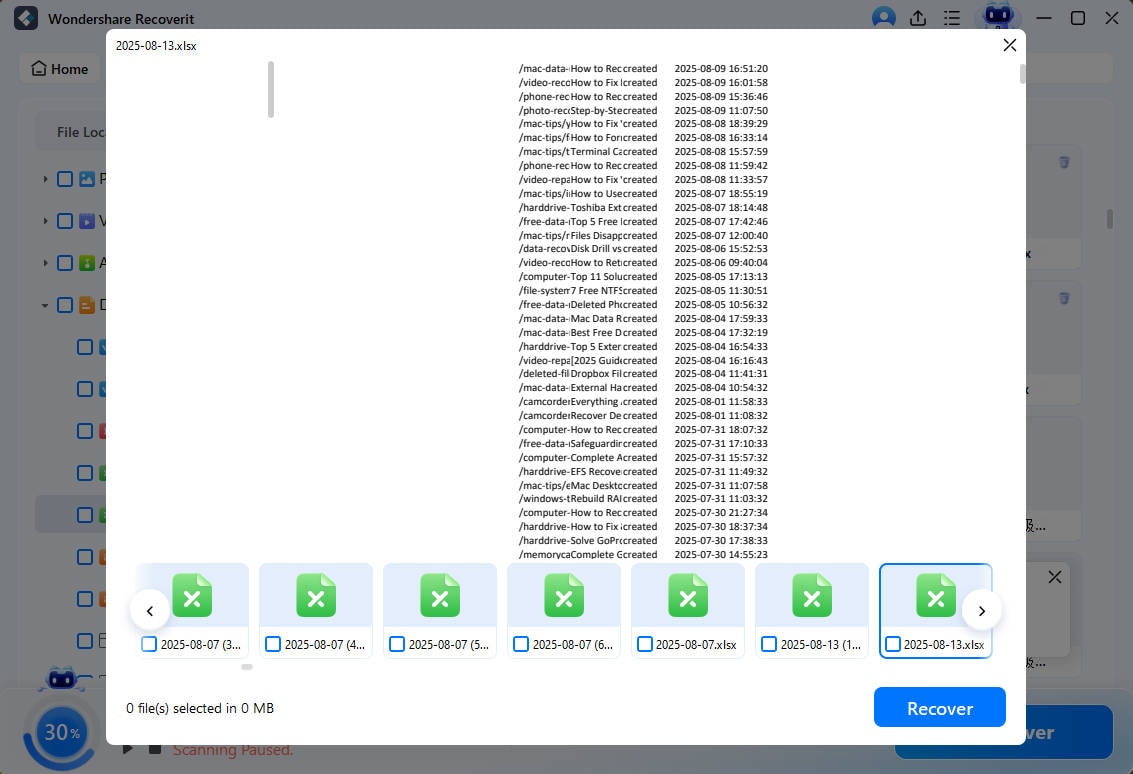
When the scan is completed, choose the file that you want to recover by clicking on it and hitting the "Recover" button located at the bottom.

3. Preview and Save the Results
Once the files are recovered, preview them within the tool's interface and hit the "Recover" button to save the files to your device.
Part 5. Best Practices To Ensure When Saving an Excel worksheet as a PDF
Transitioning from creating Excel workbooks to sharing polished PDFs requires attention to several best practices to guarantee accuracy and readability. Here are essential points to consider when learning how to save an Excel worksheet as a pdf:
- Page Setup Verification: Ensure margins, orientation, and paper size are set correctly to prevent content cutoff or awkward page breaks.
- Print Area Definition: Specify the exact cell range to include only relevant data, avoiding blank pages or excess information.
- Font Embedding: Use common fonts or embed fonts to preserve a consistent text appearance on all devices.
- File Naming and Storage: Utilize clear, descriptive filenames and store PDFs in organized locations for easy retrieval.
Conclusion
To wrap it up, this article discussed various methods how to save an Excel workbook as a pdf files effortlessly. The article also suggested that Recoverit is one of the most reliable solutions to choose if you experience data loss. This advanced data recovery tool retrieves your files in no time while keeping the formatting and quality intact.
FAQ
-
1. How do I save an Excel workbook as a PDF?
You can save an Excel workbook as a PDF by using the “Save As” or “Export” feature in Excel. The method is quick and easy and does not require any additional tools to perform the task. -
2. Can online converters safely save Excel files as PDFs?
Platforms like Smallpdf securely convert Excel files online. In case of data loss during transfers, Recoverit is recommended for recovering vital Excel documents. -
3. What should I check before saving Excel as a PDF?
Verify print margins, scaling, and font embedding for professional output. If file corruption occurs, Recoverit supports recovering your Excel workbooks seamlessly.


