

 TL;DR:
Resolve Excel to OneDrive syncing failures by shortening file paths to under 255 characters, disabling Office file collaboration settings, clearing the local cache, or resetting the OneDrive executable.
● Disable "Use Office Applications to Sync Office Files That I Open" in OneDrive's settings, and ensure file paths or names avoid special characters and the 255-character system limit to prevent upload blocks.
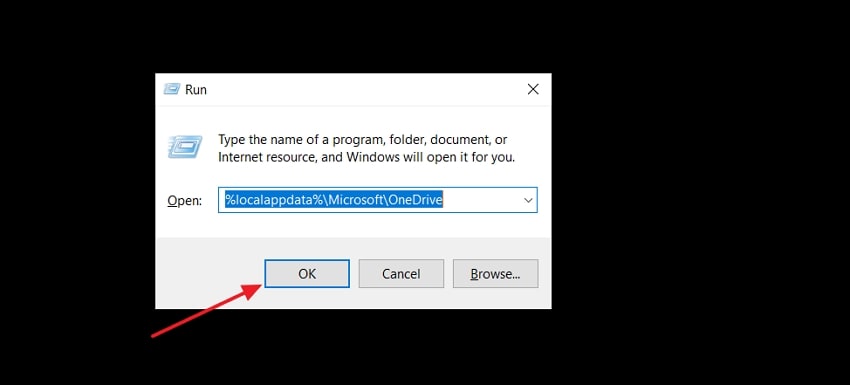
● Clear conflicting temporary data by deleting the "Cache" folders located at `%localappdata%\Microsoft\OneDrive`, or force a complete connection reset by executing `C:\Program Files\Microsoft OneDrive\onedrive.exe /reset` in the Windows Run dialogue.
● If incomplete cloud transfers or sync crashes result in missing workbooks, use the "OneDrive Recovery" feature within Wondershare Recoverit to scan the target directory and restore unsynced Excel files safely.
Ask AI for a summary
 ChatGPT
 Perplexity
 Gemini
 Claude
 Grok
Grok
Excel is a popular application to store and analyze financial transactions and business information, which are necessary in daily operations. Many users experience missed updates or data loss when their Excel fails to sync with OneDrive, which disrupts daily workflows. Many practical solutions and updates can resolve OneDrive syncing issues and restore access to your files.
If you are facing problems with Excel not syncing to onedrive, this guide provides a complete set of fixes to repair syncing issues. As a bonus, we’ll also introduce a tool to recover unsynced Excel files without quality loss.
Try Recoverit to Perform Excel Data Recovery
 Security Verified. 3,591,664 people have downloaded it.
In this article
-
- Check Internet Connection and OneDrive Status
- Verify File Name and Path Length
- Check Storage Availability
- Restart OneDrive and Your Computer
- Disable Office File Collaboration
- Clear OneDrive and Excel Cache
- Pause and Resume Syncing
- Save the Excel File Locally and Re‑Upload
- Reset or Reconnect OneDrive
- Update OneDrive and Microsoft Office

Part 1. Why is OneDrive Not Syncing Excel?
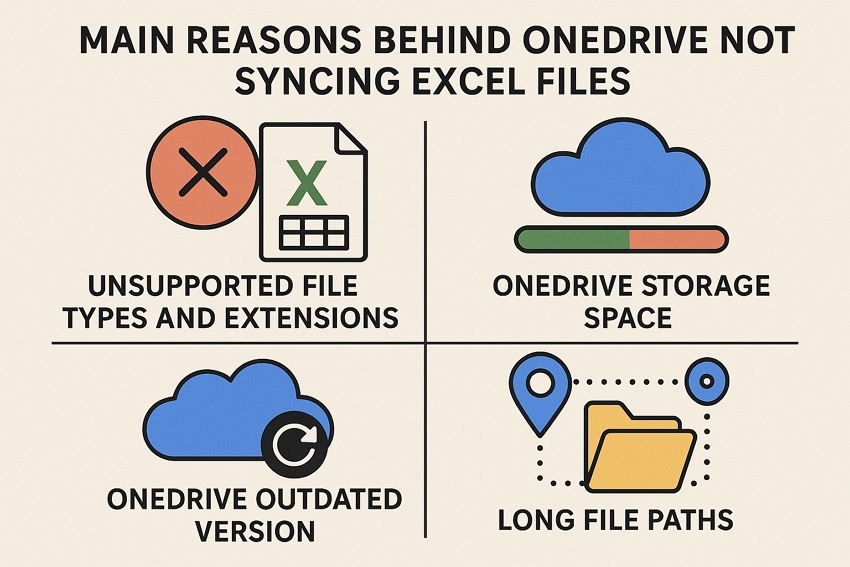
Several factors can cause the Excel not syncing to OneDrive cloud problem, which makes accessing files difficult for users. To understand that Excel is not able to sync, go through the following possible causes:
- Unsupported File Types and Extensions: Some of the complicated Excel files, including macro-enabled XLSM files, cannot be synced well since OneDrive does not allow uploading of temporary files.
- OneDrive Storage Space: Upon reaching the limit of OneDrive storage capacity, you are unable to upload and synchronize Excel files until you delete old data or buy more storage.
- “Files On-Demand” or Cache Issues: The OneDrive “Files On-Demand” and cached data can interfere with real-time syncing, especially when trying to edit cloud-only Excel files locally.
- OneDrive Outdated Version: The outdated version of OneDrive will lead to interruptions, slow updates, and duplicate copies of the Excel file.
- Long File Paths: When the path of a file in a deep folder structure or a long name is over the limits of the system, then OneDrive can prevent syncing files.
Part 2. Proven Solutions to Fix Excel Not Syncing with OneDrive
Once you have discovered the main cause of the OneDrive Excel Not Syncing issue, you can fix this by applying the fixes today. Here you’ll see different methods to fix the problem and get your Excel files synced again.
1. Check Internet Connection and OneDrive Status
A review of the internet connection and OneDrive status maintains stable synchronization and uninterrupted cloud performance. This process verifies live connectivity and confirms that OneDrive services are active and functioning as expected.
The OneDrive icons displayed in File Explorer or the taskbar help users quickly understand sync status. A blue cloud shows files stored online only, while a green checkmark means they’re available offline. Rotating arrows indicate syncing in progress, and a red X warns of errors requiring immediate attention.

2. Verify File Name and Path Length
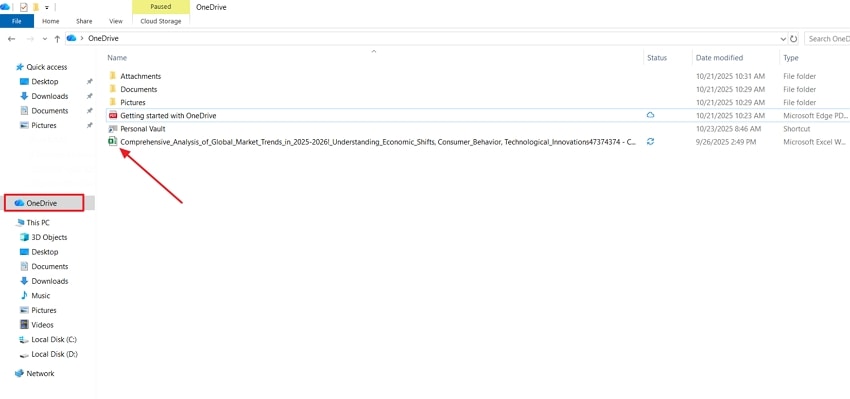
Verifying file names and path lengths improves the OneDrive synchronization across devices.. This fix helps maintain consistent file accessibility to support data storage within allowed system limits across Windows and Office 365 environments. Follow the instructions below to see how you can fix OneDrive not Syncing Excel through verification:
Instructions. Open the “File Explorer” window and hit the “OneDrive” section from the left menu. Verify that the file name is no longer than 255 characters and does not include special characters. Correct the file names and try syncing again.
3. Check Storage Availability
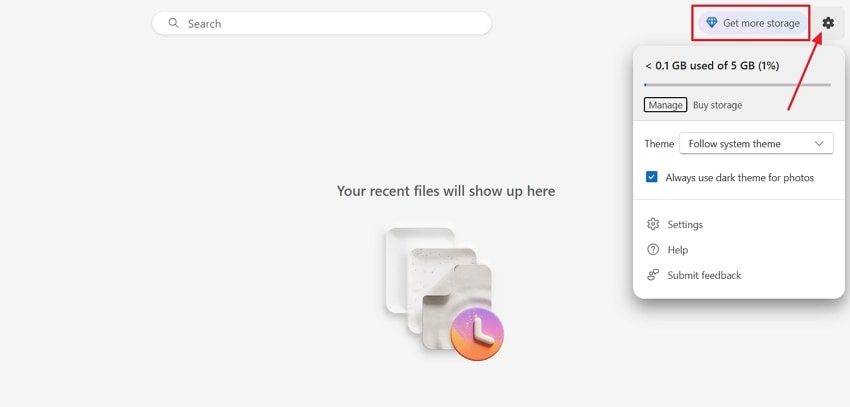
Full access to OneDrive’s cloud storage allows new files and updates without interruption or restriction. This fix supports the ongoing growth of stored data and constant file sharing for business and personal needs. Peace of mind comes with knowing that most space and data protection remain available for future requirements. Adhere to the steps below to check OneDrive storage status:
Instructions. Log in to your OneDrive account on the official website. Press the “Settings” icon in the upper right corner and check the available storage. If the storage is full, press the “Get More Storage” option to buy more storage as per your usage.
4. Restart OneDrive and Your Computer
A restart of OneDrive and your computer resets its environment to prompt correct app initialization. Temporary glitches or background process conflicts receive a clean slate through this routine. Now, follow the steps below to fix the Excel not syncing to OneDrive cloud problem through reboot:
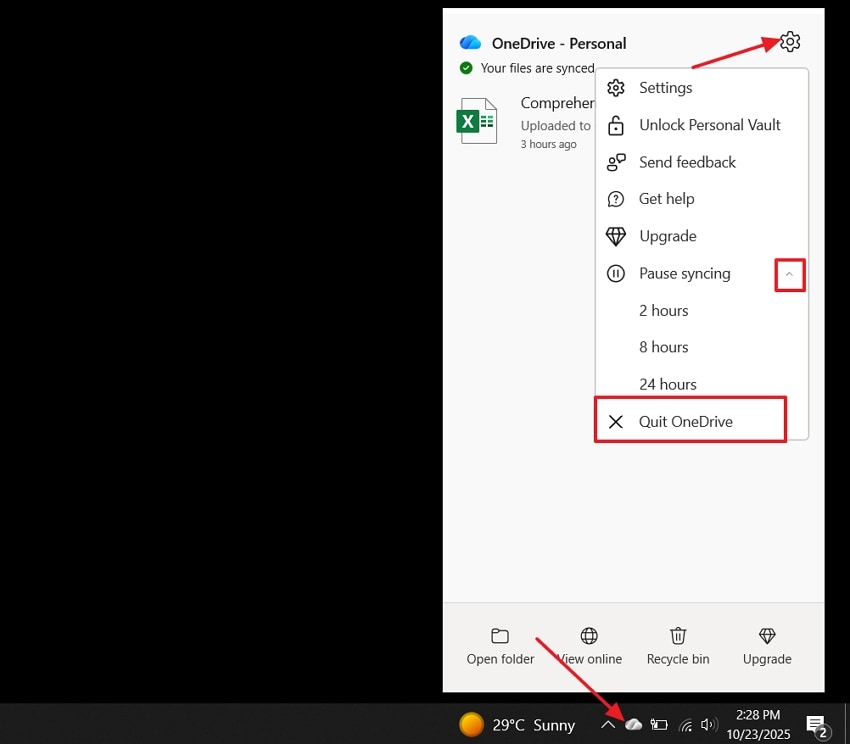
- Press the “OneDrive” icon on the system tray and hit the “Help and Settings” option. Expand the “Pause Syncing” option and click on the “Quit OneDrive” button to shut it down.
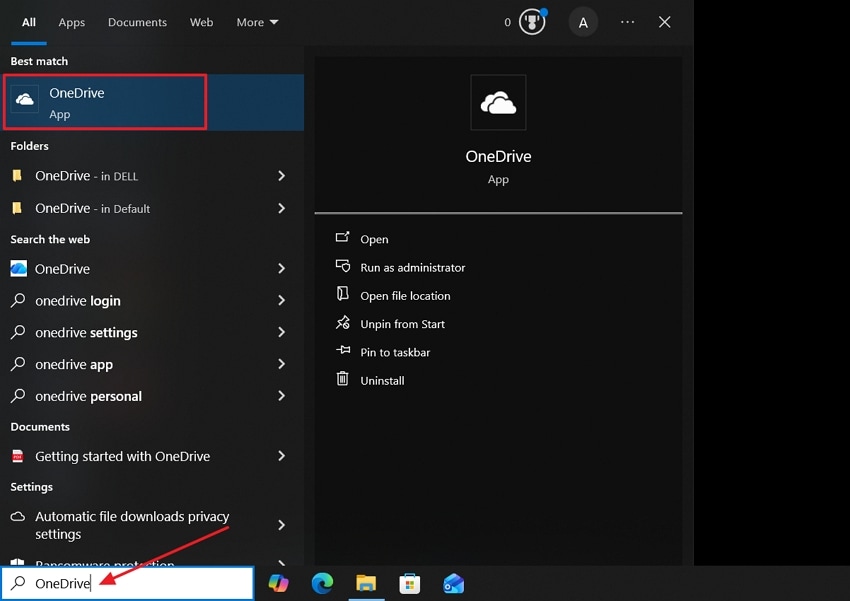
- Now, type “OneDrive” in the Windows Search Box and open it to run again.
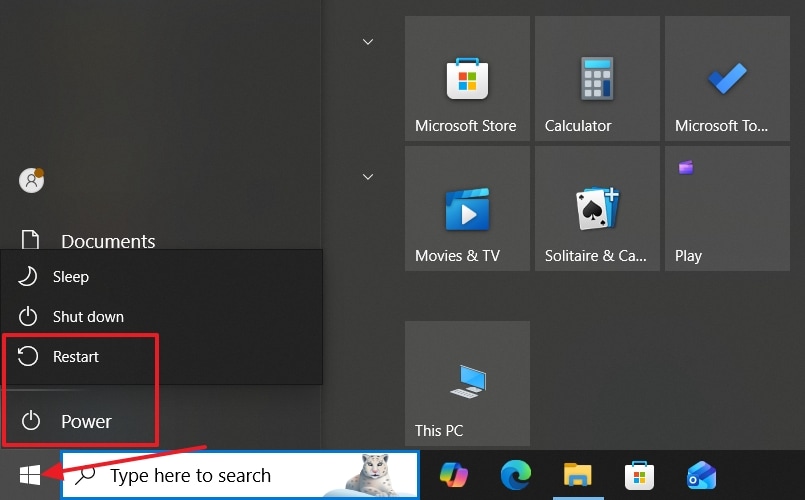
- If Excel is still not synced, press the “Windows” icon in the bottom left and press the “Power” button. Then, hit the “Restart” button to reboot your computer system.
5. Disable Office File Collaboration
OneDrive not Syncing Excel often relates to Office file collaboration settings. This fix provides a single-user editing environment for files that need individual updates. Independent control over workbook versions allows users to address sync issues with minimal risk of conflicting changes in Excel documents. Follow the instructions below to learn how you can disable this feature:
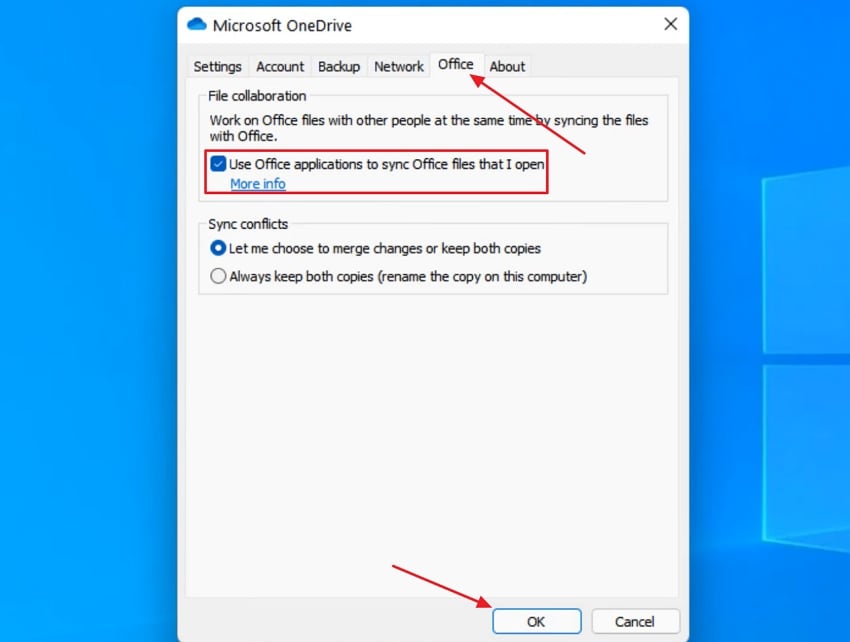
Instructions. First, open the “Help and Settings” pop-up in the OneDrive app. Next, press the “Office” tab on the pop-up and uncheck the “Use Office Applications to Sync Office Files That I Open” option. After that, press the “OK” button to apply this setting.
6. Clear OneDrive and Excel Cache
A cache refresh in OneDrive and Excel can remove outdated temporary files that cause the OneDrive Excel Not Syncing problem. This fix helps applications access and update files without unnecessary delays or system resource conflicts. Regular cache management supports stable workflows for large spreadsheets and synced cloud documents, which is focused as follows:
- Open the “Run” program, type “%localappdata%\Microsoft\OneDrive”, and press the “OK” button.
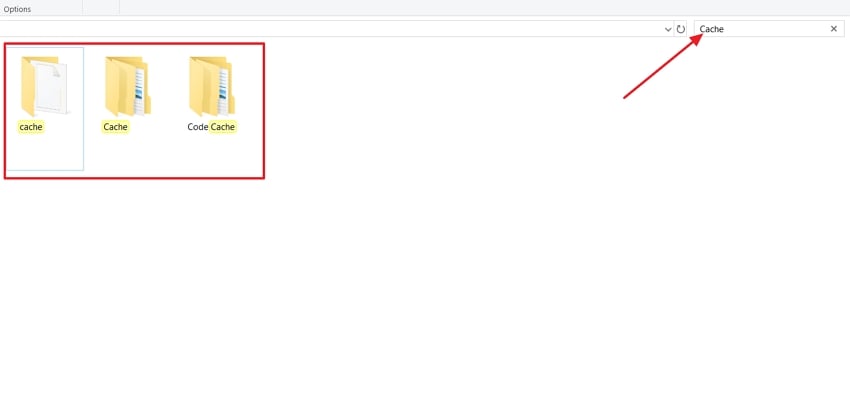
- Type “Cache” in the search bar and delete the folders with the name “Cache.”
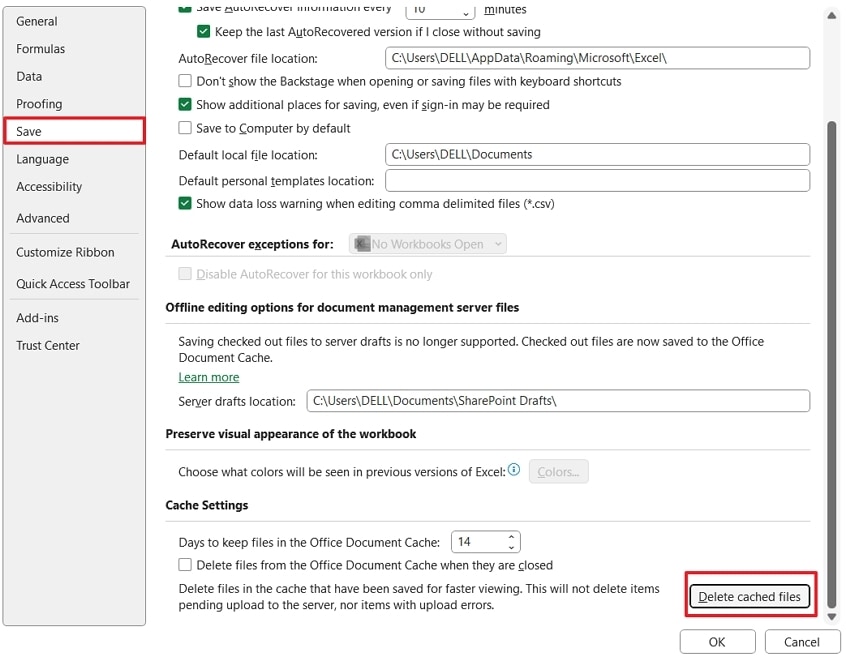
- Open the “Excel” app and access the options window, where you need to access the “Save” section and hit the “Delete Cached Files” option. Check if Excel syncs to OneDrive or not after performing these steps.
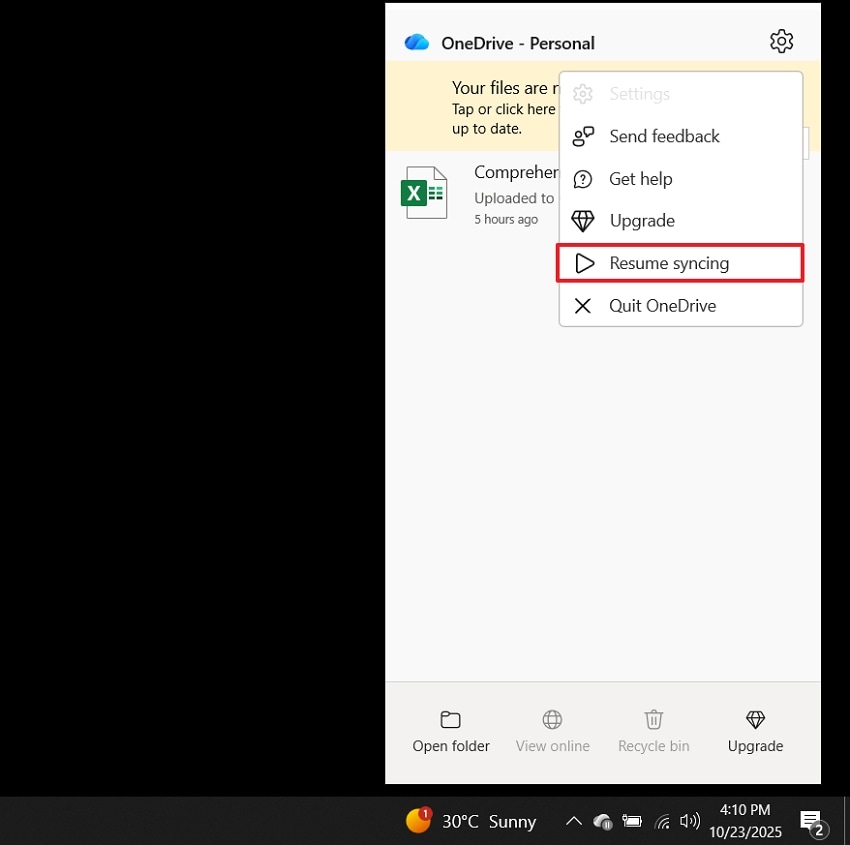
7. Pause and Resume Syncing
If you’ve tried everything, try this method to fix the Excel not syncing to OneDrive cloud issue. Routine use of this fix supports faster recognition of new changes and reconnects stalled file transfers across devices. Excel files regain proper cloud updates and improved data reliability following a controlled sync restart. Now, adhere to the steps below to pause and restart OneDrive sync:
- Access the “Help and Settings” option in OneDrive and hit the “Pause Syncing” button. Press any “Time Duration” to pause the OneDrive syncing.
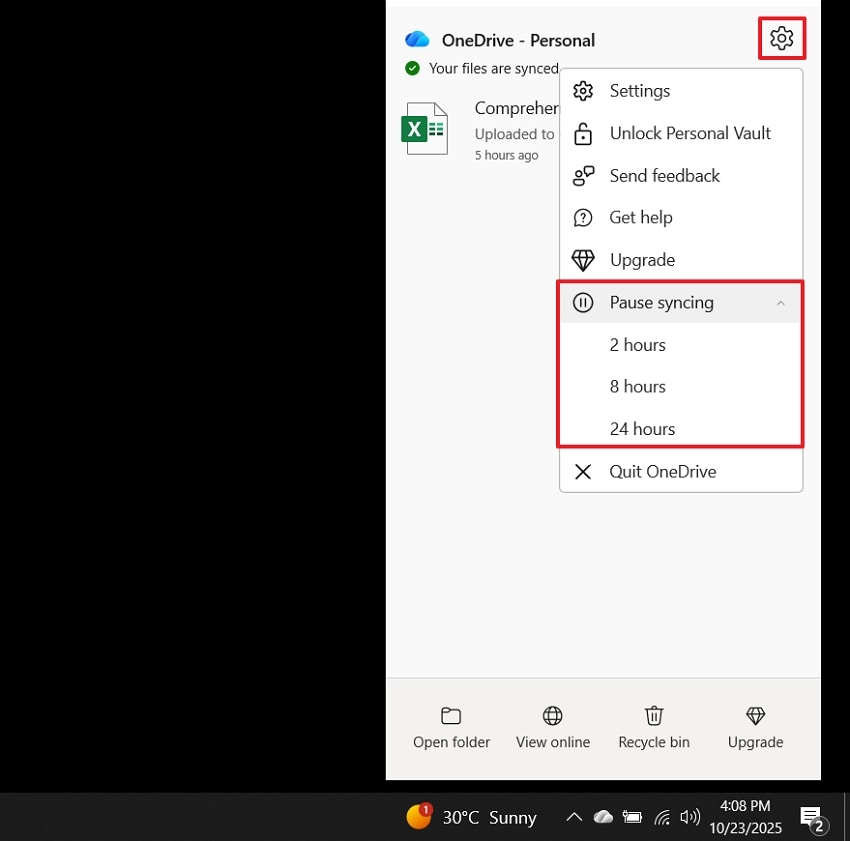
- Now, press the “Resume Syncing” option in the same place to continue syncing.
8. Save the Excel File Locally and Re‑Upload
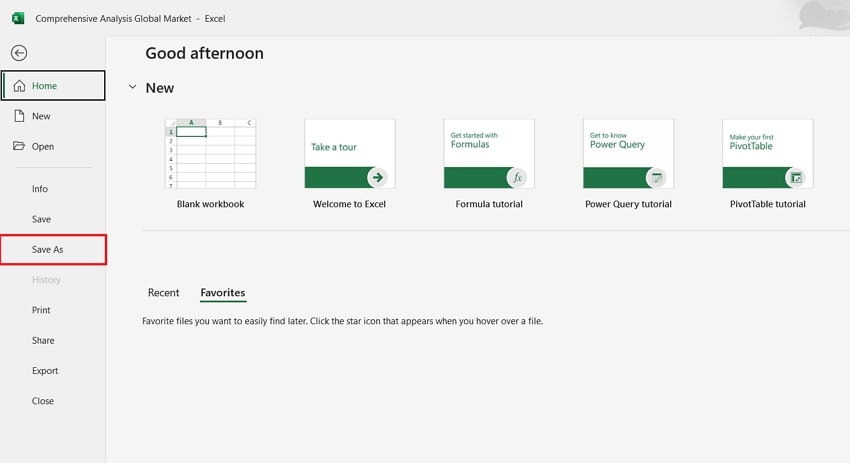
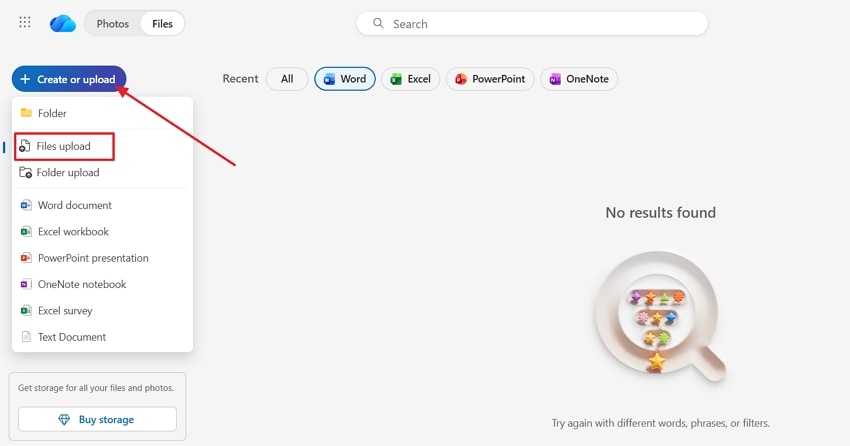
Manual file saving followed by re-uploading is an effective fix for a shard excel file not updating on OneDrive. Fresh uploads let users bypass temporary sync issues and refresh collaboration access for all contributors in the shared document. Now, let’s look at the steps below to see how this method works:
- Open the Excel file in OneDrive and press the “Save As” button to save it in an internal storage drive. After that, delete the Excel file from OneDrive.
- Log in to your OneDrive account on the website and press the “Create or Upload” button. Now, hit the “Files Upload” option and re-upload the saved Excel file.
9. Reset or Reconnect OneDrive
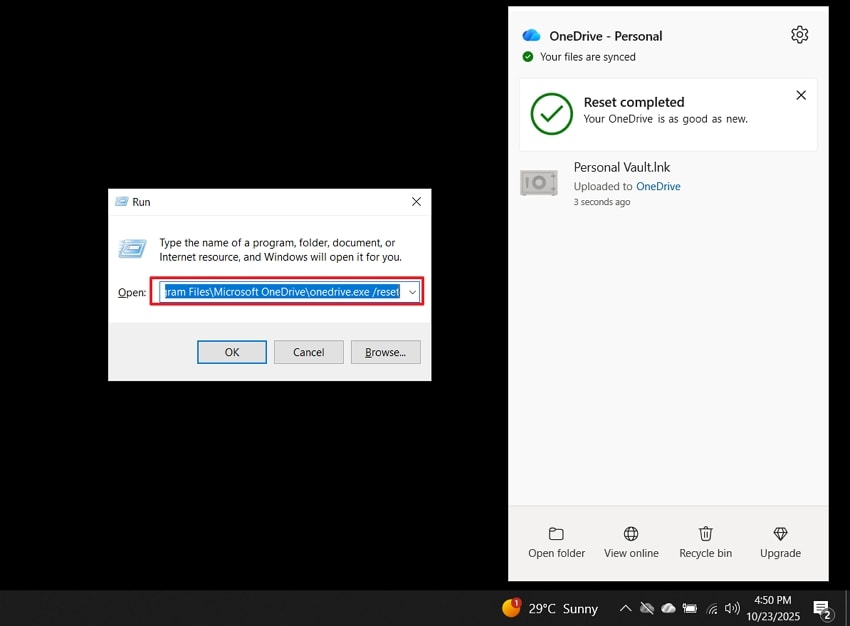
A reset of OneDrive restarts sync relationships and loads fresh connection data. It helps fix excel not syncing to onedrive issues by restoring a clean link between your files and the cloud. Users regain access and proper file syncing after reconnection to avoid complicated troubleshooting steps. Now, follow the steps below to reset OneDrive to fix this problem:
Instructions. First, press the “Windows + R” keys collectively on your keyboard to open the Run box. Next, paste “C:\Program Files\Microsoft OneDrive\onedrive.exe /reset” and press the “Enter” key. It will automatically reset your OneDrive.
10. Update OneDrive and Microsoft Office
After updating OneDrive and Microsoft Office, file compatibility improves for users facing OneDrive not Syncing Excel files. Latest releases provide stronger integration between cloud storage and spreadsheet editing across different devices and platforms. Reliability for real-time saving and file handling expands with every new version of the software. Adhere to the simple steps below to see how this method works:
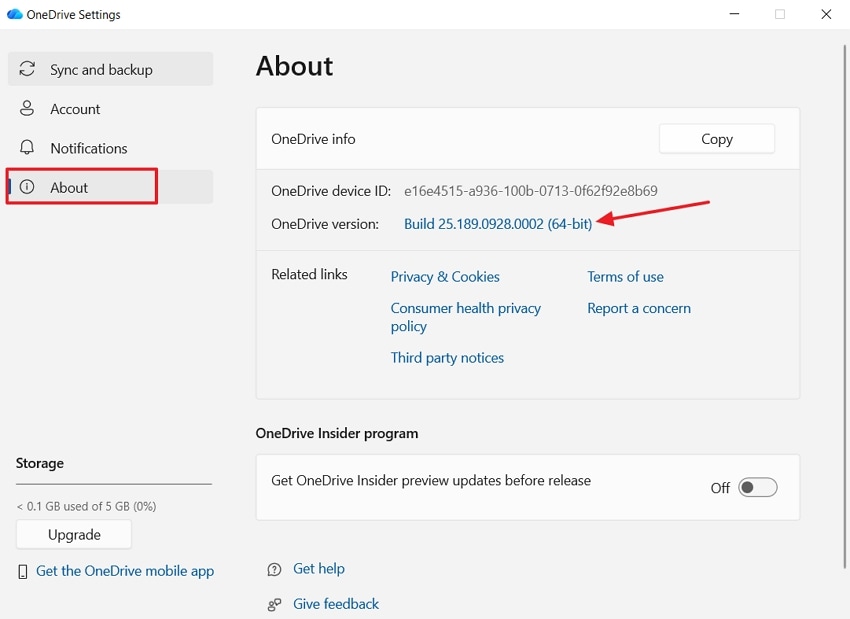
- Access the Settings of OneDrive and press the “About” option. Now, click on the “OneDrive Version” to automatically direct to the official page.
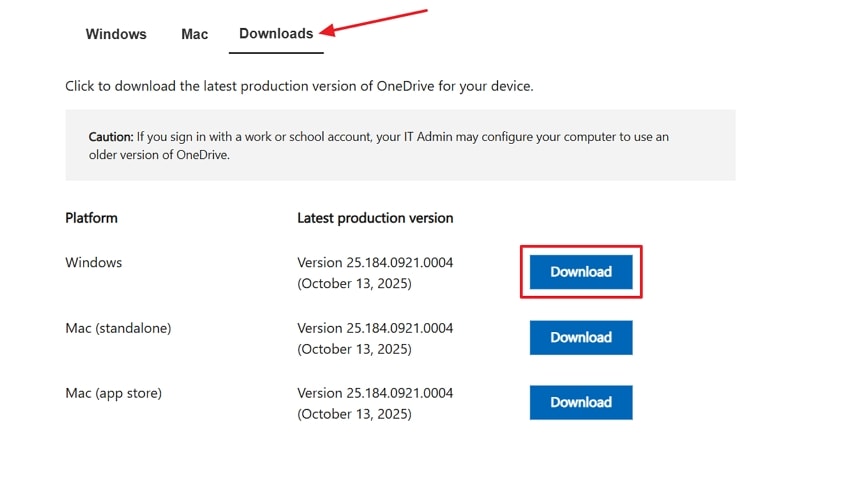
- Hit the “Downloads” tab and locate the “Latest Production Version” for Windows. Now, press the “Download” button. Once downloaded, install the OneDrive to update to the latest version.
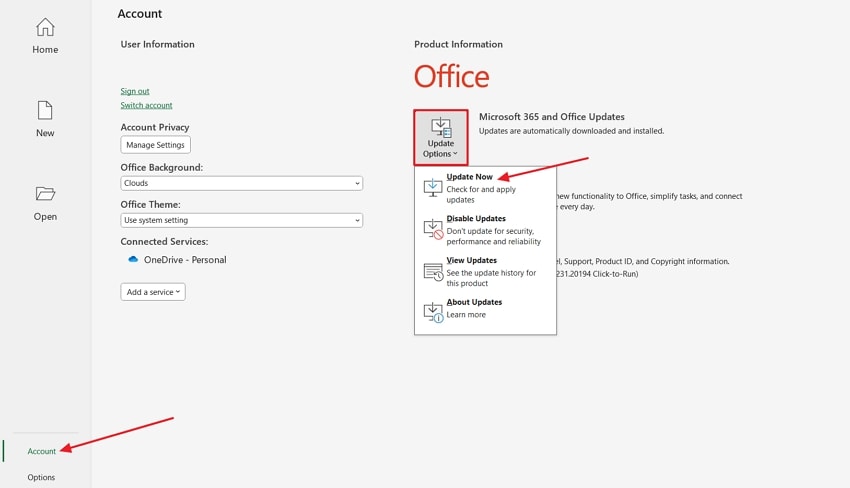
- To update Microsoft Office, open the Excel app first. Head towards the “Account” option and click on the “Update Options” button. Hit the “Update Now” button in the drop-down menu to update all Office apps.
Pro Tip: Safety Precaution: Rescue Lost or Unsynced Excel Files with Recoverit
When the OneDrive Excel Not Syncing problem appears, there is a chance of losing unsaved or important data. File loss can happen due to incomplete uploads or sudden crashes during syncing. Many users look for a reliable recovery tool to restore their Excel files without any damage. This is where Recoverit comes in, which recovers deleted or unsynced Excel files safely from your computer.
Recoverit can recover over 1000 file formats, such as Excel Sheets and backups. It can handle over 10,000 data loss cases from corrupted cache files to interrupted syncs. With AI-powered deep scanning, Recoverit detects unsynced Excel files from local drives and OneDrive directories to keep your
Key Features
- Advanced Search Filers: It narrows down the search results by providing search filers, including file size and file type.
- Deep Scanning: Users can select a particular directory and perform a deep search for deleted files to restore them.
- Preview Before Saving: Recoverit allows its users to view the scanned files in the Preview window before saving them.
Guide to Rescue Lost or Unsynced Excel Files with Wondershare Recoverit
If you face the excel not syncing to onedrive problem and lose important files, follow the steps below to recover them with Wondershare Recoverit:
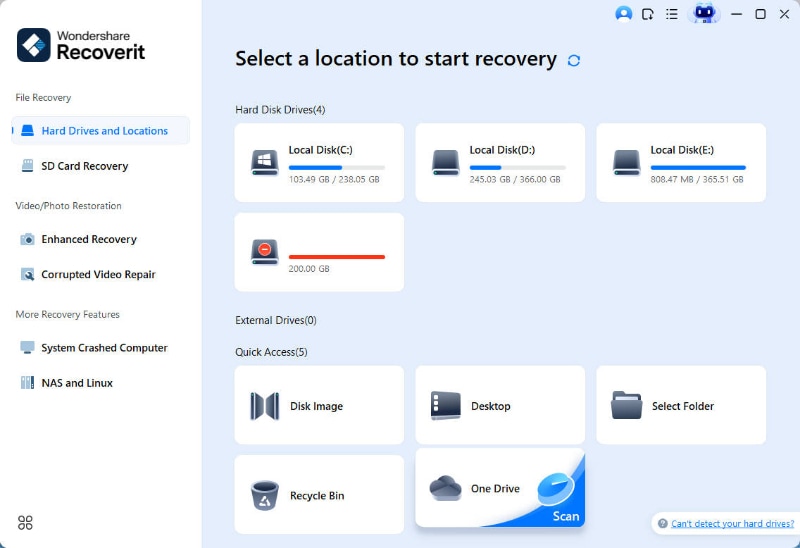
1. Choose OneDrive as the Target Location
On the Recoverit’s main interface, click on the “Other Tools” tab on the left side menu. Press the “OneDrive Recovery” to initiate the data recovery process.
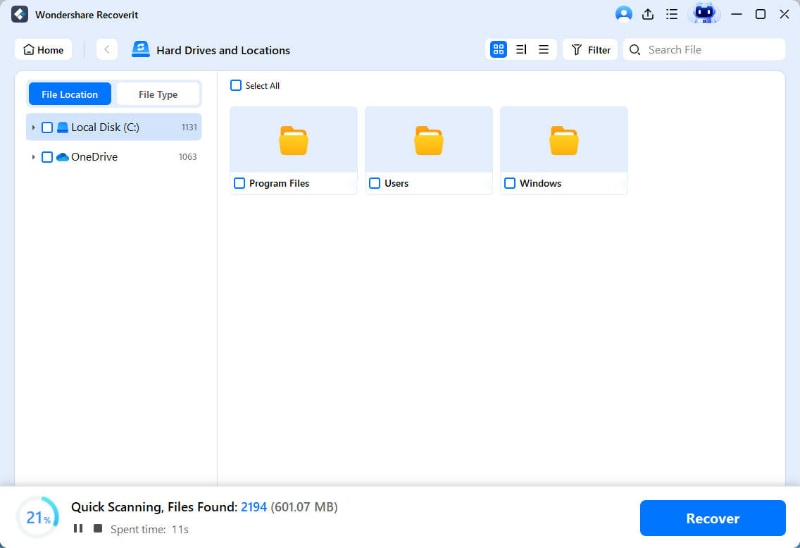
Step 2. Scan the Location
Once the tool shows your unsynced Excel files in the “File Path” panel, pause the scan process.
3. Preview and Save Recovered Files
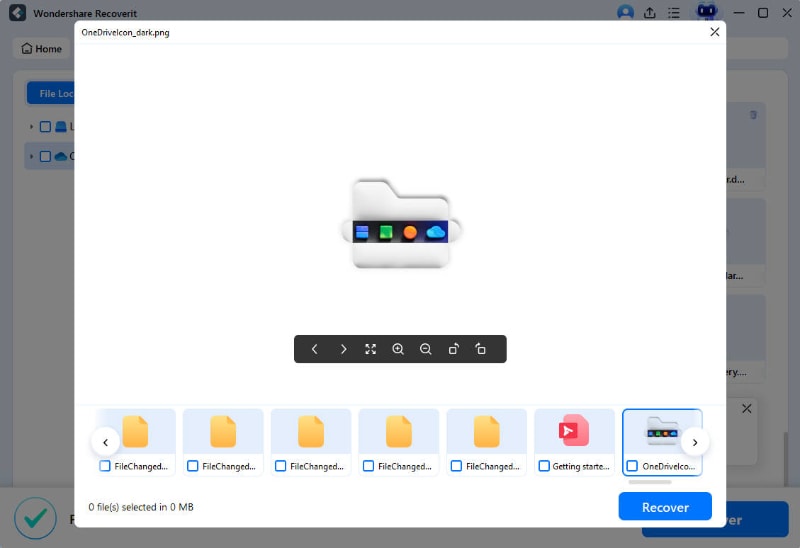
Click on the Excel file to see it in the “Preview” window. If the scanned Excel files seem correct, hit the “Recover” button to export the Excel file.
Conclusion
The excel not syncing to onedrive problem can interrupt important workflows and delay team updates when files stop reflecting recent changes. Therefore, in this article, we discussed the top fixes to overcome syncing issues and keep Excel files updated across all devices. However, if your unsynced Excel file goes missing, we recommend using Recoverit to restore deleted or lost files without quality damage.
FAQ
-
1. How does unsynced Excel data affect formulas shared between users?
Missed updates from one user cause worksheets to show outdated results across devices until a successful sync completes. Manual formula recalculation and version checks maintain accurate data synchronization between different platforms for team collaboration. -
2. What troubleshooting fixes Excel disappearing after OneDrive folder relocation?
Moving OneDrive folders can cause linked Excel files to get lost in new paths or not appear after a refresh. Use Wondershare Recoverit to identify misplaced Excel files in moved or renamed directories for quick recovery. -
3. Can an outdated Excel add-in cause OneDrive sync interruptions?
Older add-ins may disrupt file compatibility and block automatic syncing during workbook editing or cloud transfers. Removing deprecated add-ins also prevents Excel not syncing to OneDrive cloud issues.


