Imagine you’re working on a crucial project, and suddenly your macro-enabled Excel file (.xlsm) becomes corrupted, refusing to open or function properly. This situation can be frustrating and potentially disastrous if critical data or macros are lost. Fortunately, there are straightforward techniques for recovering corrupted .xlsm files with minimal hassle. In this article, we will discuss various methods to recover corrupted macro enabled excel file effortlessly.
Try Recoverit to Perform Excel Data Recovery
Security Verified. 3,591,664 people have downloaded it.
In this article
-
- Check for Malware or Disk Errors
- Restore a Previous Autosaved Version
- Switch Excel to Manual Calculation Mode
- Use Excel’s Built‑In Open and Repair Tool
- Open the File in Google Sheets
- Recover Data via External Reference Linking
- Extract Macros from the File Manually
- Use a Professional Excel Repair Tool – Repairit
- Use Third-Party Recovery Software: Recoverit
Part 1. What's a Macro-Enabled Excel (.xlsm) File?
A macro enabled excel file, with the extension .xlsm, is a workbook that supports embedded macros using Visual Basic for Applications (VBA). Unlike standard Excel files, .xlsm files allow users to automate repetitive tasks. These macros can manipulate data or perform batch operations, making .xlsm files valuable for advanced Excel users and business workflows. Since macros can execute code, these files often require careful handling to prevent security risks.
Part 2. Common Causes of Corruption in Macro-Enabled Excel Files
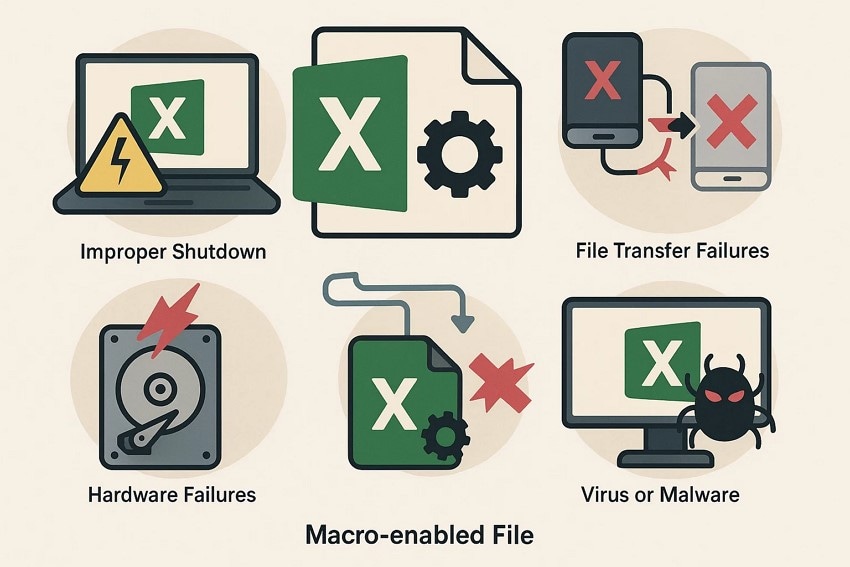
Before diving into recovery techniques, it's important to understand the common causes behind corruption in macro enabled file type in excel. Mentioned below are some of the causes of corruption of Macro-enabled Excel files:
- Improper Shutdown: When Excel or your computer shuts down improperly, files may not save completely, leading to corruption. Unsaved changes can leave the macro-enabled file’s structure incomplete.
- File Transfer Failures: Interruptions during copying or moving Excel files, such as network drops or device removal, can damage files. Incomplete transfers result in missing or corrupted data.
- Hardware Failures: Hard drive issues like bad sectors or failing storage devices can corrupt Excel files stored on them. Memory errors or disk malfunctions disrupt data integrity and corrupt the macro.
- Virus or Malware Attacks: Malicious software can infect Excel files, altering macros or file code, often corrupting or making files unusable.
- Unexpected Power Failures: Losing power during macro execution or file saving disrupts data writes, damaging file components. This often corrupts macro enabled excel file, requiring repair before reuse.

Part 3. Step-by-Step Fixes for Recovering Corrupted Macro-Enabled Excel Files
Having discussed the reasons for .xlsm file corruption, let us now have a look at the fixes that you might consider to recover these files:
1. Check for Malware or Disk Errors
This method involves thoroughly scanning your system and storage devices to uncover issues affecting your macro enabled file type in excel. This includes running antivirus scans to identify and remove malicious software that might be embedded within macros or infecting your files. Follow the instructions mentioned below to learn how to run malware or a disk error.
Instructions. Launch the built-in antivirus software of your system or any other antivirus tool that detects viruses and errors. Once the tool is successfully launched, click the “Check Now” button to begin the scanning process.

2. Restore a Previous Autosaved Version
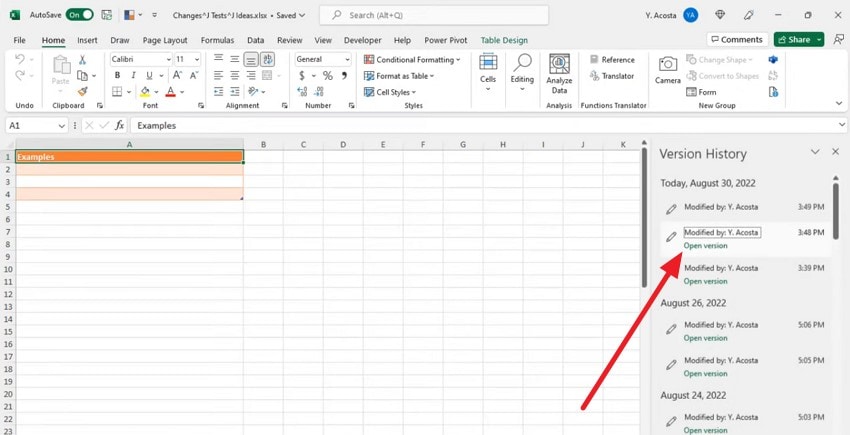
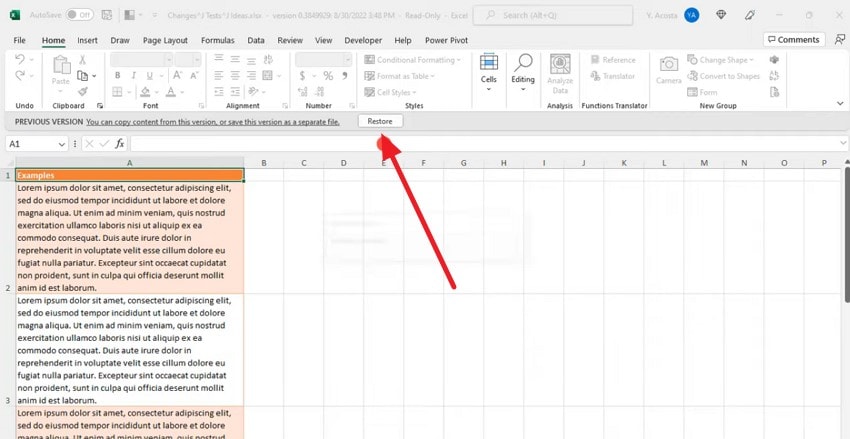
Restoring a previous autosaved version is a recovery method that leverages Excel’s built-in AutoRecover feature. When you reopen Excel after an unexpected closure, it may offer the option to recover these autosaved files. Follow the steps mentioned below to learn how to restore the previous version of the macro enabled excel file using this method:
- Access the version history of the specific file after opening it within the software, and click on the file version of your choice.

- Once the version is opened, click the “Restore” button located at the top of the page to recover the previous autosaved version.
3. Switch Excel to Manual Calculation Mode
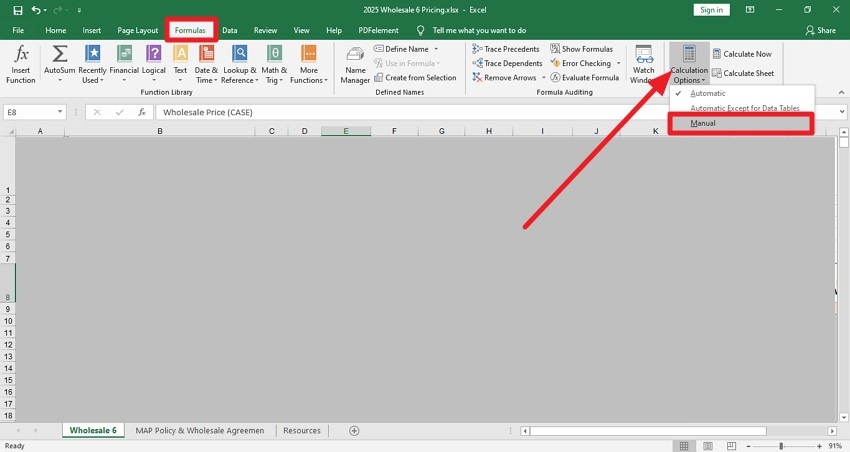
Instead of Excel automatically recalculating all formulas whenever a change is made, manual mode requires the user to trigger recalculations explicitly. This control allows users to prevent constant recalculations when working with complex data. It is particularly useful in managing macro enabled file type in excel that might otherwise become unstable through frequent automatic recalculations. Read the instructions mentioned below to learn how to use this fix for Excel file recovery:
Instructions. After opening the tool, access the “Formulas” ribbon by clicking on the option. Next, expand the “Calculation Options” option and select “Manual” to switch to the manual calculation mode.

4. Use Excel’s Built‑In Open and Repair Tool
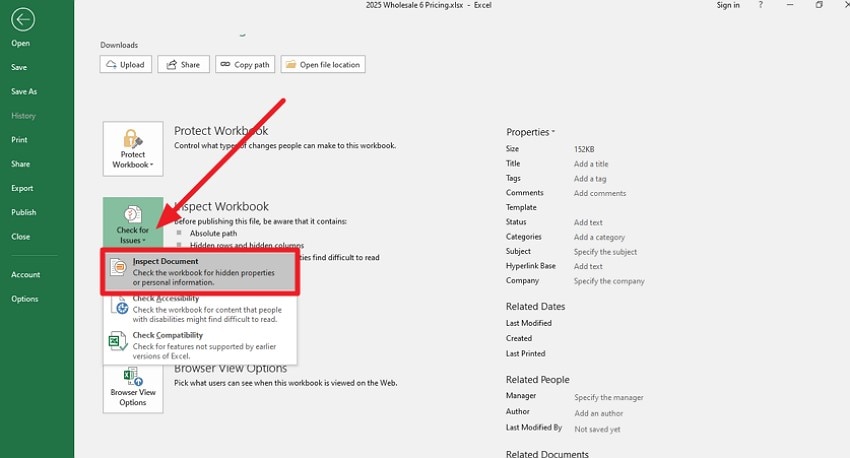
Excel’s built-in Open and Repair tool is a reliable feature designed to fix corrupted Excel files. When activated, it attempts to diagnose issues within the file’s structure and recover as much data as possible. This tool works directly within macro enabled excel file, offering a straightforward approach without requiring third-party applications. Read the steps mentioned below to learn how to see the open and repair tool in Excel:
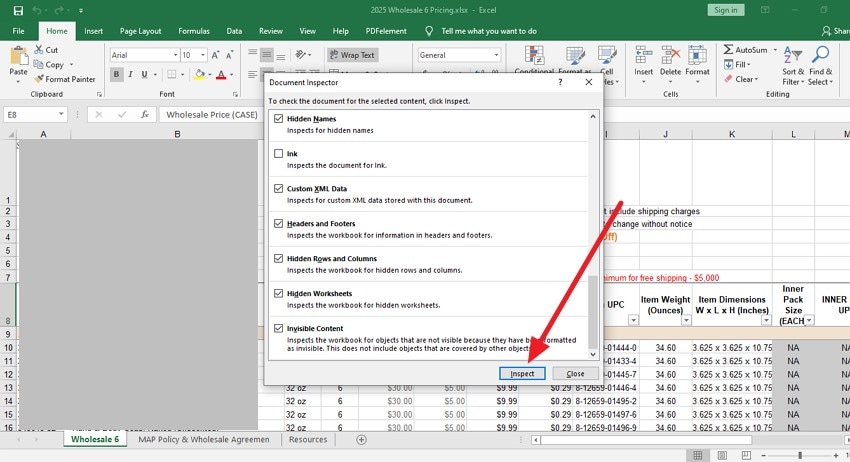
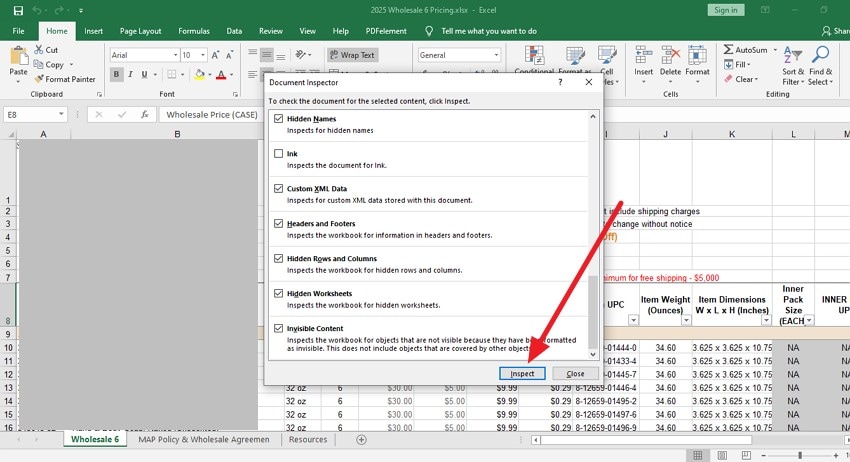
- Head to the “Info” section on the Excel and locate the “Check For Issues” option. Now, expand the option and select the “Inspect Document” option from here.

- In the following interface, select the document content by ticking the checkbox and clicking the “Inspect” button to begin the repair process.

5. Open the File in Google Sheets
This method converts the Excel file into Google Sheets format, allowing you to access and work on the data even if the original file is partially corrupted. While Google Sheets does not support Excel macros, this approach helps recover and salvage the workbook's data and formulas. Follow the steps provided next to learn how to open the file in Google Sheets to recover corrupted macro enabled excel file:
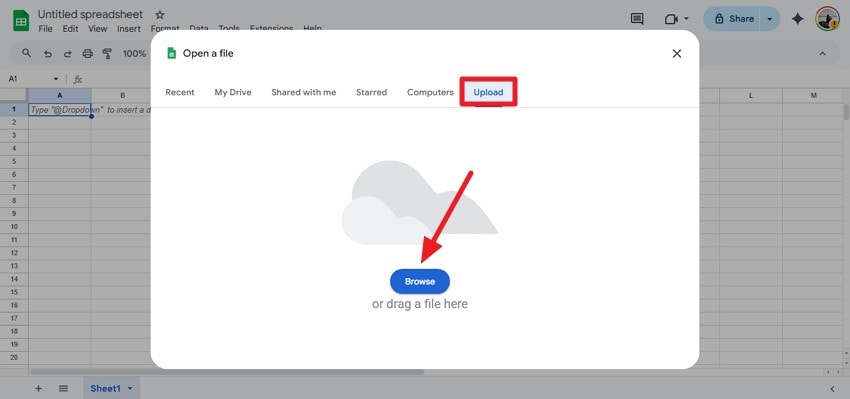
- Open Google Sheets on your browser and press the “File” option from the top left corner. Now, press the “Open” option located on the expanded list.

- Press the “Browse” button under the “Upload” section to successfully add the Excel file to Google Sheets.

6. Recover Data via External Reference Linking
Recovering data via external reference linking involves creating a new Excel workbook that connects to the corrupted macro enabled excel file through external references. This method allows you to salvage data by linking specific cells, ranges, or sheets from the damaged file into a fresh workbook or sheet. Follow the steps mentioned below to learn how to link one sheet to another:
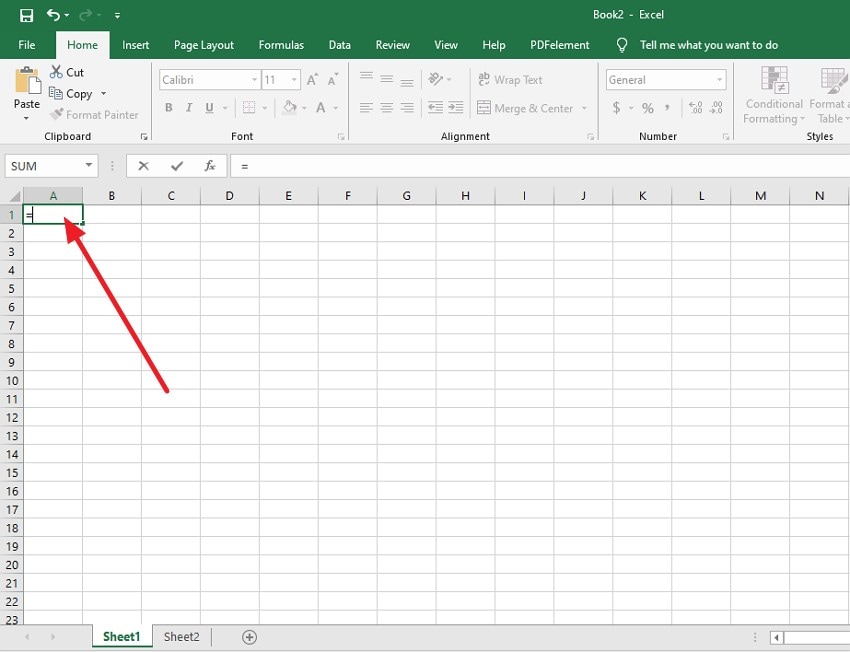
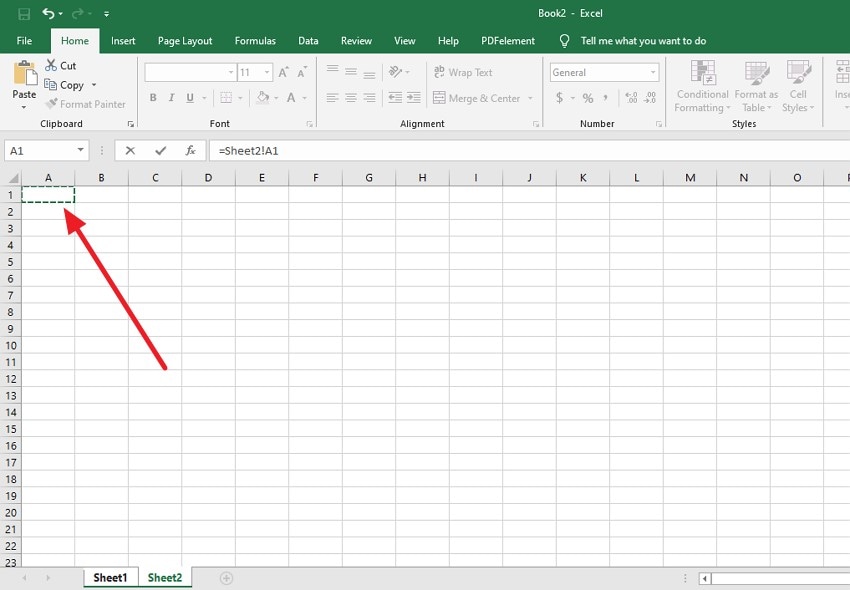
- Start by accessing the cell in the first sheet and typing the “=” symbol within the cell.

- Now, head to the second sheet and select the cell that you want to link and press the “Enter” key.

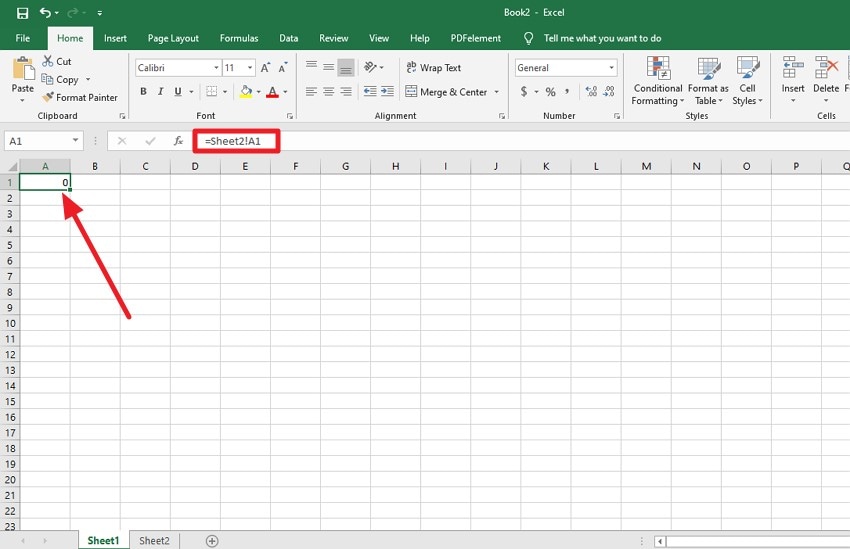
- Once done, review the linking in the first sheet on the formula bar by clicking on the cell.

7. Extract Macros from the File Manually
The method of extracting macros manually involves accessing the VBA environment within Excel to isolate and save code. It centers on navigating the project's structure to find the macro modules. These elements are then exported individually to create backup files independent of the original workbook. To learn how to extract Macros from a macro enabled file type in excel, read the steps mentioned next:
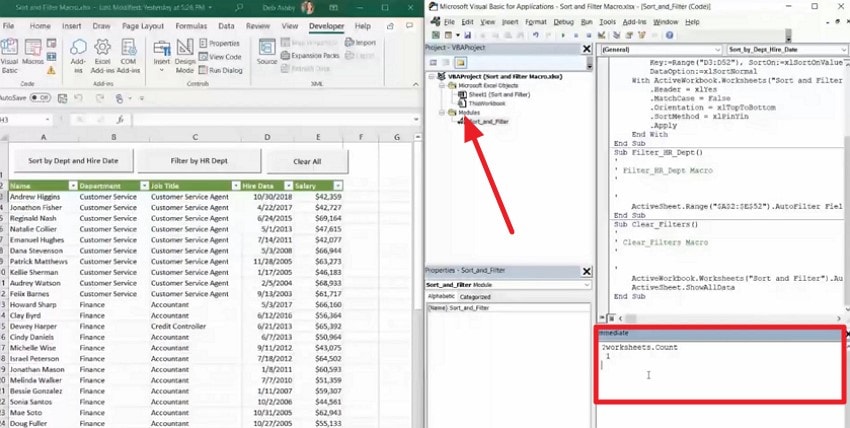
- Start by opening the Excel file and the VBA editor simultaneously. Now press the “Modules” section to open the code on the right. Next, head to the “Immediate” section and type in the code for data extraction.

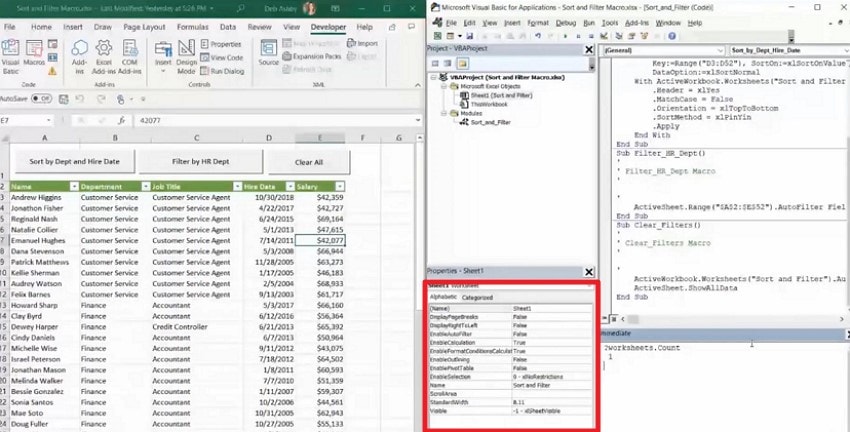
- Once the code is typed, hit the enter key, and the entire data will be extracted within the "Alphabetic" window.

8. Use a Professional Excel Repair Tool – Repairit
If the Macro file is severely corrupted, you can use tools like Repairit to repair your file effortlessly. Repairit excels in repairing files that won’t open, files displaying unreadable content, or those affected by errors and formatting issues. Its user-friendly interface enables batch processing for repairing multiple macro enabled excel file simultaneously, making it accessible for all skill levels.
The tool ensures high success rates by restoring files to their original state quickly and securely on Windows and macOS platforms. Repairit maintains original file integrity without overwriting data during repair, ensuring a no-data-loss experience. Moreover, you can preview the repaired file within the tool’s interface before saving the file to your device.
Step-by-Step Guide to Repair a Macro Excel File With Repairit
As discussed, Repairit is one of the most reliable corrupted data repairing tools. Let us have a look at the step-by-step guide to use this tool:
1. Start By Adding a File
Start by launching the tool on your device and choosing the Document Repair feature. Next, add your corrupted Macro file using the “Add” button located within the interface.

2. Start the Repair Process
Once the file is added, review it within the tool and press the “Repair” button to begin the file repairing process.

3. Preview the Repaired File and Save
When the file is successfully repaired, press the “Preview” button to preview it within the tool’s interface. After you are satisfied with the results, click the “Save” button to successfully save the file to your device.

9. Use Third-Party Recovery Software: Recoverit
If you cannot find the corrupted macro enabled file type in excel within your storage device, use a data recovery tool such as Recoverit. This platform caters to all types of files on your system, including multimedia and documents. This tool has a success rate of 99.5% and ensures that the formatting and quality of your files are not lost during the process.
Users get the ability to start and stop the scanning process according to their preferences. Moreover, you can search for a specific file within the software using the dedicated search bar. It also enables you to save the recovered files in your preferred location.
Coherent Features Offered By Recoverit
- Batch Data Recovery: Users get the ability to recover multiple corrupted files at a time and save time recovering each file separately.
- Advanced Recovery Mode: This mode runs a deep scan within your storage drive and gets back all the severely damaged and lost files in no time.
- Preview Before Saving: Its intuitive interface allows you to preview the recovered file within the tool before saving it to your device.
Step-by-Step Guide to Recover Data Using Recoverit
Having learned about Recoverit in detail, let us have a look at the step-by-step guide to recover corrupted macro enabled excel file using it:
1. Pick The Storage Location To Begin
After launching the tool on your device, select the location of the Macro File within the interface by clicking on it. Once selected, the tool will instantly begin the scanning process within your selected drive.

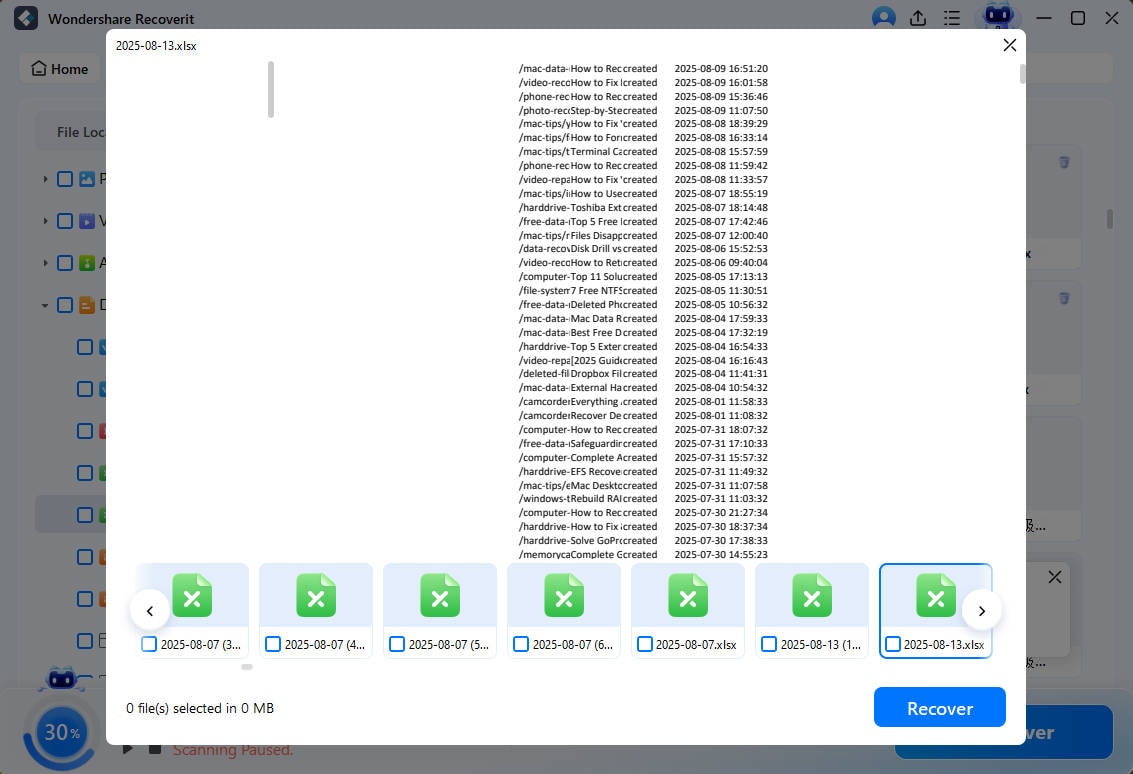
2. Select the File and Press Recover
As the corrupted files and folders appear, select the file that you want to recover from the Recycle Bin and select the “Recover” button to start the process.

3. Preview the Recovered Files to End the Process
When the recovery is completed, double-click the file to preview it, then save it to your desired location on your device.
Part 4. Prevent Macro-Enabled Excel Files from Getting Corrupted
To avoid data loss or deletion, it is wise to prevent corruption proactively. Implementing these best practices can safeguard your macro enabled excel file:
- Keep AutoRecover and AutoBackup Enabled: Enable AutoRecover to save temporary copies at intervals, protecting against unexpected crashes. AutoBackup creates backup copies that you can revert to, minimizing data loss risk.
- Avoid Saving Large Macro Files: Syncing large files can cause file locks and incomplete saves due to network or platform conflicts. Thus, try to avoid saving large Macro files to the cloud storage.
- Always Close Excel Properly: Make sure Excel is closed properly, as it ensures that macros and data are saved completely.
- Maintain Version History: Keeping multiple file versions and backups helps recover from corruption without significant loss.
Conclusion
To wrap it up, this article discusses various methods to recover corrupted macro enabled excel file with minimal effort. However, if you are looking for a trusted and reliable solution to recover severely corrupted files, you can use tools like Recoverit. This data recovery tool runs an in-depth scan to get back highly damaged or lost files in no time.
FAQ
1. What is a macro-enabled Excel (.xlsm) file?
A macro enabled excel file (.xlsm) supports embedded macros written in VBA, allowing automation of repetitive tasks and complex operations within spreadsheets.2. Why do macro-enabled Excel files get corrupted?
Common causes include improper shutdown, file transfer failures, or a software bug that can lead to the corruption of .xlsm files.3. Can I recover a corrupted .xlsm file without losing macros?
Yes, recovery tools like Recoverit can recover both data and macros in no time. The tool performs an in-depth scan within the storage drive to get back all the lost Macro-enabled files.
“I need to reduce an Excel Macro-Enabled Workbook (xlsm) in it’s own file size (right now ~23MB). In terms of content, it’s a file with a lots of formulas, formats, lines with about 40 sheets – it’s a financial model. I’m looking for evidences of file size increase with usage of specific formulas or formats documents, performance documentation and best practices while creating a file…” - Reddit
Imagine you’re working on a crucial project, and suddenly your macro-enabled Excel file (.xlsm) becomes corrupted, refusing to open or function properly. This situation can be frustrating and potentially disastrous if critical data or macros are lost. Fortunately, there are straightforward techniques for recovering corrupted .xlsm files with minimal hassle. In this article, we will discuss various methods to recover corrupted macro enabled excel file effortlessly.
Try Recoverit to Perform Excel Data Recovery
Security Verified. 3,591,664 people have downloaded it.
In this article
-
- Check for Malware or Disk Errors
- Restore a Previous Autosaved Version
- Switch Excel to Manual Calculation Mode
- Use Excel’s Built‑In Open and Repair Tool
- Open the File in Google Sheets
- Recover Data via External Reference Linking
- Extract Macros from the File Manually
- Use a Professional Excel Repair Tool – Repairit

- Use Third-Party Recovery Software: Recoverit

Part 1. What's a Macro-Enabled Excel (.xlsm) File?
A macro enabled excel file, with the extension .xlsm, is a workbook that supports embedded macros using Visual Basic for Applications (VBA). Unlike standard Excel files, .xlsm files allow users to automate repetitive tasks. These macros can manipulate data or perform batch operations, making .xlsm files valuable for advanced Excel users and business workflows. Since macros can execute code, these files often require careful handling to prevent security risks.
Part 2. Common Causes of Corruption in Macro-Enabled Excel Files
Before diving into recovery techniques, it's important to understand the common causes behind corruption in macro enabled file type in excel. Mentioned below are some of the causes of corruption of Macro-enabled Excel files:
- Improper Shutdown: When Excel or your computer shuts down improperly, files may not save completely, leading to corruption. Unsaved changes can leave the macro-enabled file’s structure incomplete.
- File Transfer Failures: Interruptions during copying or moving Excel files, such as network drops or device removal, can damage files. Incomplete transfers result in missing or corrupted data.
- Hardware Failures: Hard drive issues like bad sectors or failing storage devices can corrupt Excel files stored on them. Memory errors or disk malfunctions disrupt data integrity and corrupt the macro.
- Virus or Malware Attacks: Malicious software can infect Excel files, altering macros or file code, often corrupting or making files unusable.
- Unexpected Power Failures: Losing power during macro execution or file saving disrupts data writes, damaging file components. This often corrupts macro enabled excel file, requiring repair before reuse.

Part 3. Step-by-Step Fixes for Recovering Corrupted Macro-Enabled Excel Files
Having discussed the reasons for .xlsm file corruption, let us now have a look at the fixes that you might consider to recover these files:
1. Check for Malware or Disk Errors
This method involves thoroughly scanning your system and storage devices to uncover issues affecting your macro enabled file type in excel. This includes running antivirus scans to identify and remove malicious software that might be embedded within macros or infecting your files. Follow the instructions mentioned below to learn how to run malware or a disk error.
Instructions. Launch the built-in antivirus software of your system or any other antivirus tool that detects viruses and errors. Once the tool is successfully launched, click the “Check Now” button to begin the scanning process.

2. Restore a Previous Autosaved Version
Restoring a previous autosaved version is a recovery method that leverages Excel’s built-in AutoRecover feature. When you reopen Excel after an unexpected closure, it may offer the option to recover these autosaved files. Follow the steps mentioned below to learn how to restore the previous version of the macro enabled excel file using this method:
- Access the version history of the specific file after opening it within the software, and click on the file version of your choice.

- Once the version is opened, click the “Restore” button located at the top of the page to recover the previous autosaved version.

3. Switch Excel to Manual Calculation Mode
Instead of Excel automatically recalculating all formulas whenever a change is made, manual mode requires the user to trigger recalculations explicitly. This control allows users to prevent constant recalculations when working with complex data. It is particularly useful in managing macro enabled file type in excel that might otherwise become unstable through frequent automatic recalculations. Read the instructions mentioned below to learn how to use this fix for Excel file recovery:
Instructions. After opening the tool, access the “Formulas” ribbon by clicking on the option. Next, expand the “Calculation Options” option and select “Manual” to switch to the manual calculation mode.

4. Use Excel’s Built‑In Open and Repair Tool
Excel’s built-in Open and Repair tool is a reliable feature designed to fix corrupted Excel files. When activated, it attempts to diagnose issues within the file’s structure and recover as much data as possible. This tool works directly within macro enabled excel file, offering a straightforward approach without requiring third-party applications. Read the steps mentioned below to learn how to see the open and repair tool in Excel:
- Head to the “Info” section on the Excel and locate the “Check For Issues” option. Now, expand the option and select the “Inspect Document” option from here.

- In the following interface, select the document content by ticking the checkbox and clicking the “Inspect” button to begin the repair process.

5. Open the File in Google Sheets
This method converts the Excel file into Google Sheets format, allowing you to access and work on the data even if the original file is partially corrupted. While Google Sheets does not support Excel macros, this approach helps recover and salvage the workbook's data and formulas. Follow the steps provided next to learn how to open the file in Google Sheets to recover corrupted macro enabled excel file:
- Open Google Sheets on your browser and press the “File” option from the top left corner. Now, press the “Open” option located on the expanded list.

- Press the “Browse” button under the “Upload” section to successfully add the Excel file to Google Sheets.

6. Recover Data via External Reference Linking
Recovering data via external reference linking involves creating a new Excel workbook that connects to the corrupted macro enabled excel file through external references. This method allows you to salvage data by linking specific cells, ranges, or sheets from the damaged file into a fresh workbook or sheet. Follow the steps mentioned below to learn how to link one sheet to another:
- Start by accessing the cell in the first sheet and typing the “=” symbol within the cell.

- Now, head to the second sheet and select the cell that you want to link and press the “Enter” key.

- Once done, review the linking in the first sheet on the formula bar by clicking on the cell.

7. Extract Macros from the File Manually
The method of extracting macros manually involves accessing the VBA environment within Excel to isolate and save code. It centers on navigating the project's structure to find the macro modules. These elements are then exported individually to create backup files independent of the original workbook. To learn how to extract Macros from a macro enabled file type in excel, read the steps mentioned next:
- Start by opening the Excel file and the VBA editor simultaneously. Now press the “Modules” section to open the code on the right. Next, head to the “Immediate” section and type in the code for data extraction.

- Once the code is typed, hit the enter key, and the entire data will be extracted within the "Alphabetic" window.

8. Use a Professional Excel Repair Tool – Repairit
If the Macro file is severely corrupted, you can use tools like Repairit to repair your file effortlessly. Repairit excels in repairing files that won’t open, files displaying unreadable content, or those affected by errors and formatting issues. Its user-friendly interface enables batch processing for repairing multiple macro enabled excel file simultaneously, making it accessible for all skill levels.
The tool ensures high success rates by restoring files to their original state quickly and securely on Windows and macOS platforms. Repairit maintains original file integrity without overwriting data during repair, ensuring a no-data-loss experience. Moreover, you can preview the repaired file within the tool’s interface before saving the file to your device.
Step-by-Step Guide to Repair a Macro Excel File With Repairit
As discussed, Repairit is one of the most reliable corrupted data repairing tools. Let us have a look at the step-by-step guide to use this tool:
1. Start By Adding a File
Start by launching the tool on your device and choosing the Document Repair feature. Next, add your corrupted Macro file using the “Add” button located within the interface.

2. Start the Repair Process
Once the file is added, review it within the tool and press the “Repair” button to begin the file repairing process.

3. Preview the Repaired File and Save
When the file is successfully repaired, press the “Preview” button to preview it within the tool’s interface. After you are satisfied with the results, click the “Save” button to successfully save the file to your device.

9. Use Third-Party Recovery Software: Recoverit
If you cannot find the corrupted macro enabled file type in excel within your storage device, use a data recovery tool such as Recoverit. This platform caters to all types of files on your system, including multimedia and documents. This tool has a success rate of 99.5% and ensures that the formatting and quality of your files are not lost during the process.
Users get the ability to start and stop the scanning process according to their preferences. Moreover, you can search for a specific file within the software using the dedicated search bar. It also enables you to save the recovered files in your preferred location.
Coherent Features Offered By Recoverit
- Batch Data Recovery: Users get the ability to recover multiple corrupted files at a time and save time recovering each file separately.
- Advanced Recovery Mode: This mode runs a deep scan within your storage drive and gets back all the severely damaged and lost files in no time.
- Preview Before Saving: Its intuitive interface allows you to preview the recovered file within the tool before saving it to your device.
Step-by-Step Guide to Recover Data Using Recoverit
Having learned about Recoverit in detail, let us have a look at the step-by-step guide to recover corrupted macro enabled excel file using it:
1. Pick The Storage Location To Begin
After launching the tool on your device, select the location of the Macro File within the interface by clicking on it. Once selected, the tool will instantly begin the scanning process within your selected drive.

2. Select the File and Press Recover
As the corrupted files and folders appear, select the file that you want to recover from the Recycle Bin and select the “Recover” button to start the process.

3. Preview the Recovered Files to End the Process
When the recovery is completed, double-click the file to preview it, then save it to your desired location on your device.

Part 4. Prevent Macro-Enabled Excel Files from Getting Corrupted
To avoid data loss or deletion, it is wise to prevent corruption proactively. Implementing these best practices can safeguard your macro enabled excel file:
- Keep AutoRecover and AutoBackup Enabled: Enable AutoRecover to save temporary copies at intervals, protecting against unexpected crashes. AutoBackup creates backup copies that you can revert to, minimizing data loss risk.
- Avoid Saving Large Macro Files: Syncing large files can cause file locks and incomplete saves due to network or platform conflicts. Thus, try to avoid saving large Macro files to the cloud storage.
- Always Close Excel Properly: Make sure Excel is closed properly, as it ensures that macros and data are saved completely.
- Maintain Version History: Keeping multiple file versions and backups helps recover from corruption without significant loss.
Conclusion
To wrap it up, this article discusses various methods to recover corrupted macro enabled excel file with minimal effort. However, if you are looking for a trusted and reliable solution to recover severely corrupted files, you can use tools like Recoverit. This data recovery tool runs an in-depth scan to get back highly damaged or lost files in no time.
FAQ
-
1. What is a macro-enabled Excel (.xlsm) file?
A macro enabled excel file (.xlsm) supports embedded macros written in VBA, allowing automation of repetitive tasks and complex operations within spreadsheets. -
2. Why do macro-enabled Excel files get corrupted?
Common causes include improper shutdown, file transfer failures, or a software bug that can lead to the corruption of .xlsm files. -
3. Can I recover a corrupted .xlsm file without losing macros?
Yes, recovery tools like Recoverit can recover both data and macros in no time. The tool performs an in-depth scan within the storage drive to get back all the lost Macro-enabled files.
“I need to reduce an Excel Macro-Enabled Workbook (xlsm) in it’s own file size (right now ~23MB). In terms of content, it’s a file with a lots of formulas, formats, lines with about 40 sheets – it’s a financial model. I’m looking for evidences of file size increase with usage of specific formulas or formats documents, performance documentation and best practices while creating a file…” - Reddit
Imagine you’re working on a crucial project, and suddenly your macro-enabled Excel file (.xlsm) becomes corrupted, refusing to open or function properly. This situation can be frustrating and potentially disastrous if critical data or macros are lost. Fortunately, there are straightforward techniques for recovering corrupted .xlsm files with minimal hassle. In this article, we will discuss various methods to recover corrupted macro enabled excel file effortlessly.

Try Recoverit to Perform Excel Data Recovery
Security Verified. 3,591,664 people have downloaded it.
In this article
-
- Check for Malware or Disk Errors
- Restore a Previous Autosaved Version
- Switch Excel to Manual Calculation Mode
- Use Excel’s Built‑In Open and Repair Tool
- Open the File in Google Sheets
- Recover Data via External Reference Linking
- Extract Macros from the File Manually
- Use a Professional Excel Repair Tool – Repairit

- Use Third-Party Recovery Software: Recoverit

Part 1. What's a Macro-Enabled Excel (.xlsm) File?
A macro enabled excel file, with the extension .xlsm, is a workbook that supports embedded macros using Visual Basic for Applications (VBA). Unlike standard Excel files, .xlsm files allow users to automate repetitive tasks. These macros can manipulate data or perform batch operations, making .xlsm files valuable for advanced Excel users and business workflows. Since macros can execute code, these files often require careful handling to prevent security risks.
Part 2. Common Causes of Corruption in Macro-Enabled Excel Files
Before diving into recovery techniques, it's important to understand the common causes behind corruption in macro enabled file type in excel. Mentioned below are some of the causes of corruption of Macro-enabled Excel files:
- Improper Shutdown: When Excel or your computer shuts down improperly, files may not save completely, leading to corruption. Unsaved changes can leave the macro-enabled file’s structure incomplete.
- File Transfer Failures: Interruptions during copying or moving Excel files, such as network drops or device removal, can damage files. Incomplete transfers result in missing or corrupted data.
- Hardware Failures: Hard drive issues like bad sectors or failing storage devices can corrupt Excel files stored on them. Memory errors or disk malfunctions disrupt data integrity and corrupt the macro.
- Virus or Malware Attacks: Malicious software can infect Excel files, altering macros or file code, often corrupting or making files unusable.
- Unexpected Power Failures: Losing power during macro execution or file saving disrupts data writes, damaging file components. This often corrupts macro enabled excel file, requiring repair before reuse.

Part 3. Step-by-Step Fixes for Recovering Corrupted Macro-Enabled Excel Files
Having discussed the reasons for .xlsm file corruption, let us now have a look at the fixes that you might consider to recover these files:
1. Check for Malware or Disk Errors
This method involves thoroughly scanning your system and storage devices to uncover issues affecting your macro enabled file type in excel. This includes running antivirus scans to identify and remove malicious software that might be embedded within macros or infecting your files. Follow the instructions mentioned below to learn how to run malware or a disk error.
Instructions. Launch the built-in antivirus software of your system or any other antivirus tool that detects viruses and errors. Once the tool is successfully launched, click the “Check Now” button to begin the scanning process.

2. Restore a Previous Autosaved Version
Restoring a previous autosaved version is a recovery method that leverages Excel’s built-in AutoRecover feature. When you reopen Excel after an unexpected closure, it may offer the option to recover these autosaved files. Follow the steps mentioned below to learn how to restore the previous version of the macro enabled excel file using this method:
- Access the version history of the specific file after opening it within the software, and click on the file version of your choice.

- Once the version is opened, click the “Restore” button located at the top of the page to recover the previous autosaved version.

3. Switch Excel to Manual Calculation Mode
Instead of Excel automatically recalculating all formulas whenever a change is made, manual mode requires the user to trigger recalculations explicitly. This control allows users to prevent constant recalculations when working with complex data. It is particularly useful in managing macro enabled file type in excel that might otherwise become unstable through frequent automatic recalculations. Read the instructions mentioned below to learn how to use this fix for Excel file recovery:
Instructions. After opening the tool, access the “Formulas” ribbon by clicking on the option. Next, expand the “Calculation Options” option and select “Manual” to switch to the manual calculation mode.

4. Use Excel’s Built‑In Open and Repair Tool
Excel’s built-in Open and Repair tool is a reliable feature designed to fix corrupted Excel files. When activated, it attempts to diagnose issues within the file’s structure and recover as much data as possible. This tool works directly within macro enabled excel file, offering a straightforward approach without requiring third-party applications. Read the steps mentioned below to learn how to see the open and repair tool in Excel:
- Head to the “Info” section on the Excel and locate the “Check For Issues” option. Now, expand the option and select the “Inspect Document” option from here.

- In the following interface, select the document content by ticking the checkbox and clicking the “Inspect” button to begin the repair process.

5. Open the File in Google Sheets
This method converts the Excel file into Google Sheets format, allowing you to access and work on the data even if the original file is partially corrupted. While Google Sheets does not support Excel macros, this approach helps recover and salvage the workbook's data and formulas. Follow the steps provided next to learn how to open the file in Google Sheets to recover corrupted macro enabled excel file:
- Open Google Sheets on your browser and press the “File” option from the top left corner. Now, press the “Open” option located on the expanded list.

- Press the “Browse” button under the “Upload” section to successfully add the Excel file to Google Sheets.

6. Recover Data via External Reference Linking
Recovering data via external reference linking involves creating a new Excel workbook that connects to the corrupted macro enabled excel file through external references. This method allows you to salvage data by linking specific cells, ranges, or sheets from the damaged file into a fresh workbook or sheet. Follow the steps mentioned below to learn how to link one sheet to another:
- Start by accessing the cell in the first sheet and typing the “=” symbol within the cell.

- Now, head to the second sheet and select the cell that you want to link and press the “Enter” key.

- Once done, review the linking in the first sheet on the formula bar by clicking on the cell.

7. Extract Macros from the File Manually
The method of extracting macros manually involves accessing the VBA environment within Excel to isolate and save code. It centers on navigating the project's structure to find the macro modules. These elements are then exported individually to create backup files independent of the original workbook. To learn how to extract Macros from a macro enabled file type in excel, read the steps mentioned next:
- Start by opening the Excel file and the VBA editor simultaneously. Now press the “Modules” section to open the code on the right. Next, head to the “Immediate” section and type in the code for data extraction.

- Once the code is typed, hit the enter key, and the entire data will be extracted within the "Alphabetic" window.

8. Use a Professional Excel Repair Tool – Repairit
If the Macro file is severely corrupted, you can use tools like Repairit to repair your file effortlessly. Repairit excels in repairing files that won’t open, files displaying unreadable content, or those affected by errors and formatting issues. Its user-friendly interface enables batch processing for repairing multiple macro enabled excel file simultaneously, making it accessible for all skill levels.
The tool ensures high success rates by restoring files to their original state quickly and securely on Windows and macOS platforms. Repairit maintains original file integrity without overwriting data during repair, ensuring a no-data-loss experience. Moreover, you can preview the repaired file within the tool’s interface before saving the file to your device.
Step-by-Step Guide to Repair a Macro Excel File With Repairit
As discussed, Repairit is one of the most reliable corrupted data repairing tools. Let us have a look at the step-by-step guide to use this tool:
1. Start By Adding a File
Start by launching the tool on your device and choosing the Document Repair feature. Next, add your corrupted Macro file using the “Add” button located within the interface.

2. Start the Repair Process
Once the file is added, review it within the tool and press the “Repair” button to begin the file repairing process.

3. Preview the Repaired File and Save
When the file is successfully repaired, press the “Preview” button to preview it within the tool’s interface. After you are satisfied with the results, click the “Save” button to successfully save the file to your device.

9. Use Third-Party Recovery Software: Recoverit
If you cannot find the corrupted macro enabled file type in excel within your storage device, use a data recovery tool such as Recoverit. This platform caters to all types of files on your system, including multimedia and documents. This tool has a success rate of 99.5% and ensures that the formatting and quality of your files are not lost during the process.
Users get the ability to start and stop the scanning process according to their preferences. Moreover, you can search for a specific file within the software using the dedicated search bar. It also enables you to save the recovered files in your preferred location.
Coherent Features Offered By Recoverit
- Batch Data Recovery: Users get the ability to recover multiple corrupted files at a time and save time recovering each file separately.
- Advanced Recovery Mode: This mode runs a deep scan within your storage drive and gets back all the severely damaged and lost files in no time.
- Preview Before Saving: Its intuitive interface allows you to preview the recovered file within the tool before saving it to your device.
Step-by-Step Guide to Recover Data Using Recoverit
Having learned about Recoverit in detail, let us have a look at the step-by-step guide to recover corrupted macro enabled excel file using it:
1. Pick The Storage Location To Begin
After launching the tool on your device, select the location of the Macro File within the interface by clicking on it. Once selected, the tool will instantly begin the scanning process within your selected drive.

2. Select the File and Press Recover
As the corrupted files and folders appear, select the file that you want to recover from the Recycle Bin and select the “Recover” button to start the process.

3. Preview the Recovered Files to End the Process
When the recovery is completed, double-click the file to preview it, then save it to your desired location on your device.

Part 4. Prevent Macro-Enabled Excel Files from Getting Corrupted
To avoid data loss or deletion, it is wise to prevent corruption proactively. Implementing these best practices can safeguard your macro enabled excel file:
- Keep AutoRecover and AutoBackup Enabled: Enable AutoRecover to save temporary copies at intervals, protecting against unexpected crashes. AutoBackup creates backup copies that you can revert to, minimizing data loss risk.
- Avoid Saving Large Macro Files: Syncing large files can cause file locks and incomplete saves due to network or platform conflicts. Thus, try to avoid saving large Macro files to the cloud storage.
- Always Close Excel Properly: Make sure Excel is closed properly, as it ensures that macros and data are saved completely.
- Maintain Version History: Keeping multiple file versions and backups helps recover from corruption without significant loss.
Conclusion
To wrap it up, this article discusses various methods to recover corrupted macro enabled excel file with minimal effort. However, if you are looking for a trusted and reliable solution to recover severely corrupted files, you can use tools like Recoverit. This data recovery tool runs an in-depth scan to get back highly damaged or lost files in no time.
FAQ
-
1. What is a macro-enabled Excel (.xlsm) file?
A macro enabled excel file (.xlsm) supports embedded macros written in VBA, allowing automation of repetitive tasks and complex operations within spreadsheets. -
2. Why do macro-enabled Excel files get corrupted?
Common causes include improper shutdown, file transfer failures, or a software bug that can lead to the corruption of .xlsm files. -
3. Can I recover a corrupted .xlsm file without losing macros?
Yes, recovery tools like Recoverit can recover both data and macros in no time. The tool performs an in-depth scan within the storage drive to get back all the lost Macro-enabled files.