

 TL;DR:
A .lnk file is a Windows-exclusive shortcut containing only path metadata rather than actual data, meaning it cannot be opened or executed natively on macOS.
● You can view the original file's target path by opening the .lnk file in a Mac text editor or using the Terminal to manually locate the real data.
● To properly interact with the shortcut's intended destination, you must use a native Windows PC or a virtual machine like Parallels or VMware.
● If the original target files are missing or the shortcut is corrupted after a USB transfer, you must use third-party software like Recoverit to restore the lost data or Repairit to fix the file.
Ask AI for a summary
 ChatGPT
 Perplexity
 Gemini
 Claude
 Grok
Grok
Users often encounter a .lnk file after transferring data from a Windows PC to a Mac, only to find that it won’t open as expected. Instead of launching a document or application, macOS treats it as an unfamiliar file type. This confusion usually interrupts workflows, especially when important shortcuts are involved. To clear up the uncertainty, it’s essential to understand what is .lnk file, how it functions in Windows.
This guide breaks down the nature of .lnk files, explains what they actually contain, and shows how Mac users can safely access the information linked within them.
Try Recoverit to Perform .lnk File Recovery
 Security Verified. 3,591,664 people have downloaded it.
In this article

Part 1. Getting Started: What You Need to Know About .lnk Files
LNK files are Windows shortcut files created to point to programs, folders, or documents without storing the actual data. Since they only contain linking instructions, they often appear useless when transferred to macOS.
In some cases, .lnk files are associated with malware, as cybercriminals can abuse them on Windows to redirect users to malicious scripts. However, the file type itself is not inherently harmful. On a Mac, these files cannot be truly opened or executed because macOS does not support Windows shortcut functionality.

How .lnk Files Work
To understand their behavior, it’s important to see what is .lnk extension and how it functions at a system level. They are designed exclusively for Windows, which explains why macOS cannot process them as intended.
Shortcut vs. Original Files
| Aspects | Shortcut Files (.lnk) | Original Files |
|---|---|---|
| Purpose | Acts as a pointer that redirects to another file or location. Sometimes associated with malware. | Contains the actual data or content |
| File Content | Stores only path information and metadata | Stores real information such as text, media, or program data |
| Usability on macOS | Cannot be opened or executed on a Mac | Can be opened normally if the format is macOS-compatible |
| Risk of Misuse | Can be abused on Windows to redirect to malicious scripts | Not inherently risky when opened from a trusted source |
| Dependency | Requires the original file to exist at the specified path | Works independently without external references |
Metadata Stored in .lnk Files
- Source path of a file and its time tags (Full path, Target file access time (UTC), Target file creation time (UTC), Target file modification time (UTC)),
- Drive type,
- Volume serial number (Drive serial number),
- Volume label,
- Target file size (bytes), i.e., the size of the file with which the shortcut is associated.
Limitations of .lnk Files on macOS
As .lnk files are designed specifically for Windows, macOS users often encounter issues when trying to interact with them. Understanding these limitations helps users handle .lnk files safely and find alternative ways to access the original content. After understanding what is .lnk extension, explore its limitations on Mac:
- Incompatibility: macOS cannot interpret the shortcut instructions stored in .lnk files. As a result, double-clicking a .lnk file will not open the linked program or document.
- No Access to Original Content: The actual data resides in the original file, not the .lnk file itself. Without access to the original file on Windows, the shortcut is effectively useless on a Mac.
- Potential Security Risks: Some .lnk files can be exploited as malware on Windows systems. While macOS won’t execute them, transferring unknown shortcuts can still pose a security concern if opened on Windows later.
- Limited Preview Options: Mac file explorers cannot display the target path or linked content directly. Users need special tools or manual inspection to understand what the shortcut points to.
Location of .lnk File Format
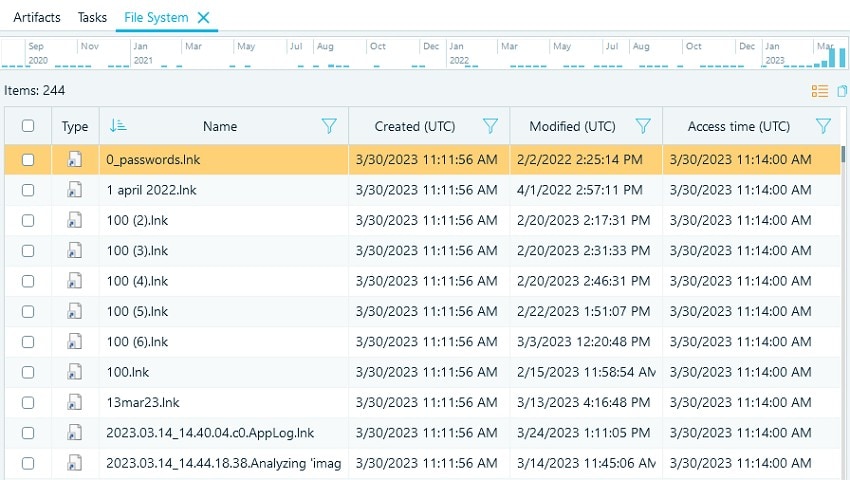
Since .lnk files are created dynamically, their storage locations vary depending on user actions. Understanding these paths helps users manage shortcuts, troubleshoot missing icons, and identify system behavior. This section explains where Windows stores .lnk shortcut files and what is .lnk file:
Typically, most LNK files are stored in the following locations on Windows systems:
- Windows 7 to Windows 11: C:\Users\%USERNAME%\AppData\Roaming\Microsoft\Windows\Recent
- Windows XP: C:\Documents and Settings\%USERNAME%\Recent
Beyond these default paths, LNK files can also appear in several other locations, depending on user behavior and system activity:
- Desktop: Shortcuts placed here are usually created by users for quick access to frequently used files or applications.
- Microsoft Office Recent Folder (Windows 7 to 11): C:\Users\%USERNAME%\AppData\Roaming\Microsoft\Office\Recent\, where shortcuts to recently opened Office documents are stored.
- Downloads Folder (Windows 7 to 11): C:\Users\%USERNAME%\Downloads, as users sometimes share shortcuts via email instead of actual files, leading recipients to download the LNK files rather than the original documents.
Where They are Created
LNK files are generated automatically by Windows and stored in areas such as “Recent Files” or “Quick Access” within File Explorer to track recently opened items. Users can also create them manually when needed by right-clicking a file, folder, or application and choosing the “Create Shortcut” option. In both cases, the shortcut simply points to the original item without duplicating its actual content.
Why .lnk Files Appear on Mac
- Windows File Transfers: .lnk files appear when folders are copied directly from Windows systems to macOS environments.
- External Storage Devices: Drives formatted for Windows often carry shortcut files that macOS cannot interpret properly.
- Shared Network Locations: Network shares synced between Windows and Mac systems may transfer .lnk files unintentionally.
- Backup and Migration Tools: Some migration utilities copy all files, including Windows shortcuts, without filtering unsupported formats.
Part 2. From Confusion to Clarity: How to Open .lnk Files on Mac
Before interacting with .lnk files on macOS, it is important to understand their limitations and intended Windows-only functionality. Knowing the correct way to handle these files helps prevent confusion and ensures important data remains accessible. Follow the section below and find out how to open .lnk file on Mac:
- Understand File Purpose: .lnk files are Windows shortcuts and do not function as executable links on macOS systems.
- Identify Original Target: Open the .lnk file with a text editor to view the referenced Windows file path.
- Locate Manually: Use the extracted path information to find the original file if it exists on the Mac.
- Use Windows Environment: Open .lnk files properly using a Windows PC or virtual machine like Parallels or VMware.
What to Do Before Ejecting any USB or External Drive
- Close Open Files: Ensure no files from the external drive are currently open or actively in use.
- Stop Background Processes: Confirm no applications are reading or writing data to the external storage.
- Use Safe Eject Option: Always eject drives using Finder or the system tray to prevent file corruption.
- Wait for Confirmation: Disconnect the drive only after macOS confirms it is safe to remove.
Part 3. 3 Easy Ways to Remove Your USB from Your Mac’s System
The previous parts of the article explained what is .lnk extension. Removing a USB drive the wrong way can lead to data corruption, file errors, or unreadable storage. The following section walks you through 3 easy ways to remove your USB from your Mac’s system:
1. Find the Original File (Best Method)
This method focuses on locating the actual file that the .lnk shortcut points to, rather than trying to open the shortcut itself. Since a .lnk file does not contain real data, identifying the original file restores full access to the content. This approach works best when the .lnk file was copied from a Windows system along with related folders. To learn how to find the original file, read the steps mentioned next:
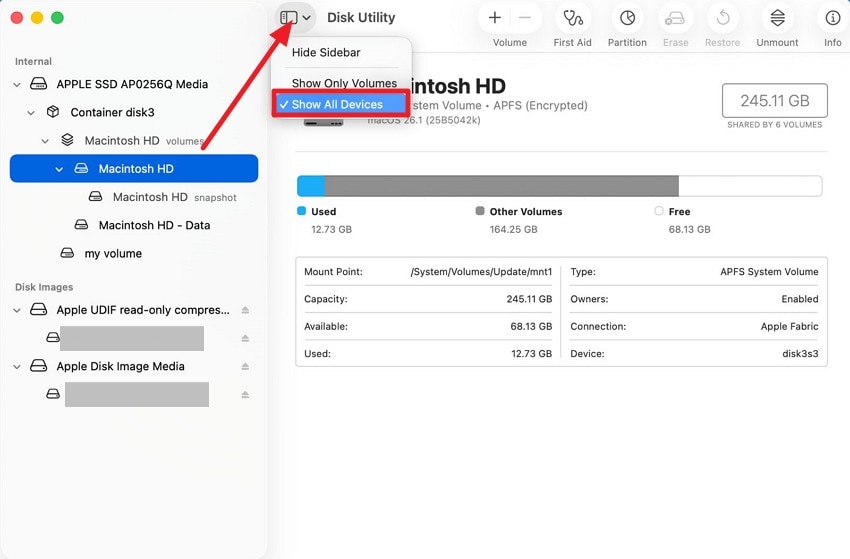
- Begin by opening the “Disk Utility” on your Mac and expanding the “View” icon from the top. Now select the “Show All Devices” option to make all the devices visible.
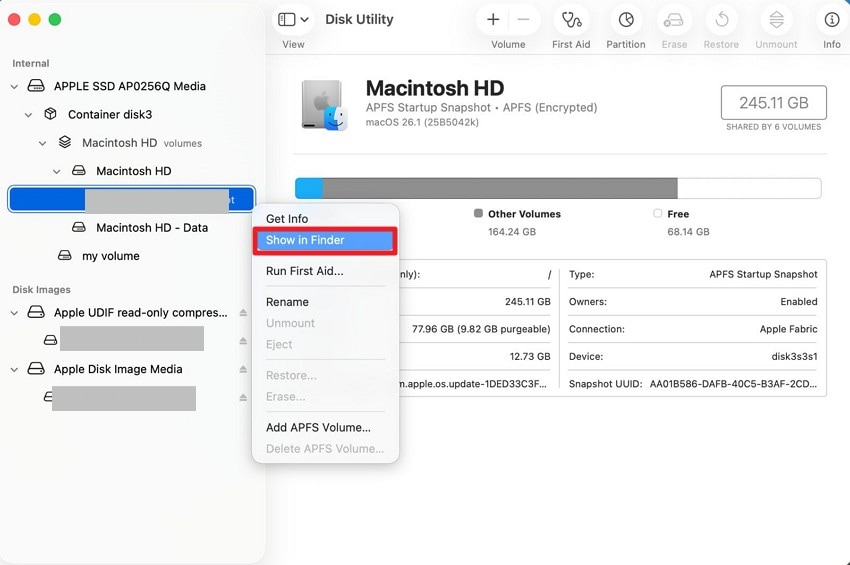
- Now, head to the left section and right-click on the file to locate the “Show in Finder” option. This will let you locate the file in Finder, which you can then unmount easily.
2. Open as Text (To Find Target Path)
Opening a .lnk file as a text file allows you to view embedded path information stored inside the shortcut. While the data may appear unstructured, readable strings often reveal the name or location of the original file. This method does not open the linked content but helps identify where it was stored. Follow the steps provided next to find the target path of the file and learn how to open .lnk file on Mac:
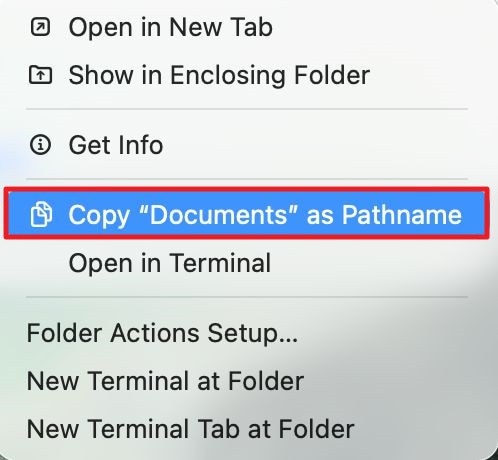
- Open the Finder and access the USB path from the bottom of the interface and right-click on it. Now, press the “Copy [name] as path name” option from the list to copy the path to the clipboard.
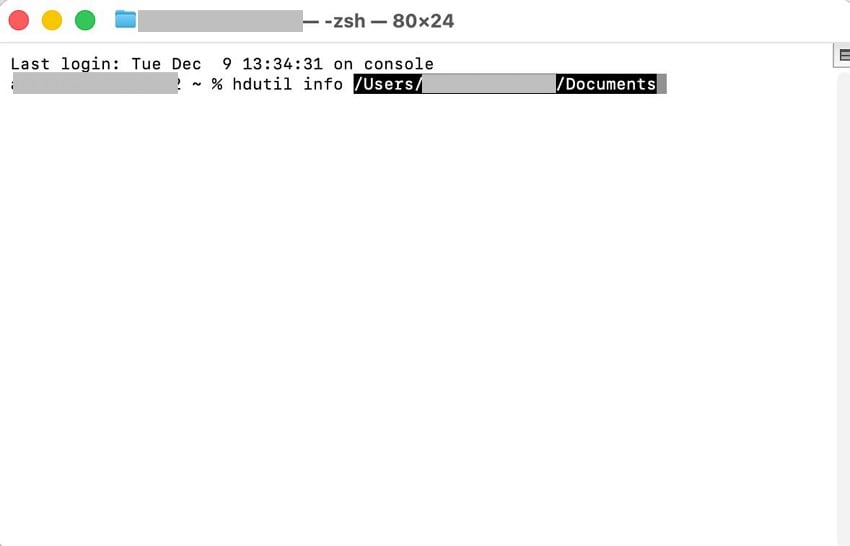
- Now head to the terminal and type in the command: “diskutil info [path]”, press the Enter key to get the path of your desired file.
3. Command Line (Advanced)
Using Terminal allows advanced users to analyze a .lnk file at a deeper level without relying on graphical tools. While macOS cannot execute .lnk shortcuts, Terminal can display readable strings stored inside the file, including possible target paths or filenames. This helps identify where the original file was located. To learn how to unmount the USB using Terminal, read the instructions in the following section:
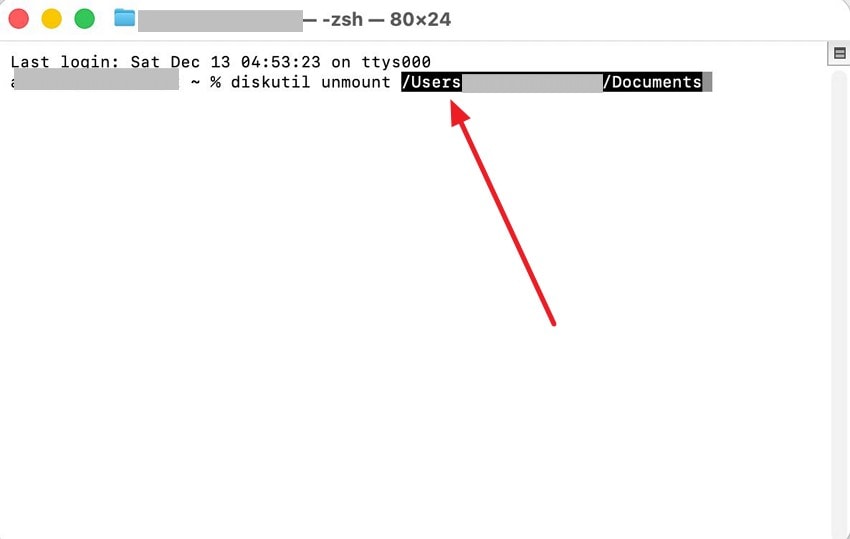
Instructions. Open Terminal and type in the command: “diskutil unmount [file path].” Press the “Enter” key to safely unmount the USB from your Mac system.
Pro Tip. Lost Original Files? Recoverit Recovers What .lnk Points To
After a detailed discussion of how to open .lnk file on Mac, we have to use a third-party solution. With Recoverit, you can restore over 1,000 file formats and get access to your original external drive files. This tool offers a 99.5% success rate, ensuring that your files are completely retrieved. You can access Recoverit on Windows and Mac devices for enhanced cross-device compatibility.
This tool has powerful file-scanning algorithms that dive deep into your system and find your missing .lnk files. While the quick scan is efficient, you can apply a custom folder filter to pinpoint the folders that could have the lost files. If the quick scan fails to locate your documents, use the Deep Scan feature for more aggressive scanning.
Key Features
- File Preview Feature: Before you save the recovered file on your device, it can be previewed using the dedicated feature.
- Device Compatibility: Recoverit supports more than 1 million storage devices to widen its usability.
- Batch Recovery: Using the batch recovery feature, users can save the time needed for individual file repairs.
A Guide to Recovering .lnk Files Using Recoverit
Your .lnk files can be recovered in just a few simple steps using Recoverit. The following section features a guide to recovering .lnk files:
1. Pick the File Location and Continue
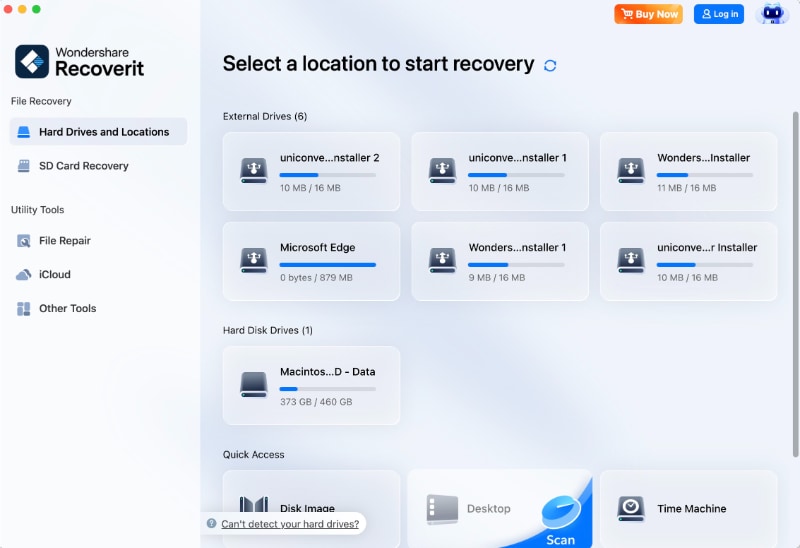
To start, select the “Hard Drives and Locations” tab from the left panel and pick the drive from the right section.
2. Scan for and Recover the .lnk Files
Now, run a quick scan and select the “Recover” button to restore the files.

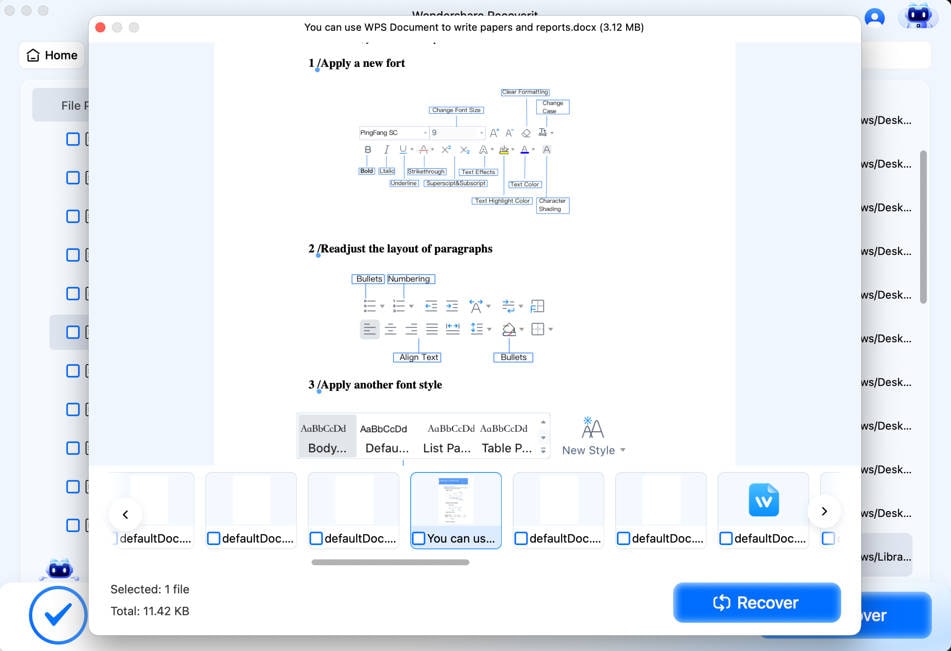
3. Preview and Download the Recovered Files
As the files are recovered, use the preview feature to analyze them and click “Recover” to save them on your device.
Part 4. Say Goodbye to .LNK Problems: Easy Fixes for Mac Users
We can see that .lnk problems can cost a lot of time, so taking preventive measures is necessary in order to learn how to open lnk file on Mac. The following section explores the fixes that can resolve the issues you might face with these files:
1. Restart Your Mac
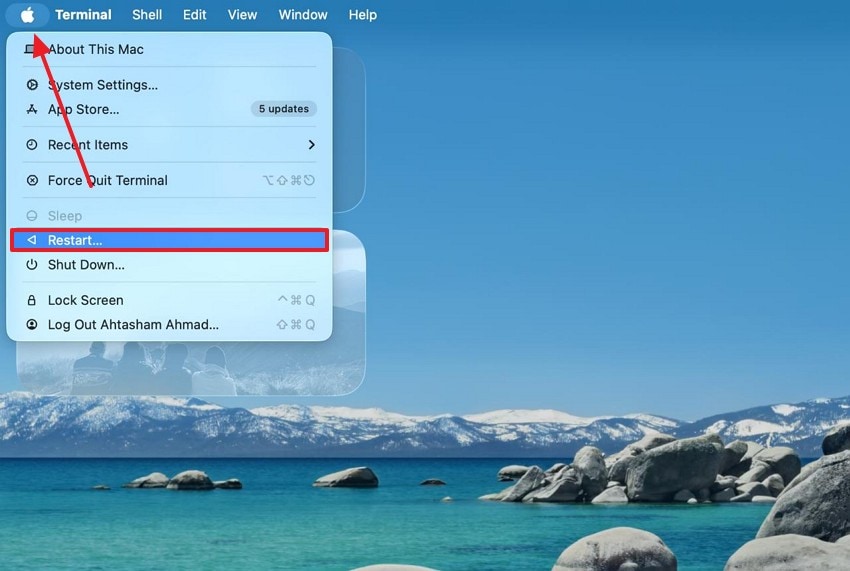
Restarting your Mac clears temporary system glitches and refreshes background services interfering with external file handling. It helps reset Finder processes, improving device detection and reducing errors caused by incomplete shortcut transfers. Follow the guide below and learn how to restart your MacBook:
Instructions. To start, press the “Apple” logo on the top left and “Restart” the system.
2. Run a Virus/Malware Scan
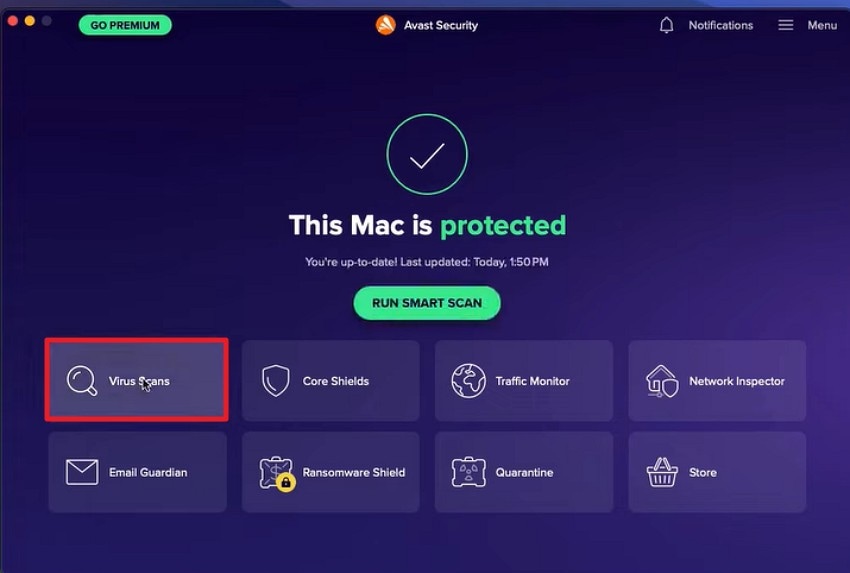
After learning what is lnk file, it is important to avoid future issues with this file. Running a malware scan ensures .lnk files are not associated with malicious Windows-based shortcut exploits. It protects your Mac from hidden threats introduced through USB drives, downloads, or cross-platform file transfers. Follow the guide below to learn how to run a virus scan on your Mac using Avast:
- To begin with, open Avast on your Mac and click the “Virus Scans” tab to proceed.
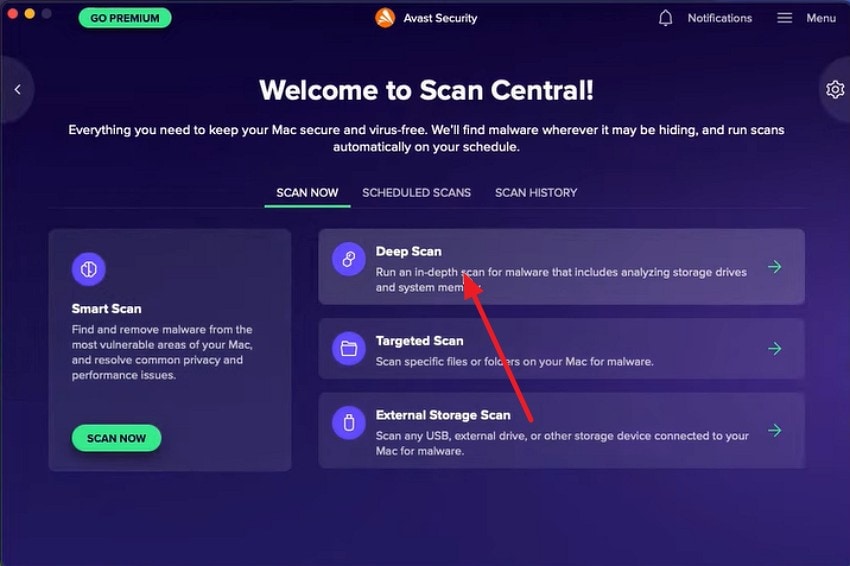
- In the “Scan Now” tab, choose the “Deep Scan” option to start looking for malware.
- In the following window, see if the tool finds any malware on your device.

3. Use Third-Party Repair Tools - Repairit
Now that you know what is .lnk extension, let’s see how to make it accessible. Another way to resolve the .lnk issues is to use a third-party file repair tool. Repairit is a robust repair tool that restores the original document by fixing the .lnk file. This platform offers a 99.5% success rate, ensuring a complete file repair. It supports over 30 file formats, including multimedia, documents, engineering, and other file types.
By scanning for viruses or malware, Repairit lets you access .lnk files on your Mac. You can import multiple .lnk files into this tool and fix them using AI-powered repair algorithms. Once your files are restored, they can be accessed in the dedicated cloud storage for easy navigation in the future. Users can benefit from the File Preview feature to analyse the results before they are saved on their device.
A Guide to Using Repairit for Resolving .lnk Files
Follow the guide below to learn how to retrieve .lnk files using Repairit on Mac:
1. Start Repairing .lnk Files
From the left panel, enter the “More Types Repair” tab and select the “Document Repair” option to import .lnk files.

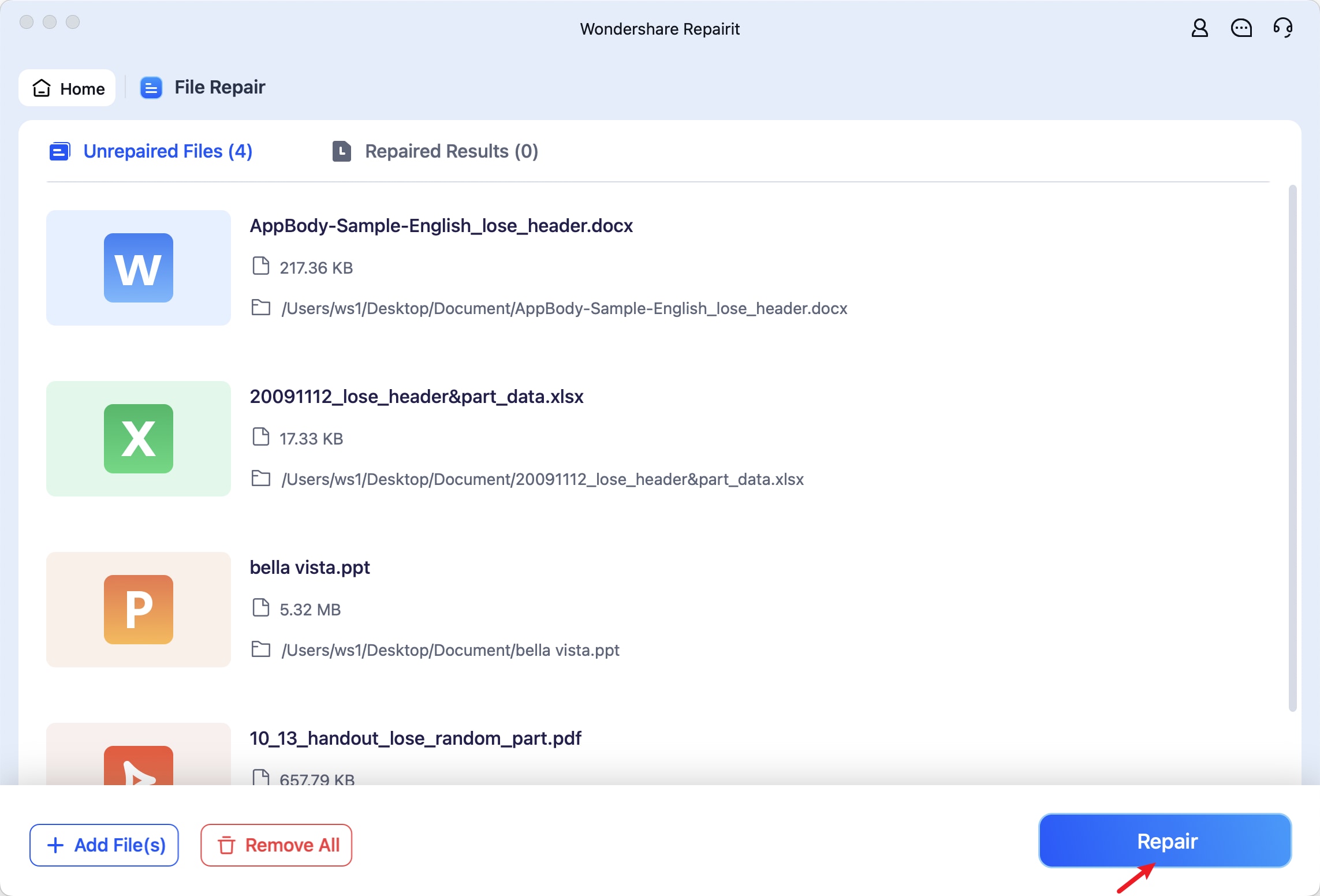
2. Repair Batch .lnk Files
Once the files are imported, select the “Repair” button to fix them.
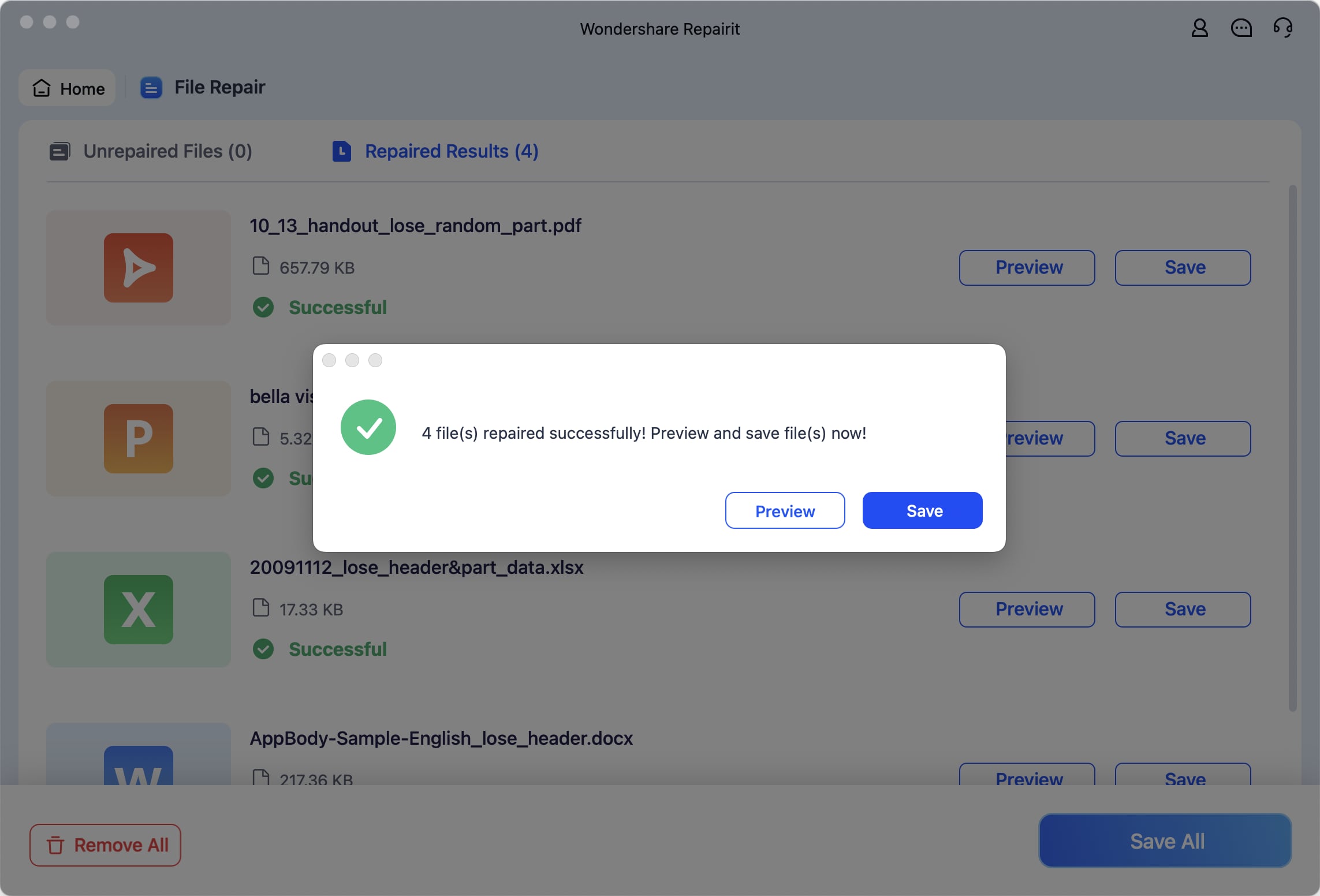
3. Preview or Save Repaired .lnk Files
Once your files are repaired, preview or save them on your device using the designated buttons.
Conclusion
Conclusively, .lnk files are inaccessible on Mac, hindering your way to the files originally saved in your hard drives. This article was a thorough guide on what is .lnk file and how there is no way to access them on a MacBook. Therefore, using Recoverit is a reliable way to recover these files for effective retrieval of their content. To avoid issues with these files, you can use Repairit to remove the malware.
FAQ
-
1. What is an LNK file, and why won’t it open on my Mac?
An LNK file is a Windows shortcut that points to another file or application. macOS cannot execute these shortcuts directly, so the original file must be accessed on a Windows system or recovered using a tool like Recoverit. -
2. Can I recover the original file a .lnk points to on Mac?
Yes, if the original file is missing or inaccessible, software like Recoverit can help locate and restore the file that the .lnk shortcut references. -
3. Are .lnk files safe to open on a Mac?
While macOS won’t execute the shortcut itself, some .lnk files may contain malware if opened on a Windows PC. To be safe, inspect or recover the original file using Recoverit before attempting to open it. -
4. How can I find the target file of a .lnk shortcut?
You can inspect the .lnk file as text, use Terminal commands, or leverage recovery tools like Recoverit to locate the linked file efficiently.


