

 TL;DR:
To safely recover data from a faulty hard drive, immediately stop using the drive to prevent overwriting, run data recovery software for logical errors, or send the drive to a professional lab if it suffers from physical damage.
● Software tools like Recoverit and built-in Windows utilities (CHKDSK, Disk Management) are only effective for logical damage where the system still detects the drive; ensure you install any recovery software on a separate, healthy drive.
● If the drive causes system freezes or access blocks, boot into Windows Safe Mode to bypass third-party background conflicts, or connect the drive to a different computer using a SATA-to-USB cable to rule out local motherboard or port failures.
● Immediately disconnect the drive and utilize professional data recovery services if it makes clicking sounds, fails to spin, or remains undetected in the BIOS, as running repeated CHKDSK scans on physically damaged hardware will permanently destroy the remaining data.
Ask AI for a summary
 ChatGPT
 Perplexity
 Gemini
 Claude
 Grok
Grok
Have you ever turned on your computer and suddenly found that your important files were not opening? Or maybe the system showed an error saying the drive must be formatted before use. These situations can feel frightening. A hard drive stores years of work, memories, business records, and personal data. When it stops working, people often think everything is gone forever. The truth is different. In many cases, data can still be restored if you act carefully and avoid panic. The key is to stop using the drive immediately and understand what steps to take next.
Many users do not notice the early warning signs. They ignore slow performance or strange sounds. Later, the drive fails completely. Learning how to recover lost data from a faulty hard drive is important for every computer user. It also helps to recognize faulty hard drive symptoms and the clear signs of a faulty hard drive before total failure happens.
When you understand why a hard drive becomes faulty and learn how to fix a faulty hard drive in basic situations, you reduce the risk of permanent loss. With the right tools and calm action, you can recover data from faulty hard disks without making the problem worse.
Table of Contents
How to Recover Data from a Faulty Hard Drive
Data recovery requires patience. Never rush into formatting the drive. Never install recovery software on the same damaged disk. Each action should protect existing data. The main goal is to safely copy important files to another location. If the drive is still detected, your chances are better. If it is not detected, professional help may be required.
Below are practical methods that explain how to recover lost data from a faulty hard drive using safe and tested approaches.
Method 1: Use Recoverit Data Recovery Software
Recoverit is a user-friendly recovery tool designed for people who do not have technical knowledge. It supports deep scanning technology that searches every readable part of the drive. The software reads sectors that are not visible during normal file browsing. It checks hidden directories and damaged file tables. It can restore documents, photos, videos, email files, and even deleted partitions. The preview option allows you to see files before recovery.
This helps you select only the important data. Many users prefer it because of its clean layout and step-by-step process. This method works best when the system still detects the drive, but files are missing, unreadable, or accidentally deleted.

It is especially helpful in cases of logical damage, such as file system corruption or virus attacks. If the drive appears in File Explorer or Disk Management, the chances of recovery are higher. However, it is not meant for severe physical damage. If the drive makes unusual sounds or is not detected at all, software solutions may not work safely.
Step 1: Install Recoverit on a different healthy drive. Connect the faulty drive to your computer. Open the program and select the damaged disk from the list.

Step 2: Choose deep scan mode and wait patiently.

Step 3:
After the scan finishes, preview the files. Select only the needed items and click Recover. Save them on an external storage device.

This process shows one effective way of understanding how to recover lost data from a faulty hard drive without technical skills.
You may be also interested in:
How to Unlock Self-Encrypting Drives?
How to Recover an Unallocated Disk?
Method 2: Use Built-in Windows Tools (CHKDSK, Disk Management)
Windows has built-in tools for small disk problems. You do not need extra software. These tools fix logical errors. They repair damaged file systems. They can also reconnect missing partitions. They do not recover deleted files directly. But they help restore access to the drive. In many cases, this is enough to open your files again.
CHKDSK scans the drive for errors. It checks the file structure and bad sectors. It tries to repair them automatically. Disk Management shows all connected drives. Even hidden or offline drives appear there. You can assign a new drive letter. You can also bring an offline disk back online. These simple steps often solve minor issues.
Step 1: Press Windows + R. Type cmd. In the command window, type chkdsk X: /f /r/x and press Enter. Replace X with your drive letter.
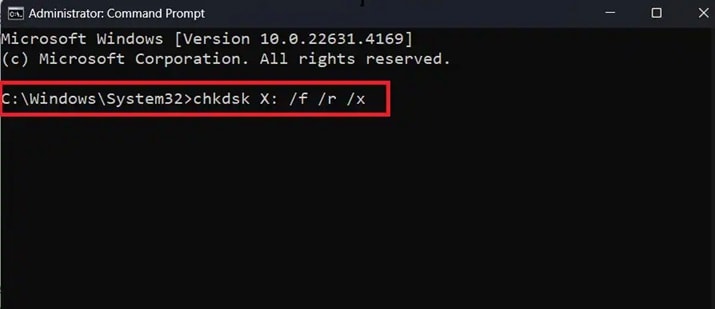
Step 2: Allow the scan to complete. Restart your computer. Open Disk Management. Check if the drive shows as unallocated or offline. Assign a drive letter if needed.
This method sometimes explains how to fix a faulty hard drive when the issue is minor and software-based.
Method 3: Try Safe Mode Access
Safe Mode starts Windows with only basic drivers. Extra programs do not load. Third-party apps stay disabled. This reduces system conflicts. Sometimes, background software blocks drive access. Safe Mode removes that interference.
This method is useful when the drive causes freezing during normal startup. The system may hang while loading files. In Safe Mode, the environment is stable. You can check if the drive opens properly. If it works, copy your important files immediately.
Step 1: Restart your computer. Hold the Shift key and select Restart. Choose Troubleshoot, then Advanced Options, and select Enable Safe Mode.
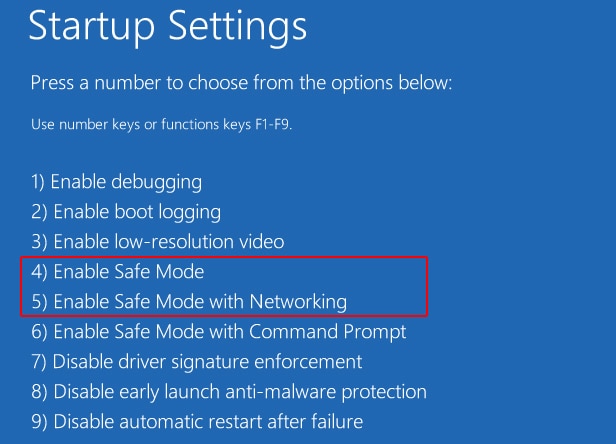
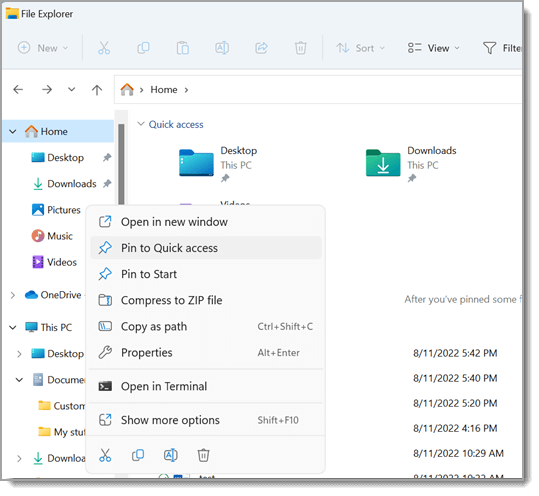
Step 2: After entering Safe Mode, open File Explorer. Access the drive carefully. If it opens, copy important files to an external USB drive immediately.
Safe Mode can help when faulty hard drive symptoms are linked to system conflicts.
Method 4: Connect the Hard Drive to Another Computer
Hardware conflicts inside your main system can block drive access. Faulty cables or ports may cause the issue. Sometimes the motherboard is the problem. Connecting the drive to another computer helps you test this. It shows whether the fault is in the drive or in your system.
This method is simple and practical. It does not require advanced tools. If the drive works on another computer, your original system may be at fault. You can then copy your files safely. It is a quick way to confirm the real cause.
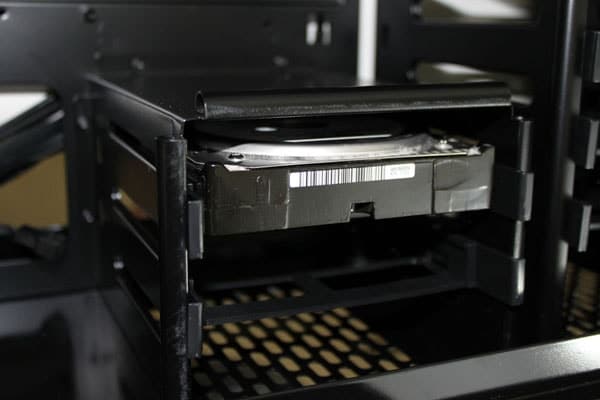
Step 1: Turn off your PC. Remove the drive carefully. Place it inside a USB enclosure or use a SATA to USB cable.
Step 2:
Connect it to a working computer. Wait for detection. If the drive appears, transfer all critical files to a secure location.
This approach often helps recover data from faulty hard disks without installing complex tools.
Method 5: Use Professional Data Recovery Services
Sometimes the damage is beyond home repair. The drive may not spin. It may make clicking or grinding sounds. It may not appear in BIOS or Disk Management. These are signs of physical failure. In such cases, do not keep trying different tools. Every attempt can reduce the chance of success.
Professional data recovery services have special labs and equipment. They open drives in dust-free rooms. They repair damaged parts carefully. They use advanced machines to read data from disk platters. This method is safest for serious hardware problems. It is recommended when the damage is physical and not logical.
Step 1:
Stop using the faulty drive immediately. Do not power it on again. Search for a trusted and certified data recovery service. Explain the issue clearly before sending the drive.
Step 2:
Package the drive safely to avoid further shock. Send it to the service center. Wait for their evaluation report. Approve the recovery process if the quoted price and success rate are acceptable.
Conclusion
Losing access to your hard drive can feel overwhelming. Important documents, office files, and personal memories may seem lost forever. However, most failures begin slowly. Early warning signals often appear before a complete breakdown. If you act quickly and avoid careless steps, recovery is possible in many cases.
Knowing how to recover lost data from a faulty hard drive gives you confidence during emergencies. Recognizing faulty hard drive symptoms and the common signs of a faulty hard drive allows you to act early. Understanding why a hard drive becomes faulty helps you prevent future issues.
In small cases, you may even learn how to fix a faulty hard drive using built-in tools. Stay calm, follow safe steps, and protect your data with regular backups in the future.
FAQs:
-
1. Can I recover data if my hard drive is not detected at all?
If the drive is not detected in BIOS or Disk Management, it may have physical damage. Software tools may not work. In such cases, professional recovery services are recommended because they use special equipment in safe environments. -
2. Is it safe to run CHKDSK on a damaged drive?
CHKDSK can repair file system errors. However, if the drive has physical damage, running repeated scans may cause stress. Use it only once for minor issues and avoid repeated attempts. -
3. How can I prevent hard drive failure in the future?
Keep your system cool and protected from power surges. Shut down properly. Avoid physical shocks. Most importantly, maintain regular backups on the cloud or external drives.


