 TL;DR:
True "online" USB recovery via a web browser is technically impossible because standard websites cannot access deleted storage sectors; you must download a local program to scan the connected drive.
● Windows File Recovery provides genuinely free command-line scanning for Windows 10 and 11, while the open-source TestDisk and PhotoRec utilities can rescue data from damaged partitions or formatted drives but require using text menus and often lose original folder names.
● Wondershare Recoverit offers a simpler graphical interface with visual file previews for logically damaged or RAW volumes, but it strictly caps free data recovery at 500 MB.
● To avoid permanently overwriting your files, you must immediately stop saving new data to the pen drive, decline any operating system prompts to format or run CHKDSK, and always save the recovered output to a completely separate destination drive.
Ask AI for a summary
 ChatGPT
 Perplexity
 Gemini
 Claude
 Grok
Grok
If you are searching for pen drive data recovery online free, you probably want files back from a USB stick without paying a recovery lab. The important distinction is that you can download free recovery tools online, but an ordinary website cannot perform a raw scan of deleted files on your USB drive. That job normally requires a program running on a computer that can access the connected storage.
There are genuinely free options. Microsoft's Windows File Recovery provides command-line recovery on supported Windows systems. TestDisk and PhotoRec are free, open-source tools for different loss scenarios. If you prefer a visual interface, Recoverit Free lets you scan and preview supported files with a limited free recovery allowance. None can guarantee results when data has been overwritten or the USB's hardware is unreadable.
First action: Stop saving anything to the pen drive. If Windows asks you to format it, cancel that prompt. Save every recovered file to another healthy drive, not back to the source.
In This Article
Part 1. Can You Recover Pen Drive Data Online for Free?
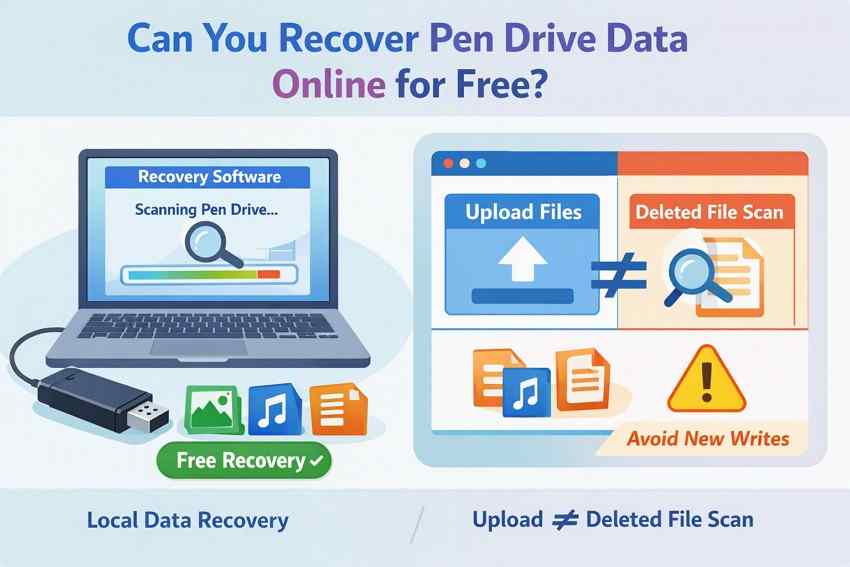
Yes, free pen drive recovery is possible when a local recovery program can read the USB and recoverable file content is still present. The misleading part of the phrase "online recovery" is the suggestion that a website alone can retrieve deleted sectors. A website can provide instructions, downloads, or an upload form for files you can already open; those are different capabilities.
Why a Standard Website Cannot Scan Deleted USB Files
A browser can be granted access to files or directories you select. For example, the browser File System API describes file and directory handles with explicit user permission. That is not unrestricted block-device access to deleted sectors. A file that no longer appears in the file picker cannot normally be reconstructed by uploading other visible files.
Meaning for your search: "Recover pen drive online" usually means visiting a website to obtain recovery software that scans the USB locally. Avoid services promising to recover permanently deleted USB files merely by entering a drive name, email address, or cloud-upload link.
What Changes Recovery Chances After Deletion, Formatting, or Corruption
| What Happened | What May Remain | Safest Starting Point |
| Accidental deletion | File contents may remain until their space is reused | Stop writes; use undelete or recovery scanning |
| Quick format | Some original file content may remain, but file-system records have changed | Try recovery without formatting again |
| RAW or unreadable volume | Content may remain accessible to disk-level scanning even if the volume does not mount | Confirm that the physical USB is detected; recover before repairs |
| Full format, overwrite, or controller reset | Previous content may have been erased or made inaccessible | Do not promise recoverability; evaluate the actual storage state |
| "No Media," 0 bytes, or unstable hardware | The computer may not have access to readable flash storage | Stop repeated scans; consider professional evaluation |
Microsoft notes that quick format deletes key file-system structures without a sector-by-sector bad-area scan. That does not promise recovery, especially if new data was written afterward. A full format or other operation that overwrites sectors has a much worse outlook.
Protect the Pen Drive Before You Try Any Tool
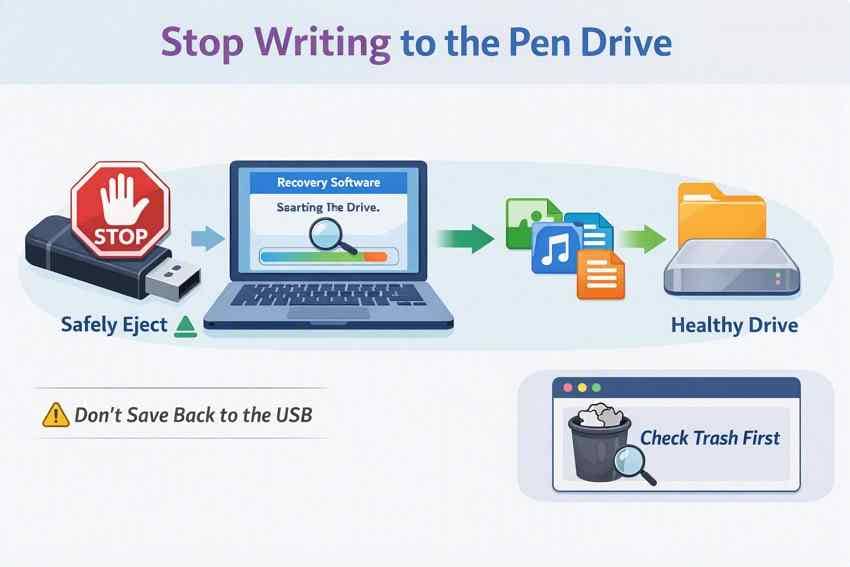
- Stop new writes: Do not copy files, save photos, install recovery tools, or run benchmarks on the affected pen drive.
- Check existing copies: Look at a computer backup or synced copy first. On a Mac, the Trash may still hold files removed from a connected external volume.
- Decline repairs: Do not click Format, Initialize, or Erase while important files remain missing.
- Prepare another destination: Use the Mac/PC's healthy storage or a second external drive with sufficient free space for recovered files.
Note: If a USB repeatedly disconnects, becomes unusually hot, smells burnt, or has a damaged connector, do not keep trying one software tool after another. The normal steps below assume reasonably stable access to the device.
Part 2. Compare Free and Limited-Free Pen Drive Recovery Tools
The useful question is not just whether a program says "free," but what it will let you recover without paying, what device it can read, and how comfortable you are using commands. Here are four different routes, not four interchangeable versions of the same tool.
Windows File Recovery: Free Commands for Windows Users
Windows File Recovery is Microsoft's free command-line utility for supported Windows 10 and Windows 11 systems. It can scan locally accessible USB storage, including FAT/exFAT or NTFS drives in the appropriate mode. It is designed for lost-file recovery, not formatting or physical USB repair. There is no graphical results preview before files are written to the destination.
Best fit: You have a pen drive detected by Windows, another destination drive, and are willing to enter the correct drive letters. Read the official Windows File Recovery instructions before scanning.
TestDisk: Free Undelete and Partition Tools
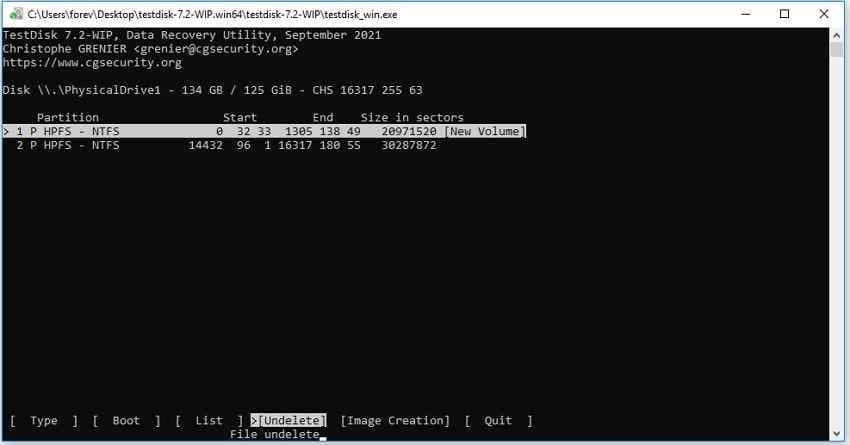
TestDisk is free, open-source software for lost partitions and certain file-system structures. It can also copy deleted files from supported FAT, exFAT, NTFS, and ext2 volumes when usable directory records remain. Its text menus are less approachable than a typical file recovery app, and operations such as writing a partition table or rebuilding boot structures can modify the source.
Best fit: An experienced user needs to inspect a detectable USB's partition information or copy deleted files through the Undelete function. For this guide, use the read-only selection and copy steps; do not use TestDisk's repair or Write options before the data is safe.
PhotoRec: Free File Recovery Without Original Folder Names
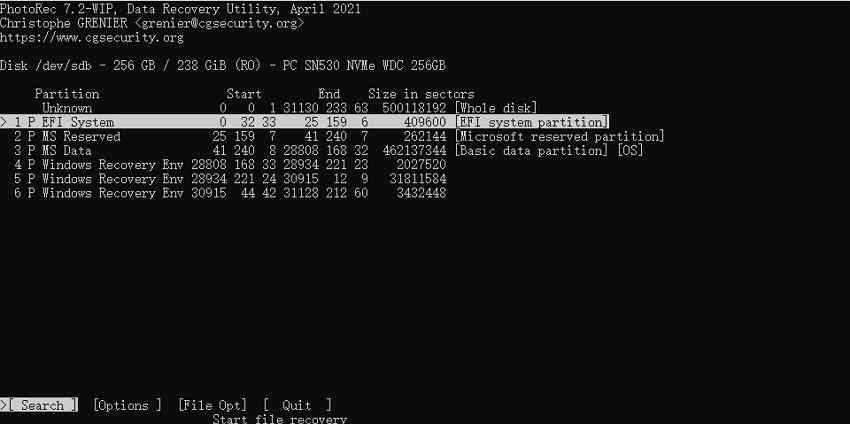
PhotoRec, distributed alongside TestDisk, searches recognized file signatures instead of relying on damaged directory records. It is a practical free option for reformatted media or a USB whose file-system metadata is missing, provided the underlying storage remains readable. The tradeoff is that recovered files normally receive generated names and are stored in new recovery folders.
Best fit: Your priority is getting photos, documents, or other identifiable file types back, even if sorting the output afterward takes time.
Recoverit Free: Visual Scanning With a Recovery Cap
Wondershare Recoverit Free offers a graphical scan with file types, paths, search tools, and supported file previews. It is relevant to deletion, accidental formatting, RAW volumes, and logical file-system damage when the pen drive remains detected and readable. Its published free allowance is up to 500 MB of recovered files, not unrestricted recovery.
Best fit: You want to inspect the file list or preview files before selecting what to save, and you understand that recovery beyond the free cap may require a paid plan.

Side-by-Side Comparison: What Is Actually Free?
| Tool | Operating Systems | USB Must Be Readable By | Most Useful For | Interface | Free Recovery Terms |
| Windows File Recovery | Supported Windows 10/11 | Windows, with an accessible source drive letter | NTFS deletion, FAT/exFAT scans in Extensive mode | Command line | Free Microsoft utility; no published data-volume cap |
| TestDisk | Windows, macOS, Linux, and supported Unix-like systems | Local disk/partition access | Selected FAT, exFAT, NTFS, ext2 undelete cases; lost partitions | Text menus | Free open-source software |
| PhotoRec | Windows, macOS, Linux, and supported Unix-like systems | Readable disk or image at the storage level | File carving after formatting or file-system damage | Text menus; QPhotoRec on supported systems | Free open-source software |
| Recoverit Free | Compatible Windows and macOS versions listed by Wondershare | Operating system must detect readable storage | Deleted, formatted, RAW, and logically inaccessible files | Graphical with supported previews | Up to 500 MB free recovery; additional recovery may require payment |
Which should you choose? For a small set of recently deleted files on a readable Windows USB, consider Windows File Recovery first. For recoverable deleted directory entries, try TestDisk's Undelete feature. For severely damaged file-system records, PhotoRec may find content but usually not original folder names. If an easy-to-review file list matters more than unlimited free output, use Recoverit to assess your files. For a broader product comparison, see Recoverit's USB data recovery software guide.
Part 3. Recover Pen Drive Files With Windows File Recovery
Use this method when Windows shows the USB as an accessible drive letter and the source is stable. Microsoft distributes the app through the Microsoft Store. It does not require a paid recovery license, but you must check the source and destination carefully: mixing up drive letters can put recovered files in the wrong place.
Check Your Source, Destination, and File System
Step 1. Identify the source. In File Explorer, find the affected USB under This PC and note its drive letter, such as E:. Right-click the drive, choose Properties, and inspect its file system. Do not format the USB to obtain a drive letter or force Windows to mount it.
Step 2. Prepare the destination. Find a different healthy storage volume, such as D:, with enough space for recovered files. The example letters below are placeholders; use the letters on your own computer. Microsoft's instructions require the source and destination to be different.
Choose Regular or Extensive Mode
| USB File System | Situation | Microsoft-Recommended Mode |
| FAT32 or exFAT | Deleted files, old deletion, or other recoverable loss | /extensive |
| NTFS | Recently deleted files on a healthy volume | /regular |
| NTFS | Older deletion, formatting, or corruption | /extensive |
| Unknown or RAW | File system not recognized | Confirm whether Windows File Recovery can access the source; do not format merely to use it |
The Microsoft mode-selection table explicitly assigns FAT and exFAT to Extensive mode in all situations. A RAW USB without a usable source drive letter may require a different disk-level tool or professional help.
Run a Windows File Recovery Command Safely
Step 3. Install and open the program. Install Windows File Recovery from Microsoft's Store link on its official support page, launch it, and approve the Windows permission prompt.
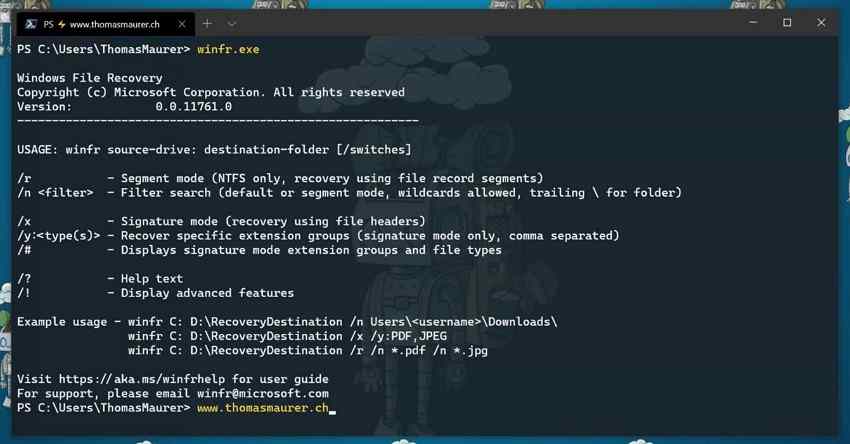
Step 4. Enter the command. For a readable exFAT USB labeled E: and a separate destination D:, enter winfr E: D: /extensive. To narrow the results to common photo and document extensions, use winfr E: D: /extensive /n *.jpg /n *.docx. These commands follow Microsoft's documented syntax; they are examples to adapt, not commands that were run against your USB.
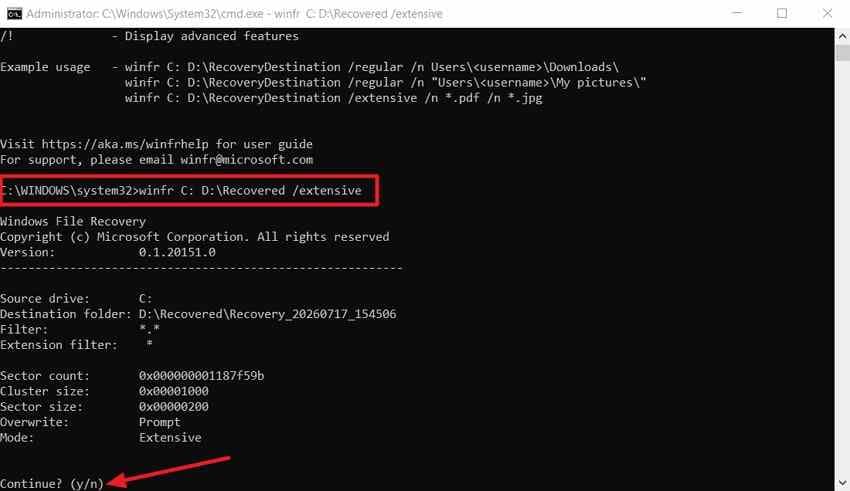
Step 5. Confirm and review the result. Enter Y when prompted and wait for the operation to finish. Windows File Recovery creates a dated Recovery_ folder on the destination. Open that folder and test copies of the important recovered files. If the USB is unstable or the program cannot read it, do not keep forcing scans.
Note: The screenshot illustrates another source/destination drive-letter combination. Always verify the letters actually shown on your computer before using winfr.
Part 4. Use TestDisk or PhotoRec for Completely Free Recovery
These are complementary tools supplied by CGSecurity rather than paid trial software. TestDisk can use surviving directory information in supported file systems; PhotoRec searches the stored content itself. Both should write recovered files to a second device, and neither is a substitute for specialist help when the USB controller or flash memory cannot be accessed.
Use TestDisk to Copy Deleted Files From Supported USB Partitions
TestDisk's official file-undelete documentation covers FAT12/16/32, exFAT, NTFS, and ext2. The goal here is to copy files from the source, not to alter the pen drive's partition table.
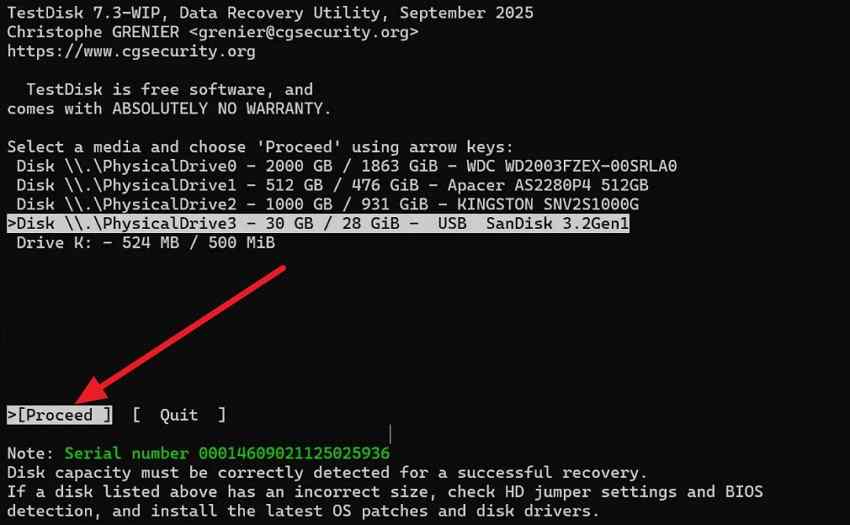
Step 1. Open TestDisk and select the USB. Download the official archive to your computer, extract it outside the affected drive, launch TestDisk with the permissions needed for disk access, choose Create for a log when appropriate, and select the USB by its expected capacity. Choose Proceed.
Step 2. Inspect the partition. Accept the partition-table type TestDisk detects only after confirming it makes sense for your disk. Choose Advanced, select the relevant partition, and use Undelete when that action is available for its file system. Do not choose partition Write, boot-sector rebuild, or another repair action as a preliminary recovery step.
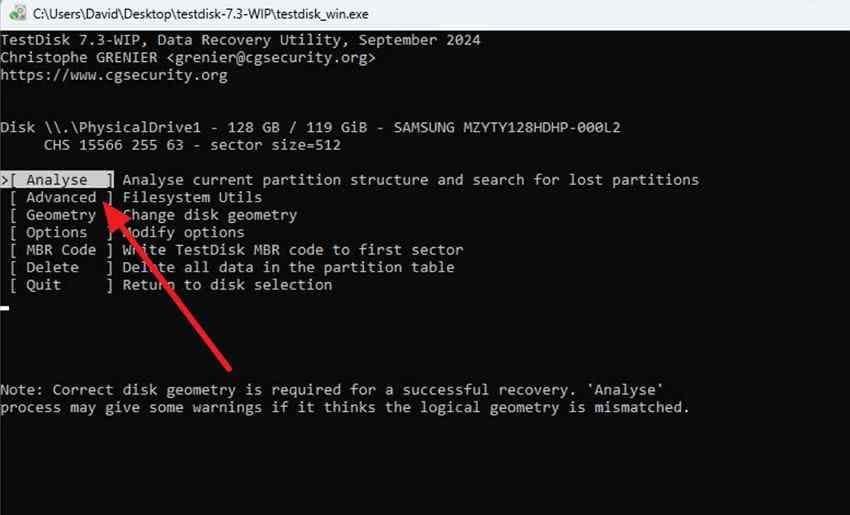
Step 3. Copy found files. Highlight a recoverable entry. In TestDisk, press the copy key shown in the interface (commonly lowercase c for a single file; uppercase C for a selected group), select a destination on another healthy drive, and confirm the copy. Read the FAT/exFAT undelete guide or NTFS undelete guide for the exact key behavior.
Note: The original article's screenshots show different TestDisk builds, including development versions. The exact menu labels can differ. CGSecurity currently lists 7.2 as the stable release and 7.3-WIP as a development build; choose the appropriate official download rather than relying on a third-party mirror.
Use PhotoRec When File-System Records Are Missing
PhotoRec is useful when the pen drive is readable at the disk level but filenames or folders have disappeared after formatting or corruption. It can find recognized file patterns without repairing the original file system.
Step 1. Choose the USB and optional file types. Launch PhotoRec from the official CGSecurity distribution, identify the correct USB by size, and select the appropriate disk or partition. Choose File Opt if you want to limit the file formats that will be carved from the source.
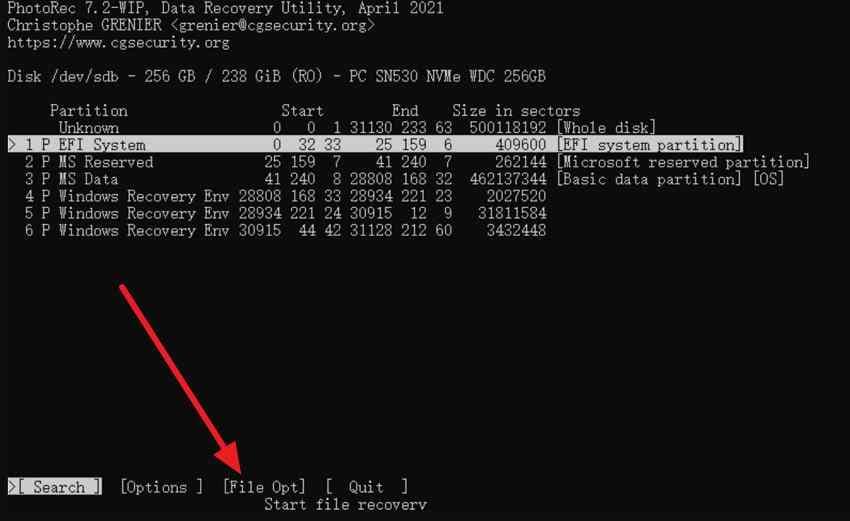
Step 2. Select scan settings. Choose Search. For FAT, exFAT, and NTFS, select Other when PhotoRec asks for the file-system family. The official PhotoRec walkthrough recommends whole-partition scanning when the file system is corrupted; free-space-only scanning is narrower and does not apply to all file systems.
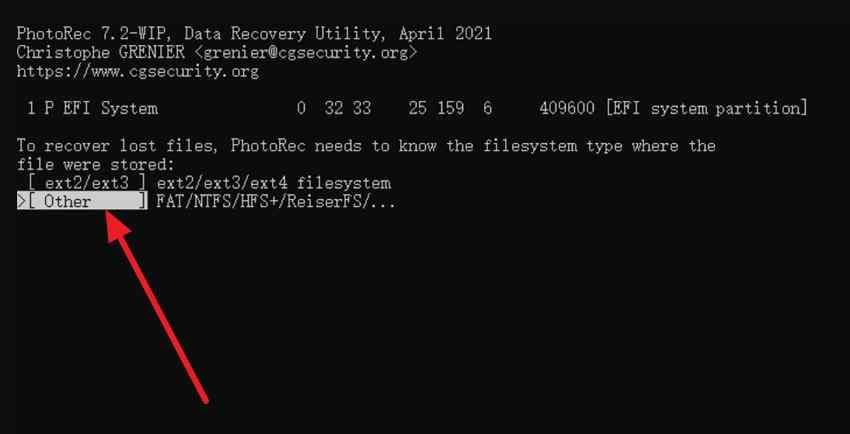
Step 3. Choose an external destination and let scanning finish. Point PhotoRec to a folder on another drive, not the pen drive being recovered. Follow the confirmation key displayed in your build. Review output in the numbered recup_dir folders after recovery.
What You Lose With File Carving and Where to Download the Tools
PhotoRec generally cannot restore the original directory tree because it looks for file signatures rather than the metadata that stored folder paths. A recovered photo might have a generated filename instead of the camera's original name. That can be acceptable for a small set of images but difficult for a large document archive.
Obtain both utilities from CGSecurity's official TestDisk and PhotoRec download page. The publisher lists stable 7.2 and a newer development build. They are portable once extracted, but they are not browser-based USB recovery services; they still run locally and need access to the storage device.
Part 5. Recover Pen Drive Files With Recoverit
For readers who prefer not to work through file-system menus and command syntax, Recoverit can scan a detected pen drive and help identify potentially recoverable files. This is a convenience tradeoff, not an unlimited-free alternative. Its USB recovery scope includes logical problems such as deleted files, quick-format loss, RAW file systems, and volumes that remain accessible at the disk level.
When a Visual Recovery Workflow Makes Sense
If you need to review document filenames, browse possible folders, or preview supported photos before saving, a graphical workflow can make it easier to decide what to recover. Recoverit is not a fix for a failed USB controller, a device with no accessible media, or overwritten file contents. See the current Recoverit USB flash drive recovery guide for its supported logical scenarios.

Select, Scan, Preview, and Save USB Files Elsewhere
Step 1. Select the detected pen drive. Install Recoverit on the computer or another healthy drive, connect the pen drive, and choose the USB in the available storage list. Confirm its name or capacity before beginning the scan.
Step 2. Scan without writing to the source. Start scanning and let Recoverit look for supported file types and recoverable locations. Use search or filters to narrow results; do not repeatedly interrupt the scan on an unstable USB.

Step 3. Preview and recover. Preview supported results when available, select the desired files, click Recover, and choose storage other than the affected pen drive. Afterward, open several important recovered documents, images, or videos to check whether their contents are usable.

Note: Finding a filename in the scan does not ensure that the file's full contents are intact. A preview may be unavailable for certain file types, and overwritten or physically unreadable data cannot be restored through ordinary software.
Check Recoverit Free Recovery Limits Before You Start
As checked on October 8, 2026, Wondershare's official free recovery page states that users can recover up to 500 MB at no cost. Downloading, scanning, or seeing a file preview should not be mistaken for a license to recover an unlimited amount. Check the actual installation's displayed offer, account requirements, and platform eligibility before assuming a given file can be saved free of charge.
For a USB holding several gigabytes of family videos or work archives, the completely free tools in Parts 3 and 4 may be more suitable if their limitations fit your case. Recoverit is an option when the convenience of scanning and previewing is worth the different recovery terms.
Part 6. When Free Pen Drive Recovery Software Is Not Enough
Software is useful only when it can obtain stable access to the storage containing the missing data. A pen drive that shows No Media, reports zero capacity, repeatedly disappears, or has a visibly broken connector is a different problem from a USB with an accidentally deleted folder.
Check USB Detection Without Making Changes
Step 1. Check that the connector is intact and try one known-good USB port. If the device uses an adapter or hub, connect it directly when possible. For a physically intact USB, one test on another computer can help distinguish a port issue from a failing device.
Step 2. On Windows, open Disk Management and see whether the USB appears as a physical disk with approximately the expected capacity. On macOS, open Disk Utility, choose View > Show All Devices, and look for the physical USB device. The volume does not need to mount normally for every recovery tool, but the underlying storage must still be accessible.
Step 3. If the USB is stable and visible, attempt the appropriate non-destructive recovery method before any repair. If it repeatedly disconnects, appears as No Media or 0 bytes, or is absent from the system's storage list, stop ordinary recovery scans.
Why CHKDSK and Formatting Do Not Restore Deleted Files
CHKDSK checks and may repair logical file-system structures. It does not search unallocated space to restore the original contents of a deleted document. Microsoft warns that FAT file-system repairs can change allocation tables and cause data loss. Formatting creates file-system structures for reuse; it is not a deleted-file recovery method either.
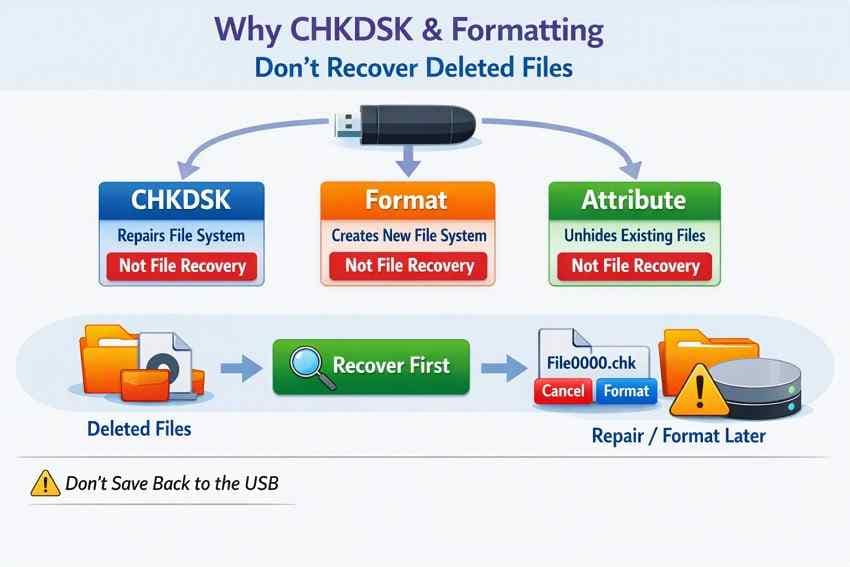
- CHKDSK /f: Can change damaged file-system metadata; recover needed files first.
- Format or Initialize: Can erase useful recovery metadata or overwrite content; do not use as a recovery step.
- ATTRIB: May reveal files that exist but are hidden by file attributes. It cannot reconstruct files whose contents have been deleted or overwritten.
If your immediate problem is a damaged but detectable pen drive, the separate corrupted USB recovery guide covers additional failure scenarios. Keep repairs after data recovery rather than treating repair as a prerequisite.
Know When to Stop and Ask a Recovery Specialist
| Signal | What It Means for DIY Recovery | Recommended Next Step |
| USB detected at expected capacity, stable | A non-destructive software scan may be practical | Choose the method based on deletion, formatting, and file system |
| USB recognized only as No Media or 0 bytes | Readable flash storage may not be exposed | Stop repeated software scans; consult a recovery specialist if files matter |
| Repeated disconnections, abnormal heat, burnt smell | Possible electrical or controller failure | Disconnect safely and avoid repeated power cycles |
| Bent connector, liquid damage, broken board | Physical damage beyond software recovery | Seek specialist assessment before attempting repairs |
For irreplaceable files, a reputable data-recovery laboratory may be the more appropriate next step. Do not repeatedly format, run CHKDSK, or scan a physically unstable pen drive simply because the software download is free.
Conclusion
Free online pen drive recovery usually means downloading software and scanning the USB locally. Windows File Recovery provides a genuinely free Windows command-line route; TestDisk copies deleted files from supported file systems and helps inspect lost partitions; PhotoRec can carve files when the directory information is gone. Recoverit offers a simpler visual scan and preview workflow, subject to its current free recovery allowance.
The best choice depends on whether the USB is stable, the file system is readable, and the missing content has been overwritten. Stop writing to the pen drive immediately, save recovered files to another healthy device, and avoid repairs or formatting until those files are secure.
FAQ
-
Is There a Completely Free Online Pen Drive Recovery Tool?
Yes, completely free downloadable tools exist, including Microsoft's Windows File Recovery and CGSecurity's TestDisk and PhotoRec. They run on a computer and require access to the connected USB; a normal browser page cannot perform the same deleted-sector scan. Recoverit Free has a limited allowance rather than unlimited recovery. -
Can I Recover Permanently Deleted Files From a Pen Drive for Free?
Sometimes. Files deleted beyond the Recycle Bin or Trash may still be recoverable if their underlying data is present and the USB remains readable. Stop using the pen drive immediately, then try a suitable free local recovery tool and save found files somewhere else. Overwritten content cannot be guaranteed recoverable. -
Can I Recover Data From a Formatted Pen Drive Online?
A regular website cannot scan a formatted USB at the raw-storage level. Local recovery software may retrieve files after some quick-format or logical-loss cases, but results depend on what formatting changed, later writes, file-system state, and hardware access. Do not format the USB a second time in an attempt to recover files. -
Can Pen Drive Data Be Recovered Without Installing Software?
Sometimes you can run portable tools such as TestDisk or PhotoRec after extracting their official archives, without a traditional installation. They still run locally and need storage access. If you already have an intact backup or another copy of the file, restoring that copy may avoid recovery software entirely.


