

 TL;DR:
If your Mac cannot read an SD card, immediately click Ignore rather than Initialize to prevent data loss, check if the drive is unmounted in Disk Utility, and extract your files before attempting any formatting or First Aid repairs.
● Verify that External Disks is enabled in Finder Settings and select Show All Devices in Disk Utility to confirm if the system detects the hardware but the volume simply remains unmounted.
● Extract important files to a separate drive using recovery software like Recoverit Mac Data Recovery before running First Aid, as repair attempts on an unstable file system can alter directory structures and overwrite recoverable space.
● Reformat the recovered SD card using the exFAT file system to ensure read and write compatibility across macOS, Windows, cameras, and drones, avoiding Apple-exclusive formats like APFS.
Ask AI for a summary
 ChatGPT
 Perplexity
 Gemini
 Claude
 Grok
Grok
You insert an SD card into your MacBook or iMac, but nothing appears in Finder. Sometimes the card shows in Disk Utility but will not mount. Other times macOS says the disk is not readable and asks whether you want to initialize it.
Quick answer: If your MacBook is not reading an SD card, first check Finder settings, try another reader or port, and open Disk Utility with Show All Devices enabled. If the SD card appears in Disk Utility but will not mount, recover important files before running First Aid or formatting. If macOS says the card is not readable, click Ignore, not Initialize, until your files are safe.
In this article
-
- Fix 1. Check the SD Card, Adapter, Slot, & Card Reader
- Fix 2. Try a Different USB Port, USB-C Hub, or External Card Reader
- Fix 3. Restart Your Mac and Reinsert the SD Card
- Fix 4. Show External Disks in Finder Settings
- Fix 5. Open Disk Utility and Select Show All Devices
- Fix 6. Mount the SD Card Manually in Disk Utility
Quick Diagnosis: What Does “SD Card Not Reading on Mac” Mean?
“SD card not reading on Mac” can mean several different things. Use this table to identify the safest next step.
| What You See | What It Usually Means | First Safe Action | Avoid Doing This |
| SD card not showing in Finder | Finder may hide external disks | Enable External Disks in Finder settings | Do not format yet |
| SD card shows in Disk Utility only | macOS detects the card but does not mount it | Try Mount in Disk Utility | Do not click Erase |
| Mac says the disk is not readable | File system, partition, or directory structure may be damaged | Click Ignore and recover files first | Do not initialize before recovery |
| SD card not detected anywhere | Reader, adapter, port, or physical card failure | Try another reader, port, or device | Do not keep reinserting repeatedly |
| SD card works in camera but not Mac | Compatibility, directory damage, or reader issue | Copy files through camera or another device first | Do not reformat before copying |
| Files are missing from the SD card | Files may be hidden, deleted, or corrupted | Stop using the card and scan it | Do not save new files |
| SD card asks to be formatted | The card may be unreadable or corrupted | Recover data before formatting | Do not erase if files matter |
Part 1. Before You Fix: Protect Files on the SD Card First
When an SD card is not readable on Mac, a rushed repair can make recovery harder. Before First Aid, Terminal commands, or formatting, follow these data-safe steps.
1. Click Ignore When macOS Says the Card Is Not Readable
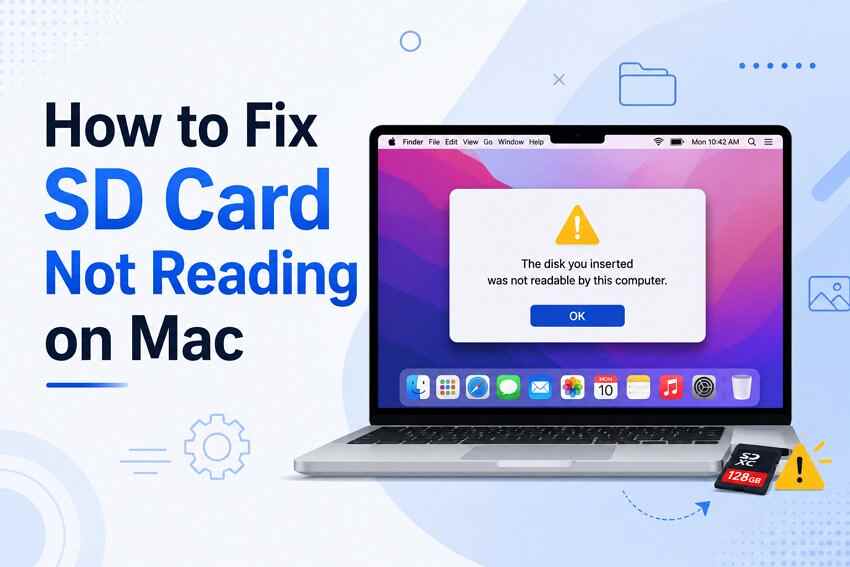
If macOS shows “The disk you attached was not readable by this computer,” choose Ignore first. Do not click Initialize unless you are ready to open Disk Utility and potentially erase or reformat the card after recovering your files.
2. Do Not Erase or Reformat the Card Yet
Erasing or reformatting an SD card can make the files disappear from normal access. If the card contains camera photos, drone footage, project files, or documents, recover or copy them first.
3. Stop Saving New Files to the Card
Do not take new photos, record new videos, export files, or copy anything to the card. New data can overwrite recoverable space.
4. Avoid Repeated Plugging and Repair Attempts
Repeated connection attempts may not help if the card has file system damage or unstable hardware. Check it once in Finder and Disk Utility, then move to safe diagnosis.
5. Test Another Setup
Try a different:
- SD card reader
- USB-C hub
- USB port
- Mac
- Windows PC
- Camera or drone
This helps separate Mac-side issues from SD card damage.
6. Recover Files Before Risky Repairs
If the files are important, scan and recover them before running First Aid, Terminal commands, Erase, or reformatting. Save recovered files to a Mac folder or another external drive, not the same SD card.
Part 2. Why Your MacBook or iMac Is Not Reading the SD Card
Several issues can stop a Mac from reading an SD card correctly.
- Finder Is Hiding External Disks: The card may be mounted, but Finder may not show external disks on the Desktop or Sidebar.
- The Reader, Adapter, Hub, or Port Is Faulty: A damaged adapter, weak USB-C hub, unstable card reader, or dirty port can prevent macOS from detecting the card.
- The SD Card Is Not Making Proper Contact: Dust, moisture, bent contacts, or a loose fit may block the electrical connection between the card and reader.
- The SD Card Is Locked: Some full-size SD cards have a side lock switch. If it is locked, the card may become read-only and some repair or formatting actions may fail.
- The Volume Is Detected but Not Mounted: Disk Utility may show the card, but the volume may remain unmounted. In that case, Finder will not show the card until it is mounted.
- The File System Is Damaged: Unsafe removal, power loss, camera errors, interrupted transfers, or bad sectors can damage the file system or directory structure.
- The Card Uses an Unsupported or Problematic Format: Most SD cards use exFAT or FAT32, but some cards or devices may create structures that do not mount correctly on macOS.
- The Card Was Formatted on Another Device: Some cameras, drones, phones, or Windows tools format SD cards in ways that work on that device but fail on Mac.
- The SD Card Is Aging, Fake, or Physically Damaged: Old cards, fake-capacity cards, cracked cards, water-damaged cards, and failing memory chips may become unreadable.
Part 3. Basic Fixes for Mac Not Reading SD Card
Start with these low-risk fixes. They do not change the SD card’s file system.
Fix 1. Check the SD Card, Adapter, Slot, & Card Reader
Inspect the SD card and reader before trying software repairs.
Check for:
- Dust on card contacts
- Cracked or bent card body
- Loose microSD-to-SD adapter
- Damaged card reader
- Locked SD card switch
- Unstable USB-C hub
If the card is dirty, gently clean the contacts with a dry microfiber cloth. Do not use water.
Fix 2. Try a Different USB Port, USB-C Hub, or External Card Reader
If your Mac won’t read the SD card, the reader or hub may be the problem.
Try these tests:
- Use another USB-C port
- Remove the hub and connect directly if possible
- Try another external card reader
- Test the card on another Mac
- Test the card in the original camera or drone
If the card works through another reader, replace the faulty reader or hub.
Fix 3. Restart Your Mac and Reinsert the SD Card
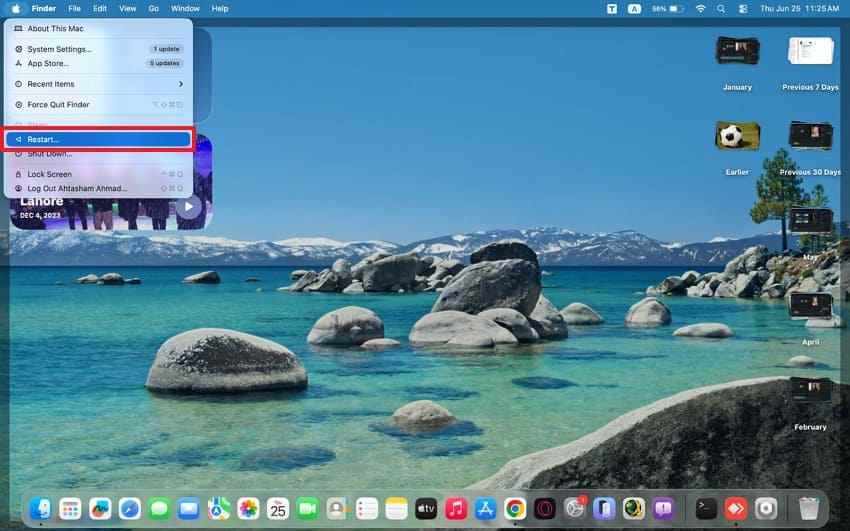
A restart clears temporary system glitches when the iMac won't read the SD card issue appears. Reinsert the card after startup, so macOS checks the connection again.
Fix 4. Show External Disks in Finder Settings
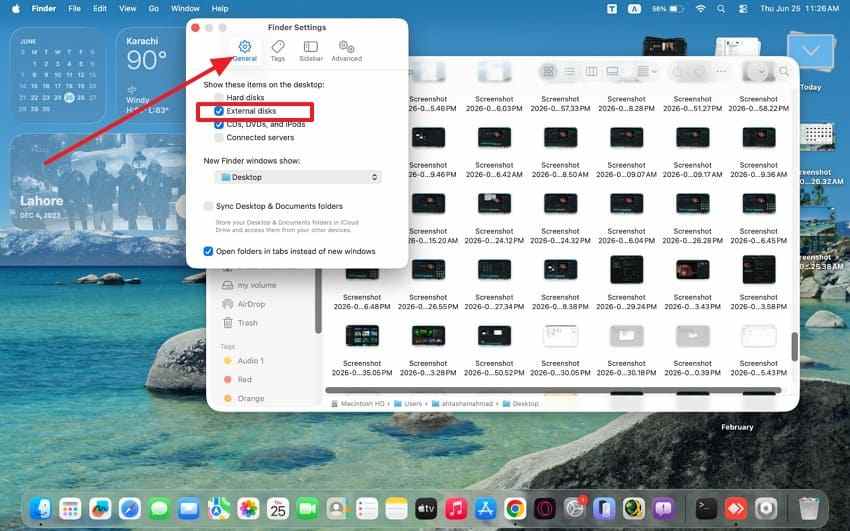
Finder may hide mounted external drives from the desktop and sidebar. You can adjust this setting to confirm whether the card is actually accessible. Below are the steps to try this fix with ease:
Step 1. Click “Finder” from the Dock, then choose “Finder > Settings.”
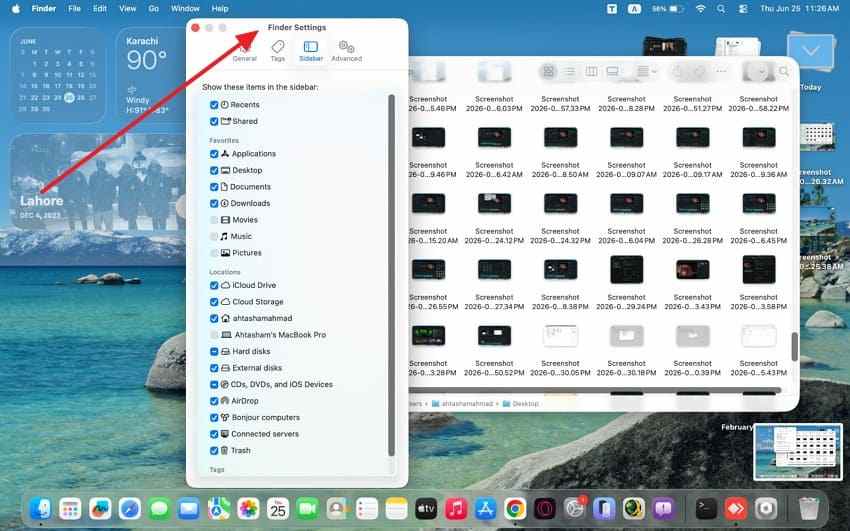
Step 2. Enable “External Disks” from the “General” and “Sidebar” settings.
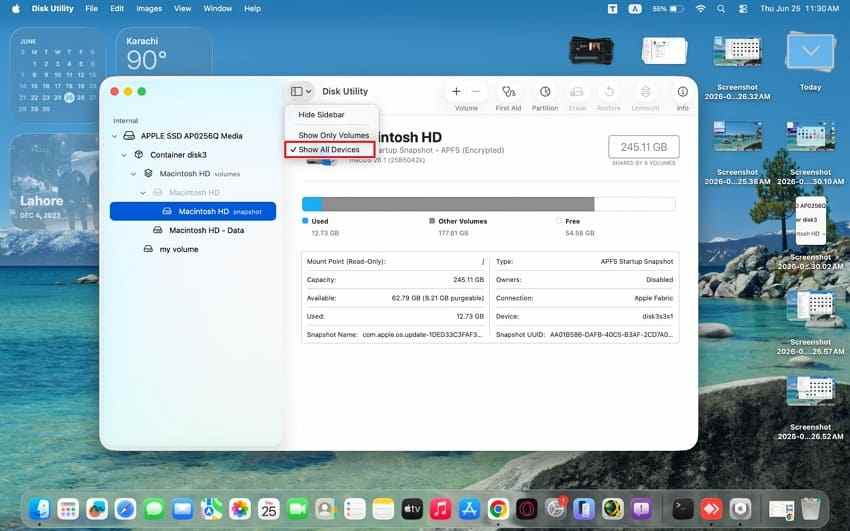
Fix 5. Open Disk Utility and Select Show All Devices
Disk Utility shows deeper storage details when the Mac won't read the SD card, and problems continue. Adhere to the steps below to open Disk Utility to select Show All Devices:
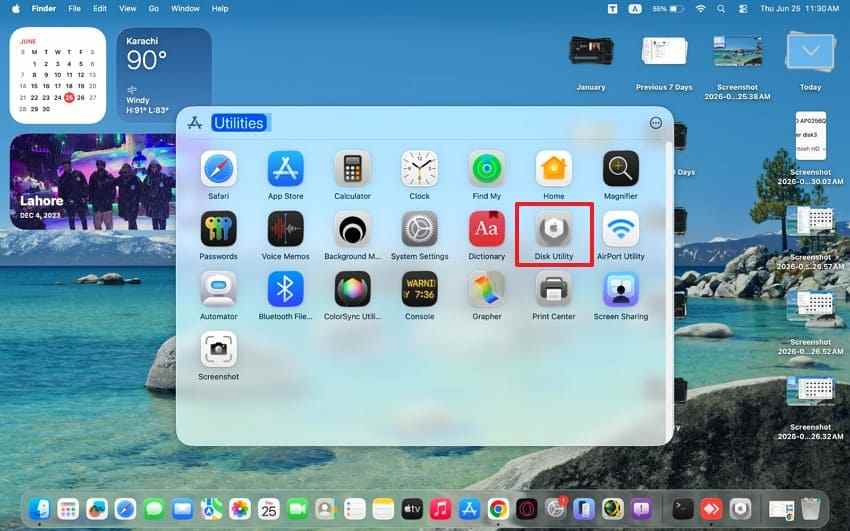
Step 1. Access the “Disk Utility” from “Applications > Utilities” or search for it through Spotlight.
Step 2. Next, select the “View” in Disk Utility, then select “Show All Devices” from the menu.
Fix 6. Mount the SD Card Manually in Disk Utility
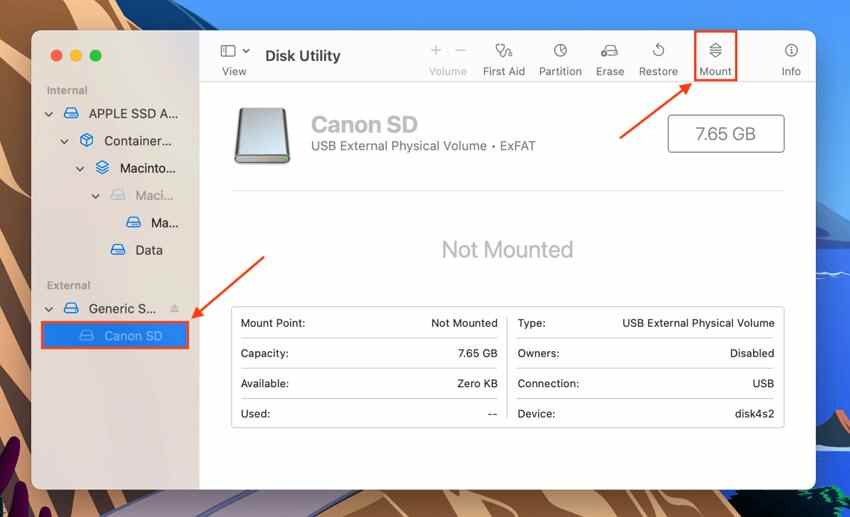
A detected card may stay inactive until macOS mounts its volume manually. Therefore, mount the card only when it appears healthy enough to open. The following instructions will guide you through the process:
- In Disk Utility, select the SD card volume shown under the card name.
- Then, choose “Mount” from the toolbar, and check whether Finder shows the card.
Part 4. Recover Files from an Unreadable SD Card on Mac Before Repairing
If the SD card contains important photos, videos, documents, or project files, recover them before First Aid, Terminal commands, or formatting.
This is especially important when:
- macOS says the SD card is not readable
- The card appears in Disk Utility but will not mount
- Files are missing
- The SD card asks to be initialized or erased
- The card was used in a camera, drone, phone, or recorder
- The card works sometimes but disconnects often
Recoverit Mac Data Recovery can scan an unreadable or unmounted SD card, preview found files, and save recoverable data to another safe location.
When Recoverit Is a Good Fit
Use Recoverit when:
- Finder does not show the SD card, but Disk Utility detects it
- The SD card is not readable on Mac
- Videos or photos disappeared from the card
- The card was accidentally formatted
- The card was used in a camera, drone, or phone
- You need files before First Aid or formatting
When Recoverit May Not Work
Recoverit may not help if:
- The SD card is physically broken
- The card is not detected by any Mac, PC, camera, or reader
- The card overheats or disconnects instantly
- The card has severe hardware damage
- The files were overwritten by new data
For severe physical damage, stop DIY attempts and contact a professional data recovery lab.
Key Features
- SD Card Recovery on Mac: Scan SD cards, microSD cards, and removable storage used by cameras, phones, drones, and recorders.
- Preview Before Recovery: Preview photos, videos, and documents before saving.
- File Type Filters: Filter scan results by file type, path, size, or date.
- Safe Recovery Destination: Save recovered files to your Mac or another external drive, not the same unstable SD card.
How to Recover Files from an Unreadable SD Card on Mac
Once the lost file types are clear, recovery becomes the safest next move. The steps below help retrieve data from an unreadable SD card on a Mac:
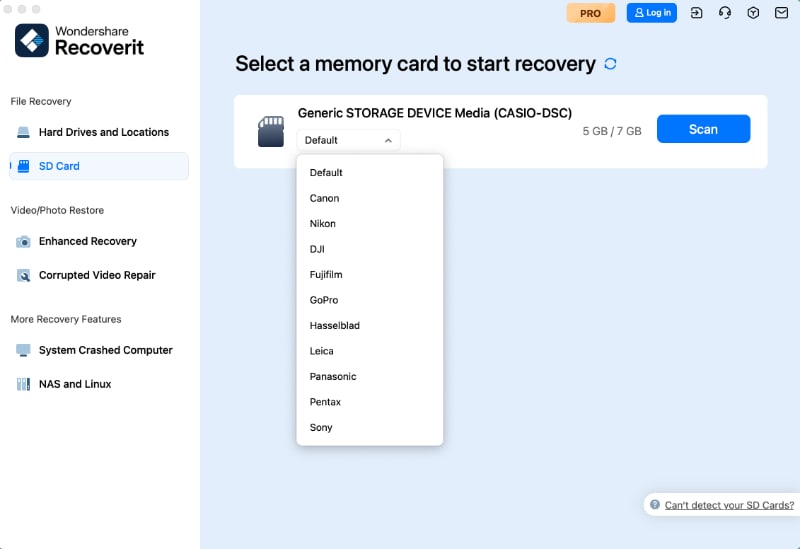
Step 1. Launch SD Card Recovery
Open “Recoverit > SD Card Recovery > Select the Detected SD card > Start Scan.”
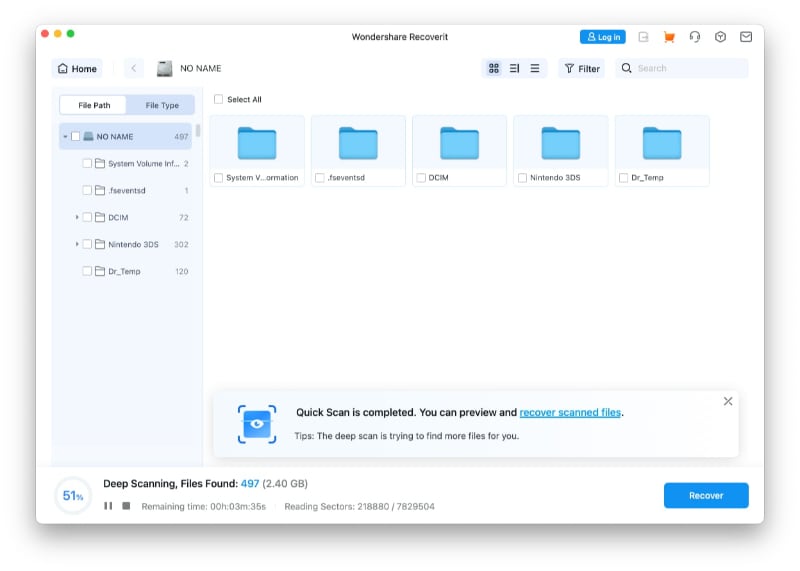
Step 2. Scan and Preview Files
Wait during deep scanning, then filter by “File Path” or “File Type” and select “Recoverable Files.”
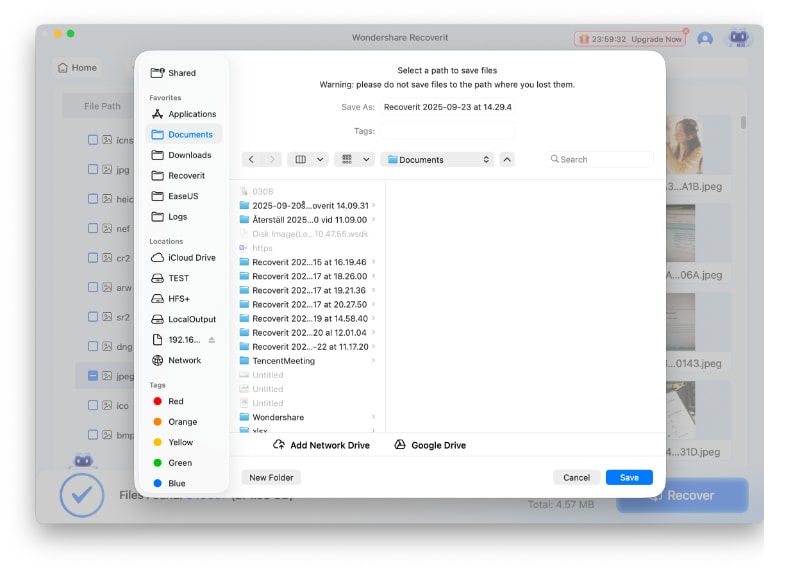
Step 3. Recover to a Safe Location
Finally, click “Recover” > Choose a different Mac folder or external drive > Press “Save.”
Part 5. Advanced Fixes for SD Card Not Readable on Mac
After protecting or recovering important files, you can try repair methods that may change the card’s file system.
Fix 7. Run First Aid Only After You Have Protected Important Files
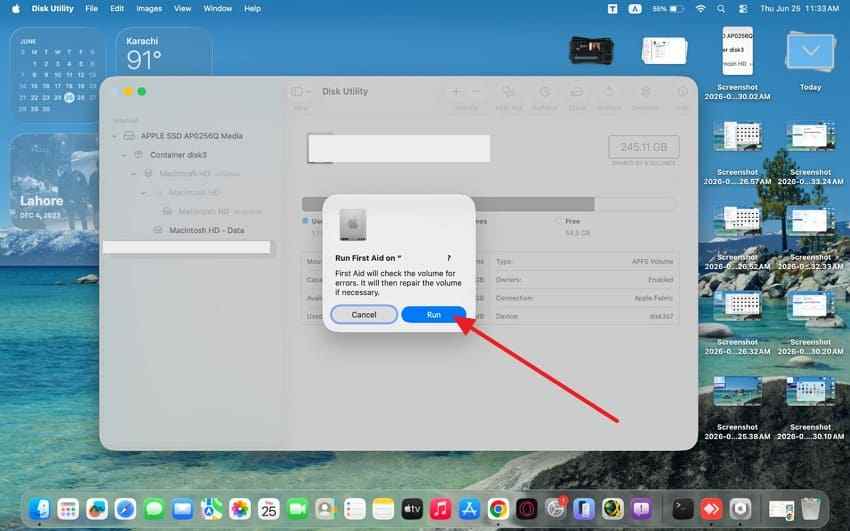
First Aid can check and repair file system errors on a selected volume. Use it after recovering important files if the card is unstable or contains valuable data.
Open Disk Utility, select the SD card volume under External, click First Aid, and choose Run.
If Disk Utility reports that the card cannot be repaired, recover files if possible and prepare to reformat or replace the card.
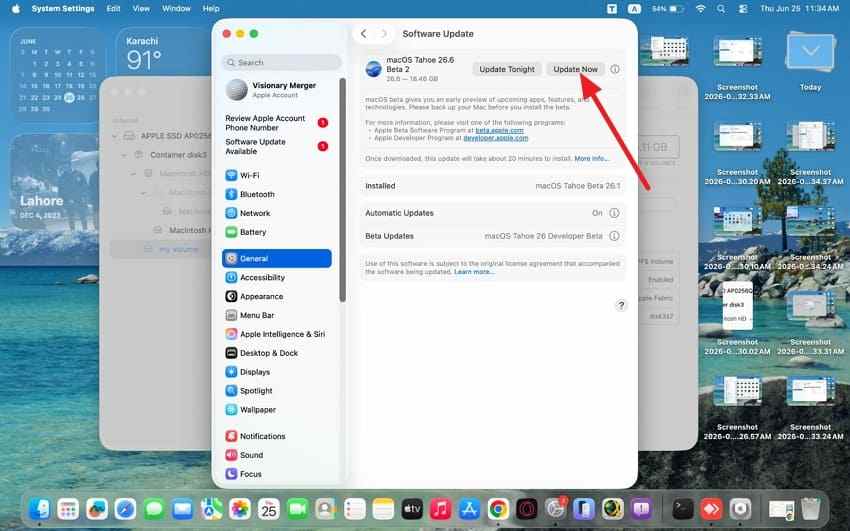
Fix 8. Update macOS to the Latest Compatible Version
macOS updates may improve external storage compatibility and fix device-related bugs. This can help if your SD card reader or storage behavior changed after a system issue.
Note: Do not start a major macOS upgrade just to test one SD card if you have urgent files to recover. Recover or back up files first.
Step 1. After accessing the “Apple Menu > System Settings > General > Software Update.”
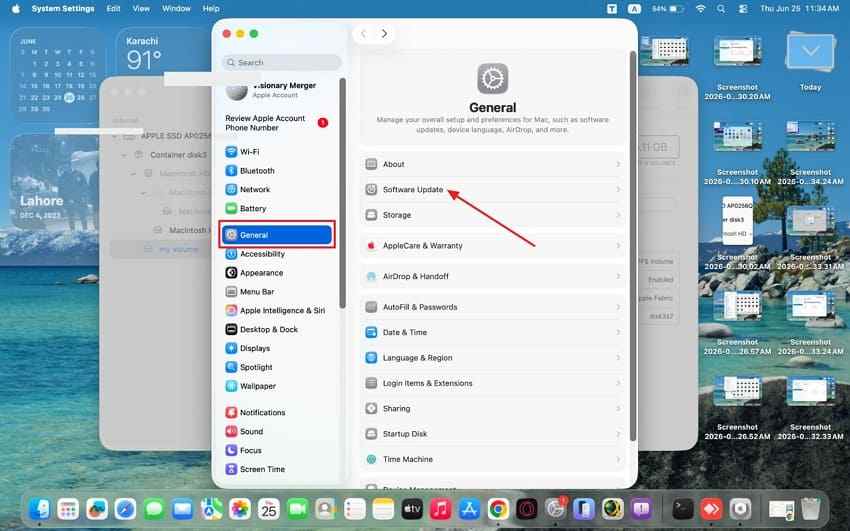
Step 2. Install the compatible software by pressing “Update Now” and then test the SD card again
Fix 9. Reformat the SD Card Only After Recovery
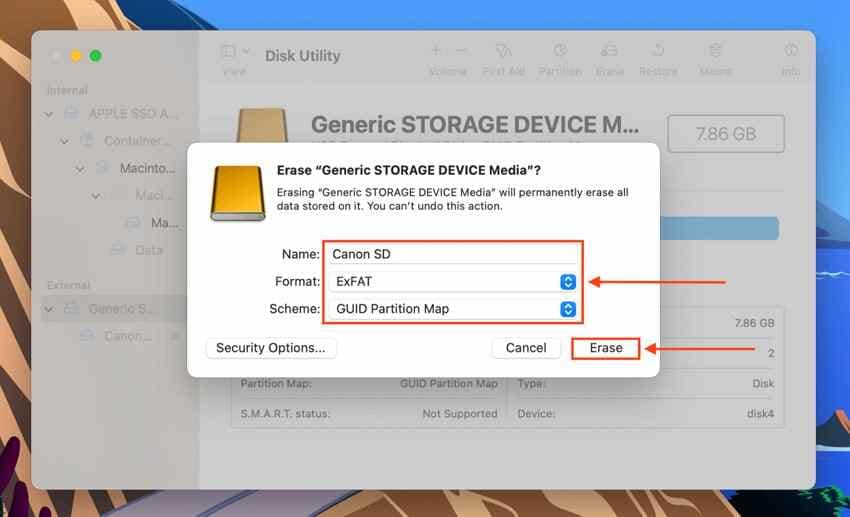
Reformatting can make the SD card usable again, but it erases the card. Only do this after recovering or backing up important files.
Which Format Should You Choose?
| Format | Best For | Notes |
| exFAT | Large files, cameras, drones, Mac and Windows sharing | Best general choice for modern SD cards |
| MS-DOS FAT / FAT32 | Older devices and smaller cards | File size limits may apply |
| APFS | Mac-only storage | Not recommended for most camera SD cards |
| Mac OS Extended | Older Mac-only storage | Not ideal for cross-device SD card use |
Instructions. Open Disk Utility, select the SD card, click Erase, choose a name and format, then confirm.
After formatting, test the card in the device you plan to use, such as a camera or drone.
Part 6. What If Disk Utility Cannot Mount or Repair the Card?
If Disk Utility cannot mount or repair the card, the issue may be more serious.
| Quick Check | What It Tells You | Safe Next Step |
| Check the Card Capacity | The wrong size may show corruption or fake card behavior. | Avoid formatting and recover files first. |
| Test Another Device | It separates Mac problems from SD card failure. | Try another Mac, Windows PC, camera, or reader. |
| Check Encryption | Locked cards may appear unreadable without the right password. | Use the correct password or original device. |
| Inspect with Terminal Carefully | The Terminal can show disk details, but mistakes can harm data. | Use commands only if you understand them. |
| Stop Repeated Repairs | Failed repairs may stress an unstable or damaged card. | Pause repair attempts and scan for recovery. |
| Consider Professional Recovery | Critical files may need lab-level recovery support. | Choose this for business, legal, or unique files. |
Part 7. Why the SD Card Works on Other Devices, But Not on Mac
A card working elsewhere does not always mean your Mac is broken. It may be a compatibility, reader, or directory issue.
- Camera Can Read the Card, But Mac Cannot: If the camera can still read the card, connect the camera to your Mac with a USB cable and copy files through the camera software or Finder if available. Back up the files before reformatting the card.
- Windows Can Read the Card, But Mac Cannot: If a Windows PC can read the card, copy the files to another drive first. Then reformat the card later for cross-platform use, usually as exFAT.
- Only One Reader Fails: If the card works with another reader, replace the faulty reader, adapter, or hub.
- The Card Uses a Format macOS Cannot Handle Well: Some devices create nonstandard structures, damaged directories, or formats that macOS does not mount properly. Copy or recover files first, then format the card in the device where you plan to use it.
- NTFS or Other Format Issues: macOS can often read NTFS but does not provide full native write support. For SD cards used across Mac and Windows, exFAT is usually the better choice.
Part 8. How to Prevent SD Card Reading Problems on Mac
Stable card habits reduce the chances of future detection errors. A few safe practices help prevent the MacBook from not reading the SD card during transfers:
| Prevention Tip | Why It Helps |
| Eject the Card Safely | It prevents file-system errors during removal. |
| Keep Contacts Clean | Dust or moisture can block stable detection. |
| Use Compatible Formatting | exFAT or FAT32 works better across devices. |
| Back Up Before Reuse | It protects files before formatting or overwriting. |
| Avoid Too Many Devices | Frequent switching may create compatibility problems. |
| Keep macOS Updated | Updates improve storage and device support. |
| Store Cards in Cases | Cases protect cards from cracks, heat, and dirt. |
| Replace Aging Cards | Old unstable cards may fail during transfers. |
Conclusion
When an SD card is not reading on Mac, do not jump straight to Initialize, First Aid, or Erase. First, find out whether the card is hidden in Finder, detected in Disk Utility, unmounted, unreadable, or not recognized at all.
Start with safe checks: try another reader or port, show external disks in Finder, open Disk Utility with Show All Devices, and mount the card manually. If the card contains important photos, videos, or documents, recover files before running First Aid or formatting.
For unreadable, unmounted, corrupted, or formatted SD cards, Recoverit Mac Data Recovery can help scan the card, preview recoverable files, and save them to another drive. Once your files are safe, you can run First Aid, update macOS, or reformat the card for future use.
Frequently Asked Questions
-
1 Why is my MacBook not reading my SD card?
Your MacBook may not read the SD card because of Finder settings, a faulty reader, a loose adapter, a locked card, an unmounted volume, file system corruption, unsupported formatting, or physical card damage. -
2 Why does my SD card show in Disk Utility but not Finder?
This usually means macOS detects the card, but the volume is not mounted or Finder is not set to show external disks. Try enabling External Disks in Finder and mounting the volume manually in Disk Utility. -
3 What should I do when Mac says the SD card is not readable?
Click Ignore first. Do not initialize or erase the card until important files are recovered. Then check Disk Utility and scan the card with recovery software if files matter. -
4 Should I initialize or erase an unreadable SD card on Mac?
Only after recovering or backing up your files. Initializing or erasing can remove access to existing data and should be treated as a last step, not the first fix. -
5 Can First Aid fix an SD card without deleting files?
First Aid is designed to check and repair file system errors, not erase the card. However, if the card is damaged or unstable, repair attempts can still change file system structures. Recover important files first if they matter. -
6 Why does my SD card work in a camera but not on Mac?
The camera may understand its own folder structure or format better than macOS. If the camera can read the card, connect the camera to your Mac and copy files before reformatting. -
7 How do I recover files before formatting an SD card on Mac?
Use Recoverit Mac Data Recovery to scan the SD card, preview recoverable files, and save selected files to your Mac or another external drive. Do not save recovered files back to the same SD card. -
8 Can Recoverit recover files from an unreadable SD card on Mac?
Yes, if the SD card is still detected by your Mac or card reader, Recoverit can scan it for recoverable photos, videos, and documents. If no device detects the card, software recovery may not work. -
9 What format should I use for an SD card on Mac?
Use exFAT for most modern SD cards shared between Mac, Windows, cameras, and drones. Use FAT32 only for older devices or smaller cards. Use APFS or Mac OS Extended only for Mac-only storage. -
10 When should I stop DIY fixes and use professional recovery?
Stop DIY fixes if the card is physically damaged, water-damaged, overheating, disconnecting constantly, or not detected by any device. Professional recovery is safer for business-critical, legal, or irreplaceable files.


