
 TL;DR:
Resolve recurring MacBook Pro crashes and freezes by sequentially isolating the trigger—starting with unresponsive apps, external peripherals, and login items—before testing the system in Safe Mode, running Apple Diagnostics, or reinstalling macOS.
● Force shut down your Mac by holding the Touch ID or power button for up to 10 seconds only as a last resort if the entire system is completely unresponsive, because this action interrupts active disk writes and loses unsaved application memory.
● If the Mac operates smoothly in Safe Mode but crashes after a normal restart, the root cause is likely a third-party login item, background extension, security tool, or VPN rather than a failing hardware component.
● Always secure readable data before running Disk Utility First Aid, as data recovery software cannot retrieve unsaved edits from volatile memory, data permanently erased by SSD TRIM, or files locked within inaccessible FileVault-encrypted drives.
Ask AI for a summary
 ChatGPT
 Perplexity
 Gemini
 Claude
 Grok
Grok
Quick answer: If only one app is frozen, try to quit it normally and then use Option-Command-Esc if necessary. If the whole Mac is unresponsive, restart it; hold the power or Touch ID button for up to 10 seconds only as a last resort. Recurring crashes require a controlled test of updates, accessories, login items, Safe Mode, the startup disk, and hardware.
A MacBook Pro that keeps freezing can look like a storage failure even when the real trigger is an app, plug-in, dock, display driver, or background utility. One Mac community report describes repeated unexplained crashes—the kind of case where guessing wastes time. This guide separates a normal app hang from a kernel panic, orders the tests by risk, and explains when to protect or recover files before repair.
Recover Important Files Before Major Mac Repairs
 Security Verified. Over 7,302,189 people have downloaded it.
In this article
-
- Fix 1. Restart the Mac and Test the Problem Again
- Fix 2. Update macOS and Your Apps
- Fix 3. Disconnect External Devices
- Fix 4. Troubleshoot the App That Keeps Crashing
- Fix 5. Check Problem Processes in Activity Monitor
- Fix 6. Disable Problematic Login Items and Background Apps
- Fix 7. Start the Mac in Safe Mode
- Fix 8. Run Disk Utility First Aid
- Fix 9. Run Apple Diagnostics
- Fix 10. Reinstall macOS Without Erasing Your Files
- Fix 11. Get the Mac Checked for Hardware Failure
Part 1. What Does a Mac Crash or Freeze Actually Mean?
Before applying a fix, identify the failure boundary. “Crash MacBook Pro” searches often combine three different events, but each one points to a different first test.
| Failure mode | What you see | Most useful first action | Main data risk |
| One app freezes | The app shows a spinning pointer or “Not Responding,” but other apps still work. | Quit normally; force quit only if necessary. | Unsaved changes in that app. |
| Entire Mac freezes | Pointer, keyboard, menus, and app switching stop responding. | Wait briefly, then restart; force power off only if no normal control works. | Unsaved work and interrupted disk writes. |
| Unexpected restart | The Mac reboots and may show “Your computer restarted because of a problem.” | Record what was connected and running, then update and isolate software or peripherals. | Open documents and any active transfer. |
| Startup loop or stalled boot | The Mac repeats restarts, stalls at the Apple logo, or cannot reach the desktop. | Disconnect nonessential accessories, try Recovery, First Aid, and Safe Mode. | Escalating storage damage if the disk is failing. |
App Crash vs Entire Mac Freeze
An app crash closes one application. An app freeze leaves it open but unresponsive. In both cases, macOS and other apps may continue to work. Apple recommends quitting and reopening the app, checking for updates, testing another file, and reinstalling only after considering app-specific data.
An entire-Mac freeze is broader: the pointer may stop, Command-Tab may do nothing, and the Force Quit window may not open. That can still be software, but external hardware, storage errors, memory pressure, and a kernel-level fault become more plausible.
Mac Lockup vs Unexpected Restart
A lockup is a system that stays powered on but stops accepting input. An unexpected restart means macOS or the hardware reset the system. If your MacBook Air crashed and then immediately rebooted, note the time and the apps, dock, drives, displays, or hubs in use. Repeating the same workload after changing one variable is more informative than applying several fixes at once.
Kernel Panic vs Normal App Crash
Apple defines an unexpected restart followed by a message about a problem as a kernel panic. The current Apple kernel-panic guidance and its Mac User Guide on unexpected restarts say installed software is a common cause, while damaged or incompatible hardware—including connected devices—can also be responsible.
A normal app crash does not restart the operating system. To investigate patterns, open Console and look under Crash Reports, Spin Reports, and Diagnostic Reports. These logs can identify the process involved, but a process named in a report is not automatically the root cause. Keep the report for an app developer or Apple Support instead of deleting system files based on one unfamiliar label.
Part 2. Why Does a MacBook Pro, MacBook Air, or Mac Pro Keep Crashing?
Recurring lockups usually fall into one of six groups. The same causes apply to a MacBook Pro, MacBook Air, and Mac Pro, although desktop Mac Pro systems also add PCIe hardware and more external-device combinations.
- Problematic or incompatible apps: One app, damaged project, helper process, browser extension, or plug-in may hang repeatedly. If the issue happens only with one document, test a copy and a new blank file before blaming macOS.
- Outdated macOS, apps, plug-ins, or extensions: A component built for an older macOS release can conflict with current security, graphics, audio, or file-system behavior. Update the OS and the affected app from their official sources.
- Faulty external devices or accessories: Docks, hubs, displays, storage, audio interfaces, printers, and cables can trigger crashes through power, firmware, or driver problems. Apple specifically recommends disconnecting peripherals and reconnecting them one at a time.
- Problematic login items or background software: VPN clients, antivirus tools, cloud sync helpers, display utilities, menu-bar apps, and hardware-control software can load before the desktop is fully ready.
- Startup disk or file-system errors: Directory or formatting errors can cause damaged files, unexpected behavior, and startup failure. A nearly full disk may worsen performance, but free-space pressure alone does not prove the SSD is failing.
- Hardware problems: Storage, memory, logic board, power, thermal, display, or accessory faults are more likely when the Mac crashes in Safe Mode, across unrelated workloads, or after a clean macOS reinstall.
Do not use random “cleaner” utilities as a first response. They change more variables, can remove caches that would otherwise help diagnosis, and cannot repair failing hardware.
Part 3. What to Do When Your Mac Is Frozen Right Now
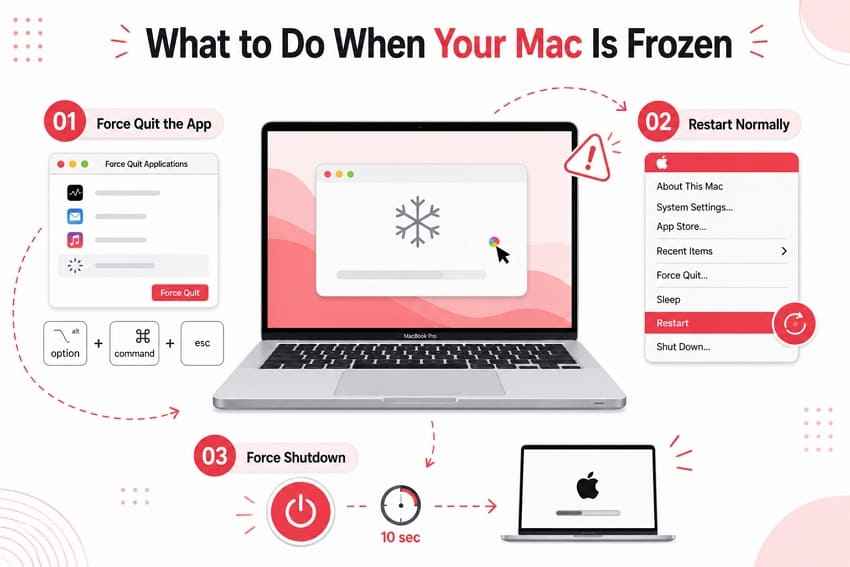
Preserve work before escalating. Apple notes that force quitting can lose unsaved changes, while a forced shutdown can interrupt every open app and active write.
- Force quit only the unresponsive app: First try Command-Q or the app’s normal Quit command. If it does not respond, press Option-Command-Esc, select the app, and click Force Quit. Finder can be selected and relaunched.
- Restart the Mac normally: If menus still work, choose Apple menu > Restart. Save any responsive documents first and stop active file transfers where possible.
- Force shut down a completely frozen Mac: If neither Force Quit nor Restart works, hold the power button—or the Touch ID button on a Mac laptop—for up to 10 seconds until the Mac turns off. Wait briefly, then press it once to start again.
- Record the context: Note the time, app, file, accessory, display, and task that preceded the freeze. After reboot, do not immediately repeat a destructive operation on an important drive.
Important: A force quit or manual shutdown does not recover unsaved edits. Check the app’s AutoSave, recovery folder, version history, iCloud Drive, or Time Machine after the Mac is stable.
Part 4. How to Fix a Mac That Keeps Crashing or Freezing
Work through these fixes in sequence. Test after each one so the result tells you which layer caused the problem. Back up important files before disk repair, reinstallation, or service.
Fix 1. Restart the Mac and Test the Problem Again
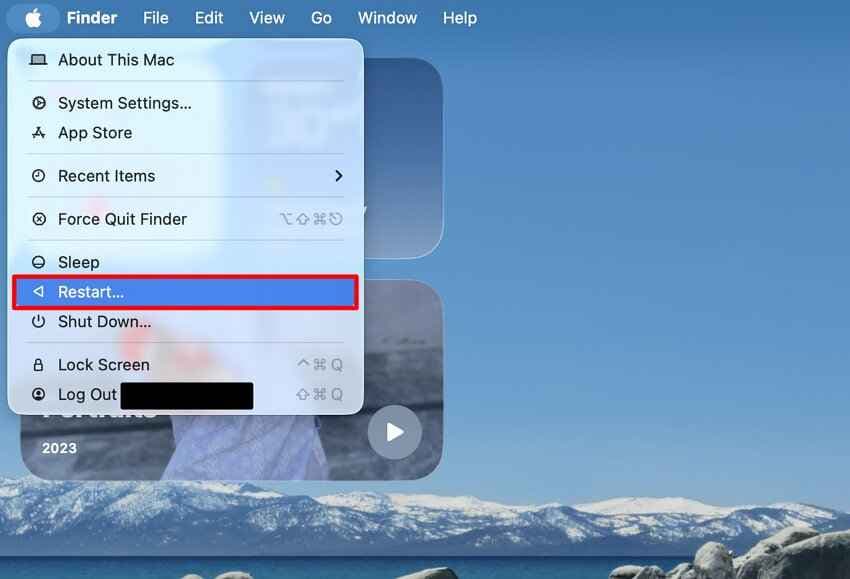
A normal restart clears the current app and process state without erasing your files. It is useful after a one-off freeze, but repeated lockups still require the later isolation steps.
- Save open work and choose Apple menu > Restart.
- After login, open only the app or workflow that triggered the problem.
- If the Mac remains stable, add other apps and accessories one at a time. If it freezes again, record the newest change.
Result: A restart that helps only briefly often points to software loaded after login, a process that grows over time, or an accessory reintroduced after startup.
Fix 2. Update macOS and Your Apps
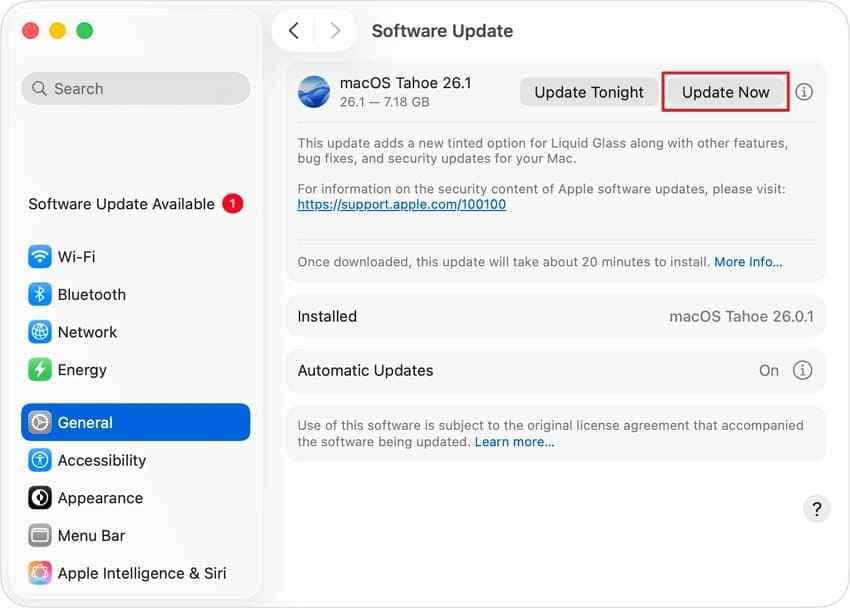
Apple recommends the latest macOS compatible with the Mac for security, stability, and compatibility. Back up first, connect the Mac to reliable power and internet, and allow updates to complete without closing the lid.
- Choose Apple menu > System Settings > General > Software Update, or search for Software Update with Spotlight.
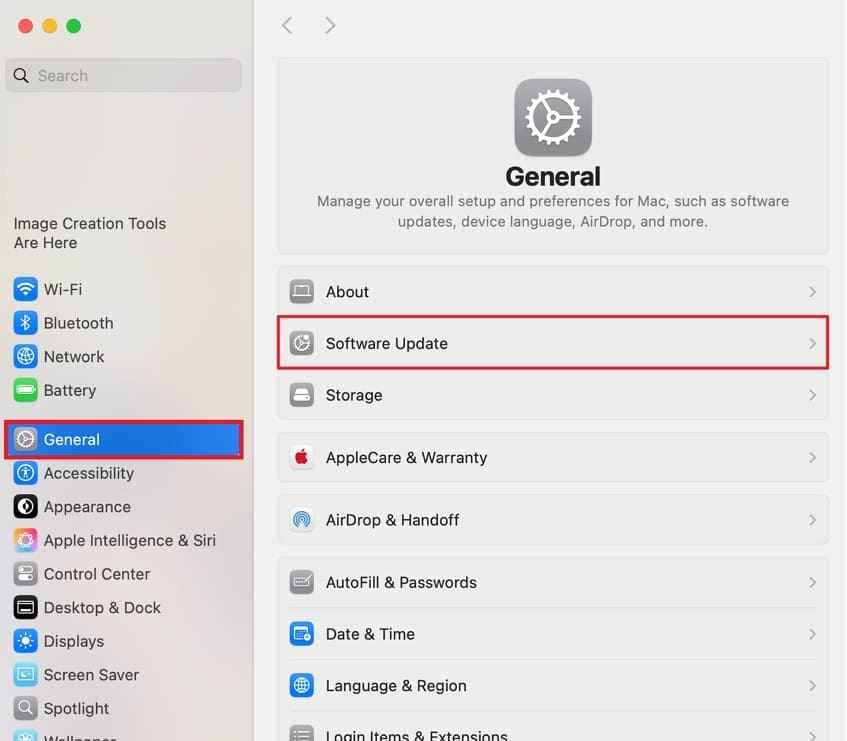
- Install the available update or upgrade offered for that Mac. If Software Update says the Mac is current, it may simply have no newer compatible release.
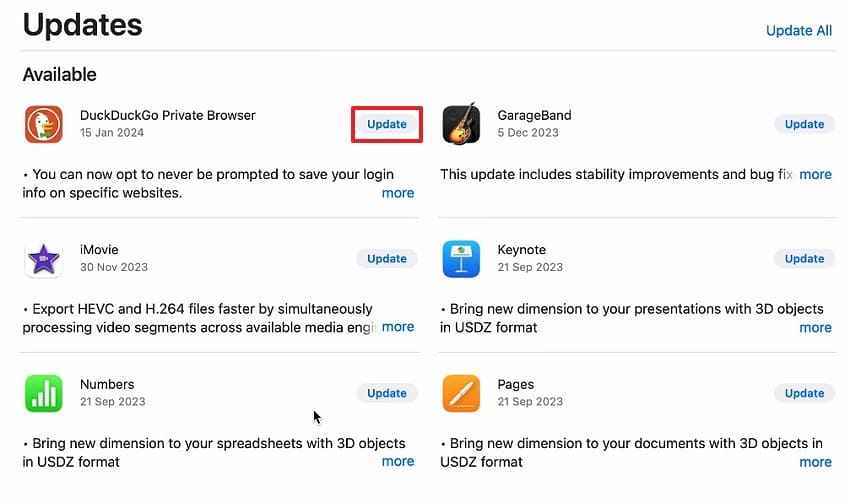
- Open App Store > Updates for App Store apps. For software installed elsewhere, use the developer’s built-in updater or official download page.
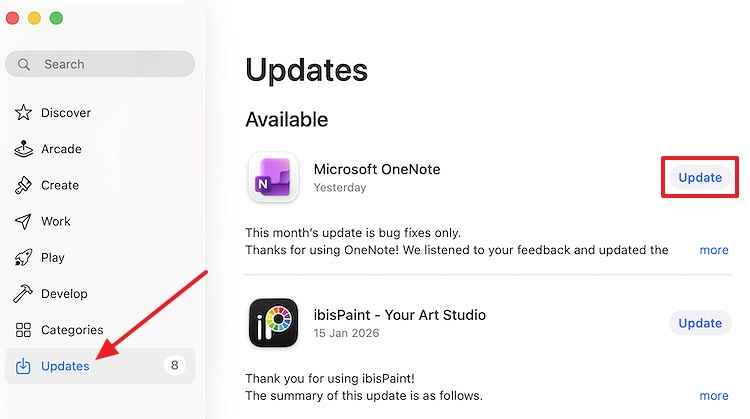
See Apple’s current macOS update instructions. If crashing began immediately after an update, still update affected third-party apps and drivers; an incompatible companion component may be the actual trigger.
Fix 3. Disconnect External Devices
This test is especially important when a Mac Pro is crashing with PCIe hardware, or a MacBook freezes only while attached to a dock, external monitor, storage device, audio interface, or hub.
- Shut down the Mac and disconnect nonessential drives, docks, printers, hubs, displays, adapters, and other accessories. Keep only power and the keyboard, mouse, or display required to test.
- Start the Mac and repeat the affected workflow without the devices.
- If stable, reconnect one device at a time and restart or retest after each addition.
- When the failure returns, test the suspected device with a different cable, port, power source, and current firmware or driver where available.

Do not disconnect a storage device during a write. Eject it normally when possible. If the drive itself clicks, disconnects, disappears, or makes the Mac hang, stop repair attempts until important data is copied or recovered.
Fix 4. Troubleshoot the App That Keeps Crashing
When only one app fails, keep the investigation at the app layer before changing system settings. Apple recommends checking compatibility, another file, updates, reinstalling, and third-party plug-ins or enhancements.
- Check compatibility: Confirm the installed version supports your macOS release and Mac architecture.
- Test another file: A damaged document, library, media file, or project can crash an otherwise healthy app.
- Update the app: Use the App Store or the developer’s official updater.
- Disable or uninstall plug-ins correctly: Follow the app or plug-in developer’s removal instructions. Plug-in locations differ by app; do not trash arbitrary folders inside ~/Library or /Library.
- Reinstall carefully: Back up app libraries, presets, catalogs, and local projects first. Apple warns that deleting an app can remove data stored inside it.
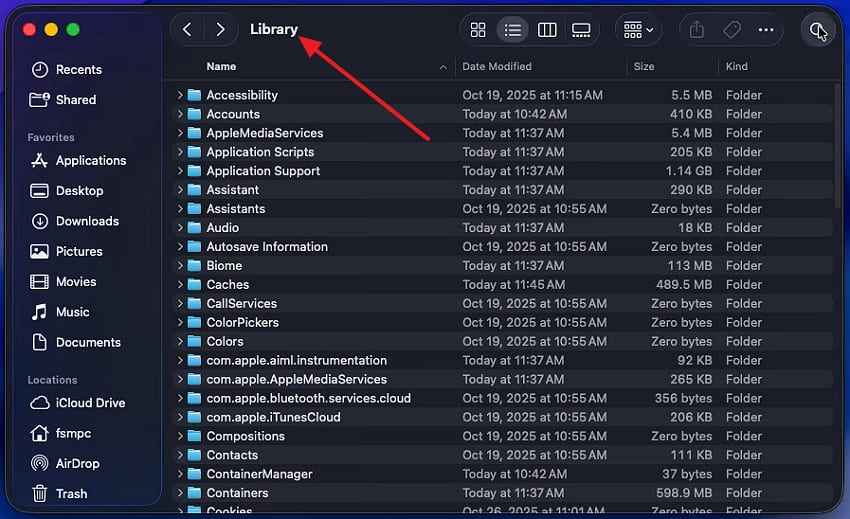
For the current decision sequence, see Apple’s guide for an app that freezes or quits unexpectedly.
Fix 5. Check Problem Processes in Activity Monitor
Activity Monitor helps confirm whether one process is unresponsive or using unusually high CPU or memory. High usage alone is not proof of malware or a defect; video export, indexing, and backups can legitimately use substantial resources.
- Open Applications > Utilities > Activity Monitor.
- Check the CPU and Memory tabs. An unresponsive process may appear red with (Not Responding).
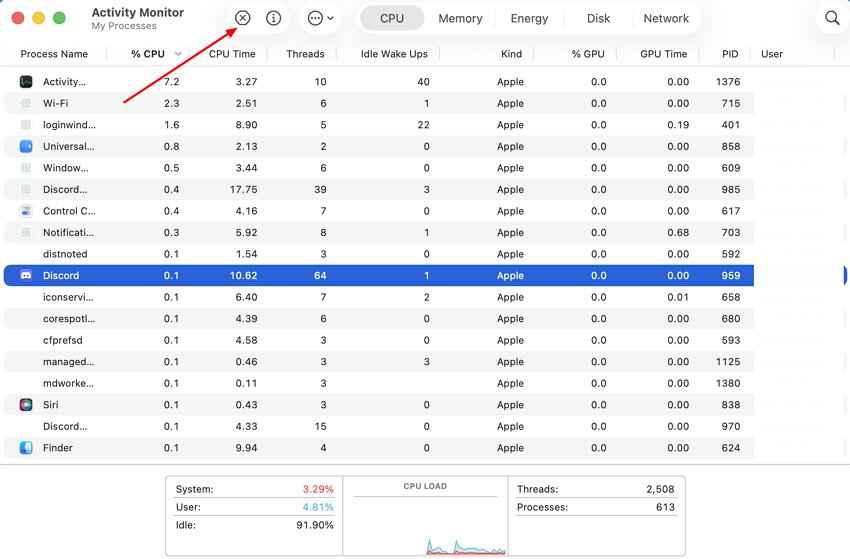
- Select the known app or process and click the Stop button. Choose Quit first; use Force Quit only if it will not stop safely.
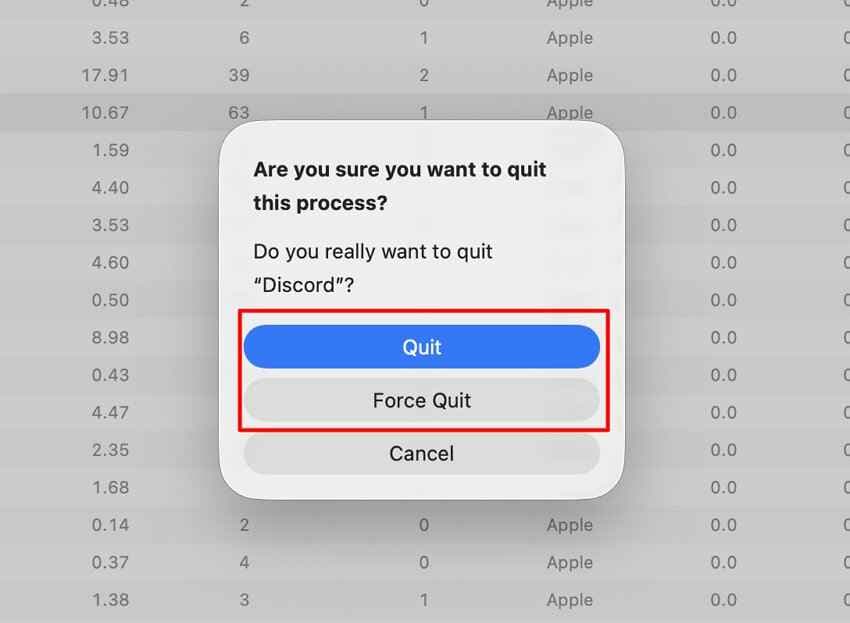
Apple’s Activity Monitor guide notes that Force Quit ends a process immediately and can lose open-file data or affect dependent processes. Do not force-quit unfamiliar system processes merely because their names or usage look unusual.
Fix 6. Disable Problematic Login Items and Background Apps
If the Mac freezes soon after login but not before it, temporarily remove third-party startup items and disable optional background services. Keep a written list or screenshot so the configuration can be restored.
- Open System Settings > General > Login Items & Extensions.
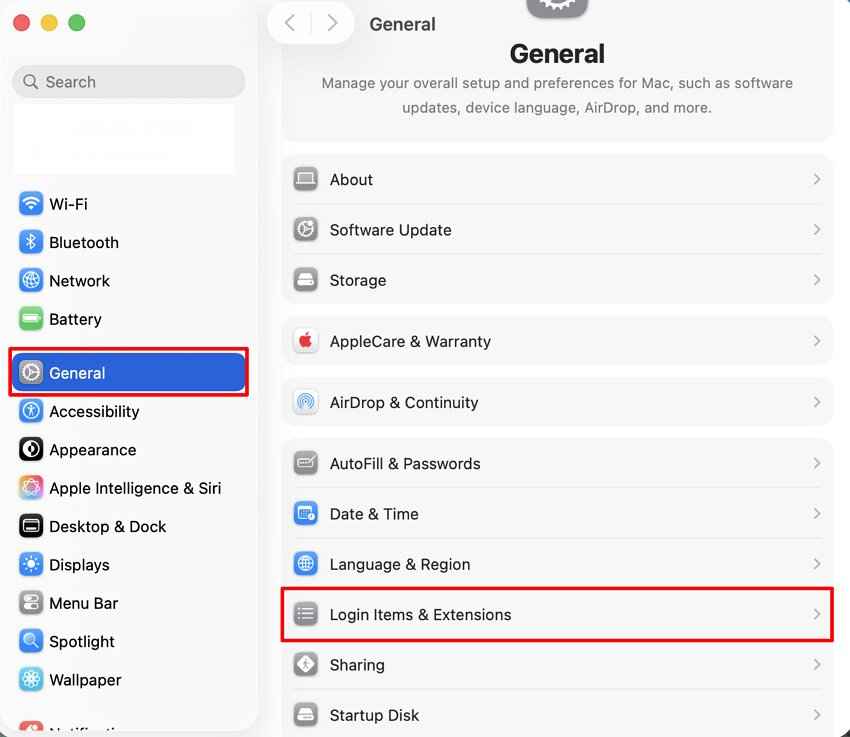
- In Open at Login, select nonessential third-party items and remove them temporarily. Review allowed background activity and extensions, but do not disable required security or workplace software without approval.
- Restart and test. If the Mac is stable, restore one item at a time and retest until the problem returns.
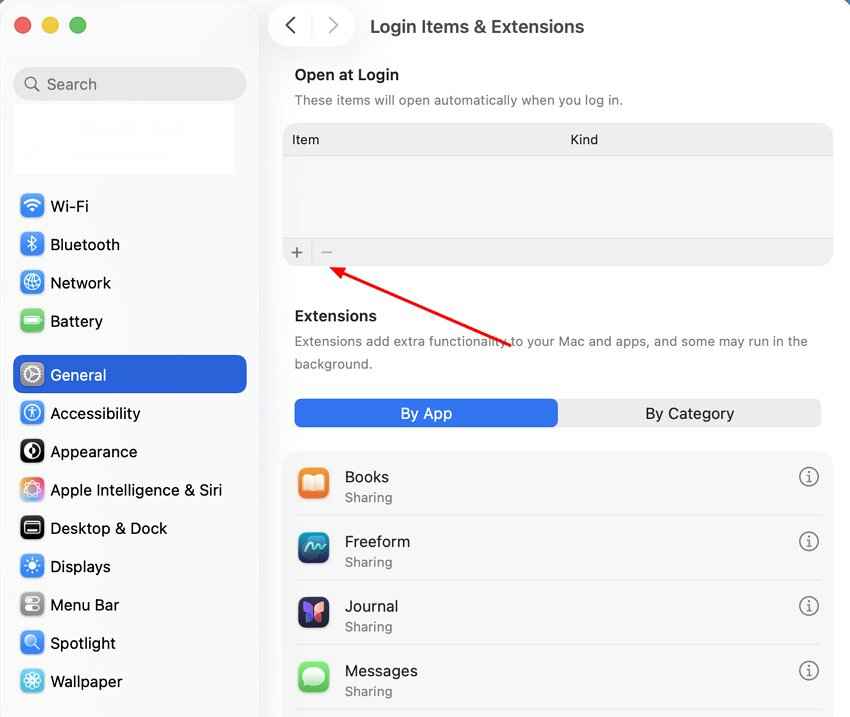
This isolation method is more reliable than permanently removing everything at once because it preserves a clear before-and-after result.
Fix 7. Start the Mac in Safe Mode
Apple says Safe Mode helps determine whether software that loads as the Mac starts is causing the problem. The startup procedure differs between Apple silicon and Intel Macs.
Apple Silicon Macs
Use this sequence on Mac models with Apple silicon.
- Choose Apple menu > Shut Down and wait until the screen is black and all lights are off.
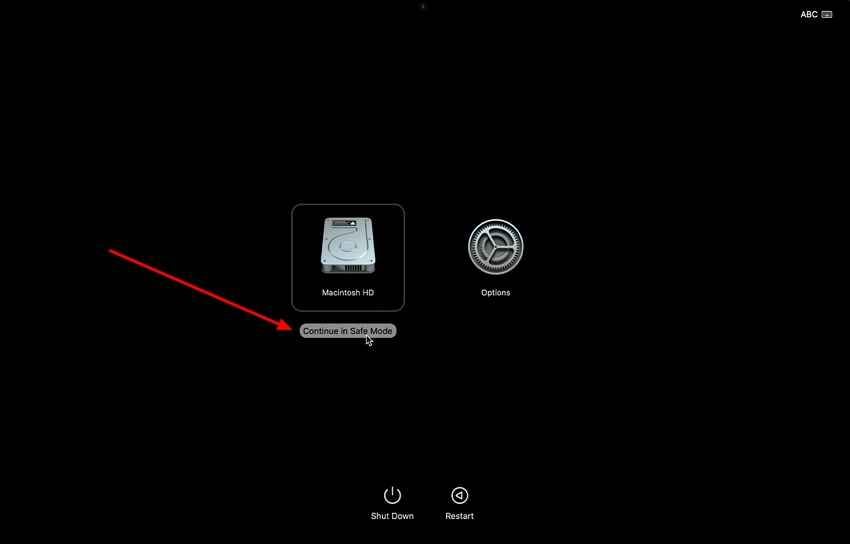
- Press and hold the power button until Loading startup options appears.
- Select the startup volume.
- Hold Shift, click Continue in Safe Mode, and log in.
Intel Macs
Use the Shift-startup method only on Intel-based Macs.
- Turn on or restart the Mac and immediately hold Shift.
- Release Shift when the login window appears, then log in. Apple notes that you may be asked to log in again.
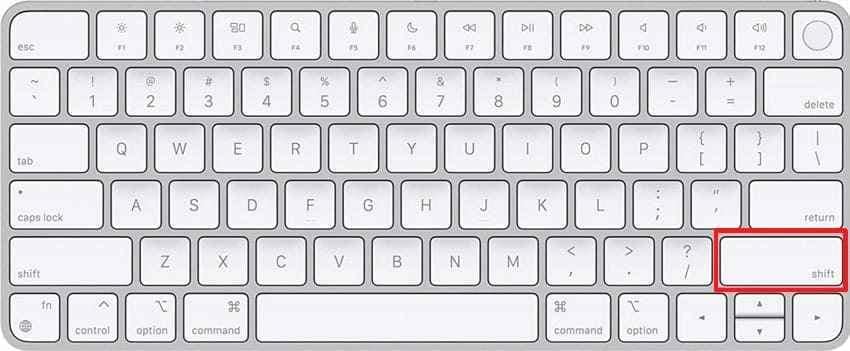
Confirm Safe Boot in the menu bar or System Information. If the freeze disappears, focus on login items, extensions, third-party plug-ins, and recently installed software. If it persists, continue to storage and hardware checks. See Apple’s Safe Mode instructions.
Fix 8. Run Disk Utility First Aid
Disk Utility can find and repair formatting and directory-structure errors. Back up first because Apple warns that First Aid cannot repair every disk problem and may discover errors requiring erase, replacement, or service.
- For a non-startup drive, open Applications > Utilities > Disk Utility. For the startup disk or a Mac that does not boot fully, use macOS Recovery and open Disk Utility there.
- Choose View > Show All Devices.
- For each device, select the last volume in the sidebar and click First Aid > Run.
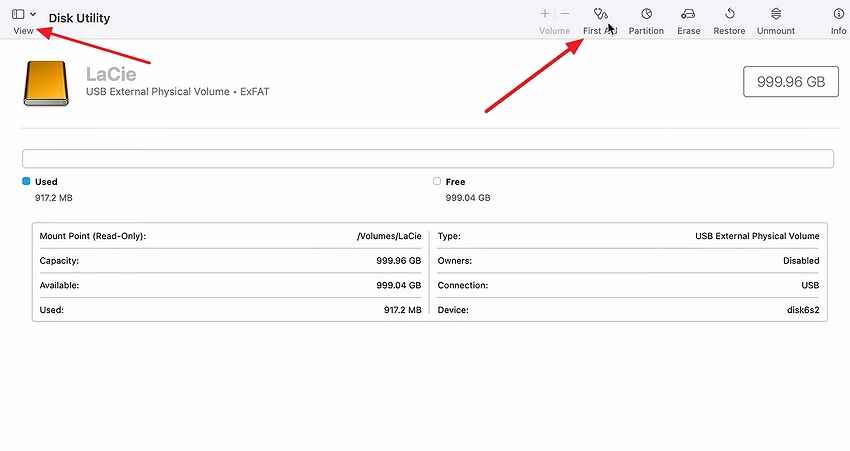
- Move upward through the sidebar, running First Aid on the remaining volumes, then each container, and finally the physical device.
- Restart and test after First Aid completes.
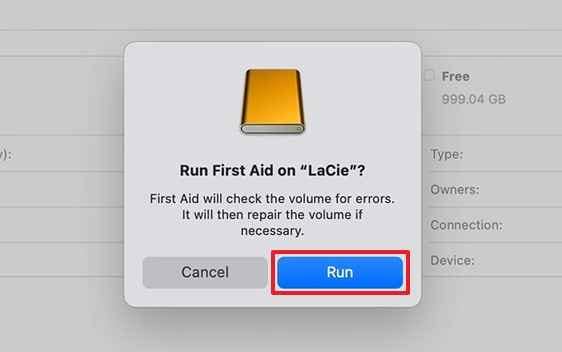
Use Apple’s current Disk Utility repair order. If First Aid reports an unrepairable error or a drive that is about to fail, prioritize data protection. The Recoverit guide to Disk Utility errors that cannot be repaired explains the recovery-first decision path.
Fix 9. Run Apple Diagnostics
Apple Diagnostics tests potential internal hardware-component problems. Update macOS first, shut down, disconnect nonessential devices, and place the Mac on a stable, ventilated surface.
- Apple silicon: Hold the power button until startup options appear, then hold Command-D until the Mac restarts.
- Intel: Turn on the Mac and immediately hold D; use Option-D if the built-in diagnostic does not start.
- On macOS Tahoe 26 or later, choose the relevant diagnostic when prompted. On earlier versions, testing begins automatically.
- Record every reference code and use Apple’s result guidance to decide whether service is required.
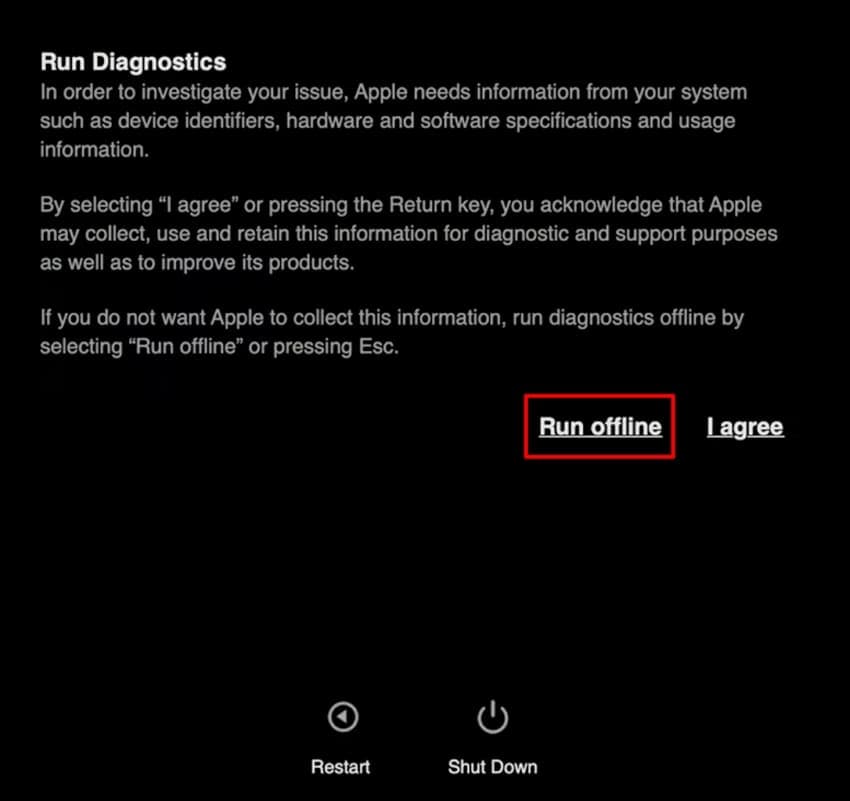
Follow Apple’s current Apple Diagnostics procedure. A clean result does not prove every component is healthy, so continue if reproducible crashes remain.
Fix 10. Reinstall macOS Without Erasing Your Files
Reinstall only after updating, Safe Mode testing, accessory isolation, and First Aid. Apple says reinstalling macOS from Recovery does not remove apps or personal data, but a current backup is still essential in case the disk or installation has a deeper problem.
- Back up or recover important files before proceeding.
- Start in macOS Recovery: on Apple silicon, hold the power button to startup options and choose Options; on Intel, use the appropriate Command-R startup shortcut.
- Choose Reinstall macOS and click Continue.
- Select the current macOS volume when prompted and follow the onscreen instructions. Do not open Disk Utility to erase the disk for this non-destructive reinstall.
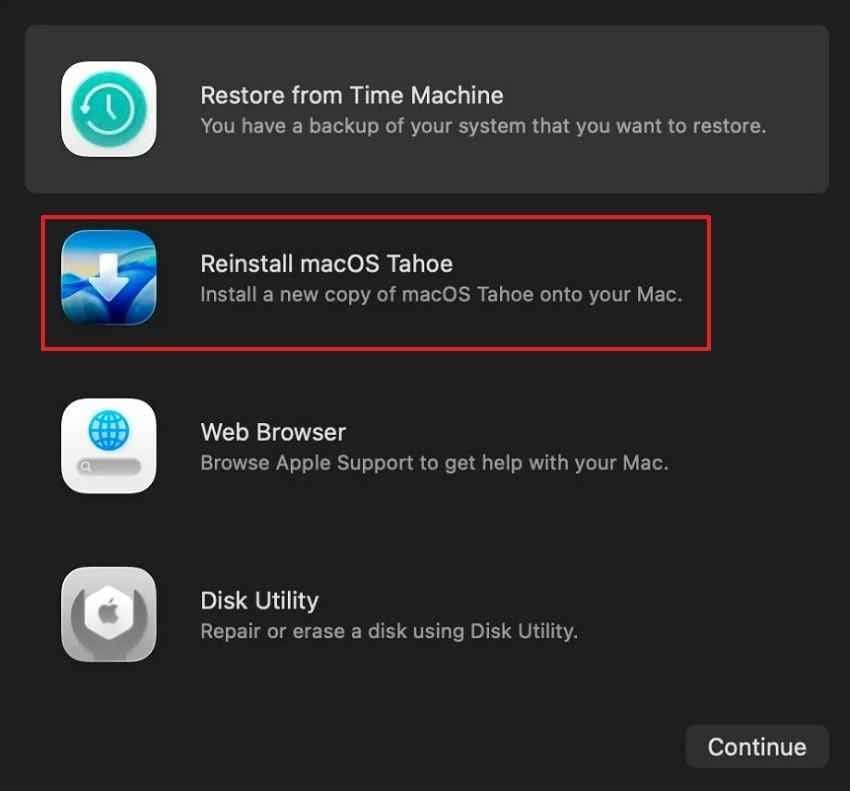
Use Apple’s reinstall macOS instructions. If the installer cannot see or unlock the volume, stop and investigate the storage and FileVault state instead of erasing the disk without a verified backup.
Fix 11. Get the Mac Checked for Hardware Failure
Escalate to Apple or an authorized service provider when Diagnostics returns a hardware reference code, the internal disk disappears, the Mac fails in Safe Mode, or crashes continue after a correctly completed macOS reinstall.
- Back up or recover important data before handing over the Mac whenever storage remains readable.
- Provide the exact symptom, reproduction steps, Diagnostics codes, crash times, and accessory list.
- For a Mac Pro, document third-party PCIe cards, RAM, GPUs, storage, and expansion hardware.
- If the storage device clicks, repeatedly disconnects, or is absent from Disk Utility, minimize power cycles and ask whether data recovery should precede repair.

Part 5. Troubleshoot Mac Crashes by Symptom
The failure pattern narrows the next test. Use the table to avoid running every fix when one controlled experiment can isolate the likely layer.
| Problem | Most likely area to check | Best first fix | When to escalate |
| MacBook Pro keeps freezing without restarting | One app, process, memory pressure, login item, or storage stall | Force quit the affected app, inspect Activity Monitor, then test Safe Mode. | It also freezes in Safe Mode or Disk Utility reports errors. |
| MacBook Air keeps locking up in one app | App version, plug-in, damaged document, or app-specific data | Update the app, test another file, and remove plug-ins only with the developer’s procedure. | Other apps begin failing or the Mac restarts. |
| Mac Pro keeps crashing with external hardware connected | PCIe card, dock, drive, display, cable, firmware, or driver | Disconnect nonessential hardware and reconnect one item at a time. | The Mac crashes with all third-party hardware removed. |
| Mac restarts with a “restarted because of a problem” message | Kernel panic caused by software or hardware | Update macOS and apps, save the report, isolate peripherals, then use Safe Mode. | Panics recur in Safe Mode or Diagnostics returns a code. |
| Mac freezes soon after login | Login item, extension, sync client, VPN, security, or hardware utility | Temporarily remove login items and disable optional background items. | The same failure occurs before login or in Safe Mode. |
| Mac keeps crashing even in Safe Mode | macOS, startup disk, firmware, or hardware | Run First Aid and Apple Diagnostics; back up before reinstalling macOS. | Errors are unrepairable, the disk disappears, or a reinstall does not help. |
Evidence tip: In Console, compare the timestamps of Crash Reports, Spin Reports, and Diagnostic Reports with your notes. A repeated process name is a lead, not a verdict; share the reports with the developer or technician who can interpret the stack and hardware context.
Part 6. Recover Important Files Before Major Mac Repairs
If the Mac still boots, copy irreplaceable files to separate storage before reinstalling, erasing, or servicing it. If files were deleted during crashes or a readable external drive became corrupted, recovery software may be useful before additional writes reduce the chance of recovery.
Recommended Tool: Wondershare Recoverit for Mac

Wondershare Recoverit for Mac scans readable Mac storage and connected drives for files that are deleted, lost, or inaccessible but whose data still remains. It supports current macOS versions listed on the official page, Apple silicon and T2 Macs, APFS, HFS/HFS+, and common external file systems.
In a crash scenario, its role is data recovery—not diagnosing the kernel panic or repairing macOS. Use it after checking existing Time Machine, iCloud Drive, app AutoSave, and other backups, and before erasing or repeatedly repairing the affected storage.
- Readable Mac and external storage: Scan a detectable internal disk, external HDD or SSD, USB drive, memory card, or camera storage.
- Broad file-type coverage: Search for documents, photos, videos, audio, archives, email data, and other supported files.
- Filters during scanning: Narrow results by type, path, size, date, or status.
- Preview before saving: Preview supported files to check whether content appears intact.
- Separate recovery destination: Save recovered items to another drive so the source is not overwritten.
For older HFS+ volumes, see the dedicated HFS+ recovery guidance for Mac.
How to Recover Files Before a Repair
Install the software on a different volume when possible and prepare another drive for the recovered files. Keep the affected disk idle during the scan.
Step 1. Select the storage location. Launch Recoverit for Mac and choose the specific drive or location where the files were lost. Confirm the device by capacity and name before starting.

Step 2. Scan for the missing files. Start the scan and use file type, path, status, date, or size filters to narrow the results. Do not continue saving data to the source drive.

Step 3. Preview and recover. Preview supported files, select the items you need, click Recover, and save them to a different drive. Open the recovered files before making any irreversible change to the Mac.

What Recoverit Can and Cannot Do in a Crash Scenario
The distinction below prevents false expectations and helps users protect data before attempting repair.
Recover Important Files Before Major Mac Repairs
Security Verified. Over 7,302,189 people have downloaded it.
| Scenario | Can Recoverit help? | Boundary |
| Files were deleted or lost from a readable Mac or external drive | Potentially, if recoverable data still exists. | Results depend on overwriting, TRIM, encryption, and disk condition. |
| An external drive mounts but folders are missing or the file system is damaged | Potentially, scan the readable device before formatting. | Do not save recovered files back to that drive. |
| Unsaved edits existed only in an app’s memory when the Mac froze | No direct recovery from volatile memory. | Check the app’s AutoSave, recovery files, version history, and backups. |
| The internal SSD is not visible to macOS, Disk Utility, or another compatible system | Software cannot scan a device the system cannot access. | Service or professional recovery may be required. |
| Physical storage blocks were overwritten or SSD TRIM removed them | No software can reconstruct the original content from those blocks. | Look for Time Machine, cloud, exported, emailed, or other copies. |
| The disk is FileVault-encrypted and cannot be unlocked | Not without legitimate access to the encrypted data. | Use the correct account, recovery key, or Apple-supported account recovery route. |
Part 7. When Mac Crashing May Be a Hardware Problem
One failed app rarely proves bad hardware. Multiple independent symptoms—especially outside normal startup software—make service more reasonable.
- The Mac crashes even in Safe Mode: Startup software is less likely, although Safe Mode does not eliminate every software cause.
- Apple Diagnostics returns a hardware reference code: Record the code and follow Apple’s service recommendation.
- Disk Utility reports an unrepairable or failing disk: Back up readable data immediately. Do not repeatedly run First Aid on a deteriorating device.
- Crashes continue after a non-erasing macOS reinstall: With external devices removed, this strengthens the case for firmware, storage, memory, logic-board, power, or thermal investigation.
- The Mac shuts down or restarts under unrelated workloads: Failures during light use, Safe Mode, Diagnostics, or boot are less consistent with one app.
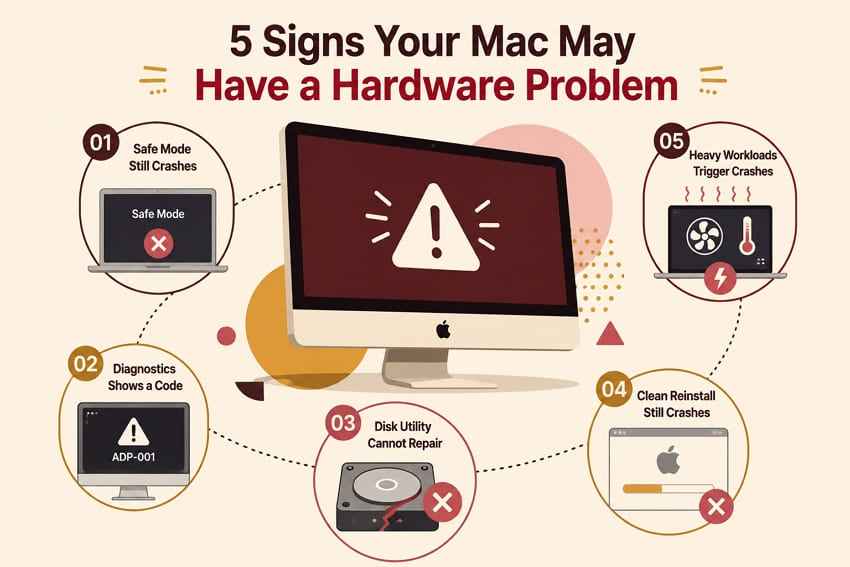
Stop normal troubleshooting if the storage device disappears, clicks, repeatedly disconnects, reports imminent failure, or becomes unusually hot. Further startups can reduce recovery options. Protect the data first, then arrange service.
Part 8. How to Reduce Future Mac Crashes and Freezes
Prevention is less about one “optimizer” and more about reducing incompatible software, detecting failing accessories early, and keeping a restore path outside the Mac.
- Keep macOS and important apps updated: Install compatible security and stability updates after verifying a current backup.
- Remove outdated plug-ins and extensions: Use the developer’s uninstaller or documentation instead of deleting arbitrary Library folders.
- Limit unnecessary login and background items: Every always-on helper adds another dependency to startup and wake behavior.
- Replace faulty external accessories: Retire cables, hubs, drives, or adapters that repeatedly disconnect or reproduce crashes.
- Maintain regular Time Machine or other backups: Keep at least one copy separate from the Mac and periodically verify that important files can be restored.
- Investigate repeated kernel panics: Save the reports, record the conditions, and isolate one variable at a time instead of accepting unexplained restarts as normal.
- Preserve working space on the startup disk: Avoid filling it to the point that updates, swap, caches, and apps cannot operate normally.
Conclusion
When a MacBook Pro keeps freezing, the fastest reliable answer comes from identifying the scope first: one app, the whole Mac, an unexpected restart, or a failed boot. Protect unsaved work, update software, isolate accessories and startup items, test Safe Mode, then move to First Aid, Apple Diagnostics, and a non-erasing macOS reinstall. Back up or recover readable data before any erase or hardware service. Recoverit can search storage for recoverable files, but it is not a cure for kernel panics and cannot recreate unsaved memory, overwritten blocks, or inaccessible encrypted data.
FAQ
-
Can a Mac keep freezing even when no app shows “Not Responding”?
Yes. A full-system lockup can involve a background process, driver, extension, storage stall, external device, or hardware fault before Finder has time to label an app as unresponsive. Note the context, disconnect nonessential devices, and test Safe Mode. -
Why does my Mac crash only when an external monitor or dock is connected?
The trigger may be the dock, cable, display connection, power delivery, firmware, driver, or another device attached through the dock. Shut down, test without the dock, then reconnect one component at a time. Update the accessory firmware and macOS where applicable. -
Can a failing SSD cause a MacBook Pro to lock up?
Yes. Storage errors can stall reads or writes, corrupt files, prevent startup, or contribute to unexpected behavior. Run Disk Utility First Aid after backing up. If the SSD disappears, repeatedly disconnects, or is reported as failing, stop repeated repair attempts and arrange service or professional data recovery. -
Why does my Mac work in Safe Mode but crash after a normal restart?
That pattern points toward software loaded during normal startup, such as a login item, extension, plug-in, VPN, sync client, security tool, or hardware utility. Remove or disable nonessential items temporarily, restart, and add them back one at a time until the crash returns.


