
 TL;DR:
Identify exactly where your Mac freezes during startup—such as the Apple logo, a progress bar, or a flashing question-mark folder—because this visible stopping point dictates whether you must isolate login software, repair the startup disk, or perform a hardware-level firmware revive.
● A freeze at or immediately after the login screen points to user-specific software conflicts, which you can bypass and systematically disable by booting into Safe Mode using the Shift key on Intel Macs or by holding the power button on Apple silicon models.
● If the Mac stalls on a flashing question mark or fails to load Safe Mode, boot into macOS Recovery and run Disk Utility First Aid in a strict bottom-up order, starting from the last volume on the storage device and moving upward to the physical device.
● Reinstalling macOS from Recovery is designed to preserve personal data, but if Disk Utility completely fails to detect the internal physical storage device, software fixes cannot work and you must seek hardware service before attempting destructive steps like a factory-resetting firmware restore.
Ask AI for a summary
 ChatGPT
 Perplexity
 Gemini
 Claude
 Grok
Grok
Quick answer: If your Mac freezes on startup, identify the last screen that works before trying a fix. A stalled Apple logo or progress bar points toward startup software, an interrupted update, or the startup disk; a flashing question-mark folder means the Mac cannot find a usable startup disk; a freeze after login makes login items more likely; and a blank screen that also appears in macOS Recovery raises display, firmware, or hardware concerns.
A startup freeze is unnerving because the desktop—and often your files—feels just out of reach. Whether a Mac computer freezes on startup or a MacBook freezes before login, the visible stopping point is the strongest first clue. In one MacBook startup-freeze discussion, the key clues were the visible startup screen and whether the same stop returned after a restart. Those details are more useful than the broad statement “my Mac is frozen on the startup screen.”
Fact-checked on August 28, 2026: The procedures below were checked against Apple’s current macOS Recovery, Disk Utility, Safe Mode, Recovery Assistant, firmware, and diagnostic documentation. Menu labels can vary slightly on older macOS releases or managed Macs.
Protect Your Files Before Moving to Major Repairs
 Security Verified. Over 7,302,189 people have downloaded it.
In this article
Part 1. Identify Where Your Mac Freezes During Startup
The boot stage narrows the fault domain. Do not erase a disk, reset a Mac, or install cleanup software before recording the exact screen, whether the pointer appears, how long the screen remains unchanged, and whether the same stop occurs with accessories disconnected.
| Startup stage | What you see | What it suggests | Best next step |
| Power turns on but screen stays blank | Fans, sounds, keyboard light, or charging activity may be present, but the built-in display is black, gray, or blue. | Display sleep or power is possible; a persistent blank screen can also involve startup software, firmware, the display path, or other hardware. | Confirm power and brightness, remove external display hardware, then test macOS Recovery. |
| Mac stops at Apple logo | The Apple logo appears with or without a progress bar, but the login window never arrives. | The Mac has found a startup disk and is loading from it. Software, an update, or disk errors may be delaying the process. | Allow time after an update, disconnect accessories, then try Safe Mode and Recovery. |
| Progress bar freezes partway | The bar moves to a repeatable point and then appears unchanged. | A long update can be normal; a repeatable stall after adequate time calls for disk and startup-software checks. | Wait if an update was underway; otherwise use Safe Mode, then First Aid. |
| Mac reaches login but locks up | You can enter a password, but the desktop freezes during or just after login. | A login item, background app, extension, user-specific setting, or low free space is more plausible. | Start in Safe Mode and temporarily remove nonessential login items. |
| Flashing question-mark folder appears | A folder with a question mark flashes or remains on screen. | The selected startup disk is unavailable or does not contain a working macOS installation. | Open Startup Options or Recovery, check whether the internal disk appears, then run First Aid. |
| Mac restarts before desktop | The Mac reboots repeatedly or later reports that it restarted because of a problem. | A kernel panic, incompatible startup software, peripheral, damaged macOS installation, or hardware problem is possible. | Disconnect peripherals, try Safe Mode, and move to diagnostics if the restart continues. |
Do not time the progress bar by percentage alone. Apple says the bar may move slowly, pause for long periods, and even appear several times during a macOS update or installation. “Stuck at 80%” is therefore not a diagnosis. What matters is whether it eventually changes, whether an update was expected, and whether the same stop repeats on a clean restart.
Part 2. Start With the Checks That Do Not Change Your Data
Begin with observation and isolation. These checks do not erase the Mac or rewrite the startup volume, and they often reveal whether the apparent freeze is only a long boot, a device conflict, or a repeatable system failure.
Check Whether the Mac Is Actually Frozen
Watch the progress bar from a fixed reference point rather than relying on memory. Listen for startup sounds or fans, check whether Caps Lock or keyboard backlighting responds, and note whether the pointer appears. On a MacBook, connect the correct power adapter and allow a depleted battery time to charge.
If the freeze followed a macOS update, migration, or restore, give the Mac substantially longer than an ordinary boot while it remains on power. Do not close the lid or interrupt installation merely because the display is temporarily blank. Apple’s current reinstall guidance notes that a Mac can restart, show several progress bars, or leave the screen empty for minutes during installation.

Move on when: the same screen remains unchanged well beyond the Mac’s normal startup time, there is no sign of work, or the identical stop returns after one controlled restart. Avoid a loop of repeated forced shutdowns; every forced interruption can discard in-progress writes.
Remove Everything the Mac Does Not Need to Boot
A failing drive, dock, hub, cable, display adapter, printer, audio interface, or driver can hold up startup before you ever reach the desktop. Shut down, then disconnect external storage, USB hubs, docks, printers, card readers, audio devices, and external displays. Keep only power and any keyboard, mouse, or display that the Mac truly requires.
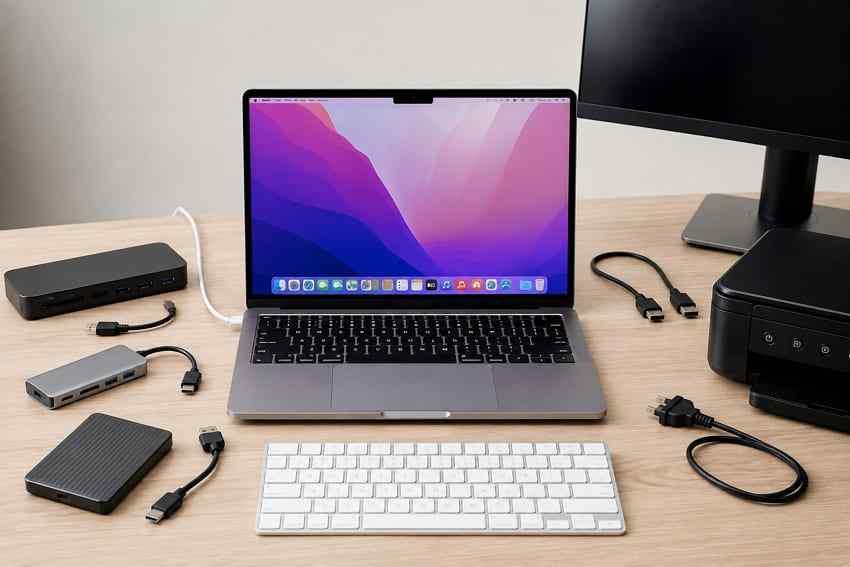
If the Mac starts normally, shut it down and reconnect one item at a time. Start and test after each addition. This controlled sequence can distinguish the device from its cable, port, driver, or hub. If an external disk contains important files, eject it normally whenever possible and do not repeatedly reconnect a clicking, disappearing, or physically damaged drive.
Perform One Controlled Restart
If the Mac still responds, use Apple menu > Restart. If startup is completely unresponsive, press and hold the power button—or the Touch ID button on a Mac laptop—for up to 10 seconds until the Mac turns off. Wait briefly, then press the power button once.
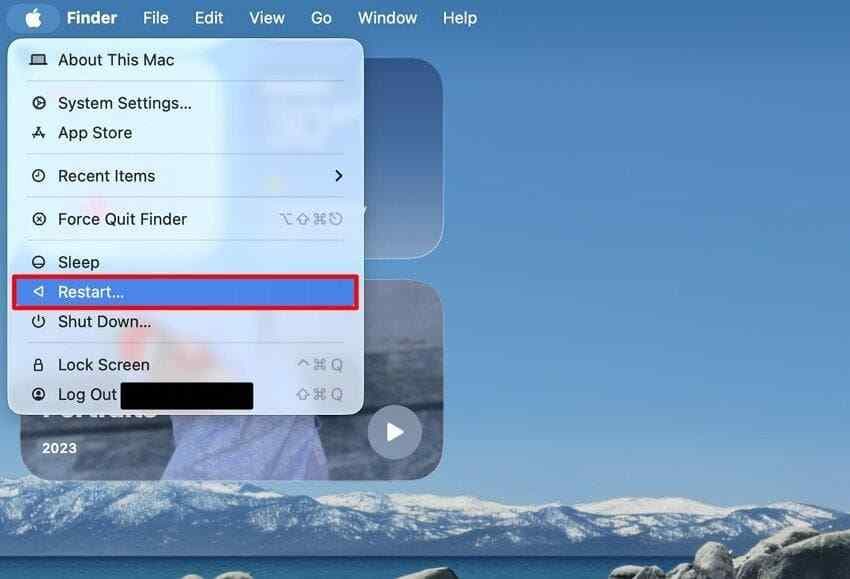
Record whether it freezes at the same point. A repeatable stop is useful evidence: after-login failures favor login software, while a missing disk or question mark points toward the startup-volume path. If the Mac boots normally once, back up immediately instead of assuming the issue is gone.
Part 3. Follow the Fix for the Startup Screen You See
After the common checks, follow only the branch that matches the display. Each branch ends at Safe Mode, Recovery, disk repair, reinstallation, or service, but the order differs because the evidence differs.
Mac Freezes on the Apple Logo
The Apple logo means the Mac has found a local or network startup disk. The logo is not proof that the disk is healthy, but it makes “no startup disk found” less likely than with a flashing question-mark folder.
- Disconnect nonessential accessories and start again.
- If a macOS update was in progress, keep the Mac connected to power and allow extra time.
- Try Safe Mode using the Apple silicon or Intel steps in Part 4.
- If Safe Mode does not load, enter macOS Recovery.
- Open Disk Utility, choose View > Show All Devices, and confirm that the startup disk is visible.
- Run First Aid in the order described in Part 5. If repair succeeds but startup still stalls, reinstall macOS without erasing first.
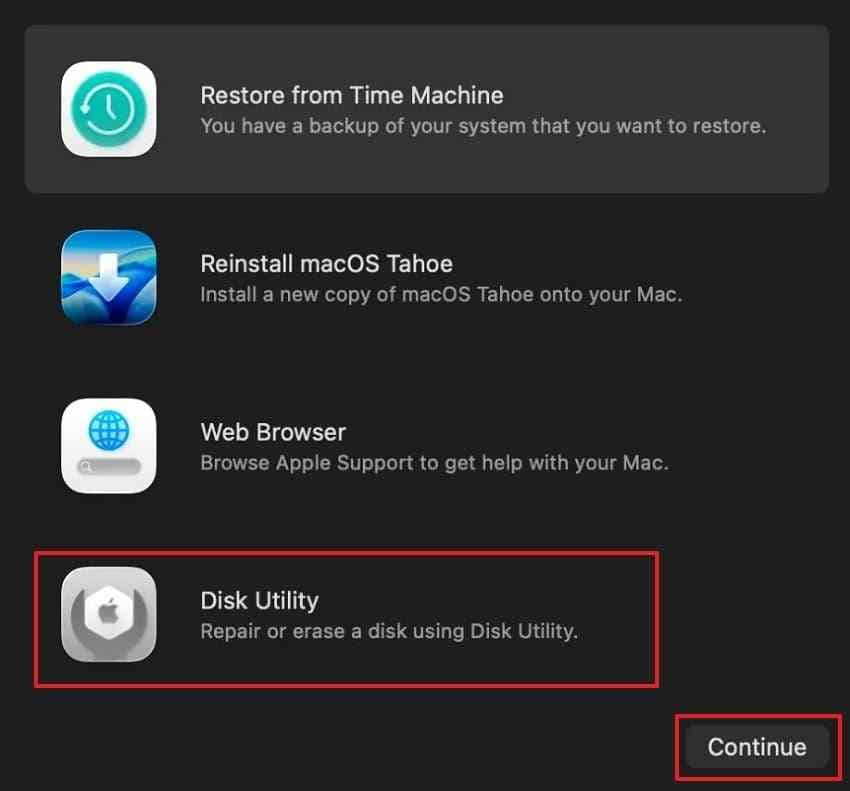
Apple’s current guidance for an Apple logo or stalled progress bar follows this same escalation: power off if truly stuck, remove accessories, use Recovery, repair the startup disk, and reinstall macOS if needed.
Mac Freezes on the Progress Bar
First decide whether the Mac is installing an update or merely performing a normal boot. During installation, the bar can appear to pause and the Mac can restart several times. Interrupting that process can create a worse startup failure.
If there was no expected update—or the same stall returns after adequate time—try Safe Mode. A successful Safe Mode boot suggests that software loaded during normal startup is involved. If Safe Mode also freezes, move to Recovery and check the disk before reinstalling macOS.
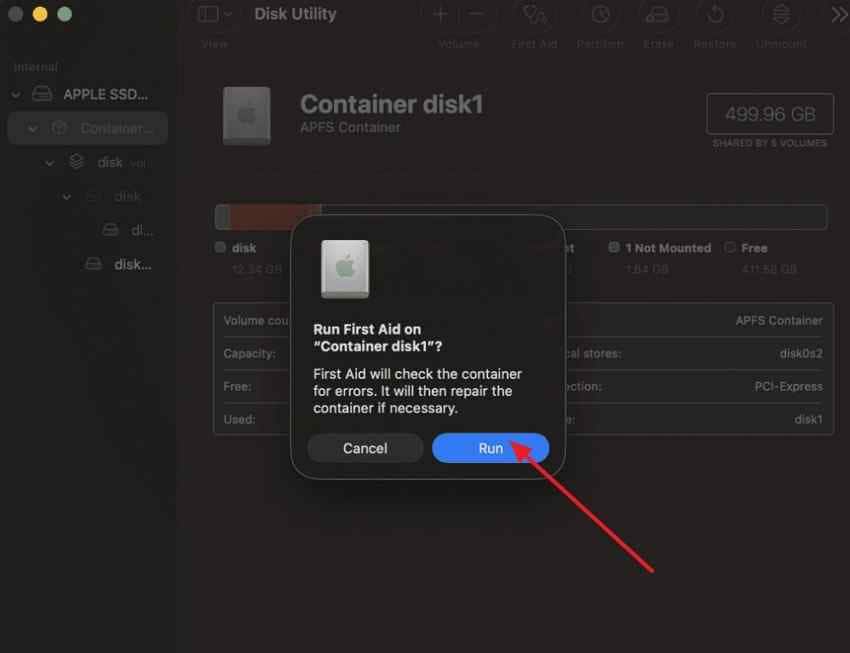
Do not jump straight to erasing the Mac. First Aid can repair some file-system directory errors, and a standard Recovery reinstall is designed to replace macOS without removing apps or personal data. Backups are still recommended because no repair is risk-free, especially when storage may be failing.
Mac Starts to a Blank or Black Screen
A black display is not always a crash. Confirm that the Mac is connected to power, increase display brightness, and press a key or click the trackpad to rule out sleep. Disconnect external displays, docks, and adapters that might be redirecting or disrupting video output.
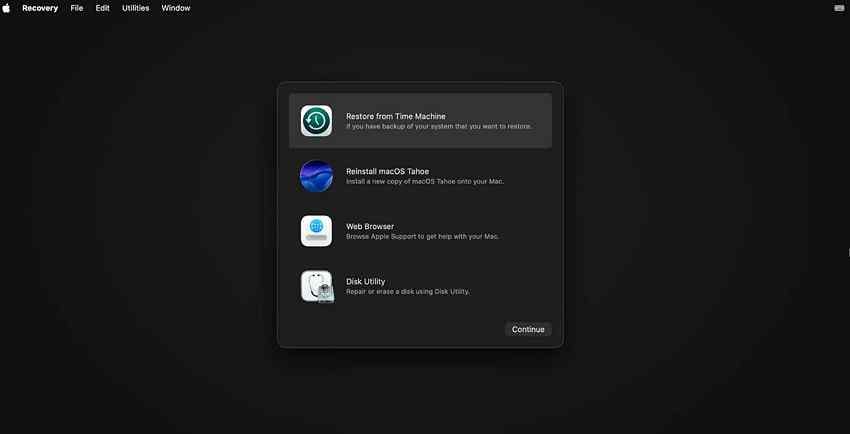
If the Mac appears to turn on but remains blank, try Apple’s blank-screen path: power off and back on, then attempt macOS Recovery. If Recovery displays normally, run First Aid and restart; reinstall macOS if the blank startup screen continues. If Recovery is also blank, service becomes more likely. On Apple silicon or T2 Macs, a rare firmware problem may require a revive or restore after the ordinary blank-screen steps fail.
Mac Shows a Flashing Question-Mark Folder
A flashing question mark has a specific meaning: the startup disk is unavailable or does not contain a working macOS installation. Apple’s question-mark folder guidance starts with Recovery and Disk Utility, not login-item troubleshooting.
- On Apple silicon, shut down, hold the power button until startup options appear, and check whether Macintosh HD or another expected disk is listed. Select it and click Continue if available.
- On an Intel Mac, start with the Option key held to display available startup volumes. If the correct volume appears, select it.
- If normal startup still fails, enter macOS Recovery and open Disk Utility.
- Choose View > Show All Devices. If the internal physical device and its volumes appear, run First Aid.
- If the internal disk is absent even in Disk Utility, stop software-only experiments and arrange service or professional data-recovery advice.
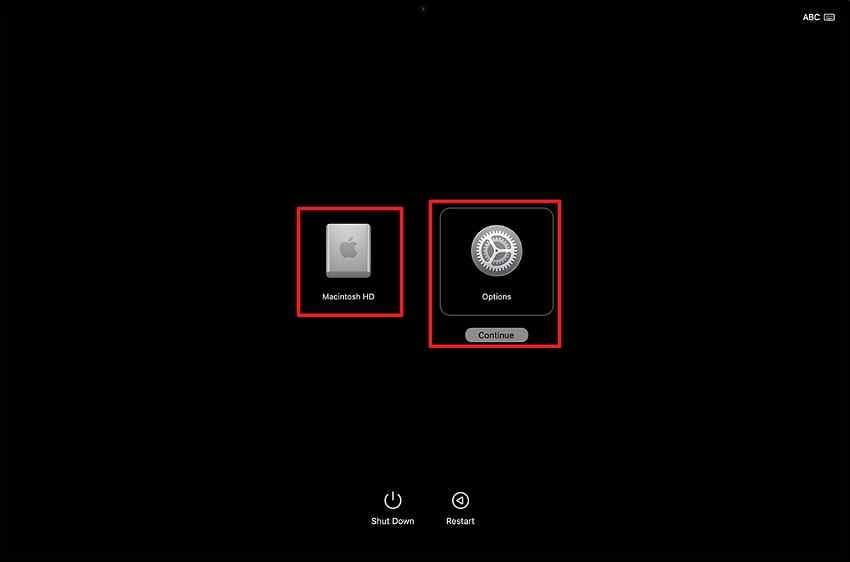
If the question mark appears only briefly and startup then succeeds, confirm the correct disk in System Settings > General > Startup Disk. Apple also recommends resetting NVRAM on applicable Intel Macs when the folder appears briefly before normal startup.
Mac Freezes at or Immediately After Login
Reaching the login window proves that macOS loaded further than an Apple-logo stall. If the desktop locks up only after authentication, focus on software that starts for that user: login items, background helpers, extensions, sync tools, security software, menu-bar utilities, and recently installed apps.
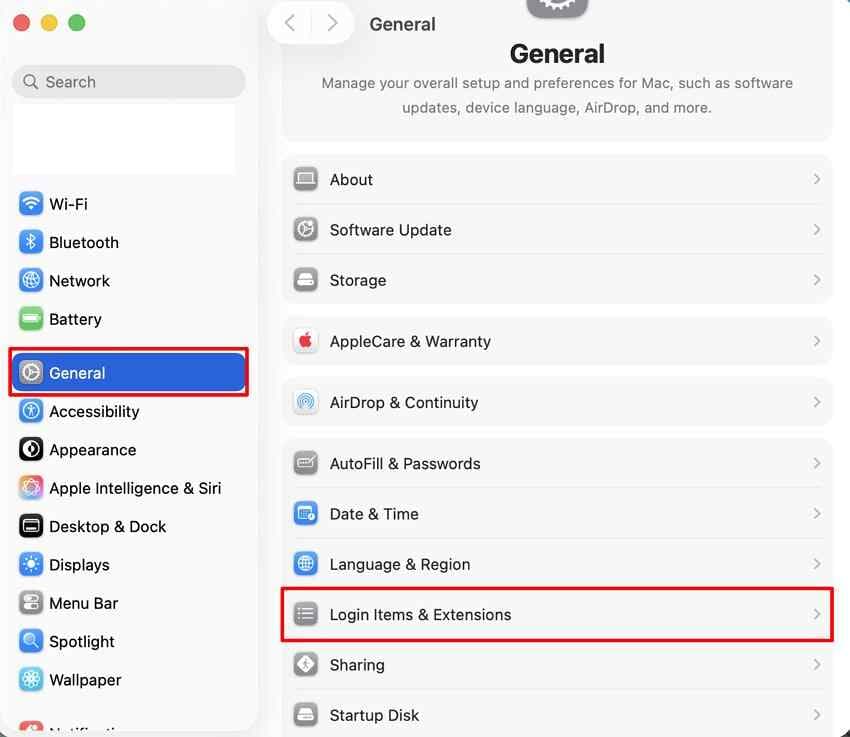
Start in Safe Mode. If you can log in there, open System Settings > General > Login Items & Extensions. Make a list or screenshot, then temporarily remove nonessential items under Open at Login. Review permitted background activity, but do not disable unfamiliar security or workplace-management software without administrator guidance.
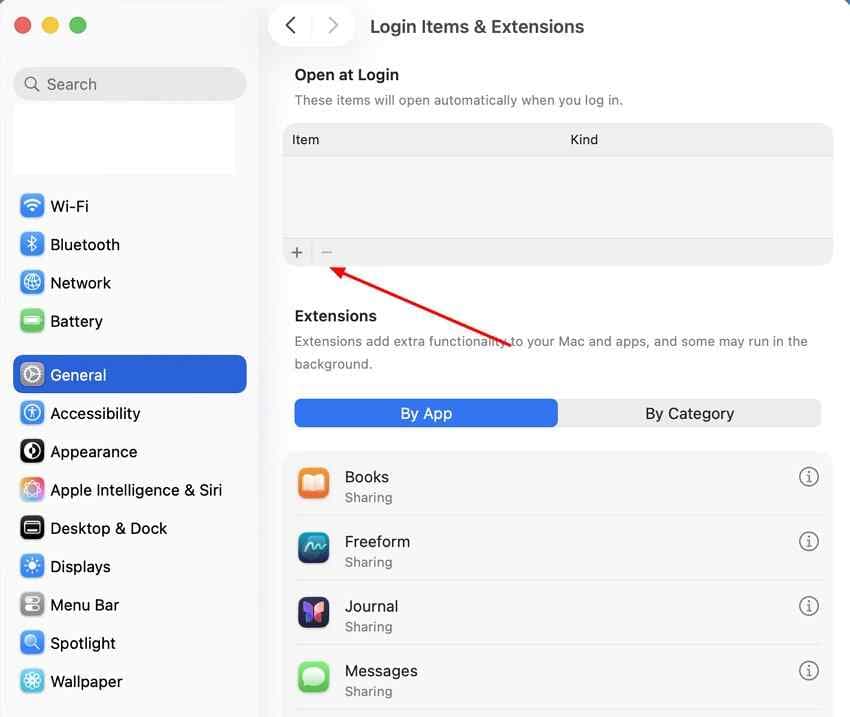
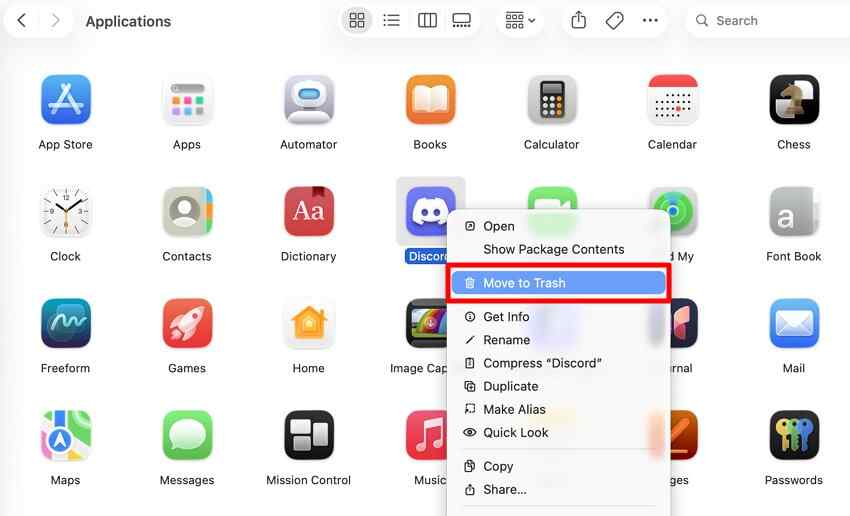
Restart normally and test. If the Mac stays stable, add items back one at a time, restarting and testing after each addition. For an app installed just before the problem, use its official uninstaller when it has one; otherwise remove the app from Applications, then obtain a compatible current version from the developer.
Part 4. Use Safe Mode to Separate Software From Startup-Disk Problems
Safe Mode helps determine whether software that loads during startup contributes to the freeze. It is a diagnostic comparison, not a general performance mode and not proof that hardware is healthy.
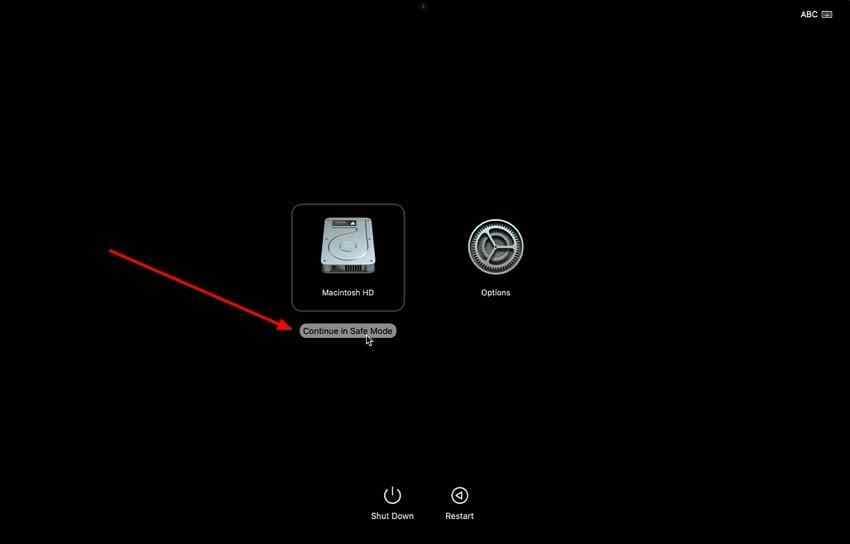
Start an Apple Silicon Mac in Safe Mode
- Shut down the Mac completely. The display should be black and lights off.
- Press and hold the power button until Loading startup options appears.
- Select the startup volume, usually Macintosh HD.
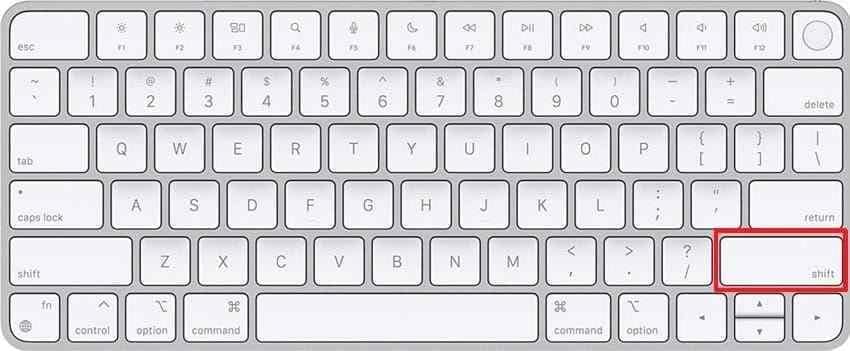
- Press and hold Shift, then click Continue in Safe Mode.
- Log in. You should see Safe Boot in the menu bar.
Start an Intel Mac in Safe Mode
- Turn on or restart the Mac.
- Immediately press and hold Shift until the login window appears.
- Log in. You may be asked to log in a second time.
- Confirm that Safe Boot appears in the menu bar.
These procedures follow Apple’s current Safe Mode instructions. If an external wireless keyboard misses the Intel shortcut, use the built-in keyboard or connect a compatible wired keyboard.
What It Means if the Mac Starts Normally in Safe Mode
A successful Safe Mode boot makes normal-startup software more likely, but it does not identify the exact item. Use the stable session to back up important files, install pending macOS and app updates, review login items, and remove or update recently added extensions, plug-ins, VPN clients, display tools, antivirus components, or device drivers.
Restart normally after each controlled change. If the freeze returns only after one item is restored, you have stronger evidence than a broad cleanup. Check the developer’s compatibility notes for the installed macOS version before reinstalling that software.
What It Means if the Mac Still Freezes in Safe Mode
A Safe Mode freeze shifts attention away from ordinary login items, but it does not automatically prove hardware failure. The startup disk, core macOS files, firmware, or hardware can still be responsible. Move to macOS Recovery, confirm that the internal disk is visible, and run First Aid. Recovery stability is another useful comparison: a Mac that freezes even before Recovery utilities load deserves hardware and firmware attention sooner.
Part 5. Check the Startup Disk From macOS Recovery
macOS Recovery is separate from an ordinary desktop session and provides Disk Utility, macOS reinstallation, Time Machine restore, and other tools. It is the correct next environment when Safe Mode will not load or the startup screen never reaches login.
Confirm the Internal Disk Is Visible
On Apple silicon, shut down, then hold the power button until startup options load. Select Options > Continue. On an Intel Mac, turn it on and immediately hold Command-R until the Apple logo or spinning globe appears. Apple’s current macOS Recovery instructions explain both paths.
In Recovery, open Disk Utility and choose View > Show All Devices. The sidebar should show a hierarchy: the physical internal storage device at the top, an APFS container beneath it, and volumes such as Macintosh HD and Macintosh HD - Data. Names differ, especially on older or customized systems.
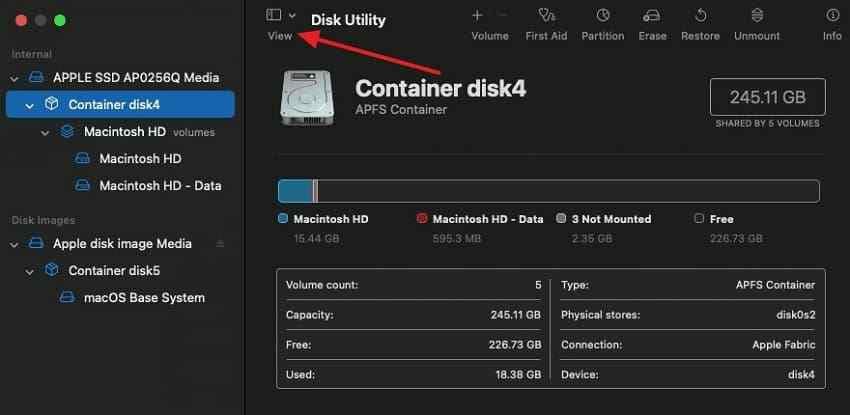
If the physical internal device is missing, restarting or reinstalling cannot target it. Apple advises service when Disk Utility cannot see the disk. When the data is irreplaceable, ask a qualified recovery provider about options before approving erase, replacement, or a firmware restore.
Run Disk Utility First Aid in the Correct Order
Apple currently recommends starting with the last volume on the storage device, then moving upward through each remaining volume, each container, and finally the physical device. This bottom-up order checks every level of the disk hierarchy.
- Select the last volume beneath the internal device.
- Click First Aid > Run and allow the check to finish.
- Repeat for every other volume above it.
- Run First Aid on each container.
- Run First Aid on the physical storage device last.
- Quit Disk Utility and restart the Mac.
Apple’s current Disk Utility repair guide recommends a current backup first. First Aid can repair some formatting and directory-structure problems, but it cannot repair every storage failure.
Interpret the Result
| Disk Utility result | Meaning | Next action | Data-loss risk |
| First Aid reports completion or repairs errors | The checked structure is now consistent enough for Disk Utility to finish. | Restart and test. Back up immediately if startup succeeds. | Low from the result itself, but the original cause may return. |
| First Aid reports errors it cannot repair | Software repair did not restore a consistent disk structure. | Avoid repeated repair loops. Back up or recover accessible data, then follow Apple’s erase/service guidance only after protecting files. | High if you erase, reinstall onto damaged storage, or keep writing to a failing disk. |
| Startup disk does not appear | The Mac cannot currently detect the internal device or its expected hierarchy. | Arrange hardware service or professional recovery assessment before destructive steps. | Potentially high; ordinary recovery software cannot scan storage the Mac cannot access. |
| Disk appears and First Aid passes, but macOS will not start | The file system may be intact while system files, startup software, or another component remains faulty. | Reinstall macOS without erasing, then test. Run diagnostics if failure continues. | Reinstallation is designed to preserve data, but a backup is still recommended. |
A passing First Aid result is not a complete hardware certification. If the disk disappears intermittently, startup freezes return, or the Mac reports repeated storage errors, treat the recurrence as important evidence and protect the files promptly.
Part 6. Protect Your Files Before Moving to Major Repairs
Once the low-risk checks end, the next actions can include reinstallation, erase, firmware restore, or hardware replacement. That is the point to pause and separate “repair the Mac” from “protect the data.” A repair can succeed while data is lost, and a data-recovery attempt can be unwise on physically failing storage.
Recommended Tool: Wondershare Recoverit for Mac

Wondershare Recoverit for Mac can scan storage that macOS and the application can read. It is relevant when startup problems or forced shutdowns are followed by deleted, missing, reformatted, or otherwise lost files—and you can boot a working Mac environment or connect the readable storage to another compatible Mac.
It is not a substitute for a backup and not a universal no-boot repair. Recoverit cannot recover a file that was never written from memory to storage, guarantee overwritten or SSD TRIM-cleared data, unlock encrypted storage without valid access, or scan an internal SSD that the Mac and macOS cannot detect. Physical clicking, liquid damage, electrical failure, or a missing internal device calls for professional assessment rather than repeated software scans.
Recover Important Files Before Reinstalling or Erasing
If the Mac can start in Safe Mode, use that stable window to copy critical files or complete a current backup first. If macOS starts normally but specific files are missing, install recovery software on a different volume when practical and save recovered data to a different disk. This avoids writing new data over the source you are trying to recover.
The current Recoverit for Mac page documents a three-step workflow for readable storage:
- Select: Launch Recoverit on a working Mac and select the readable drive or location where the data was lost.

- Scan: Start the scan and avoid unnecessary writes to the source while it searches for recoverable files.

- Preview and recover: Preview available files where supported, select what you need, and recover them to another healthy storage device.

Recover Important Files Before Reinstalling or Erasing
Security Verified. Over 7,302,189 people have downloaded it.
For a Mac that never reaches any usable environment, do not assume that a generic USB boot-media screen proves support for your model. Apple silicon and T2 Macs have specific Recovery and firmware-security behavior. Use Apple’s model-appropriate Recovery path first, or have a technician evaluate safe access to the storage.
When Startup Failure Points to Professional Data Recovery
| Storage condition | Software recovery? | Safer next move |
| Mac boots and the affected volume is readable | Potentially appropriate for logical loss. | Stop unnecessary writes, scan, preview, and save to another drive. |
| Mac boots only in Safe Mode but files are accessible | Backup is the first choice; software may help with already-lost files. | Copy irreplaceable data before changing login items or reinstalling. |
| Volume appears in Disk Utility but will not mount | Possibly, but avoid repeated writes or repair attempts when data is critical. | Ask a recovery professional whether imaging or controlled recovery is safer. |
| Internal device is absent from Disk Utility | No, not while storage is inaccessible to macOS. | Seek hardware service or professional data recovery before erase or replacement. |
| Drive clicks, disconnects, overheats, or suffered impact/liquid damage | Software scanning may worsen a physical problem. | Power down and obtain professional advice. |
For additional background on screen-level lockups, see the related Recoverit guide to a frozen Mac screen. This article remains focused on failures that happen before or immediately after login.
Part 7. Repair macOS Without Erasing the Mac First
If the startup disk is visible and important data is protected, repair macOS before considering erase. The three options below are not interchangeable: standard reinstallation is a normal Recovery tool, Recovery Assistant is version-specific, and firmware revive or restore is a rare path for particular Mac hardware.
Reinstall macOS From Recovery
- Back up the Mac if possible.
- Enter macOS Recovery using the Apple silicon or Intel steps in Part 5.
- Select Reinstall macOS, then click Continue.
- Follow the onscreen instructions. If asked to choose between Macintosh HD and Macintosh HD - Data, Apple says to choose Macintosh HD.
- Keep the Mac connected to power and allow every restart, progress bar, and temporary blank screen to complete.
- Test normal startup before considering any erase.
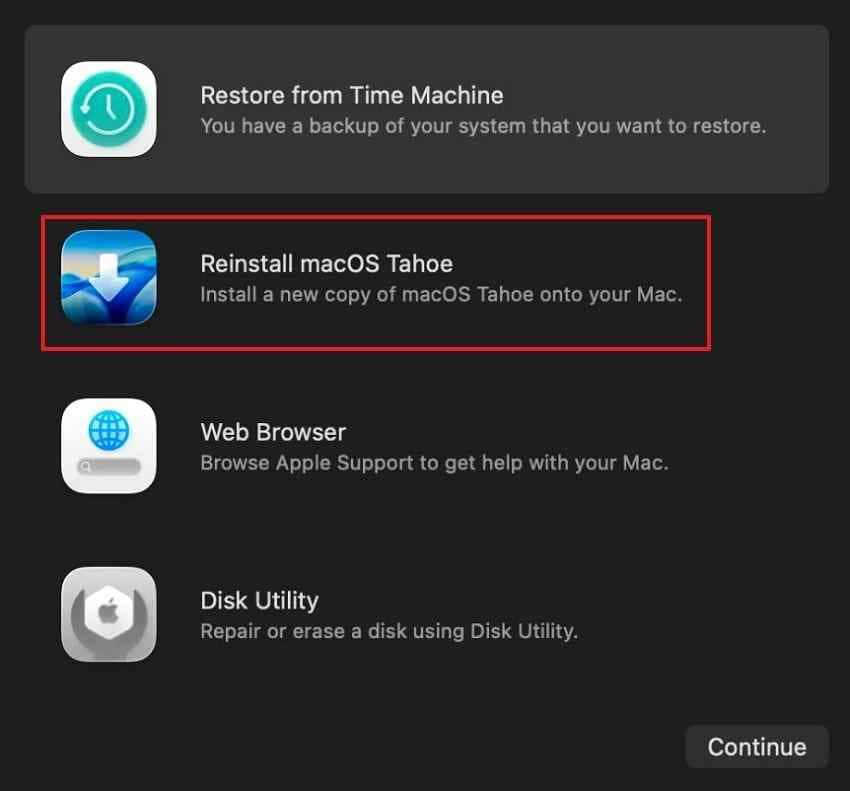
Apple’s current reinstall macOS instructions state that reinstallation does not remove apps or personal data, though Apple still recommends a backup first. Do not erase the disk unless non-erasing repair has failed, your files are protected, and an erase is specifically part of the chosen recovery plan.
When Recovery Assistant May Appear Automatically
On macOS Tahoe 26 or later, Recovery Assistant may open automatically when a startup issue prevents normal boot. It displays a first-aid symbol, attempts to identify the issue, and needs an internet connection to obtain current software-issue information. Follow its onscreen prompts and repair recommendation before moving to destructive options.
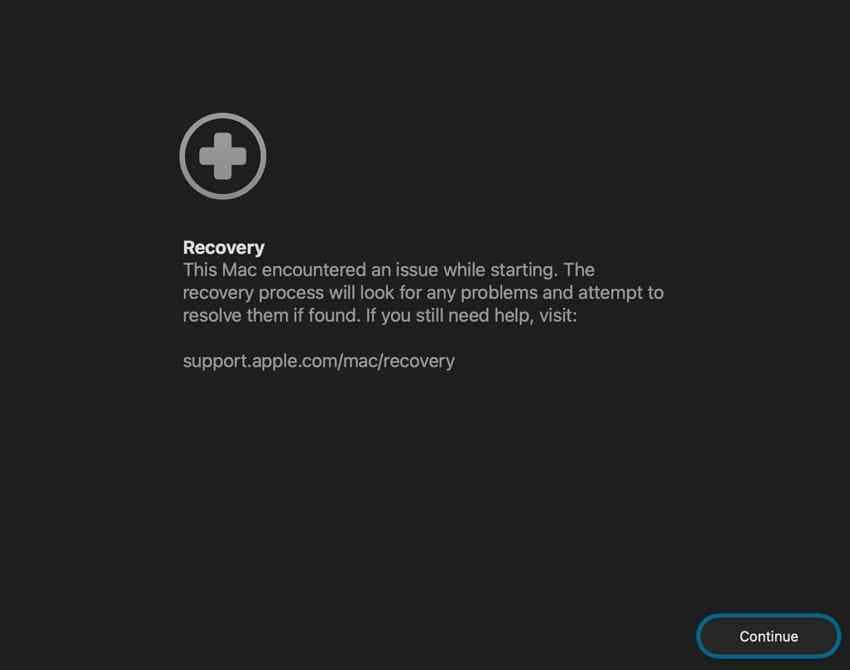
Recovery Assistant is not present on every macOS version and should not be presented as a universal menu choice. Apple says you generally should not open it manually unless Apple Support or another Apple article recommends doing so. If it cannot recover the Mac, continue with First Aid or macOS reinstallation.
When Firmware Revive or Restore May Be Needed
Rarely, an Apple silicon Mac or a Mac with the Apple T2 Security Chip may need its firmware revived or restored by another Mac. This path is relevant when ordinary blank-screen and Recovery steps fail, an exclamation point in a circle appears, firmware-recovery status lights show, or a macOS installation problem persists.
Apple’s current firmware revive and restore guide requires another Mac running macOS 14 or later and a USB-C cable that supports data and charging; Apple explicitly says not to use a Thunderbolt 3 cable for this procedure.
- Try Revive first: Apple says a firmware revive is faster and does not erase the affected Mac.
- Use Restore only if revive fails: Firmware restore erases the Mac and returns it to factory settings. Protect recoverable data or obtain professional advice before this step.
- Follow the exact model-specific DFU port and key sequence: Laptop and desktop procedures differ, and the affected Mac’s screen remains blank in DFU mode.
Because Restore is destructive and the connection sequence is model-specific, do not reduce this procedure to a generic keyboard shortcut. If you do not have the required second Mac, correct cable, or confidence to identify the DFU port, arrange Apple service.
Part 8. Know When the Startup Freeze Is Probably Hardware-Related
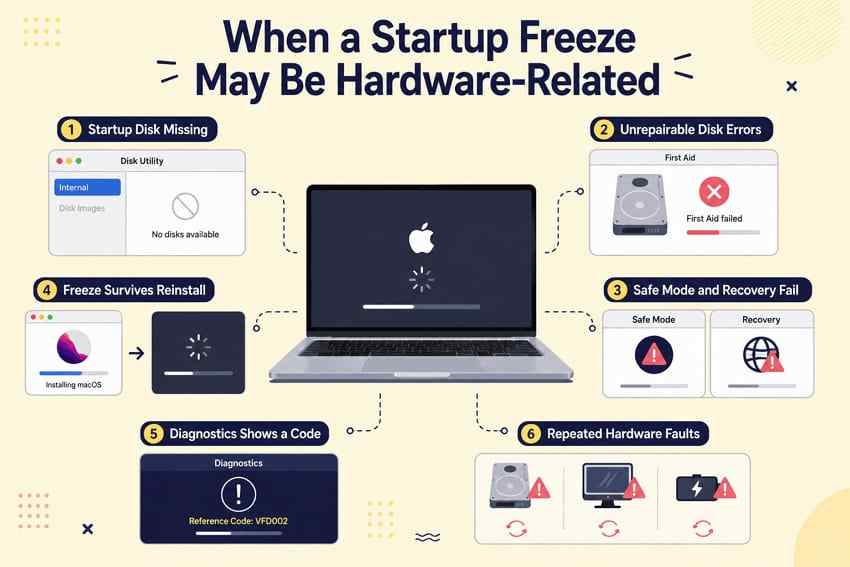
A startup freeze becomes more suspicious for hardware when it survives environments that bypass ordinary startup software, or when storage and diagnostic evidence point away from a single app. No one sign is conclusive, but several together justify stopping repeated software experiments.
- The startup disk is missing from Disk Utility: macOS Recovery cannot repair or reinstall onto storage it cannot detect.
- First Aid repeatedly reports unrepairable errors: Some file-system damage can be corrected only by erasing, while a failing device may require replacement. Protect data first.
- The Mac cannot enter Safe Mode or Recovery: Key-recognition and network issues should be ruled out, but persistent failure raises firmware or hardware concerns.
- Startup freezes continue after macOS reinstallation: With startup software refreshed, peripherals isolated, and the disk checked, hardware becomes more plausible.
- Apple Diagnostics returns a reference code: Record the exact code and provide it when arranging service.
- Storage, display, or power symptoms recur together: Intermittently missing disks, display artifacts before macOS loads, unexpected power-offs, or liquid/impact history should be disclosed to the technician.
To run Apple Diagnostics, disconnect nonessential devices and shut down. On Apple silicon, hold the power button until Options appears, then hold Command-D. On Intel, turn on the Mac and hold D, or try Option-D. In macOS Tahoe 26 or later, Apple Diagnostics may ask you to choose a specific test, such as the built-in display, keyboard, or trackpad.
A clean diagnostic result does not guarantee that every intermittent fault is absent. If the freeze is reproducible, note the stop point, connected hardware, temperature, power source, and any visual or sound symptoms for service.
Part 9. Prevent Another Mac Startup Freeze
Prevention is less about one optimizer and more about keeping the startup chain predictable, recoverable, and observable.
- Keep macOS and critical apps updated: Update drivers, plug-ins, VPN clients, security software, display utilities, and device firmware along with macOS. Confirm compatibility before a major upgrade.
- Avoid interrupting system updates: Keep a MacBook connected to power, use a reliable network, and allow expected restarts and temporary blank screens to finish.
- Remove unnecessary login items: Fewer automatic launchers make after-login problems easier to isolate. Review the list after installing large utilities or device software.
- Replace faulty hubs and external devices: Retire cables, docks, adapters, and drives that disconnect, overheat, corrupt transfers, or reproduce the boot freeze.
- Monitor repeated disk errors: A one-time repaired directory issue is different from errors that return. Treat recurrence as a reason to back up and investigate storage health.
- Maintain a current backup: Use Time Machine or another tested backup method. A backup should be disconnected or otherwise protected when not in use, and important files deserve more than one copy.
- Keep usable free space: macOS needs working room for updates, caches, swap, and temporary files. A nearly full disk can contribute to slow or failed updates, though it is not the only explanation for a repeatable boot freeze.
After any successful repair, restart the Mac more than once and reconnect peripherals one at a time. A single successful boot is encouraging, but repeatable normal startups are better evidence that the trigger is gone.
Conclusion
When a MacBook or Mac computer freezes on startup, the screen is the first diagnostic result. Wait for a genuine update to finish, remove unnecessary devices, and perform one controlled restart. Then follow the matching branch: Safe Mode for an after-login or software-loading problem, Recovery and First Aid for Apple-logo or progress-bar stalls, startup-disk checks for a question-mark folder, and firmware or service only when standard Recovery paths fail.
Protect important files before reinstallation, erase, firmware restore, or hardware replacement. If storage is readable, backup and logical recovery tools may help; if the internal device is absent or physically failing, stop expecting software to reach it. That distinction protects both the Mac and the only copy of the data.
Try Wondershare Recoverit to Perform Data Recovery
Security Verified. Over 7,302,189 people have downloaded it.
FAQ
-
Why Does My Mac Freeze Only During the First Startup of the Day?
A first-boot-only freeze can involve a cold-start hardware condition, a dock or drive connected overnight, a background task, or software that loads after a full shutdown but not after a warm restart. Test several cold starts with nonessential devices disconnected, then in Safe Mode. If the pattern remains even in Safe Mode or Recovery, record it for hardware service. -
Can a Nearly Full Startup Disk Cause a Mac to Hang During Boot?
It can contribute. macOS needs available space for updates, temporary files, caches, and virtual memory. Very low free space can slow startup or complicate an update, but the screen and repeated pattern still matter. If you can boot in Safe Mode, back up and free space carefully; if you cannot boot, use Recovery to check the disk rather than assuming capacity is the only cause. -
Why Does My Mac Start in Safe Mode but Freeze During a Normal Boot?
That comparison suggests software loaded during normal startup is contributing. Review login items, background apps, extensions, plug-ins, security tools, VPN clients, display utilities, and recently installed device software. Update or temporarily remove one suspect at a time, then restart normally after each change. -
Can a Bad External Drive Make a Mac Freeze Before the Login Screen?
Yes. A failing drive, damaged cable, problematic hub, driver, or startup-disk selection can delay or interrupt boot before login. Shut down, disconnect the drive and other nonessential accessories, then test. If startup succeeds, reconnect devices individually. Do not keep powering or scanning a drive that clicks, repeatedly disconnects, or contains irreplaceable data.


