 TL;DR:
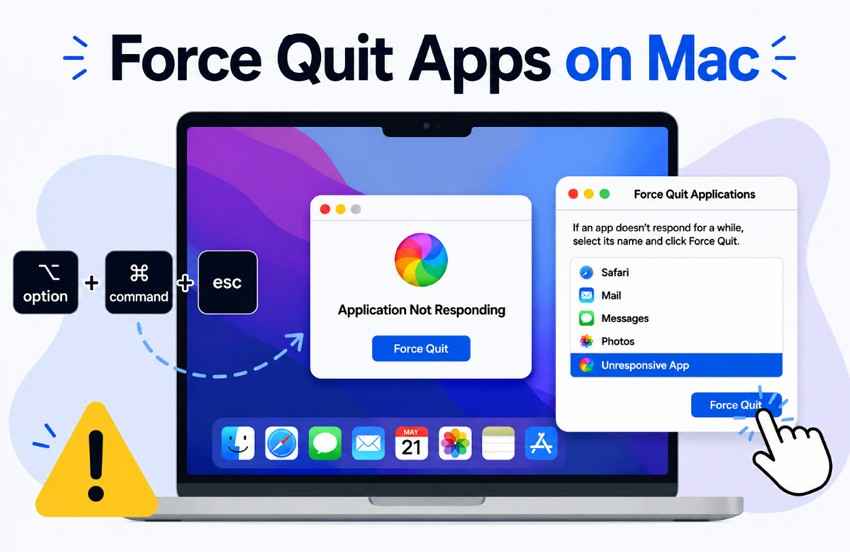
To force quit an unresponsive app on macOS, press Option + Command + Esc to open the termination window, but always attempt a normal quit with Command + Q first to prevent the loss of unsaved changes.
● Use Activity Monitor to find and terminate background processes, helper applications, and plug-in hosts that remain hidden from the standard Force Quit menu.
● Forcibly closing an application bypasses its regular cleanup routine, which permanently discards unsaved memory-only work and risks data corruption if triggered during an active file write.
● Selecting Relaunch on a frozen Finder safely restarts the desktop environment but will immediately interrupt any active file copy, move, or rename operations.
Ask AI for a summary
 ChatGPT
 Perplexity
 Gemini
 Claude
 Grok
Grok
Quick answer: Press Option + Command + Esc, select the frozen app, and click Force Quit. Try Command + Q first if the app still responds, because a normal quit gives it a chance to save. Use Activity Monitor for background processes and Terminal only when graphical methods fail.
Apple currently writes the operating-system name as macOS. Search phrases such as “Mac OS force quit app,” “force quit app Mac OS,” and “force close app Mac OS” all refer to the same Force Quit controls covered below.
A newer Mac user asked on Reddit whether repeatedly selecting multiple apps in Force Quit was harmful. The concern is valid: Force Quit is an emergency exit, not a routine way to close responsive apps. It immediately terminates the selected app and can discard unsaved changes.
A frozen app may recover if it is completing a large save, export, render, or background task. If it remains unresponsive, the seven methods below show how to force quit an app on macOS, from Apple’s standard shortcut to Activity Monitor and Terminal. The recovery section also separates saved files that may still exist on storage from work that never left memory.
Recover Files Lost After a Mac App Crash
 Security Verified. Over 7,302,189 people have downloaded it.
In This Article
-
- Method 1. Use the Option + Command + Esc Shortcut
- Method 2. Force Quit From the Apple Menu
- Method 3. Force Close an App From the Dock
- Method 4. Kill an App With Activity Monitor
- Method 5. Relaunch Finder if Finder Is Frozen
- Method 6. Kill an App or Process Through Terminal
- Method 7. Restart or Force Shut Down the Mac Only if Needed
Part 1. What Does Force Quit Mean on macOS?
Force Quit tells macOS to terminate an app that is no longer responding. It bypasses the app’s normal shutdown routine, so it should be used only after an ordinary Quit command fails.
Close Window vs. Quit App vs. Force Quit
These three actions look similar from the desktop, but they affect the app differently. Closing a window often leaves the app running; quitting requests an orderly shutdown; Force Quit ends the process immediately.
| Action | Shortcut | What happens | Risk to unsaved work |
| Close the current window | Command + W | The front window closes, but the app usually remains open. | Usually low; the app may still ask about unsaved changes. |
| Quit the app normally | Command + Q | The app can finish writes, present save prompts, and close cleanly. | Low when prompts are handled correctly. |
| Force quit the app | Option + Command + Esc | macOS terminates the selected app without its normal cleanup routine. | High for unsaved changes and active file writes. |
Apple’s current Mac keyboard shortcuts list confirms that Command + W closes the front window, Command + Q quits the current application, and Option + Command + Esc opens Force Quit. They are not interchangeable.
When You Should Force Quit an App
A spinning wait cursor alone does not prove an app has crashed. Give it time when it is saving a large document, exporting video, processing photos, synchronizing a library, or accessing a slow external drive.
- The app ignores normal Quit: Command + Q, the app menu, and its close controls do nothing.
- Inputs remain unanswered: Clicks, keystrokes, and menu commands produce no response for a sustained period.
- Activity Monitor identifies it: The process appears in red with “Not Responding.”
- The task shows no progress: CPU, disk, network, or export indicators no longer suggest that useful work is continuing.
Apple recommends trying to quit and reopen the app first, then force quitting only if it will not close. If the problem returns, Apple’s app troubleshooting guidance moves next to restarting, installing updates, and—when appropriate—reinstalling the app.
What Happens to Unsaved Work After Force Quit
Force Quit can remove everything changed since the app’s last successful save or AutoSave checkpoint. Apple also warns that forcibly terminating a process with open files may lose data and can affect other apps that depend on that process.
Previously saved files usually remain available. The higher-risk moment is an active write: if the app is replacing a file, updating a database, or writing a project package when it is terminated, the saved item can become incomplete. Some applications offer AutoSave, document recovery, version history, or temporary working copies after reopening, but availability depends on the app and where the file was stored.
Part 2. How to Force Quit an App on macOS
Start with Apple’s standard Force Quit window. Move to the Dock, Activity Monitor, Finder Relaunch, Terminal, or a full restart only when the earlier method cannot reach the frozen process.
Method 1. Use the Option + Command + Esc Shortcut
Option + Command + Esc is the standard macOS Force Quit shortcut. It opens the Force Quit Applications window without requiring the frozen app’s menus to respond. Apple documents the same workflow on its current Force Quit support page.
Step 1. Press Option + Command + Esc together. Select the unresponsive application from the list. On older MacBook Pro models with a Touch Bar, Esc appears at the left end of the Touch Bar.

Step 2. Click Force Quit, then confirm. Wait for the app to disappear before reopening it and checking for recovered documents or AutoSave prompts.
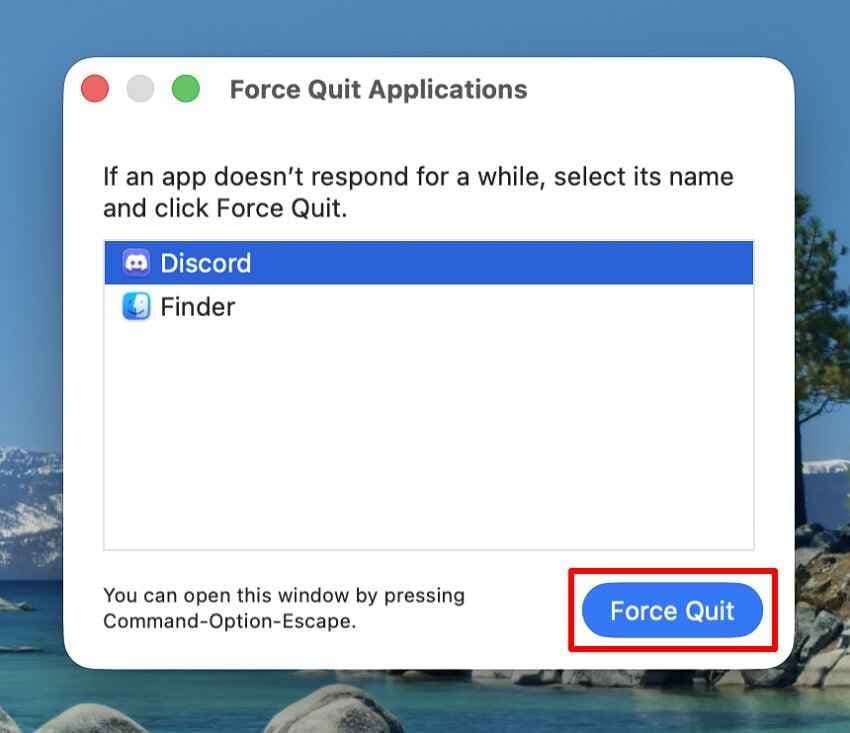
Limitation: This window lists applications, not every helper, plug-in host, daemon, or background process. If the visible app closes but activity continues, use Activity Monitor rather than repeatedly force quitting unrelated apps.
Method 2. Force Quit From the Apple Menu
The Apple menu opens the same Force Quit Applications window and is useful when the keyboard shortcut is inconvenient but the pointer and menu bar still respond.
Step 1. Click the Apple menu in the upper-left corner and choose Force Quit.
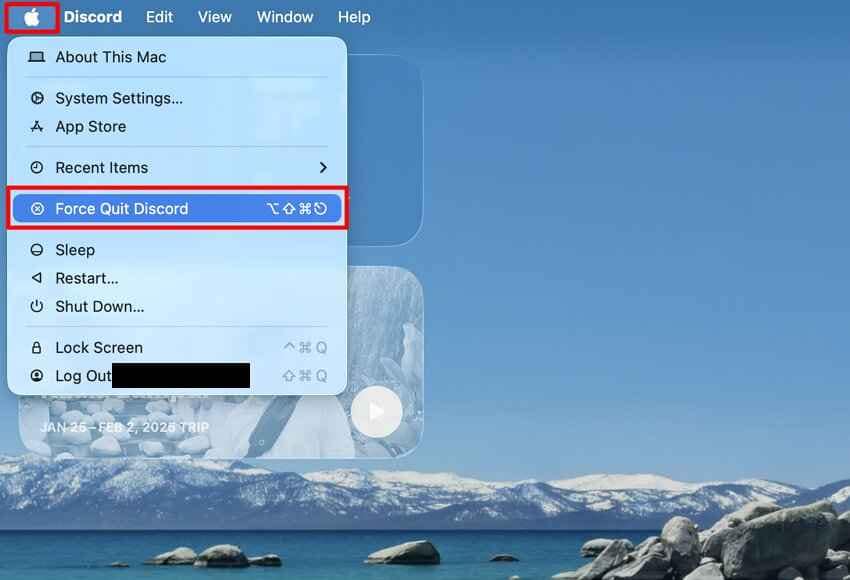
Step 2. Select the frozen app, click Force Quit, and confirm the warning about unsaved changes.
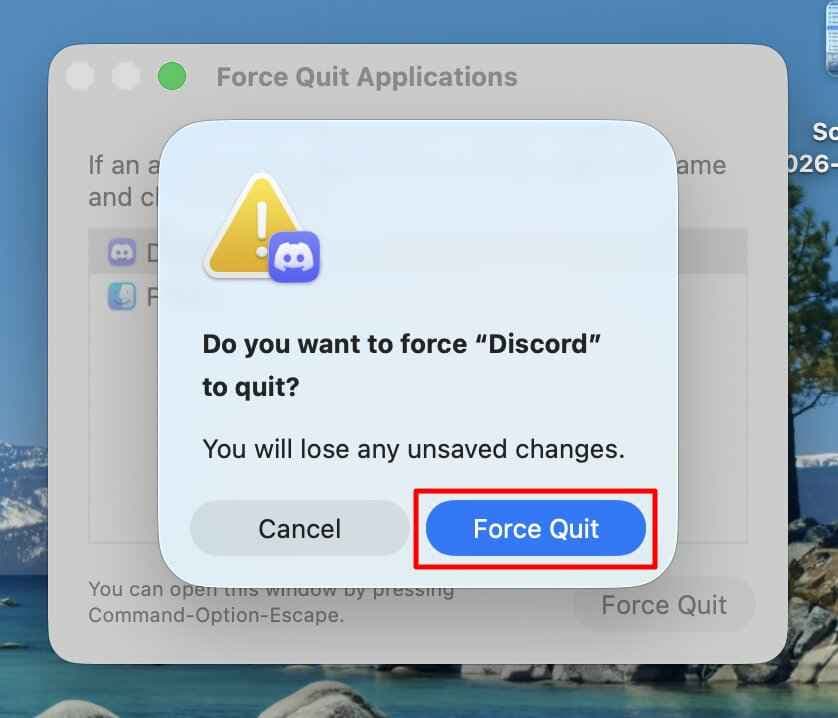
This method does not reduce the data-loss risk; it is simply another way to reach the same macOS control.
Method 3. Force Close an App From the Dock
The Dock is the quickest pointer-based route when the frozen app’s icon remains visible. Apple’s current Dock guide confirms that an unresponsive app can be force quit from its shortcut menu.
Instructions. Control-click the frozen app’s Dock icon, then choose Force Quit. If the menu shows only Quit, hold Option while the shortcut menu is open to change Quit to Force Quit.
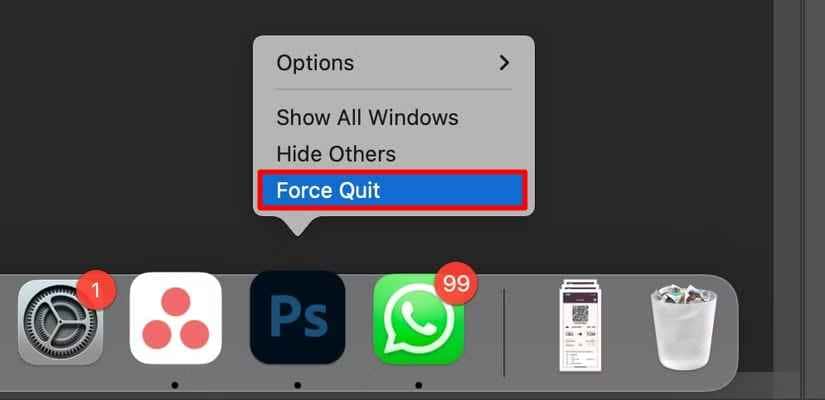
Do not click Force Quit on a responsive app just to close it faster. Choose Quit whenever the app can still process a normal shutdown.
Method 4. Kill an App With Activity Monitor
Activity Monitor is the better choice when an app has separate helper processes, no entry appears in the Force Quit window, or you need to see which process is actually consuming CPU or memory.
Step 1. Open Applications > Utilities > Activity Monitor, or find it with Spotlight. Select the affected app or process. Apple says unresponsive entries are marked (Not Responding) and appear red.
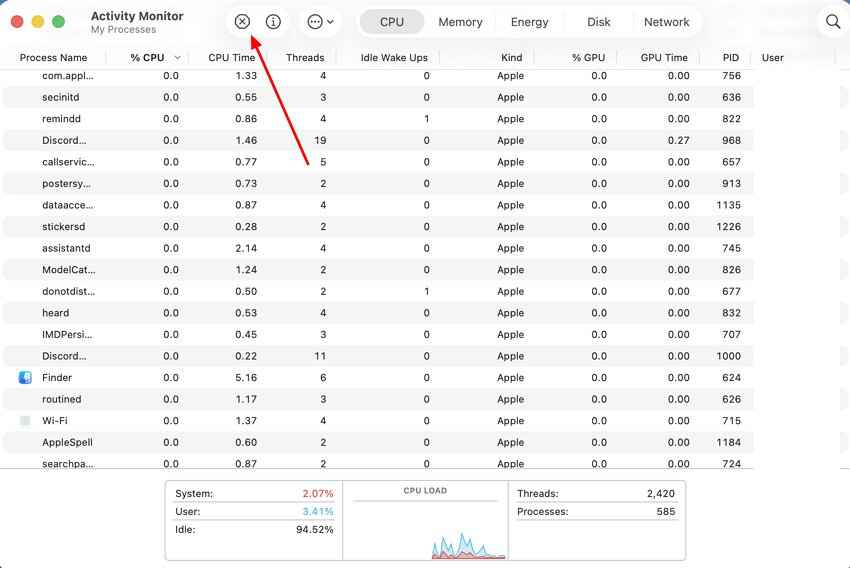
Step 2. Click the Stop button in the toolbar. Choose Quit first when practical; choose Force Quit only if the process will not terminate safely.
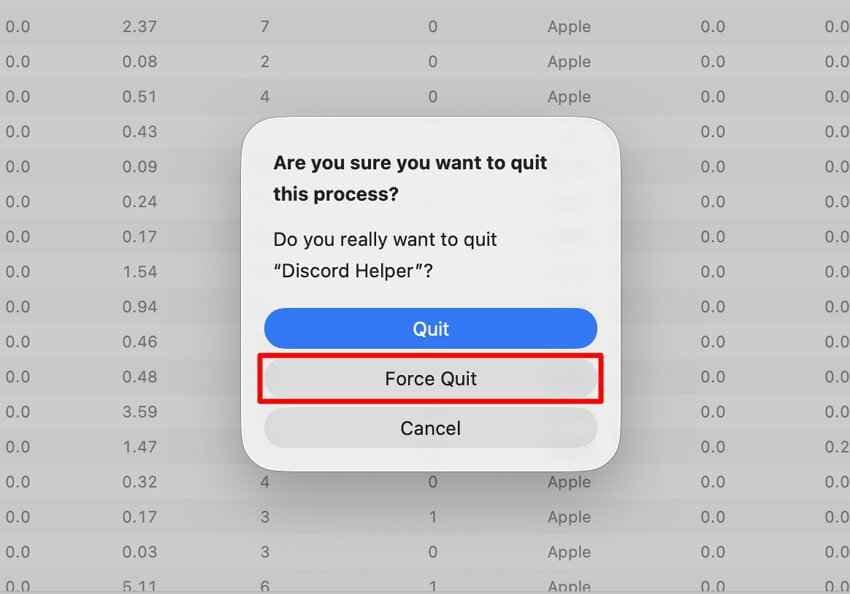
According to Apple’s Activity Monitor documentation, Quit lets the process exit when safe, whereas Force Quit terminates it immediately and can lose open-file data. The regional Activity Monitor guide also notes that administrator authentication may be required for a process you do not own.
Before blaming RAM capacity, look at the Memory Pressure graph rather than free-memory numbers alone. Apple’s explanation of memory usage in Activity Monitor shows that pressure reflects free memory, swap activity, wired memory, and cached files together.
Method 5. Relaunch Finder if Finder Is Frozen
Finder is always open because macOS uses it for the desktop, folders, and file navigation. Its Force Quit button therefore reads Relaunch: macOS closes Finder and starts it again instead of leaving it stopped.
Instructions. Press Option + Command + Esc, select Finder, click Relaunch, and confirm. Wait for the desktop and Finder windows to reload.
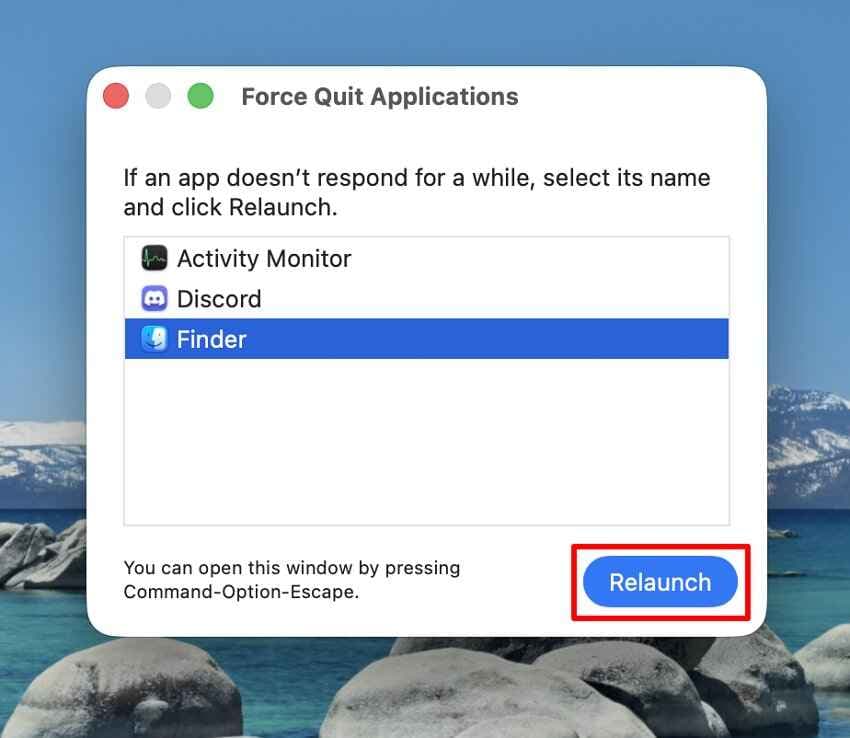
Relaunching Finder normally leaves other apps open, but an active Finder copy, move, or rename can be interrupted. Check the source and destination before restarting that file operation.
Method 6. Kill an App or Process Through Terminal
Terminal can send UNIX signals to a process that graphical tools cannot stop. This is an advanced method: a mistaken process name or PID can close the wrong component, and SIGKILL prevents cleanup entirely.
Step 1. Open Finder > Applications > Utilities > Terminal.
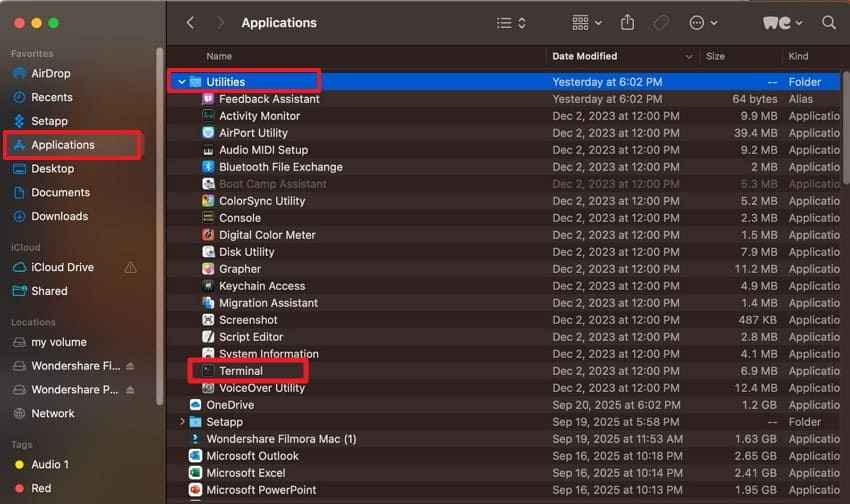
Step 2. Try a normal termination signal first. Replace the examples with the exact process name or numeric PID:
killall -TERM "AppName"
kill -TERM PID
If you do not know the PID, identify it in Activity Monitor or use:
ps -ax | grep -i "AppName"Only when the process ignores TERM and you have confirmed the correct PID should you use the last-resort signal:
kill -9 PID
Apple’s archived kill manual page defines kill as sending a specified signal to a process. Do not add sudo merely to overcome a permission error, and do not terminate unfamiliar launch, security, login, WindowServer, or storage processes.
Method 7. Restart or Force Shut Down the Mac Only if Needed
Restart the Mac when no force-quit method can close the app or when the entire interface has stopped responding. A normal restart is safer because apps receive a chance to close and may display save prompts.
Instructions. Choose Apple menu > Restart. If macOS does not respond and Restart cannot complete, press and hold the Mac’s power button—or the Touch ID button on applicable laptops—for up to 10 seconds until it turns off. Release it, wait briefly, then press it once to turn the Mac back on.
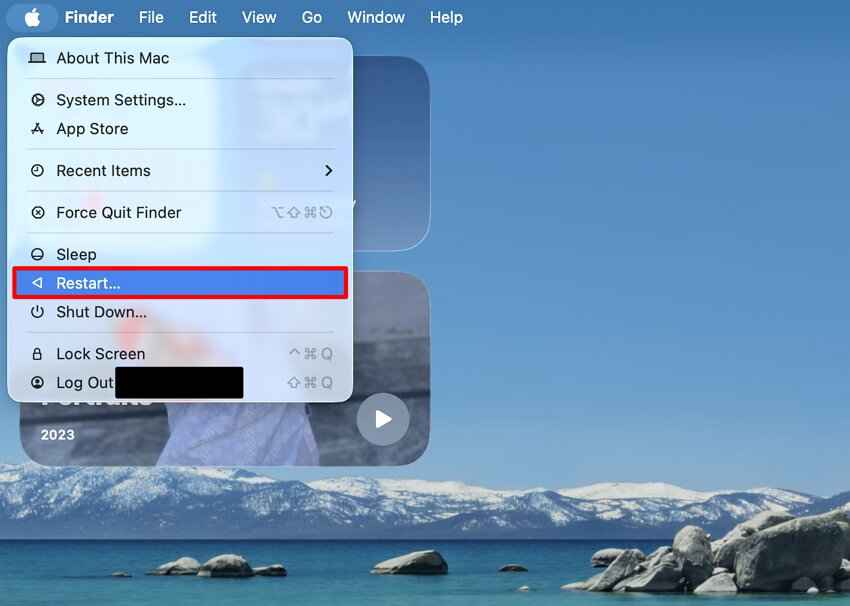
Apple gives this order on its Force Quit instructions: restart first, then hold the power button only if the Mac will not restart. A forced shutdown can discard unsaved work across every open app, not just the frozen one.
Part 3. Which macOS Force Quit Method Should You Use?
Choose the least disruptive option that can reach the problem. The table below separates a frozen foreground app from a hidden helper process, Finder problem, and full-system lockup.
| Situation | Recommended method | Difficulty | Unsaved-data risk |
| One visible app is frozen | Option + Command + Esc | Easy | High for unsaved changes in that app. |
| Pointer works but the shortcut is inconvenient | Apple menu > Force Quit or Dock shortcut menu | Easy | The same risk as the keyboard Force Quit method. |
| An app has multiple background processes | Activity Monitor; try Quit before Force Quit | Moderate | Depends on the selected process and what uses it. |
| Finder is not responding | Select Finder and choose Relaunch | Easy | Usually low, but active Finder file operations stop. |
| The process is absent from Force Quit | Activity Monitor, then Terminal only if needed | Moderate to advanced | High if the wrong process or SIGKILL is used. |
| The entire Mac is frozen | Normal restart; forced shutdown only as a fallback | Easy | High across all open apps and in-progress writes. |
If only one app repeatedly freezes, use this frozen Mac screen guide to distinguish an application issue from a wider macOS lockup. Repeated freezes need diagnosis; Force Quit treats the immediate symptom only.
Part 4. Why Won’t an App Force Quit on Mac?
When a macOS force close app attempt appears to fail, the visible window may not be the process keeping the task alive—or macOS itself may be too overloaded to respond promptly.
- The app has a helper process: Renderers, plug-in hosts, sync agents, menu-bar tools, and updaters can remain active after the main app closes. Identify the related entry in Activity Monitor.
- Finder or a system component is involved: Finder relaunches instead of staying closed, while protected macOS processes may resist termination or restart automatically.
- System resources are heavily loaded: High CPU, disk I/O, memory pressure, or a stalled external volume can delay the Force Quit window itself.
- An app or plug-in is malfunctioning: The freeze may return immediately after reopening until the app, extension, or affected project is updated or removed.
- macOS or the app needs an update: Apple recommends installing updates when an app repeatedly stops responding or quits unexpectedly.
- The entire Mac is no longer responding: If the pointer, menu bar, shortcuts, and other apps all fail, restart the Mac instead of repeating app-level commands.
After recovering access, reopen the app once, test a different document, install official updates, and remove incompatible plug-ins. Do not immediately delete and reinstall an app that stores important data inside its own library or container; Apple warns that deleting an app can remove app-stored data.
Part 5. How to Avoid Losing Work When Force Quitting Apps
The best protection is to reduce the amount of work that exists only in memory. These habits matter most for large creative projects, databases, virtual machines, and files saved to external or network storage.
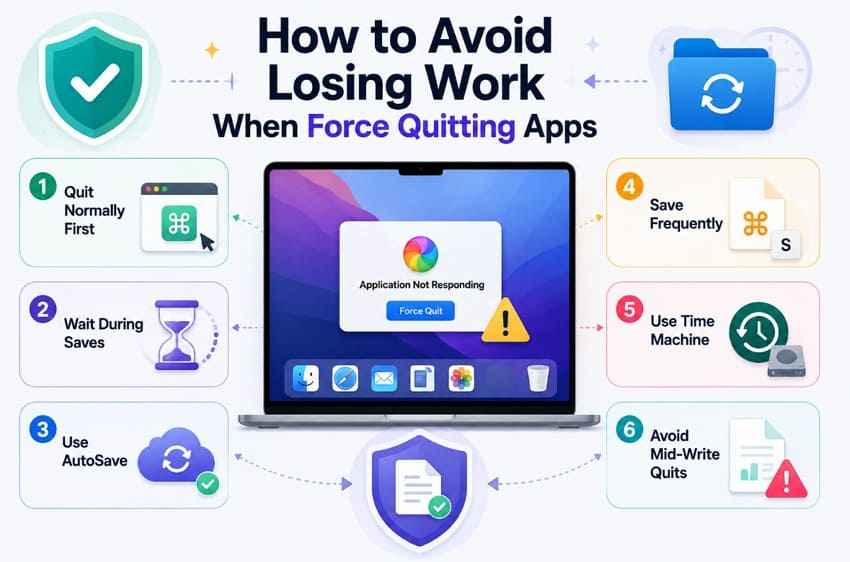
- Try Command + Q first: A responsive app can complete writes, present save dialogs, and clean up its own temporary data.
- Wait during large saves or exports: Check progress, CPU, disk, and network activity before deciding that a demanding task has frozen.
- Use AutoSave and app recovery features: Enable them where supported, but verify how often the specific app creates checkpoints and where it stores them.
- Save important work frequently: Press Command + S and create named milestones for projects where one bad save could replace the only good version.
- Keep Time Machine and another backup: Backups protect versions already written to storage; they cannot restore a paragraph, frame, or edit that was never saved.
- Avoid repeated force quits during active writes: Interrupting a save, database update, library sync, or file transfer can leave partial data and inconsistent project state.
After a crash, reopen the same app before clearing caches or temporary folders. Look for a recovered-document prompt, AutoRecovery folder, version history, or cloud version created before the interruption. Save any recovered copy under a new name rather than overwriting the current file again.
Part 6. Recover Files Lost After a Mac App Crash or Force Quit
File recovery and unsaved-work recovery are different. A recovery tool can scan storage for data that was actually written there; it cannot reconstruct text, edits, frames, or calculations that existed only in RAM when the app ended.
Recommended Tool: Wondershare Recoverit for Mac

Wondershare Recoverit for Mac is relevant when a previously saved file was deleted, disappeared, became inaccessible, or an older recoverable copy remains on readable Mac storage. Its current official specifications list macOS Tahoe 26, Apple silicon and T2 Macs, and file systems including APFS, HFS, and HFS+.
- Readable-storage scanning: Search an accessible Mac drive, external drive, USB device, or memory card for lost files.
- Document and media coverage: The official product page lists common Office documents, PDFs, photos, videos, audio, archives, and creative file formats.
- Path and file-type filtering: Narrow scan results when a full drive contains too many candidates.
- Preview before recovery: Open supported files to check whether their contents are usable before saving them.
- Separate save destination: Recover selected files to another drive to avoid overwriting data on the source.
The related file recovery page explains broader document and file-loss scenarios. Neither page should be interpreted as a guarantee that an unsaved app session created a recoverable disk copy.
What Recoverit Can Recover After an App Force Quit
Recoverit can be considered when the missing content reached readable storage before the crash. Recovery probability depends on the file’s state, the storage device, later writes, SSD TRIM, encryption, and whether a usable copy still exists.
- A previously saved file that was accidentally deleted after the app reopened.
- An older file copy or exported asset that still exists in recoverable storage space.
- A saved document that disappeared after a folder, project, or volume problem.
- Files on a readable external drive interrupted or disconnected during the incident.
- Supported scan results that can be previewed successfully before recovery.
Stop writing to the affected volume as soon as a saved file is missing. Do not install Recoverit on that volume or recover results back to it.
How to Recover Saved Files After a Force Quit
Use this three-stage workflow only after checking the app’s recovery prompt, AutoSave location, cloud version history, Trash, and Time Machine. Those sources usually preserve filenames and folder structure more reliably than a raw storage scan.
Step 1. Choose the Recovery Location. Install and open Recoverit on a healthy volume. Under Hard Drives and Locations, choose the drive or location where the saved file was lost, then start the scan.
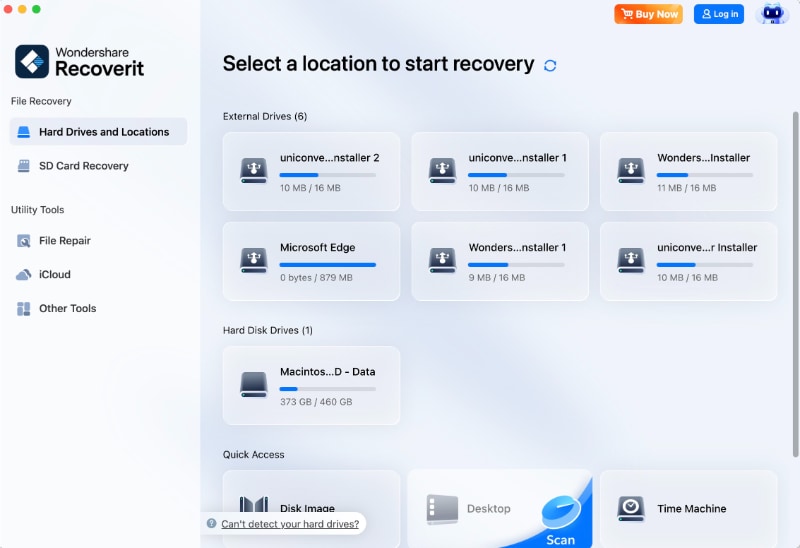
Step 2. Scan and Locate Lost Files. Let the scan continue while using File Path or File Type filters. Avoid saving, downloading, or exporting anything to the affected source during the scan.

Step 3. Preview and Recover Files. Preview important candidates, select the usable versions, click Recover, and save them to a separate drive. Open and verify the recovered files before deleting any current copies.

What Recoverit Cannot Restore From Unsaved Memory-Only Work
No file-recovery program can recover content that an app never wrote to storage. Recoverit also cannot guarantee a usable file simply because a filename appears in scan results.
- Unsaved memory-only changes: Edits lost when the process ended before an AutoSave or normal save occurred.
- Overwritten or TRIMmed data: Original storage blocks that were replaced or removed by SSD maintenance.
- Incomplete file writes: A partial project may lack essential structures even if fragments remain.
- Physically inaccessible storage: Software cannot scan a drive that the Mac and hardware interface do not detect.
- Locked encrypted data: Recovery software does not bypass FileVault credentials or application encryption.
Recover Saved Files After a Force Quit
Security Verified. Over 7,302,189 people have downloaded it.
Part 7. Force Quit Shortcuts and Commands to Remember
This final reference separates ordinary window management from app termination and process-level commands.
| Task | Shortcut or command | Use |
| Close the current window | Command + W | Closes the front window; the application usually keeps running. |
| Quit an app normally | Command + Q | Gives a responsive app a chance to save and shut down cleanly. |
| Open the Force Quit window | Option + Command + Esc | Apple’s standard route for an unresponsive visible app. |
| Force quit through the Dock | Control-click the app icon > Force Quit | Pointer-based shortcut when the Dock remains responsive. |
| Stop a process | Activity Monitor > Stop > Quit or Force Quit | Reaches helper and background processes absent from the Force Quit window. |
| Request Terminal termination | killall -TERM "AppName" or kill -TERM PID |
Advanced process control that still requests a normal termination signal. |
| Force Terminal termination | kill -9 PID |
Last resort; immediately stops the confirmed process without cleanup. |
Remember: Command + W is not a Force Quit shortcut, and Command + Q is not the same as Option + Command + Esc. Use the least forceful command that still works.
Conclusion
Most Force Quit macOS problems can be handled with Option + Command + Esc. The Apple menu and Dock reach the same app-level action, Activity Monitor exposes background processes, Finder provides Relaunch, and Terminal is reserved for a confirmed process that graphical tools cannot stop. Restart the Mac only when app-level methods fail, and force it off only when a normal restart is impossible.
If a crash leaves a previously saved file missing, check the app’s recovery feature, cloud versions, Trash, and Time Machine first. Recoverit may help find saved data that still exists on readable storage, but it cannot recreate work that never left memory.
FAQ
-
Can force quitting an app damage files on a Mac?
It can. Force Quit normally affects unsaved changes in the selected app, but terminating a process during a file write can leave the saved item incomplete. Apple also warns that other apps may have problems when they depend on the process being terminated. -
Why does Force Quit not show the frozen app?
The Force Quit Applications window lists applications rather than every helper, daemon, plug-in host, or background process. Open Activity Monitor to find the related process, verify its name and owner, and try Quit before Force Quit. -
Is relaunching Finder the same as force quitting Finder?
Relaunch terminates and immediately restarts Finder because Finder is designed to remain open. Other applications normally stay running, but any active Finder copy, move, or rename may be interrupted. -
When should you restart the Mac instead of force quitting?
Restart when the app cannot be closed through the Force Quit window, Dock, or Activity Monitor, or when the entire macOS interface is unresponsive. Try Apple menu > Restart first. Hold the power button for up to 10 seconds only if a normal restart cannot complete.


