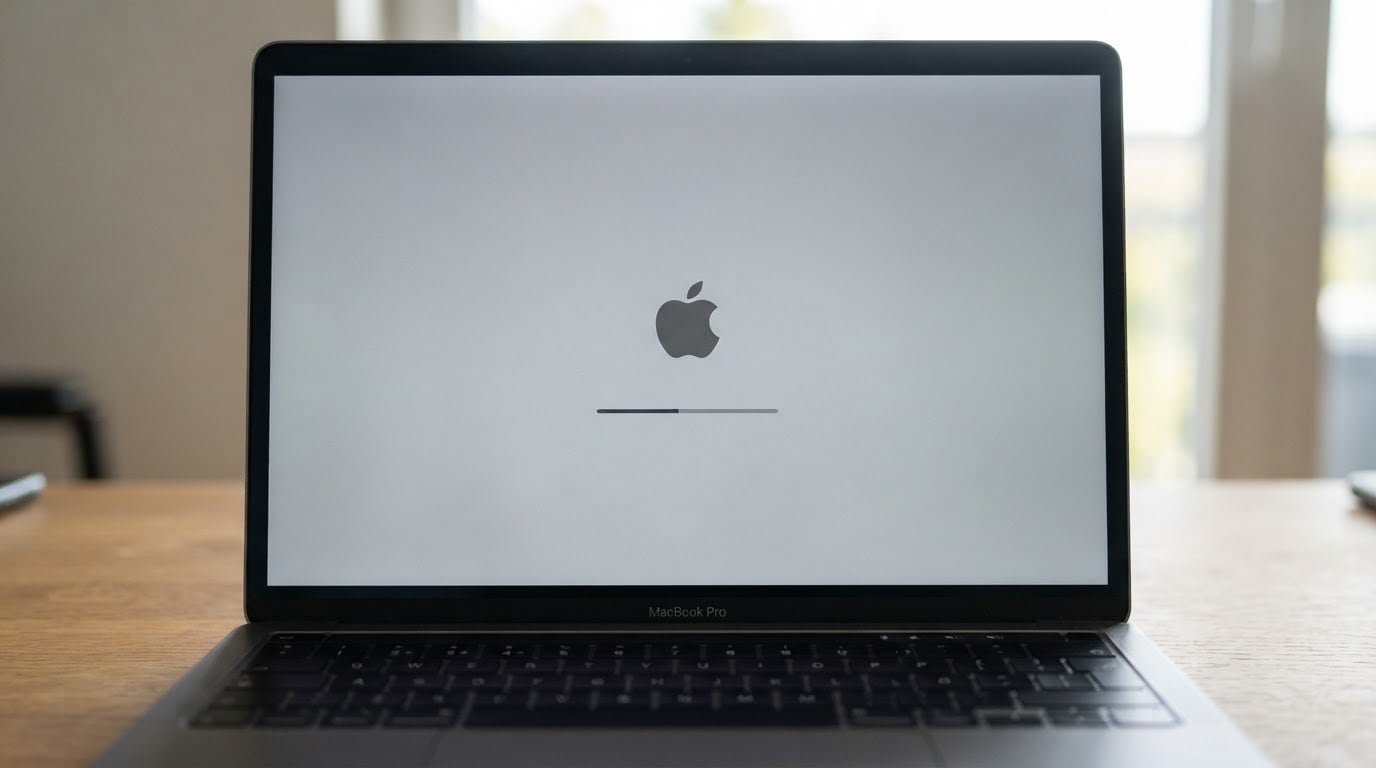

macOS startup errors can happen when your Mac cannot find a usable startup disk, cannot complete a disk check, cannot load macOS, cannot start from Recovery over the internet, or is blocked by startup security, FileVault, an external device, or hardware failure.
The safest approach is to start with non-destructive checks, then use macOS Recovery and Disk Utility. If your files matter and the disk is still detected, use Time Machine, Share Disk, another working Mac, or Wondershare Recoverit for Mac to recover data before risky steps such as erasing, reformatting, reinstalling with erase, replacing a drive, or sending the Mac for service.
Data safety note: Do not erase, format, repartition, repeatedly run disk repair on a failing drive, reinstall macOS with erase, or approve service that may replace storage until important files are backed up or recovered. Recoverit can help recover files from readable Mac storage, but it cannot repair macOS, fix startup screens, bypass FileVault, decrypt protected data without the legitimate password or key, or recover from physically failed storage that is not detected.
Try Recoverit to Perform Data Recovery
 Security Verified. 3,591,664 people have downloaded it.
In this article
Part 1. Common macOS Startup Errors and What They Mean
Different Mac startup screens point to different causes. Use the screen you see to choose the safest next step.
| Startup Screen or Error | What It Usually Means | Safest First Step | Status |
| Flashing question mark folder | The Mac cannot find a working startup disk or a usable Mac operating system. | Start from macOS Recovery, check Disk Utility, then select Startup Disk or repair the disk. | Needs Action |
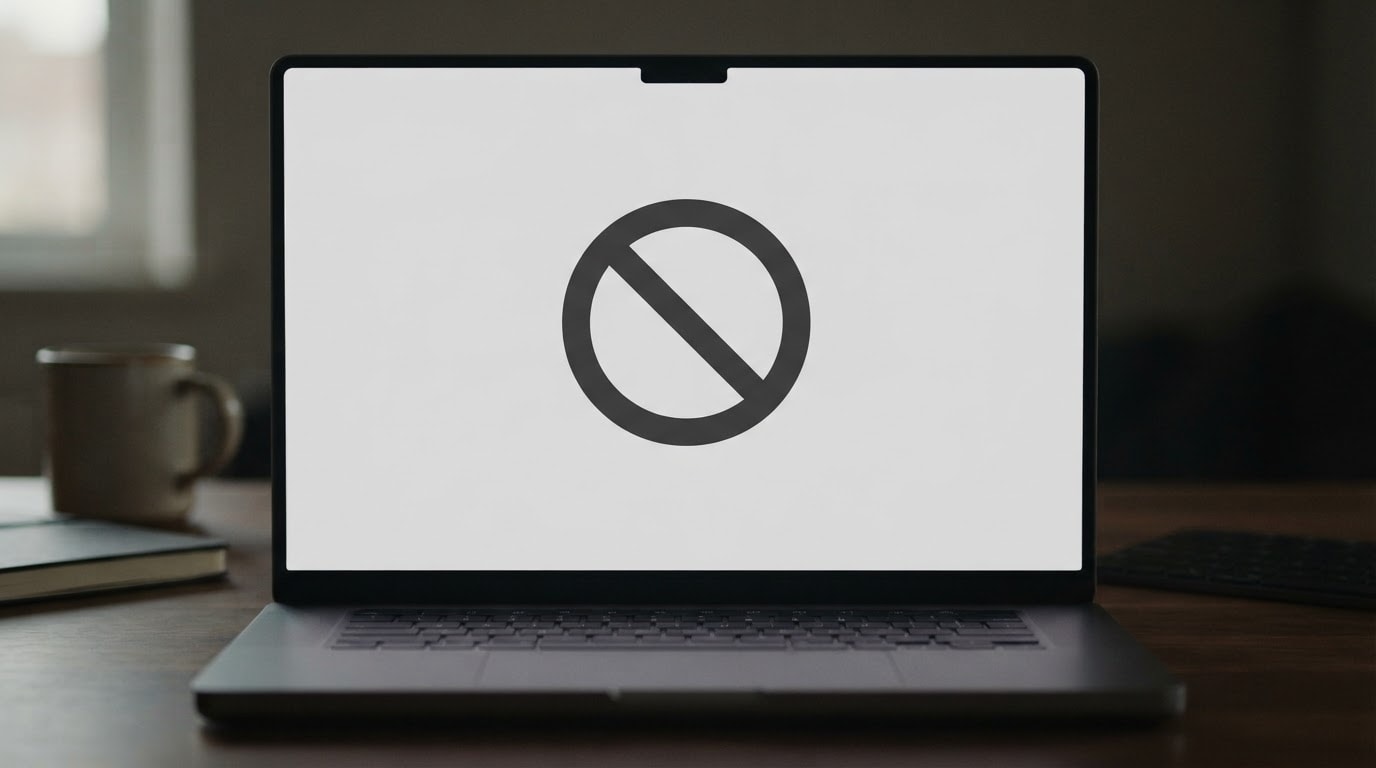
| Circle with a line through it | The selected startup disk contains macOS, but that system cannot be used by this Mac. | Use macOS Recovery, check disk health, then reinstall a compatible macOS if needed. | Needs Action |
| Apple logo with progress bar stuck | macOS found a startup disk but is stuck during loading, disk check, update, or system startup. | Wait during updates, then force shut down once, disconnect accessories, and try Recovery if it remains stuck. | Needs Action |
| Blank black, gray, or blue screen | The Mac may be stuck before login, affected by display output, external devices, startup software, or disk issues. | Force shut down, disconnect accessories, test display/power, then enter Recovery if the issue continues. | Needs Action |
| Globe with warning symbol | The Mac tried to start from macOS Recovery over the internet but could not complete it. | Use a stable network, avoid captive Wi-Fi, and try Recovery again. | Needs Action |
| Startup Options with gear icon | An Apple silicon Mac is showing startup disks and Recovery options. | Select Macintosh HD, open Options for Recovery, or start in Safe Mode. | Informational |
| Recovery Assistant screen | macOS detected a startup issue and opened a recovery workflow. | Follow Recovery steps carefully and avoid Erase before backup or recovery. | Informational |
| Lock icon or password prompt | A firmware password, account password, or FileVault unlock may be required. | Enter the legitimate password. Do not use bypass tools. | Password Req. |
These symptoms can come from failed updates, corrupted system files, damaged APFS volumes, wrong startup disk selection, insufficient storage, incompatible login items, unstable external devices, FileVault or security policy issues, or drive failure.
Part 2. What to Do First Before Fixing Startup Errors
Start with the steps that do not change the disk. This protects your data and helps separate a temporary startup hang from a failing storage device.
- Write down the exact screen. Note whether you see a question mark folder, prohibitory symbol, Apple logo progress bar, blank screen, warning globe, Startup Options, or Recovery Assistant.
- Wait if an update may be running. During macOS updates, the progress bar can move slowly or pause for a long time.
- Force shut down once if it is truly stuck. Hold the power button for about 10 seconds until the Mac turns off.
- Disconnect nonessential devices. Remove external drives, hubs, printers, docks, memory cards, and accessories except power, keyboard, mouse, and a needed internet adapter.
- Restart the Mac. If it boots, back up important files immediately before more troubleshooting.
- Check whether the startup disk appears in Disk Utility. If it appears, protect files before repairs. If it does not appear, avoid repeated erase or repair attempts.
If the internal drive is failing, repeated restarts, disk repairs, or reinstall attempts may reduce the chance of recovery. When the files matter, treat data recovery as the priority, not the last resort.
Part 3. Recover Files Before Erasing or Servicing Your Mac
This article is about fixing macOS startup errors safely. That means file recovery should come before destructive repair whenever you do not have a current backup.
When Data Recovery Should Come First
Recover or back up files first if:
- You do not have a recent Time Machine or cloud backup.
- The Mac loops at the Apple logo, question mark folder, or Recovery screen.
- Disk Utility sees the disk but cannot mount the data volume.
- First Aid fails, freezes, or reports serious errors.
- The Mac asks you to erase, initialize, or reinstall from scratch.
- The startup disk is external and disconnects, mounts only sometimes, or becomes unreadable.
- The Mac needs service, storage replacement, revive, restore, or logic board repair.
Also recover files first when the Mac contains work projects, family photos, legal files, school files, financial records, or creative media that you cannot recreate.
Recover Files from a Detected Mac Drive with Recoverit
Wondershare Recoverit for Mac is not a tool for fixing macOS startup errors directly. Its role is to help recover lost or inaccessible files from readable storage before you erase, reformat, reinstall macOS with erase, replace a drive, or send the Mac for repair.
| Recoverit Can Help With | Recoverit Cannot Do | Feature Match | Data Risk |
| Scan a detected Mac drive, external hard drive, SSD, USB drive, SD card, or memory card. | Repair macOS startup errors, boot files, firmware, or security policy. | Supported | Low Risk |
| Recover files before erase, format, macOS clean install, storage replacement, or service. | Fix a blank screen, question mark folder, Apple logo hang, or warning globe. | Supported | Low Risk |
| Recover documents, photos, videos, audio files, archives, and other common file types from readable storage. | Bypass FileVault, account passwords, firmware passwords, or encrypted storage. | Restricted | Password Protected |
| Recover files from an external Mac startup disk that is detected but not bootable. | Recover from physically failed storage that does not appear to macOS. | Restricted | Hardware Failure |
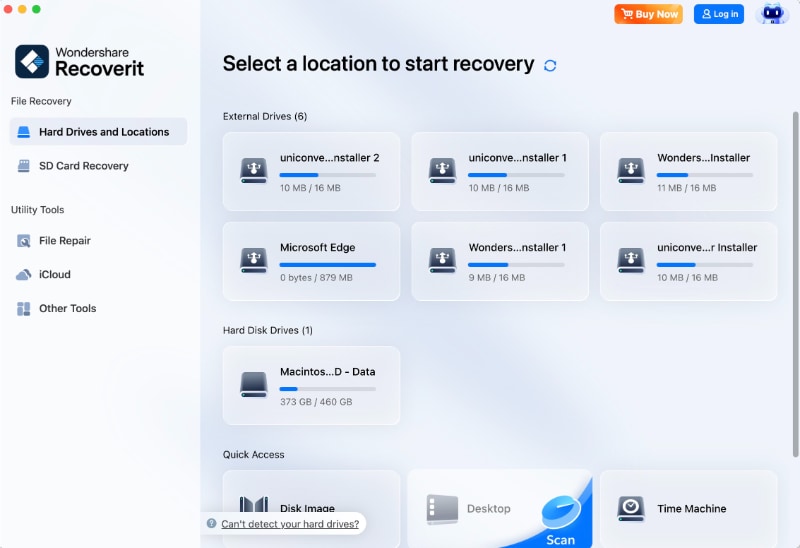
Step 1. Select the File Location
First, access the “Hard Drives and Location” tab > Select a particular drive.
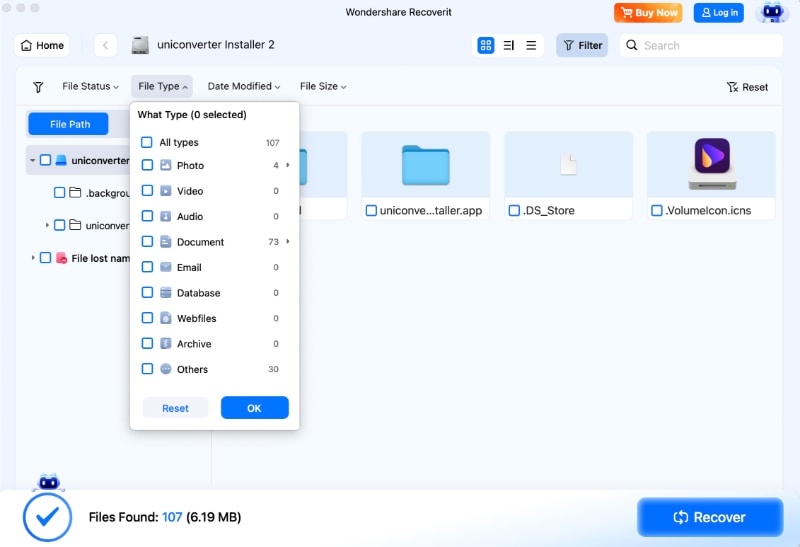
Step 2. Add Required File Filters
Next, press “Filter” > Change the “File Type” and “File Size” to speed up the recovery process.
Step 3. Preview the Recovered Files Before Saving
Once the scan is complete, preview the recoverable files > Select the files you need > Click “Recover” > Choose a safe location to save them.

When Recoverit May Not Work
Data recovery depends on drive condition, encryption, overwriting, and detectability. Recoverit may not help if:
- The drive is physically failed and does not appear in Disk Utility or on another Mac.
- The storage is FileVault encrypted and you do not have the legitimate password or recovery key.
- The data has been overwritten after erase, reinstall, or heavy use.
- The Mac's internal storage is tied to hardware security and cannot be accessed because of logic board or storage failure.
- The drive was securely erased or intentionally wiped.
For physically failing or business-critical storage, stop DIY troubleshooting and contact Apple Support, an authorized service provider, or a professional data recovery service.
Part 4. Fix macOS Startup Errors with Low-Risk Steps
Once data is safe or you have a verified backup, move through fixes that do not erase the disk.
Fix 1. Restart Once and Disconnect Accessories
- Hold the power button for about 10 seconds until the Mac turns off.
- Disconnect external drives, hubs, printers, docks, cameras, memory cards, and other nonessential devices.
- Connect reliable power for Mac notebooks.
- Turn the Mac on again.
If the Mac starts normally, reconnect accessories one at a time and restart after each one. A bad cable, drive, dock, hub, or peripheral can trigger startup problems.
Fix 2. Select the Correct Startup Disk
If the Mac briefly shows a question mark folder but later starts, it may not be using the correct startup disk.
- Open Apple menu > System Settings.
- Go to General > Startup Disk.
- Select Macintosh HD or the correct startup volume.
- Click Restart.
This is especially useful after using an external boot drive, migration, disk clone, failed update, or startup disk change.
Fix 3. Start Mac in Safe Mode
Safe Mode can help identify whether startup errors are caused by software that loads as the Mac starts up, including login items, extensions, or cache-related issues.
| Mac Type | Safe Mode Steps | Difficulty | Compatibility |
| Apple silicon Mac | Shut down. Hold the power button until startup options appear. Select a volume, hold Shift, then click Continue in Safe Mode. | Easy | M1 / M2 / M3 / M4 |
| Intel-based Mac | Turn on or restart the Mac, then immediately hold Shift until the login window appears. Log in when prompted. | Easy | Intel CPU |
If the Mac starts in Safe Mode, restart normally. If it works after that, the issue may have been related to software loaded at startup.
Fix 4. Use macOS Recovery
macOS Recovery gives you access to Disk Utility, Time Machine restore, Startup Disk, Reinstall macOS, and other repair options.
| Mac Type | How to Enter Recovery | Difficulty | Compatibility |
| Apple silicon Mac | Shut down. Press and hold the power button until startup options appear. Click Options, then Continue. | Easy | M1 / M2 / M3 / M4 |
| Intel-based Mac | Restart and immediately hold Command + R. If needed, use Option + Command + R for internet recovery. | Easy | Intel CPU |
In Recovery, start with Disk Utility and data protection. Avoid Erase until backups or recovered files are safe.
Part 5. Repair the Startup Disk with Disk Utility
Disk Utility First Aid can check and repair errors related to formatting and directory structure. Apple notes that significant disk errors can prevent a Mac from starting up completely, but Disk Utility cannot detect or repair every disk problem.
- Start from macOS Recovery if the Mac does not boot normally.
- Open Disk Utility.
- Choose View > Show All Devices.
- Select the last volume under the startup disk, such as Macintosh HD - Data.
- Click First Aid, then click Run.
- Repeat First Aid for each volume above it.
- Run First Aid on each APFS container.
- Run First Aid on the physical storage device last.
- Restart the Mac if Disk Utility says the disk appears OK or has been repaired.
If Disk Utility reports errors it cannot repair, back up or recover as much data as possible before reformatting. If Disk Utility says the disk is about to fail, replace the disk after data is protected.
Part 6. Reinstall macOS Without Erasing
If First Aid does not fix the startup issue, reinstall macOS from Recovery. A standard reinstall is designed to keep apps and personal data, but Apple still recommends backing up first when possible.
- Start from macOS Recovery.
- Connect to a stable internet connection. Avoid hotel, school, or public Wi-Fi that requires a browser login during Recovery.
- Choose Reinstall macOS.
- Select the current macOS volume when asked. If offered Macintosh HD or Macintosh HD - Data, choose Macintosh HD.
- Follow the on-screen instructions and keep the Mac awake, powered, and connected.
Do not manually erase the drive unless the reinstall cannot proceed and your files are already backed up or recovered.
Part 7. When to Erase, Replace, or Get Apple Service
Erase, replacement, and service are last-resort paths. They can solve some startup problems, but they can also remove user data or make recovery harder.
| Situation | Recommended Action | Urgency | Data Safety Impact |
| First Aid cannot repair the disk, but the disk is visible | Recover or back up files, then erase and reinstall macOS if needed. | High | Backup Needed |
| Disk Utility cannot see the startup disk | Disconnect accessories, try Recovery again, then contact Apple Support or service. | High | Hardware Risk |
| External startup disk is not detected | Try another cable, port, enclosure, and Mac. Recover files if another Mac detects it. | Medium | Port/Cable Issue |
| Drive clicks, overheats, disconnects, or shows failure warnings | Stop using it and seek professional recovery or service before more repairs. | Critical | Stop Operations |
| Apple silicon or T2 Mac needs revive or restore | Confirm data consequences first. A restore can erase the Mac. | High | Erase Warning |
| Mac was dropped or exposed to liquid | Do not keep powering it on. Seek service and ask about data recovery options. | Critical | Physical Damage |
If your data is important, tell the service provider before repair begins. Some repair paths involve erasing storage, replacing parts, or restoring firmware.
Part 8. Prevent Future macOS Startup Errors
You cannot prevent every startup failure, but you can reduce risk and make recovery much easier.
- Keep Time Machine enabled and test restores periodically.
- Store critical files in backed-up Desktop, Documents, project, or cloud folders.
- Keep macOS updated from Apple Software Update or official installers.
- Do not force shut down during macOS updates, disk repairs, or installations unless the Mac is clearly frozen for a long time.
- Leave enough free storage for macOS updates and normal system operation.
- Use reliable external SSDs, hard drives, enclosures, cables, and power supplies.
- Shut down or eject external startup disks properly before unplugging them.
- Keep FileVault recovery keys and backup credentials in a safe place.
Part 9. Conclusion
macOS startup errors do not always mean your files are gone or your Mac must be erased. Identify the startup screen first, disconnect accessories, select the correct startup disk, try Safe Mode, open macOS Recovery, and repair the disk with Disk Utility before moving to reinstall or erase.
If the next step could erase data, stress a failing disk, or send the Mac into service, recover files first. Wondershare Recoverit for Mac can help recover files from readable Mac storage and external devices before risky troubleshooting, while Time Machine, iCloud, and professional recovery remain important options depending on the drive condition and encryption status.
FAQ
-
What are common macOS startup errors?
Common macOS startup errors include a flashing question mark folder, circle with a line through it, Apple logo with a stuck progress bar, blank black or gray screen, globe with warning symbol, Startup Options screen, Recovery Assistant screen, and lock or password prompt. -
What should I do first when my Mac has a startup error?
Identify the screen, wait if a macOS update may be running, force shut down once if the Mac is stuck, disconnect nonessential accessories, restart, and back up files immediately if the Mac boots. If it still fails, enter macOS Recovery and check Disk Utility before erasing. -
Can Recoverit fix macOS startup errors?
No. Recoverit is a data recovery tool, not a macOS startup repair tool. It is useful for recovering files from detected readable storage before erase, reinstall, service, or drive replacement. It cannot fix startup screens, repair macOS, or change startup security settings. -
Can Disk Utility First Aid fix Mac startup screen problems?
Sometimes. First Aid can check and repair certain formatting and directory errors that may prevent startup, but it cannot repair every disk problem or physical failure. Back up or recover important files first if the disk is unstable or the data is not backed up.



