Running Windows on Mac lets you use Windows-only software, play Windows games, and switch between both operating systems on one device. This guide covers the best methods to run Windows on Mac — for Intel Macs and Apple silicon (M1–M4) — with step-by-step instructions for each.
⚡ Quick Answer: Run Windows on Mac
| Your Mac / Need | Best Method | Difficulty |
| Intel Mac, full performance (games/GPU apps) | Boot Camp Assistant — native Windows, reboot to switch | Moderate |
| Apple silicon Mac (M1–M4), side-by-side use | Parallels Desktop or VMware Fusion (free for personal use) — Windows 11 ARM | Easy/Moderate |
| Occasional Windows access, no install | Cloud PC (Windows 365) or remote desktop to an existing PC | Easy |
| Run a few Windows-only apps | Wine / CrossOver — no Windows license needed | Easy |
| Lost data while installing Windows | Recover with Wondershare Recoverit | Beginner Friendly |
Try Recoverit to Perform Mac Data Recovery
 Security Verified. 3,591,664 people have downloaded it.
Benefits of Choosing to Run Windows on Mac
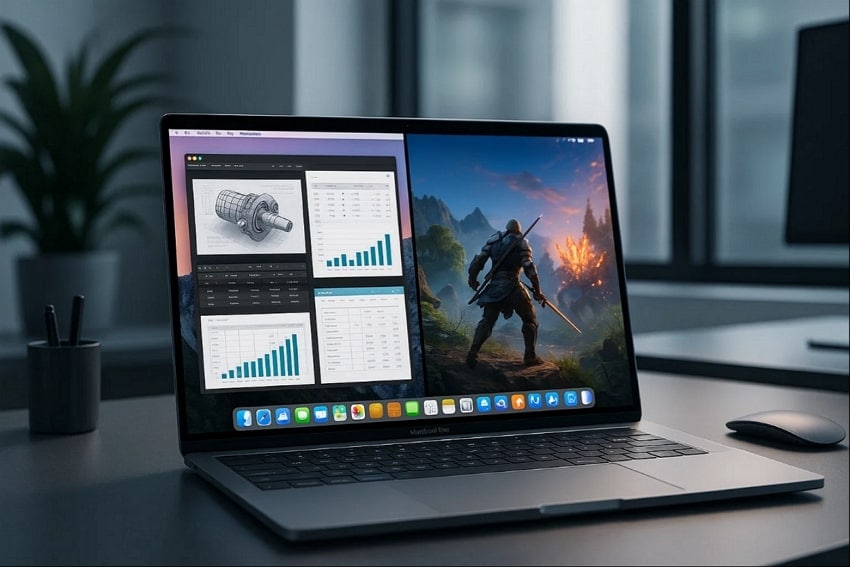
Before you dive into the best way to run Windows on Mac, first, you should explore what the real benefits of choosing Windows on Mac are:
| Benefit | What It Means |
| Access exclusive applications | Run Windows-only programs (engineering, finance, business tools) not available on macOS |
| Gaming possibilities | Play Windows-designed games and game libraries on your Mac |
| Best of both worlds | Switch between macOS and Windows for tasks each system does best |
| No need for multiple devices | One computer runs both OS — no extra hardware cost |
| Enhanced productivity | Switch systems instantly on the same setup and boost overall workflow |
Which is the Best Method to Run Windows on a Mac
Here we have provided a quick breakdown of all the methods mentioned below to Run Windows programs on Mac for your better understanding:
| Features | Boot Camp Assistant | Virtualization | VMware Fusion | Remote Desktop software | Cloud PCs to Run Windows on Mac | Wine & CrossOver |
|---|---|---|---|---|---|---|
| Compatibility | Intel Macs only | Intel & Apple Silicon Macs | Intel & Apple Silicon Macs | All Macs + Windows PC | All Macs (Web/Apps) | Intel & Apple Silicon Macs |
| Setup Complexity | Moderate | Moderate | Easy/Moderate | Easy | Easy | Easy |
| Storage Usage | High (dual OS) | High (VM + OS) | High (VM + OS) | Minimal (client app) | Minimal (browser/app) | Very low |
| Performance | Full native | High (virtualized) | High (virtualized) | Varies (network) | High (cloud-hosted) | Moderate |
| Switching | Reboot required | Instant | Instant | Instant | Instant | Instant |
| Key Advantages | Native Windows, hardware access, full compatibility | Mac & Windows side-by-side, easy sharing | Advanced controls, device integration | Secure, no local Windows install, remote control | IT admins, remote work | Enterprises, teams |
| Cost | Free (built-in) | Free (personal)/Paid | Free (personal)/Paid | Free | Paid/subscription | Free (Wine)/Paid (CrossOver) |
| Ease of Use | Moderate (stepwise guide) | Easy-Moderate (GUI-driven) | Easy (wizards & presets) | Easy (app-based setup) | Easy (login and launch) | Easy (direct run/install) |
| Best For | Gamers, high-perf apps | Developers, multitaskers | Power users | IT admins, remote work | Enterprises, teams | Casual users, single apps |
6 Ways to Run Windows on Mac | Detailed Guide
Here are the 6 most efficient ways to Run Windows programs on Mac, each with step-by-step instructions:
Boot Camp Assistant (Intel Macs Only)
Best For: Gamers and high-performance app users.
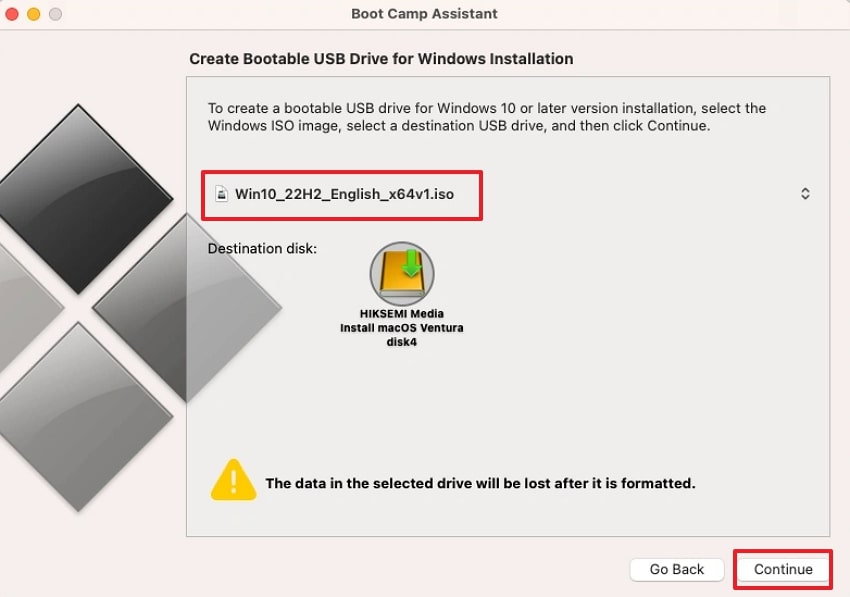
Boot Camp runs Windows natively on Intel Macs: all hardware — CPU, GPU, memory, Bluetooth, Wi-Fi, cameras, and drivers — works just like on a PC, without sharing resources between the two systems. It requires a reboot to switch, but gives full performance.
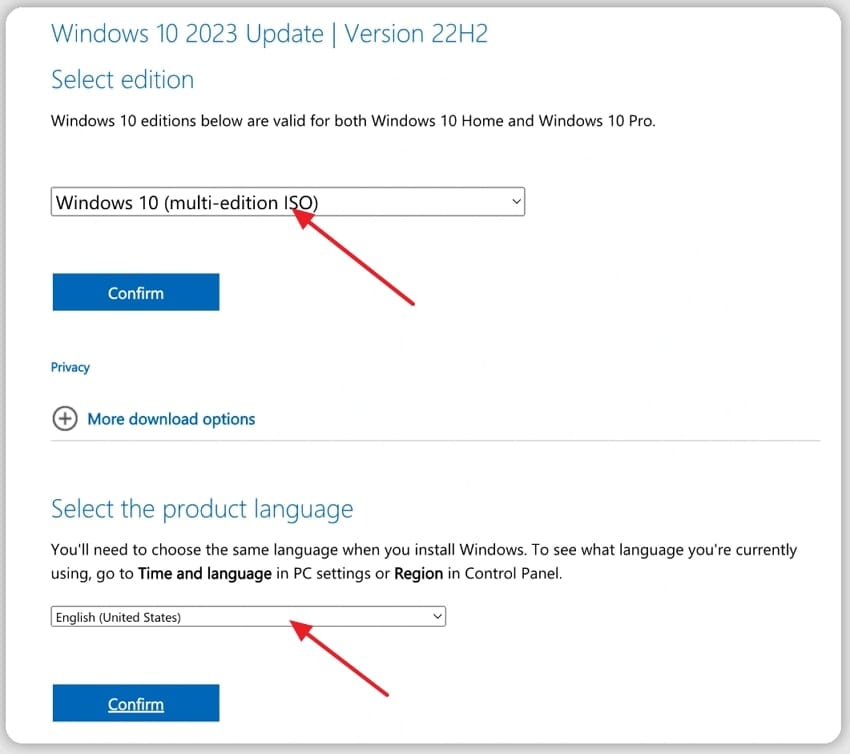
- On the Microsoft website, select "Windows 10 (multi-edition ISO)", click Confirm, set the Product Language to English, and click Confirm.
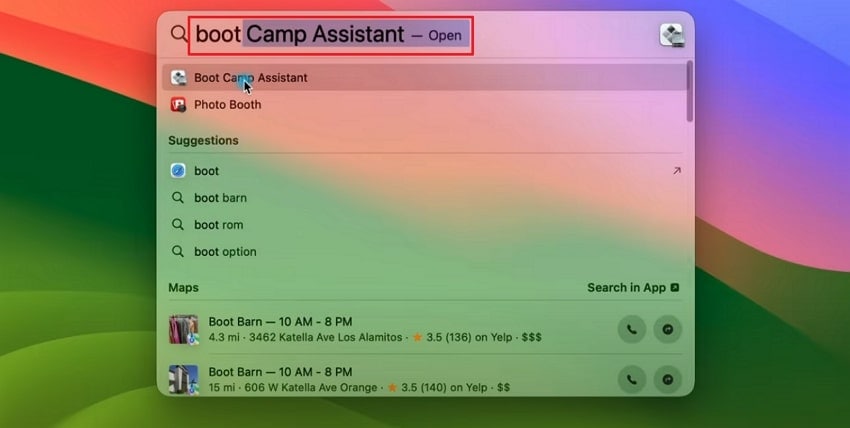
- Connect your USB device to your Mac and open "Boot Camp" via Finder.
- Select the Windows drive and click Continue to start the installation.
Virtualization (Intel & Apple Silicon Macs)
Best For: Developers and multitasking individuals.
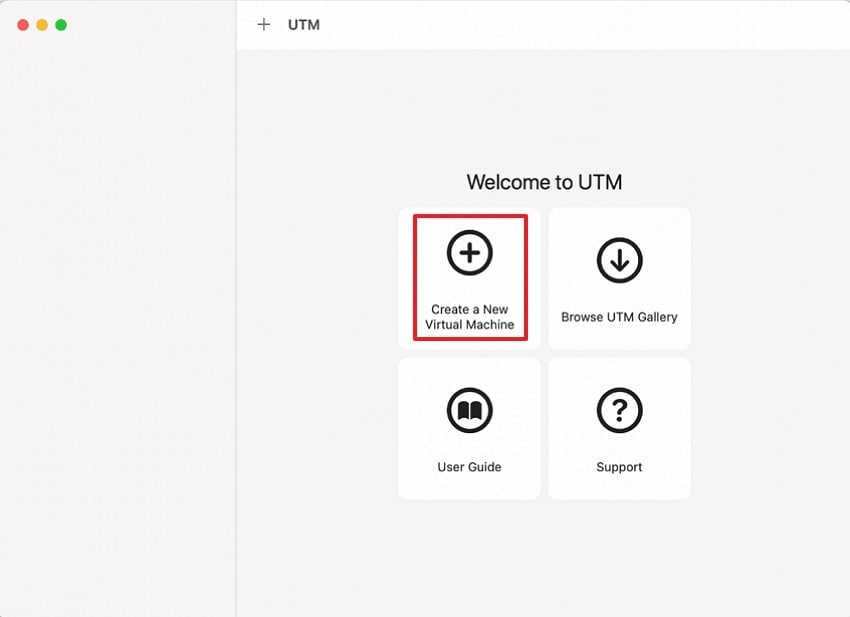
To run a Windows virtual machine for Mac, use UTM — a user-friendly GUI app. Unlike Boot Camp, virtualization needs no reboot: you switch between macOS and Windows instantly. Make sure your Mac has at least 100 GB of free storage.
- Download "UTM" from the App Store and open it. Click "Download a New Virtual Machine".
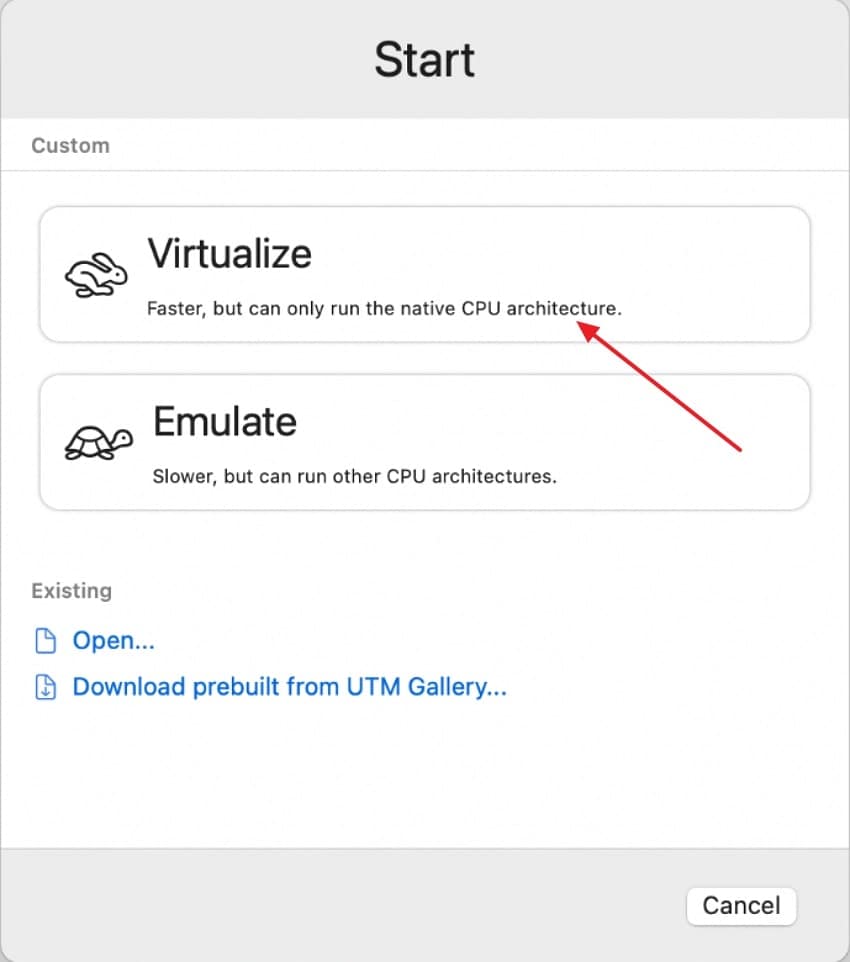
- In the pop-up, tap Virtualize.
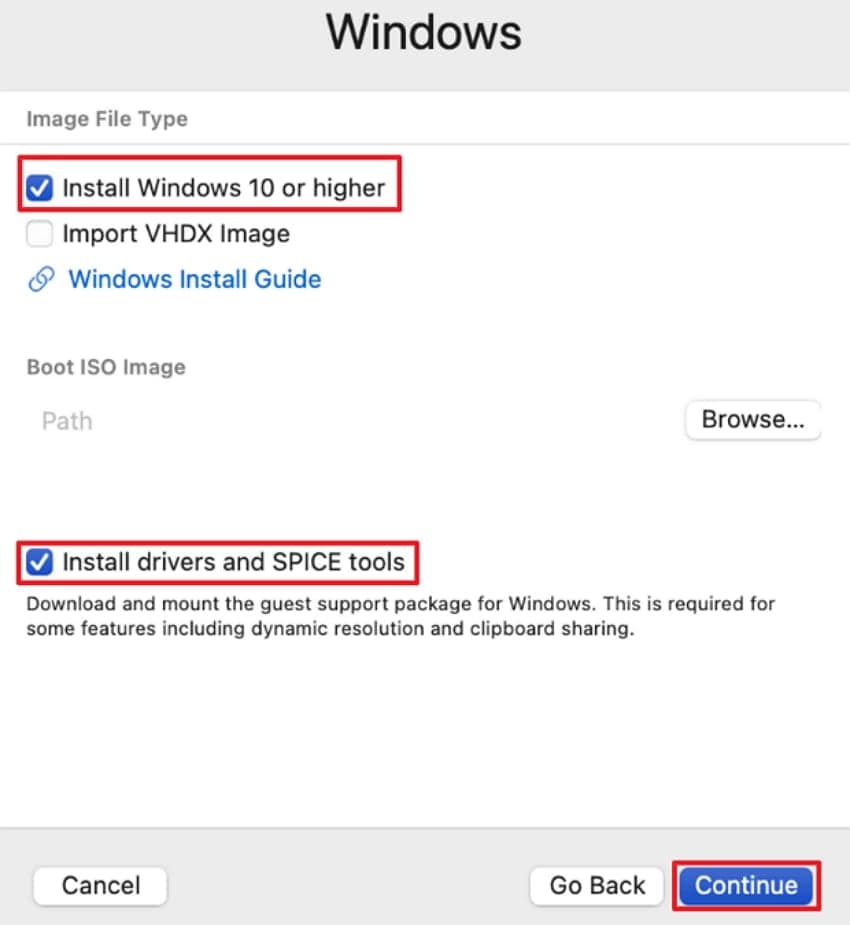
- Toggle on "Install Windows 10 or Higher" and "Install Drivers and Spice Tools", then click Continue.
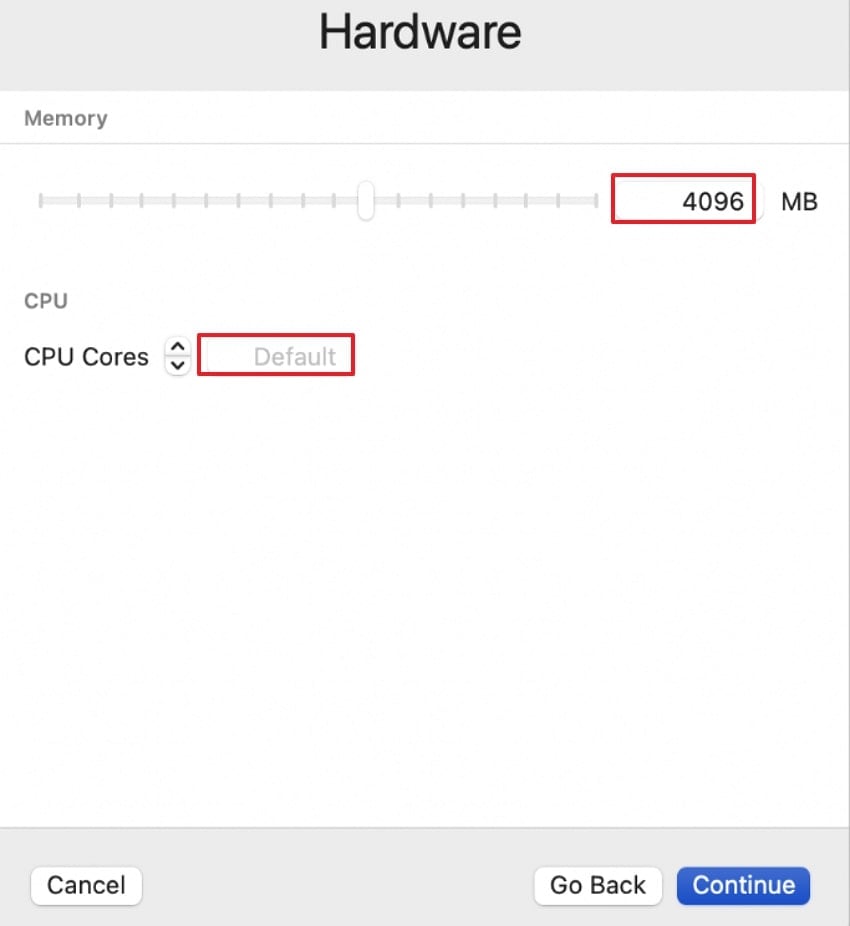
- Set the memory and CPU core count, then click Continue.
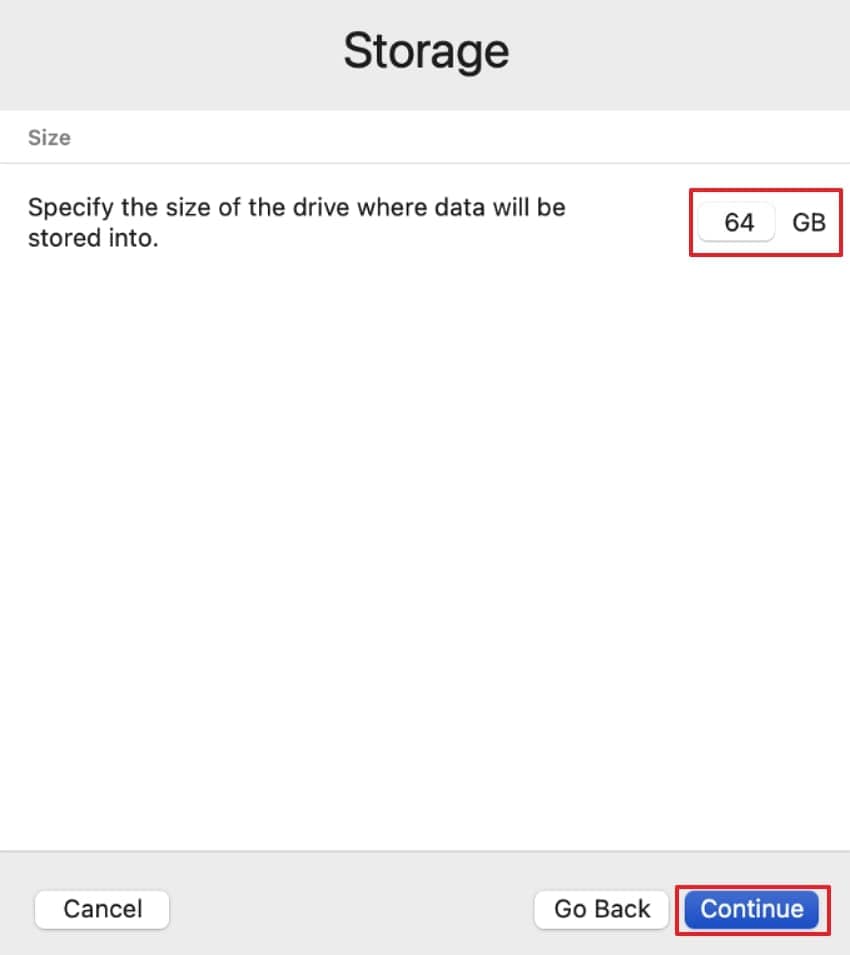
- Choose the storage size and click Continue.
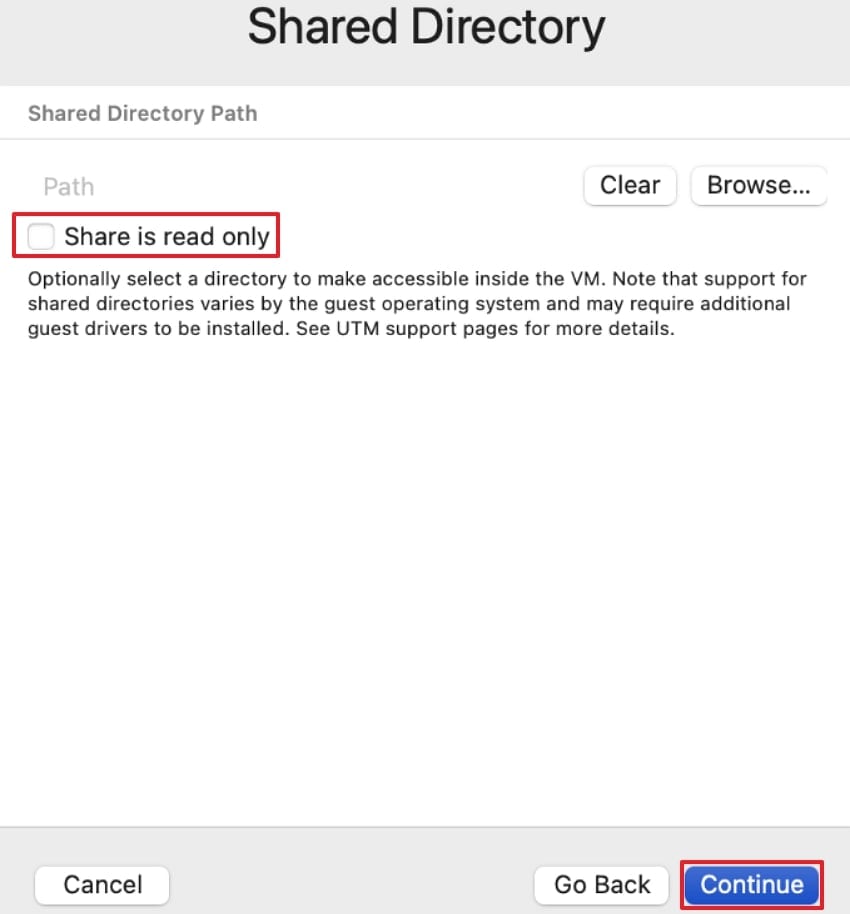
- Set the "Shared Directory" to exchange files between Mac and the virtual machine.
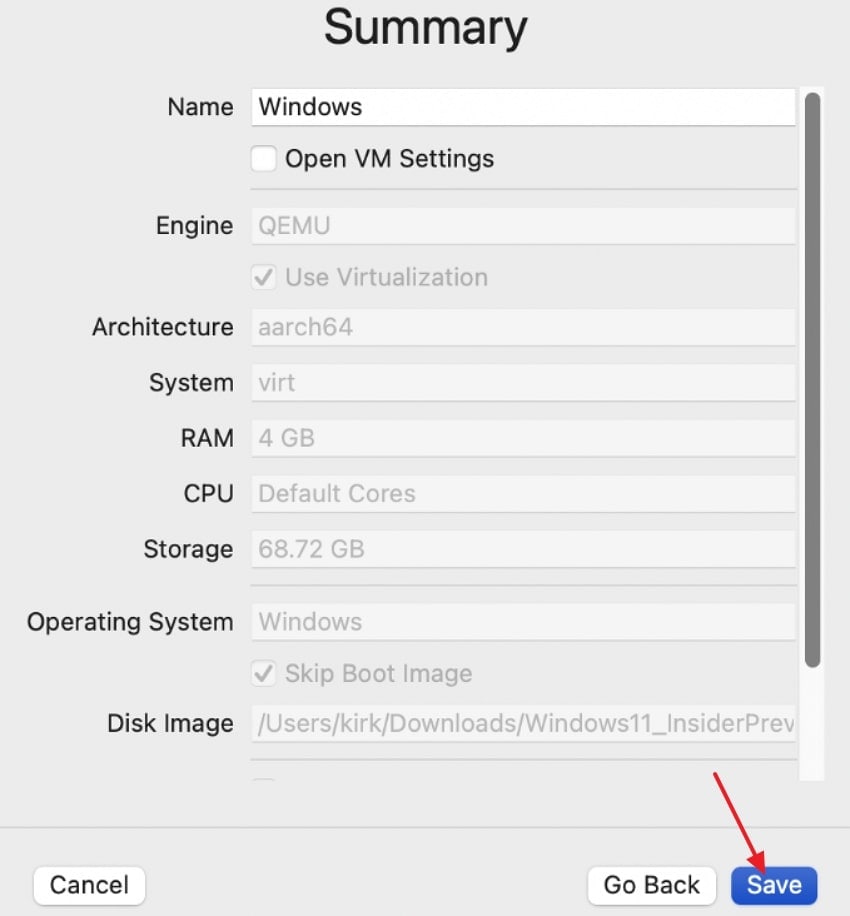
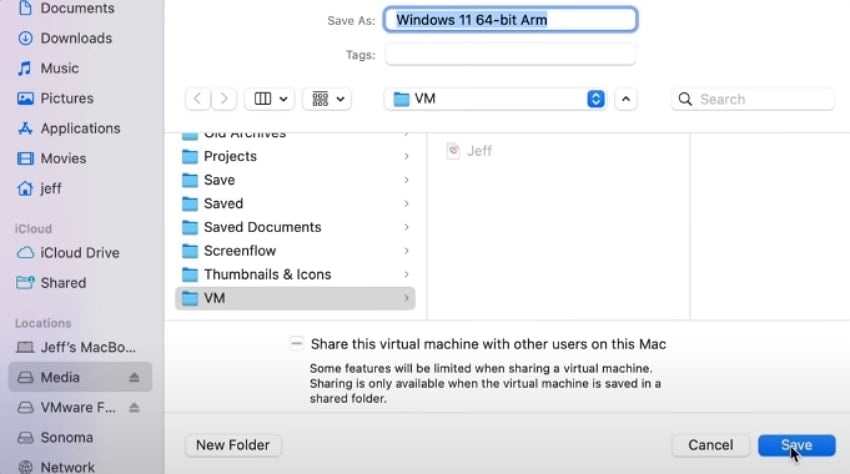
- Review the summary, enter a "Name", and click Save to create the VM.
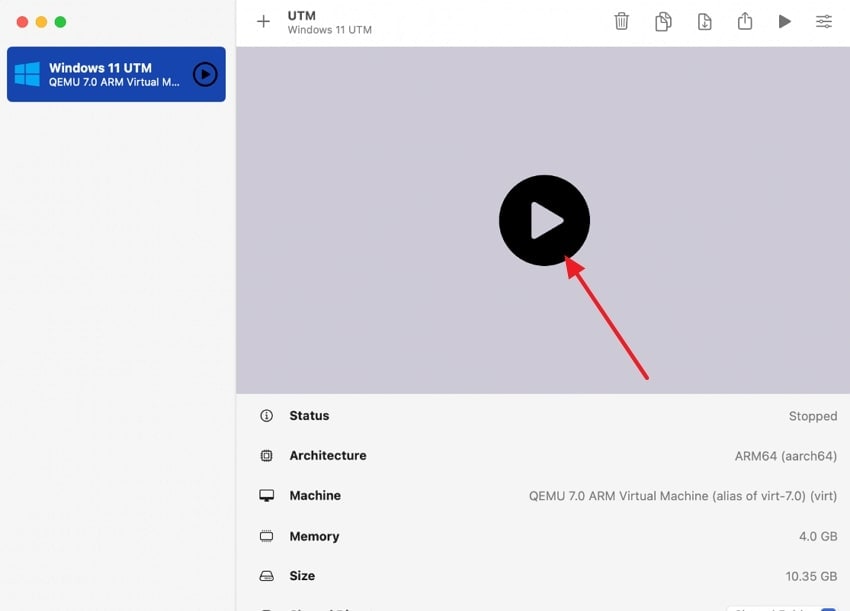
- Click the "Arrow" to launch the virtual machine.
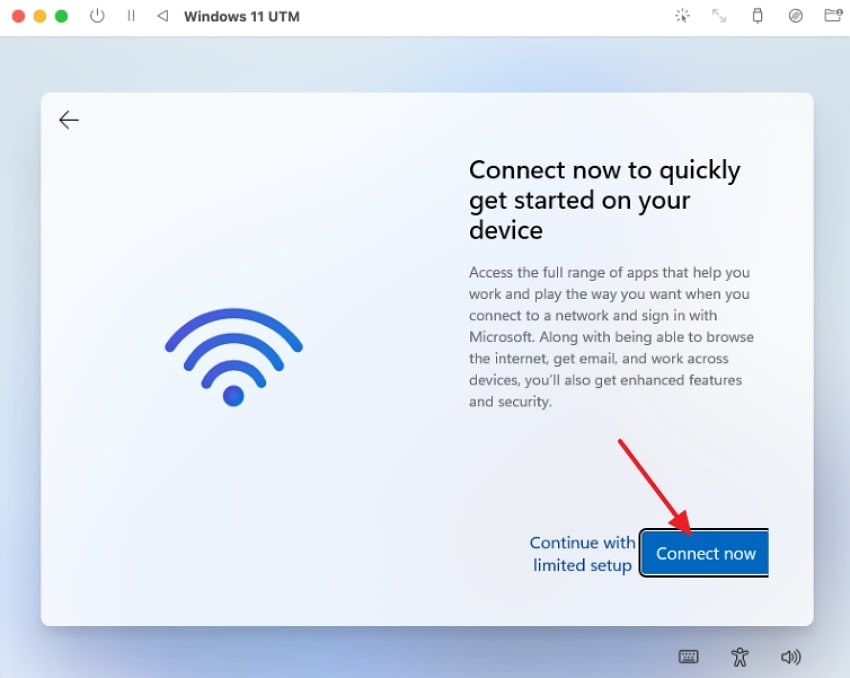
- Click Connect Now to finish setting up the VM.
Use VMware Fusion
Best For: Users with powerful utilities and needs.
VMware Fusion is a full-featured virtualization tool that runs Windows and Mac side-by-side on both Intel and Apple Silicon Macs. It offers advanced options — allocate RAM, CPU cores, and storage, or connect a USB — and is ideal for multitaskers.
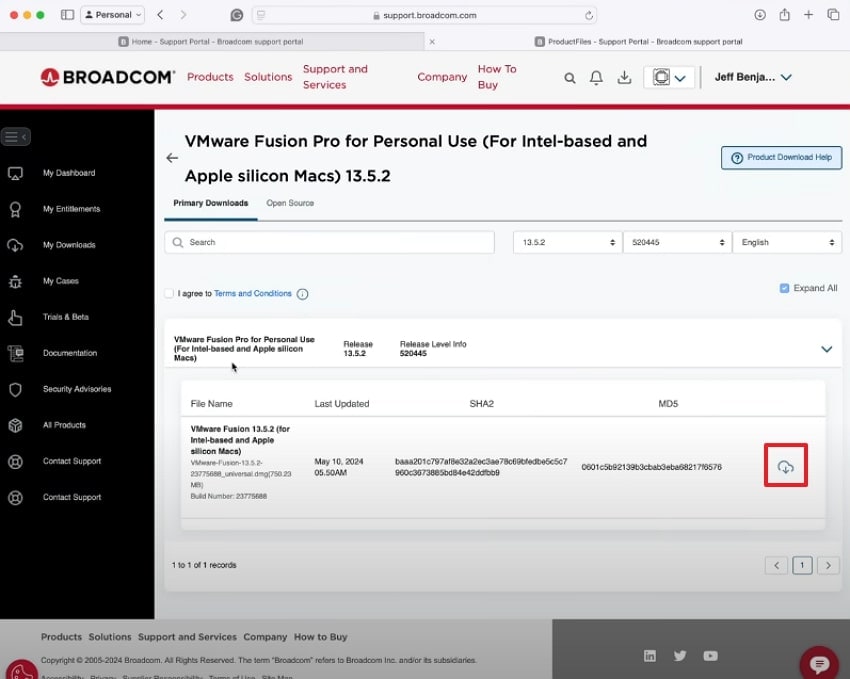
- Go to the Broadcom website and download VMware Fusion.
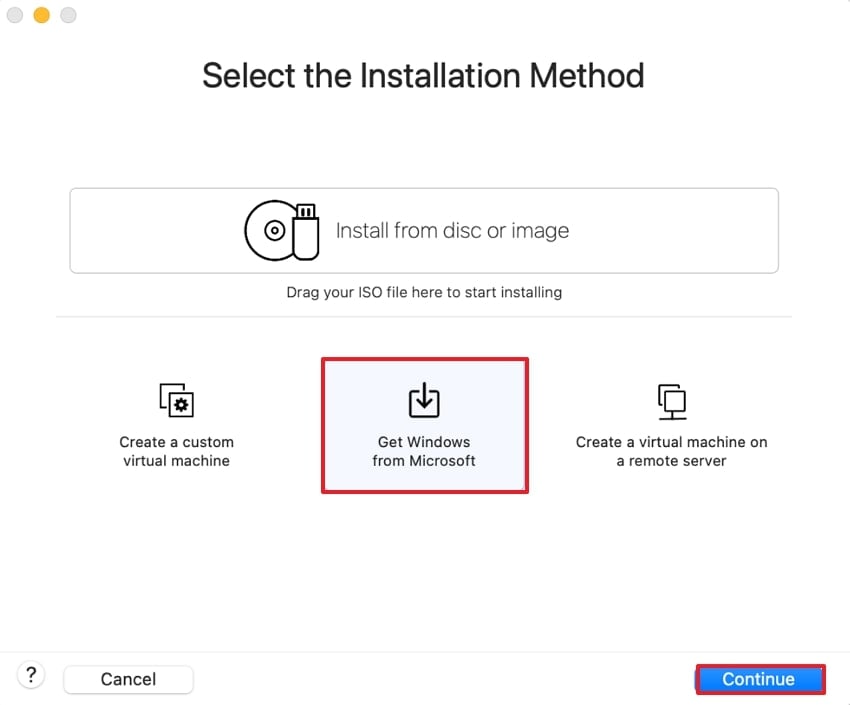
- Click "Get Windows from Microsoft" and hit Continue.
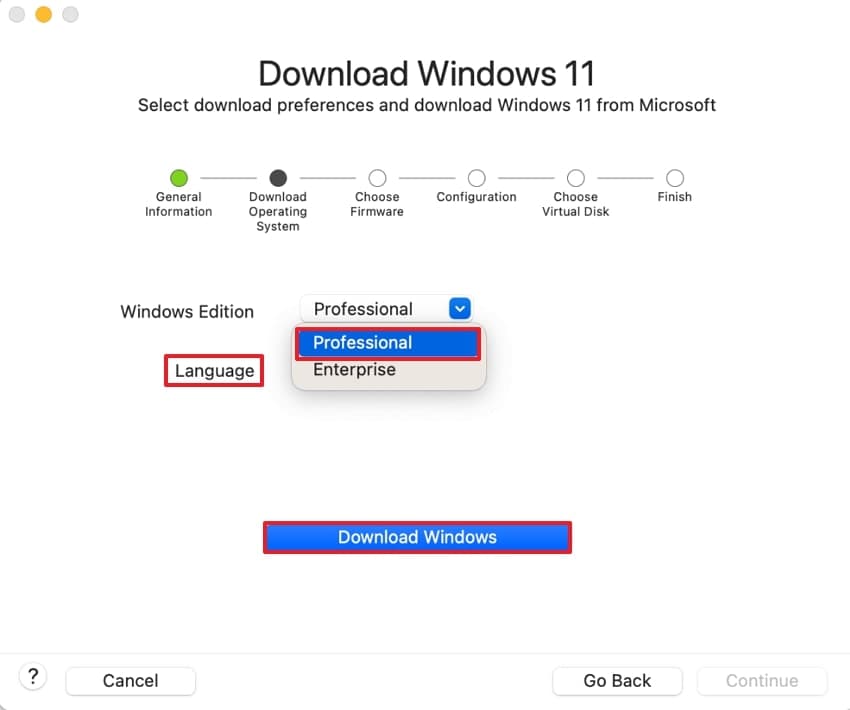
- Choose "Professional" mode, pick the language, and click Download Windows. Wait for the download to finish, then click Continue.
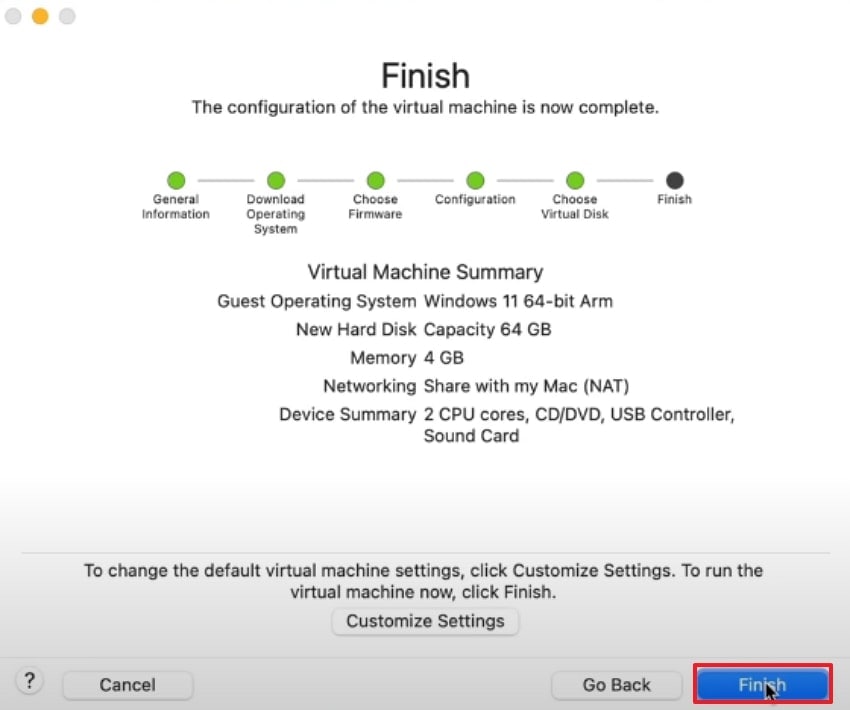
- Click Finish to complete the Windows installation on your Mac.
Access Windows Remotely Via Remote Desktop Software
Best For: IT admins and individuals working remotely.
Remote desktop software gives you full control of a Windows PC from your Mac — even across distances — without installing Windows locally. The connection is encrypted, so it's a secure way to work on a Windows machine.
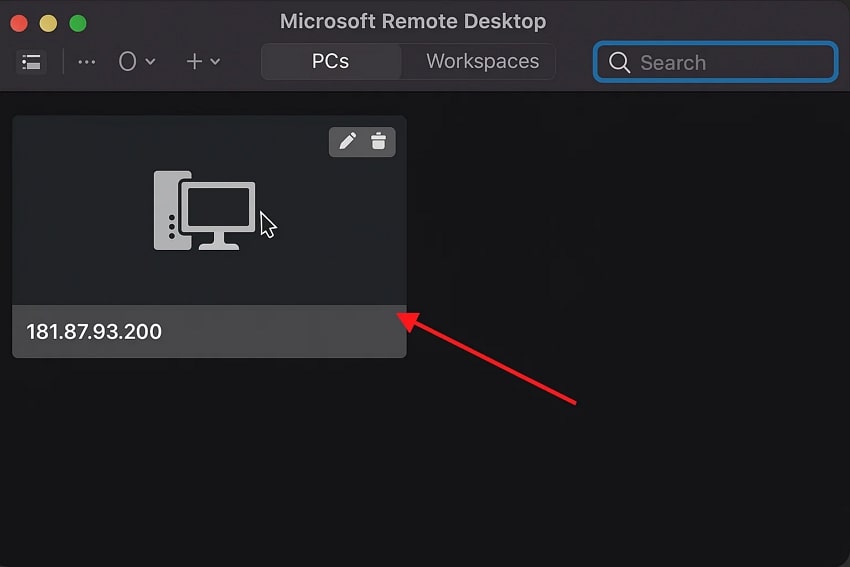
- Download "Microsoft Remote Desktop" (or "Windows App") from the Mac App Store and open it.
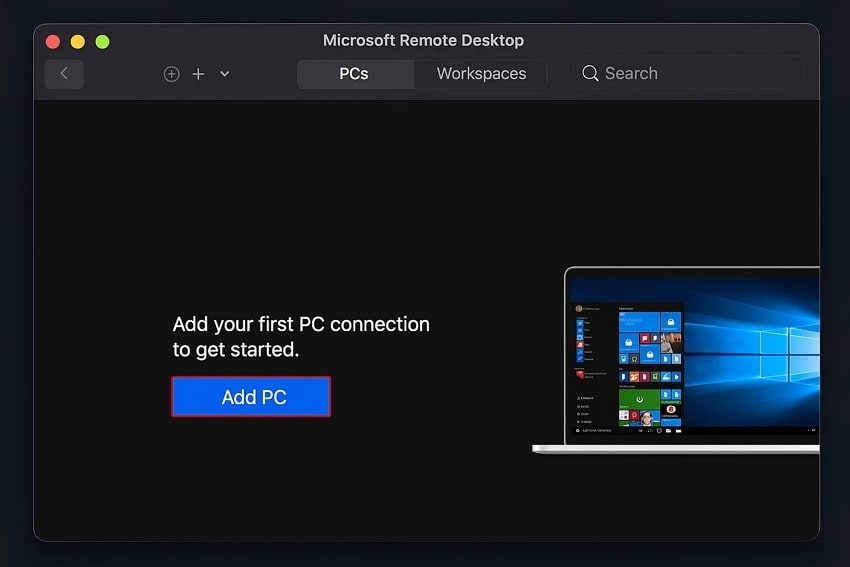
- Allow the app's permission in Mac settings, then click Add and enter the credentials of the Windows PC.
- Connect — the Windows desktop appears on your screen, and you can switch between Mac and Windows anytime.
Use Cloud PCs to Run Windows on Mac
Best For: Enterprises and teams for broader connectivity.
Cloud PCs stream a full Windows environment to any Mac with an internet connection — no separate OS download, always up-to-date, and fully encrypted (data, apps, and sessions stay secure in the cloud). Microsoft Teams is supported.
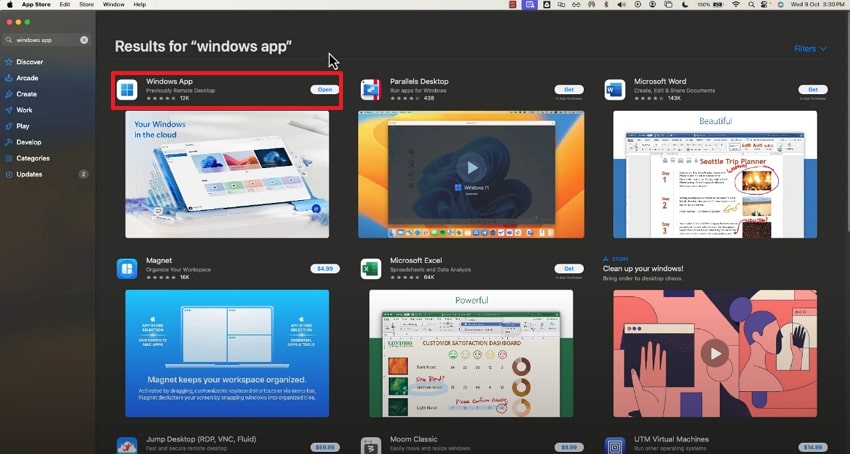
- Search for and download the "Windows" app from the App Store.
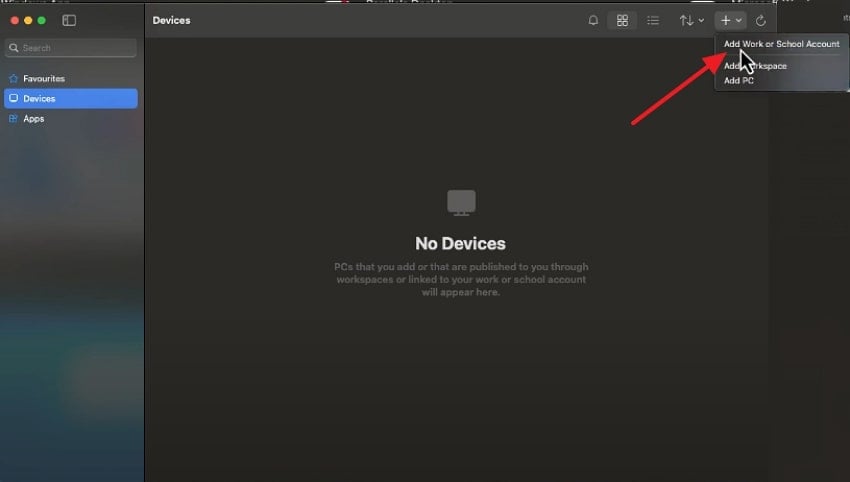
- Open the app, click the "+" icon, and select "Add work or school account".
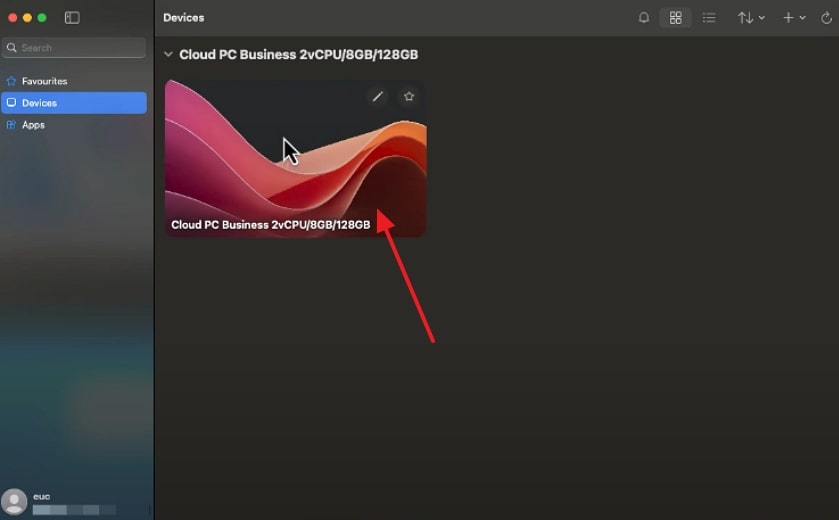
- After signing in, your Cloud PC appears as a folder — switch to Windows whenever you need it.
Wine & Crossover
Best For: Basic users with a single-app utility.
Wine and CrossOver run specific Windows programs without installing Windows at all — ideal when you need just one or two apps. They use very little storage, and apps load fast and integrate with the Mac desktop.
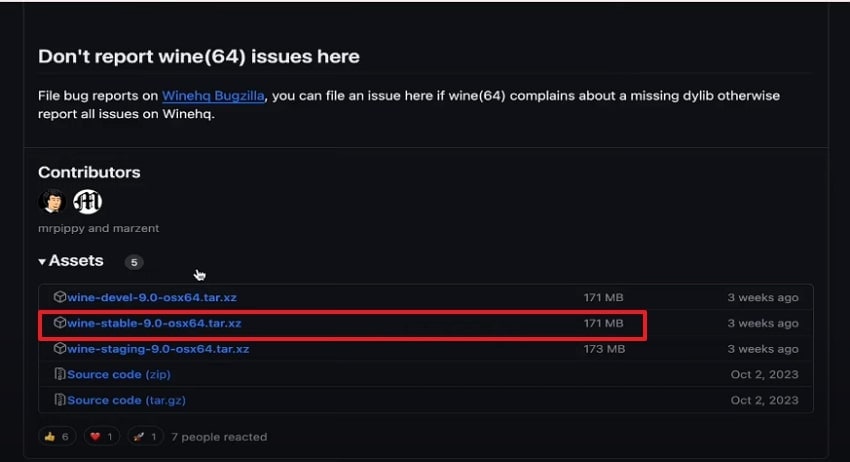
- Download Wine from the official site, plus the .exe file you want to run.
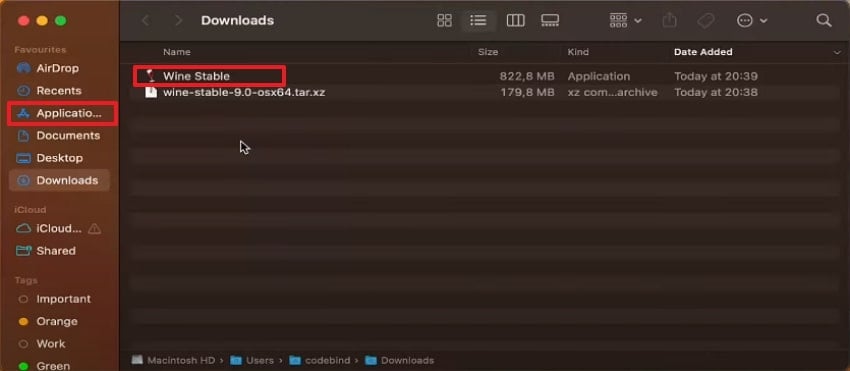
- Open the Files app, select the Wine Stable file, and drop it into the Applications folder.
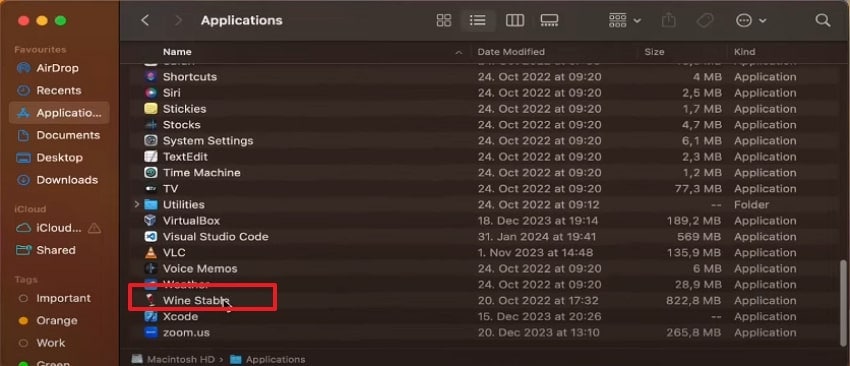
- Navigate to the Applications folder and open Wine.
- In the command interface, run
wine name-of-app.exeto launch the Windows app.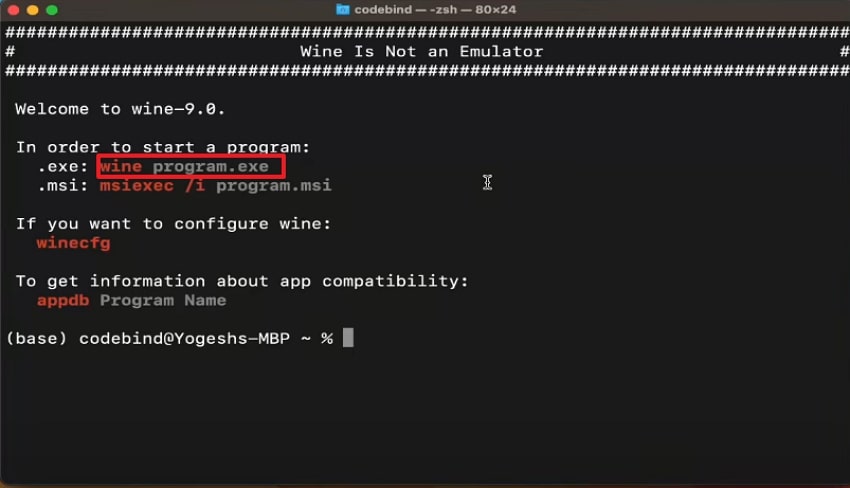
Bonus Tip. Use Recoverit If You Lose Data When You Run Windows on a Mac
If one of the methods above caused data loss — a mistaken deletion of an essential file — use Recoverit to retrieve it within seconds from any device (Windows, Mac, or external), with a success rate up to 99.5%. It supports 1000+ file formats and 2000+ storage devices, lets you preview recovered files before saving, and offers filters by name or size during scanning.
Key Features
- Batch Processing: Recover an unlimited number of files at once to save time.
- Multiple Loss Scenarios: Recover files lost to power loss, virus attacks, or accidental deletion.
- Scanning Options: Quick Scan for easy cases, Deep Scan for complex recovery.
Detailed Stepwise Guide to Recover Lost Data With Recoverit
Follow these steps to recover lost data with Recoverit:
- Access the tool and select the location. In Recoverit, tap "Hard Drive and Locations" and choose where the file was lost.
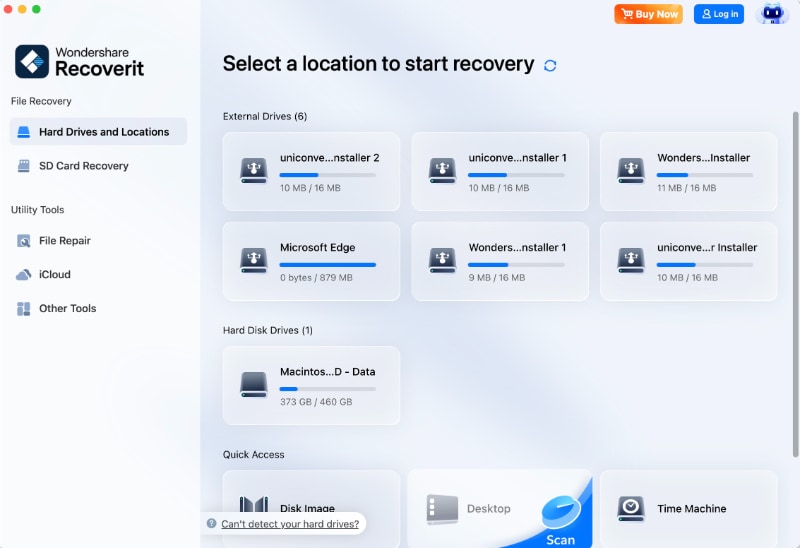
- Start the scan. Recoverit begins with Quick Scan automatically; if the file isn't found, switch to "Deep Scan".

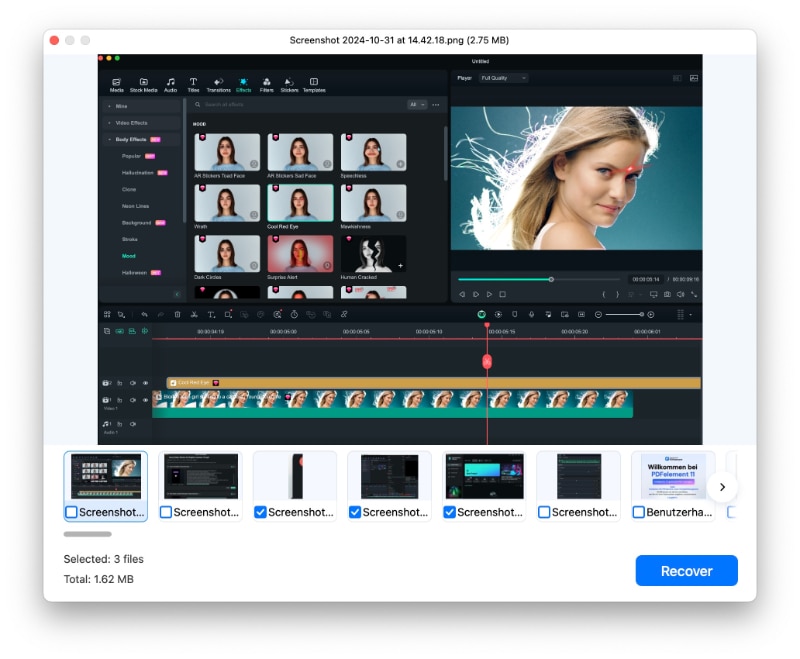
- Preview and export. Preview the recovered file, then click Recover to restore it to your device.
Tips to Optimize Performance When You Run Windows on Mac
As you Run Windows programs on Mac, we have listed some efficient tips to boost the overall performance:
| Tip | Why It Works | How to Do It |
| Assign adequate resources | Optimal CPU/RAM allocation keeps macOS from starving | Set enough cores and RAM in the virtualization settings |
| Use SSD storage | Windows runs far smoother on SSDs than HDDs | Avoid VMs or Boot Camp on traditional hard drives |
| Keep software updated | Updates bring security and performance improvements | Update macOS, the VM tool, and Windows regularly |
| Close unused applications | Frees CPU and RAM for Windows tasks | Quit background apps on Mac before launching Windows |
| Tweak Windows settings | Reduces overhead for a smoother workflow | Disable unnecessary Windows services and visual effects |
Conclusion
To run Windows on Mac, pick by machine: Boot Camp for Intel Macs (native performance), Parallels/VMware/UTM for Apple silicon, cloud or remote desktop for occasional access, and Wine/CrossOver for single Windows apps. If installing Windows erases important data, recover it with Wondershare Recoverit (Quick or Deep Scan).
FAQ
-
1. Can I run Windows on all Macs?
No, Boot Camp is only available on Intel-based Macs or later. However, to use Windows on Apple Silicon Macs (M1, M2, M3, M4), you need to use a virtualization method. -
2. Do I need a Windows license?
Yes, you need to have a Windows license to access Windows with Boot Camp and Parallels Desktop. Although Wine and CrossOver are capable of running some Windows apps without a license. -
3. Will running Windows affect my Mac's performance?
Virtualization may slightly reduce performance compared to native Windows. However, in modern Macs, especially Apple Silicon, it works efficiently. -
4. Can you recover lost files after installing or running Windows on a Mac?
Yes, you can efficiently recover your lost file by using a reliable file recovery tool. Among numerous tools, we recommend using Recoverit, which retrieves your essential data without any data loss.


