

 TL;DR:
To locate a specific photo among thousands of unnamed recovered SD card files, immediately stop using the card to prevent overwriting, run a scan before formatting, and filter the results using visual scene descriptions, capture dates, or device metadata.
● Recoverit AI Search enables users on Windows Vista/7/8/10/11 and macOS X 10.10+ to bypass broken directory structures by searching for natural language visual scenes, which can be combined with capture-time EXIF metadata and camera brand filters.
● Searching for specific RAW file extensions like CR3, NEF, ARW, RAF, or DNG prevents you from mistakenly settling for lower-value JPG thumbnails, though these original RAW files may require a compatible external codec or editor to preview successfully.
● You must save the located photos to a completely different computer disk or external drive, as recovering files back to the original SD card can overwrite surviving data and permanently destroy the remaining missing media.
Ask AI for a summary
 ChatGPT
 Perplexity
 Gemini
 Claude
 Grok
Grok
You scan an SD card and the recovery result looks promising. Then the real work begins: thousands of photos appear, some filenames are generic, folders may be missing, RAW and JPG files are mixed together, and the one image you actually need is still hard to find.
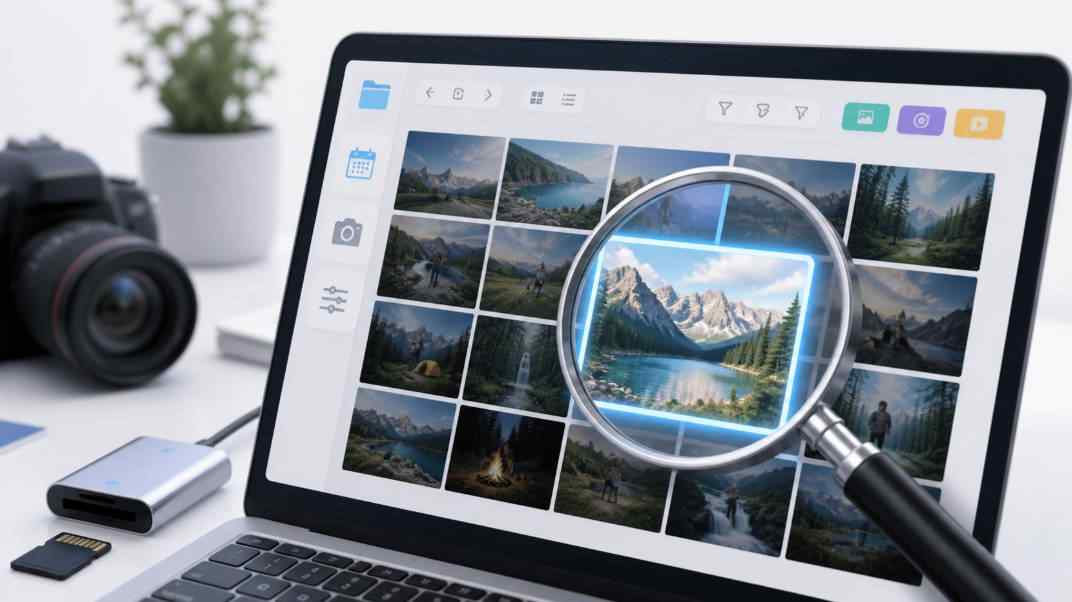
Quick answer: stop using the SD card, recover from the original card to another drive, and narrow the scan results with the clues you still remember: shooting date, camera brand, file type, visual scene, and preview. Recoverit's new AI Search workflow is designed for this post-scan problem. Instead of opening every file one by one, you can search recovered media by what you remember, such as "beach sunset photo," "Canon wedding portrait," or "night photos from last Saturday," where the feature and metadata are supported.
In this article
Part 1. Why Finding One Photo After SD Card Recovery Is Hard
Most SD card recovery guides stop at "scan, preview, recover." That is useful, but it does not fully solve the real creator problem. A wedding photographer, drone pilot, travel blogger, or family user may need one specific photo from a card that contains thousands of recovered files.
The search becomes difficult for several reasons:
- Filenames may be missing or generic. A deep scan can find photo data even when the original file records are damaged, but the original name may not survive.
- Folders may not match the old camera structure. DCIM folders, event folders, or shoot folders may be incomplete after deletion, formatting, or corruption.
- RAW and JPG files may appear together. One shutter press can create both a RAW file and a JPG preview, which doubles the review work.
- Thumbnails and preview files can be misleading. Some small files may look unimportant but still help identify the shoot.
- Previewing one by one is slow. When a scan returns 5,000 or 20,000 items, visual review alone becomes a bottleneck.
This is why the best path is not simply "recover all." First protect the card, then use every surviving clue to reduce the result list before saving the files you need.
Part 2. Build a Search Clue Before You Open Every File
Before you scan or review results, write down what you remember about the missing photo. The goal is to turn a vague memory into searchable signals.
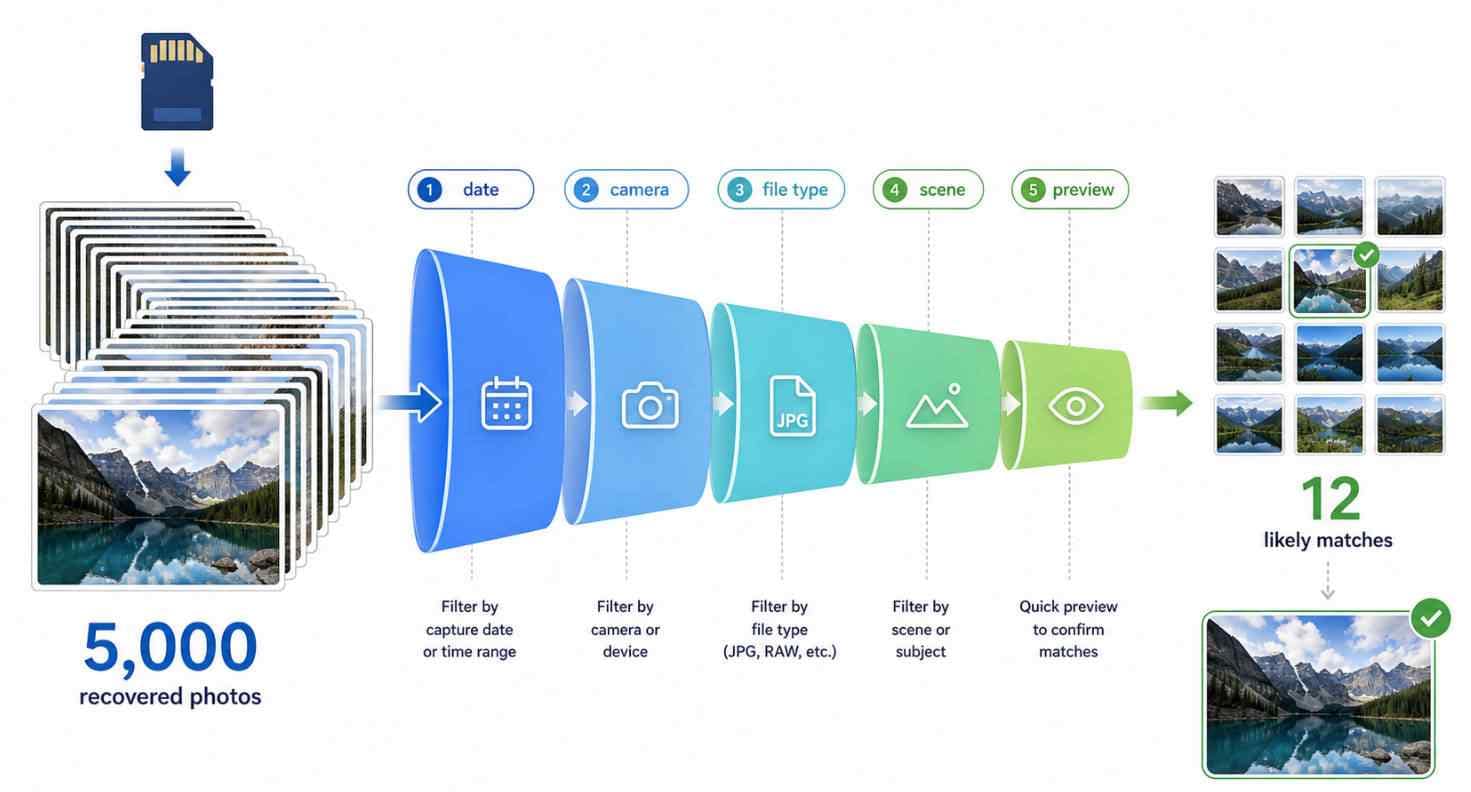
The search funnel above shows how one specific image can be found faster. Start with a broad recovered photo set, then narrow it by time, device, file type, content, and preview until only the most likely candidates remain.
Use time clues first
Time is often the strongest clue because camera files may contain capture-time metadata. If you remember the event date, travel day, ceremony time, sunrise session, or last camera import, use that range first.
- last Saturday night
- the second shooting day
- around sunset
- after the drone flight
- before the memory card error appeared
Use device and file-type clues
If the same SD card was used across different devices, separate the results by camera or media type. A Canon RAW photo, a Sony ARW file, a Nikon NEF file, and a DJI JPG or MP4 usually point to different capture contexts.
Also decide whether the target is the final JPG, the RAW original, a burst sequence, or an exported video thumbnail. Searching for the wrong type first can hide the file you actually need.
Use scene clues when names are gone
When filenames and folders are no longer useful, describe the visual content. A person may not remember IMG_8421.JPG, but they may remember "bride near window," "beach sunset," "red car," "night street," or "mountain lake."
This is the gap Recoverit AI Search is meant to address. It lets the user search scan results in a more natural way, using the scene or shooting context they remember instead of relying only on exact filenames.
Part 3. Find the Photo With Recoverit AI Search
Recoverit can help recover lost photos from readable SD cards, microSD cards, memory cards, USB drives, external drives, and computer disks. Its new AI Search workflow adds an important layer for photo-heavy recovery: it helps organize and search the scan result when the original filename or folder is no longer enough.
Use the workflow below before formatting, repairing, or reusing the SD card.
Step 1. Stop using the card and connect it safely
Remove the SD card from the camera, drone, phone, or recorder as soon as you notice missing photos. Do not take more photos on the same card. Connect it to your computer with a reliable card reader.
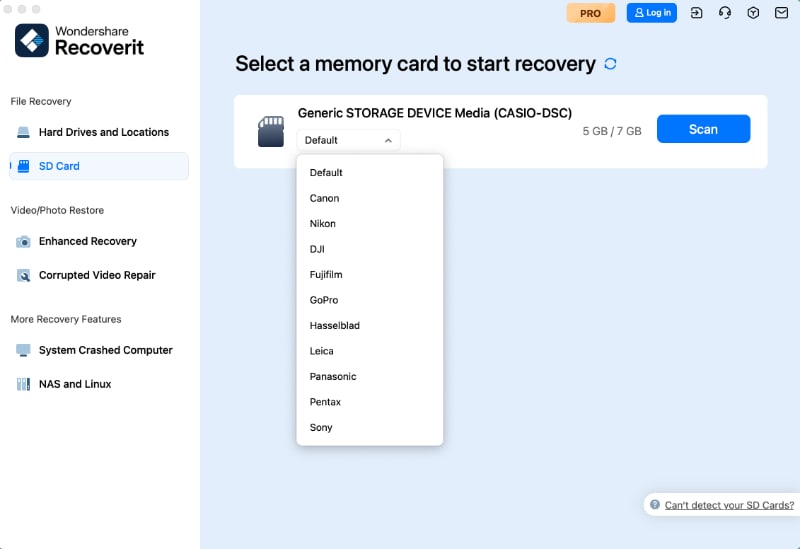
Step 2. Scan the SD card before formatting
Open Recoverit and choose the SD card as the source location. If the card asks to be formatted or appears as RAW, do not format it first. Scan the readable card and let the software look for deleted, formatted, missing, or inaccessible files.
The SD Association FAQ explains that Quick Format initializes file and directory entries, while Overwrite Format erases the user data area by overwriting it. That is why recovery should come before formatting when the missing photo matters.
Step 3. Search by the photo you remember
After the scan starts returning media results, use AI Search where supported. Type a phrase that matches your memory, not a technical command. Examples include:
- beach sunset photo
- Canon wedding portrait
- night market photos
- birthday cake picture
- mountain lake photo from last week
Where the feature is available, Recoverit analyzes photo content locally and generates AI tags for scan results. This helps turn a flat file list into a searchable media set while keeping the positioning focused on local analysis. Confirm the final supported languages and content categories in the official release documentation before publishing feature-specific claims.
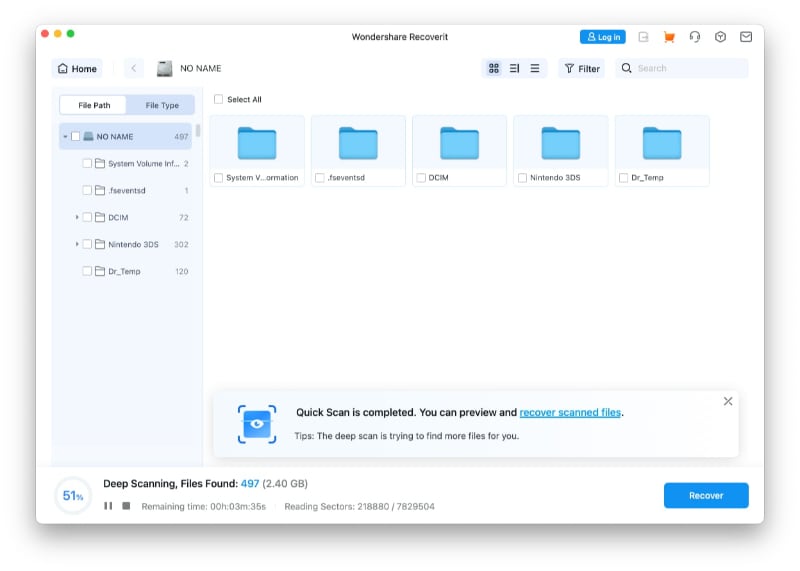
Step 4. Filter by time, device, file type, and status
Do not rely on one clue only. Combine content search with technical filters:
- Time: select the likely capture date or scan result time range.
- Device: narrow results by camera brand or device metadata when available.
- File type: filter JPG, JPEG, HEIC, PNG, RAW, CR2, CR3, NEF, ARW, RAF, DNG, or other camera formats.
- Status: prioritize previewable photos, then inspect likely files that do not preview if the format needs a special viewer.
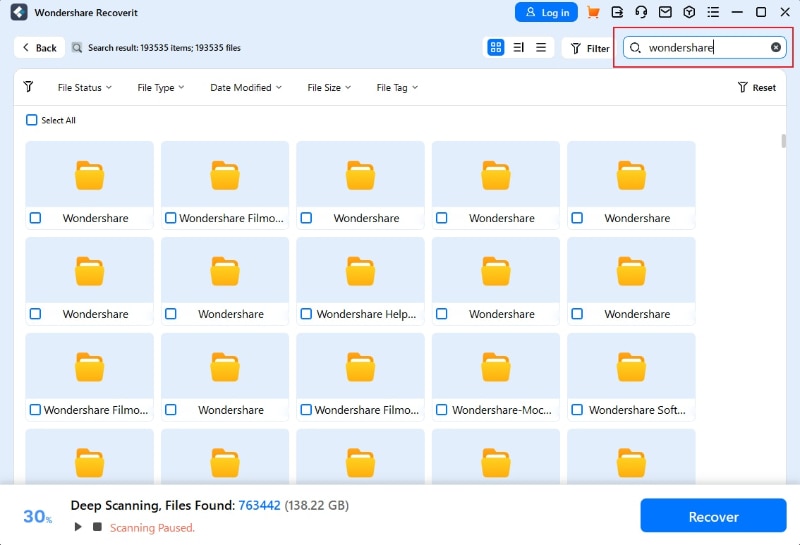
Step 5. Preview and recover to another drive
Preview the likely images before recovery. Once you identify the specific photo, recover it to a different drive, such as your computer disk or an external drive. Do not save recovered files back to the same SD card because that can overwrite other recoverable data.
For full SD card recovery steps, see Recoverit's guide to recover lost files from an SD card. If the card is damaged or corrupted, review how to recover data from a corrupted SD card before trying repair methods.
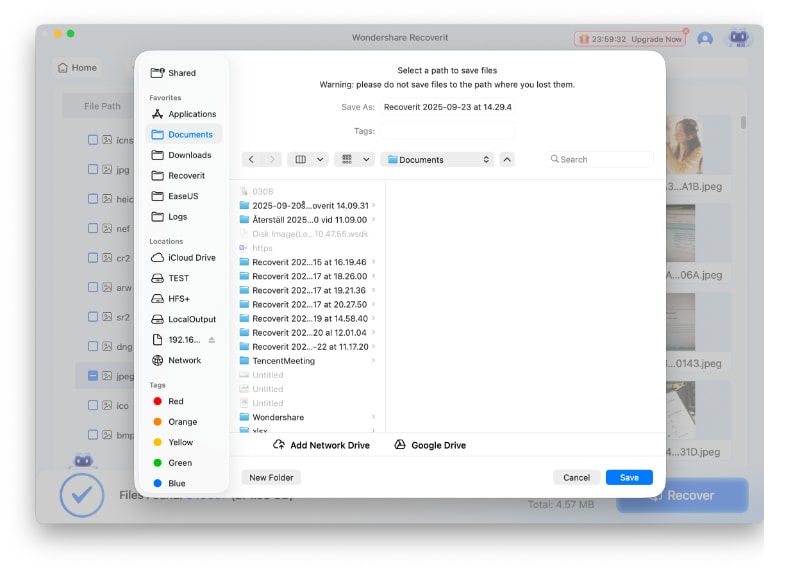
Part 4. Search Examples for Common Photo Recovery Scenarios
Use a query that matches the way you remember the missing photo. The table below gives practical search patterns for common SD card recovery cases.
| Scenario | What to search or filter | Why it helps |
| You recovered a wedding card with thousands of images. | Canon wedding portrait, bride near window, ceremony photos | Combines camera source and visible scene instead of relying on filenames. |
| You need one travel photo from a multi-day card. | mountain lake photo, sunset photo from Thursday, JPG and RAW pairs | Uses location-style memory, time range, and file type together. |
| You remember taking the shot during a burst. | Filter by capture time, then preview adjacent images. | Burst sequences usually appear close together by time even if filenames changed. |
| You need the RAW original, not the JPG preview. | Filter RAW formats such as CR3, NEF, ARW, RAF, or DNG. | Prevents you from stopping at a lower-value preview file. |
| The photo was taken on a drone or action camera. | Filter by device, date, and media type; check sidecar or preview files if present. | Helps separate camera media from phone imports, thumbnails, and proxy files. |
| The photo does not preview in the recovery result. | Recover a copy to another drive and open it in a compatible editor or viewer. | Some RAW formats require the right codec or editor before preview works. |
Part 5. Why Date, Device, and Content Clues Can Still Work
Even when an SD card loses folder structure, some file-level clues may still survive. That is why a good recovery search does not depend on the filename only.
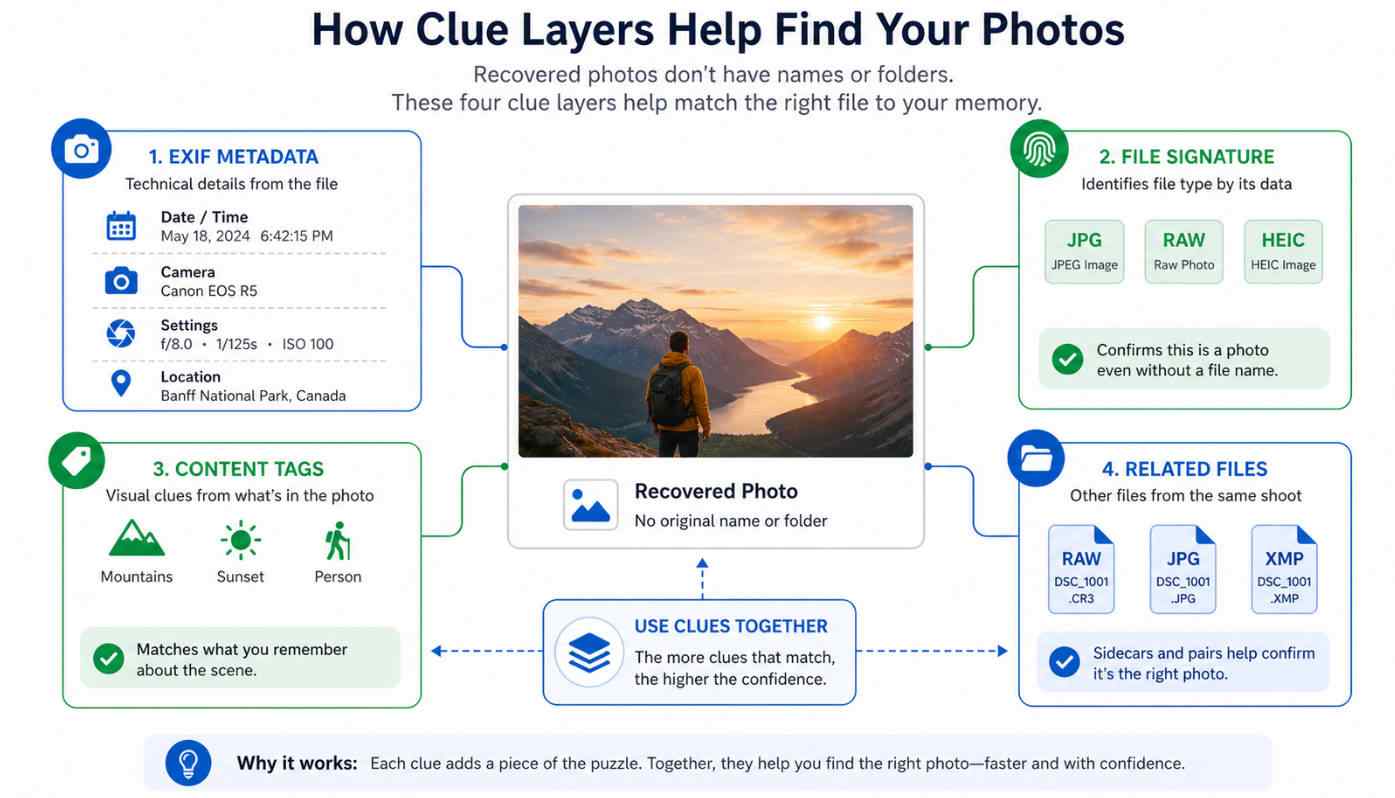
The diagram shows three useful clue layers. Metadata can point to when and where the file was captured, file signatures can identify the format, and content analysis can describe what appears in the image. These clues are strongest when used together.
| Clue layer | What it may tell you | What can break it | How to use it |
| EXIF metadata | Capture time, camera model, lens, dimensions, exposure settings, and related image data. | Formatting, damaged file records, exported copies, stripped metadata, or partial recovery. | Sort by capture time or camera model, then preview likely images. |
| File signature | Whether a file is likely a JPG, PNG, HEIC, RAW, MP4, or another type. | Fragmentation, overwriting, or incomplete file content. | Filter to the photo format you actually need. |
| Visual content | Scene, subject, object, activity, or environment visible in the photo. | Very blurry images, unsupported content categories, partial files, or non-previewable formats. | Search by remembered content, such as people, place, color, event, or object. |
| File relationship | RAW plus JPG pairs, burst groups, thumbnails, or sidecar files from the same shoot. | Missing helper files, copied files from another device, or incomplete recovery. | Check adjacent files and related formats before deleting small recovered files. |
CIPA's Exif standards include metadata for digital still cameras and Exif metadata for XMP, which is why camera metadata can be valuable during recovery review. But metadata is not guaranteed to survive every loss case, so content search and preview remain important.
Part 6. What If the Specific Photo Still Does Not Appear?
If the target photo does not appear after the first search, do not assume it is gone. Work through the likely causes in order.
| What you see | Likely reason | Next action |
| No result for the exact scene phrase. | The local content tag may not match the wording, or the content category may not be supported. | Try simpler terms, such as sunset, beach, car, cake, portrait, or night. |
| Only JPG previews appear. | The RAW files may be under a separate extension or may not preview in the current viewer. | Filter by RAW formats and recover likely files to another drive for editor-based checking. |
| The photo appears damaged or incomplete. | The file may be fragmented, partially overwritten, or cut off by card corruption. | Recover a copy, check nearby files, and avoid writing to the card. |
| The card disconnects or scan stops repeatedly. | The card, reader, or USB connection may be unstable. | Try another reader and port. If the card is physically failing, use professional recovery service instead of repeated scans. |
| The card was used after deletion. | New photos may have overwritten some deleted data. | Stop using the card and scan immediately. Recovery software cannot restore overwritten data. |
Part 7. Manual Ways to Find the Photo Without AI Search
If AI Search is not available in your version or you want to double-check the result manually, use these methods:
- Sort by date taken. Use capture time if it survived, not only modified time.
- Filter by extension. Search for `.jpg`, `.jpeg`, `.heic`, `.png`, `.cr3`, `.cr2`, `.nef`, `.arw`, `.raf`, or `.dng` depending on the camera.
- Use thumbnail view. Create a contact-sheet style view in your file browser or photo manager after recovering copies to another drive.
- Check burst neighbors. If one image from the shoot is found, nearby timestamps may reveal the missing frame.
- Look for exported copies. Check Lightroom catalogs, editing folders, cloud albums, NAS backups, and computer imports if the SD card result is incomplete.
- Use command-line tools carefully. Microsoft Windows File Recovery can recover local files with filters, but it is command-line based and does not provide a visual creator workflow.
Manual sorting is useful for a small result set. Once the recovered file list grows into thousands of images, AI Search and combined filters become much more practical.
Part 8. What to Do After You Find the Photo
After you locate the specific recovered photo, protect the result before doing anything risky to the SD card.
- Recover the photo and related RAW/JPG files to another drive.
- Open the recovered file in a normal photo viewer or editing app to confirm it is usable.
- Back up the recovered photo to a second location if it is important.
- Only format the SD card after the recovered files are safely copied.
- Use the official SD Memory Card Formatter after recovery if you need to prepare the card for reuse.
- Replace the card if errors repeat, the card disconnects, capacity appears wrong, or new files disappear again.
Recoverit can help recover files from readable storage, but it cannot repair a physically failed card, recover overwritten data, or guarantee that every partial file will open.
Part 9. Conclusion
Finding one specific photo after SD card recovery is a search problem as much as a recovery problem. The safest path is to stop using the card, scan it before formatting, and narrow the result by the clues that still exist.
Recoverit's new AI Search workflow fits this moment naturally. It helps users search recovered photos by remembered content, shooting time, device source, file type, and preview status, so the recovery result feels less like a random file dump and more like a searchable media collection.
FAQ
-
How do I find one photo after SD card recovery?
Start with the strongest clue you remember: date, camera, file type, or scene. Filter the recovered results, use preview to confirm likely files, and recover the target photo to a different drive. If Recoverit AI Search is available, describe the photo in normal words instead of relying only on filenames. -
Why are my recovered SD card photos named randomly?
Random names usually appear when the original directory records are missing or damaged. The photo content may still be found by file signature, but the old filename and folder path may not survive. -
Can I search recovered photos by date taken?
Yes, if capture-time metadata survived. Camera EXIF data can help identify when a photo was taken, but metadata may be missing after formatting, corruption, export, or partial recovery, so combine date filters with preview and content search. -
Should I format the SD card before trying to find the photo?
No. Recover important photos first. Quick formatting changes file and directory entries, while overwrite formatting can erase the user data area, which makes recovery much harder or impossible for affected files. -
Does Recoverit AI Search guarantee the exact photo will be found?
No. Recovery depends on whether the SD card is detectable, whether the file data still exists, whether it was overwritten, and whether the file can be reconstructed or previewed. AI Search helps narrow recoverable scan results; it does not guarantee recovery. -
What if my RAW photo does not preview?
Some RAW formats need a compatible codec, editor, or camera software to preview. If the filename, date, size, camera model, or nearby files look relevant, recover a copy to another drive and open it in a proper RAW viewer or editor.


