
 TL;DR:
Online Excel password recovery tools like Password Online and LostMyPassPro offer fast server-side decryption, but you should never upload confidential work data to these third-party sites due to severe privacy, malware, and compliance risks.
● "File Open" passwords are the hardest to crack and often fail on online servers if they exceed 10 to 12 characters, whereas basic "Worksheet/Workbook" editing restrictions can be bypassed offline for free using the .zip renaming method.
● Desktop password recovery software is the necessary alternative for sensitive data because it tests passwords 100% offline using your local CPU/GPU, eliminating the GDPR and HIPAA compliance violations associated with web-based uploads.
● If your Excel file is unsaved, permanently deleted, or corrupted rather than password-locked, decryption tools will not work and you must use dedicated data recovery software like Recoverit to restore the file from your storage drive.
Ask AI for a summary
 ChatGPT
 Perplexity
 Gemini
 Claude
 Grok
Grok
- Protection Types: Recovery depends on whether you have a "File Open" password or just "Sheet/Workbook" restrictions, which are easier to bypass.
- Top Tools: Platforms like Password Online, LostMyPassPro, or Password-Find can remove restrictions or attempt password recovery through servers.
- Major Risks: Uploading files to third-party servers poses massive privacy risks. Official Microsoft support cannot retrieve forgotten passwords.
- Pro Tip: If a file is lost or corrupted rather than locked, data recovery software like Recoverit is the better choice to restore the file itself.
- Warning: Only use online tools for non-sensitive files you own; never upload work or confidential data to third-party sites.
Imagine you've spent hours perfecting a complex spreadsheet, but when you go to open it the next morning, your mind goes blank. You try every variation of your usual passwords, but the access box remains stubbornly locked. It's a moment of pure frustration, especially when that data is critical for a deadline.
In this situation, online password recovery Excel tools often seem like the perfect, instant fix. However, before you upload your sensitive business data to a random server, you need to understand what these tools actually do. Therefore, this guide explains 3 online password recovery tools while highlighting why precaution is a must.
In this article
Part 1. Start Here First: What Kind of Excel Protection Are You Dealing With?
Before you use any Excel password recovery tool online, you must identify which type of lock you are trying to pick. Excel uses 3 distinct levels of security, and the difficulty of breaking them varies significantly, as mentioned below:
- File Open Password: This is the strongest level of protection, and when you try to open the file, a box immediately pops up asking for a password. Without it, you cannot see any data at all, and it needs heavy-duty cracking tools that try millions of combinations.
- Workbook Structure Protection: You can open and read the file, but you can't move, delete, hide, or add new sheets. Simply, the structure of the file is frozen, and most online tools, including even simple scripts, can remove it almost instantly.
- Worksheet Editing Protection: You can see the data, but you can't change any cells, and if you try to type, Excel tells you the sheet is protected. Thus, this is often used to protect the people from accidentally breaking formulas and is easy to bypass.
Knowing these differences will help you decide the next move, as for editing and lock structure, you don't need expensive cracking software. Whereas for File Open passwords, you can look at a much tougher process, and if the password is complex, free tools will likely fail.
Part 2. What Microsoft Officially Says About Forgotten Excel Passwords
While learning about the Excel password recovery online for free, it's important to know what Microsoft says officially regarding file security. According to Microsoft, it cannot retrieve or reset forgotten passwords for protected Office documents. Additionally, online or desktop recovery tools are not official Microsoft products.
While some third-party tools are hosted on the Microsoft Store, they are developed by independent companies and are not endorsed as an official recovery path. In fact, Microsoft puts you in charge of your own security. They suggest using a password manager to keep your passwords safe and store them separately from your files.
Part 3. Best Online Excel Password Recovery Tools to Try
Since you are clear with the password types and Microsoft terms, it's time to use the reliable Excel file password recovery online free tool. Therefore, this section highlights 4 common and best options that you can consider to recover Excel passwords:
Tool 1: Password Online
- Best For: Users who need to unlock older Microsoft Office (97-2003) or Acrobat PDF files that use weaker encryption standards.
- Protection Type Supported: For Microsoft Office (97--2021); RC4 (40-bit), SHA1 (128-bit AES), and 256-bit AES.
- Supported Formats & Versions: Microsoft Office documents (Word, Excel, PowerPoint, Access), PDF files, and archives (ZIP, RAR, 7z).
Being an online tool, it operates on a model where you pay only if the decryption is successful, and requires proof of success. Additionally, it supports Office 365 encryption and offers limited decryption options for newer Office 2013 and Office 2016 documents. If the file limits exceed 1GB, it offers split options and can later remove the passcode, as demonstrated below:
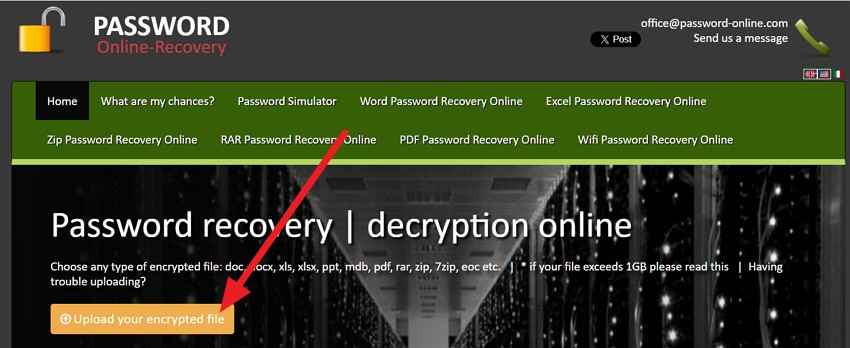
Step 1. Upload the file by pressing the "Upload Your Encrypted File" button and add the email details.
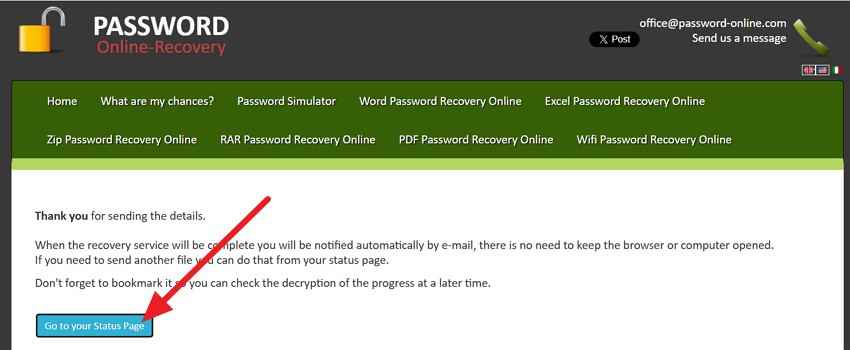
Step 2. After that, choose the "Go to Your Status Page" option to monitor the progress bar.
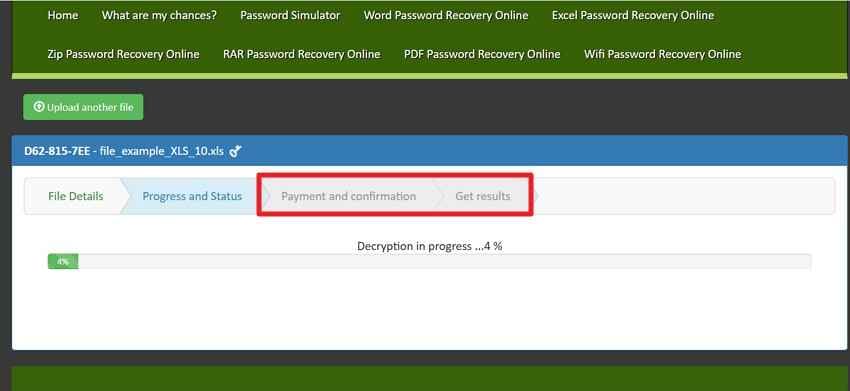
Step 3. After the file is decrypted, continue the payment in the "Payment and Status" tab by submitting the proof and receiving the results.
Pricing Plans
- File Decryption | Unlocking: 19 Euro (including taxes)
- File Decryption with Recovered Password: 39 Euro (including taxes)
- Prepaid Advanced Extended Attack - 3 Days: 59 Euro (including taxes)
Drawbacks
- Needs Email details, raising privacy concerns for many users.
- Decryption is very slow and tied to payments to get results.
Tool 2: LostMyPassPro
- Best For: Users who need a fast, high-power solution for forgotten passwords.
- Protection Type Supported: Password to Open (document encryption) and Permissions Passwords.
- Supported Formats & Versions: Excel 97 through Excel 2021 and Microsoft 365. A wide range of file extensions, such as .xls, .xlsx, .xlsm, and .xlsb, as well as encrypted ZIP archives containing Excel documents.
With this Excel password recovery tool online, you can leverage high-speed, server-side decryption that local computers typically can't handle. It checks your file against a database of over 3 million common passwords. Additionally, it uses a powerful GPU cluster and works across all extensions, like .xls, .xlsx, .xlsm, and .xlsb, as guided:
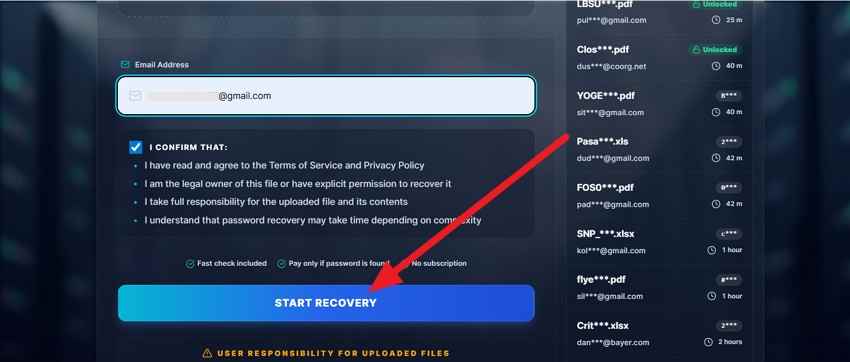
Step 1. Upload the file to the tool, add the email details, and press the "Start Recovery" button.
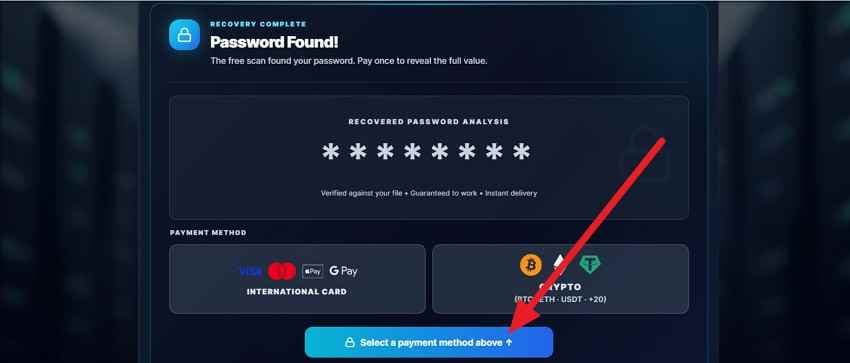
Step 2. When you get the "Password Found" alert, continue with the payment by picking the "Select A Payment Method Above" button to download the file.
Pricing Plans
- Unlimited Fast + Guaranteed: \$200/month
Drawbacks
- You may end up paying a significant fee with no guarantee of success.
- The tool needs Email details, making it less secure for sensitive data.
Tool 3: Password-Find
- Best For: Individuals who need an instant solution to remove protection from read-only or open-protected files.
- Protection Type Supported: Full support for unlocking open-protected files, removing edit restrictions (read-only), and removing VBA project passwords for Word, Excel, and PowerPoint.
- Supported Formats & Versions: Microsoft Word, Excel, and PowerPoint files across versions 97 through 2019, including VBA project passwords.
Using this Excel password recovery online free option, you can unlock the Word, Excel, and PPTs on Windows, Mac, Android, iOS, and Unix. In addition, it uses high-performance computing to achieve speeds (1000x faster) that exceed those of desktop options. Using both automated recovery and manual expert-assisted recovery based on user hints, here is how you can use it:
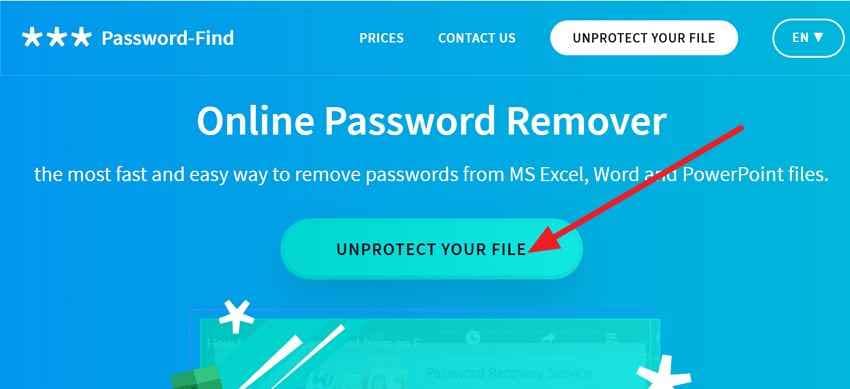
Step 1. As you press the "Unprotect Your File" button and add the file.
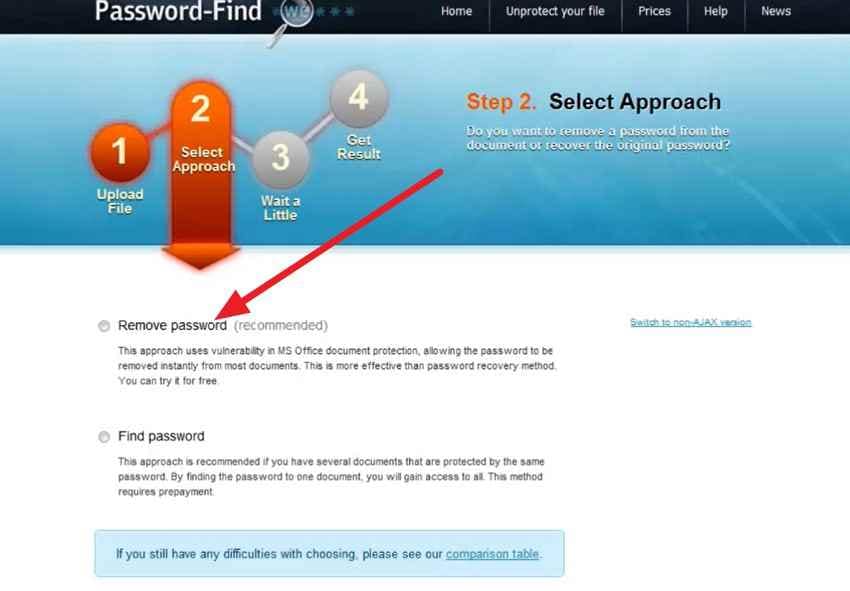
Step 2. Select the unlocking method by choosing the "Remove Password" option. Within a minute, the tool will remove the passcode, which you can save to the device later.
Pricing Plans
- Remove Password: \$24.95 (Allows 10 uses)
- Find Password: \$49.95 (Includes 1 Find use and 1 Remove use)
Drawbacks
- Service is primarily focused on the Microsoft Office ecosystem.
- Modern Office files (2007-2019) have stronger protection, and decryption can fail.
Part 4. Why You Should Be Careful with Online Excel Password Recovery Tools
As you choose the right online password recovery Excel, note that they can often bypass critical security standards that protect the sensitive information. According to Global Cybersecurity Standards (such as NIST, GDPR, and HIPAA), uploading a file to an unverified web server introduces several risks. To save yourself from these, the mentioned tips highlight how to bypass them:
- Data Privacy Violations: When you upload a file, you lose control over who sees your financial or personal data. This is because many free sites lack the encryption needed to protect your information from being stored or shared.
- Identity Theft Risks: Hackers often collect the cracked passwords to try them on your banking or social media accounts. Since many people reuse passwords, your simple file recovery could result in a complete account takeover.
- Malware and Phishing: Some tools require downloading a decrypted file or helper software that may contain hidden viruses. These programs can be on your computer to steal keystrokes or sensitive browser information.
- Legal and Compliance Issues: Using unverified tools for work files can violate strict laws such as GDPR and HIPAA regarding data handling. Hence, this shortcut can result in heavy fines or professional termination for mishandling protected data.
- Lack of Accountability: Free online services usually offer no guarantees, support, or contact information if something goes wrong. Furthermore, if your file is corrupted or data is leaked, you have no legal recourse or way to delete it.
Part 5. Online vs Desktop Excel Password Recovery: Which Should You Choose?
Between the Excel password recovery tool online desktop options, if you don't know what to opt for, this section is for you. Since the choice depends on the file's sensitivity and the type of password you've lost, the mentioned table can help in decision-making:
| Metrics | Online Recovery Tools | Desktop Recovery Software |
| Processing Power | Uses hundreds of distributed CPUs to guess passwords. | Dependent on your PC's CPU and GPU (graphics card). |
| Processing Speed | Fixed at the server's speed; usually offers "Instant" removal for simple locks. | Varies. A high-end GPU (e.g., RTX 4090) can test millions of passwords per second. |
| Attack Methods | Usually limited to basic Brute Force or a standard Dictionary attack. | Advanced, mask attacks, custom dictionaries, and AI-pattern recognition. |
| Success Rate | ~30-40% for complex File Open passwords. | ~70-95% with the right hardware and custom wordlists. |
| Max Password Length | Often restricted to 10--12 characters due to server costs. | Unlimited, can handle 15+ character strings if given enough time. |
| Data Residency | Files are transmitted and stored on external web servers. | Files never leave your storage; it works 100% offline. |
| Batch Recovery | Usually limited to one file at a time. | Can queue dozens of files to be cracked overnight. |
Part 6. If Your Excel File Gets Lost, Unsaved, or Deleted, Use Recoverit Instead
When dealing with the Excel file password recovery online free, if the files get lost while exporting, use dedicated recovery tools like Recoverit Excel Recovery. Such tools can recover lost, deleted, or unsaved Excel files from internal drives, external HDDs/SSDs, USB sticks, memory cards, and more. This is helpful when you are trying to save the workbooks to removable storage, as the tool lets you restore them in batches.
It can scan unsaved Excel files, going beyond standard AutoRecover, and run a deep scan. The tools use a quick scan in this regard, which you can pause or resume for complete control. Once restored, users can preview the files and filter them to selectively save the ones they prefer. It can also recover older Excel formats, like XLSX and XLS, which is useful when a folder of mixed project files was deleted.
Key Features
- Deep Sector Scanning: Unlike basic tools that only look for file headers, it performs a bit-by-bit scan of the storage drive to find fragments of Excel files that have been overwritten or partially deleted.
- Support for 1,000+ File Formats: It doesn't just handle XLS and XLSX; it can simultaneously recover related project data, including CSV, XML, macro-enabled XLSM files, and even PDF reports.
- Formatted Partition Recovery: If you accidentally formatted an entire drive containing your Excel archives, the tool can rebuild the file system structure to bring back the original folders and file names.
- System Crash Solution: It can create a bootable USB drive to recover Excel files from a computer that won't start up at all due to a Blue Screen of Death or OS failure.
As you are using Excel password recovery online for free tools, it's important to have a backup in case the file gets lost. In this case, this recovery tool is tested rigorously to determine its claims, and the guide is mentioned below:
Step 1. Locate the Lost Excel File Location
In the "Hardware and Locations" tab, choose the External Drivers or Quick Access section to pick the location from where your Excel file was lost.

Step 2. Filter Files as the Scan Starts
When the tool starts the Quick scan, filter files via File Types and File Locations, and select the "Recover" button.

Step 3. Export the Recovered Files to the Device
This will open the preview pane where you can review the recovered Excel file and tap the "Recover" button to save it.

Part 7. What to Try Before Using Any Password Recovery Tool
To safely remove the passcode using the Excel password recovery tool online, it's important to take some precautions. Therefore, this section has highlighted some proactive actions in the table for better clarity:
| Action | Why It Works |
| Check Variations | Test for "Caps Lock," common number substitutions (e.g., 0 for o), or old company-wide default passwords. |
| Search Password Managers | Look through browser-saved passwords or apps like LastPass/1Password for entries labeled "Excel" or "Finance." |
| Check Shared Documentation | Review team onboarding documents or shared notes where administrative passwords might be recorded. |
| Check Previous Versions | Right-click the file > Properties > Previous Versions. You may find a version saved before the password was applied. |
| Try the "ZIP" Method | For Sheet/Workbook protection only, renaming the file to .zip and editing the sheet.xml file can remove the lock for free. |
Conclusion
While online password recovery Excel tools offer a lifeline for forgotten credentials, they also come with significant risks. Therefore, always prioritize backups and desktop-based recovery tools for sensitive files. Nevertheless, if your issue is with a missing or corrupted file rather than a locked one, tools like Recoverit are the safe path for restoration.
Frequently Asked Questions
-
Why doesn't the password prompt appear at all?
This is often caused by Excel Add-ins or a corrupted file header. Try opening Excel in Safe Mode (hold Ctrl while launching) to see if the prompt returns. -
Are passwords in Excel case-sensitive?
Yes, on Excel, "Password123" and "password123" are seen as completely different. Additionally, check your keyboard layout; if it accidentally switched to another language, special characters (like @ or #) will be entered incorrectly. -
Is there a character limit for Excel passwords?
Historically, Excel for Mac has had a 15‑character limitation for passwords it can create and fully handle, while Windows allows much longer passwords. Keep passwords under 15 characters to ensure your Excel files work correctly on both Mac and Windows.


