

 TL;DR:
You can safely recover or remove an Excel workbook password, but the correct method strictly depends on whether the password encrypts the entire file or only restricts structural and editing changes.
● If the workbook opens but restricts editing, you can bypass worksheet protection by creating a copy, renaming the .xlsx extension to .zip, and deleting the "sheetProtection" tag from the specific sheet's XML file.
● If the workbook requires a password to open, the ZIP method will not work; you must rely on backups, version history, or desktop software like Dr.Fone DocPassRemover, while online unlockers like LostMyPass Pro should be avoided for files containing confidential data.
● Data recovery tools like Recoverit cannot retrieve forgotten passwords or remove workbook protection; they are exclusively designed to scan drives for missing, unsaved, or deleted Excel files.
Ask AI for a summary
 ChatGPT
 Perplexity
 Gemini
 Claude
 Grok
Grok
Before the full guide begins, here is the core idea in simple words. These points show what to check, avoid, and use in each situation:
- Password Type: Excel may block opening, editing, or sheet structure, and each needs a different recovery.
- First Checks: Try hints, saved credentials, older copies, and version history before stronger recovery tools.
- Protection Removal: Remove worksheet or workbook protection only when ownership and permission are clear.
- Risky Tools: Avoid unknown online unlockers because spreadsheets may contain private business data.
- Recoverit Use: Choose Recoverit only when the file is missing, deleted, or lost.
An Excel file can feel locked behind glass after one forgotten password. Suddenly, budgets, client sheets, formulas, and reports become unreachable at once. However, every locked workbook does not require the same recovery method. Some passwords protect opening, while others only restrict editing or structure.
Therefore, this guide helps users safely recover passwords for Excel workbooks. It explains practical routes without encouraging risky damage to spreadsheet content. Moreover, it separates genuine recovery from simple protection removal clearly for users. By the end, choosing the safest next step becomes easier again.
In this article
-
- Try Common Passwords, Saved Credentials, or Password Hints
- Remove the Password If You Can Still Open the Workbook
- Unprotect a Worksheet or Workbook Structure
- Try the ZIP and XML Method for Worksheet Protection
- Use an Online Excel Password Recovery Tool Carefully
- Use Dedicated Password Recovery Software
- Ask the File Owner, IT Admin, or a Professional Recovery Service
Part 1. Quick Answer: Can You Recover an Excel Workbook Password If You Forgot It?
Yes, users can sometimes recover or remove an Excel workbook password safely. However, the method depends on whether Excel blocks opening, editing, or structure changes. Opening passwords are harder because they encrypt the full workbook file. Sheet protection is easier when users own the file. Thus, start with hints, backups, version history, or authorized tools, and avoid unsafe online unlockers.
The table below helps users match their password situation with the safest next step. Use it before trying any recovery method, especially when workbook data matters.
| Password Situation | What It Means | Best First Step |
| Excel Will Not Open | The workbook has an open password or file encryption. | Try hints, backups, version history, or recovery software. |
| Excel Opens, But Cannot Be Edited | The worksheet may have editing protection enabled. | Check Review settings and remove protection if authorized. |
| Workbook Structure is Locked | Users cannot rename, move, hide, or delete sheets. | Try workbook protection removal with the correct password. |
| Shared File Owner is Unknown | Another person may control the password for the workbook. | Contact the owner before attempting to remove the password. |
| The Old Version Still Opens | A previous file copy may have fewer restrictions. | Restore from OneDrive, SharePoint, or backup history. |
Part 2. Understanding Excel Password Protection Before You Try Anything
Before starting Excel workbook password recovery, users should understand the type of lock they are dealing with. Excel may block the whole file, restrict workbook structure, or protect selected worksheet areas. Each protection type requires a different recovery path, so guessing can waste time or risk damaging files.
Excel protection can look the same from the outside, but each lock works differently. A quick comparison makes it easier to choose the right recovery direction first.
| Protection Type | What It Protects | What Users Notice | Best Direction |
| File Password | The complete Excel file is encrypted. | Excel asks for a password before opening the workbook. | Use hints, backups, version history, or authorized recovery tools. |
| Workbook Protection | Workbook structure, including sheets and layout changes. | Users cannot add, delete, hide, move, or rename sheets. | Remove protection only with permission or the correct password. |
| Worksheet Protection | Specific cells, formulas, ranges, or editing actions. | The workbook opens, but selected edits remain restricted. | Unprotect the sheet if authorized and password access exists. |
Why Users Forget Excel Passwords
Once the protection type becomes clear, the cause also deserves attention. The following reasons show why users commonly lose Excel passwords:
- Too Many Passwords: Different workbook keys can mix together when busy weeks leave little room for recall.
- Old Workbook Access: Yearly files are easy to forget when their passwords stay unused for months.
- Shared Ownership Gaps: Teamwork becomes stressful when nobody knows who controls the password record.
- Changed Device Records: New devices often leave saved workbook passwords buried inside older apps or browsers.
- Weak Password Hints: Poor hints can expose private clues without helping users remember the password properly.
Part 3. What Happens If You Forget an Excel Workbook Password?
When an Excel workbook rejects a password, the file is not always gone. The first clue is where Excel stops you: before opening, or after opening, during edits. That split explains how to recover an Excel workbook password without harming formulas, charts, or records. File-open locks encrypt everything, so saved hints, managers, backups, and version history deserve the first careful check.
Workbook or worksheet protection behaves differently, because the file usually opens, but certain changes stay blocked. Users can face frozen cells, locked formulas, hidden sheets, or restricted structure changes. Here, permission matters before removing protection. Avoid random online unlockers and repeated guessing, since both can expose private data, damage copies, or unnecessarily undermine trust in the workbook recovery process later.
Part 4. How to Recover or Remove an Excel Workbook Password
Once the lock type is clear, recovery becomes easier to approach safely. The following methods explain how to regain workbook access without risking important Excel data:
Method 1. Try Common Passwords, Saved Credentials, or Password Hints
First, begin with the quiet places; memory usually leaves clues. Check password managers, browser saves, notebook hints, email threads, and older file names. To recover the password for an Excel workbook, try familiar patterns carefully instead of random guessing. Therefore, this method suits early checks before stronger recovery options.
Method 2. Remove the Password If You Can Still Open the Workbook
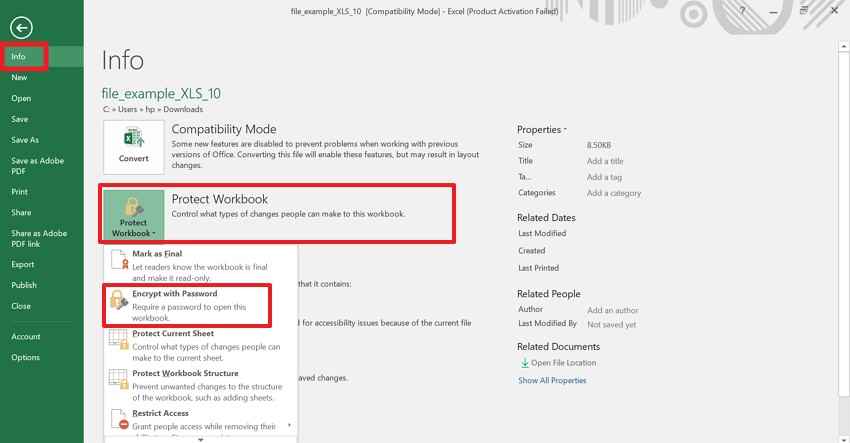
Sometimes, Excel opens the workbook but still blocks saving or changing permissions. This means the password may protect modification rather than full file access. Moreover, Excel's own settings can remove this lock when users have authority. Next, follow the guide to update workbook access without disturbing saved content:
Step 1. Open the Excel file and go to "File > Info > Protect Workbook." Afterward, choose "Encrypt with Password" to manage the password required for opening the workbook.
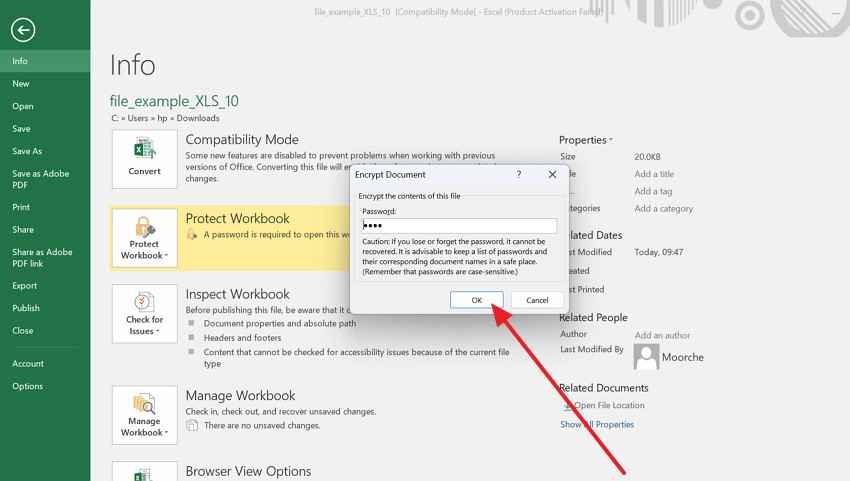
Step 2. In the Encrypt Document box, delete the hidden password dots from the password field. Keep the password box completely empty, then click "OK." Next, return to the workbook and press "Ctrl+S" to save the changes. The Excel file should now open without asking for a password.
Method 3. Unprotect a Worksheet or Workbook Structure
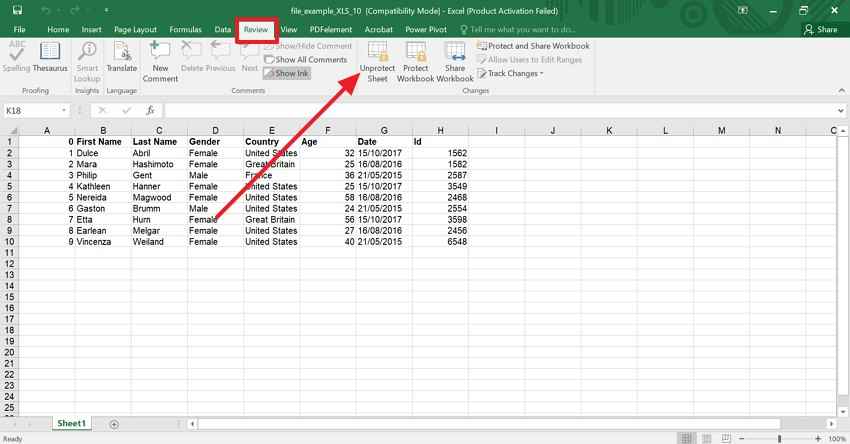
Worksheet and structure locks usually feel confusing because the file still opens. Cells, formulas, tabs, or sheet movement may remain restricted during normal editing. For Excel workbook password recovery, this difference matters because encryption and protection behave differently. Therefore, follow the steps below after confirming ownership and permission clearly:
Step 1. Start by accessing the workbook and selecting the protected sheet or workbook area. Then, go to "Review" and look for "Unprotect Sheet" or "Protect Workbook."
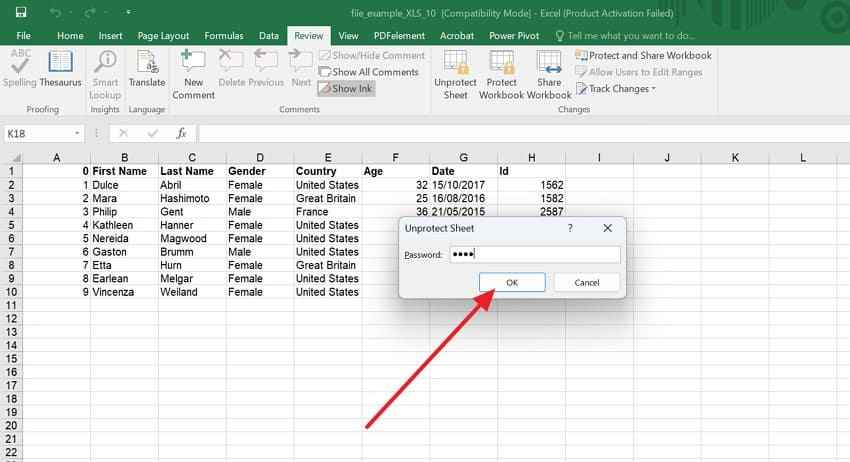
Step 2. Afterward, enter the correct password and press "OK," if Excel asks for confirmation. Once protection is removed, test editing, sheet movement, or structure changes can be performed again.
Method 4. Try the ZIP and XML Method for Worksheet Protection
This method is only useful when the workbook opens, but one worksheet remains protected. It does not help with encrypted file-open passwords, forgotten opening passwords, or inaccessible files. Since the process changes the worksheet XML inside a copied Excel package, mistakes can corrupt that copy. Before editing anything, follow the stepwise guide and keep the original workbook untouched:
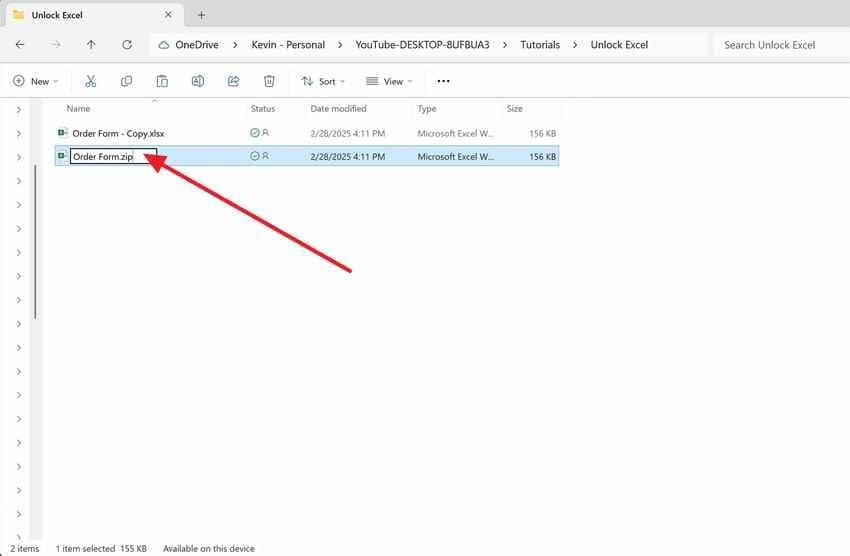
Step 1. Create a copied workbook, then keep the original Excel file completely untouched. Next, rename the copied file from ".xlsx to .zip," then open it carefully.
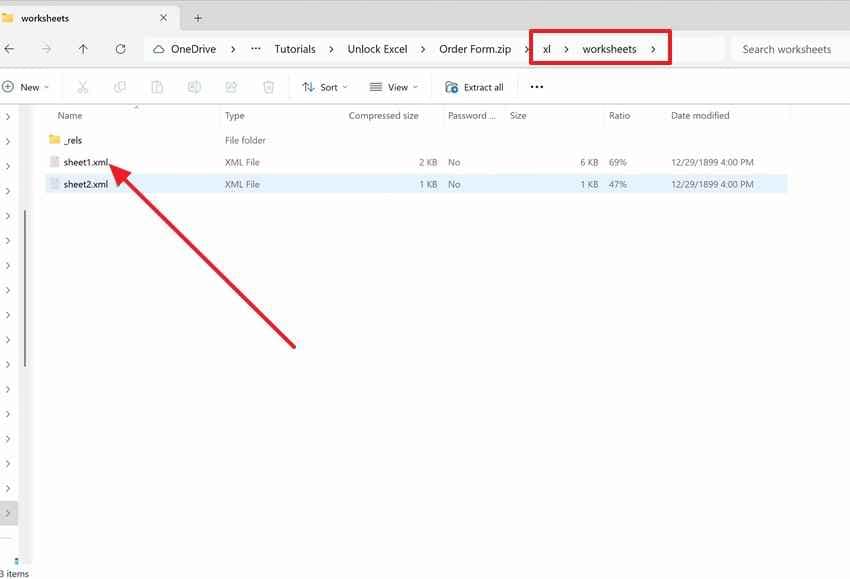
Step 2. Next, navigate to "xl > worksheets," then open the protected sheet XML file carefully.
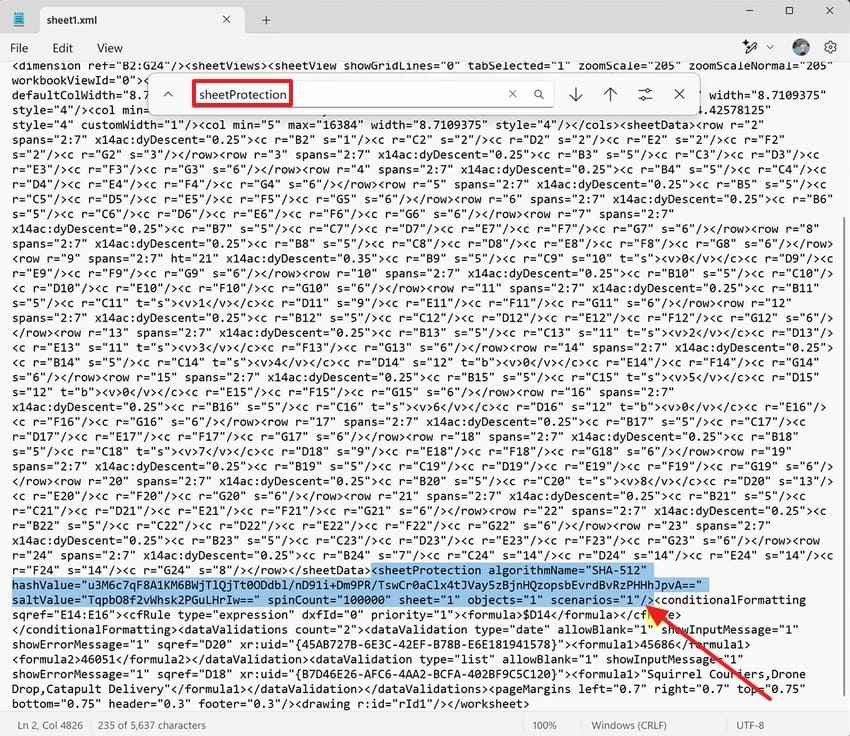
Step 3. Afterward, remove only "sheetProtection," save changes, rename .zip back to .xlsx, and reopen.
Method 5. Use an Online Excel Password Recovery Tool Carefully
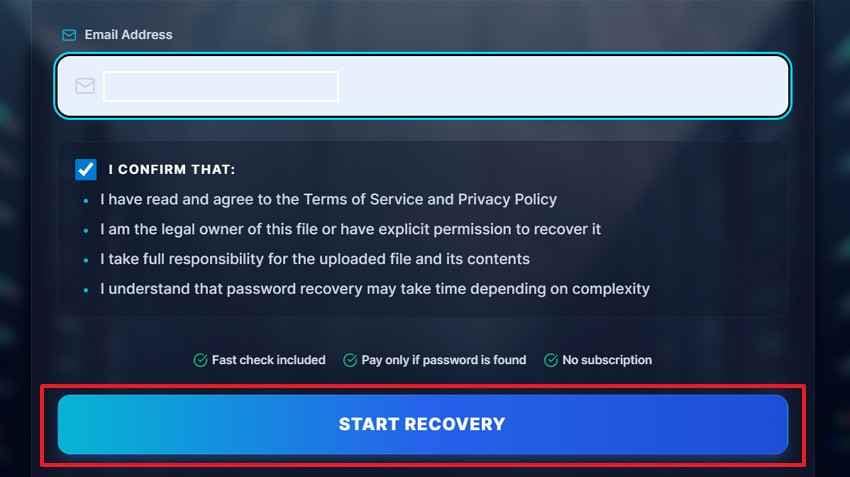
Online tools can feel tempting during searches for "I forgot my Excel workbook password." For example, LostMyPass Pro offers online Excel password recovery for XLS and XLSX files, but it works through file upload. Therefore, users should avoid uploading salary sheets, client records, or confidential financial workbooks. Use this route only for authorized, non-sensitive, and replaceable workbook copies. Now, adhere to the steps below to try this method:
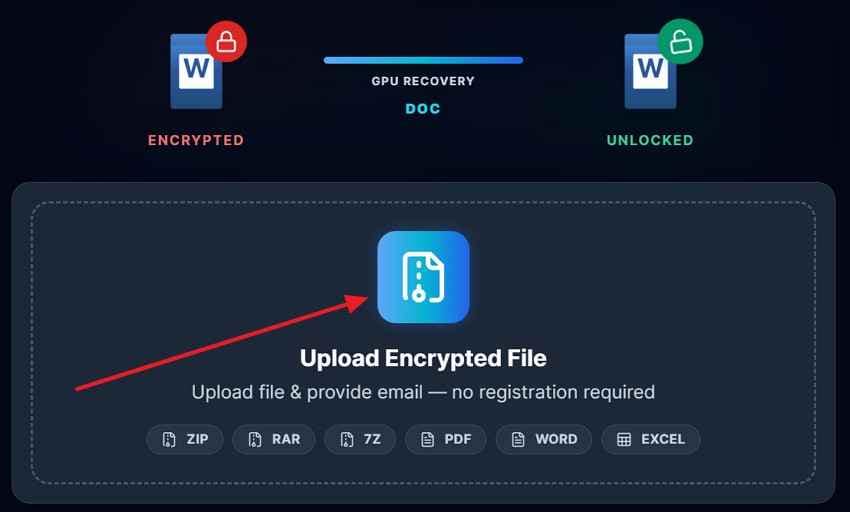
Step 1. To start, create a duplicate workbook and remove sensitive data before uploading. Then, choose "Upload Encrypted File" and select the copied Excel file.
Step 2. Now, enter your email address, confirm legal ownership, and click "Start Recovery." After processing finishes, check the result and test it only on your authorized workbook copy.
Method 6. Use Dedicated Password Recovery Software
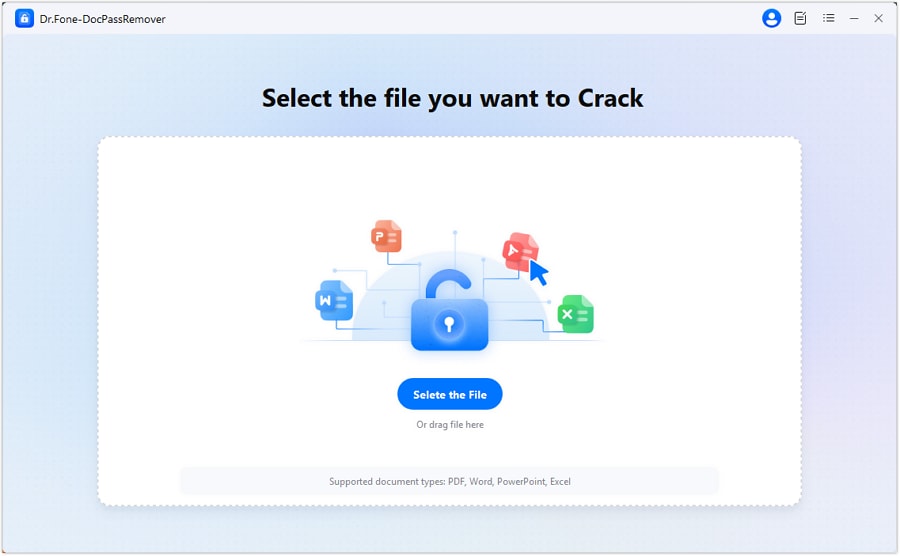
Dedicated software suits harder cases where encryption prevents the workbook from opening. Most trusted programs like Dr.Fone DocPassRemover include options for recovering Excel open passwords and removing Excel restriction passwords. Its guide mentions importing the protected file and selecting a recovery mode for open-password recovery. This makes the method clearer for readers comparing software-based recovery paths. Below is the stepwise guide to using Dr.Fone DocPassRemover:
Step 1. Launch Dr.Fone DocPassRemover and click "Select the file" on the main recovery screen. Then, select the locked Excel workbook from your computer storage location.
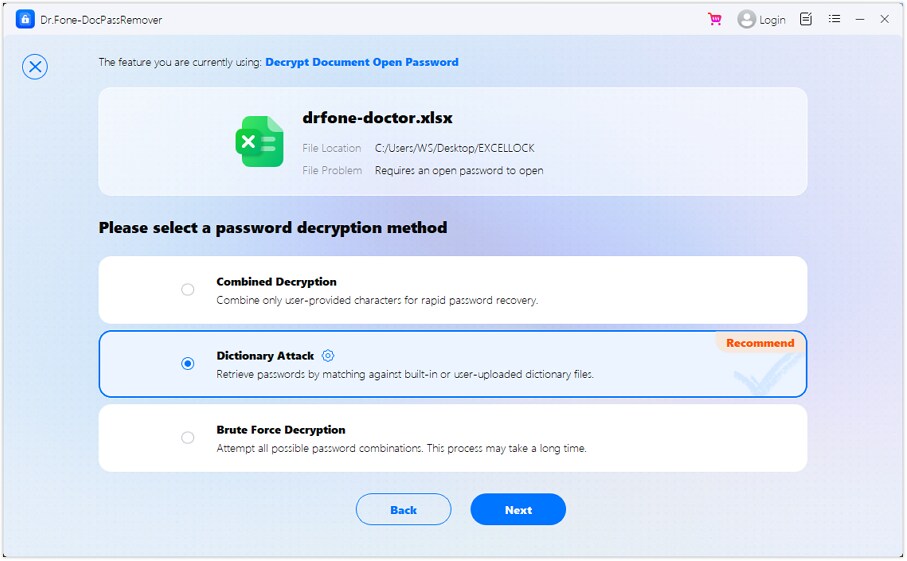
Step 2. Next, select the situation and pick the attack type that best matches what you remember about the password. Afterward, press "Next" and wait until the software shows a recovered password for your authorized workbook.
Method 7. Ask the File Owner, IT Admin, or a Professional Recovery Service
Finally, the safest answer may come from people connected to the workbook. Ask the file owner, department lead, IT admin, or recovery professional. This route explains how to recover an Excel workbook password without breaking permissions. It also protects business data when the workbook contains critical information.
Part 5. What If the Excel File Is Missing, Unsaved, or Deleted Instead of Locked?
Sometimes, an Excel crisis looks password-related, while the workbook is actually lost instead. A financial analyst may face this before an urgent quarterly report deadline. After a power outage, Excel may cause the workbook to go missing suddenly. Unsaved formulas, charts, and calculations can seem permanently lost within minutes. Here, recovering the password for the Excel workbook is not the real solution.
In this situation, Recoverit Excel Recovery becomes useful for lost, unsaved, or deleted workbooks. It scans drives deeply to locate Excel temporary files and damaged originals. However, Recoverit does not recover forgotten Excel passwords or remove workbook protection. Users can filter Excel files by type, location, or modification date quickly. Moreover, its preview support helps confirm the latest report before saving recovered data.
Key Features
- Sector-level Deep Scanning: Scans every drive sector to find hidden Excel temporary files and AutoRecover copies that normal searches miss.
- Temporary File Extraction: Recovers unsaved Excel drafts created during editing before crashes, power outages, or sudden system shutdowns happen.
- Multiple Recovery Scenarios: Helps recover deleted, corrupted, formatted, unsaved, or external-media Excel files from different loss situations when needed.
Step-by-Step Guide to Recover Lost or Damaged Files with Recoverit
When the workbook is missing or damaged, password methods cannot restore the file. Use the steps below to scan, preview, and recover Excel data with Recoverit:
Step 1. Start from the Workbook's Last Known Place
Launch Recoverit and open "Hard Drives and Locations" from the main screen. Choose the drive, Desktop, USB device, or folder where the Excel file was last saved, edited, or deleted.

Step 2. Review Scan Results with File Filters
Now, Recoverit will scan the selected location and list recoverable files under the "File Location" tab.

Step 3. Confirm the Right File Before Recovery
Open the preview window for the workbook that matches your missing file. Then, press "Recover" and export it to another safe storage location.

Part 6. How to Avoid Losing an Excel Workbook Password Again
Once users understand how to recover a password for an Excel workbook, the next concern is avoiding repeat lockouts. These practical habits help keep workbook access secure, traceable, and easier to manage:
- Use a Password Manager: Save workbook passwords in a trusted manager instead of scattered notes. This keeps access available while reducing forgotten or mistyped password issues.
- Keep a Secure Backup: Store a protected copy in cloud storage or encrypted external media. A backup gives you options when the original file becomes inaccessible.
- Track Shared Ownership: Assign one clear owner for every shared workbook and password record. This prevents confusion when teams change roles, devices, or responsibilities unexpectedly.
- Use Version History: Keep files in OneDrive, SharePoint, or another version-supported storage space. Older versions may help when password changes create access problems later.
- Store Hints Safely: Write private hints that remind users without revealing the full password. Avoid obvious hints based on birthdays, names, projects, or company details.
Conclusion
To conclude, forgotten Excel passwords need careful checks, not rushed shortcuts or unsafe uploads. Start by identifying whether Excel blocks opening, editing, or workbook structure changes. This keeps Excel workbook password recovery safer for formulas, records, and shared data. For missing, unsaved, or deleted files, password methods will not help. In that case, Recoverit offers a practical recovery option.
Frequently Asked Questions
-
Can users recover an Excel workbook password if they forgot it?
Yes, users can recover some passwords depending on the workbook protection type. Encrypted file-open passwords usually need hints, backups, or reliable authorized recovery software. -
Can worksheet protection be removed if the workbook still opens?
Yes, worksheet protection can be removed when users have proper file permissions. This restriction blocks editing actions, while the workbook usually remains accessible. -
Is the ZIP and XML method suitable for every Excel password?
No, this method only works for some worksheet protection situations. It cannot unlock encrypted file-open passwords or inaccessible workbook files. -
Does Recoverit recover forgotten Excel workbook passwords?
No, Recoverit does not recover forgotten Excel passwords or remove protection. Instead, Recoverit helps recover missing, unsaved, deleted, or lost workbook files.


