

 TL;DR:
You need an EFI System Partition (ESP) to boot modern operating systems like Windows 10, 11, Linux, and macOS on UEFI-based devices, but it is completely unnecessary for systems running legacy BIOS or MBR disk schemes.
● Dual-boot setups do not require multiple EFI partitions; a single FAT32-formatted ESP (typically 100MB to 500MB) acts as a shared location for all installed OS boot loaders.
● Deleting the ESP removes critical boot loaders and recovery utilities, rendering the OS unbootable, and should only be forced using advanced tools like Diskpart or Mac Disk Utility when completely wiping a drive.
● Native tools like Windows Disk Management cannot resize or move the ESP; modifying its size or location requires third-party partitioning software and manually creating adjacent unallocated space.
Ask AI for a summary
 ChatGPT
 Perplexity
 Gemini
 Claude
 Grok
Grok
The EFI System Partition is an advanced component used by the Unified Extensible Firmware Interface rather than the legacy BIOS system. It is automatically created when an operating system such as Windows 10, 11, or Linux is installed.
In the comprehensive guide, we will provide all necessary details for you to answer "Do I need an EFI system partition? So, if you are also exploring the EFI system partition, read the following article to the end.
Try Recoverit to Perform Partition Data Recovery
 Security Verified. 3,591,664 people have downloaded it.
In this article

Part 1. What Is the EFI System Partition (ESP)?
Are you also exploring what is the EFI system partition? In that case, it is a special storage partition located on the hard drives and SSDs of computers that use the Unified Extensible Firmware Interface. The FAT32 file system, which usually occupies between 100MB and 200MB, is the one that makes this partition.
The primary purpose of this partition is to contain boot loaders, device drivers, and system utility programs that the UEFI firmware requires to boot the OS. Whenever we switch on a PC, all the files load, it has a smooth boot process, and it can be compatible with the current security features.
Part 2. Why You Need an EFI System Partition on Windows or Mac
Before diving into the technicalities, it’s essential to understand why the EFI partition Windows 10 plays such a vital role in both Windows and macOS environments:
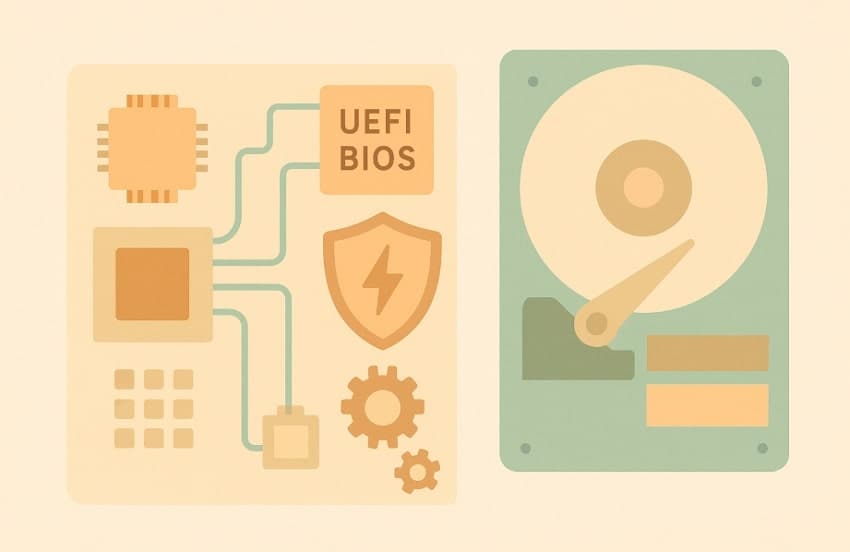
- Boot Loader Storage: The boot loaders of the operating system are stored in the EFI System Partition, and they are required every time the startup takes place.
- UEFI Firmware Integration: On systems with UEFI, it offers a standardized place where the firmware can find and execute the needed files to ensure that the communication is reliable.
- Device Driver and Utility Access: This disk drive contains device drivers and pre-boot recovery utilities that enable the system to access important hardware and execute recovery processes.
- Fast and Secure Boot: It allows the activation of such functions as Secure Boot, which contributes to your system security against possible malware attacks.
- Large Disk and Partition Support: UEFI/GPT partitions can support larger hard drives with a capacity of more than 2TB and more partitions than the BIOS/MBR configuration.
Part 3. Do I Need an EFI System Partition for Dual-Boot Systems?
Absolutely, an EFI system is required for the Dual-Boost system using UEFI firmware, such as Windows with Linux or Windows with macOS. It serves as a shared location for the boot loaders of all installed operating systems, enabling the UEFI firmware to detect them. Afterwards, it gives you the option to choose the desired operating system for a smoother workflow.
The main advantage is that users don't need a separate EFI for each operating system, but it must always be large enough to reformat it during additional OS installations. However, careful management of the ESP is essential to prevent accidental overwriting or deletion of vital boot files, especially when updating or reinstalling either OS.
Part 4. When You Don’t Need an EFI System Partition
While exploring, do I need an EFI system partition for a smoother workflow? In some cases, it is not required, which are discussed below:
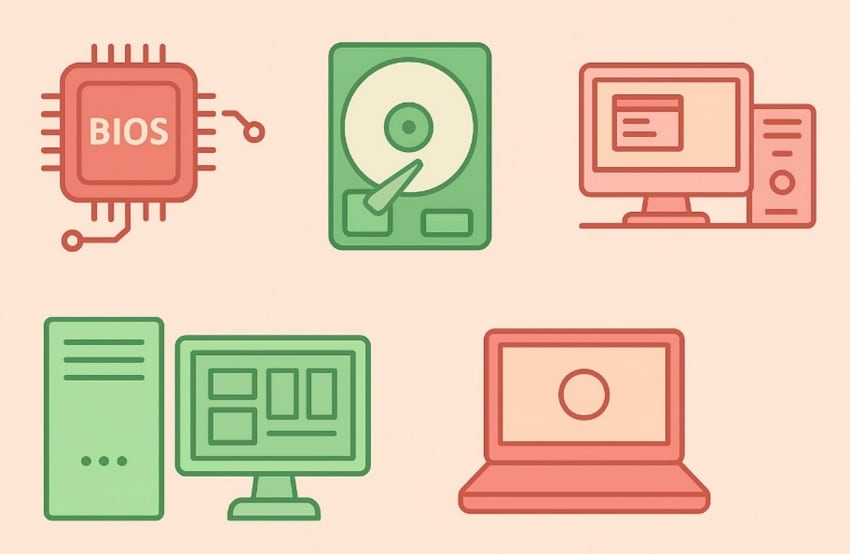
- Legacy BIOS Firmware: Systems using BIOS firmware do not require an EFI System Partition because boot files are loaded directly from the Master Boot Record.
- Machine with MBR: If your PC’s disk has a disk that includes an MBR scheme, all boot information is kept within the disk’s sectors, eliminating the need for a dedicated EFI partition
- Old Operating Systems: Old operating systems and hardware predating disks don't require a FI partition, as their functionality is entirely in the BIOS.
- Custom or Server Environments: Some systems intentionally use BIOS or MBR to match specific reliability or compatibility needs, avoiding ESP requirements.
- Single-OS, BIOS-Based Systems: If your device runs only a single operating system and is configured to boot with BIOS, then EFI is unnecessary.
Part 5. What Happens If You Delete EFI System Partition
If you aim to delete the EFI partition Windows 10, remember that it can stem a range of serious issues, which are as follows:
- Unbootable System: If you delete an EFI System Partition, your computer won’t be able to start Windows or other UEFI-based operating systems.
- Loss of Recovery and Repair Tools: After deleting this partition, recovery tools stored in it become inaccessible, which can lead to difficulties with the recovery process.
- Accidental Deletion: Most operating systems protect the EFI partition from unintentional deletion, so if you forcibly delete it, the boot file will be permanently lost.
- Safe Deletion in Special Cases: Users can only safely delete an EFI partition from secondary drives, but deleting the system disk can make OD unbeatable.
- Restoration Requires Tools: To fix the file system after deletion, you’ll need specialized recovery tools commonly used to restore the EFI partition from backup.
Can I Delete the EFI Partition?
Deleting the EFI partition is not recommended unless it is necessary for the system's boot. For example, if you are wiping out all the data for resale purposes or a clean OS system, but only do so with backups of the whole data. However, Windows and Mac use their built-in tools to avoid accidental deletion, so you need to access the advanced utilities. So, have a look at these detailed guides to remove EFI partitions:
Guide: Deleting EFI Partition from Windows
While learning what an EFI system partition is, let's explore a detailed guide to know the procedure for deleting the EFI partition from Windows:
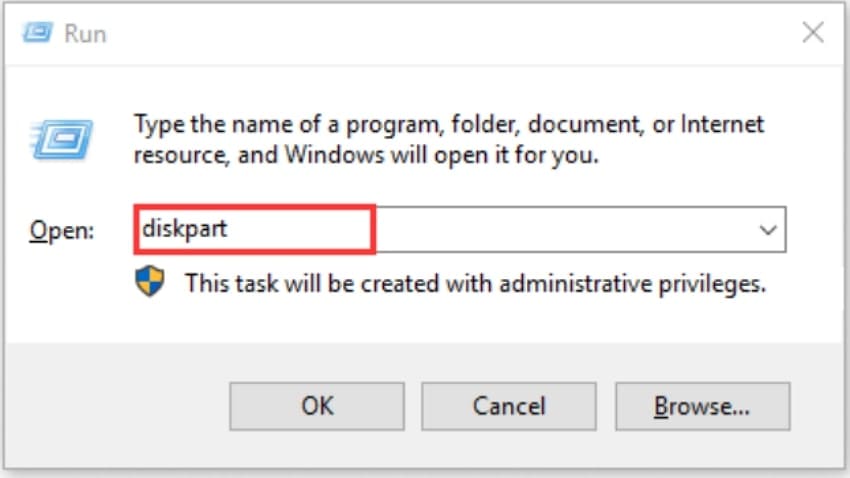
- Initiate by clicking "Windows key+R" keys to open the "Run" dialogue box. Afterwards, type "Diskpart" in the Run box and click on the "Ok" button to open the Command Prompt window.
- In this command interface, enter the "List Disk" command and press the "Enter" key. Following this, write Select Disk along with the disk number, and then write the "List Partition," which will show its list. Here, choose the targeted partition 1 and write the command "SET ID= ebd0a0a2-b9e5-4433-87c0=68b6b72699c5."
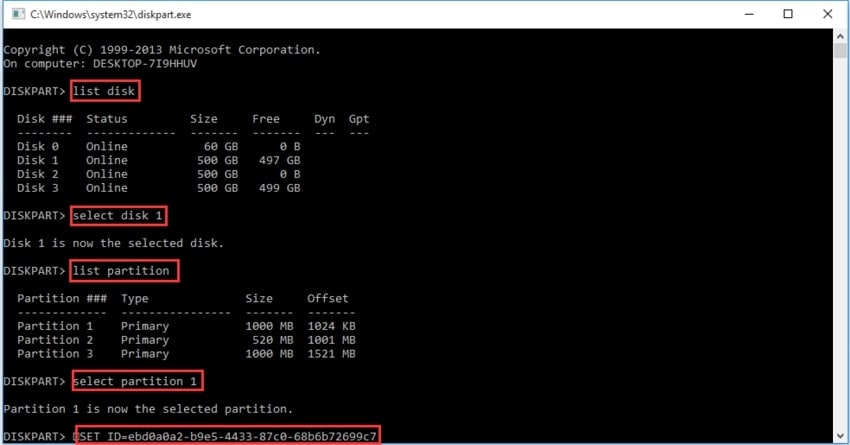
- After this, if you receive a prompt like "DiskPart successfully deleted the selected partition", type exit and hit Enter to close the CMD window.
Guide: Delete EFI Partition from Mac
While learning what is EFI system partition? if you want to remove the EFI partition from your Mac OS, then read the following detailed guide below:
- Access Disk Utility, choose "Apple SSD AP0512M Media," and tap on the "Partition" option available in the toolbar.

- Now choose the desired partition and click on the "Minus" button located below the partitions.
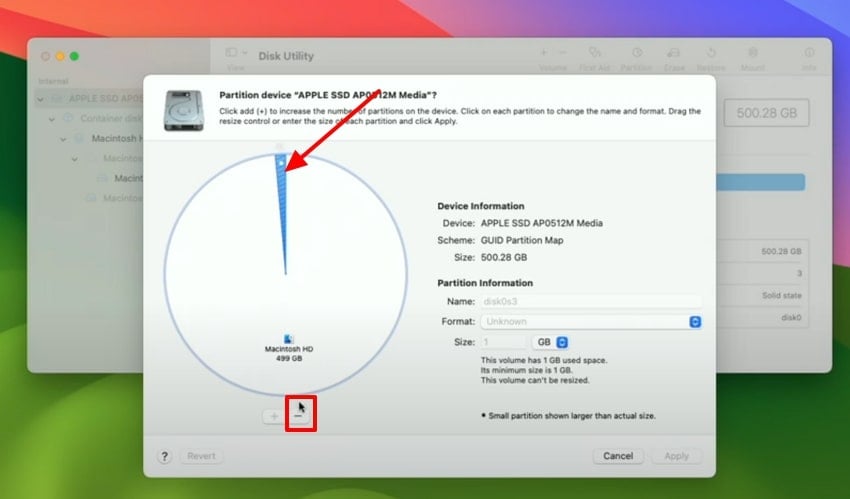
- Here, click on the "Partition" button available in the following pop-up tab to initiate the procedure.

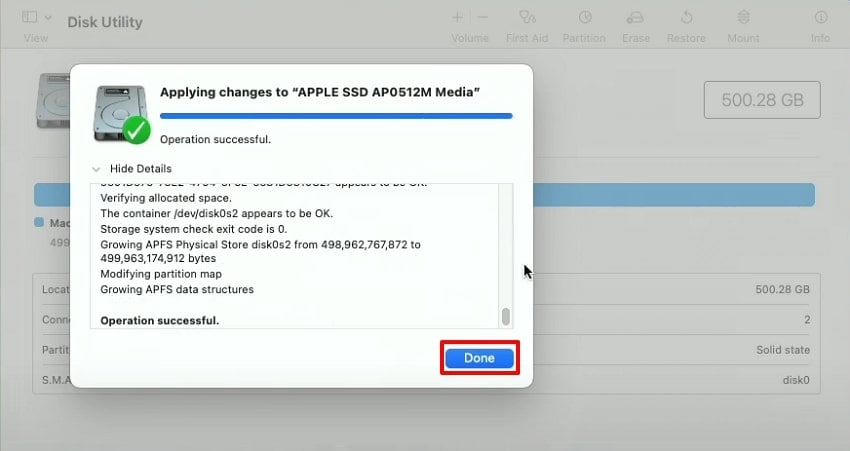
- This process will take a while, and after completing the deletion procedure, click on the "Done" button. Following this, go to the main homepage and restart the Mac OS to make the new changes in the operating system.
Part 6. Can You Resize or Move the EFI System Partition?
Yes, you can resize or move the EFI System Partition, but you'll need special tools and precautions. Windows Disk Management does not support moving or resizing EFI partitions, so you must use third-party utilities. To increase the size, create unallocated space directly next to the EFI partition by shrinking or moving an adjacent partition. Next, use a partitioning tool to extend the EFI partition into the free space.
On the other hand, if you need to relocate the EFI partition, you will need a third-party partitioning tool to handle the process. However, in some cases, deleting or resizing is not possible, as without deleting and recreating the EFI partition, followed by restoring boot files using OS recovery.
Cautions: These are advanced operations and can disturb the entire system if done incorrectly. Furthermore, always ensure you back up your system and restore points before attempting to resize or move the EFI partition.
Pro Tip. Use Recoverit to Recover Lost Data or EFI System Partition
Suppose while cleaning extra cache data, you accidentally deleted your EFI System Partition while managing hard drive partitions. Now you are tense as your Windows computer won’t boot, giving errors like "No Boot Device Found." In this situation, we recommend using Wonderhare Recoverit, which lets you recover lost files with 99.5% accuracy assurance.
This tool can recover lost files in any format and supports a wide range of internal and external devices. Users can recover their lost data in any scenario, including partition table corruption, power outages, and virus infections. It supports all major partition types, including primary partitions, extended partitions, and logical partitions. Moreover, you can even preview the recovered files to ensure their complete accuracy before rendering to the device.
Key Features
- Scanning Modes: Recoverit offers both Quick and Deep scanning options for your data partition recovery, depending on your specific scenario.
- Compatibility: This tool can be easily accessed through Windows 11/10/8.1/8/7/Vista and macOS 10.10 or later to provide it broader compatibility.
- Storage Device Support: It can recover data from a wide range of storage devices, including PCs/Macs, HDDs, USB drives, Cameras, and more.
Detailed Stepwise Guide to Use Recoverit to Recover Lost Data
Now, if you want to recover your EFI partition Windows 10, then explore the following detailed step-by-step guide listed below:
- Choose Hard Drives and Location to Select the Targeted Location
Upon launching the tool, click on the "Hard Drives and a Location" option from the left tab. Following this, choose the desired location within the "Quick Access" tab.

- Initiate the Lost Partition Scanning Procedure
As you choose the location, it will automatically start the "Quick Scanning" mode to find your lost partition within the PC.

- Preview and Export the Recovered
Finally, your lost partition has been recovered efficiently, now you can preview to ensure its accuracy. Following this, hit the "Recover All" button to get it saved to the desired folder on the device.

Conclusion
Summing up, you should be aware that an EFI system partition is necessary to boot your operating system effectively. In this article, we have provided you with all the necessary information to know the answer to Do I need an EFI system partition? Furthermore, if you accidentally lose your partition, then we recommend using Wondershare Recoverit, which ensures 99.5% accuracy while recovering lost data.
FAQ
-
1. Is the EFI System Partition necessary on every PC?
No, the EFI System Partition is only required for computers using UEFI firmware with drives. The older systems using legacy BIOS and MBR partitioning do not need or use the ESP. -
2. Can the EFI System Partition be resized or moved?
Yes, it is technically possible using specialized partition software to resize or move it. However, it is considered a bit risky, which may lead to boot problems or data corruption if not performed correctly. -
3. Do dual-boot setups require multiple EFI partitions?
No, dual-boot setups do not require multiple EFI partition Window 10. UEFI typically shares a single ESP across all installed systems, so it is easier. -
4. Is the EFI System Partition ever visible in Windows Explorer?
No, the ESP is kept hidden without a drive letter to prevent the user from accidentally modifying or deleting it. However, you can only view or manage it using disk utilities and command-line tools.


