

 TL;DR:
To recover lost Linux Ext4, Ext3, or Ext2 partitions on a Windows system, immediately stop using the affected disk to prevent data overwriting and utilize specialized software like Wondershare Recoverit, as Windows lacks native support for these file systems.
● Before initiating recovery, connect the storage drive via USB, temporarily disable your Windows antivirus to prevent scan interference, and ensure adequate free space on a separate destination drive to safely save the extracted files.
● Wondershare Recoverit provides a graphical interface allowing users to scan specific drive locations, preview recoverable files, and perform batch data recovery without requiring command-line or advanced Linux knowledge.
● As a built-in alternative for technical users, the Windows Command Prompt DiskPart utility can be used to list disk volumes and assign a drive letter to the lost partition, though executing incorrect commands risks irreversible damage to the partition table.
Ask AI for a summary
 ChatGPT
 Perplexity
 Gemini
 Claude
 Grok
Grok
Imagine accidentally deleting the Ext4 partition on your external hard drive while using a Windows PC. Recovering lost data from Ext4, Ext3, or Ext2 partitions can be challenging, especially since Windows doesn’t natively support these Linux file systems.
This step-by-step guide walks you through effective recovery methods using reliable ext4 recovery software, enabling you to restore your valuable files safely and efficiently directly within Windows.
Try Recoverit to Perform Partition Data Recovery
 Security Verified. 3,591,664 people have downloaded it.
In this article

Part 1. What Is the Ext4 File System in Linux?
The Ext4 (fourth extended) file system is a widely used journaling file system in Linux, known for its reliability and performance. It supports large volumes up to 1 exbibyte and file sizes up to 16 tebibytes, with advanced features such as extents to reduce fragmentation. ext4 undelete improves upon its predecessors, Ext3 and Ext2, with faster file system checks and scalability for modern workloads.
Part 2. Are Deleted or Lost Ext4 Partitions Recoverable?
Deleted or lost Ext4 partitions are often recoverable with the right tools and techniques. Using specialized partition recovery software, you can scan and restore lost Ext4 partitions on Windows systems. These tools support quick, deep scans to find deleted partitions and recover files without advanced Linux knowledge. However, recovery success may depend on the extent of damage and subsequent disk usage.
Why You Might Need to Recover an Ext4, Ext3, or Ext2 Partition in Windows
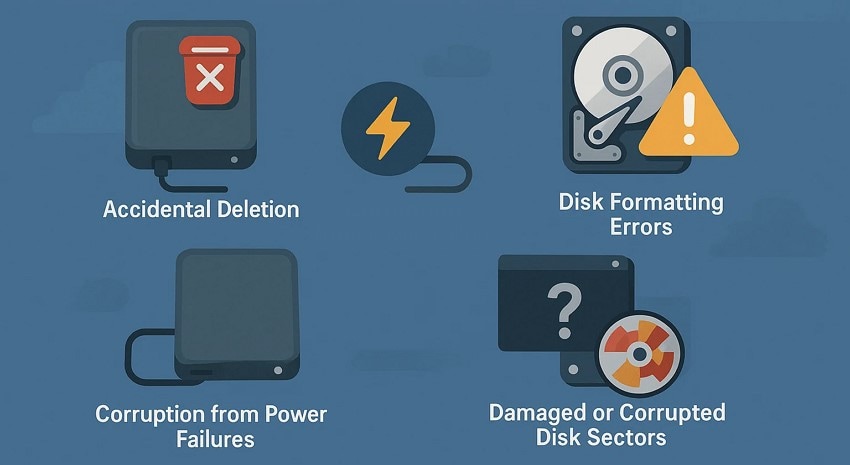
When working with Ext4, Ext3, or Ext2 partitions in Windows, there are several common reasons why recovery might be necessary:
- Accidental Deletion: Partitions can be mistakenly deleted during disk management or partitioning.
- Disk Formatting Errors: Formatting the wrong partition or quick formatting can cause data loss if the drive isn't fully erased.
- Corruption from Power Failures: Sudden power outages can corrupt partition tables or metadata.
- File System Incompatibility: Windows doesn't natively support Ext partitions, which often results in unrecognized drives.
- Damaged or Corrupted Disk Sectors: Physical or logical damage prevents access to partition data, making recovery crucial.
Part 3. Common Causes Behind Ext4, Ext3 or Ext2 Partition Loss
Before performing the ext4 deleted file recovery process on partition extensions, it is important to know the reasons. Mentioned below are the main causes behind the Ext4, Ext3, and Ext2 partition loss:
- Accidental Partition Deletion: Sometimes, while managing disks, a partition may be deleted by mistake. This removal causes the operating system to stop recognizing the partition, though the data may still be recoverable.
- Disk Formatting Errors: Formatting a disk or partition improperly leads to data loss. If the entire disk or the wrong partition is formatted, all contained information can be erased.
- Disk Repartitioning: Changing partition layouts without care may overwrite existing partitions. Incorrect repartitioning modifies file system data, risking data loss or inaccessibility.
- Partition Table Corruption: Damage or errors in the partition table make partitions inaccessible. The OS relies on this table to locate partitions, so corruption disrupts data access.
- System Reinstallation: Installing or reinstalling an operating system can overwrite partitions. This process may overwrite previous data, making recovery challenging unless backups exist.
Part 4. Preparing Windows for Ext4, Ext3 or Ext2 Partition Recovery
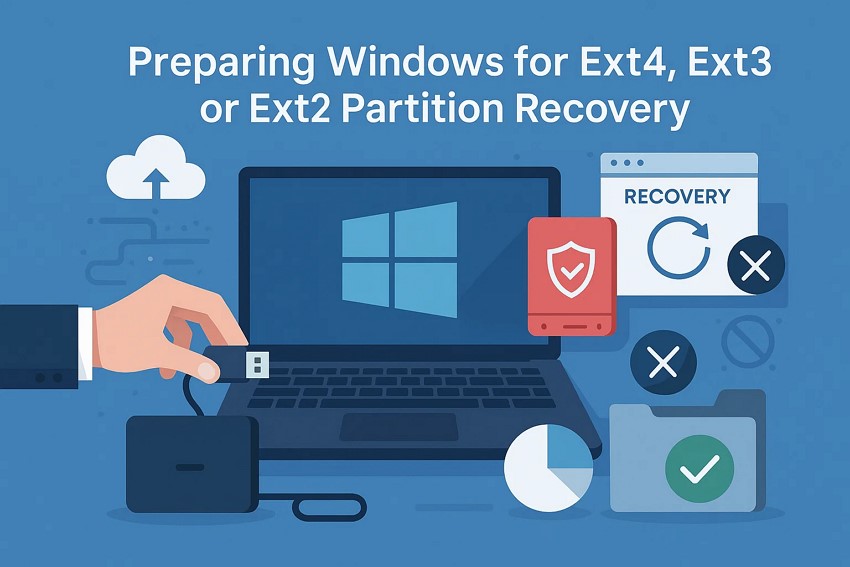
Before recovering Ext4, Ext3, or Ext2 partitions on Windows, you need to properly prepare your system. Provided next are some of the preparatory measures that you must take before moving to ext4 undelete file process:
- Connect the Storage Device Correctly: Make sure your lost partition’s drive is properly connected through the USB interface. Improper connections can cause detection failures or erratic device behavior during recovery.
- Backup Important Data: Always back up your current Windows data before proceeding with recovery. This minimizes the risk of accidental data loss or overwriting during the recovery process.
- Install Reliable Recovery Software: Download and install trusted partition recovery tools specifically designed for Linux partitions. Ensure software compatibility with your Windows version, and perform the complete data recovery.
- Disable Antivirus Temporarily: Antivirus software may block or slow disk scanning and recovery operations. Disable it temporarily to prevent interference during the process.
- Free Disk Space: Check that you have enough free storage space on your destination drive to save recovered files safely. Insufficient space can halt recovery or corrupt data, leaving you in more trouble.
Part 5. Recover Ext4, Ext3, or Ext2 Partition in Windows Using Wondershare Recoverit
If you are looking for a reliable tool to perform recover ext4 partition on your Windows device, Recoverit is one of the most reliable options. This top-notch data recovery tool allows users to run a scan within the partitions successfully and retrieve the lost data files. Users can start and stop the scanning process according to their preferences.
Moreover, you get the ability to select a specific file using the search bar offered by the tool. It also provides the ability to recover files of multiple formats, including MP3, JPG, PDF, and more. Users can also recover damaged zipped folders and emails using this incredible tool while keeping the original quality and formatting intact.
Coherent Features Offered By Recoverit
- Batch Data Recovery: Recoverit provides the ability to retrieve files and folders in bulk to save you time and effort from recovering each file separately.
- Advanced Recovery Mode: The advanced recovery mode offered by Recoverit allows users to get back severely damaged and lost files in no time.
- Multiple Storage Device Options: Users can recover files from more than one million storage devices, including Windows, Mac, Linux, and more.
Comprehensive Steps for Recovering Ext files in Windows Using Recoverit
As discussed, Recoverit provides a comprehensive solution to recover ext4 partition, recover ext3 partition, recover ext2 partition files with minimal time and effort. Provided below is the step-by-step guide on how to recover Ext files in a Windows device using this incredible tool:
1. Define the Location Within Recovery Platform
After launching Recoverit on your device, select the storage for your lost files by clicking on the drive. As soon as you select the location, the tool will begin the scanning process.

2. Choose the Files to Be Recovered
Once the scanning process is completed, select the files you want to recover, and once done, hit the "Recover" button located at the bottom to retrieve those files.

3. Preview the Results and Save
When the files are retrieved, preview them within the tool's interface, and once you are satisfied with the results, press the "Recover" button to save them successfully to your device.

Part 6. Alternate Solutions to Recover Ext4, Ext3 or Ext2 Partition in Windows
When facing lost or corrupted Linux partitions such as Ext4, Ext3, or Ext2 within a Windows environment, you can look for other solutions too. Mentioned below are some of the alternative solutions that you can try to recover ext2 partition in Windows:
1. Restore Lost Ext4/ Ext3 Partition with Command Prompt
This method leverages Windows' Command Prompt to attempt repair and restoration of lost Ext4 or Ext3 partitions. Though Windows does not natively support these Linux file systems, command-line tools like DiskPart and troubleshooting commands can help identify and fix partition issues. The process is more technical and suited for users with command-line experience, as improper use can cause further damage.
- Begin by accessing the Command Prompt on your device, type "DiskPart" and hit the "Enter" key.
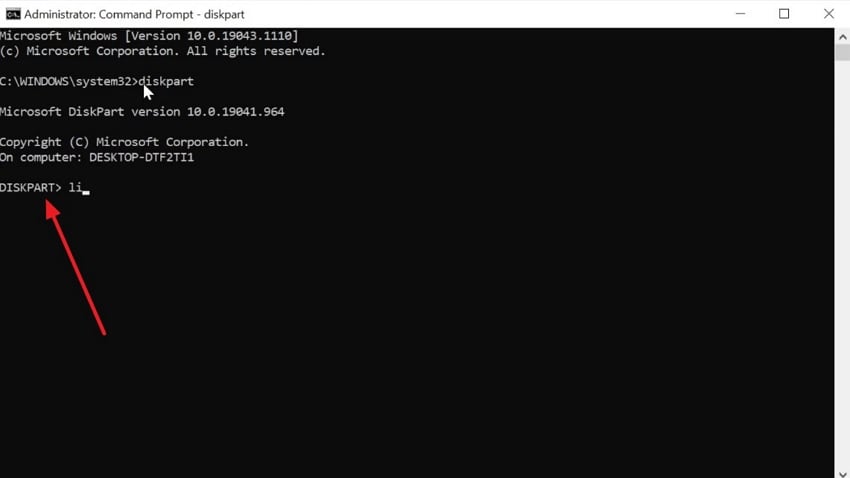
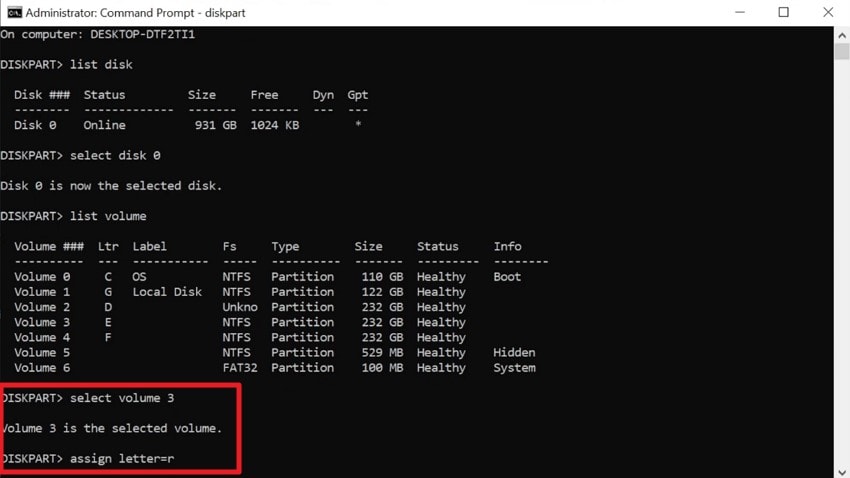
- Next, input "List Disk" and select the disk from the options provided. Moving forward, type "List Volume" to let the system list the volume within the disk.
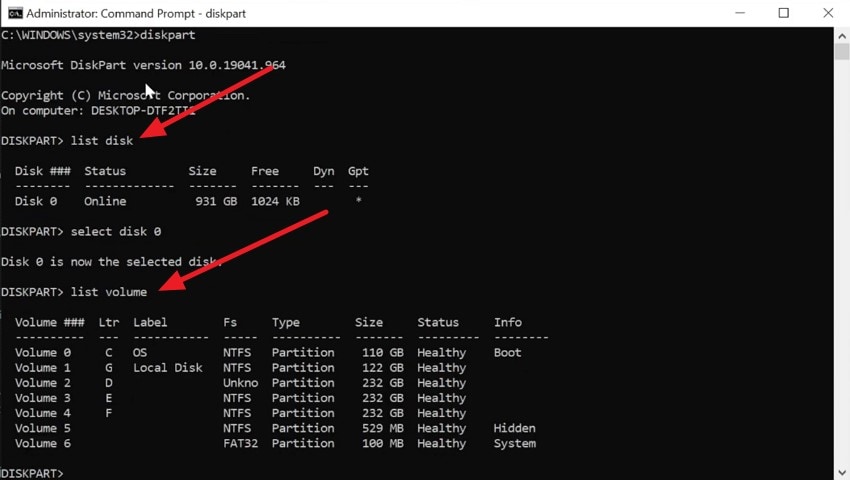
- Once done, select the volume of the lost file and assign a letter to it. Now you will be able to access the lost partition within the file explorer easily.
2. Avoid Overwriting/Formatting
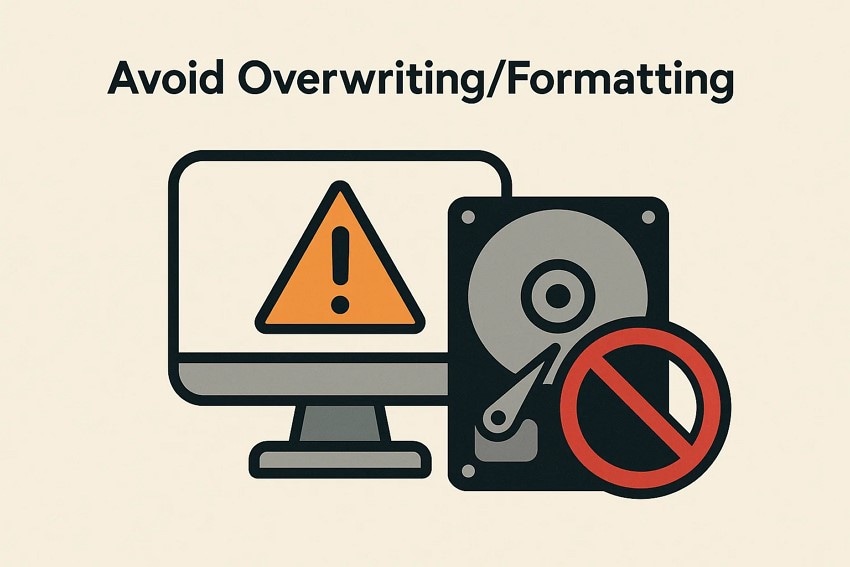
The single most crucial recovery guideline is to stop using or formatting the affected disk to prevent data overwriting. Overwriting existing data, even accidentally, can render recovery impossible because new data replaces lost partition information. This makes the restoration process unreliable and inconvenient for the users.
Part 7. Best Practices to Avoid Losing Ext4, Ext3 or Ext2 Partitions Again
After learning about the reliable solutions that you can use to recover ext4 partition, it is advised to prevent data loss as much as possible. Here are some of the practices that you can follow to avoid partition loss in your system:
- Regular Backups: Always maintain up-to-date backups of important files and partitions to prevent permanent data loss after unexpected failures.
- Separate System and Data Partitions: Isolate OS partitions from data to safeguard files if the system partition is corrupted or reformatted.
- Avoid Unnecessary Formatting: Be cautious with formatting commands; accidental formatting can lead to irreversible data loss.
- Keep the Partition Table Healthy: Use tools to verify and repair partition table integrity to prevent corruption-related data loss.
- Safely Remove External Drives: Always unmount or eject external disks properly to avoid partition corruption from sudden disconnection.
Conclusion
To sum it up, this article provided a complete guide on how to recover Ext4, Ext3, or Ext2 partition files in Windows using different methods. The article also recommended Recoverit as one of the most reliable ext4 recovery software to recover all the lost and damaged files effortlessly. This advanced data recovery tool allows users to retrieve severely damaged and lost data in any storage device effortlessly.
FAQ
-
1. What is the Ext4 file system, and why is it popular?
Ext4 is a widely used Linux journaling file system known for reliability and performance. It supports large volumes and improved data integrity features. -
2. Can deleted or lost Ext4 partitions be recovered on Windows?
Yes, deleted or lost Ext4 partitions can be recovered using specialized recovery software compatible with Windows systems. -
3. What tools can I use to recover Ext4, Ext3, or Ext2 partitions on Windows?
Wondershare Recoverit offers a reliable solution with deep scanning and selective file recovery features, making it easy for beginners. -
4. Is Wondershare Recoverit safe and efficient for partition recovery?
Yes, Recoverit is trusted for its safe scanning, user-friendly interface, and ability to recover data from diverse storage devices.


